> ## Documentation Index
> Fetch the complete documentation index at: https://support.getskara.ai/llms.txt
> Use this file to discover all available pages before exploring further.
# Prompt
You can use this action to run a trained AI prompt in your flow. The prompt can include system instructions, sample conversations, and variables to guide the response. [Learn more](https://support.salesmate.io/hc/en-us/articles/45878724921369)
### How to Configure
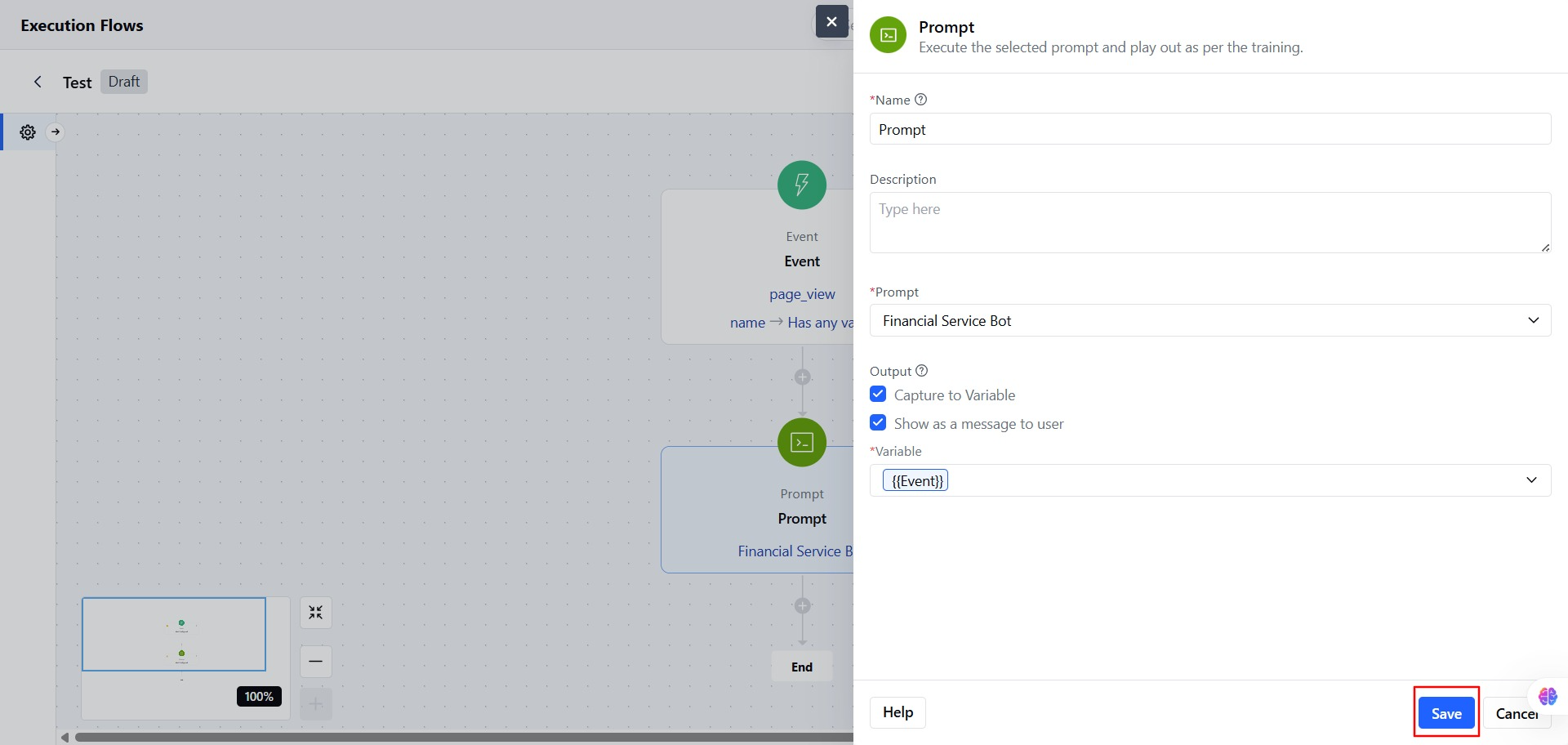
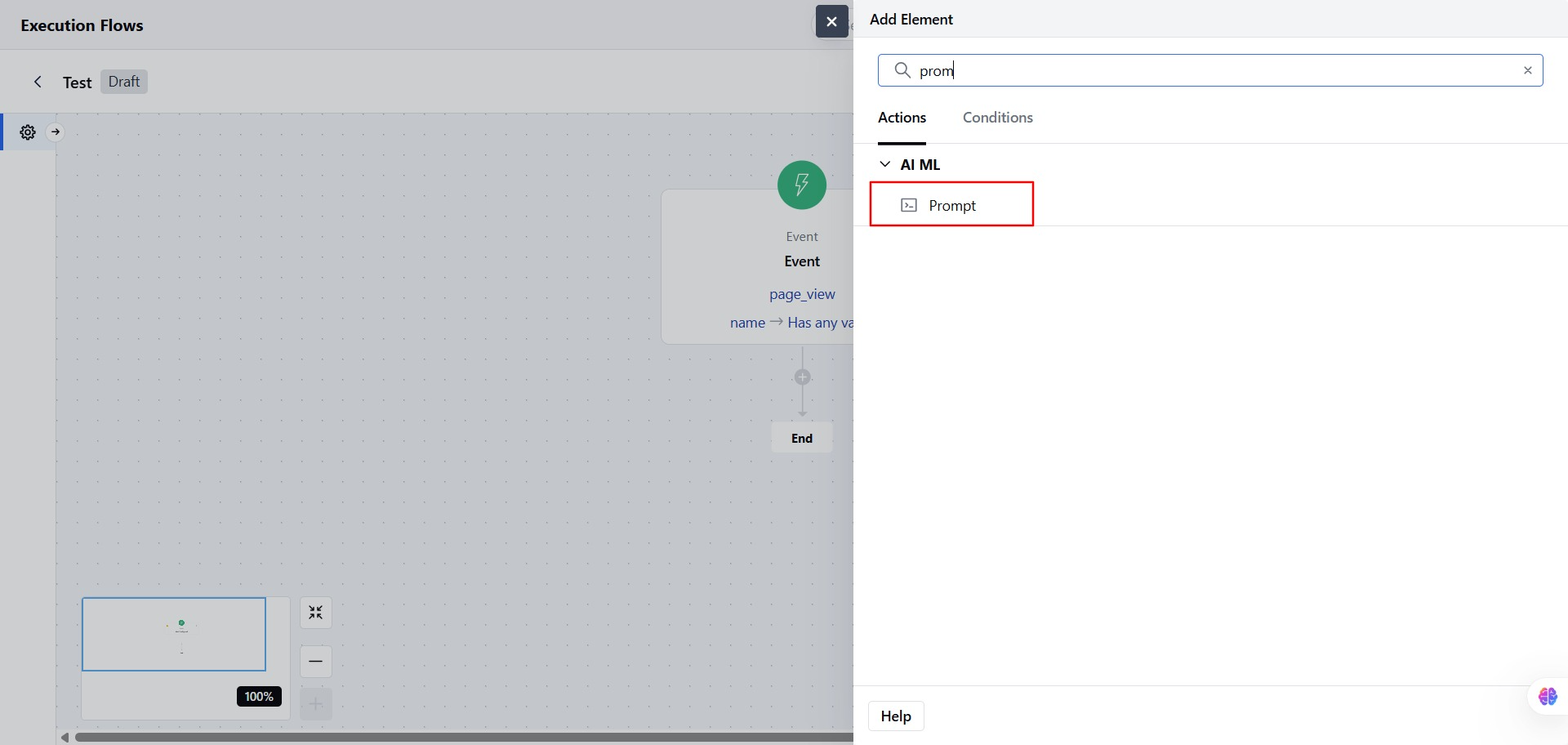
* Click on the **Prompt Action** block in your flow.
 * Add a **Name** based on your flow
* Add a **Description,** it can help explain what this step does.
* **Select a Prompt:** Choose an existing prompt enabled for the bot. Or, you can **create a new prompt** from this screen.
* Add a **Name** based on your flow
* Add a **Description,** it can help explain what this step does.
* **Select a Prompt:** Choose an existing prompt enabled for the bot. Or, you can **create a new prompt** from this screen.
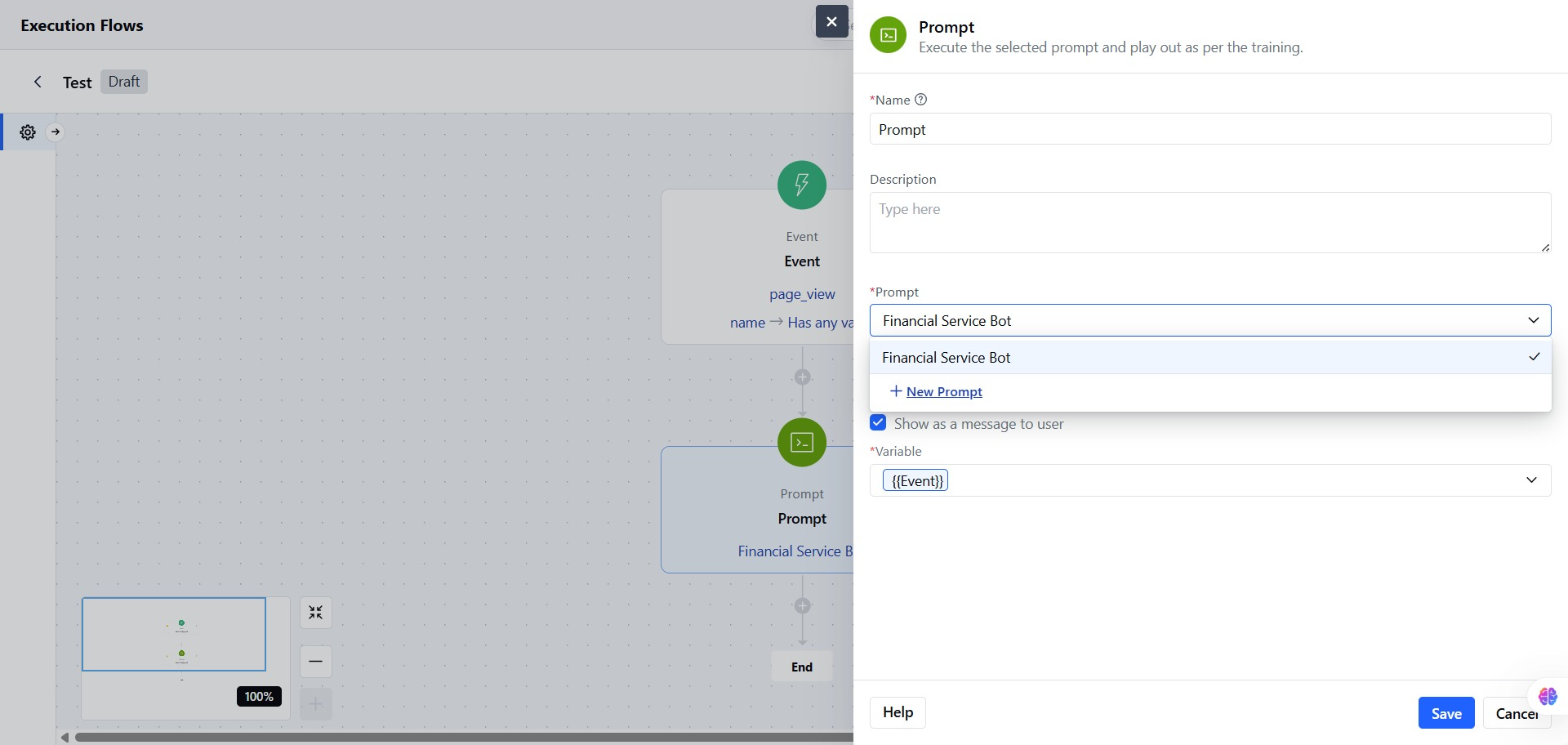 * **Only one prompt** can be selected.
* You can choose two Output
* **Capture to Variable** Save the response to a variable for use later in the flow.
* Show as a Message to User Display the response directly to the user in the chat.
* Click **Save** to confirm the flow.
* **Only one prompt** can be selected.
* You can choose two Output
* **Capture to Variable** Save the response to a variable for use later in the flow.
* Show as a Message to User Display the response directly to the user in the chat.
* Click **Save** to confirm the flow.