> ## Documentation Index
> Fetch the complete documentation index at: https://support.getskara.ai/llms.txt
> Use this file to discover all available pages before exploring further.
# Send Survey Email - Execution Flow
**Send Survey Email** is an action block available in [Smart Flows](https://support.salesmate.io/hc/en-us/categories/36619982436121-Smart-Flows) and Agent [Execution Flows](https://support.salesmate.io/hc/en-us/articles/45878729348121-Execution-Flows) that lets you automatically send a survey (CSAT, CES, or NPS) to a contact based on specific events or triggers.This is useful for collecting feedback after customer interactions such as closing a deal, completing an activity, resolving a ticket, or engaging with a contact.
### **Topics covered:**
* [How to Configure the Send Survey Email Action](#how-to-configure-the-send-survey-email-action)
* [Practical Example](#practical-example)
### How to Configure the Send Survey Email Action
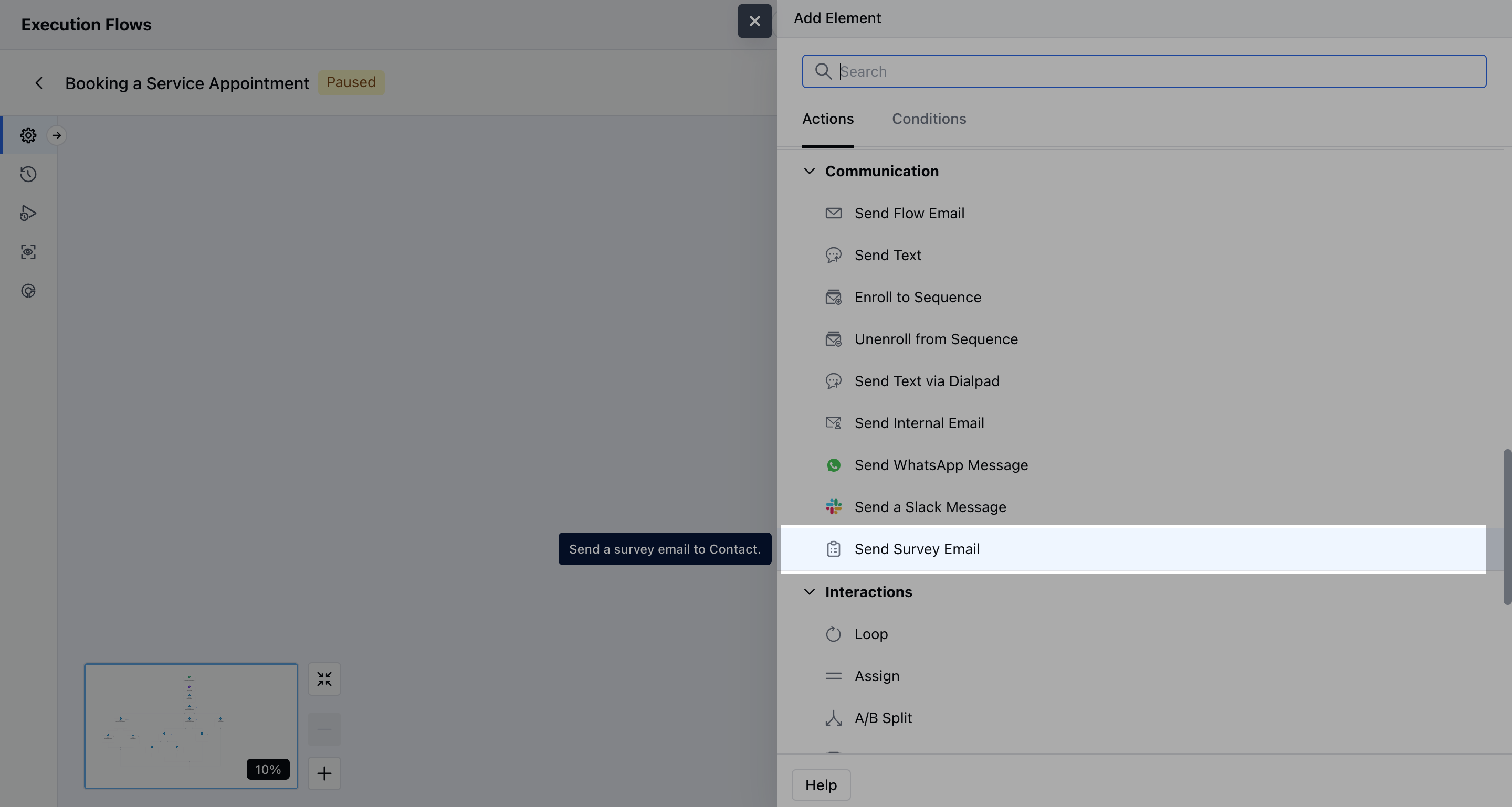
While setting up an [**Execution Flow**](https://support.salesmate.io/hc/en-us/articles/45878729348121-Execution-Flows), select the **Send Survey Email** action.
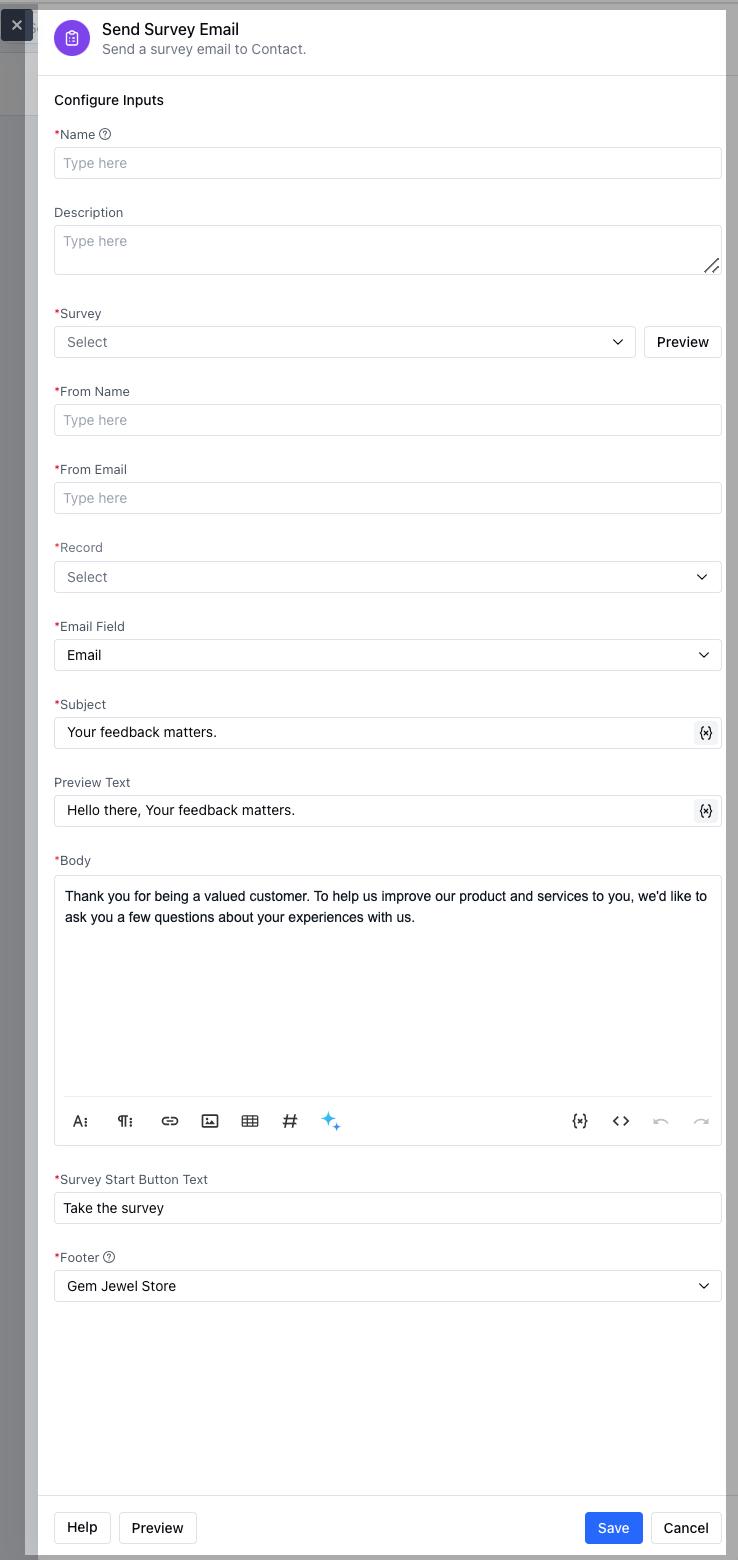
 To configure the **Send Flow Email Action**, you'll need to provide the following details:
* **Name**: Assign a clear and descriptive name for the action to easily identify its purpose.
* **Description**: Offer a brief explanation of the action’s function.
* **Survey:** Choose from any published surveys (CSAT, CES, or NPS).
* **From Name:** This is the **name of the sender** shown in the recipient’s inbox.
* **From Email:** Email address from which the survey email is sent.
* **Record:** Specify the recipient of the email. In this, you need to specify the contact or set of contacts for the email delivery.
* **Email Field:** Choose the email field where the survey will be sent.
* **Subject:** Subject line of the survey email.
* **Preview Text:** Short preview text shown in the email inbox.
* **Body:** Here you can store the Email message body.
* **Survey Start Button:** Label for the survey button.
* **Footer:** Email footer content.
To configure the **Send Flow Email Action**, you'll need to provide the following details:
* **Name**: Assign a clear and descriptive name for the action to easily identify its purpose.
* **Description**: Offer a brief explanation of the action’s function.
* **Survey:** Choose from any published surveys (CSAT, CES, or NPS).
* **From Name:** This is the **name of the sender** shown in the recipient’s inbox.
* **From Email:** Email address from which the survey email is sent.
* **Record:** Specify the recipient of the email. In this, you need to specify the contact or set of contacts for the email delivery.
* **Email Field:** Choose the email field where the survey will be sent.
* **Subject:** Subject line of the survey email.
* **Preview Text:** Short preview text shown in the email inbox.
* **Body:** Here you can store the Email message body.
* **Survey Start Button:** Label for the survey button.
* **Footer:** Email footer content.
 Once the configuration is completed, hit **Save**.
**Note:** If the selected email isn’t found or their email domain isn’t verified, the survey will not be sent, and the process will not move forward.
### Practical Example:
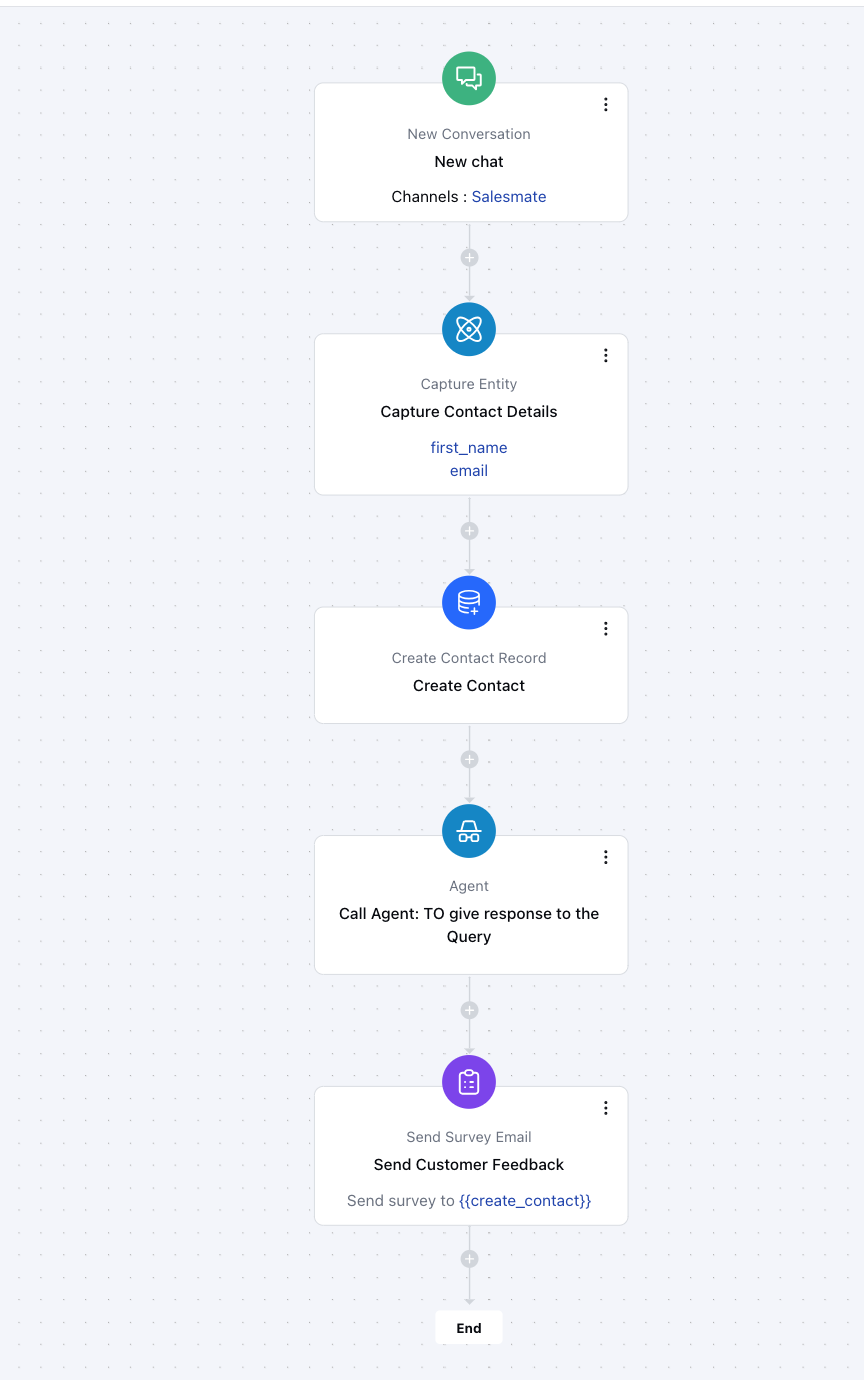
Once a user initiates a chat with us, we can automatically capture their basic details such as **name** and **email**, and create a contact record in the system. From there, we can route the conversation to our **AI Agent** to handle their query in real time. After the interaction is complete, we can trigger a **survey** to collect feedback on their experience.
Once the configuration is completed, hit **Save**.
**Note:** If the selected email isn’t found or their email domain isn’t verified, the survey will not be sent, and the process will not move forward.
### Practical Example:
Once a user initiates a chat with us, we can automatically capture their basic details such as **name** and **email**, and create a contact record in the system. From there, we can route the conversation to our **AI Agent** to handle their query in real time. After the interaction is complete, we can trigger a **survey** to collect feedback on their experience.