> ## Documentation Index
> Fetch the complete documentation index at: https://support.getskara.ai/llms.txt
> Use this file to discover all available pages before exploring further.
# How to Activate Voice Channel Access for AI Pilots
Voice AI Pilot is a feature in Skara that lets you create intelligent agents to answer customer calls automatically. Instead of a human agent, the AI can handle conversations, follow preset flows, and reduce the workload for your team. By linking your purchased phone numbers to an AI Pilot, you can automate customer interactions over voice channels and ensure no call goes unanswered.
**Note:** Before adding a phone number to AI Pilot, make sure you have purchased a phone number with Voice & Text by Salesmate functionality.
### **Topics covered:**
* [How to Add a Phone Number to AI Pilot](#how-to-add-a-phone-number-to-ai-pilot)
* [How Incoming Calls Work](#how-incoming-calls-work)
* [How to remove the voice channel](#to-remove-the-voice-channel)
### How to Add a Phone Number to AI Pilot
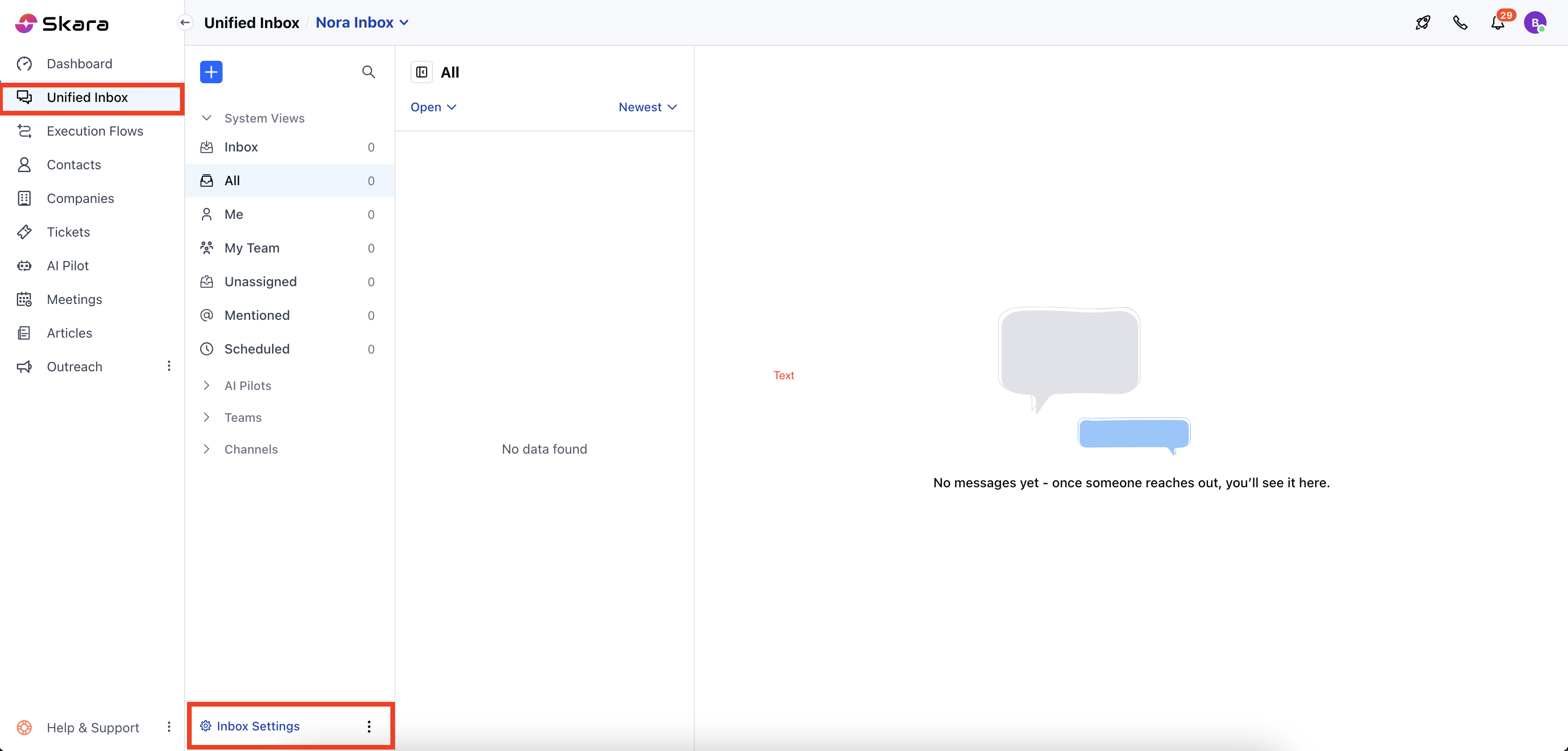
* Navigate to the left menu bar and click on **Unified Inbox**
* Head over to the **Inbox Settings**
* Click on **Inbox Settings**
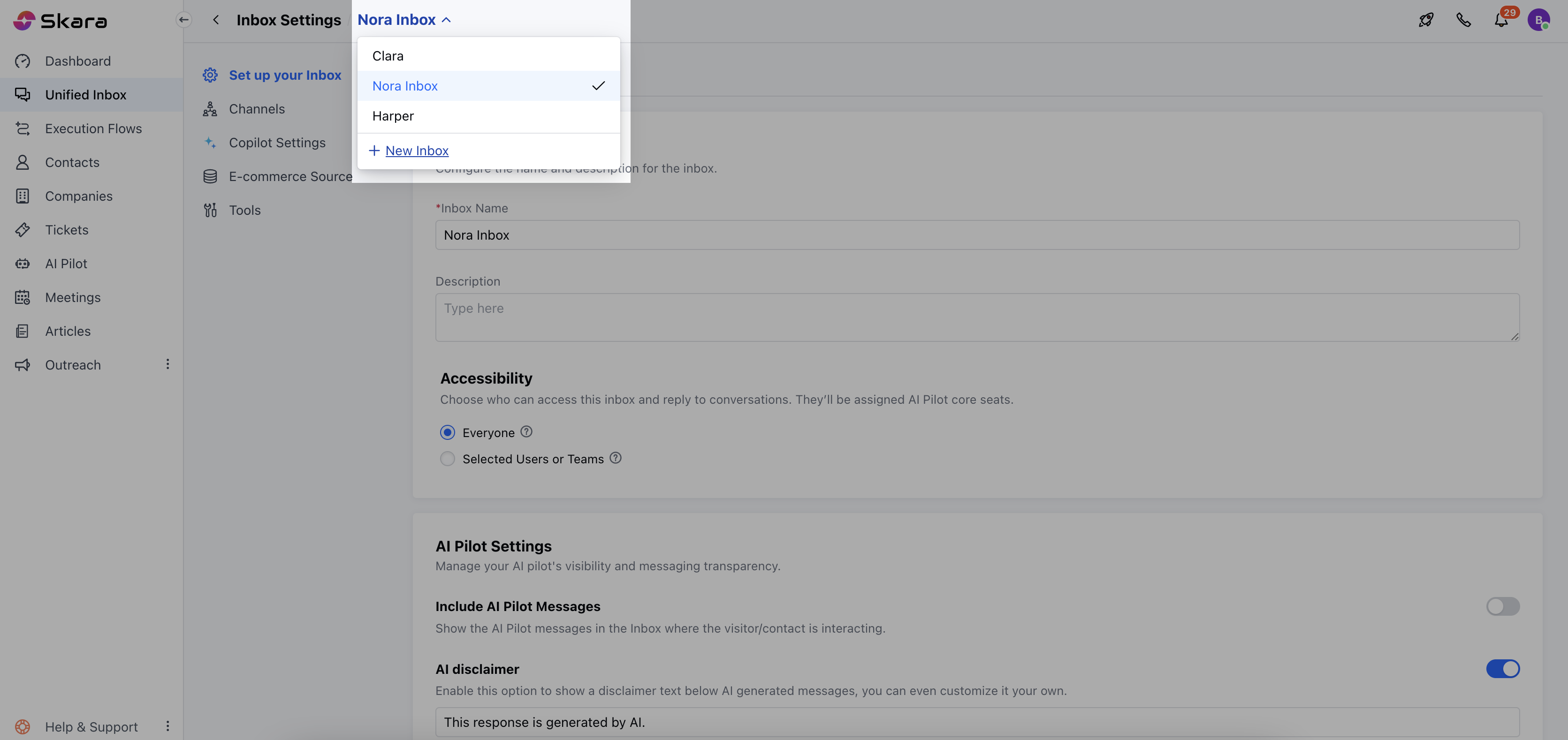
 * Select an Inbox from the drop down or create a **New Inbox**
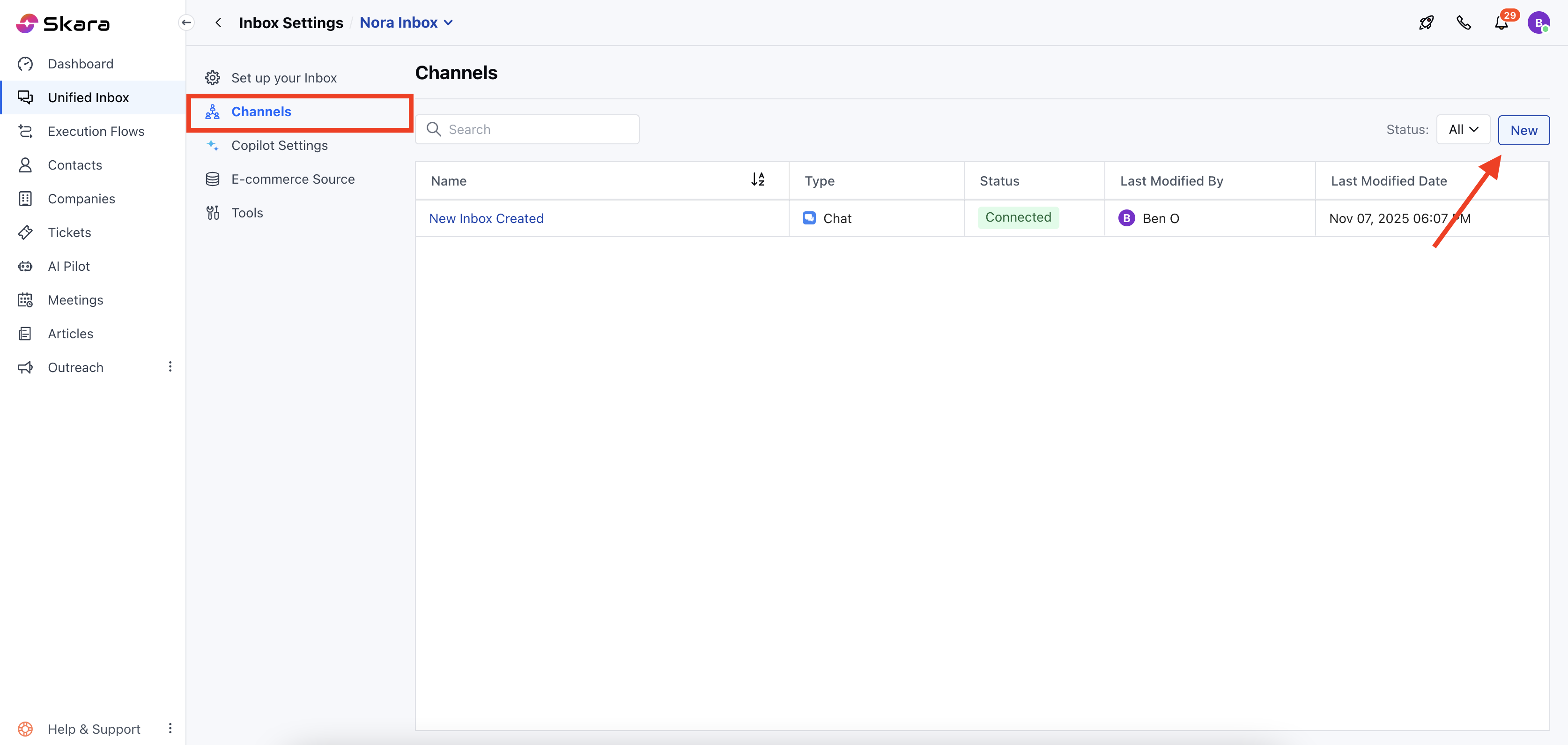
 * Head to the **Channels** Option.
* You will see the list of channels here that are installed.
* Click on **Add New Channel.**
* Head to the **Channels** Option.
* You will see the list of channels here that are installed.
* Click on **Add New Channel.**
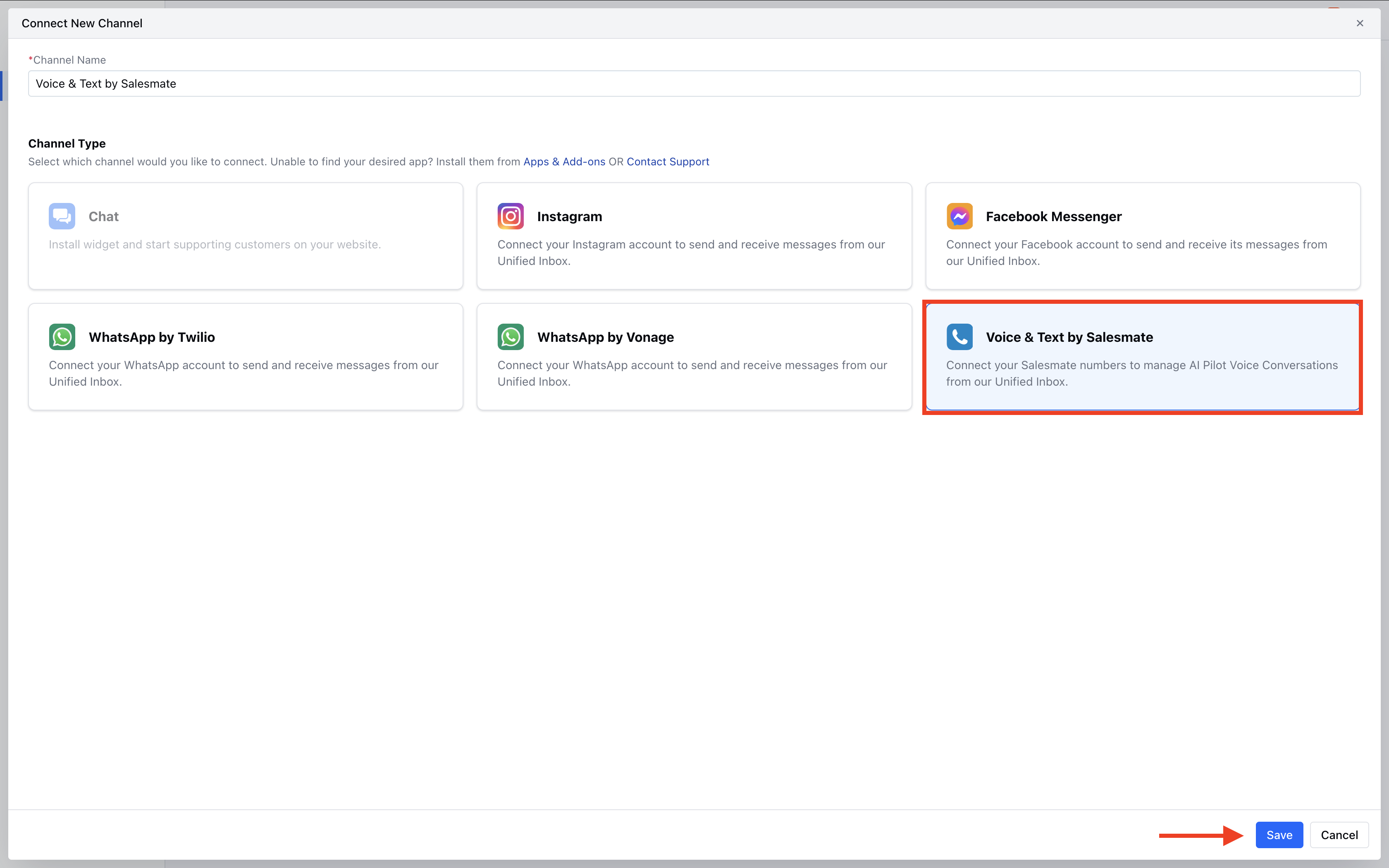
 * Select the ****Voice & Text by Salesmate >> HitInstall****
 * Next, click on **Connect Number.**
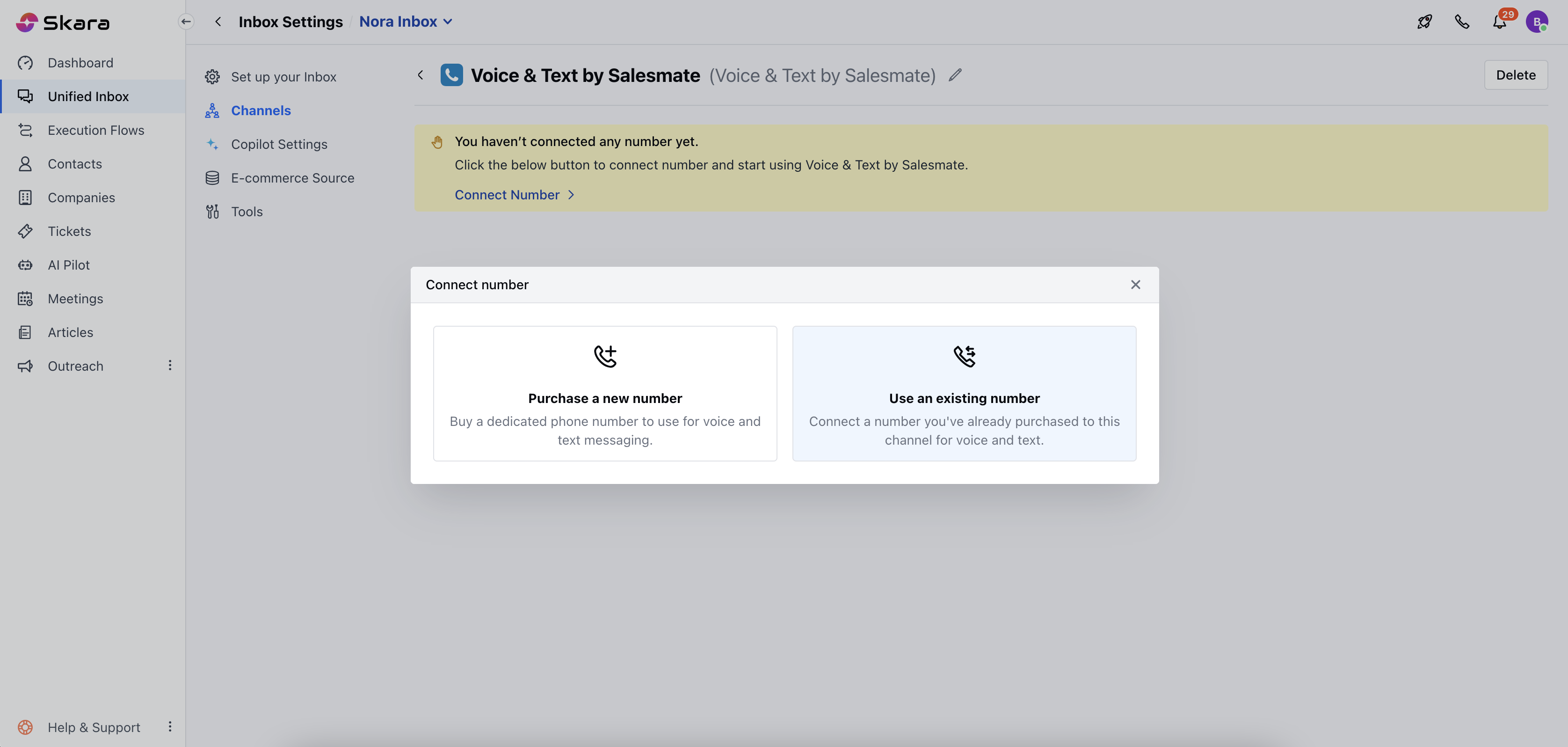
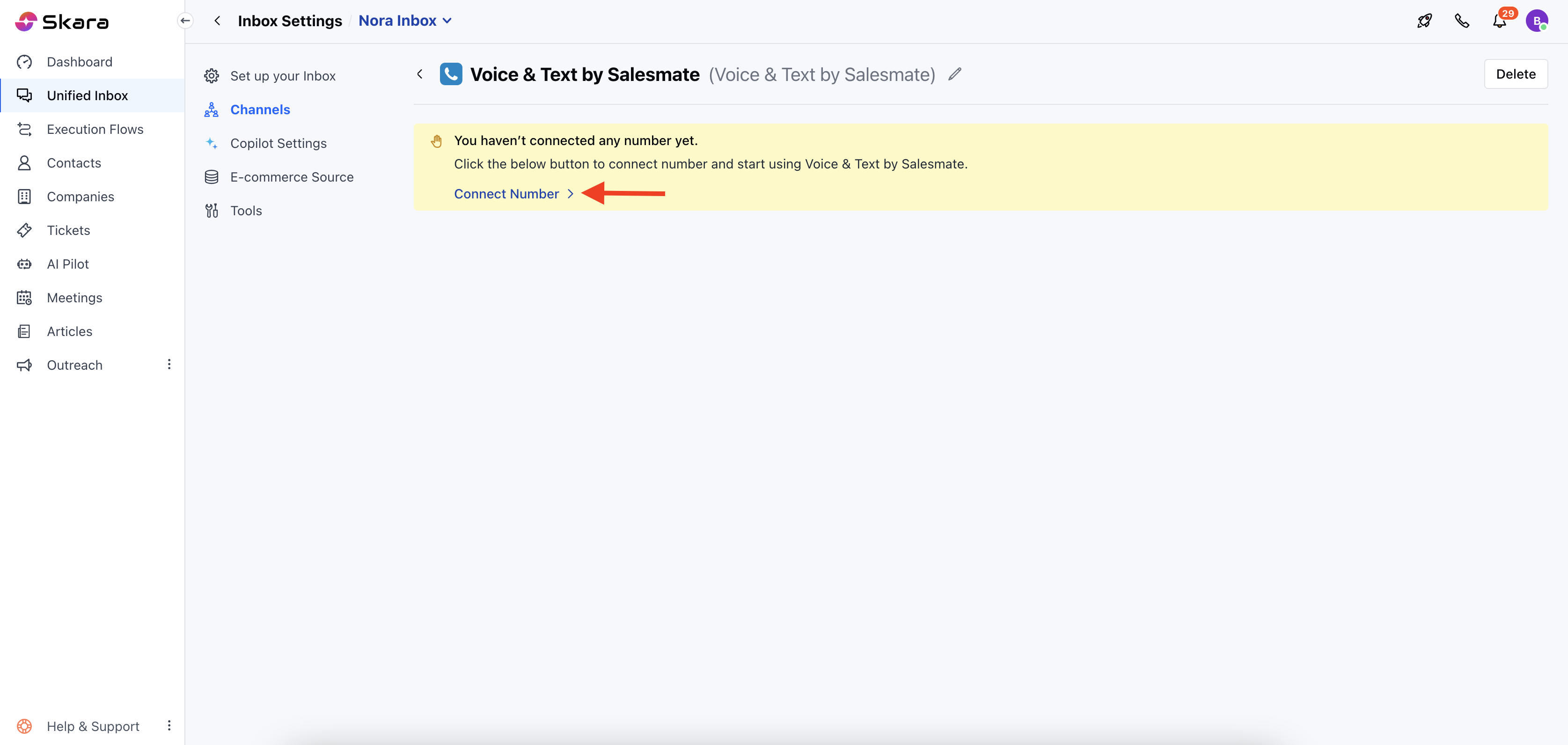 * You can select between **Use an existing number** or **Purchase a new number** from the popup.
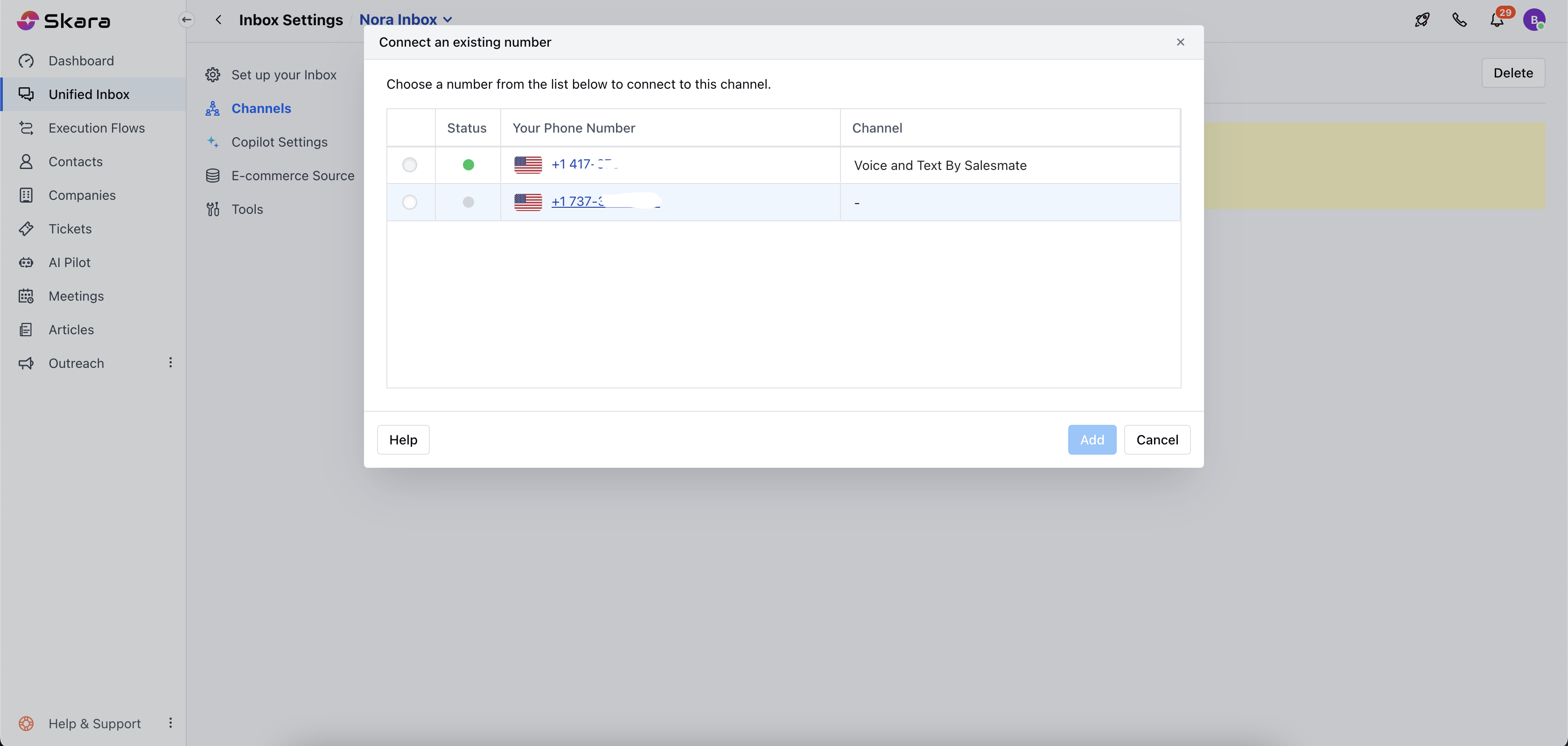
 * From the list of **Your Purchased Numbers** from **existing numbers list,** select the number you’d like to customize.
 * The channel is already selected, as you can see from the **Channel** drop-down menu.
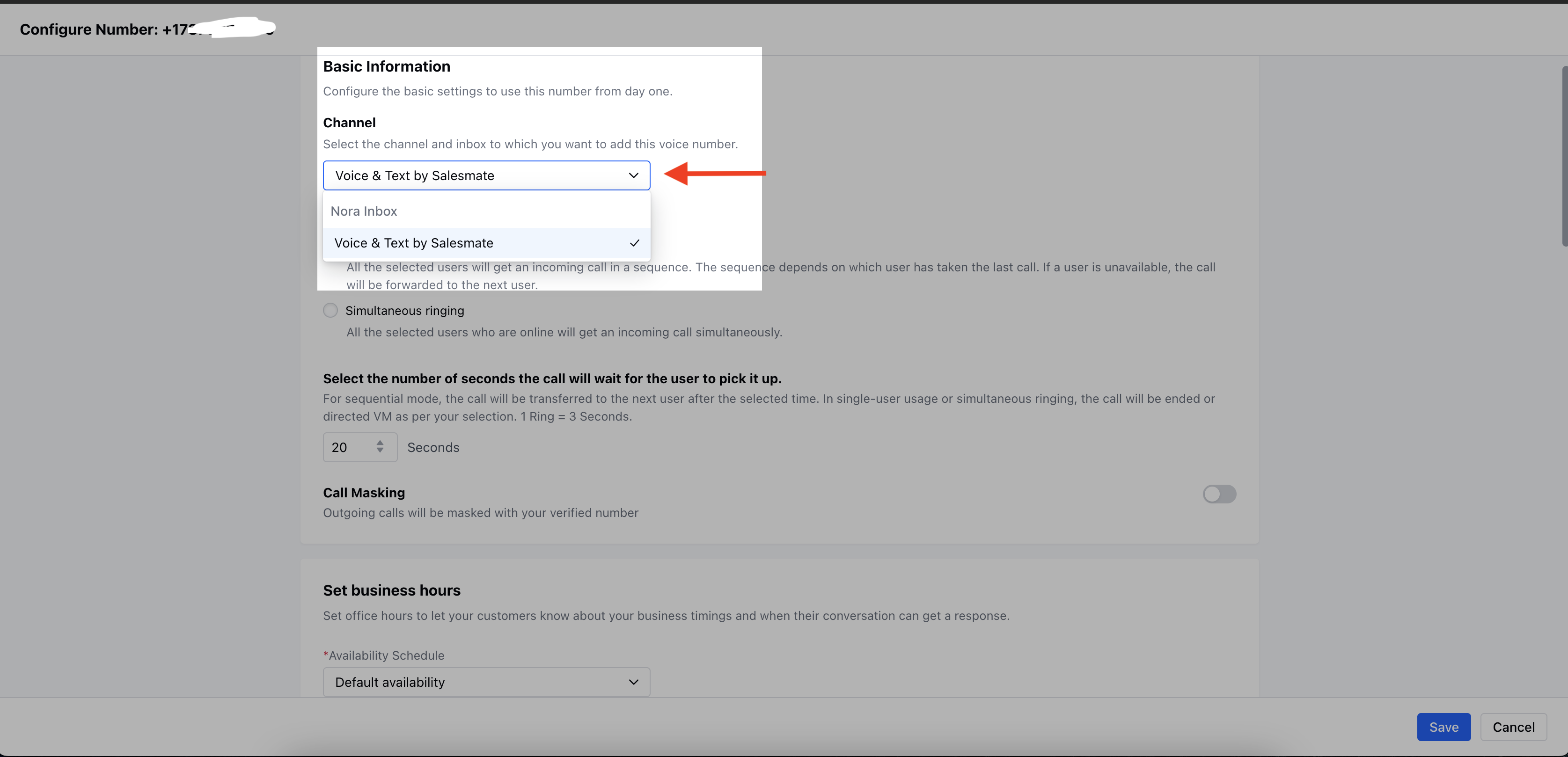 * You can **Assign Call to AI Pilot** after choosing the **Availability Schedule**. **When user is busy,** When user is unavailable, and for Outside business hours.
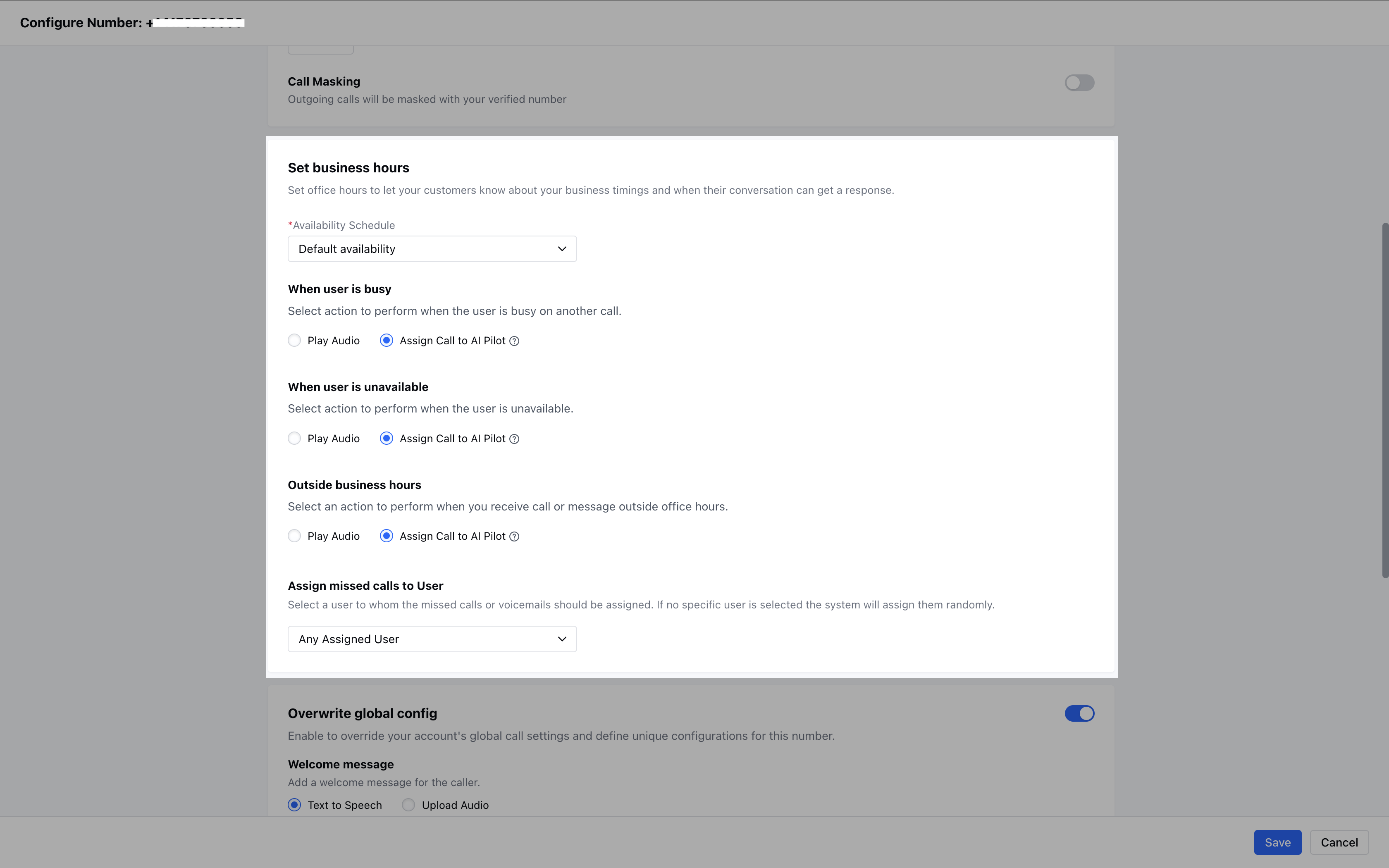 * Click **Save**.
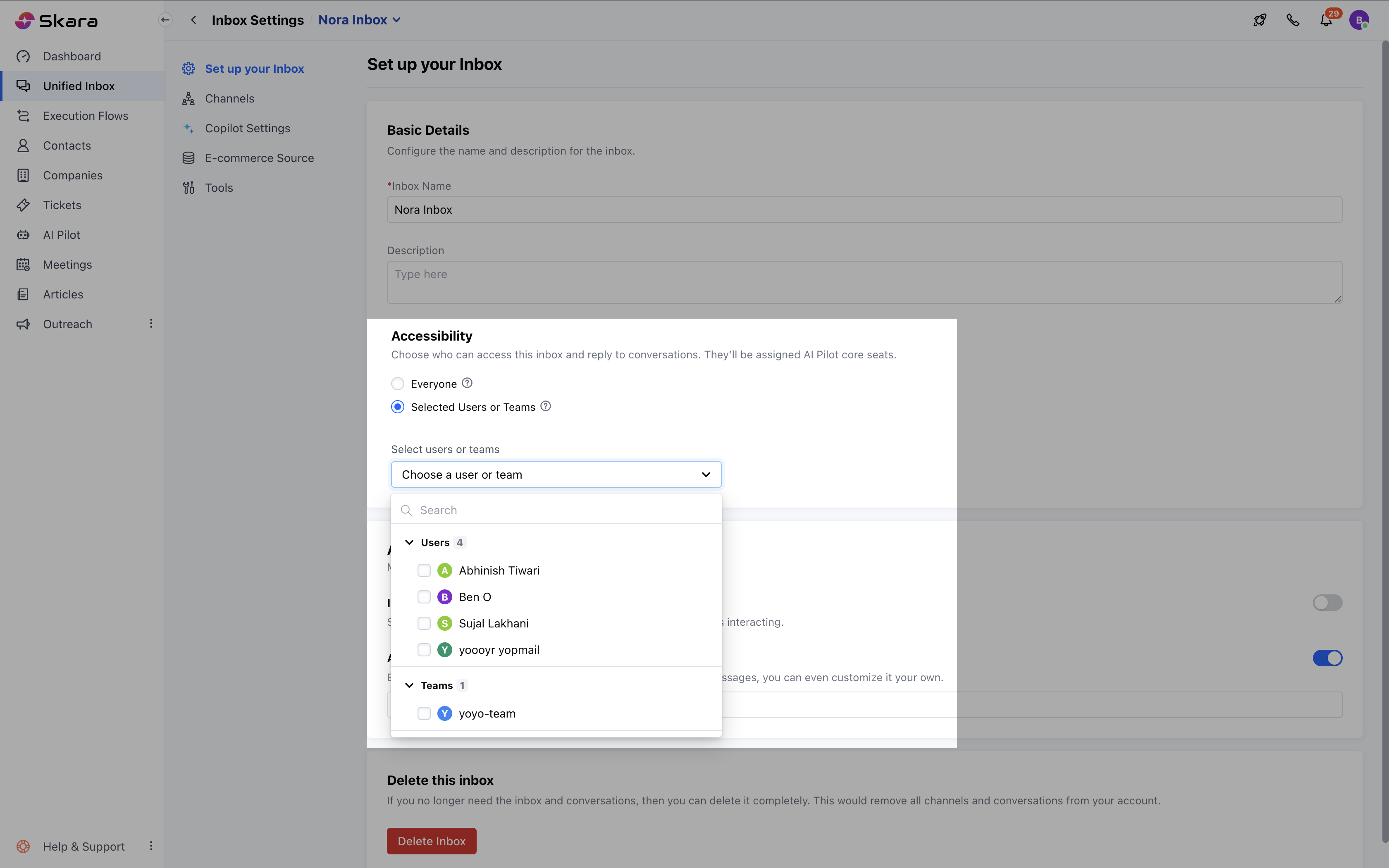
* Once **Saved** choose the people who should have access to this channel’s conversations from **Accessibility** option by selecting Set up your inbox.
* Click **Save**.
* Once **Saved** choose the people who should have access to this channel’s conversations from **Accessibility** option by selecting Set up your inbox.
 ### How Incoming Calls Work
* When someone calls, AI Pilot answers and follows your setup.
* Every call is recorded in your Chat Inbox (view only, no replies).
* Only users with **Skara Voice** channel access can see these logs.
### To remove the voice channel
When you remove the voice channel, all voice call records will be deleted, and the AI Pilot will no longer handle calls for those numbers. If you still intend to remove it, please follow the steps mentioned below:
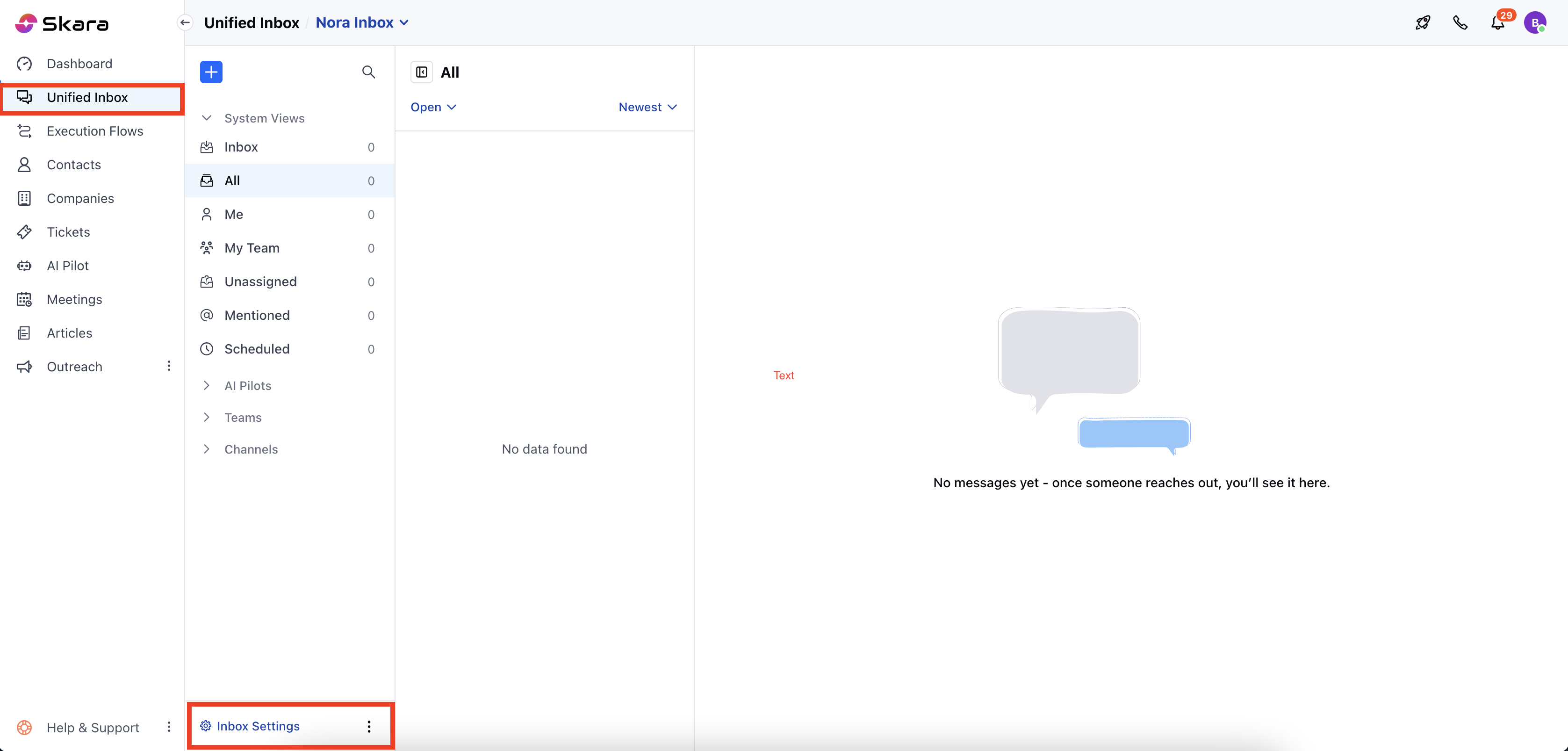
* Navigate to the **Unified Inbox** from left panel.
* Head to **Inbox Settings** on the bottom left.
### How Incoming Calls Work
* When someone calls, AI Pilot answers and follows your setup.
* Every call is recorded in your Chat Inbox (view only, no replies).
* Only users with **Skara Voice** channel access can see these logs.
### To remove the voice channel
When you remove the voice channel, all voice call records will be deleted, and the AI Pilot will no longer handle calls for those numbers. If you still intend to remove it, please follow the steps mentioned below:
* Navigate to the **Unified Inbox** from left panel.
* Head to **Inbox Settings** on the bottom left.
 * Navigate to the **Channels**
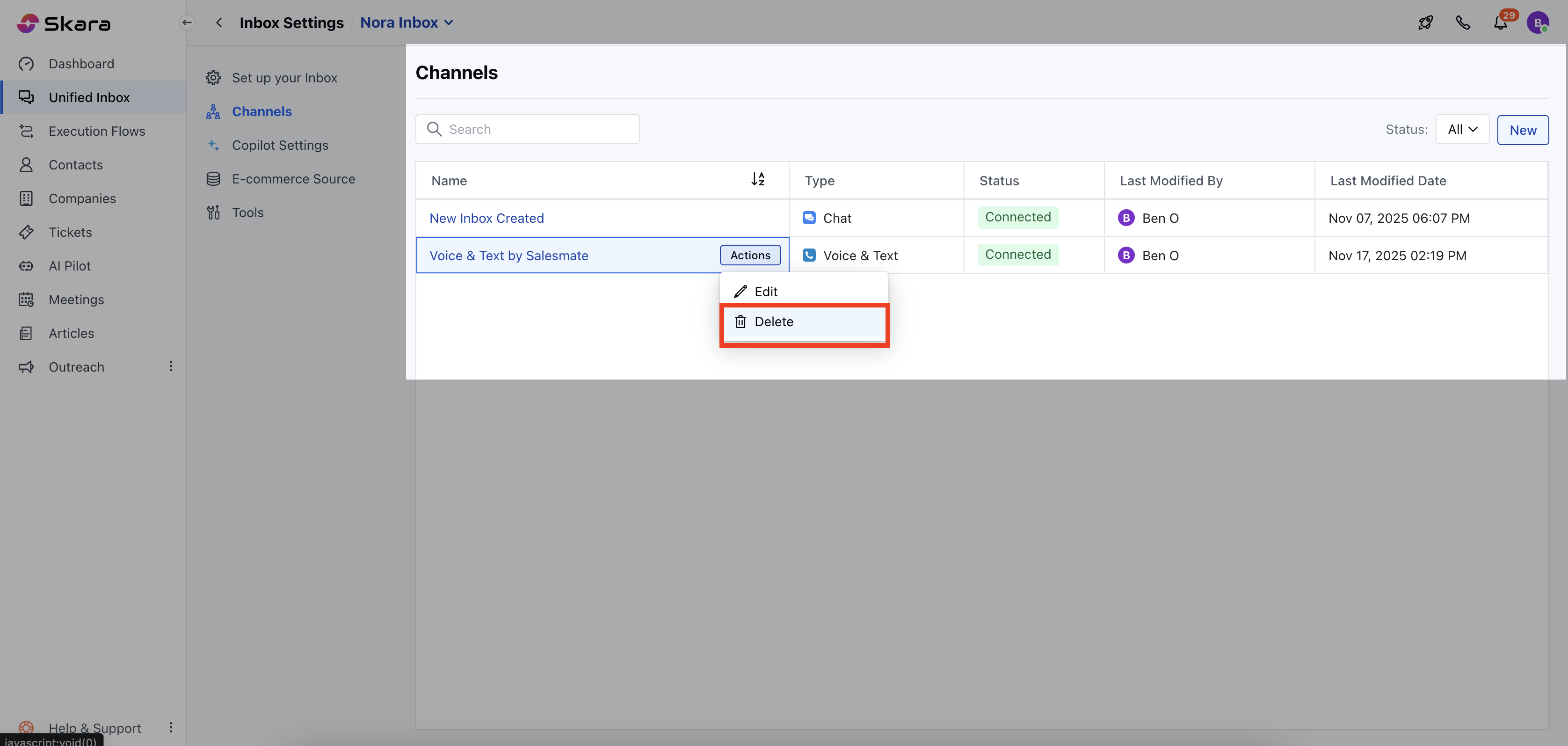 * You will see the list of channels here that are installed
* Click the three dots next to **Voice & Text by Salesmate**
* You will see the list of channels here that are installed
* Click the three dots next to **Voice & Text by Salesmate**
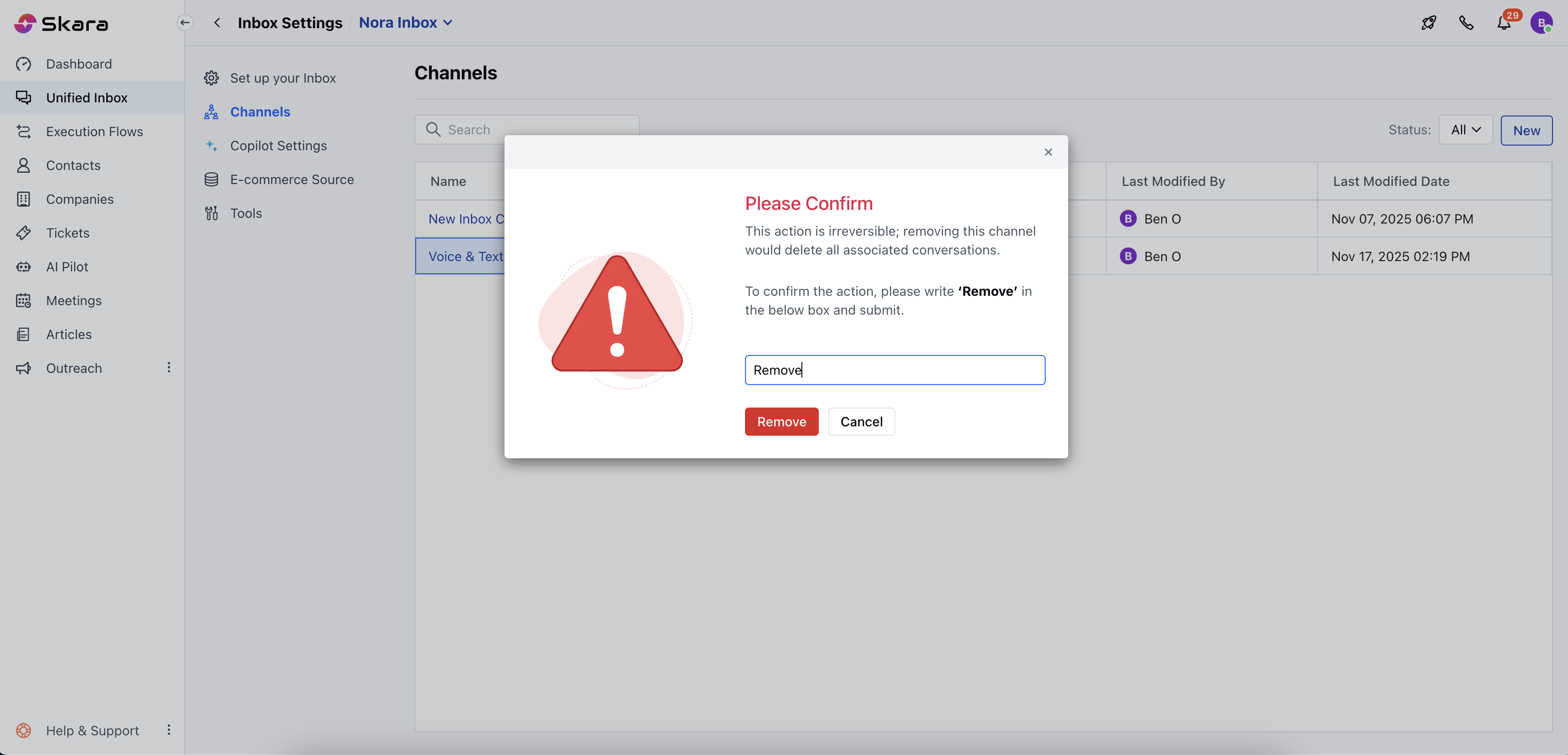 * Please confirm and Hit **Remove.**