> ## Documentation Index
> Fetch the complete documentation index at: https://support.getskara.ai/llms.txt
> Use this file to discover all available pages before exploring further.
# AI Pilot Settings
Skara makes it easy to set up AI Pilots in your Unified Inbox, letting you automate conversations and provide instant support to customers.
**Note**: You’ll need permission to manage the Unified Inbox to configure AI Pilot settings.Topics Covered:
* [Steps to Configure AI Pilot Settings](#steps-to-configure-ai-pilot-settings)
* [Configure AI Pilot Settings](#configure-ai-pilot-settings)
### Steps to Configure AI Pilot Settings
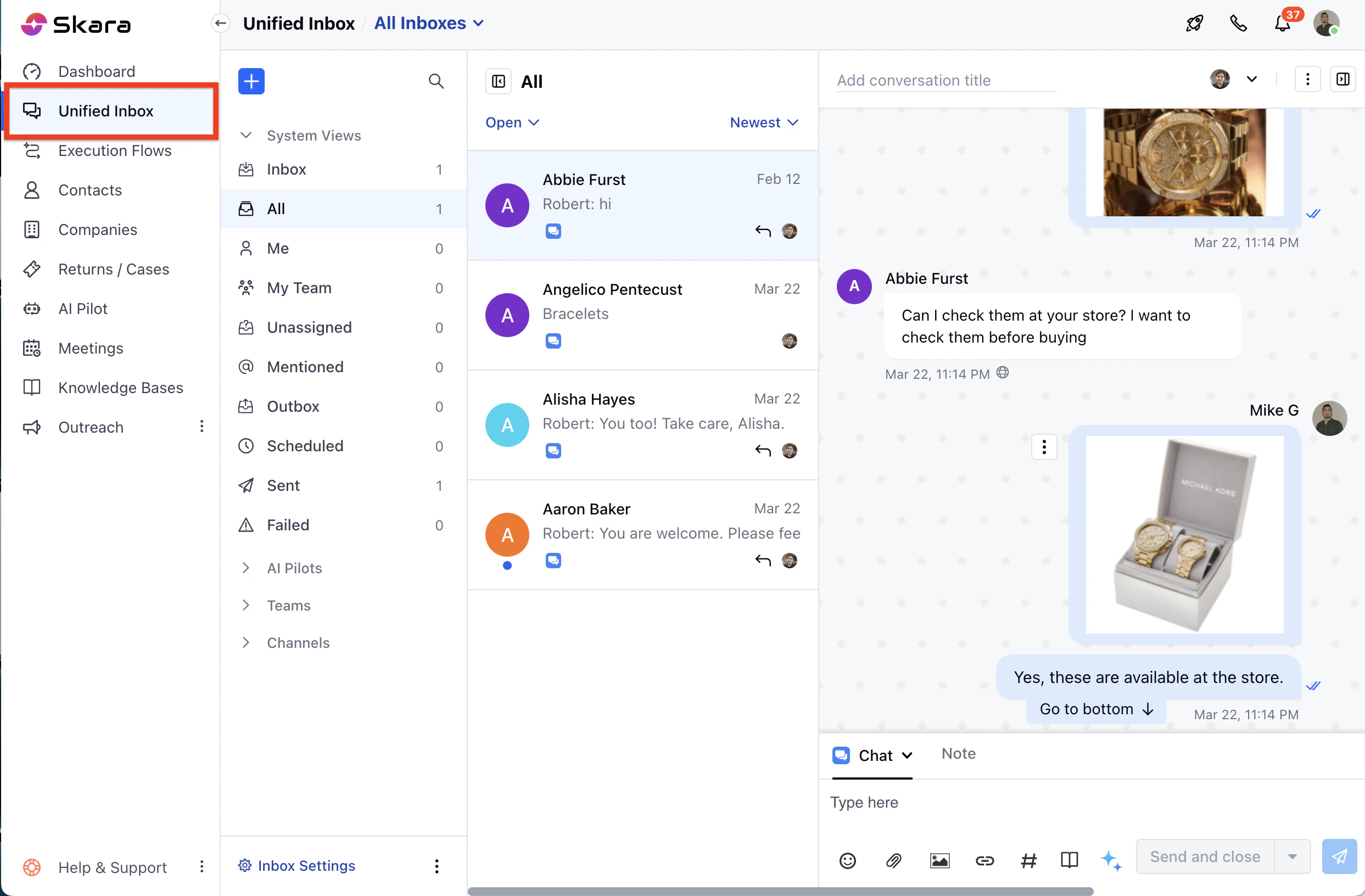
* Navigate to the Unified Inbox from the left sidebar.
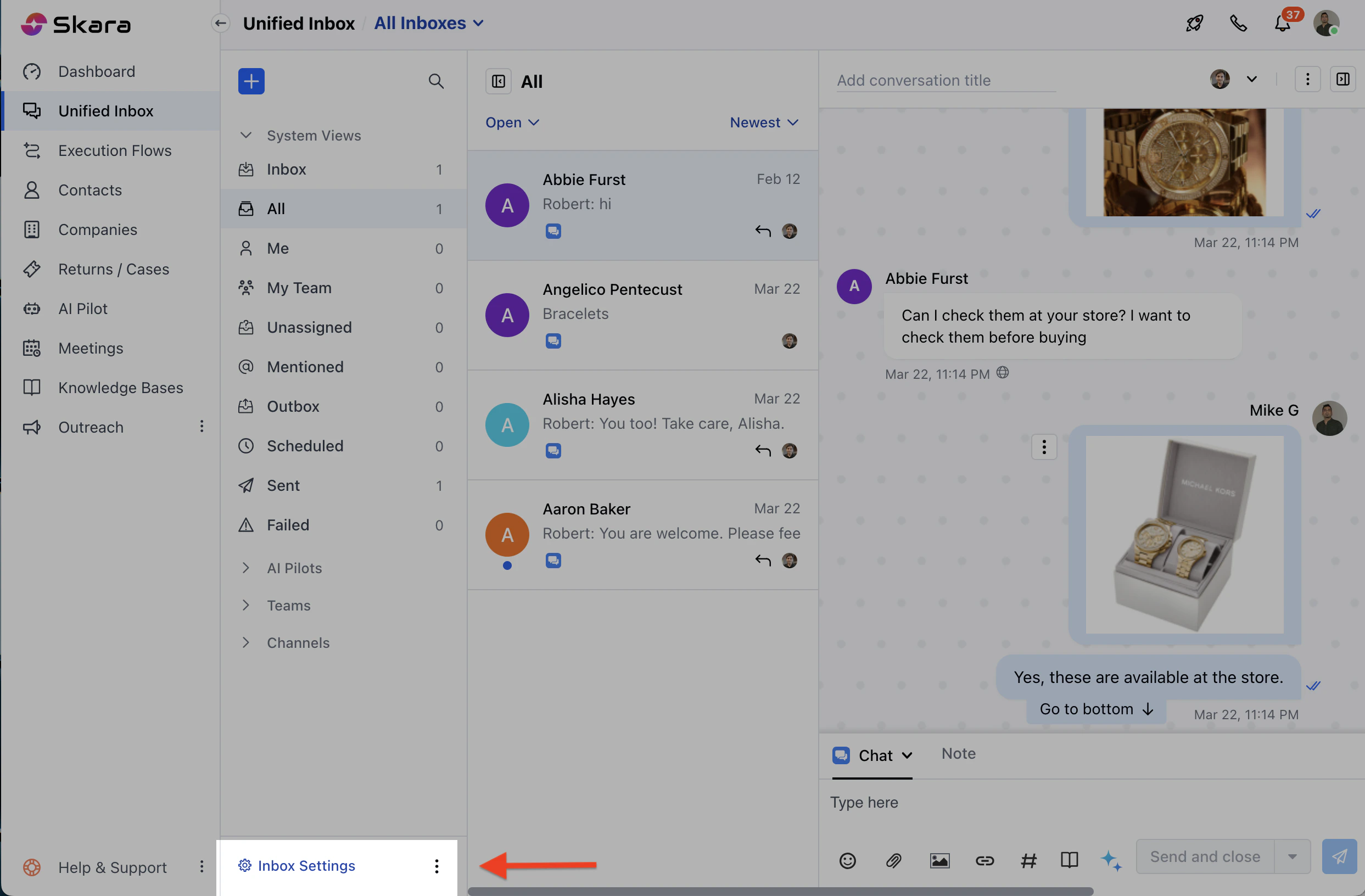
 * Click Unified **Inbox** **Settings** , then select **AI Pilot Settings**.
 * Choose the workspace from the header where you want to add your AI Pilot.
* If no AI Pilots exist, click **Build Your AI Pilot Today** to open the quick creation form.
### Configure AI Pilot Settings
Here’s what you can set up for your AI Pilot:
* **AI Pilot**: Select an AI Pilot to handle customer Unified Inbox. Only **one AI Pilot** can be active per workspace
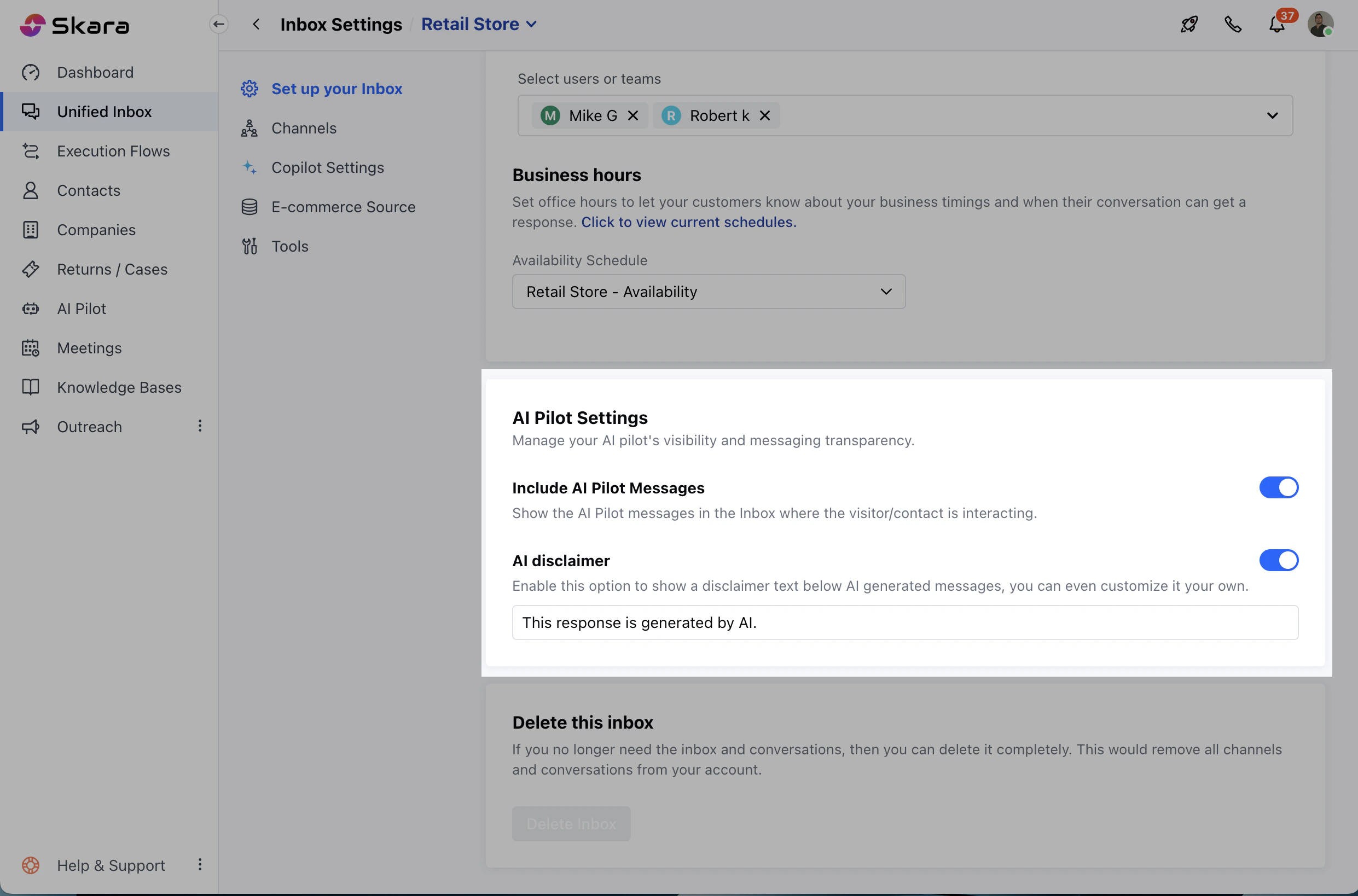
* **Include AI Pilot Messages**: Turn on to show AI Pilot messages in the inbox. By default, it is turned off.
* **AI Pilot Narrator**: You can turn on to have the system read AI Pilot or Agent messages aloud to recipients.
* **AI Disclaimer**:
* Turn on to add a disclaimer to AI-generated responses. By default, it will show the text: “This response is generated by AI."
* You can customize the disclaimer (max 50 characters).
* Choose the workspace from the header where you want to add your AI Pilot.
* If no AI Pilots exist, click **Build Your AI Pilot Today** to open the quick creation form.
### Configure AI Pilot Settings
Here’s what you can set up for your AI Pilot:
* **AI Pilot**: Select an AI Pilot to handle customer Unified Inbox. Only **one AI Pilot** can be active per workspace
* **Include AI Pilot Messages**: Turn on to show AI Pilot messages in the inbox. By default, it is turned off.
* **AI Pilot Narrator**: You can turn on to have the system read AI Pilot or Agent messages aloud to recipients.
* **AI Disclaimer**:
* Turn on to add a disclaimer to AI-generated responses. By default, it will show the text: “This response is generated by AI."
* You can customize the disclaimer (max 50 characters).
 * **Save**: Click **Save** to store your settings without activating them. All required fields must be valid.
* **Apply**: Click **Apply** to activate the settings for the selected workspace. If the AI Pilot has no published flows, it won’t work.
* **Auto-Save**: Changes auto-save every 60 seconds. You’ll see “Auto-saving content changes.”
Make the most of AI in your Unified Inbox with AI Pilots, automate conversations, deliver instant answers, and elevate your customer experience with ease.
* **Save**: Click **Save** to store your settings without activating them. All required fields must be valid.
* **Apply**: Click **Apply** to activate the settings for the selected workspace. If the AI Pilot has no published flows, it won’t work.
* **Auto-Save**: Changes auto-save every 60 seconds. You’ll see “Auto-saving content changes.”
Make the most of AI in your Unified Inbox with AI Pilots, automate conversations, deliver instant answers, and elevate your customer experience with ease.