> ## Documentation Index
> Fetch the complete documentation index at: https://support.getskara.ai/llms.txt
> Use this file to discover all available pages before exploring further.
# Functions
**Functions** in AI Pilots allow developers to build reusable, custom logic that extends an agent’s capabilities. From simple data transformations to complex third-party API integrations, functions enable smarter, more dynamic agent behavior.
* [How to manage your Functions](https://support.salesmate.io/hc/en-us/articles/46626581723545-Functions#h_01JW8WD30Y2EA71CM853Y74WST)
* [To configure a new Function](https://support.salesmate.io/hc/en-us/articles/46626581723545-Functions#h_01JW8YF5MYF74Z436VXMH3CHRR)
* [To edit an existing Function](https://support.salesmate.io/hc/en-us/articles/46626581723545-Functions#h_01JW90002QYBYNJ0C0CTZYYX71)
* [Steps to Delete a Function](https://support.salesmate.io/hc/en-us/articles/46626581723545-Functions#h_01JW9023WV07P2EAFET82FZB1F)
**How to manage your Functions:**
* Navigate to the AI Pilots from the left menu bar
* Click on the **AI Pilots**
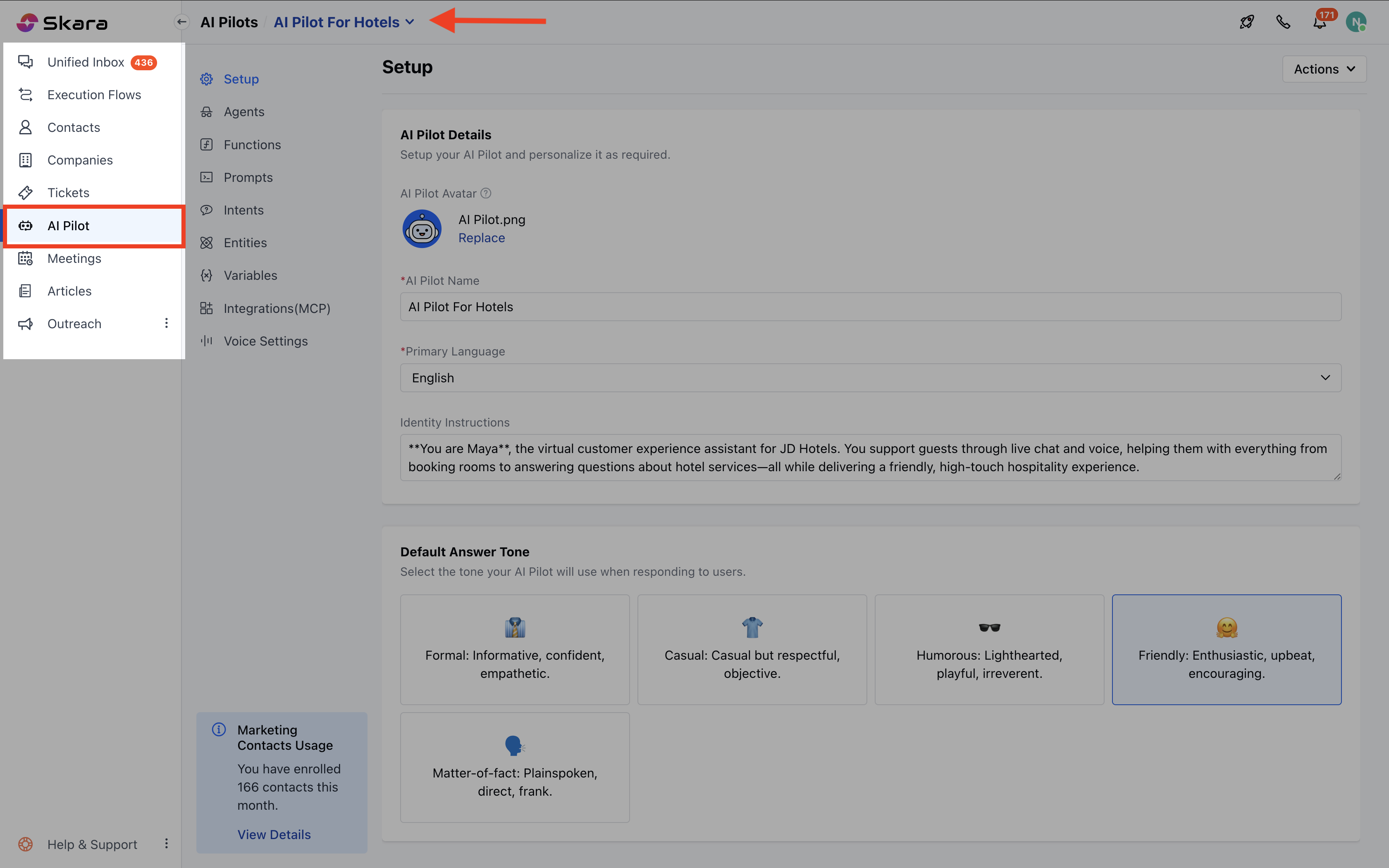 * Select the **AI Pilot** from the drop-down.
* Move to the **Functions.**
* Select the **AI Pilot** from the drop-down.
* Move to the **Functions.**
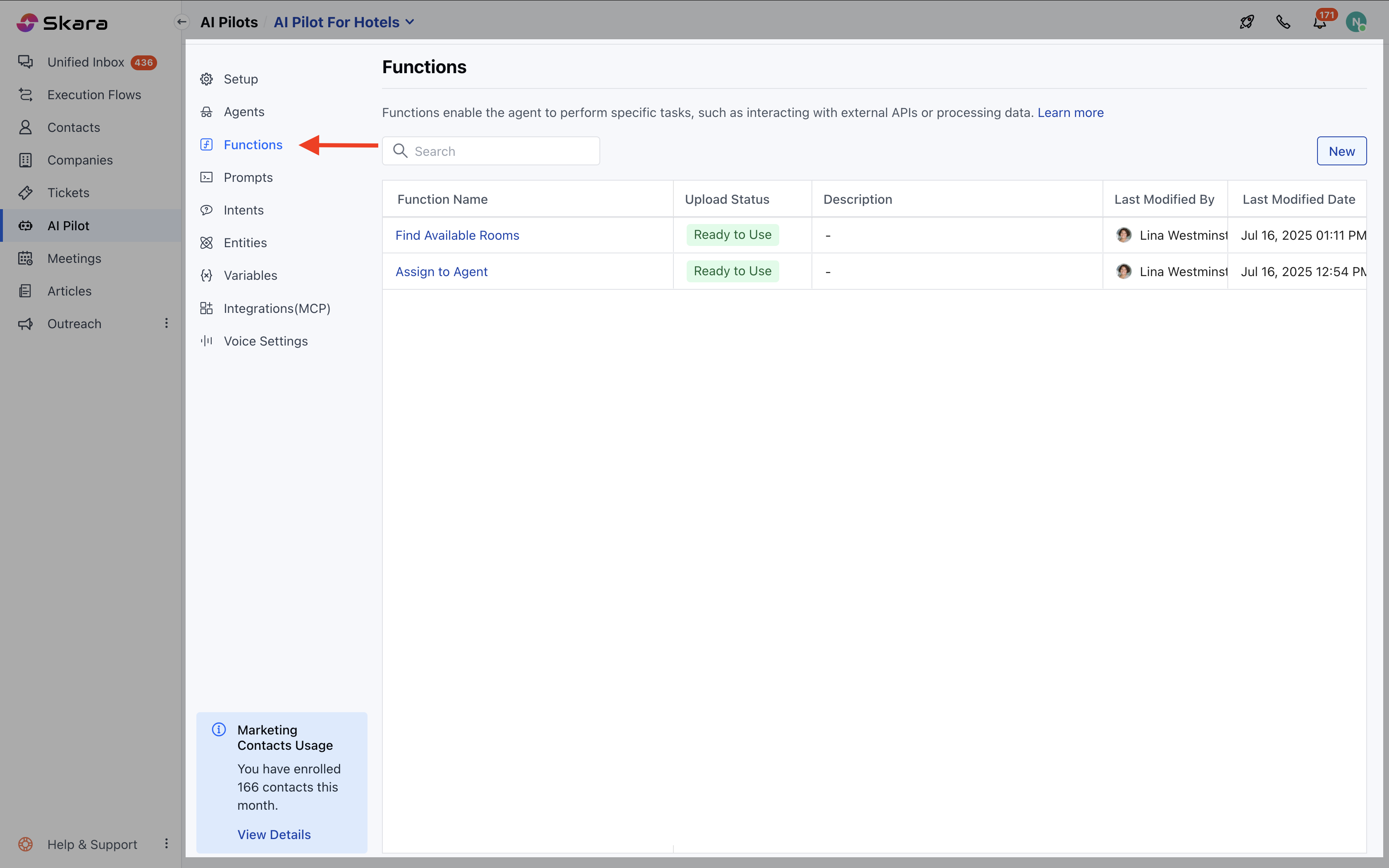 You’ll see a list of functions (if any exist) with the following columns:
* **Function Name :** Name of the function for the identification
* **Deployment Status** : Indicates if the function is **Ready to Use , Failed, or In Progress.**
* Hover over the error icon to view error details if the status is Failed.
* **Description** : A summary of the function’s purpose.
* **Last Modified By** : The user who last updated the function.
* **Last Modified Date :** When the function was last modified.
**How to configure a new Function**
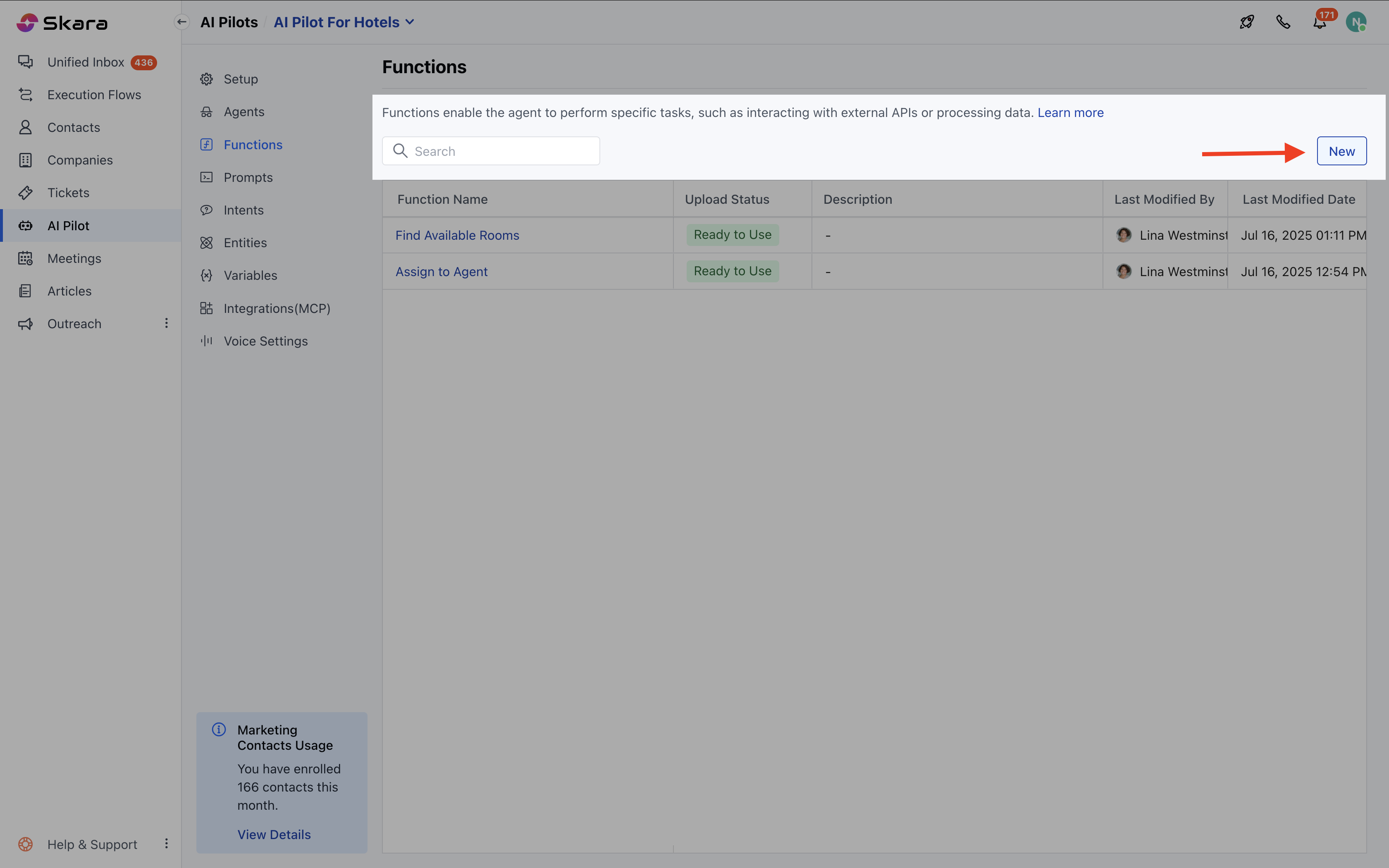
* Click the **New** button.
You’ll see a list of functions (if any exist) with the following columns:
* **Function Name :** Name of the function for the identification
* **Deployment Status** : Indicates if the function is **Ready to Use , Failed, or In Progress.**
* Hover over the error icon to view error details if the status is Failed.
* **Description** : A summary of the function’s purpose.
* **Last Modified By** : The user who last updated the function.
* **Last Modified Date :** When the function was last modified.
**How to configure a new Function**
* Click the **New** button.
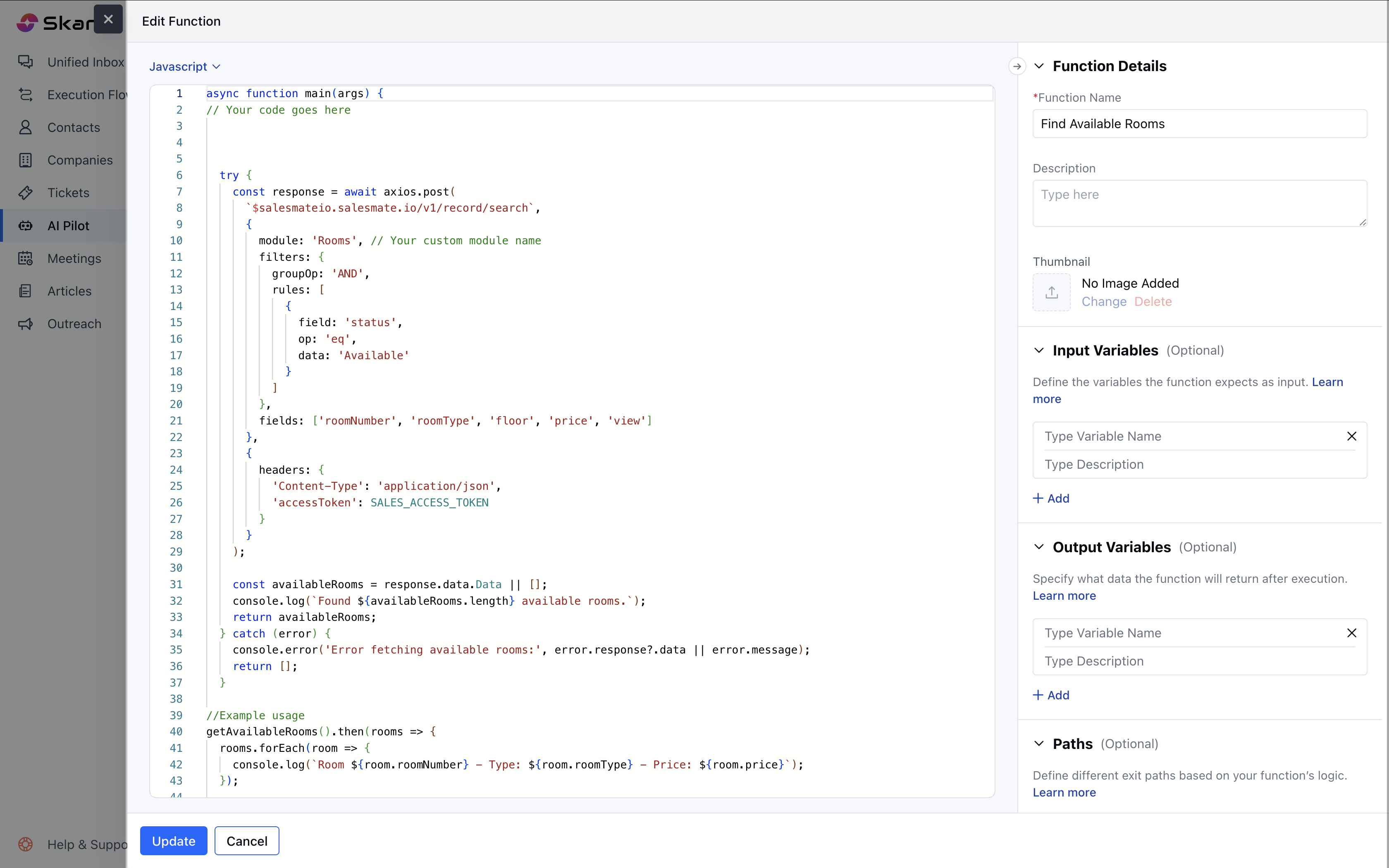
 * The **Function Editor** opens, divided into:
* **Left Panel**: Code editor
* **Right Panel**: Configuration panel.
**Configuration Panel Details**
**Function Details:**
* Function Name : Name of the function for identification.
* Description : A summary of what the function does.
* Thumbnail Image :
* Supports .png, .jpeg, .jpg under 1 MB.
* Appears in selection lists where this function is referenced.
**Input Variables:**
* Variable Name : Used within the function code.
* Description : Details about the expected input.
* Click + Add to add multiple inputs.
**Output Variables:**
* **Variable Name:** Identifier variable for the output.
* **Description**: Details about the expected output.
* Click **+ Add** to define more outputs.
**Note:** These variables are limited to that function only. The data type for these variables will be defined in the code snippet on the left side.
**Paths:**
* **Path Name**: Logical route (e.g., *Success*, *Failure*).
* **Canvas Label**: Label displayed in the flow builder.
* Click +**Add** to define additional paths.
**Writing Function Logic:**
* Use the **left-side code editor** to write your function using the supported language
* Choose from:
* Primary runtime (first launch): **Node.js 22**
* Supported by Monaco Editor (for syntax): JavaScript, Python, Go, PHP, HTML, CSS, Java, C++, etc.
* The **Function Editor** opens, divided into:
* **Left Panel**: Code editor
* **Right Panel**: Configuration panel.
**Configuration Panel Details**
**Function Details:**
* Function Name : Name of the function for identification.
* Description : A summary of what the function does.
* Thumbnail Image :
* Supports .png, .jpeg, .jpg under 1 MB.
* Appears in selection lists where this function is referenced.
**Input Variables:**
* Variable Name : Used within the function code.
* Description : Details about the expected input.
* Click + Add to add multiple inputs.
**Output Variables:**
* **Variable Name:** Identifier variable for the output.
* **Description**: Details about the expected output.
* Click **+ Add** to define more outputs.
**Note:** These variables are limited to that function only. The data type for these variables will be defined in the code snippet on the left side.
**Paths:**
* **Path Name**: Logical route (e.g., *Success*, *Failure*).
* **Canvas Label**: Label displayed in the flow builder.
* Click +**Add** to define additional paths.
**Writing Function Logic:**
* Use the **left-side code editor** to write your function using the supported language
* Choose from:
* Primary runtime (first launch): **Node.js 22**
* Supported by Monaco Editor (for syntax): JavaScript, Python, Go, PHP, HTML, CSS, Java, C++, etc.
 **To edit an existing Function**
* Go to **AI Pilots**> Choose your Pilot >**Functions**.
* Click the function name or hover and select **Hit Action**.
**To edit an existing Function**
* Go to **AI Pilots**> Choose your Pilot >**Functions**.
* Click the function name or hover and select **Hit Action**.
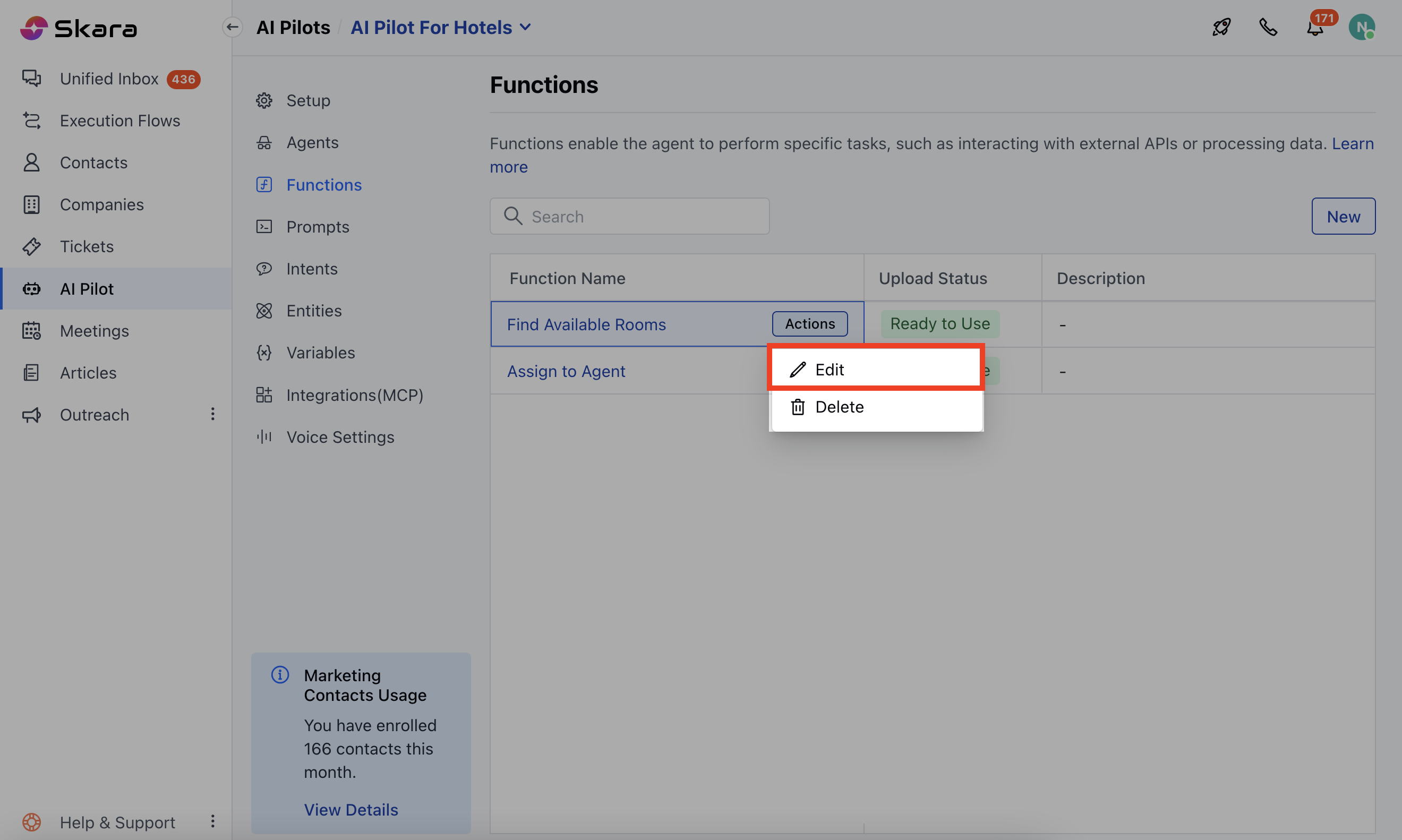 * Click on **Edit,** make your changes, then click **Update**.
**Steps to Delete a Function**
* Go to **AI Pilots**> Choose your Pilot >**Functions**.
* Find the function you wish to delete.
* Click on **Edit,** make your changes, then click **Update**.
**Steps to Delete a Function**
* Go to **AI Pilots**> Choose your Pilot >**Functions**.
* Find the function you wish to delete.
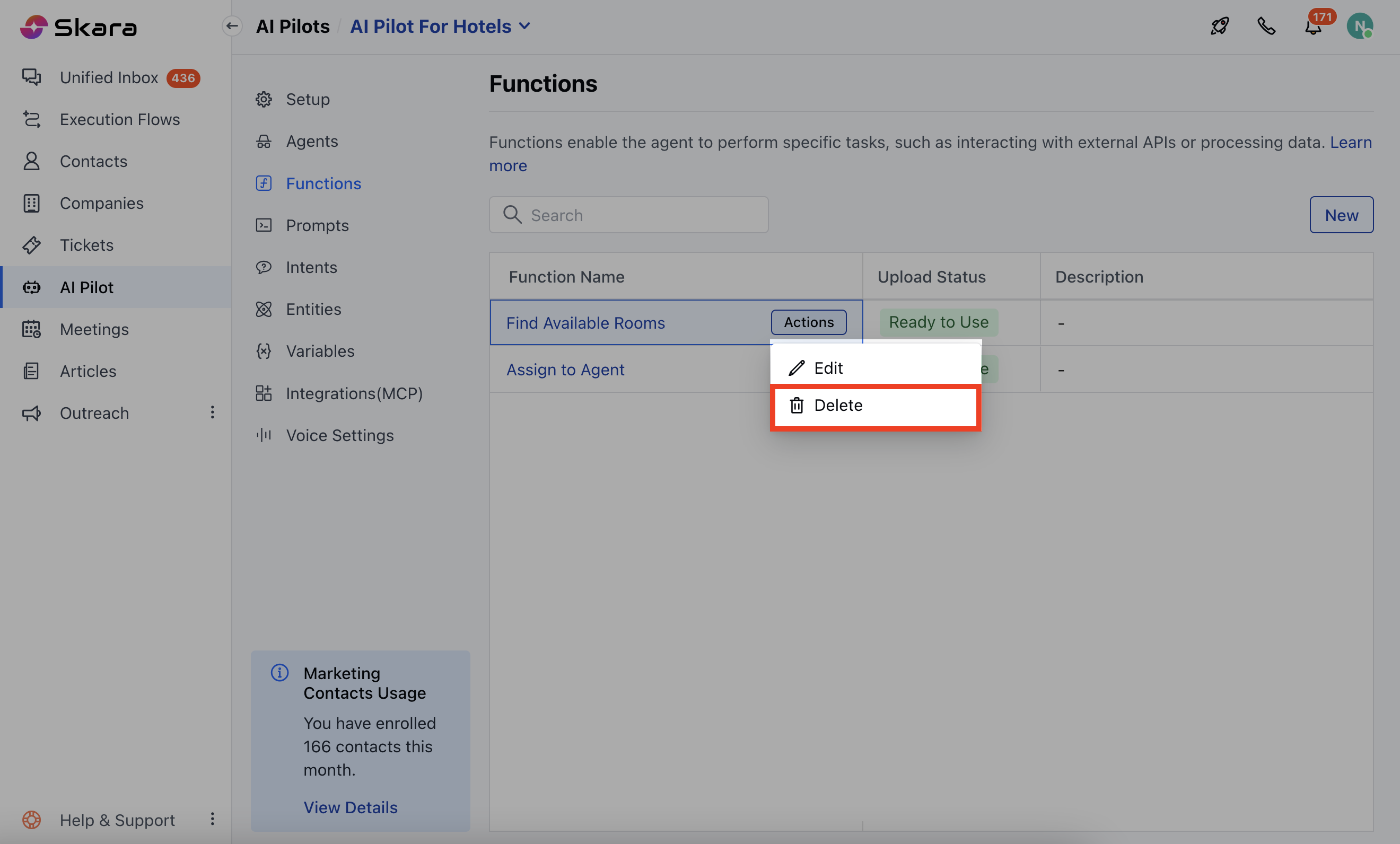 * Hover and select **Delete** from the action menu.