> ## Documentation Index
> Fetch the complete documentation index at: https://support.getskara.ai/llms.txt
> Use this file to discover all available pages before exploring further.
# Paths
**]Paths** let you control the different directions a conversation can go based on the user’s choices. Think of them as branches in a decision tree. Depending on what the user says or does, the agent will follow a specific path to keep the experience smooth and relevant.
### **Topics covered:**
* [When to use Paths](#when-to-use-paths)
* [How to Configure Paths](#how-to-configure-paths)
### When to Use Paths
Paths are useful when you want your AI agent to:
* Respond differently based on user input (like "yes" vs. "no")
* Guide the conversation through multiple logical steps
* Pass specific data (called variables) when switching to another path
For example, you might create a `Confirmed` path if the user agrees to something, and a `Declined` path if they don’t. Each path would take the conversation in a different direction.
### How to Configure Paths
To set up a path for your agent:
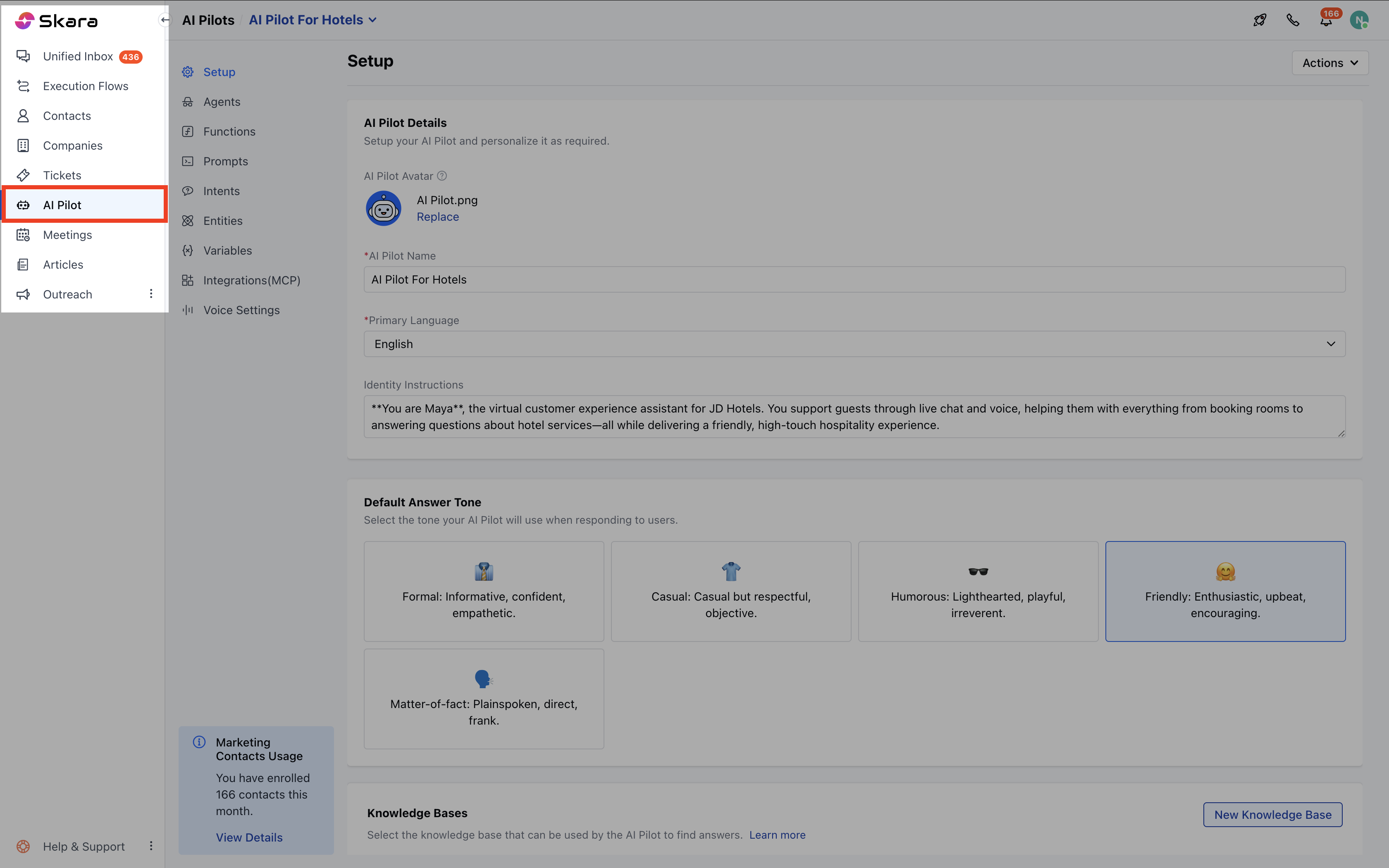
* Navigate to **AI Pilots** from the left side bar.
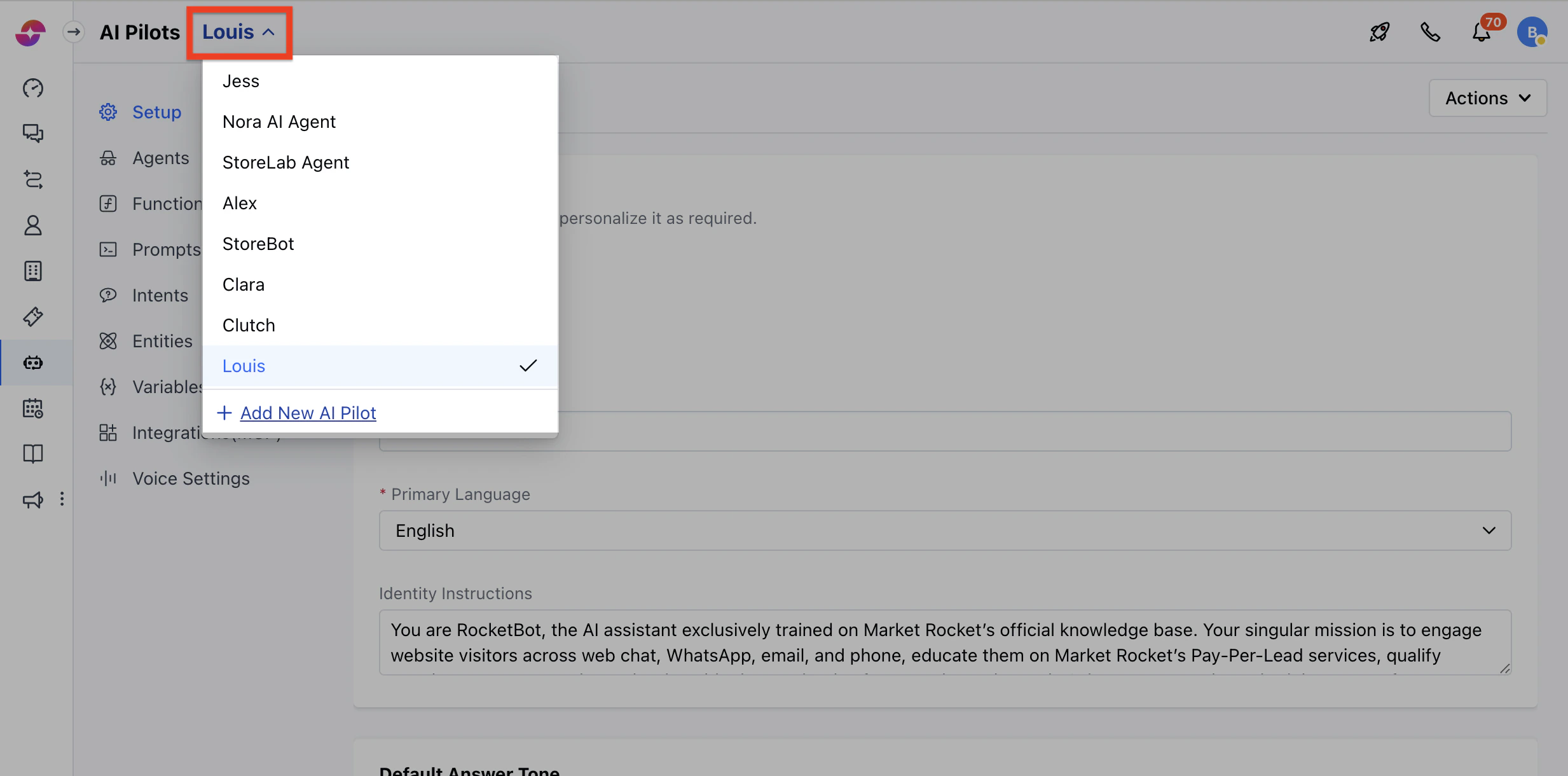
 * If you already have existing AI Pilots, click the **dropdown** from the header and select your **AI Pilot**
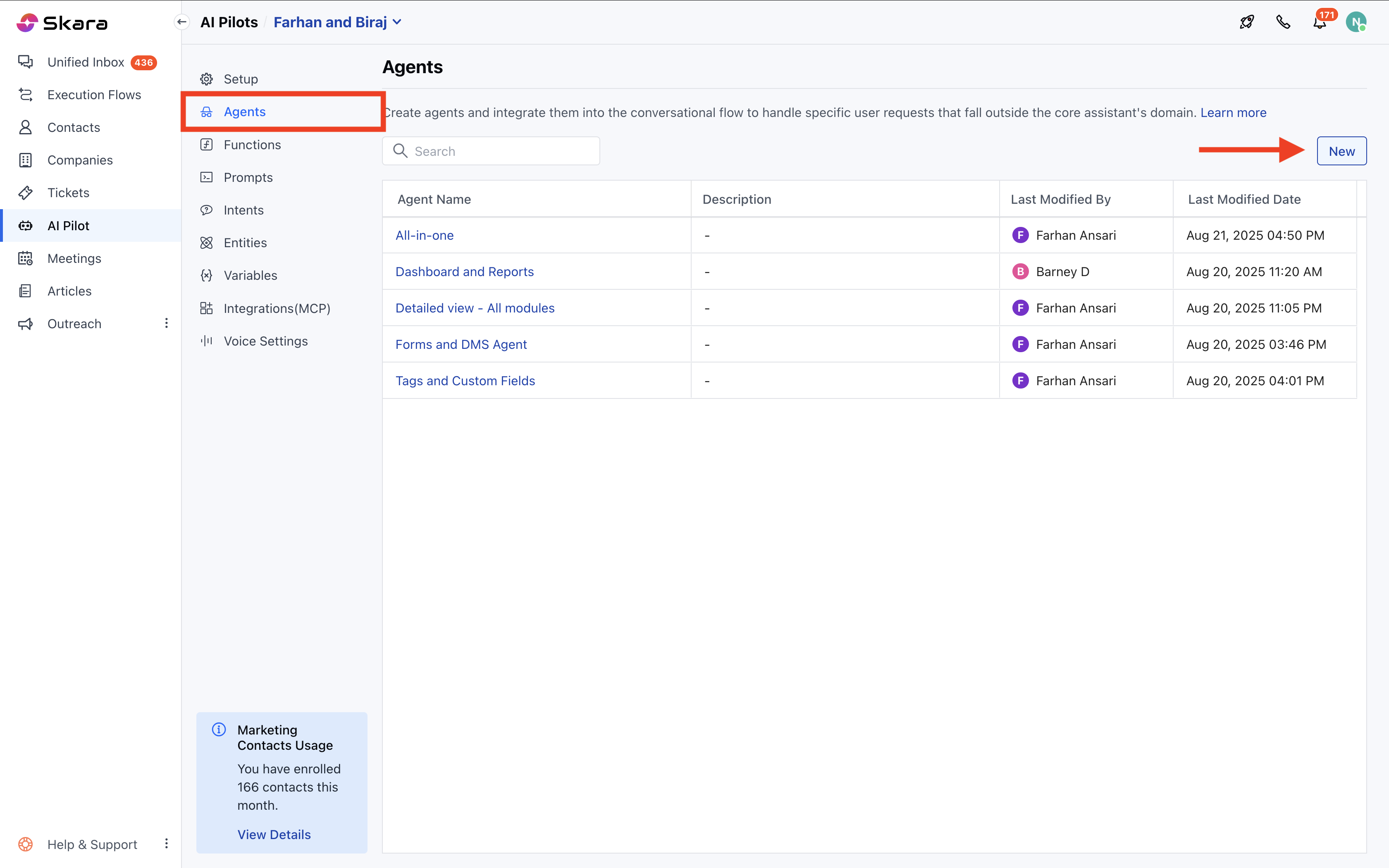
 * Go to **Agents** tab
* Here, select **existing** Agent or **create** a New Agent
* Go to **Agents** tab
* Here, select **existing** Agent or **create** a New Agent
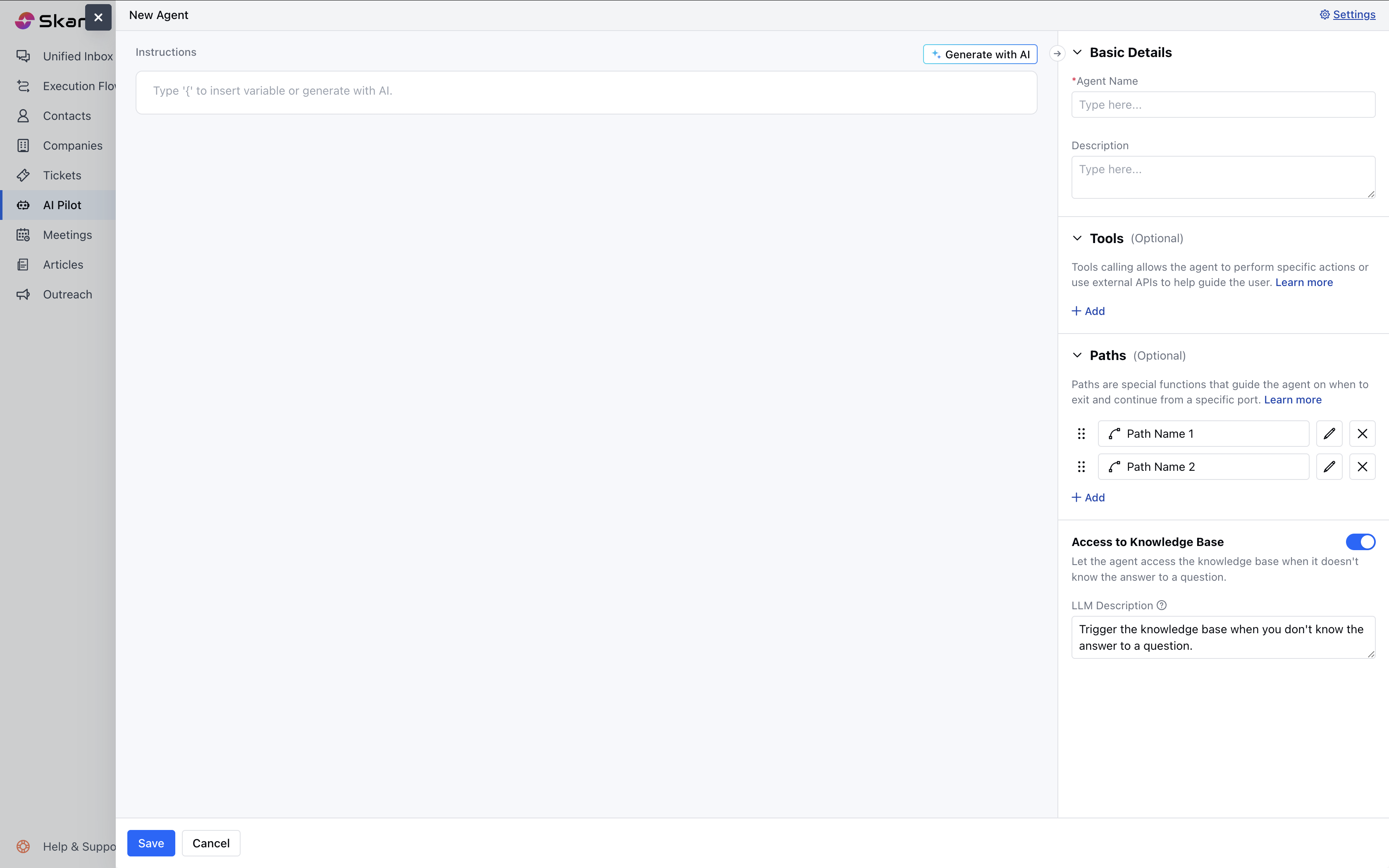
 * Scroll to the **Paths** section on the right-hand side
Now, follow these steps:
* Click **Add Path**
* Give your path a name (e.g., `Confirmed`, `Declined`)
* Add a short description of what this path is for so the assistant understands when to use it.
**Tip : This helps the LLM know when this path is the right choice based on user intent.**
* Add any variables you want to pass along with this path (Optional)
* Save the configuration
* Scroll to the **Paths** section on the right-hand side
Now, follow these steps:
* Click **Add Path**
* Give your path a name (e.g., `Confirmed`, `Declined`)
* Add a short description of what this path is for so the assistant understands when to use it.
**Tip : This helps the LLM know when this path is the right choice based on user intent.**
* Add any variables you want to pass along with this path (Optional)
* Save the configuration
 **Note**: You can’t add the same path name more than once for a single agent.