> ## Documentation Index
> Fetch the complete documentation index at: https://support.getskara.ai/llms.txt
> Use this file to discover all available pages before exploring further.
# Prompts
**Prompts** are structured instructions that guide your conversational **AI Pilot** in generating relevant and context-aware responses. They act like a playground for training, testing, and fine-tuning AI behavior before using it in live flows.
**For example:** If a prompt is created for “Flight Booking Inquiry” and a user says, “I want to book a flight to New York,” the AI Pilot identifies the intent and responds: “Sure! Please provide your preferred travel dates.”
***
### **Topics covered:**
* [Components of a Prompt](#components-of-a-prompt)
* [Creating a New Prompt](#steps-to-create-a-prompt)
* [Editing an Existing Prompt](#editing-an-existing-prompt)
* [Deleting a Prompt](#deleting-a-prompt-how-to-delete1-navigate-to-ai-pilots)
* [Prompt Listing & Actions](#prompt-listing-actions)
***
### Components of a Prompt
When creating prompts for your AI assistant, it's important to structure them with the right components. Here’s how each part works:
* **System Prompt:** Use this to set the tone, style, and behavior of the AI. Whether you want the assistant to be formal, friendly, concise, or informative, define that here. *Example:* “You are a helpful and empathetic support agent who answers questions clearly and politely.”
* **User & AI Pilot Messages:** These are sample conversations that show the AI how it should respond. Use them to guide the AI's behavior by providing real-world scenarios and expected replies.
* **Conversation History:** Include past messages when you want the AI to understand the full context of an ongoing interaction. This helps the AI respond more accurately and maintain continuity.
* **Variables:** Add variables or entities like `{user_name}` or `{product}` to personalize messages dynamically. This makes responses more tailored and human-like.
* **Structured Outputs:** Define how you want the AI to format its response — plain text for emails, JSON for API responses, or other formats depending on your needs.
***
### Steps to Create a Prompt
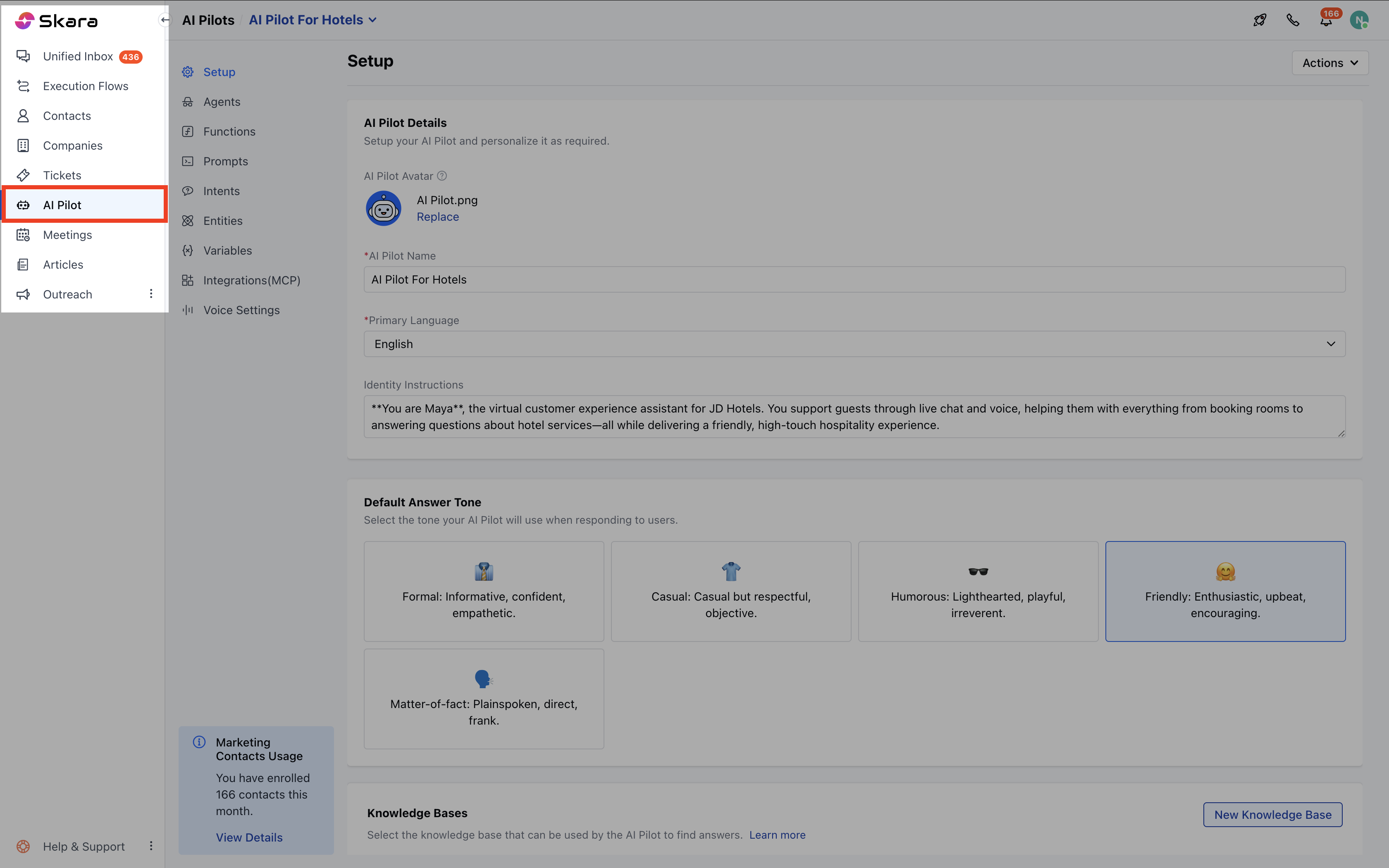
* Navigate to **AI Pilots**.
* Select your **AI Pilot**.
 * Click on **Prompts**
* Click on **New**.
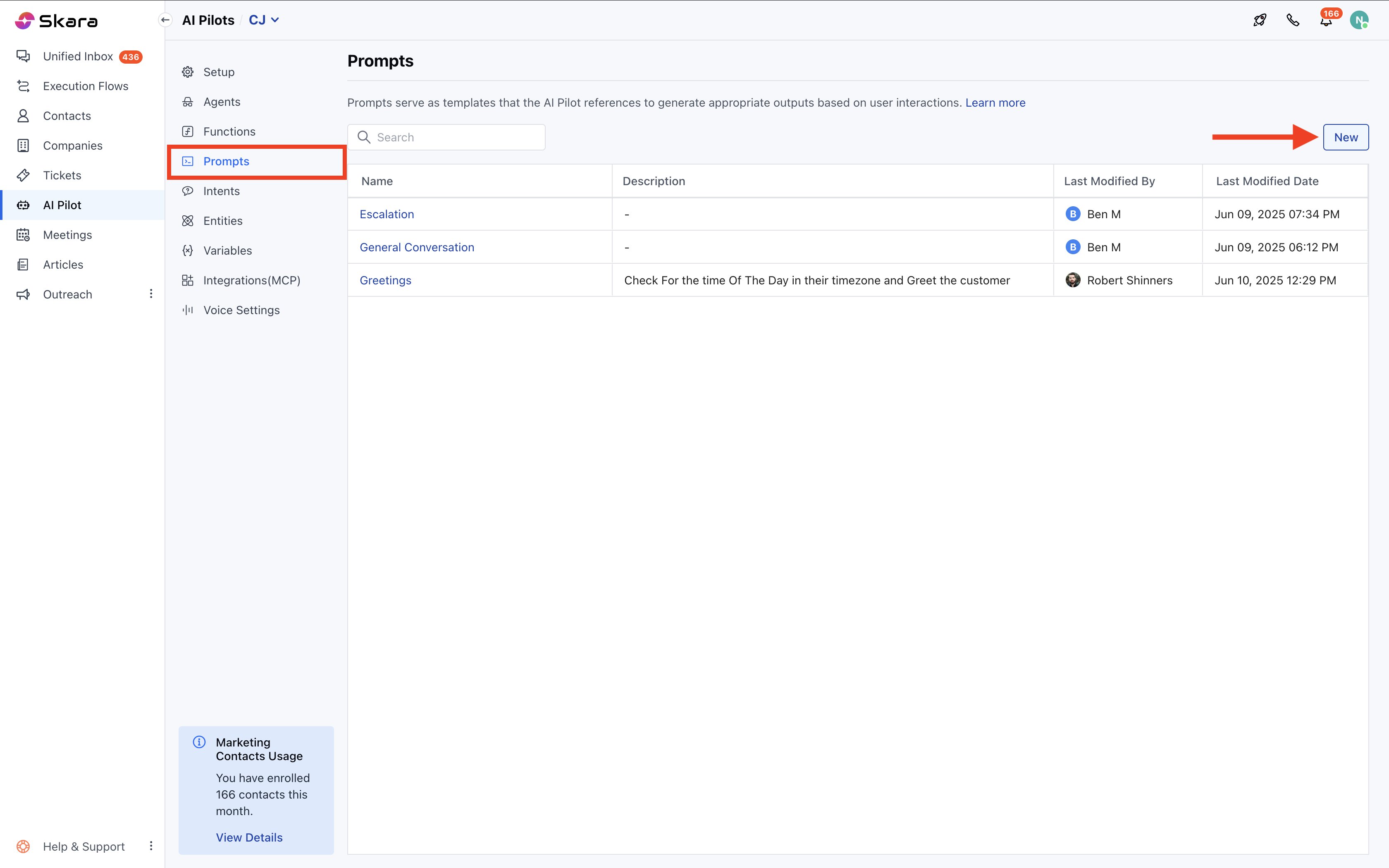
* Click on **Prompts**
* Click on **New**.
 ***
### Prompt Configuration
* **Name:** Provide a meaningful name (e.g., “Financial Support”).
* **Description:** Describe the objective of the prompt.
* **System Prompt:** Set the tone and instruction style.
* **User Prompt:** The initial user message to start the prompt.
* **Message Pairs:** Add back-and-forth conversations to enrich training.
* **Variables:** Insert dynamic fields using `{}` for personalization.
* **Conversation History:** Insert the `conversation_history` block once for added context.
* **Templates:** Use predefined templates for quick setup.
* **Reordering:** Rearrange blocks except the System Prompt (fixed at the top).
***
### Prompt Configuration
* **Name:** Provide a meaningful name (e.g., “Financial Support”).
* **Description:** Describe the objective of the prompt.
* **System Prompt:** Set the tone and instruction style.
* **User Prompt:** The initial user message to start the prompt.
* **Message Pairs:** Add back-and-forth conversations to enrich training.
* **Variables:** Insert dynamic fields using `{}` for personalization.
* **Conversation History:** Insert the `conversation_history` block once for added context.
* **Templates:** Use predefined templates for quick setup.
* **Reordering:** Rearrange blocks except the System Prompt (fixed at the top).
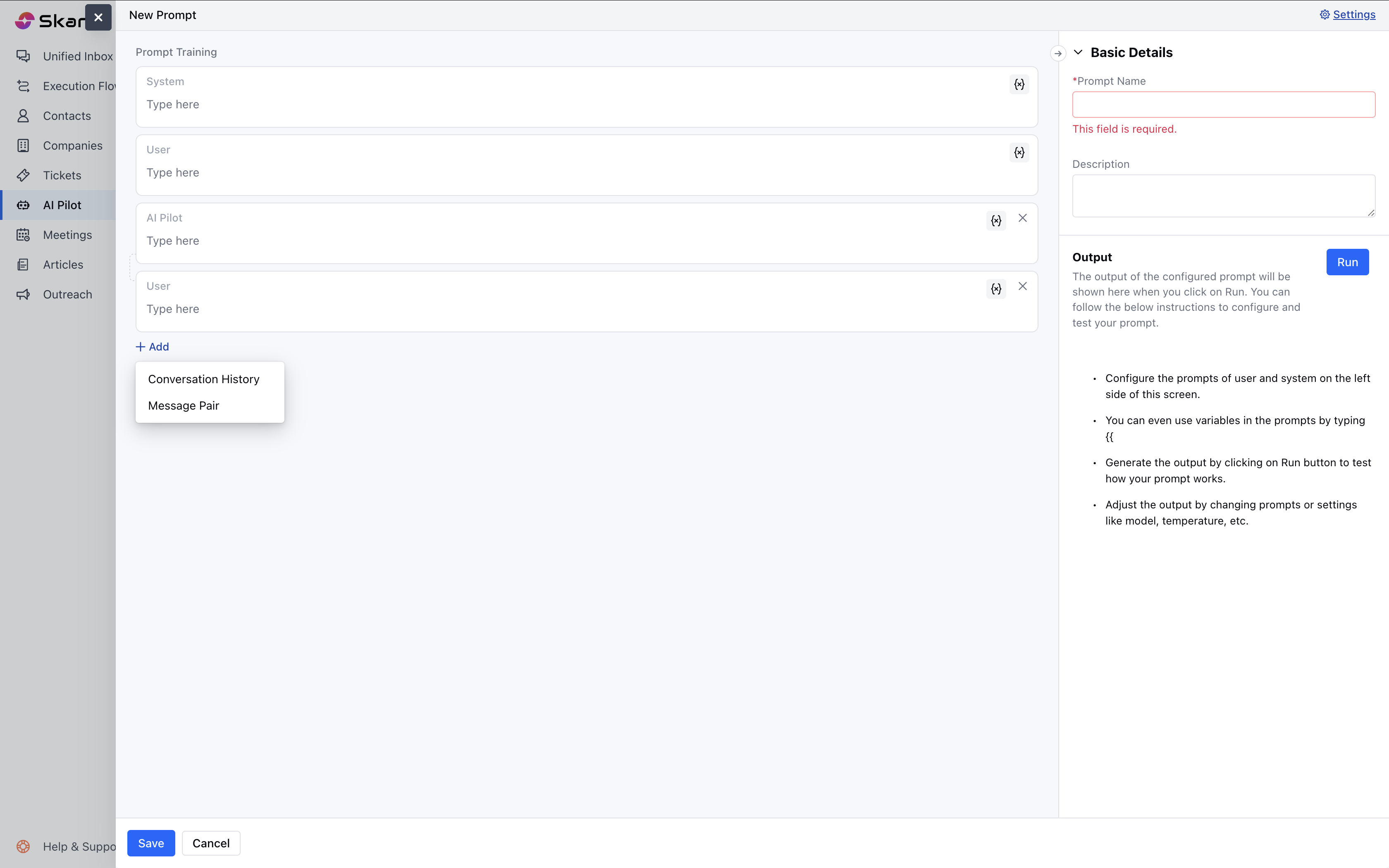 **Note:** The last block must be a **User Prompt**.
***
### Prompt Settings
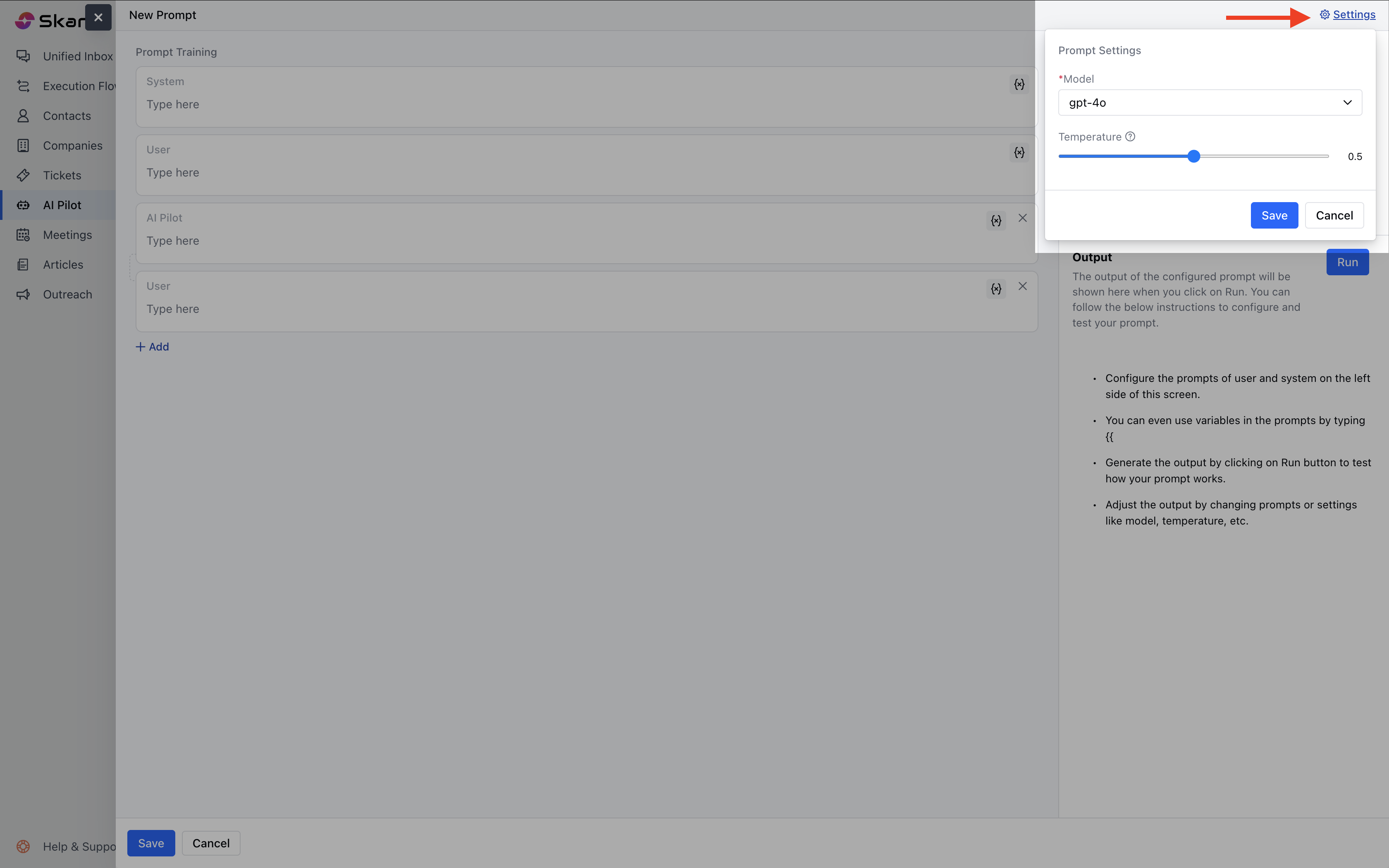
Click the **Settings** option to modify prompt-level configurations.These are the Options Available:
Options Available:
* **AI Model:** Choose which LLM your AI will use:
* GPT-4.1
* GPT-4.1 nano
* GPT-4o
* GPT-4o mini
* Claude 2/Claude 3.5 (Haiku, Sonnet) / Claude 3 (Opus)
* Gemini 1.5 Pro
* Grok-2-1212 / Grok-2-vision-1212
* **Temperature:** Controls creativity (0.00–1.00).
**Note:** The last block must be a **User Prompt**.
***
### Prompt Settings
Click the **Settings** option to modify prompt-level configurations.These are the Options Available:
Options Available:
* **AI Model:** Choose which LLM your AI will use:
* GPT-4.1
* GPT-4.1 nano
* GPT-4o
* GPT-4o mini
* Claude 2/Claude 3.5 (Haiku, Sonnet) / Claude 3 (Opus)
* Gemini 1.5 Pro
* Grok-2-1212 / Grok-2-vision-1212
* **Temperature:** Controls creativity (0.00–1.00).
 **Note:** These settings apply only to the current prompt.
***
### Testing the Prompt
You can run a simulation to test your prompt:
1. Click **Run Test**.
2. Enter values for required variables.
3. The AI will simulate a live user interaction.
The output includes:
* **Latency:** Time taken for response
* **Tokens:** Total used, with input/output breakdown on hover
**Note:** These settings apply only to the current prompt.
***
### Testing the Prompt
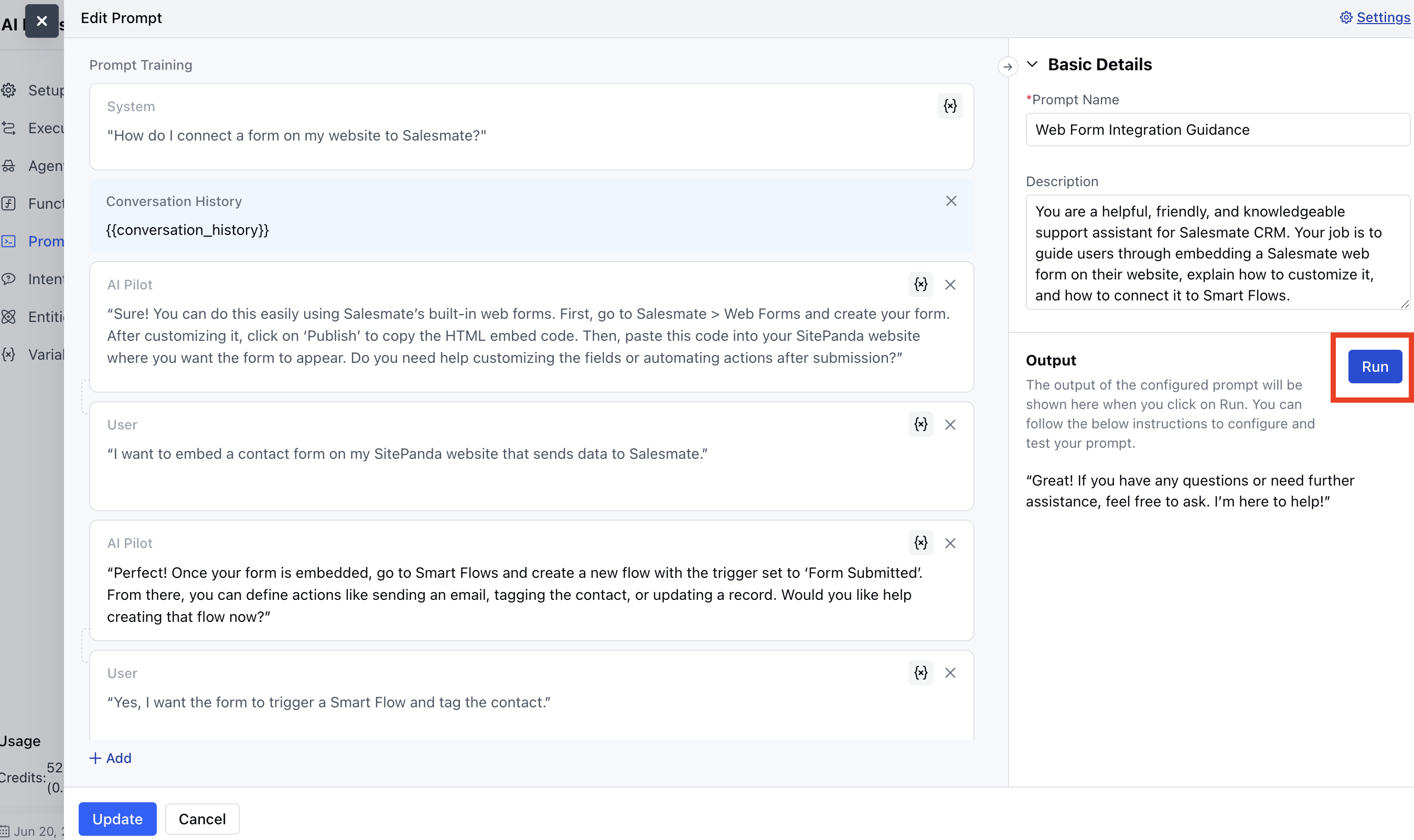
You can run a simulation to test your prompt:
1. Click **Run Test**.
2. Enter values for required variables.
3. The AI will simulate a live user interaction.
The output includes:
* **Latency:** Time taken for response
* **Tokens:** Total used, with input/output breakdown on hover
 ***
### Editing an Existing Prompt
**How to Edit:**
* Navigate to **AI Pilots**.
* Select your **AI Pilot**.
* Hover over the prompt.
* Click on **Actions**
* Select **Edit.**
***
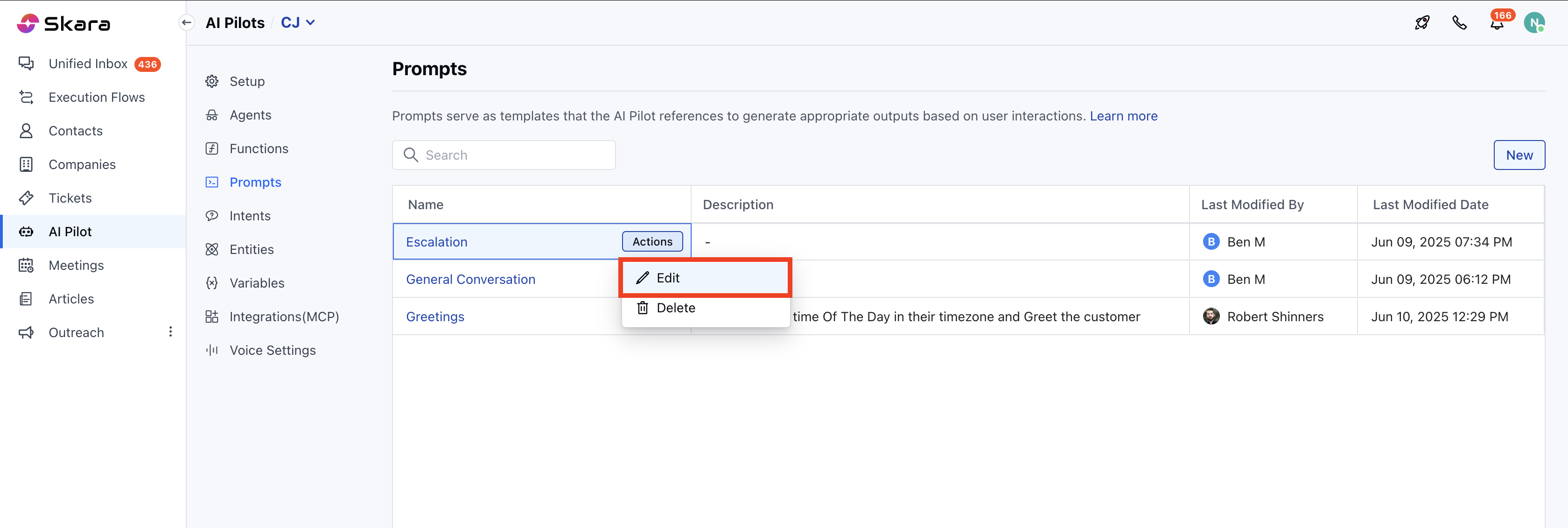
### Editing an Existing Prompt
**How to Edit:**
* Navigate to **AI Pilots**.
* Select your **AI Pilot**.
* Hover over the prompt.
* Click on **Actions**
* Select **Edit.**
 * After editing
* Click **Update** to apply changes.
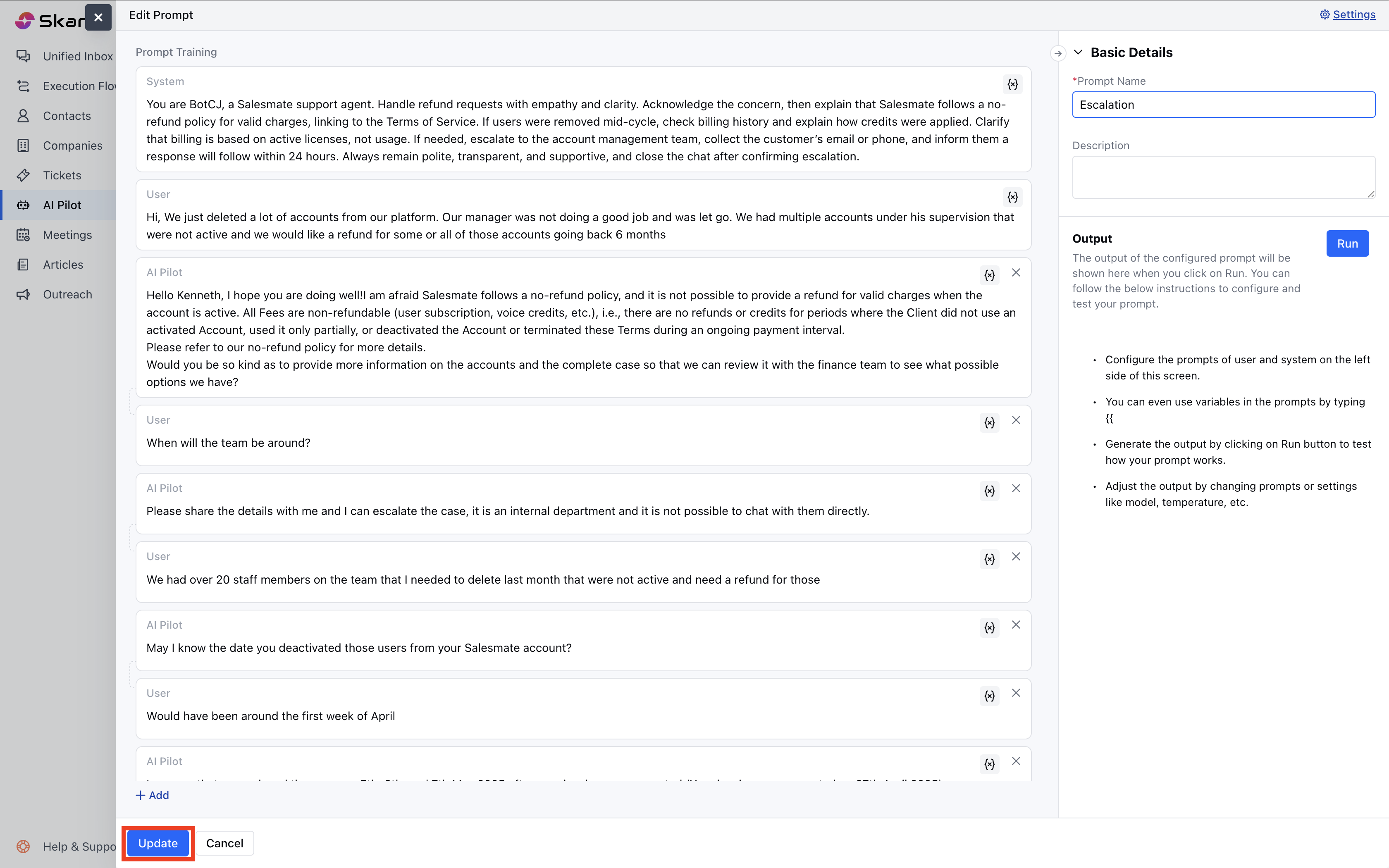
* After editing
* Click **Update** to apply changes.
 ***
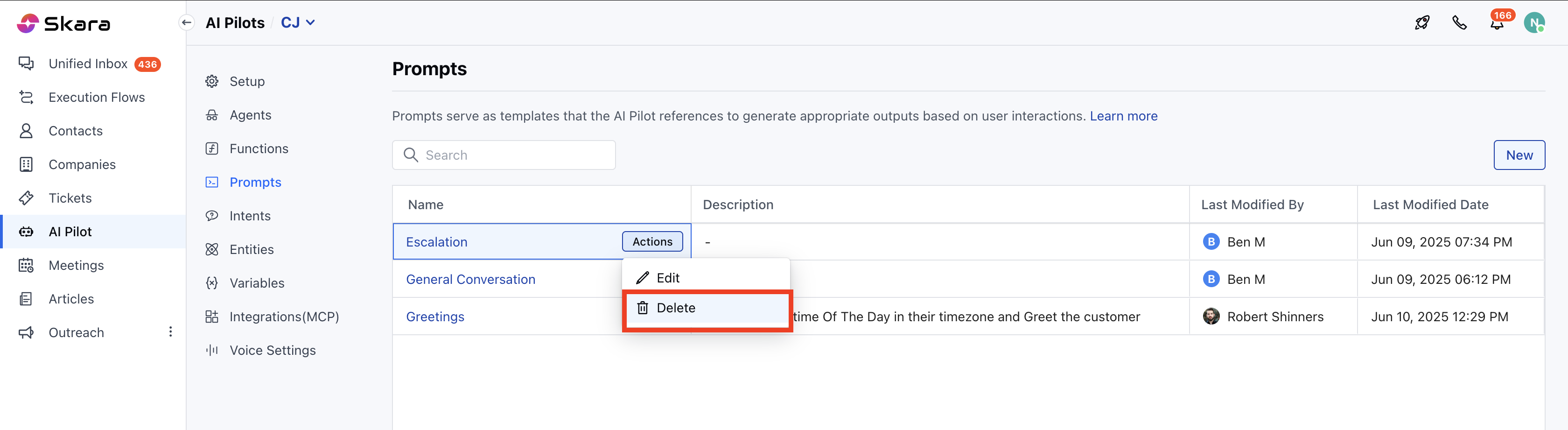
**Deleting a Prompt**
**How to Delete:**
* Navigate to **AI Pilots**.
* Select your **AI Pilot**.
* Hover over the prompt.
* Click on **Actions**
* Select **Delete**.
***
**Deleting a Prompt**
**How to Delete:**
* Navigate to **AI Pilots**.
* Select your **AI Pilot**.
* Hover over the prompt.
* Click on **Actions**
* Select **Delete**.
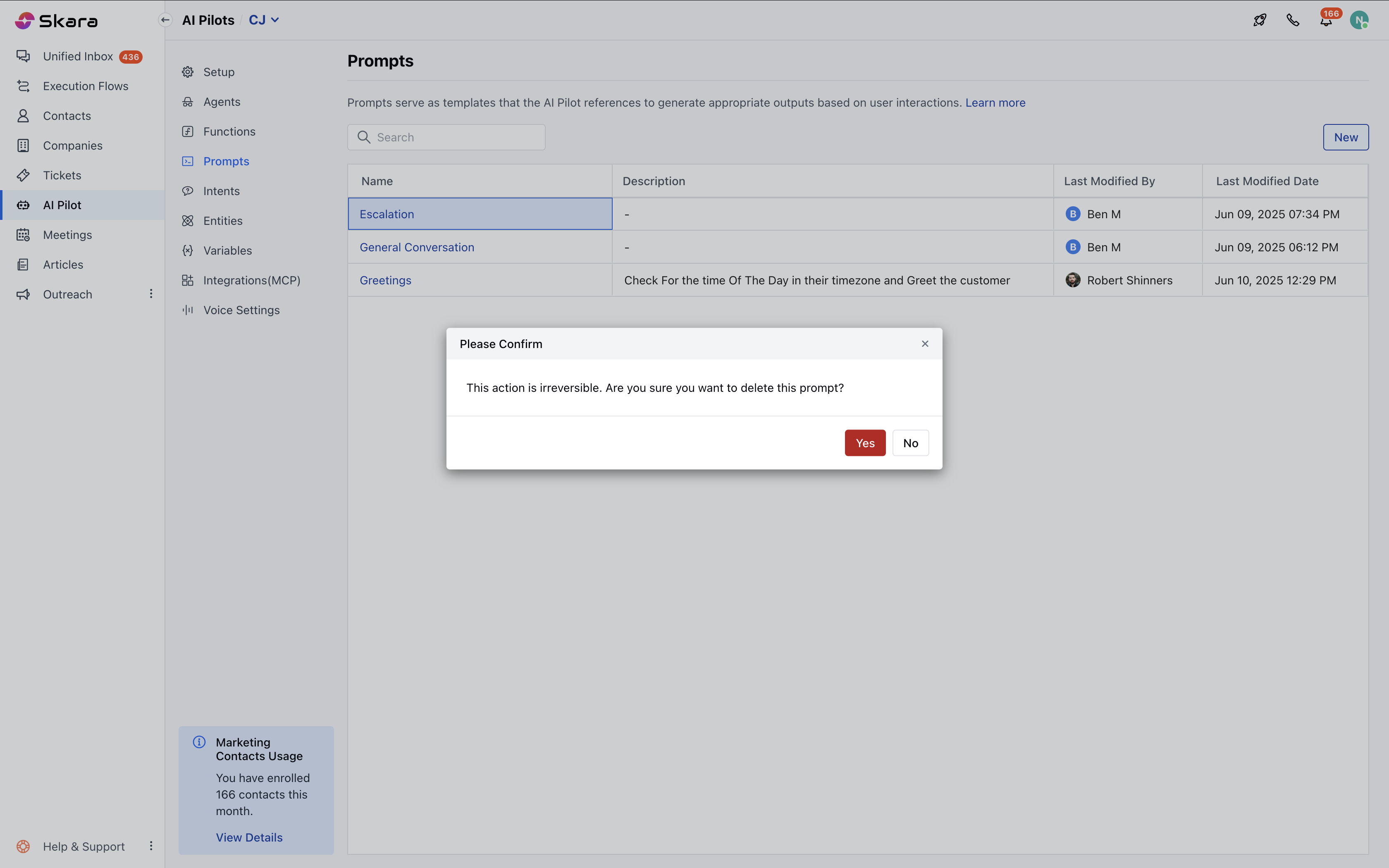
 * A confirmation dialog box will appear:
*“This action is irreversible. Are you sure you want to delete this prompt?”*
* Click **Yes**, and the prompt will be deleted permanently.
* A confirmation dialog box will appear:
*“This action is irreversible. Are you sure you want to delete this prompt?”*
* Click **Yes**, and the prompt will be deleted permanently.
 **Note:** You cannot delete the prompt if it is currently in use.
***
### Prompt Listing & Actions
How to Access the Prompt List:
* Navigate to **AI Pilots**.
* Select your **AI Pilot**.
* Click on **Prompts**.
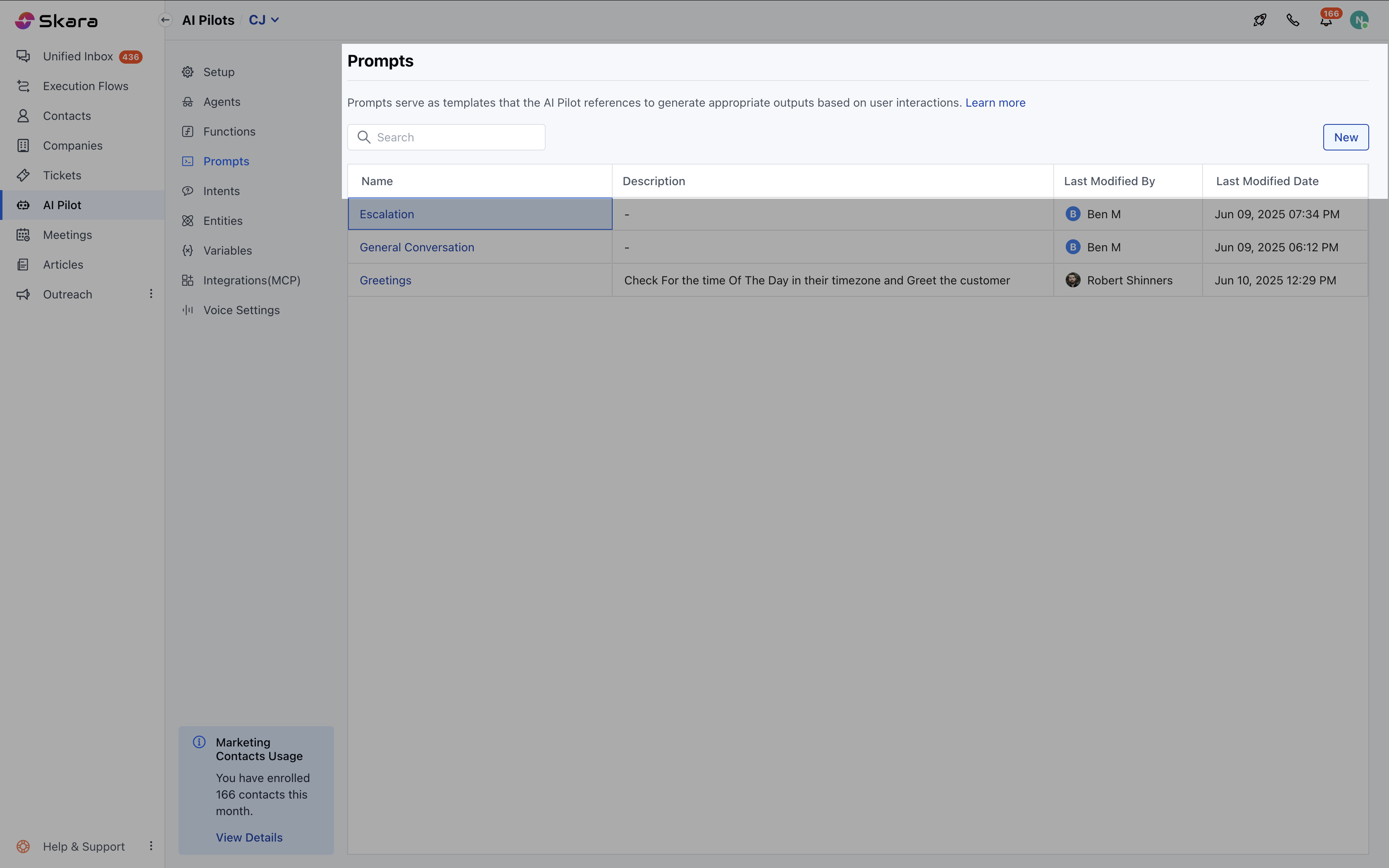
* The list includes: **Name**-**Description**, **Last Modified By**, **Last Modified Date**
* You can perform actions such as **Edit**, **Clone**, or **Delete**.
* You can also sort prompts by **Name** or **Last Modified Date**, and search by **Name.**
**Note:** You cannot delete the prompt if it is currently in use.
***
### Prompt Listing & Actions
How to Access the Prompt List:
* Navigate to **AI Pilots**.
* Select your **AI Pilot**.
* Click on **Prompts**.
* The list includes: **Name**-**Description**, **Last Modified By**, **Last Modified Date**
* You can perform actions such as **Edit**, **Clone**, or **Delete**.
* You can also sort prompts by **Name** or **Last Modified Date**, and search by **Name.**