> ## Documentation Index
> Fetch the complete documentation index at: https://support.getskara.ai/llms.txt
> Use this file to discover all available pages before exploring further.
# How can I send out messages via WhatsApp to the number?
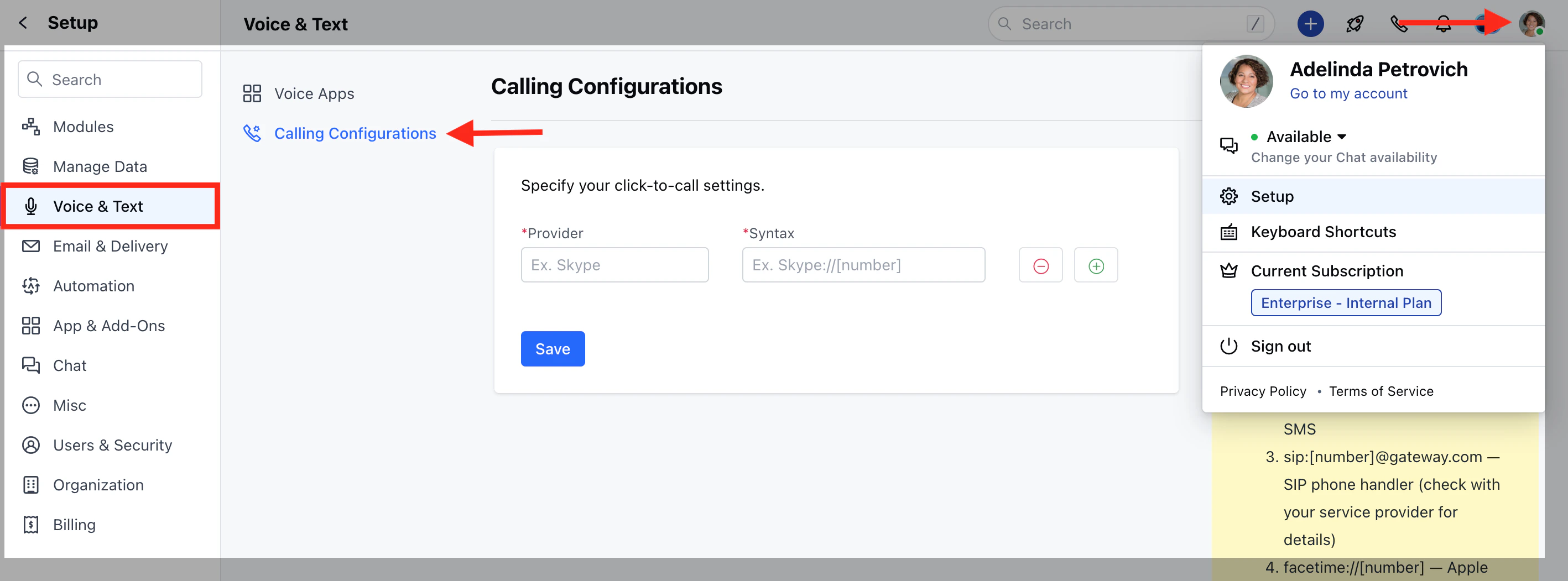
Navigate to the calling configuration page by following the steps down below
Navigate to the **Profile Icon** on the top right cornerClick on **Setup** Head over to **Voice & Text** categoryClick on **Calling Configuration**
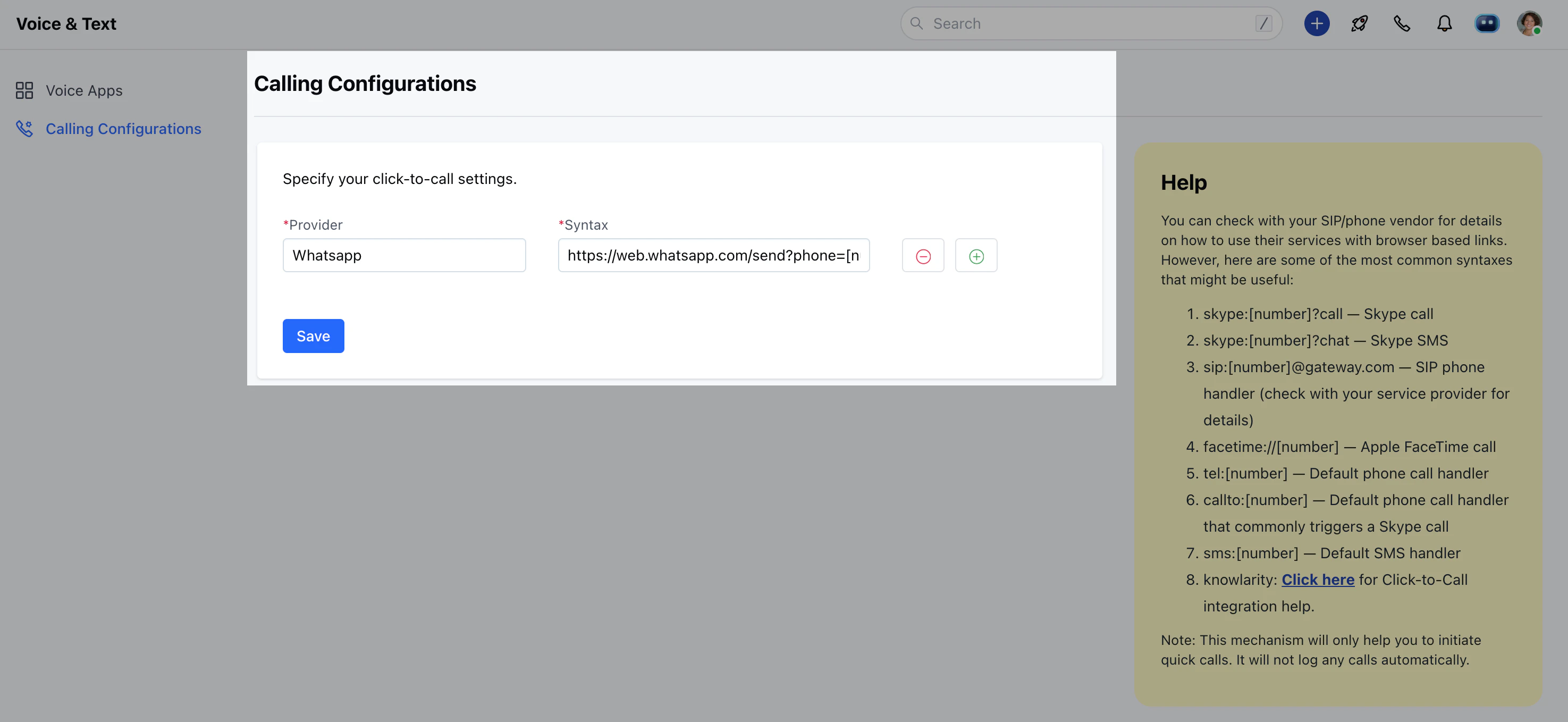
 Now, add the provider field as **Whatsapp** and add the Syntax as [https://web.whatsapp.com/send?phone=\[number\]](https://web.whatsapp.com/send?phone=%5Bnumber%5D)
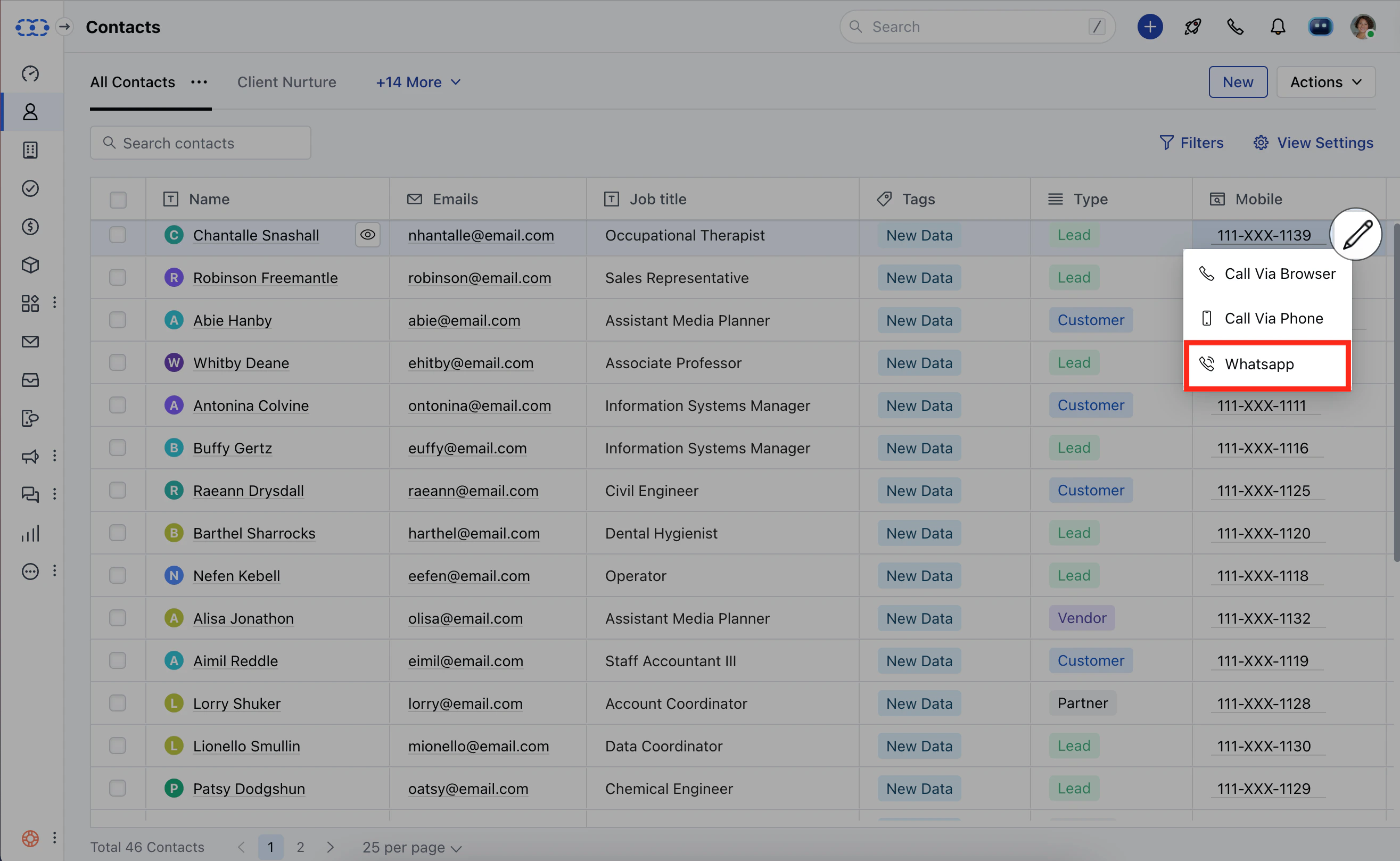
 Once you have set up the configuration, you will be able to send out the messages using Whatsapp.