> ## Documentation Index
> Fetch the complete documentation index at: https://support.getskara.ai/llms.txt
> Use this file to discover all available pages before exploring further.
# Manage Number of Rings
As a sales rep, you depend on calls to communicate with prospects and customers. To manage your turnaround time with responses to your customers, it has been an important factor to set your availability to receive calls.With Salesmate you can now manage the **Number of Rings** your Phone rings before the call is transferred to another user or the call is forwarded to **Voice Message**. Set the Number of Rings for Calls to be transferred to a Voice Message or Another user
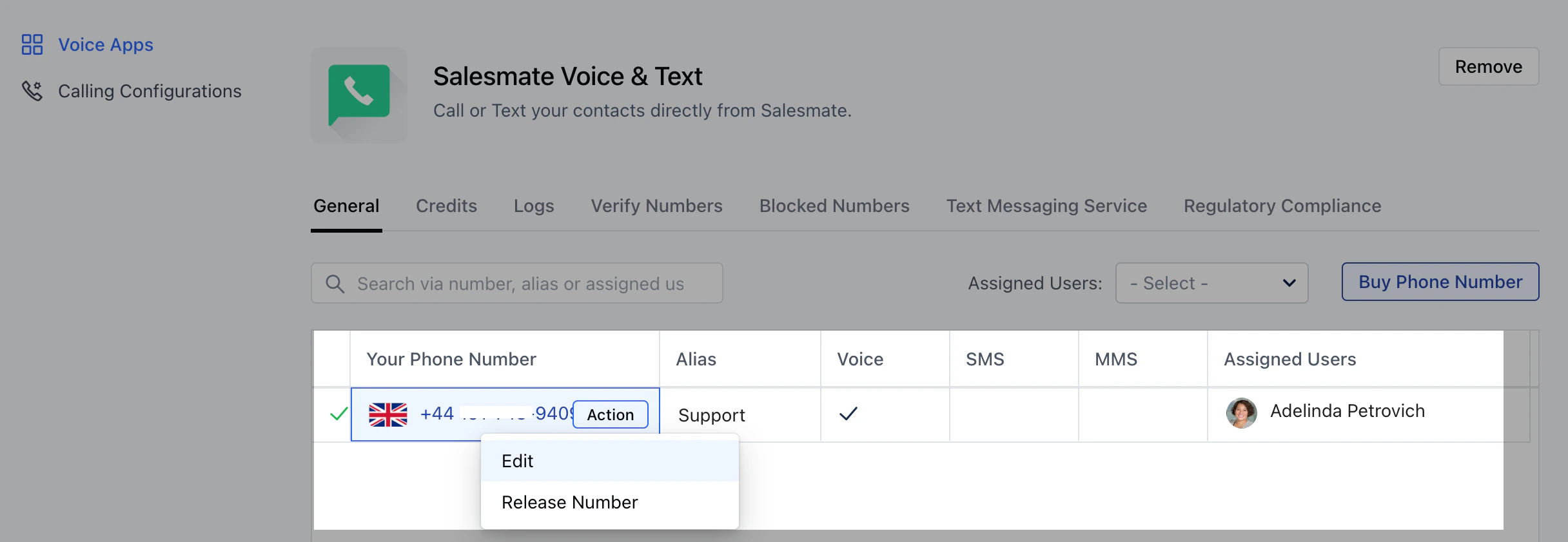
Navigate to the **Profile Icon** on the top right cornerClick on **Setup** Head over to **Voice & Text** categoryClick on \*\* Voice Apps \*\* \*\*Edit **the Number you would like to update the Ring for, click on** Actions > Edit \*\*
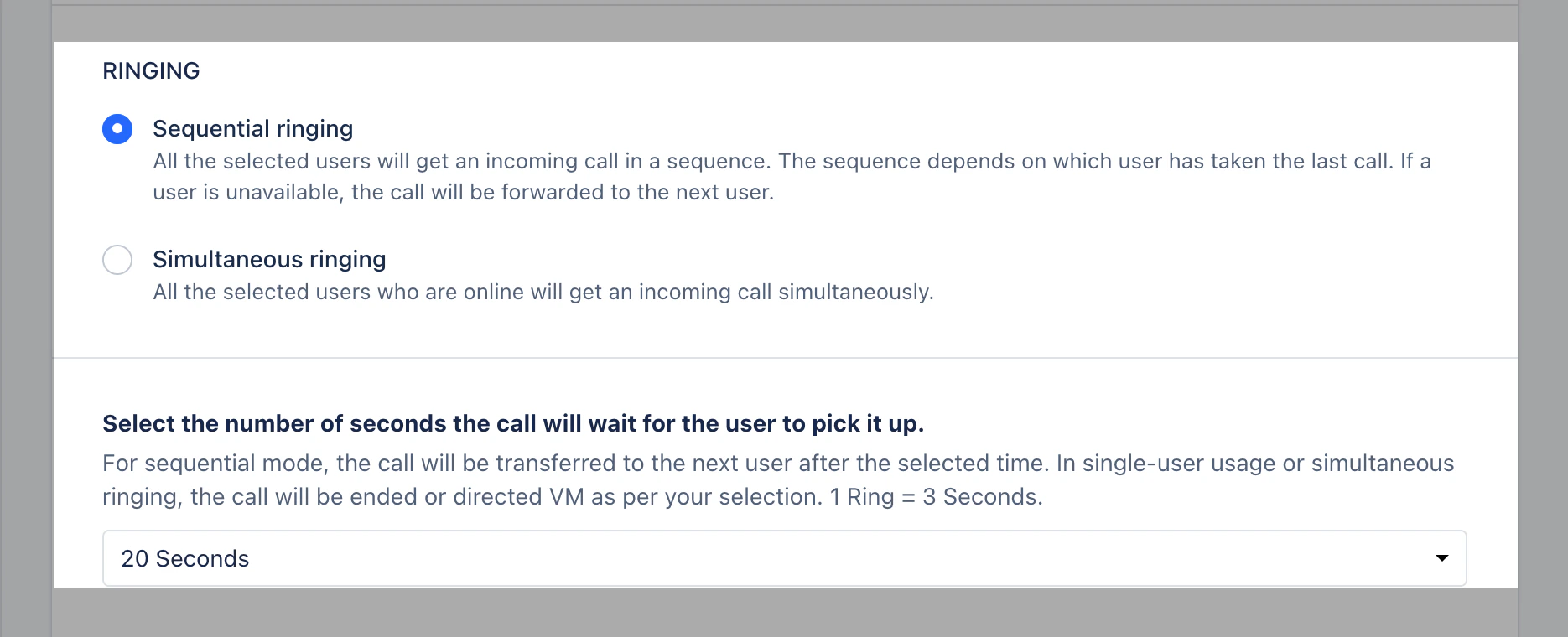
 Navigate to **Ringing**
 Select the number of **Seconds** the call will wait for the user to pick it up.
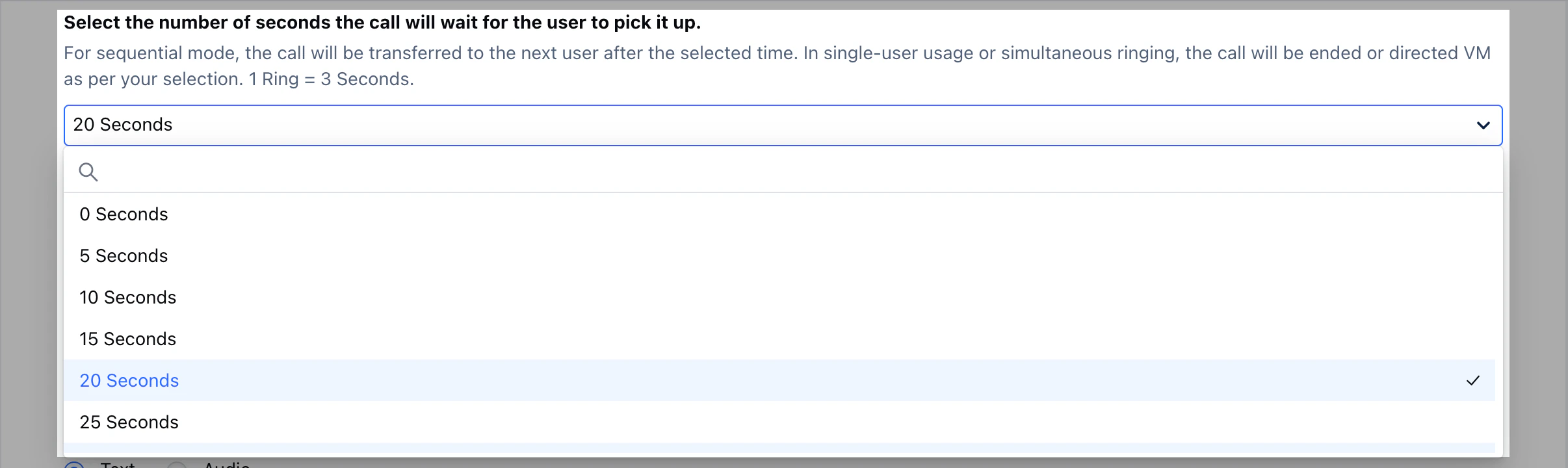 \*\*Note:\*\*For sequential mode, the call will be transferred to the next user after the selected time.
For Single-user Licenses or simultaneous ringing settings, the call will be ended or directed to Voice Message as per your selection.
* **1 Ring = 3 Seconds.**
\*\*Note:\*\*For sequential mode, the call will be transferred to the next user after the selected time.
For Single-user Licenses or simultaneous ringing settings, the call will be ended or directed to Voice Message as per your selection.
* **1 Ring = 3 Seconds.**