> ## Documentation Index
> Fetch the complete documentation index at: https://support.getskara.ai/llms.txt
> Use this file to discover all available pages before exploring further.
# Text Messaging Templates
Use of Templates while text messaging makes your work easier to send repeated texts in the same format OR while sending a bulk message.\*\*Create Text Templates:\*\*Navigate to the **Texts** from the left menu bar Click on **Templates** Click on the **+ New Template** button to create a new text template
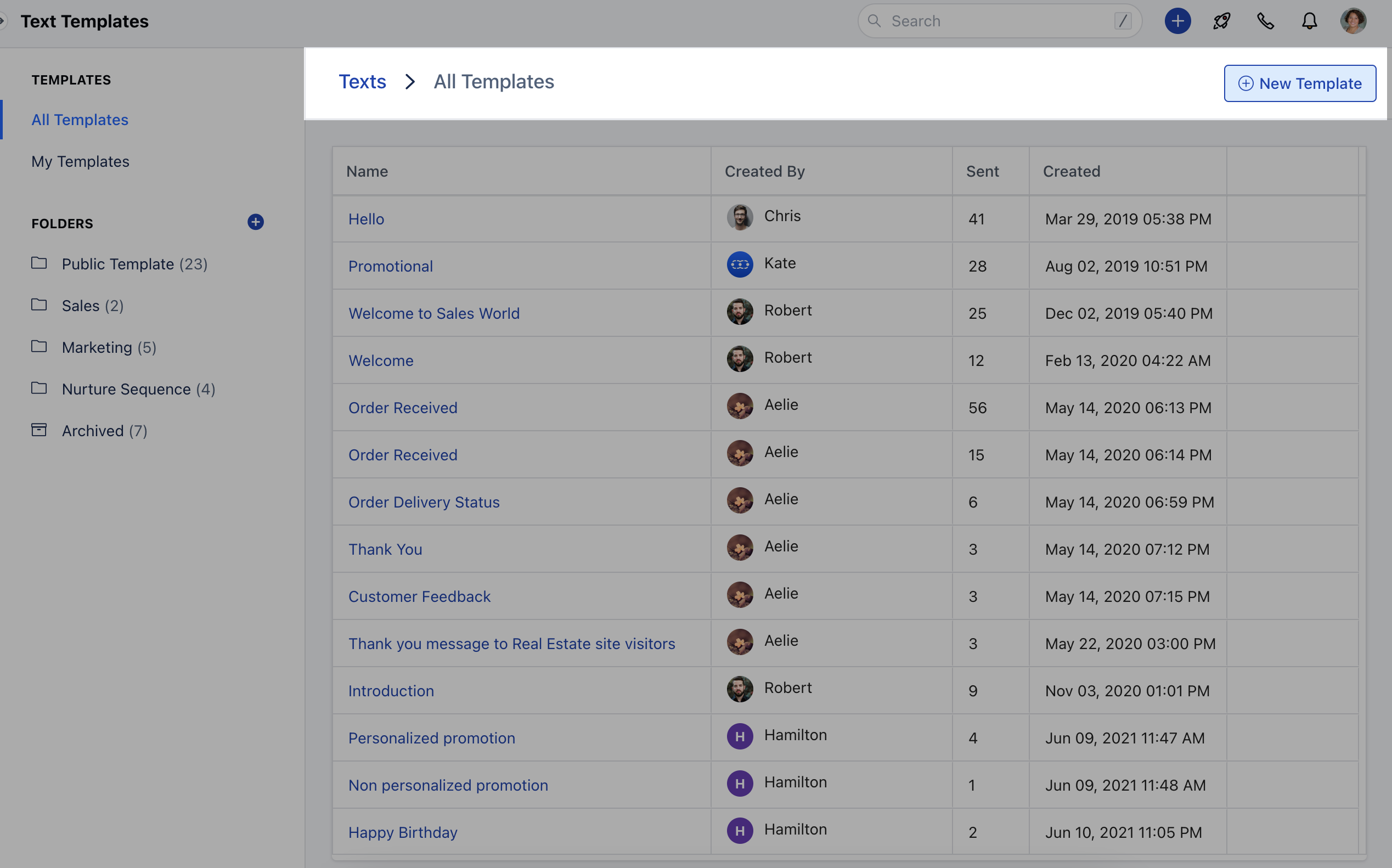 * *Note*\*: You can create folders and store these templates in them to keep them organized.
### \*\*Using Attributes:\*\*Click on **+ New Template**
* *Note*\*: You can create folders and store these templates in them to keep them organized.
### \*\*Using Attributes:\*\*Click on **+ New Template**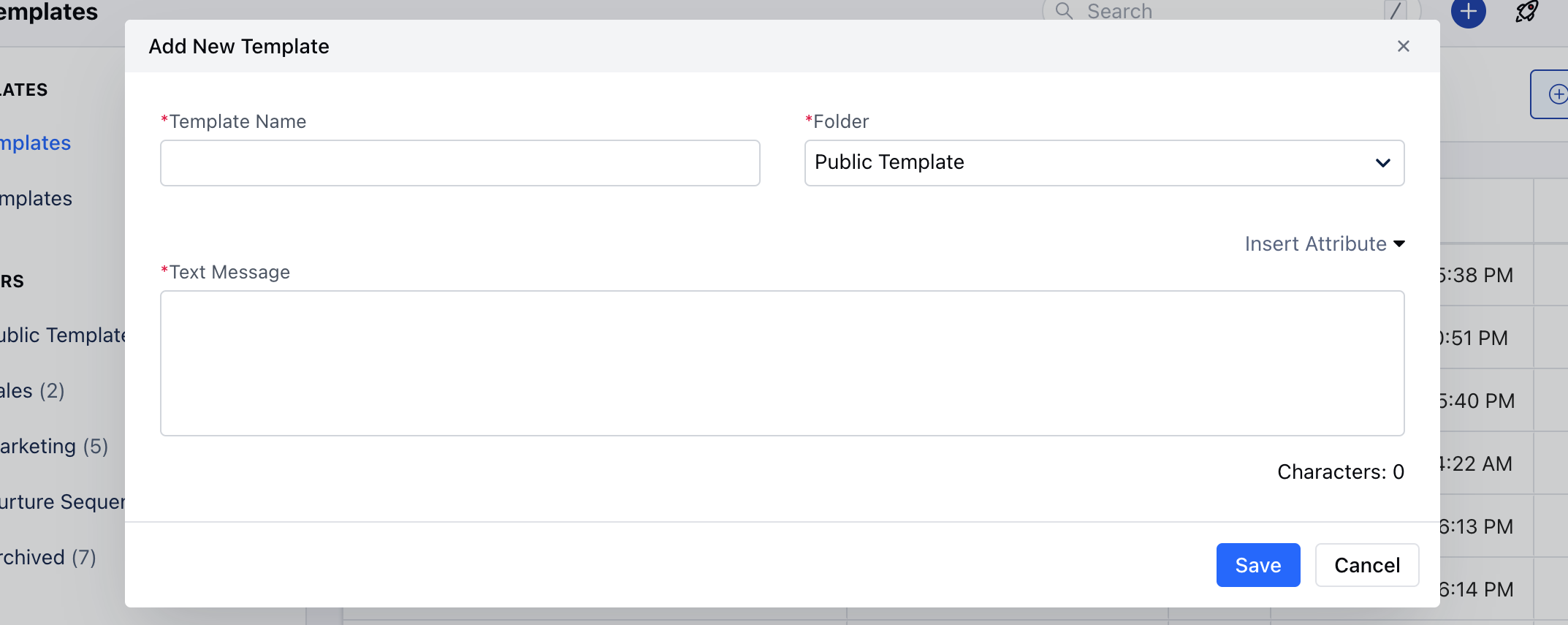 Click on **Insert Attributes** Select **Merge Fields** of your choice
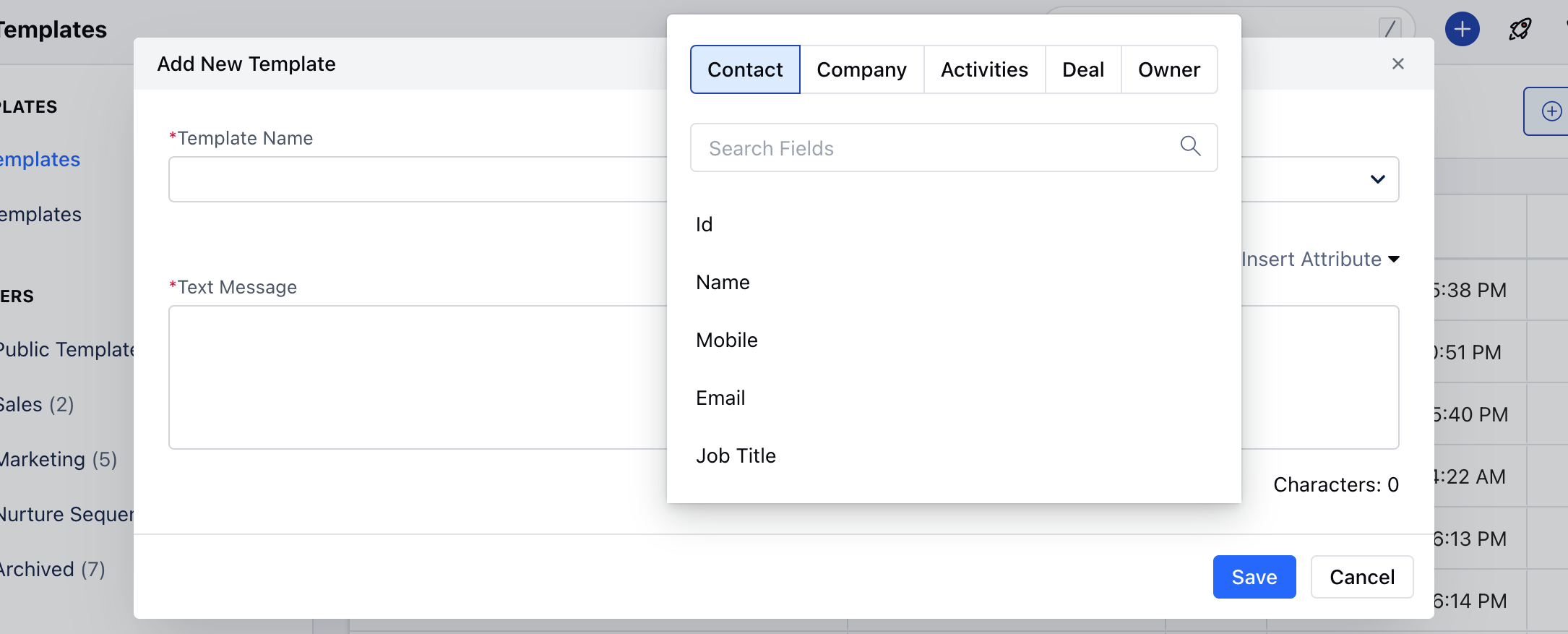 ### \*\*Create Text Template Folder:\*\*Click on the **+ button** beside FOLDERS to create the Text Template Folder
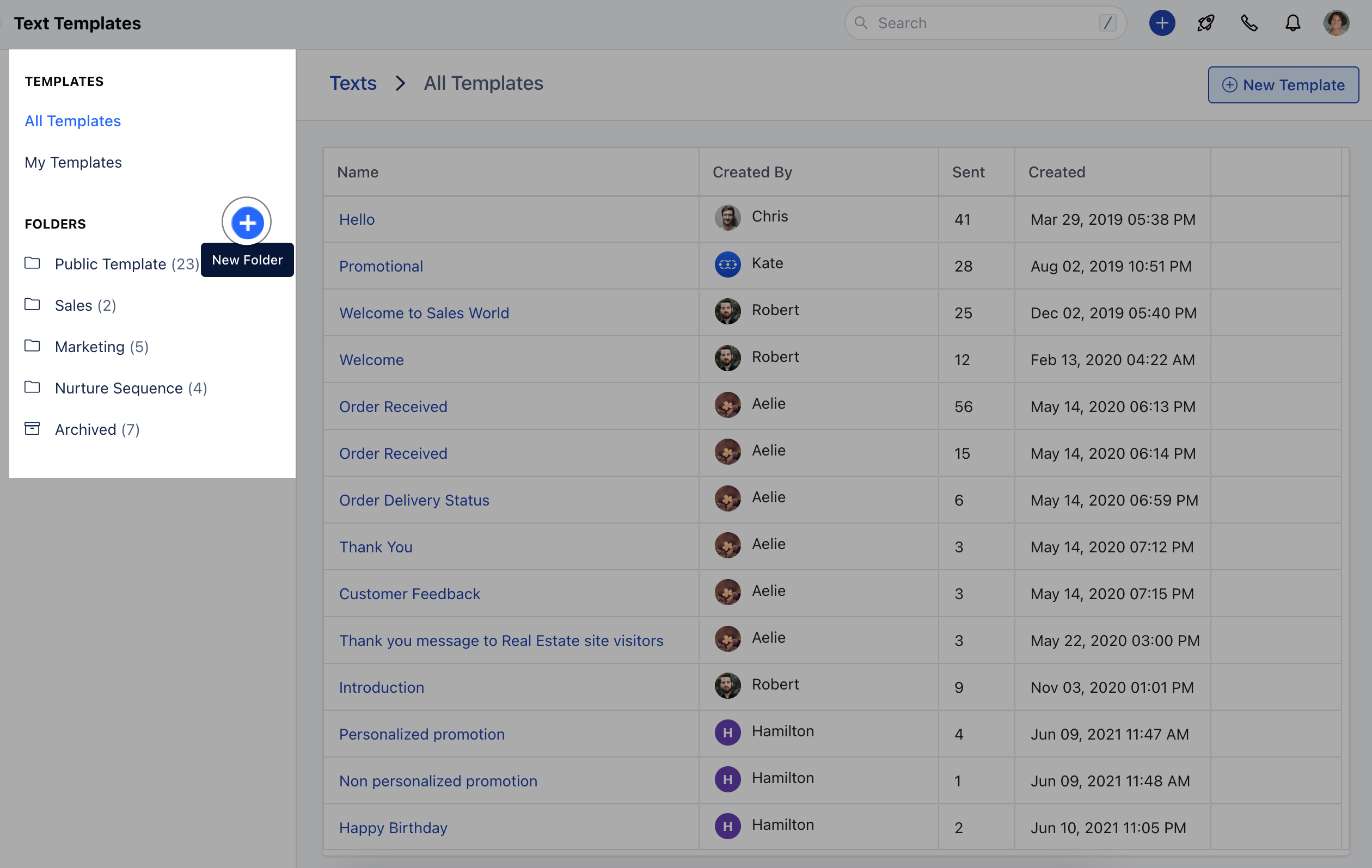 ### **Note :** You can select a template at the time of sending a single text message or a bulk one.If a single text message is being sent, and as soon as you choose the template, it will replace all variables with the related module and replace the text message body with a written one. Even users can type a variable after selecting a template inside the message and that should be parsed before sending the message.If you are sending the bulk message, then variables will not be replaced while selecting a template, and they will be replaced at the time of sending the messageThe template count will be increased with each send.