> ## Documentation Index
> Fetch the complete documentation index at: https://support.getskara.ai/llms.txt
> Use this file to discover all available pages before exploring further.
# Can't hear sound for calls?
If your team cannot hear the notification sound or sound during the calls or move directly to missed calls. Please take the following steps:**Quick Links**
[Chrome](#settings-for-chrome)
[Safari](#settings-for-safari)
[Firefox](#settings-for-firefox)
### Settings for Chrome
While you're using Salesmate in Chrome browser.
In the **address bar**, click the **padlock icon**. Navigate to '**Site settings**.'
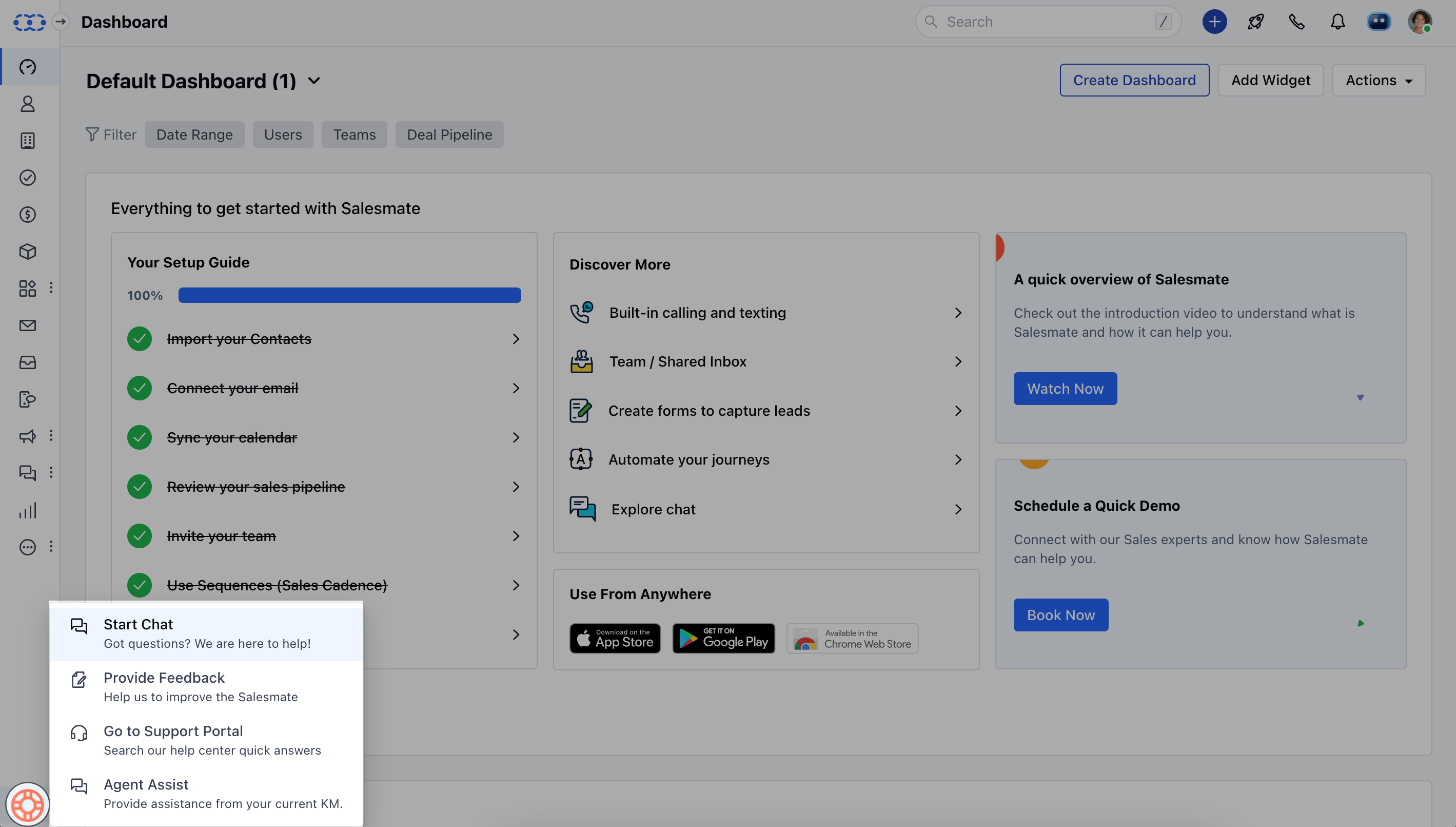 Then, make sure '**Sound**' is set to '**Allow**':
!\[Screenshot\_2023-05-31\_at\_1.02.17\_PM.png]\(./images/Screenshot 2023-05-31 at 1.02.17 PM.png)
### Settings for Safari
Access the following while using the Safari browser.
SafariPreferencesWebsitesAuto-Play
Then, make certain that '**yoursalesmatedomain.salesmate.io**' is set to 'Allow All Auto-Play':
Then, make sure '**Sound**' is set to '**Allow**':
!\[Screenshot\_2023-05-31\_at\_1.02.17\_PM.png]\(./images/Screenshot 2023-05-31 at 1.02.17 PM.png)
### Settings for Safari
Access the following while using the Safari browser.
SafariPreferencesWebsitesAuto-Play
Then, make certain that '**yoursalesmatedomain.salesmate.io**' is set to 'Allow All Auto-Play':
 ### Settings for Firefox
Access the following while using the Firefox browser.
FirefoxPreferencesPrivacy & Security
Click '**Setting**' aligning to **Autoplay**:
Then, for '**yoursalesmatedomain.salesmate.io**,' modify the default to 'Allow Audio and Video' or establish a custom setting:While you're using Salesmate,
In the **address bar**, click the **padlock icon**. Navigate to the '**Connection Secure Settings**' section.
### Settings for Firefox
Access the following while using the Firefox browser.
FirefoxPreferencesPrivacy & Security
Click '**Setting**' aligning to **Autoplay**:
Then, for '**yoursalesmatedomain.salesmate.io**,' modify the default to 'Allow Audio and Video' or establish a custom setting:While you're using Salesmate,
In the **address bar**, click the **padlock icon**. Navigate to the '**Connection Secure Settings**' section.
 Click '**More information**'
 Click '**Permissions**' tabUncheck, '**Use Default**'Select '**Allow Audio and Video**'
