> ## Documentation Index
> Fetch the complete documentation index at: https://support.getskara.ai/llms.txt
> Use this file to discover all available pages before exploring further.
# How do you add / purchase phone numbers?
### Before you buy a phone number:
You need to **enable the built-in phone (voice & text) app** by requesting one. To do so:
[Click here for detailed steps to enable calling](https://support.salesmate.io/hc/en-us/articles/360004733011-How-do-you-enable-the-calling-app-)
### To buy a phone number:
Once your built-in phone feature is enabled, you need to purchase phone numbers to make and receive calls in Salesmate.
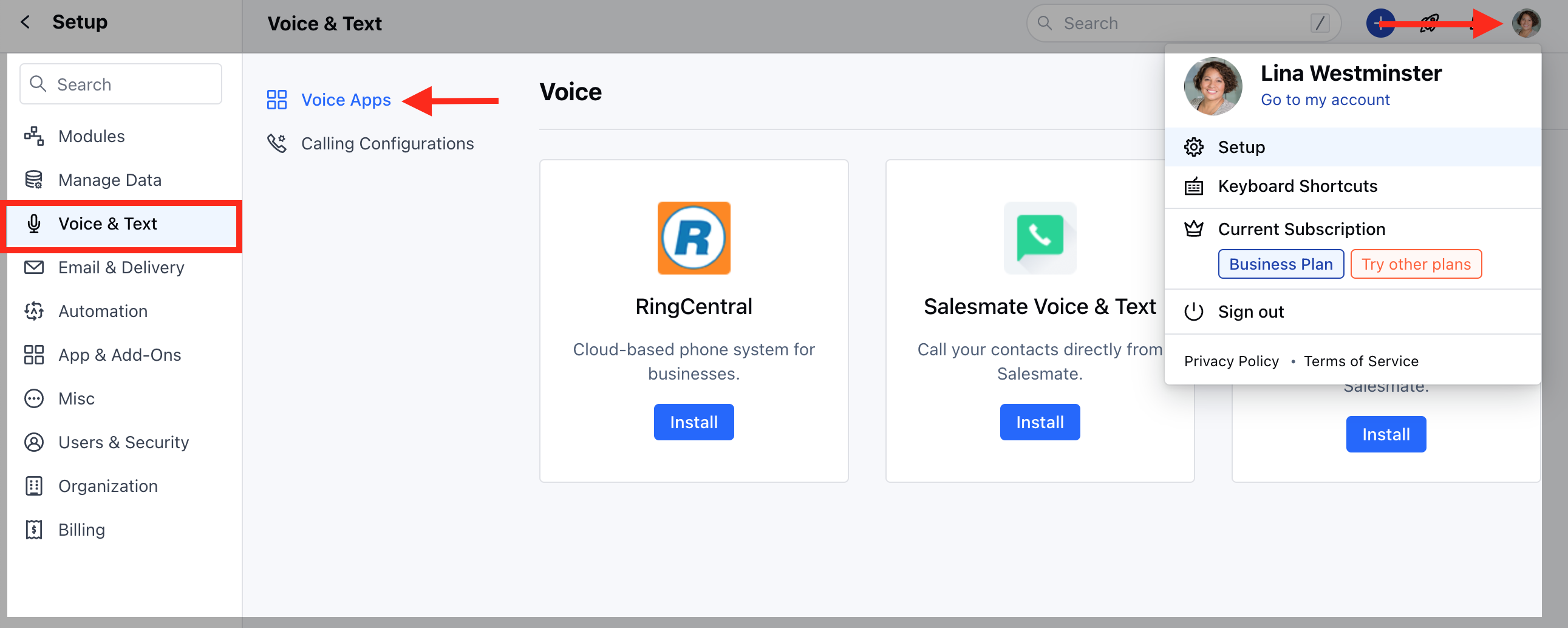
Navigate to the **Profile Icon** on the top right cornerClick on **Setup** Head over to **Voice & Text** categoryClick on **Voice Apps**
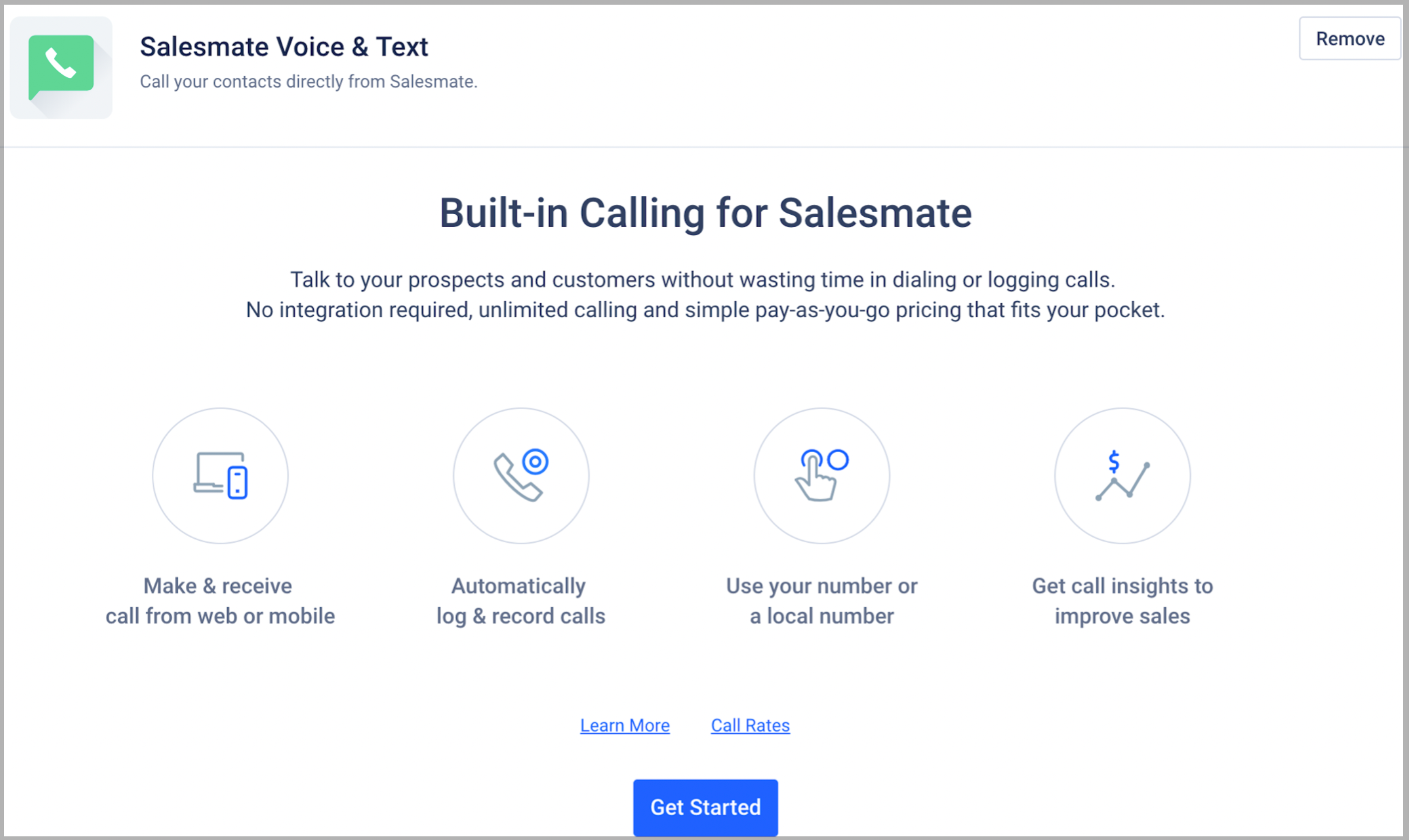
 Click on **Get Started**
 You will be redirected to the list of numbers available to purchase. You can choose to buy a **Local number or Mobile number** in your country or buy a **Toll-free number**. Select one of the two options.
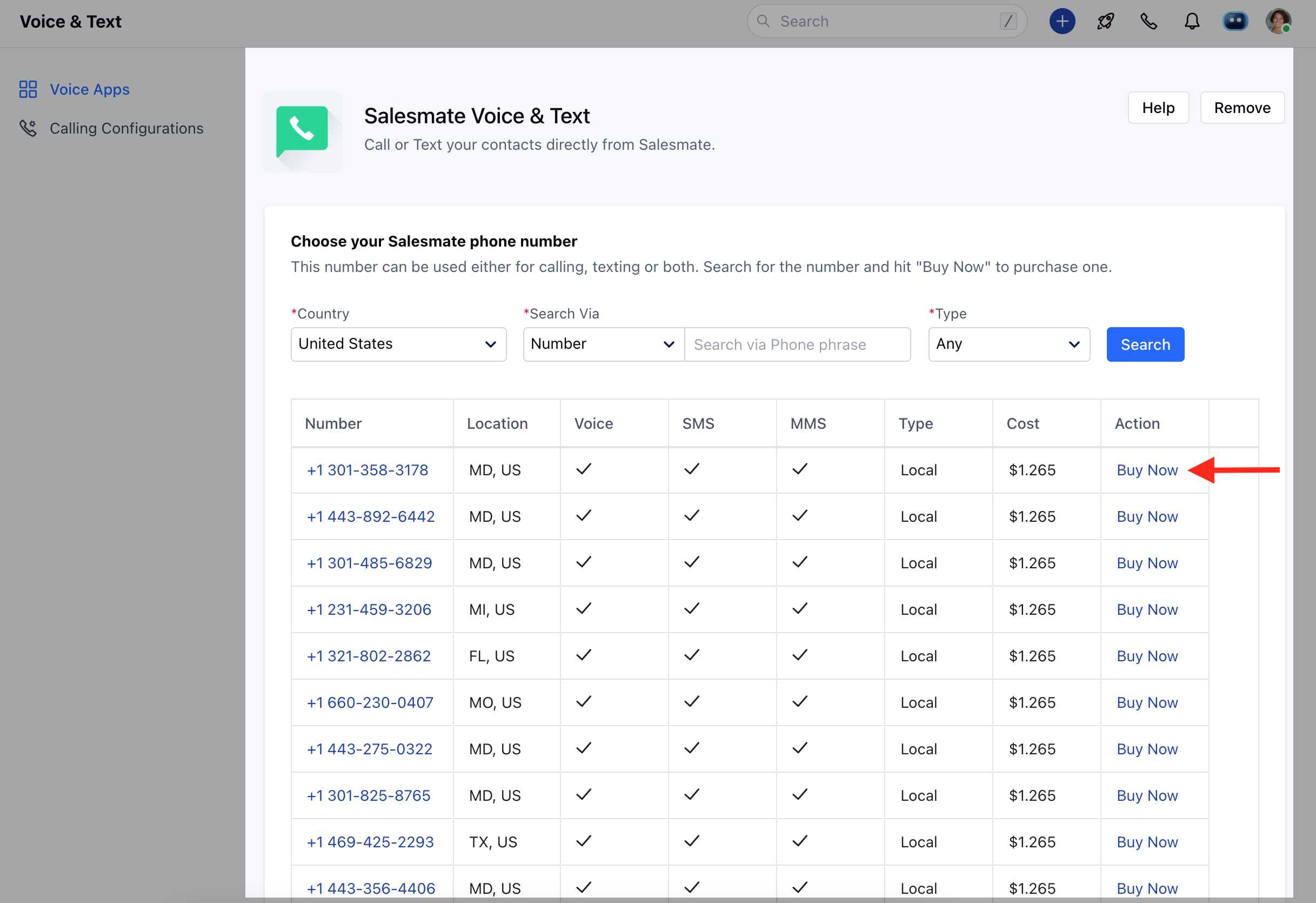 ### Choose your Salesmate Phone Number
This number will be used for calling and texting. Click on any phone number to continue.
Click on the **Country**, to select the appropriate Country Phone Numbers to Dial out
### Choose your Salesmate Phone Number
This number will be used for calling and texting. Click on any phone number to continue.
Click on the **Country**, to select the appropriate Country Phone Numbers to Dial out
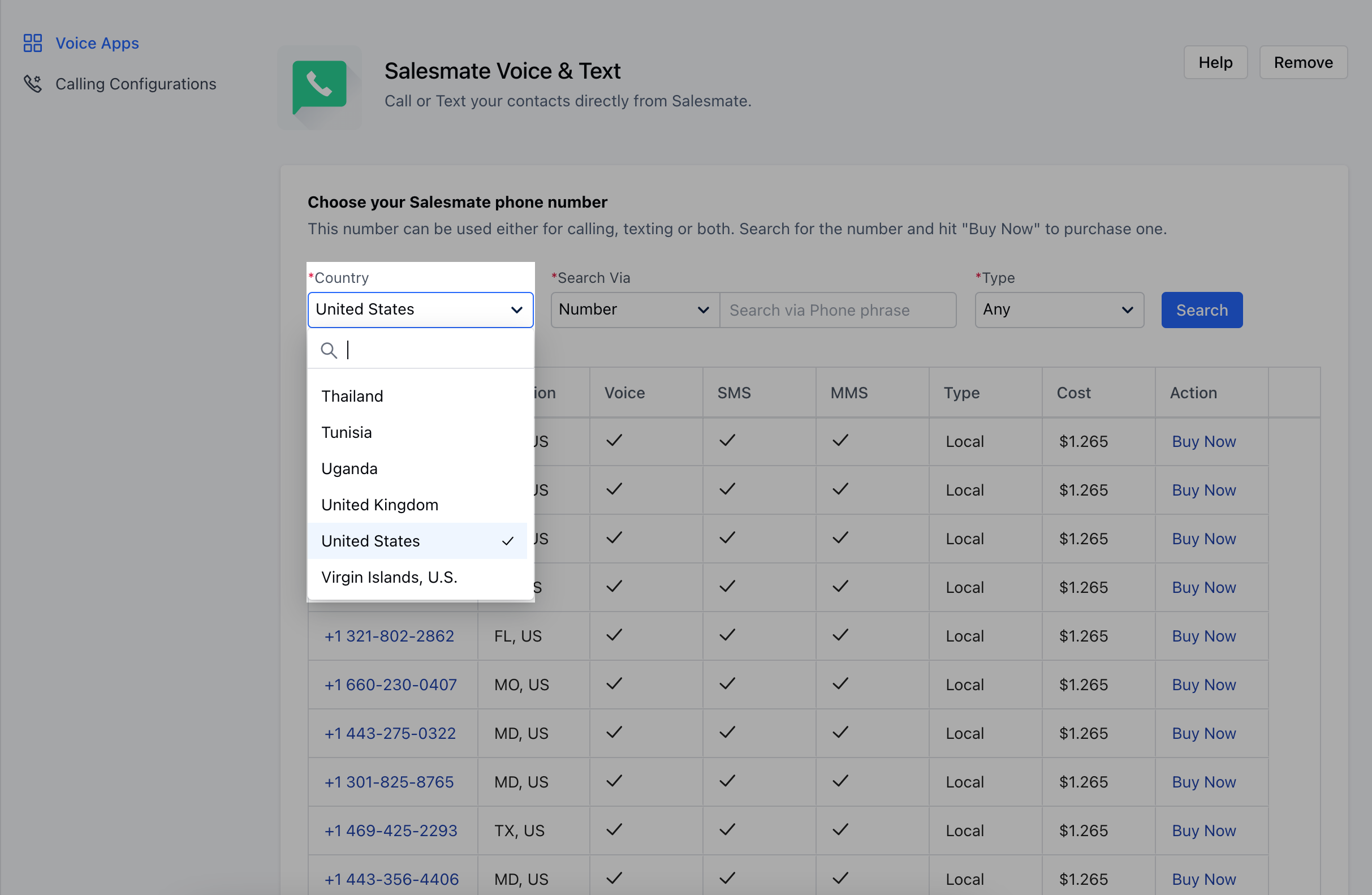 Search via **Number** or **Location**
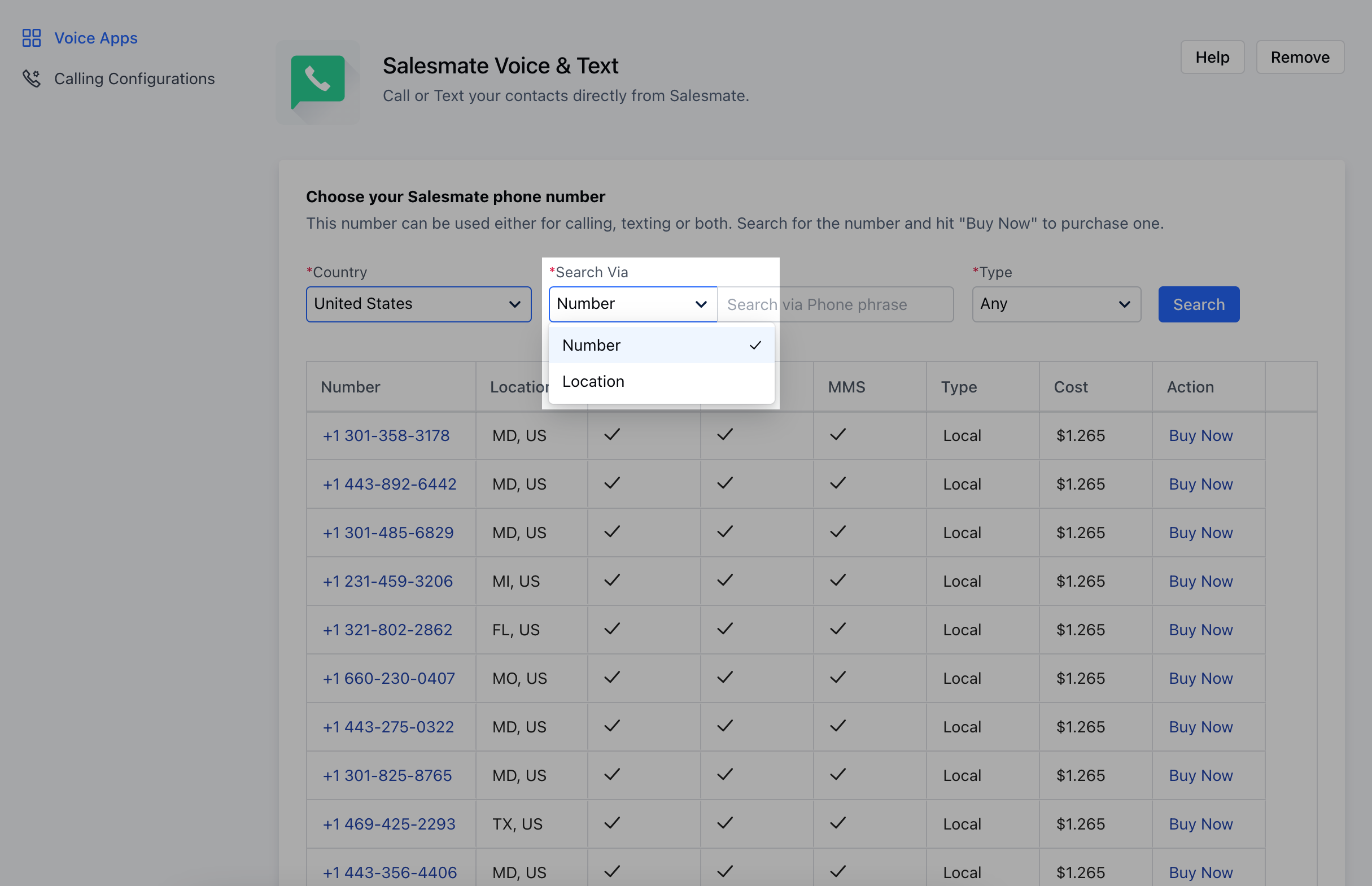 Make a selection for the **Type** of Number required
AnyLocalToll-FreeMobile
Make a selection for the **Type** of Number required
AnyLocalToll-FreeMobile
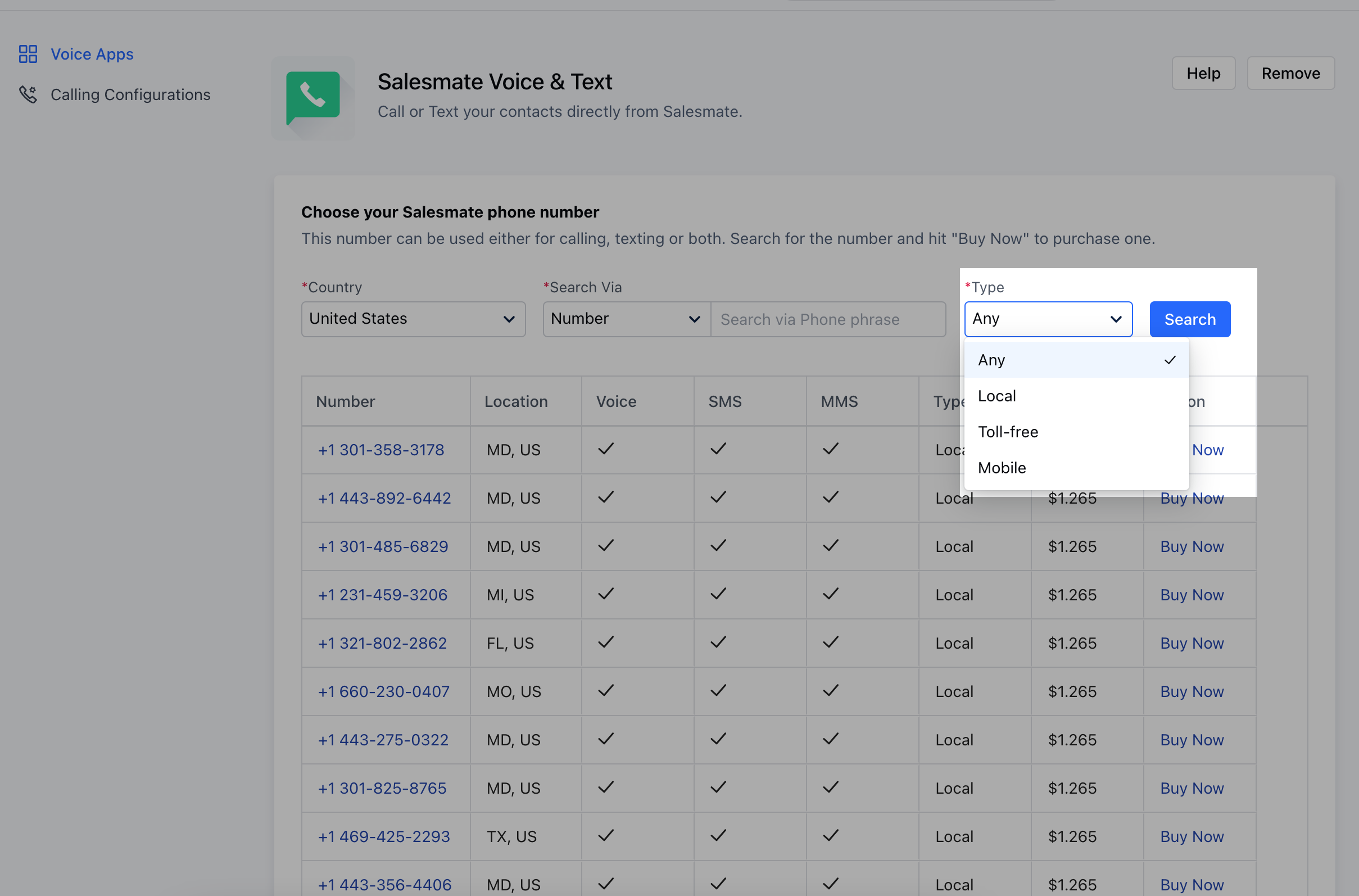 \*\*Note:\*\*Just in case you do not have credits being purchased you will need to **[purchase credits](https://support.salesmate.io/hc/en-us/articles/360004672232-How-do-you-purchase-recharge-phone-credits-)** before you can purchase a phone number.
* **Select** the Number, you would like to purchase and click on **Buy Now**
Confirm the **Credits** for Purchase
\*\*Note:\*\*Just in case you do not have credits being purchased you will need to **[purchase credits](https://support.salesmate.io/hc/en-us/articles/360004672232-How-do-you-purchase-recharge-phone-credits-)** before you can purchase a phone number.
* **Select** the Number, you would like to purchase and click on **Buy Now**
Confirm the **Credits** for Purchase
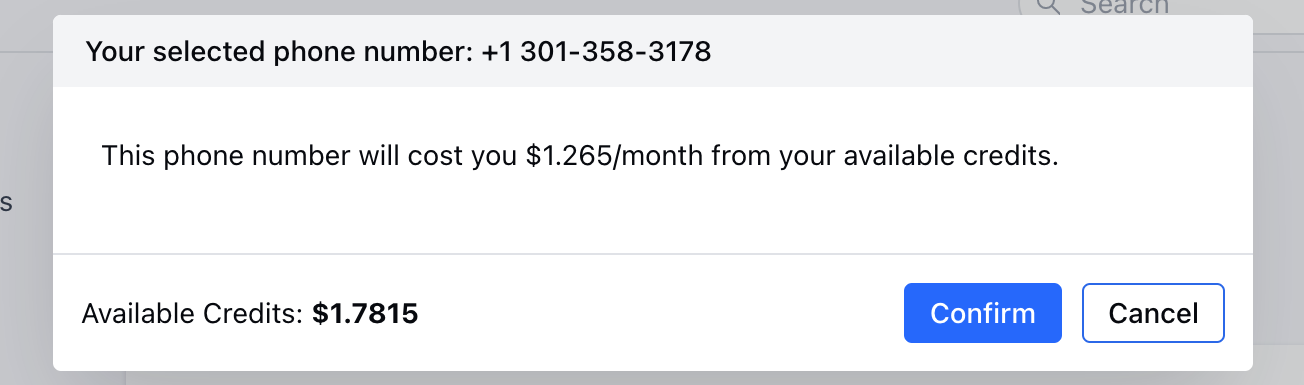 Click on **Confirm**### \*\*Local Number:\*\*Local numbers are currently available in \*\*80+\*\*countries.Select the country and the corresponding state (in the case of the US) where you want your local number to be available in.You can also use the search box on the right to find numbers that have specific digits.Choose a number from the list of numbers displayed in the results and click **Select**. A **confirmation dialog box** with the cost of the number appears. Click **Confirm** to complete the purchase.
\*\*Note:\*\*In accordance with the recent changes in [**Regulatory Compliance**](#before-you-buy-a-phone-number) for purchasing numbers, you'll need to submit valid address proof and other documents to purchase a number.
### \*\*Toll-free number:\*\*Purchase your dial-in toll-free numbers from any one of these 4 countries
* \*\* The United States of America, The United Kingdom,**Canada,** and **Australia**. Select the country and the extension of the toll-free number that you like to use.Use the search box to find numbers with specific digits.Choose a number from the list of numbers displayed in the results and click **Select**. A confirmation dialog box with the cost of the number appears. Click \*\* Confirm\*\* to complete the purchase.
### After buying the phone number:
* The **Make a call** button (
Click on **Confirm**### \*\*Local Number:\*\*Local numbers are currently available in \*\*80+\*\*countries.Select the country and the corresponding state (in the case of the US) where you want your local number to be available in.You can also use the search box on the right to find numbers that have specific digits.Choose a number from the list of numbers displayed in the results and click **Select**. A **confirmation dialog box** with the cost of the number appears. Click **Confirm** to complete the purchase.
\*\*Note:\*\*In accordance with the recent changes in [**Regulatory Compliance**](#before-you-buy-a-phone-number) for purchasing numbers, you'll need to submit valid address proof and other documents to purchase a number.
### \*\*Toll-free number:\*\*Purchase your dial-in toll-free numbers from any one of these 4 countries
* \*\* The United States of America, The United Kingdom,**Canada,** and **Australia**. Select the country and the extension of the toll-free number that you like to use.Use the search box to find numbers with specific digits.Choose a number from the list of numbers displayed in the results and click **Select**. A confirmation dialog box with the cost of the number appears. Click \*\* Confirm\*\* to complete the purchase.
### After buying the phone number:
* The **Make a call** button (
 ) seen on the Quick Actions Bar is used to make a call from anywhere in Salesmate.
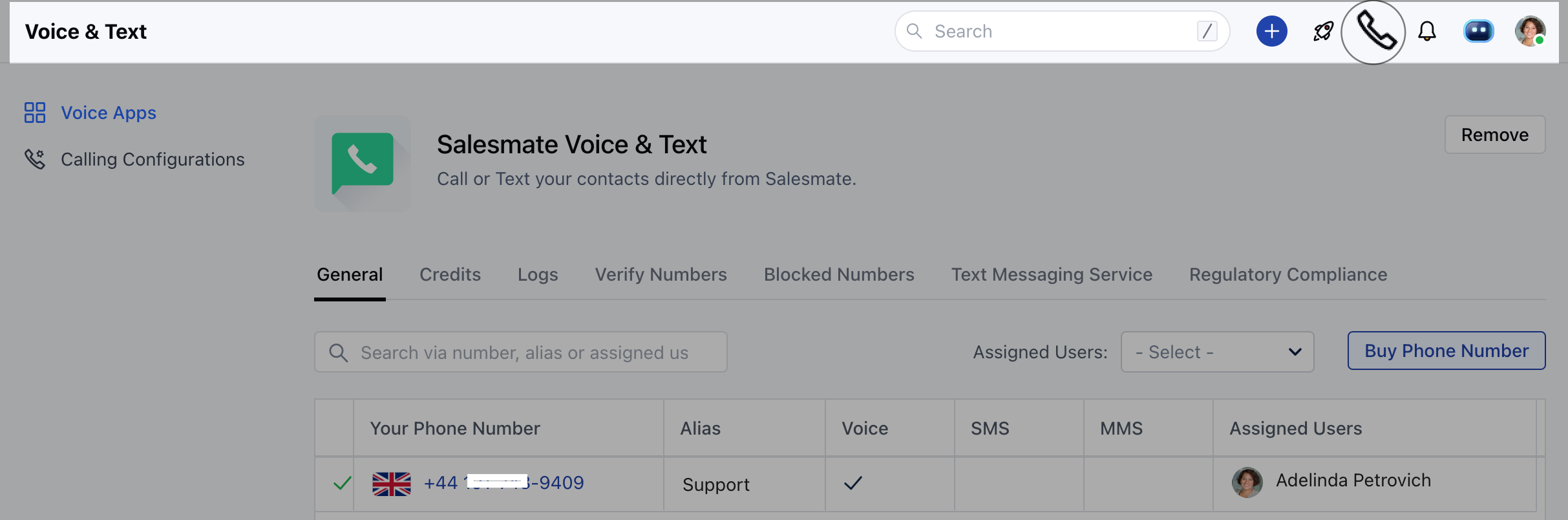 Check if it is \*\*enabled.
* \*\*If not, you need to configure your phone settings:
Navigate to **Setup** from profile icon \*\* Voice & Text **Voice Apps** The list of all the purchased numbers appearsClick on number you have would like to edit,**Action** button will pop up.Click on **Action** and then\*\* Edit \*\*
Check if it is \*\*enabled.
* \*\*If not, you need to configure your phone settings:
Navigate to **Setup** from profile icon \*\* Voice & Text **Voice Apps** The list of all the purchased numbers appearsClick on number you have would like to edit,**Action** button will pop up.Click on **Action** and then\*\* Edit \*\*
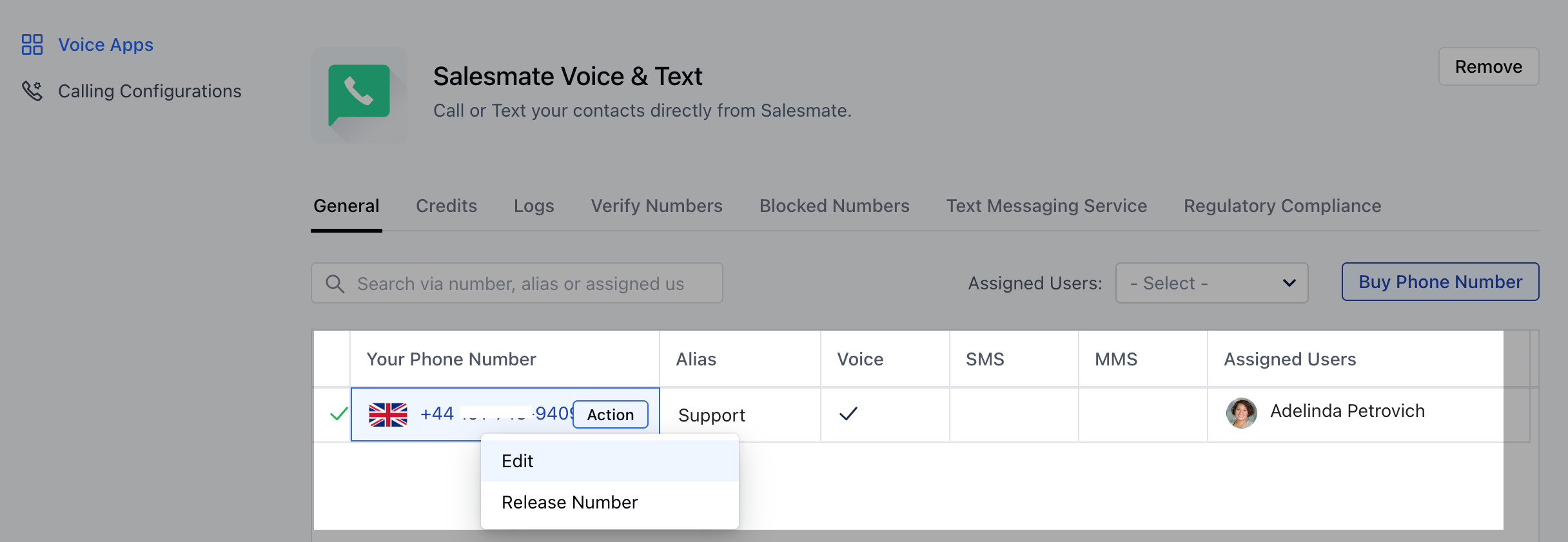 Check if you have assigned a user in the '**Selected User**'
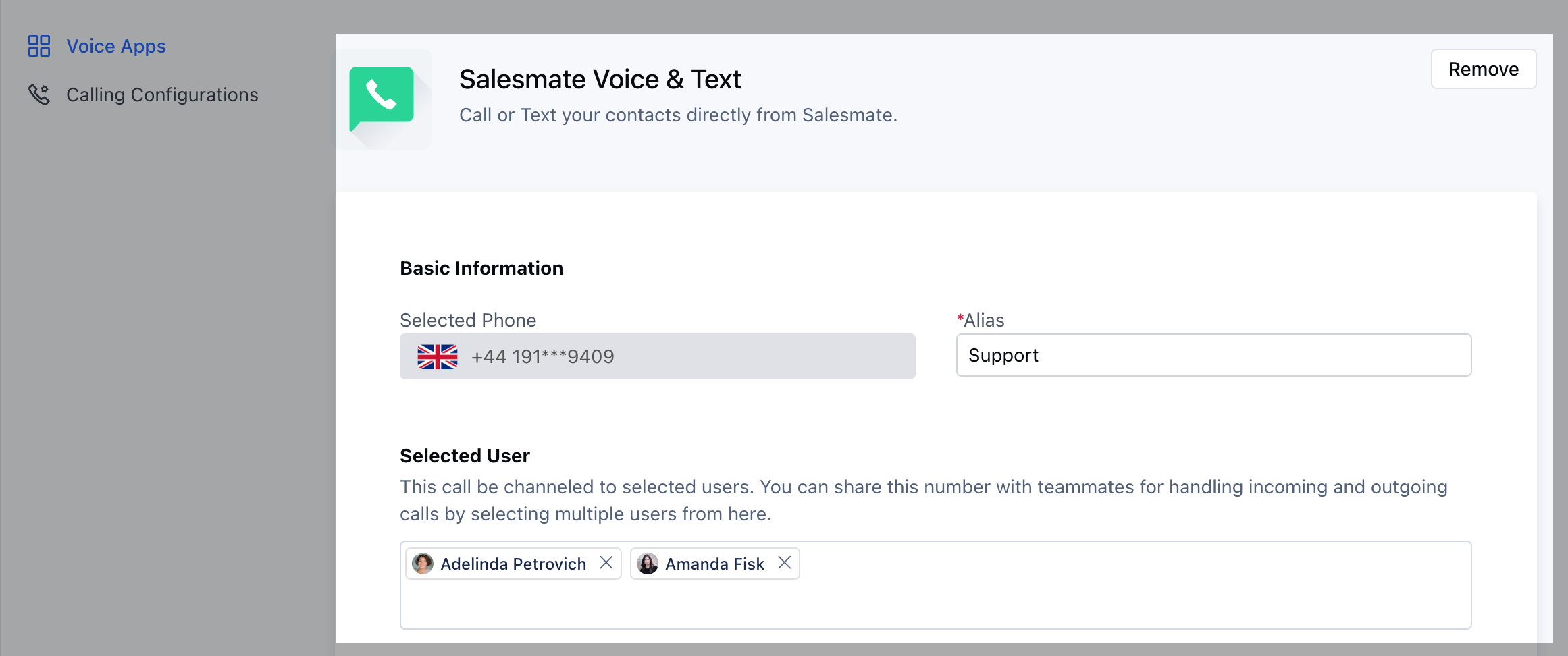 You can assign more than one user to a number and users can make or receive calls with that number.If no number is assigned to you then make a call button is set to \*\*
 \*\* and if you are assigned, then it will be set as
