> ## Documentation Index
> Fetch the complete documentation index at: https://support.getskara.ai/llms.txt
> Use this file to discover all available pages before exploring further.
# Voicemail Drop
Sales reps spend a lot of time doing cold calling and the majority of calls end in **voicemail**. Repeating the same message, again and again, can be hectic and by the end of the day, it loses energy to drop a compelling message to pursue a sale. With the Salesmate **voicemail drop** feature, you can store multiple pre-recorded messages and choose one to be auto-dropped when the call ends to a voicemail.
\*\*Note:\*\*The Feature is available on Business Plan and above only. The VM Drops can be uploaded/added by an Admin user only.
### **Topics covered:**
* [Uploading a pre-recorded voicemail message.](#uploading-a-pre-recorded-voicemail-message)
* [Recording an mp3 file.](#recording-an-mp3-file)
* [Drop a voicemail for an Outgoing Call.](#drop-a-voicemail-for-an-outgoing-call)
### Uploading a pre-recorded voicemail message
To upload a pre-recorded message in Salesmate.
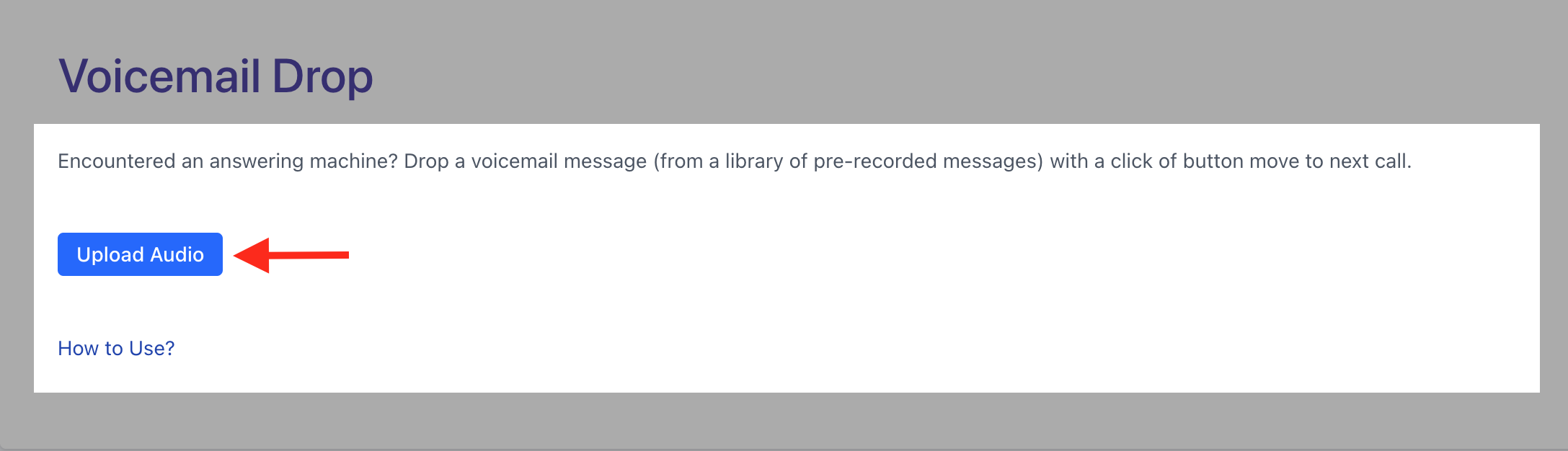
Navigate to the **Profile icon** on the top right cornerGo to **My Accounts** Click on **Voicemail Drop** Click on Upload Audio
 * *Subject*\*- To choose a proper voicemail from multiple voicemails.
* **Upload MP3 File**- A pre-recorded message in MP3 format.
\*\*Note:\*\*The maximum size of an Audio file for upload is 5MB.
* *Subject*\*- To choose a proper voicemail from multiple voicemails.
* **Upload MP3 File**- A pre-recorded message in MP3 format.
\*\*Note:\*\*The maximum size of an Audio file for upload is 5MB.
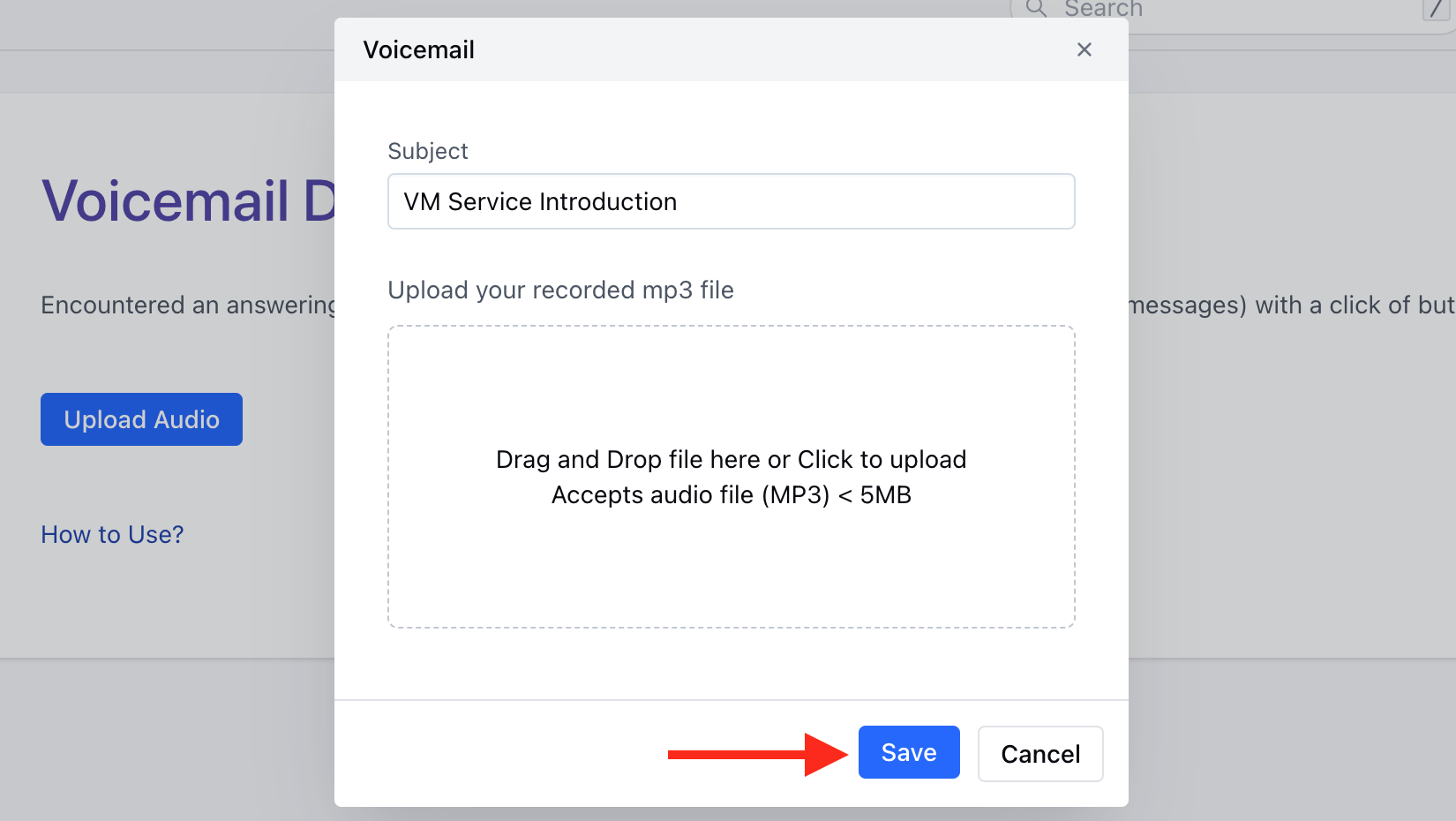 Click \*\*"Save".
* \*\* Similarly, additional files can be uploaded to be used as VM Drops.You can also update and remove the uploaded file via Edit and remove option.
Click \*\*"Save".
* \*\* Similarly, additional files can be uploaded to be used as VM Drops.You can also update and remove the uploaded file via Edit and remove option.
 ### Recording an MP3 file
These days there are many tools available on your desktop or mobile apps to record MP3 files.
Recording using
[QuickPlayer.](#uploading-a-pre-recorded-voicemail-message)
Record MP3 online via
[your browser](https://online-voice-recorder.com/)
### Drop a voicemail for an outgoing call
While you are on an outgoing (outbound) call and as soon as you hear the voicemail beep, click on the **drop voicemail button** and choose one of the pre-recorded messages. The voicemail will be dropped to the customer in the background, and you may continue your work henceforth.
### Recording an MP3 file
These days there are many tools available on your desktop or mobile apps to record MP3 files.
Recording using
[QuickPlayer.](#uploading-a-pre-recorded-voicemail-message)
Record MP3 online via
[your browser](https://online-voice-recorder.com/)
### Drop a voicemail for an outgoing call
While you are on an outgoing (outbound) call and as soon as you hear the voicemail beep, click on the **drop voicemail button** and choose one of the pre-recorded messages. The voicemail will be dropped to the customer in the background, and you may continue your work henceforth.
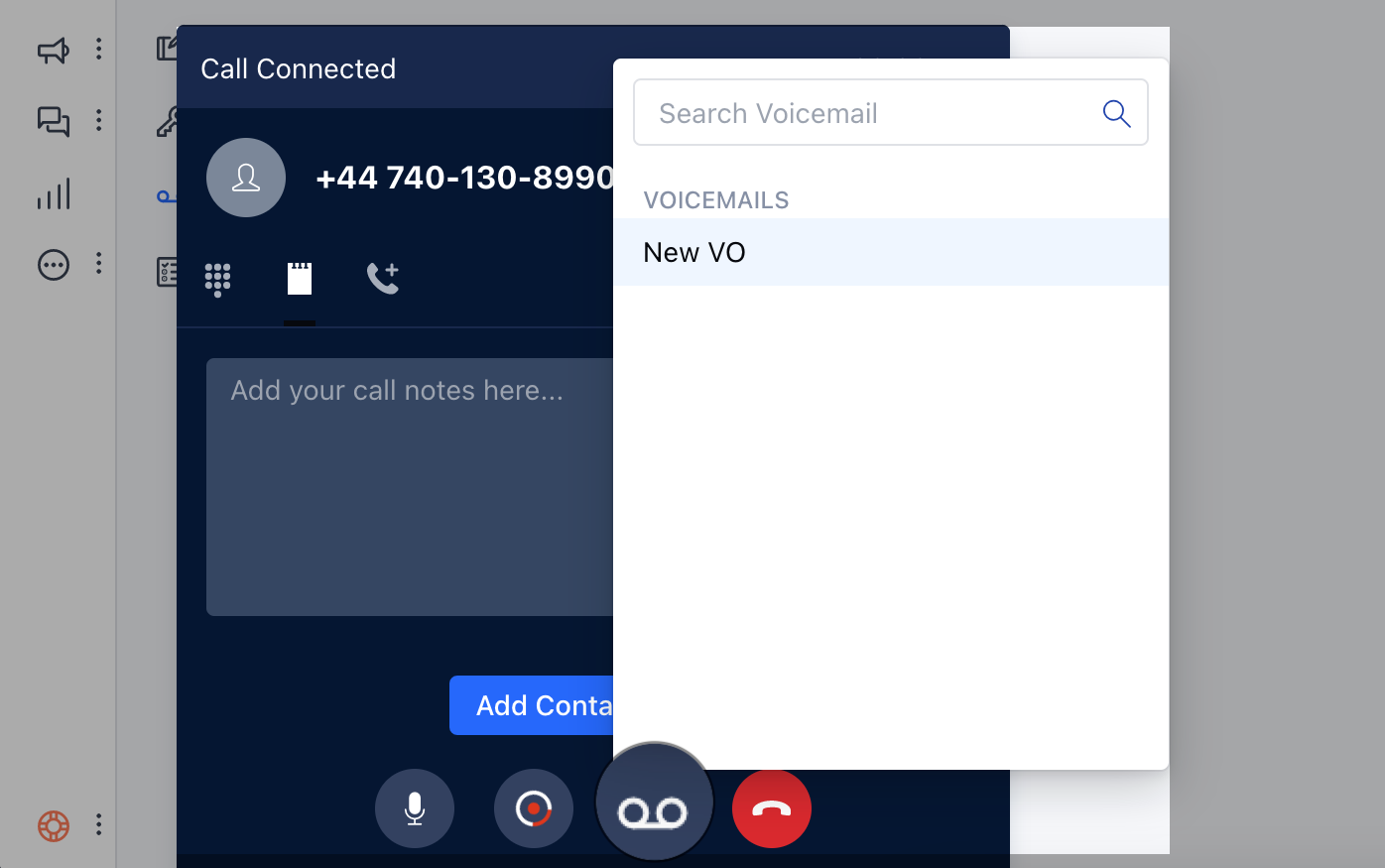 **Note:** If you have dropped a VM to a customer, then the call discard option will not be visible in the calling widget. So that a recording can be dropped in the background and it gets auto-associated with the customer's timeline.