> ## Documentation Index
> Fetch the complete documentation index at: https://support.getskara.ai/llms.txt
> Use this file to discover all available pages before exploring further.
# Configure Chats appearance
A user can choose the appearance of the Chat as per their brand's needs.
Messenger appearance can be customized while [installing Chats](#a-user-can-choose-the-appearance-of-the-chat-as-per-their-brands-needs) and you can also customize it anytime in the future by following these simple steps:
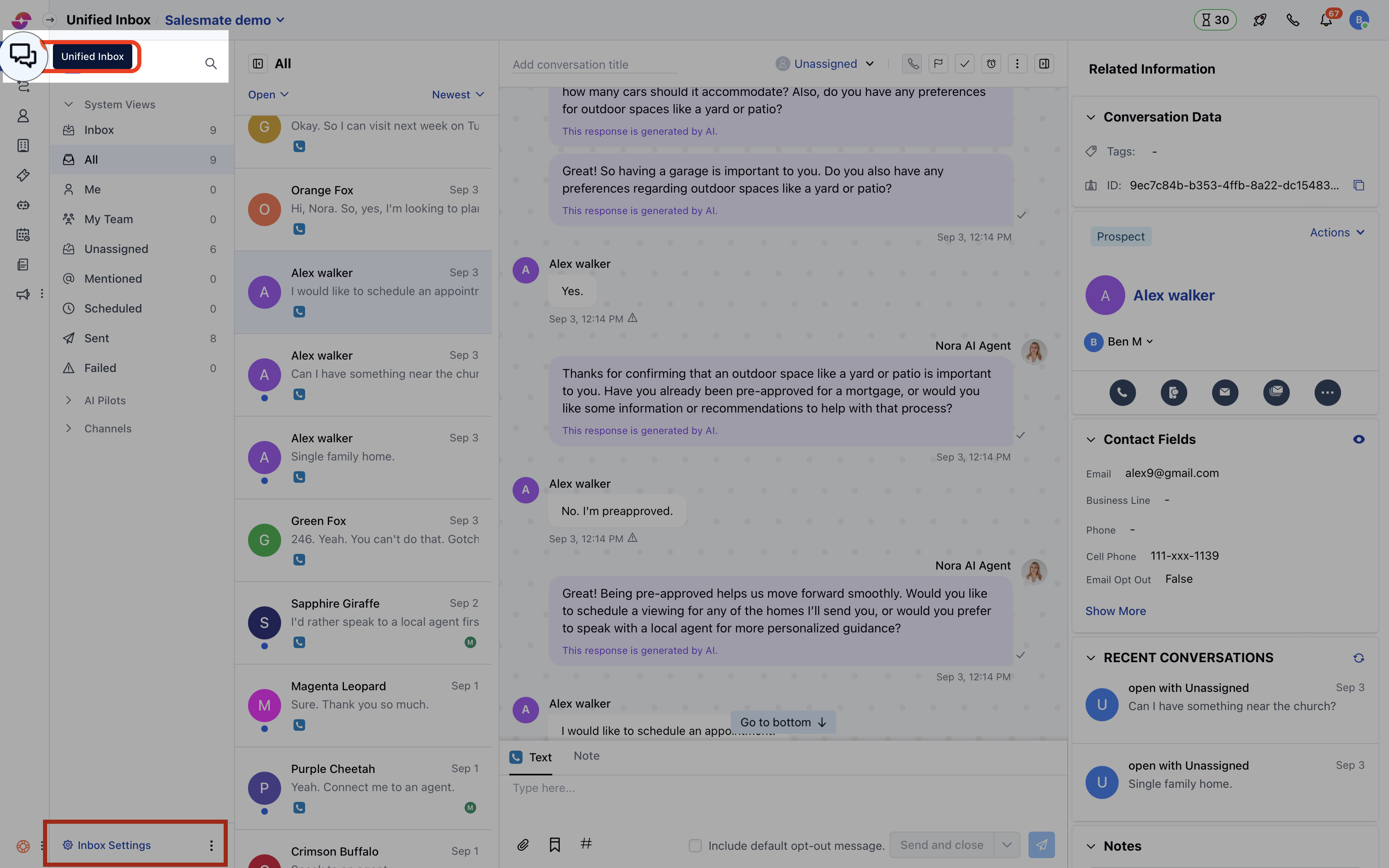
* Navigate to **Conversations Icon** on the left menu bar
* Click on **Chats**
* Head to **Inbox Settings** on bottom left.
* Select the **Channel** from the list of available channels in your Unified Inbox.
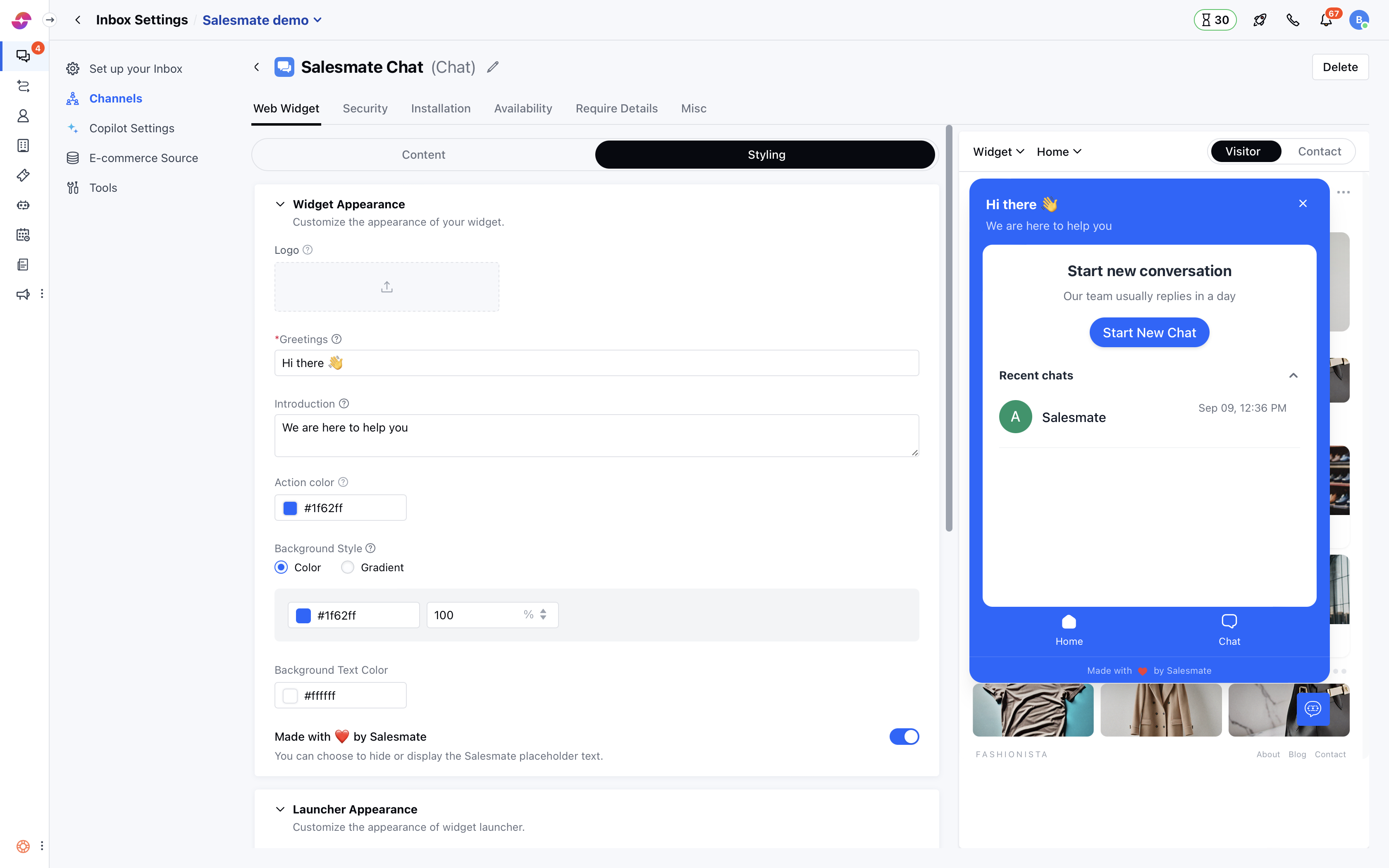
 Switch to the "**Appearance**" tab and set up the customization options available below
* **Header Logo:** You can upload the header image which can be of **PNG**, **JPG**, or **GIF** type with a file dimension of 160pixels \* 40pixels
* **Background Color:** Set the background color that will appear behind your welcome message, team profile, and chat header
* **Action Color:** Select the action color that will be used to assign primary colors for the buttons, links, and highlighted options
Switch to the "**Appearance**" tab and set up the customization options available below
* **Header Logo:** You can upload the header image which can be of **PNG**, **JPG**, or **GIF** type with a file dimension of 160pixels \* 40pixels
* **Background Color:** Set the background color that will appear behind your welcome message, team profile, and chat header
* **Action Color:** Select the action color that will be used to assign primary colors for the buttons, links, and highlighted options
 * **Background Pattern:** Select the background pattern from the given samples that will appear in the background of the background color you set
* **Launcher Icon:** Select the launcher icon that you want to display on the website. [Learn more](/chats/configuring-the-salesmate-chats/setting-up-a-custom-launcher-icon)
* **Background Pattern:** Select the background pattern from the given samples that will appear in the background of the background color you set
* **Launcher Icon:** Select the launcher icon that you want to display on the website. [Learn more](/chats/configuring-the-salesmate-chats/setting-up-a-custom-launcher-icon)
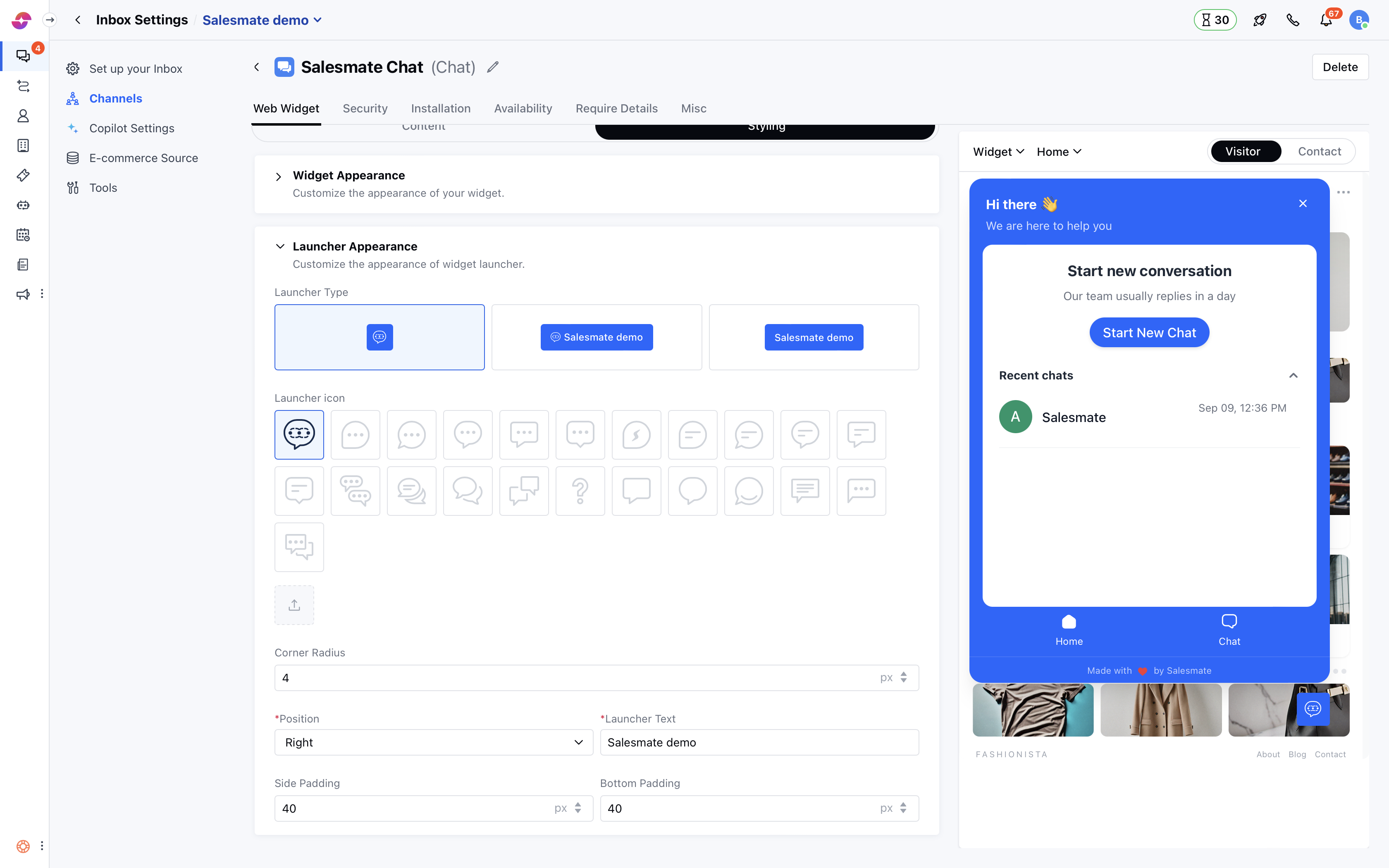 * **Launcher Position:** Select if the launcher should appear left or right side of the screen on your website and how much spacing is needed from the bottom and side
* **Skara Link:** Select to display Salesmate link at the bottom of the launcher by turning the toggle On/Off
* **Launcher Position:** Select if the launcher should appear left or right side of the screen on your website and how much spacing is needed from the bottom and side
* **Skara Link:** Select to display Salesmate link at the bottom of the launcher by turning the toggle On/Off
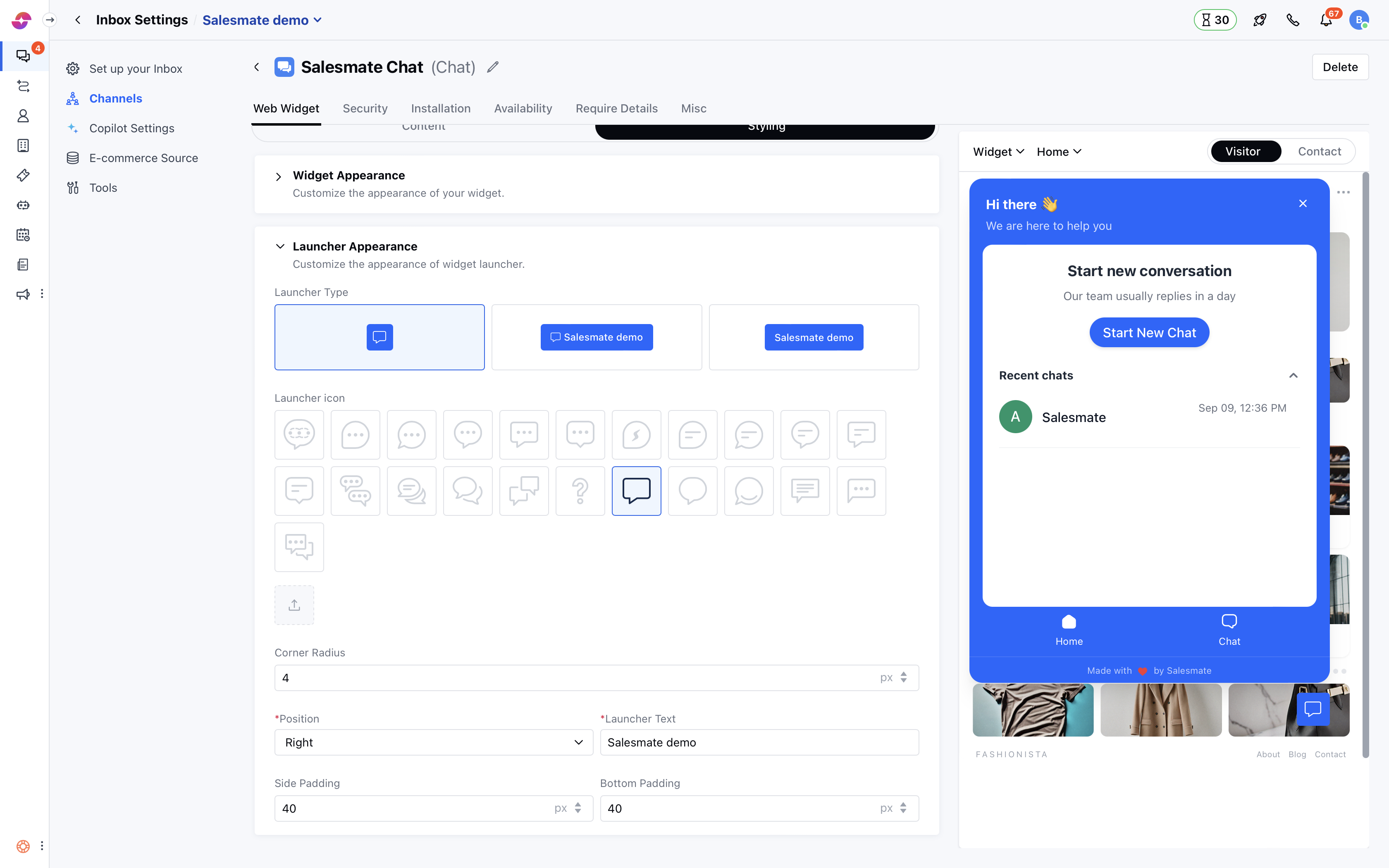 Once the customizations have been done, hit the **Update** button to save your changes.