> ## Documentation Index
> Fetch the complete documentation index at: https://support.getskara.ai/llms.txt
> Use this file to discover all available pages before exploring further.
# How to include Bot Messages in the Chat?
You can decide if the bot messages should be visible in the Inbox while the visitor/contact is interacting. For example, you have a chatbot that asks for Name, Email, and Phone and you want to monitor any conversations with the bot, If you find a conversation requiring immediate action, you or your teammate can take it over.
To view all ongoing conversations with bots,
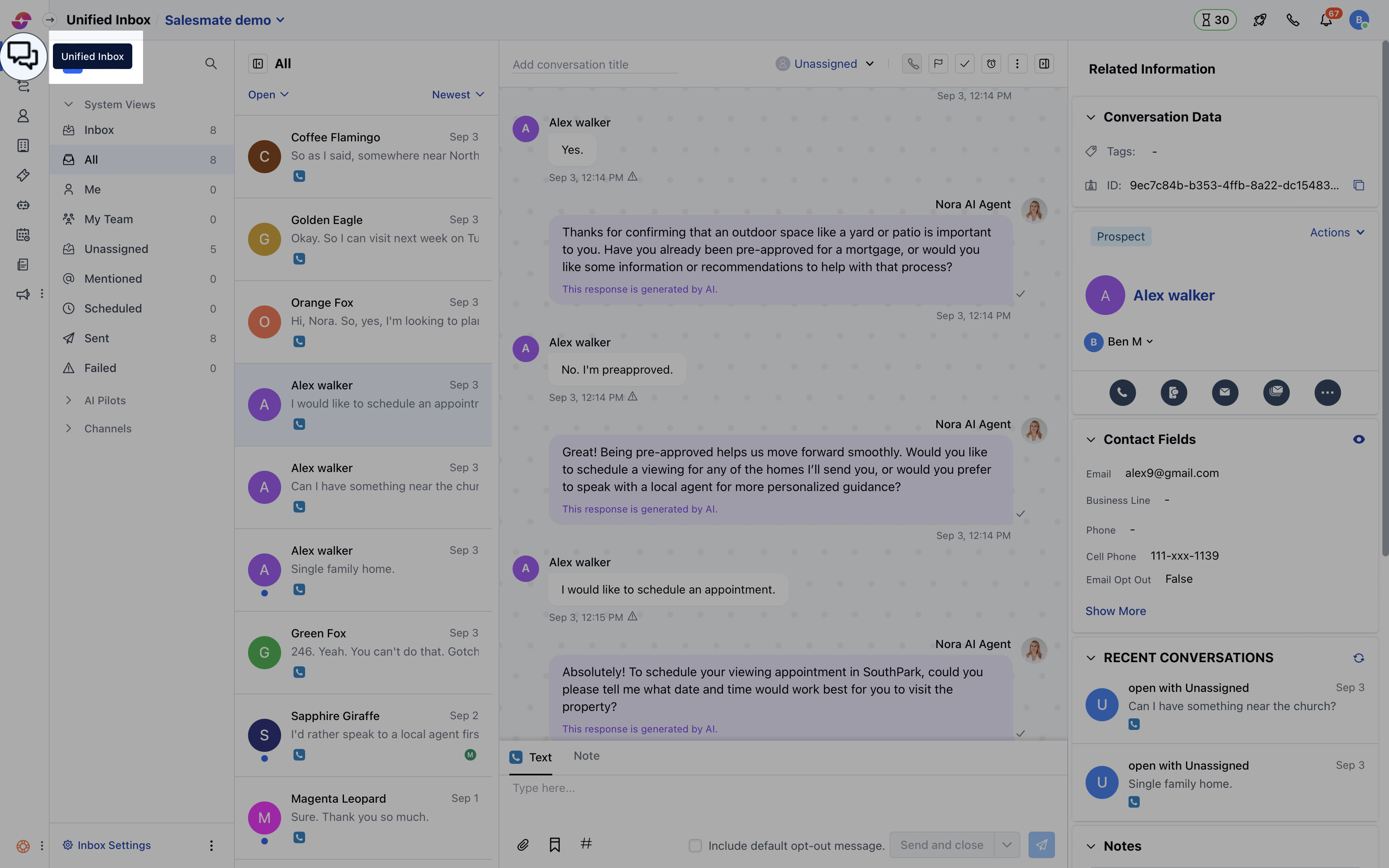
* Navigate to **Conversations Icon** on the left menu bar
* Click on **Chats**
* Head to **Chat Settings** on bottom left
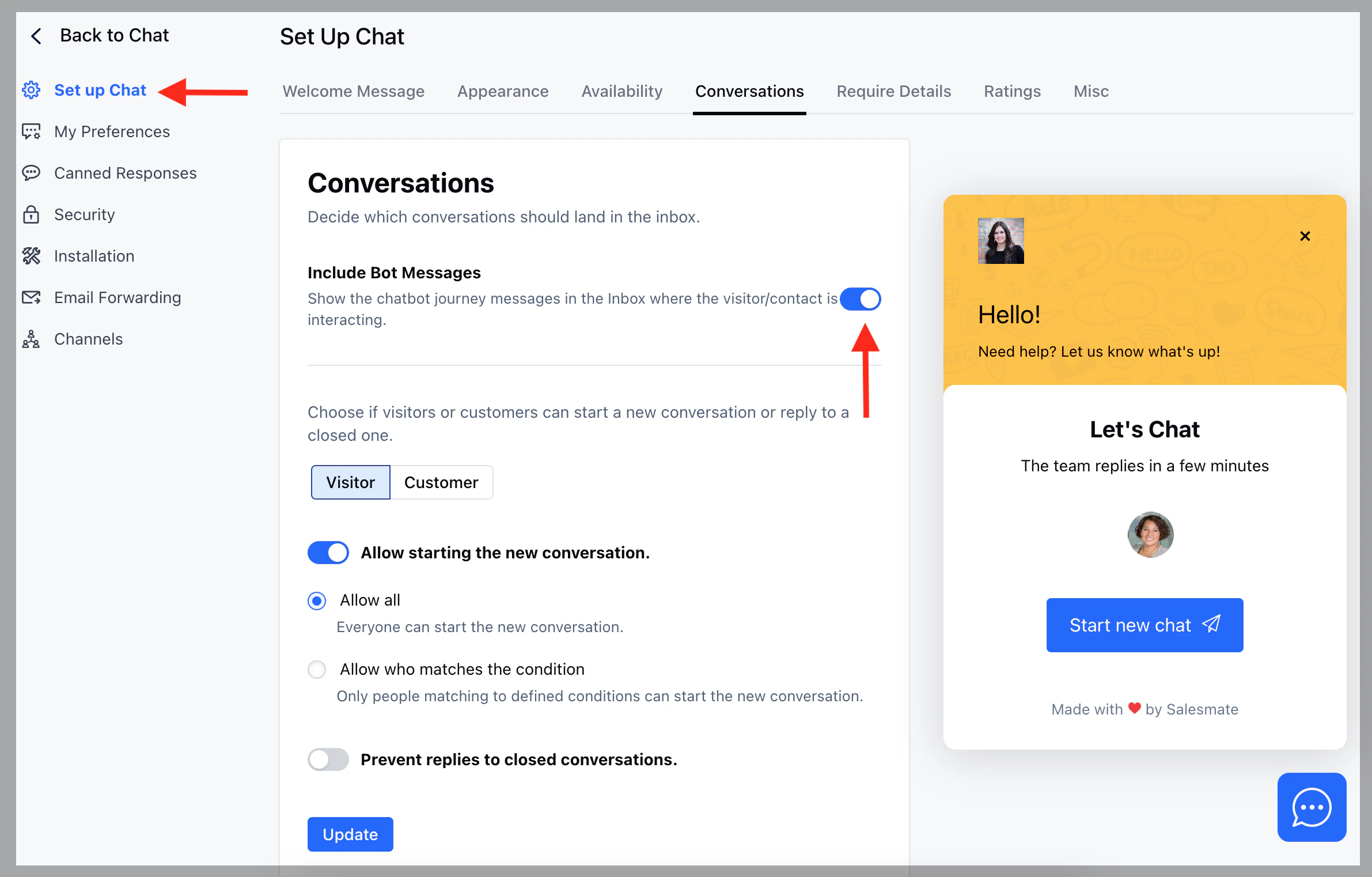
 * Under **Set up Chats**.
* Click on the **Conversations** tab.
* Enable the option **Include Bot Messages.**
* Hit on **Update.**
* Under **Set up Chats**.
* Click on the **Conversations** tab.
* Enable the option **Include Bot Messages.**
* Hit on **Update.**