> ## Documentation Index
> Fetch the complete documentation index at: https://support.getskara.ai/llms.txt
> Use this file to discover all available pages before exploring further.
# How to Add Viewed Product Tracking
**Note**: In order to track analytics, it is necessary to have the Chat add-on included in your plan.
Viewed Product snippet tracks when customers view specific products on your site, and to enable this tracking you must add a code snippet to your BigCommerce Theme file. Instructions for installing this snippet are described below.
* First, you need to ensure that web tracking is enabled for your BigCommerce website and to do that you need to install the main script on all web pages.
* Navigate to **Storefront > My Themes** from your BigCommerce dashboard.
* From the current theme, click the **Advanced Settings** dropdown and click Edit Theme Files.
* **This opens the web editor**.
* Navigate to **templates > pages** and scroll down to open any page and the bottom of the page, paste the below code, and then click **Save & apply all files**.
* For this snippet to work correctly, repeat step 4 and add it to all of your product pages.
```html theme={null}
```
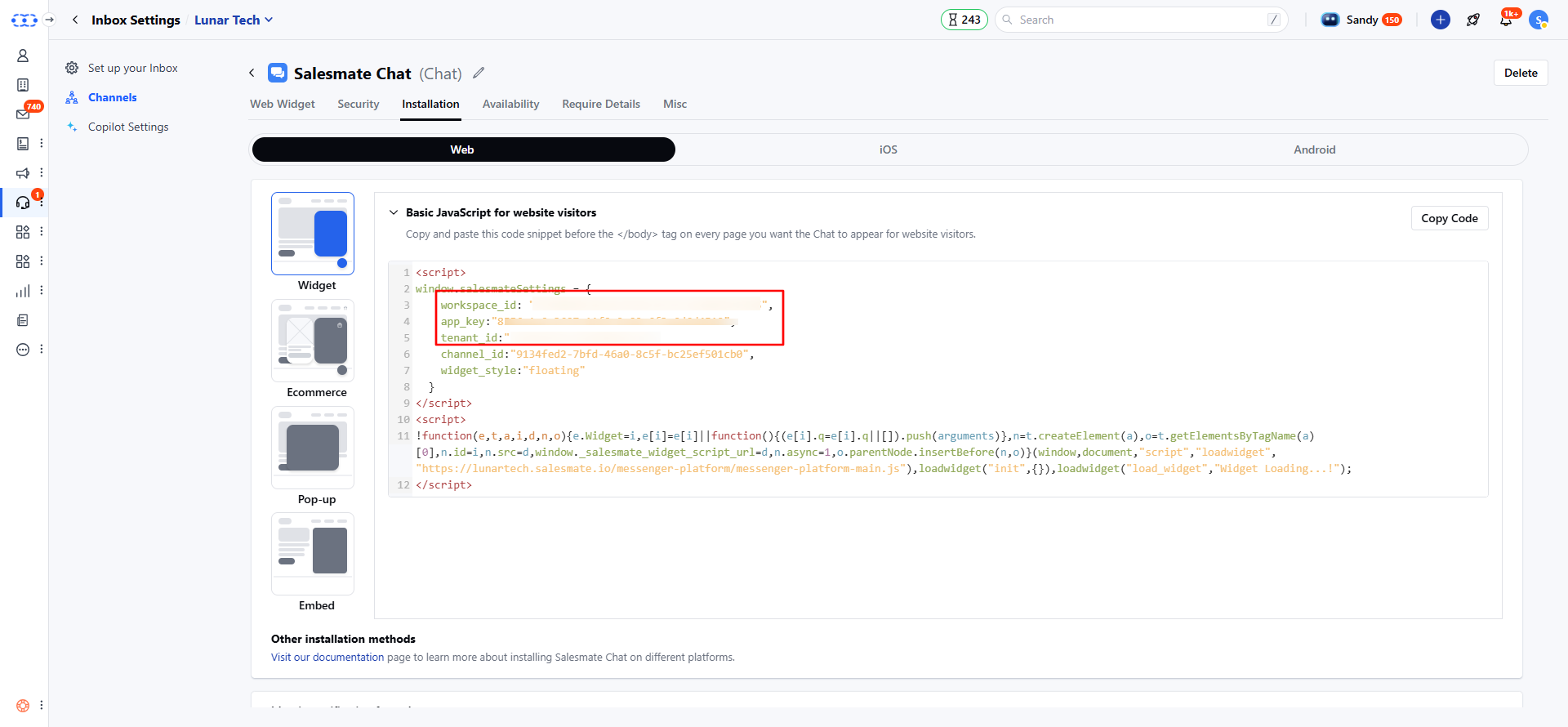
**Note**: You need to copy workspace\_id, app\_key, & tenant\_id from the messenger installation settings in your skara.
* Navigate to **Conversations Icon** on the left menu bar
* Click on **Chats**
* Head to **Inbox Settings** on bottom left.
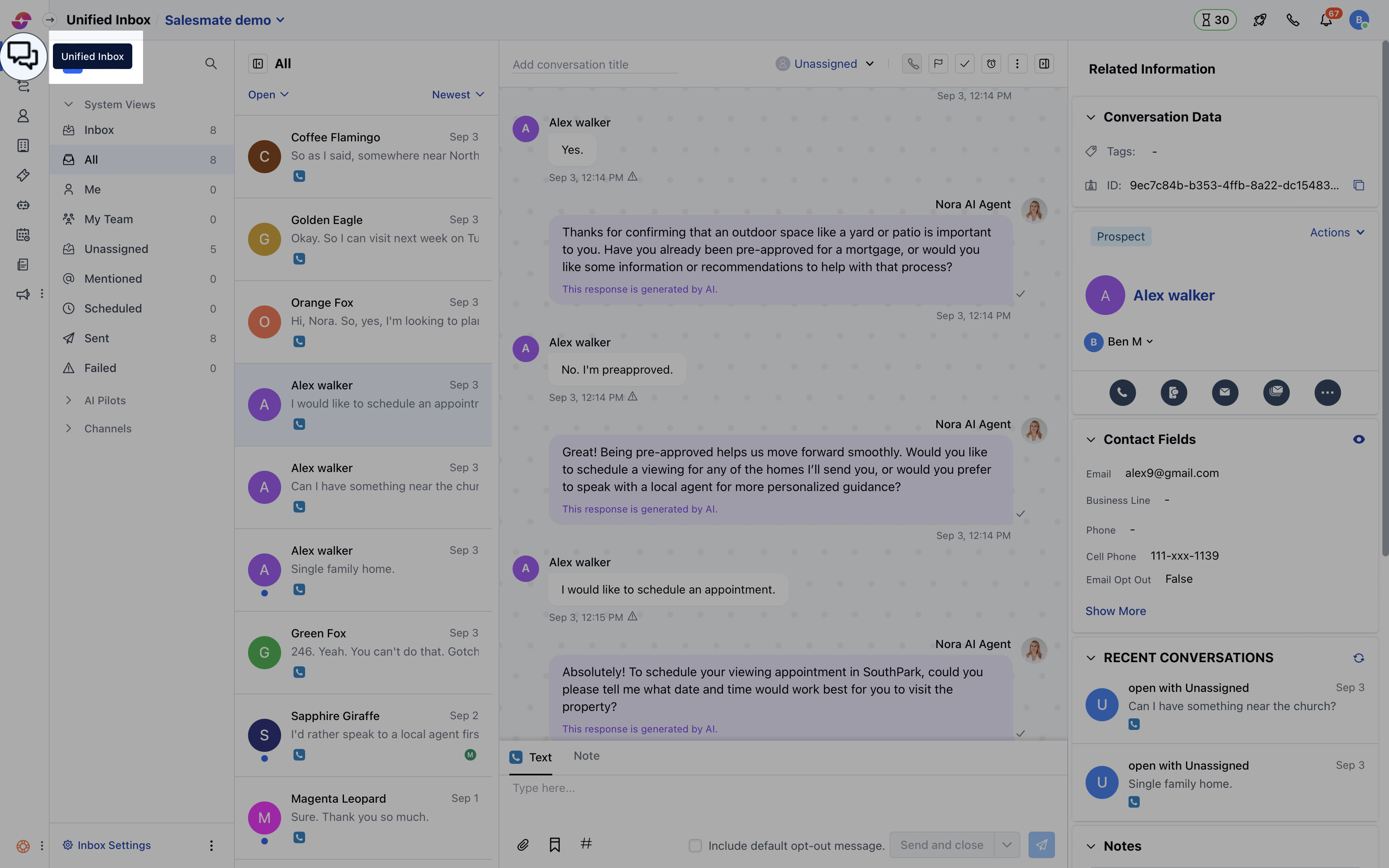 * Here, click on **Channel** and then locate the **Skara Chat** channel. From the **Actions** menu, select **Edit**.
* Navigate to the **Installation** section
* Copy the **workspace\_id ,app\_key** & **tenant\_id** from the code snippet of the web installation.
* Here, click on **Channel** and then locate the **Skara Chat** channel. From the **Actions** menu, select **Edit**.
* Navigate to the **Installation** section
* Copy the **workspace\_id ,app\_key** & **tenant\_id** from the code snippet of the web installation.
 * From your BigCommerce admin, navigate to **templates > pages** and click to open the product.html page.
* Scroll down to the bottom of this page, and paste the below code.
```javascript theme={null}
```
Optional:
1. You can also track if a customer viewed the product through a quick view card, but for this an extra step is required.
2. From your BigCommerce admin, navigate to **templates > components > products** and open **card.html**, and add the below attribute to the quick view button element.
```html theme={null}
data-product-viewed="{{id}}"
```
* From your BigCommerce admin, navigate to **templates > pages** and click to open the product.html page.
* Scroll down to the bottom of this page, and paste the below code.
```javascript theme={null}
```
Optional:
1. You can also track if a customer viewed the product through a quick view card, but for this an extra step is required.
2. From your BigCommerce admin, navigate to **templates > components > products** and open **card.html**, and add the below attribute to the quick view button element.
```html theme={null}
data-product-viewed="{{id}}"
```