> ## Documentation Index
> Fetch the complete documentation index at: https://support.getskara.ai/llms.txt
> Use this file to discover all available pages before exploring further.
# Installing Chats on your iOS App
Now add Skara Chat to your mobile apps directly and provide your customers an in-app chat experience.
* To install chats to your Android app, [click here](/chats/installing-salesmate-chats/installing-chats-on-your-android-app).
Follow the below steps to navigate to the Chat installation page:
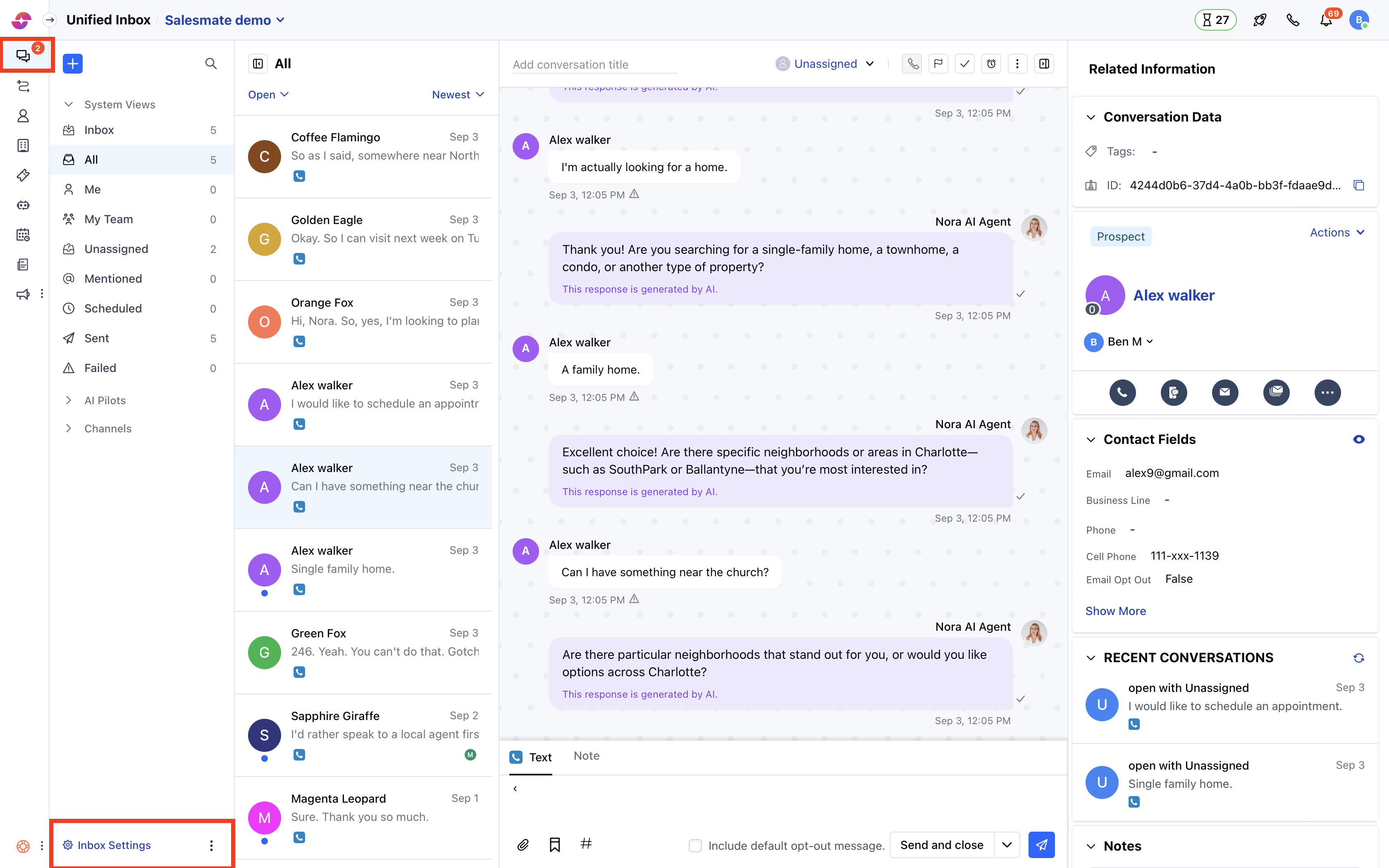
* Navigate to **Conversations Icon** on the left menu bar
* Click on **Chats**
* Head to **Inbox** **Settings** on bottom left
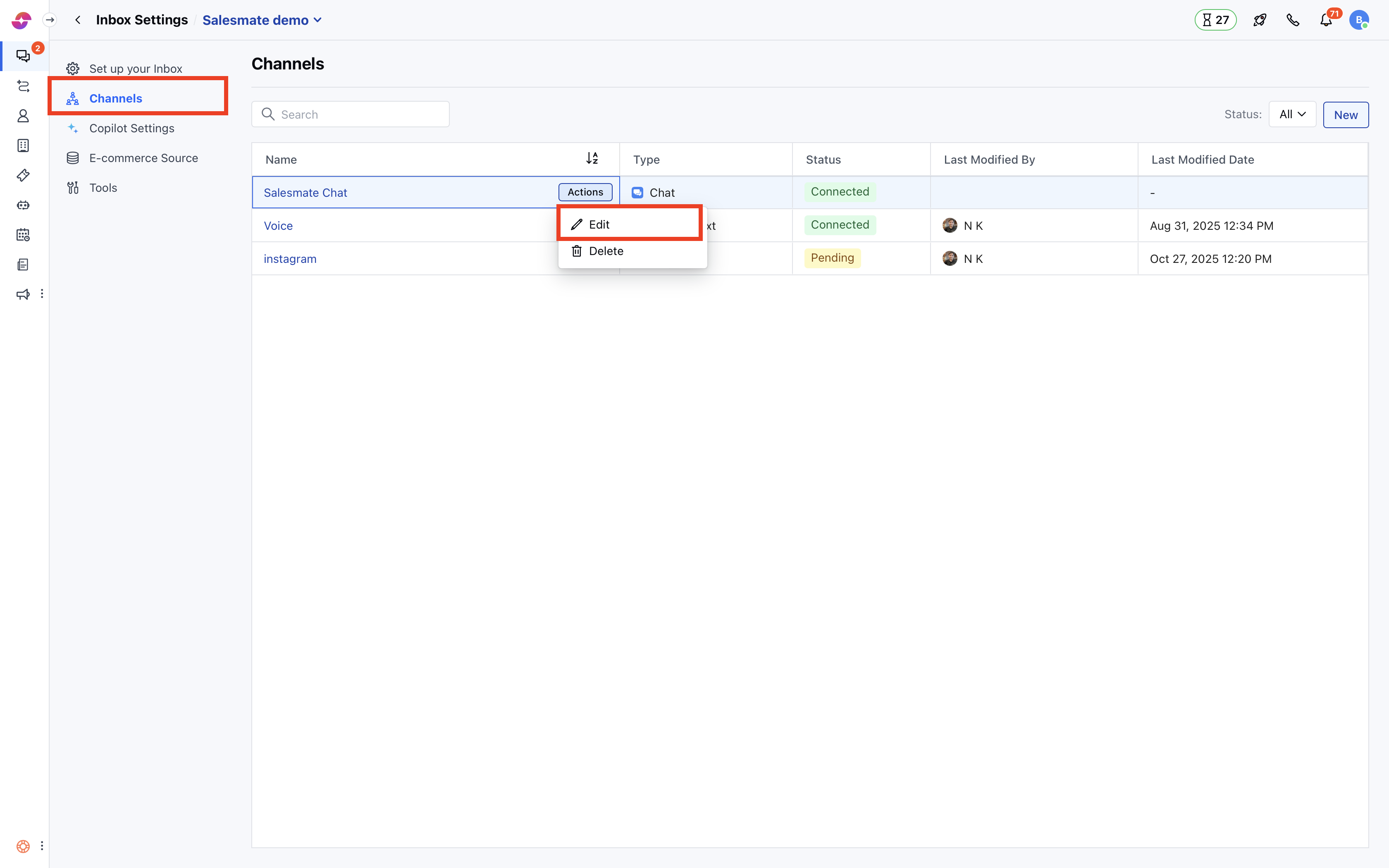
 * Here, click on **Channel** and then locate the **Skara Chat** channel.
* From the **Actions** menu, select **Edit**.
* Here, click on **Channel** and then locate the **Skara Chat** channel.
* From the **Actions** menu, select **Edit**.
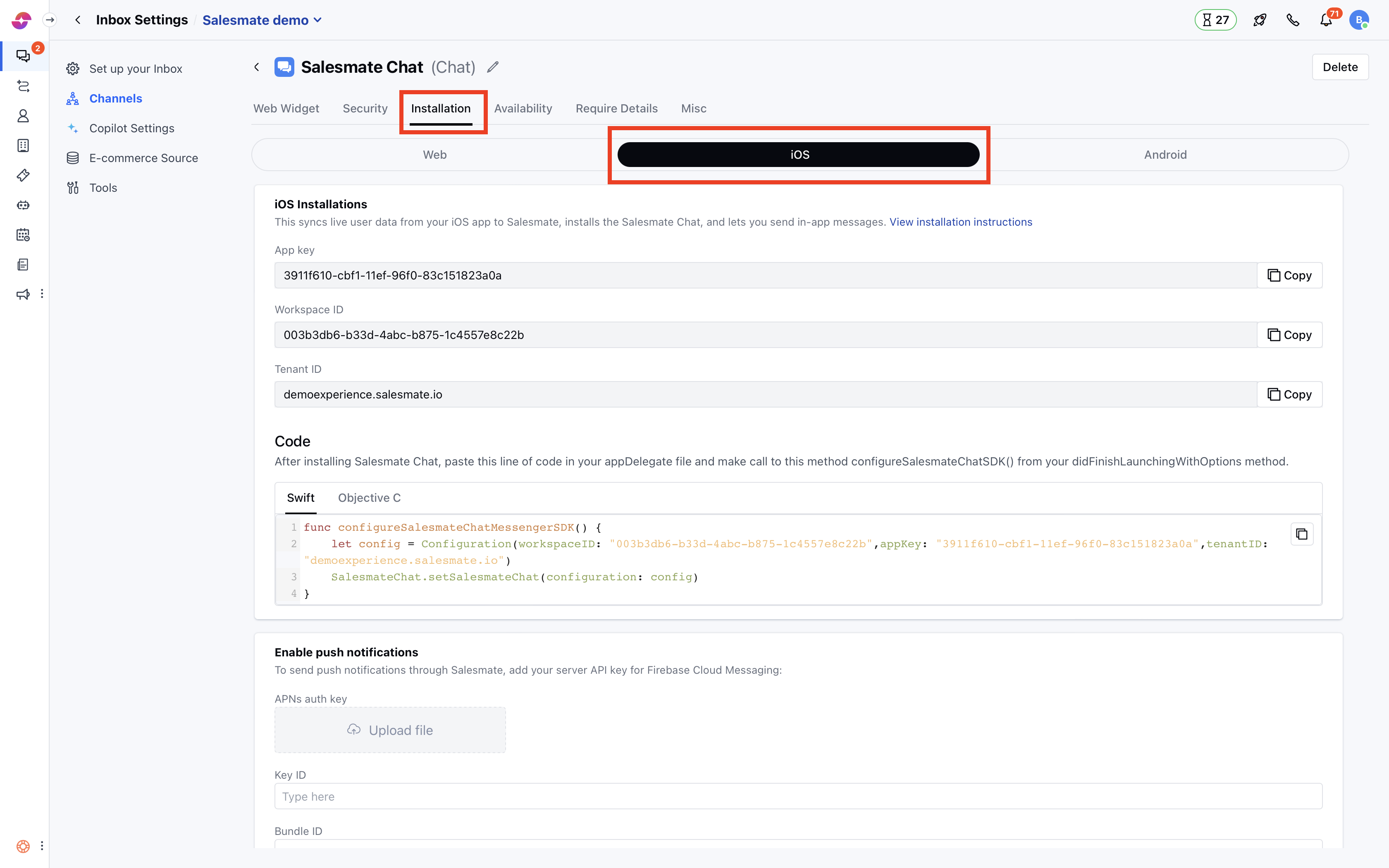
 * Here, click on **Installation** and you will get 3 tabs Web, iOS, and Android, select the **iOS** tab.
* Installation of Chat on your iOS app helps syncing live user data from your iOS app to Salesmate, and lets you send in-app messages.
* Here, click on **Installation** and you will get 3 tabs Web, iOS, and Android, select the **iOS** tab.
* Installation of Chat on your iOS app helps syncing live user data from your iOS app to Salesmate, and lets you send in-app messages.
 ### Installing:
iOS installation screen has two sections
* API Key
* Enable Push Notifications
### **API Key:**
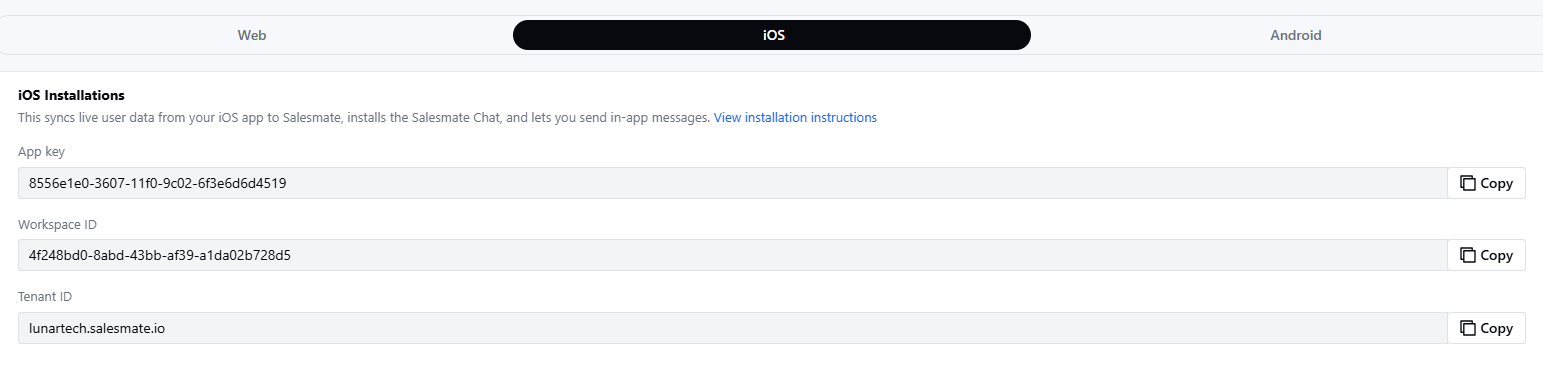
You can use the below keys to add the Skara Chats to your app.
* **API Key:** A unique key for your Skara account.
* **Workspace ID:** A unique key for your SkaraChat workspace
* **Tenant ID:** This is your Skara domain link.
### Installing:
iOS installation screen has two sections
* API Key
* Enable Push Notifications
### **API Key:**
You can use the below keys to add the Skara Chats to your app.
* **API Key:** A unique key for your Skara account.
* **Workspace ID:** A unique key for your SkaraChat workspace
* **Tenant ID:** This is your Skara domain link.
 * The code is available in two languages
* **Swift** - **Objective - C**
* The code is available in two languages
* **Swift** - **Objective - C**
 ### **Enable Push Notifications:**
* To send push notifications through Messenger to iOS device, you need to configure the below settings.
* The push notifications are sent for newly received messages on Skara Messenger when a visitor/contact leaves the app.
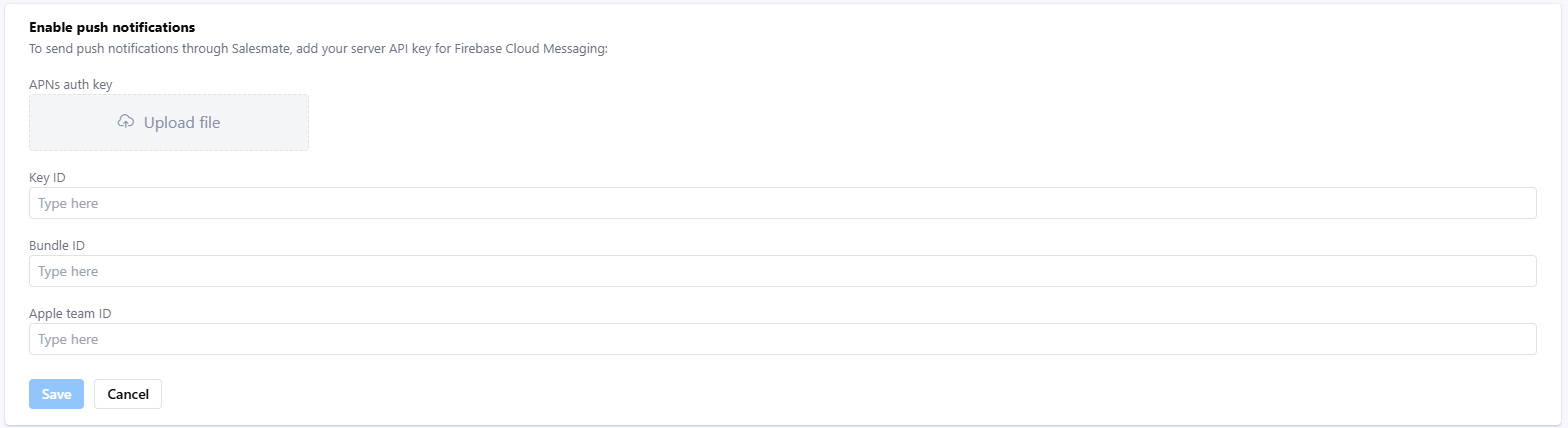
Here, you need to add the below details to the Skara Chat settings
* **APNs Auth Key:** Upload the .p8 file of the Apple Push Certificate
* **Key ID:**
* **Bundle ID:**
* **Apple Team ID:** Once, you add the above information, the **Save** button would be enabled.
### **Enable Push Notifications:**
* To send push notifications through Messenger to iOS device, you need to configure the below settings.
* The push notifications are sent for newly received messages on Skara Messenger when a visitor/contact leaves the app.
Here, you need to add the below details to the Skara Chat settings
* **APNs Auth Key:** Upload the .p8 file of the Apple Push Certificate
* **Key ID:**
* **Bundle ID:**
* **Apple Team ID:** Once, you add the above information, the **Save** button would be enabled.