> ## Documentation Index
> Fetch the complete documentation index at: https://support.getskara.ai/llms.txt
> Use this file to discover all available pages before exploring further.
# Personalize Chats Inbox
Skara Chats provides the functionality to its users to customize the background of the chats inbox as per their preference.
**To personalize your inbox, follow these steps**
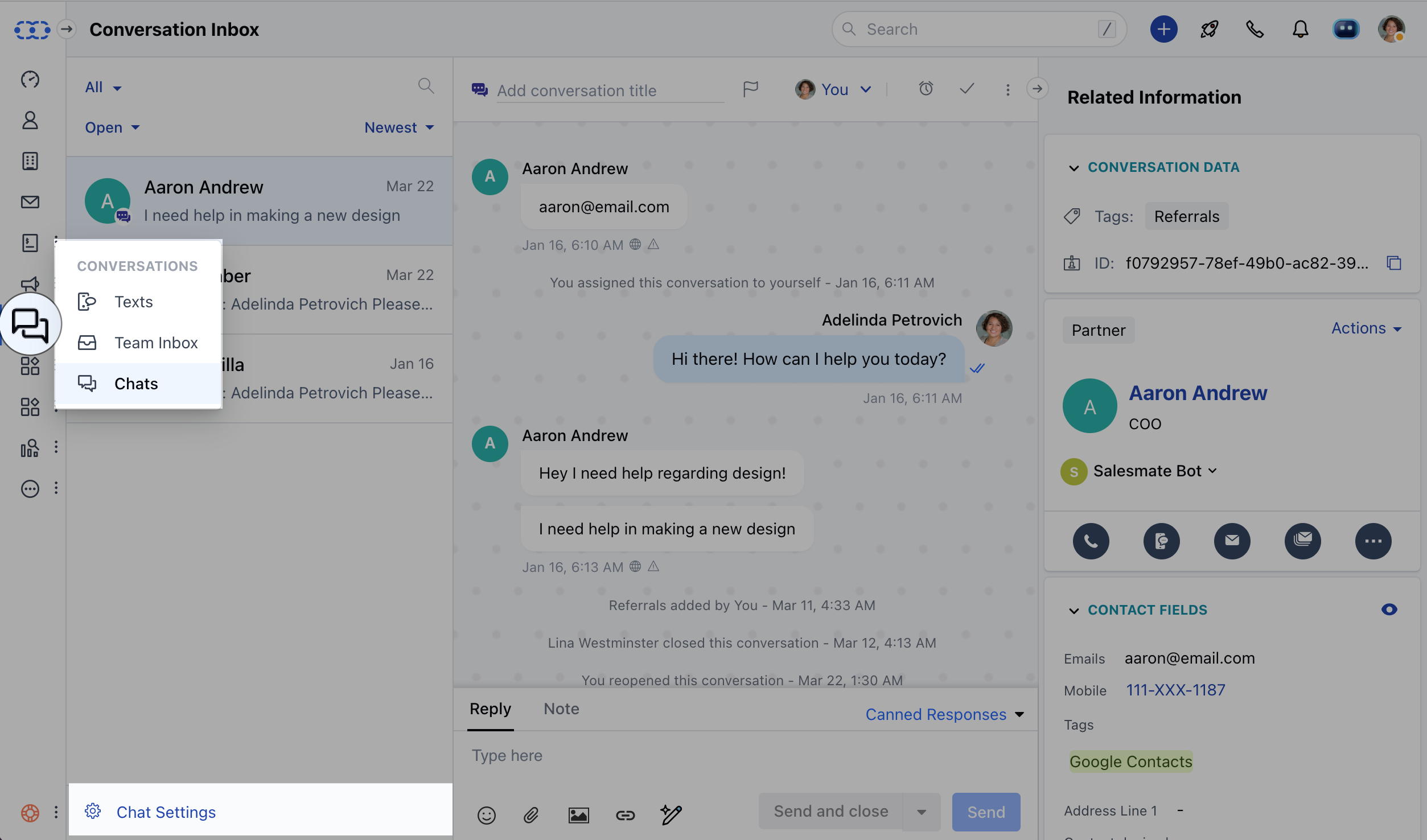
* Navigate to **Conversations Icon** on the left menu bar
* Click on **Chats**
* Head to **Chat Settings** on bottom left
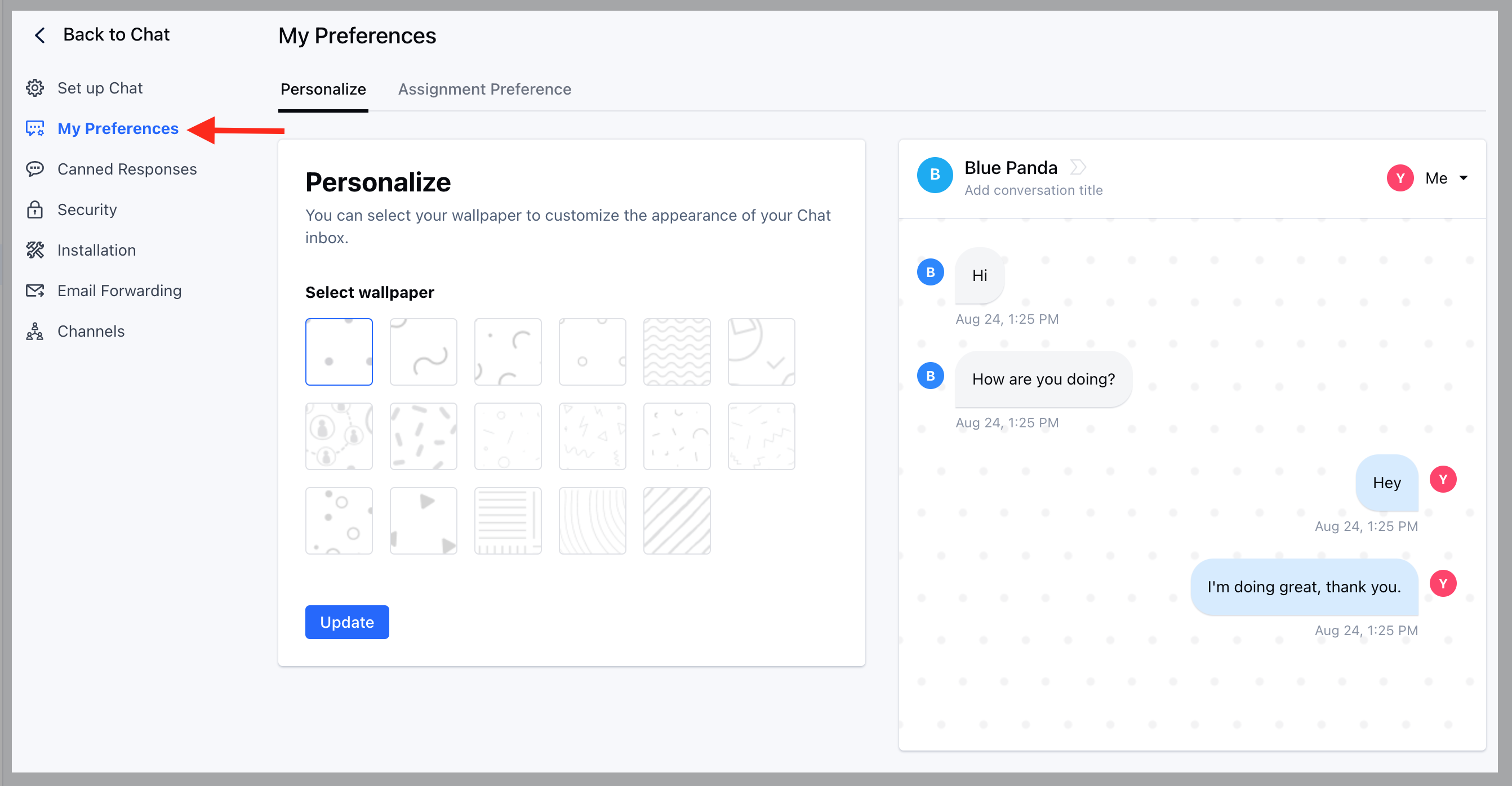
 * Click on the **My Preferences** link in the left sidebar
* Click on the "**Personalize**" tab.
* Now you can select your preferred wallpaper and see how it looks in the live preview shown on the right side.
* Hit the **Update** button to save your changes.
* Click on the **My Preferences** link in the left sidebar
* Click on the "**Personalize**" tab.
* Now you can select your preferred wallpaper and see how it looks in the live preview shown on the right side.
* Hit the **Update** button to save your changes.
 Learn more about [customizing the chats](https://support.salesmate.io/hc/en-us/articles/360058874471) appearance which appears on your business website.