> ## Documentation Index
> Fetch the complete documentation index at: https://support.getskara.ai/llms.txt
> Use this file to discover all available pages before exploring further.
# Creating and Managing Canned Responses
With this article you would be able to speed up your responses with customizable and swift repeatable actions, narrowing down on expected response time.
**Canned Responses** helps rep's to optimize swift replies with a single click, giving you the flexibility to tweak them for a personal experience.
### **Topics covered:**
* [How to Create Canned Responses](#how-to-create-canned-responses)
* [Managing Canned Responses in Folders](#managing-canned-responses-in-folders)
* [Using Canned Responses in Chat](#using-canned-responses-in-chat)
* [Manage Canned Responses](#manage-canned-responses)
### **How to Create Canned Responses**
To create a Canned Response, please follow the below-mentioned steps:
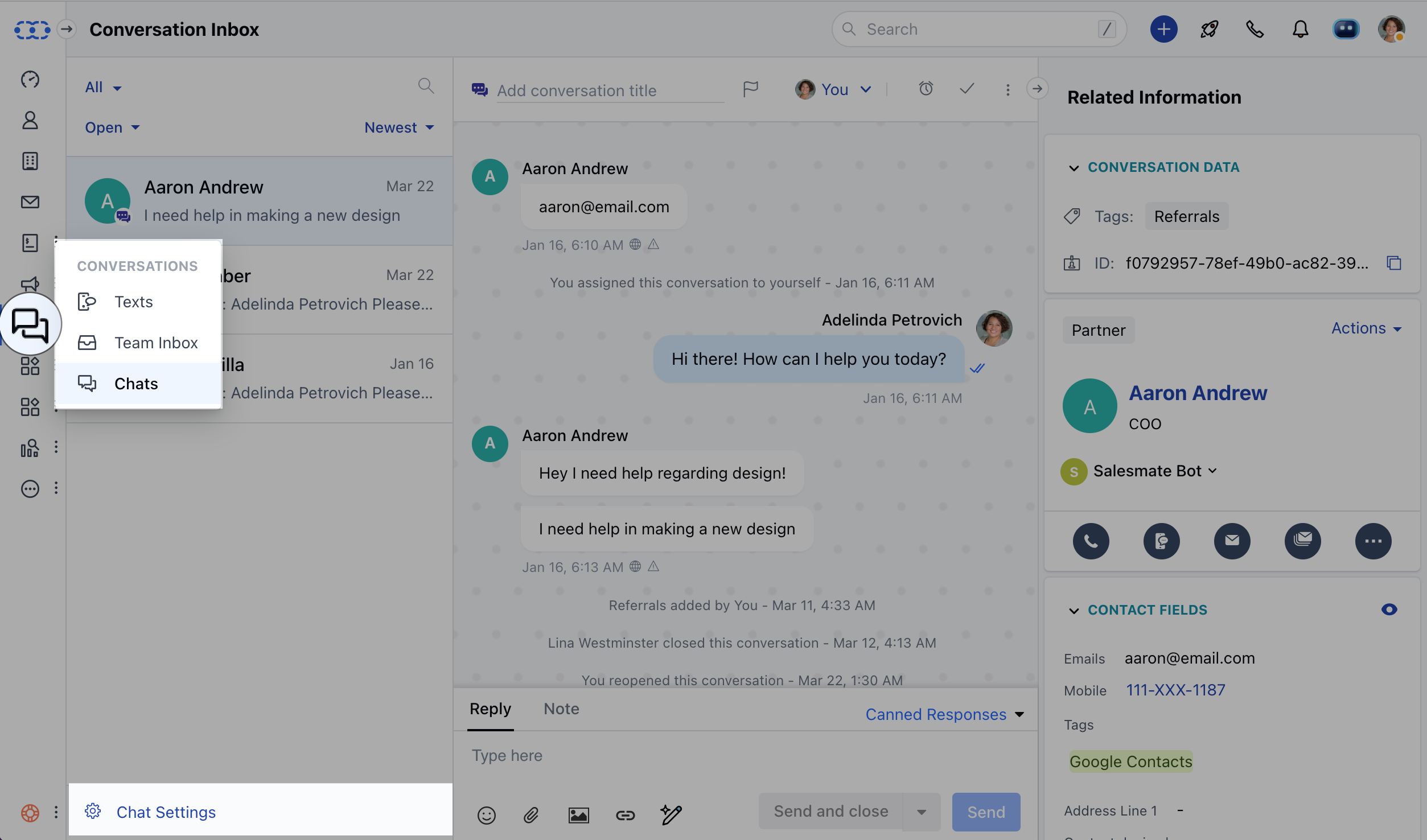
* Navigate to **Conversations Icon** on the left menu bar
* Click on **Chats**
* Head to **Chat Settings** on bottom left
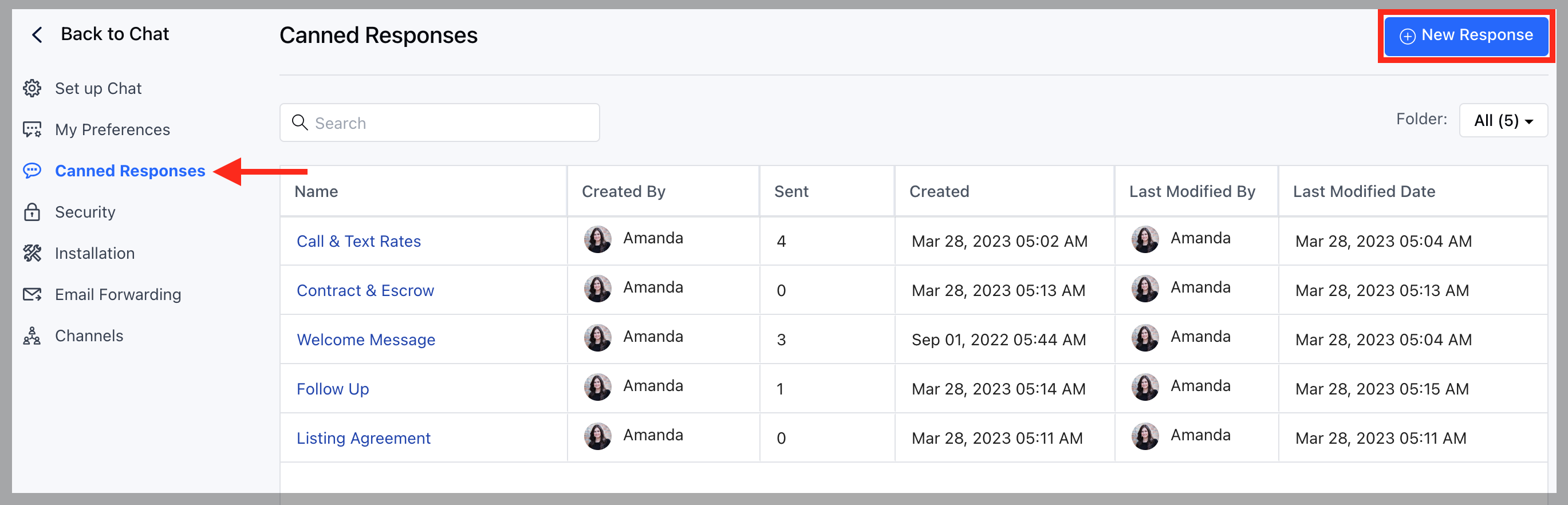
 * Select **Canned Responses** in the settings menu
* Click to **Create + New Response**
* Select **Canned Responses** in the settings menu
* Click to **Create + New Response**
 * Provide the **Title** and **Response Message**
* Choose the **Folder** if you want to categorize or group canned responses.
* Provide the **Title** and **Response Message**
* Choose the **Folder** if you want to categorize or group canned responses.
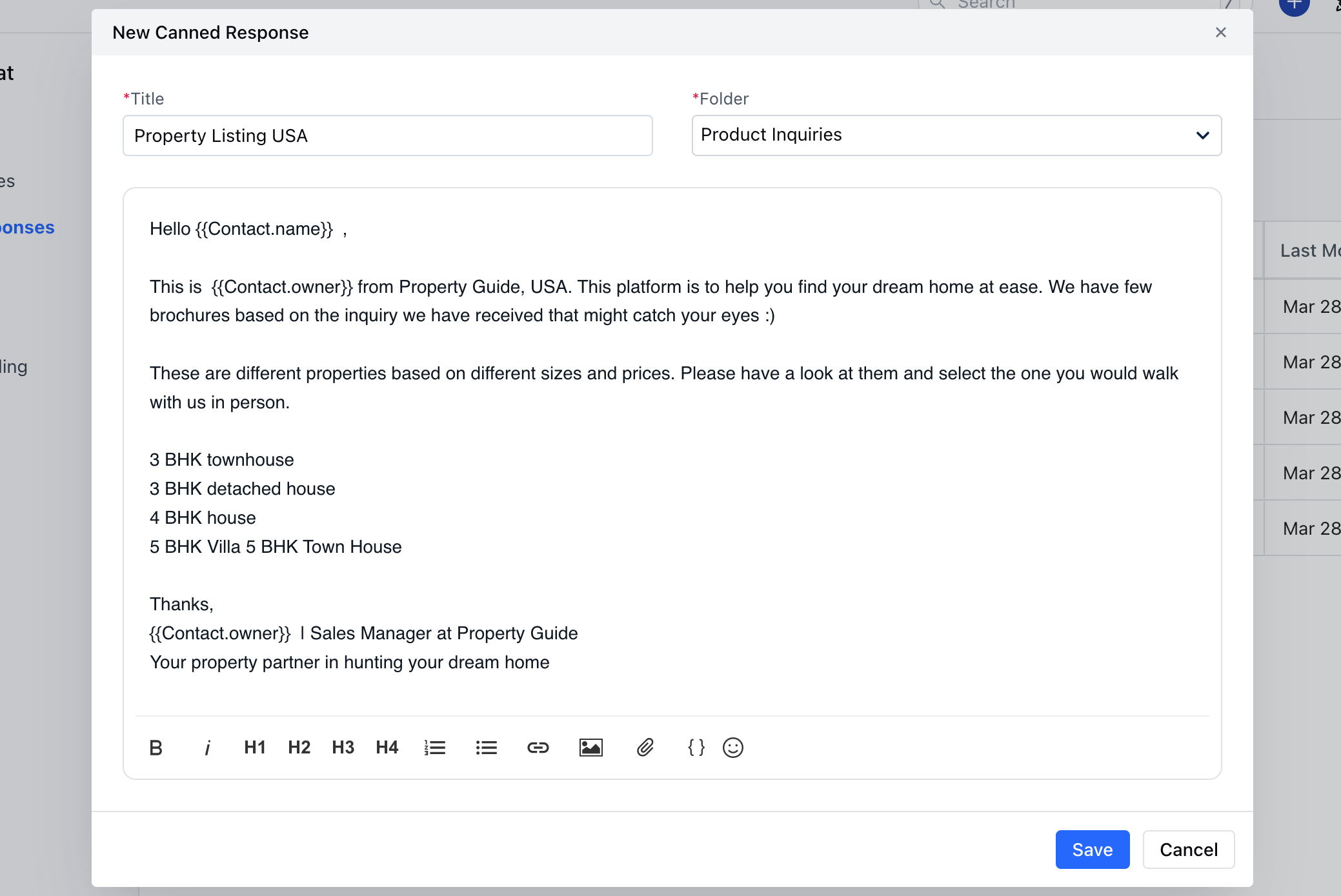 * Hit **Save**
- While you provide a **Title** in the Canned Response, make sure it has proper reference as it will be the primary way your teammates will **search** for, **share** and use **Canned Responses**, so make it more clear and concise.
- You can apply **attributes** e.g. \{\{Contact.name}} to address your Customers and Leads, Salesmate offers Merge Fields for all available Custom Fields in the account.
- The content is not sent immediately when you apply the Canned Responses, so you’ll always have the opportunity to customize it further.
### **Managing Canned Responses in Folders**
* Canned Responses can be organized in different folders to avoid clutters and provide better visibility while selecting the required saved reply, reducing the search efforts.
Follow the below-mentioned steps to Create Folders:-
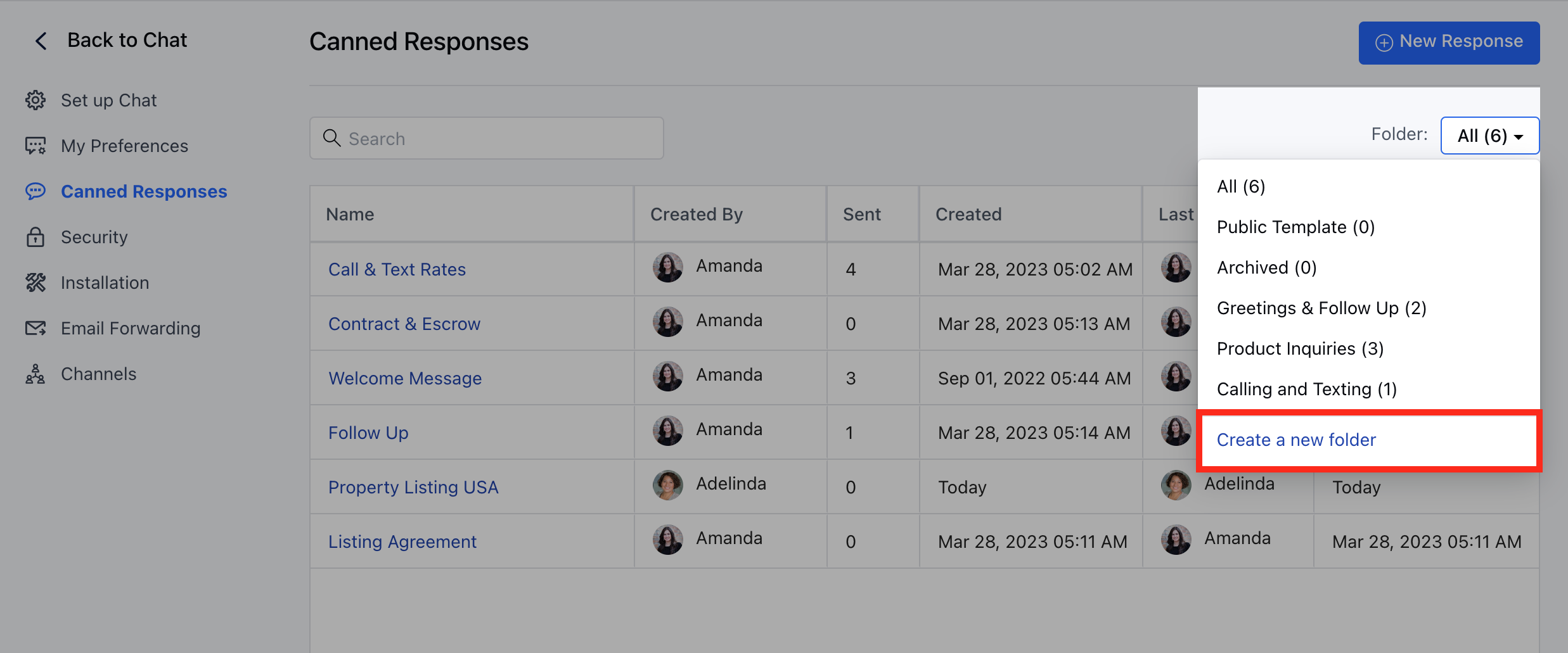
* Under Canned Responses, Select **Folder** Dropdown
* Click on "**Create a New Folder**"
* Hit **Save**
- While you provide a **Title** in the Canned Response, make sure it has proper reference as it will be the primary way your teammates will **search** for, **share** and use **Canned Responses**, so make it more clear and concise.
- You can apply **attributes** e.g. \{\{Contact.name}} to address your Customers and Leads, Salesmate offers Merge Fields for all available Custom Fields in the account.
- The content is not sent immediately when you apply the Canned Responses, so you’ll always have the opportunity to customize it further.
### **Managing Canned Responses in Folders**
* Canned Responses can be organized in different folders to avoid clutters and provide better visibility while selecting the required saved reply, reducing the search efforts.
Follow the below-mentioned steps to Create Folders:-
* Under Canned Responses, Select **Folder** Dropdown
* Click on "**Create a New Folder**"
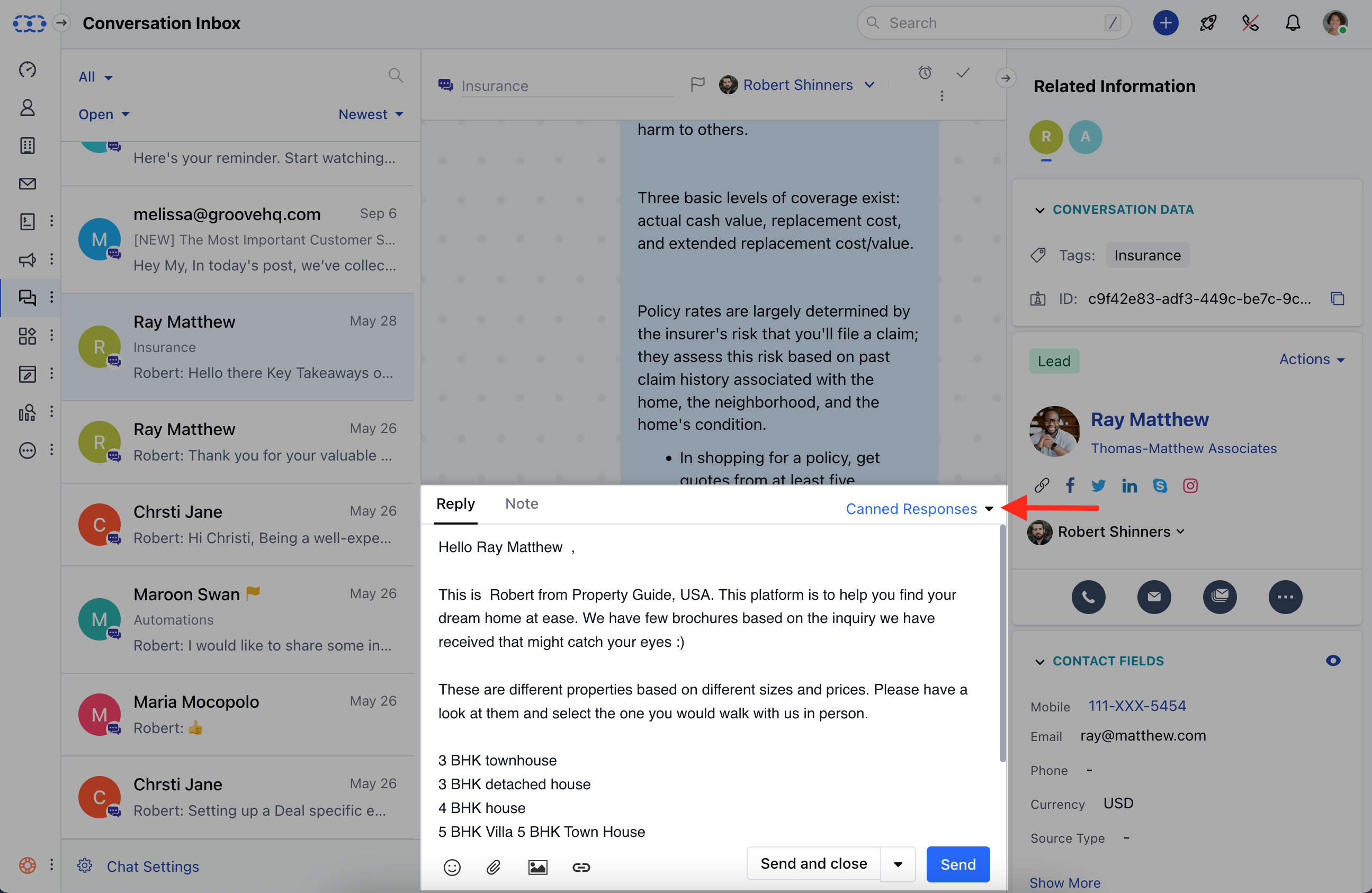
 **Using Canned Responses in chat** For effective and fast response paste one of the **Canned Responses** during the chat conversation, it will help your team save abundant time and typing constraints.
* Users can type the **\symbol** in the **Reply** field to quickly find the reply that fits the context.
* Alternatively, you can hit the corresponding **Canned Responses** label and search through all of your saved responses.
**Using Canned Responses in chat** For effective and fast response paste one of the **Canned Responses** during the chat conversation, it will help your team save abundant time and typing constraints.
* Users can type the **\symbol** in the **Reply** field to quickly find the reply that fits the context.
* Alternatively, you can hit the corresponding **Canned Responses** label and search through all of your saved responses.
 ### **Manage Canned Responses**
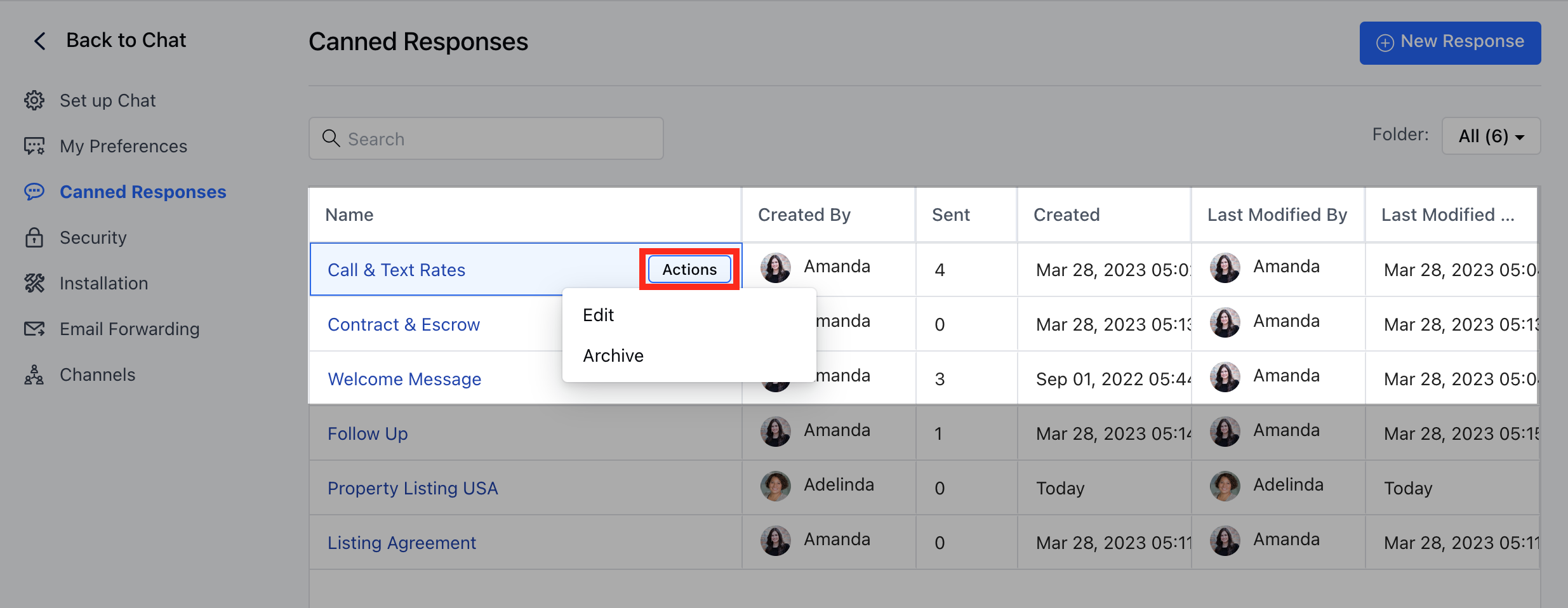
Canned Responses can be **Edited** or**Archived** as and when needed by following the below steps :
* Go to **Chats**
* Click on **Chat settings**-**Canned Responses**
* Hover over **Actions** Menu against the Canned Response
* Hit **Edit** or **Archive** as Required
### **Manage Canned Responses**
Canned Responses can be **Edited** or**Archived** as and when needed by following the below steps :
* Go to **Chats**
* Click on **Chat settings**-**Canned Responses**
* Hover over **Actions** Menu against the Canned Response
* Hit **Edit** or **Archive** as Required
 **Note:** You can only create and manage Canned Responses if you have the
[permission to "Manage Canned
Responses"](https://support.salesmate.io/hc/en-us/articles/360058438992)
otherwise you can only use canned responses.
**Note:** You can only create and manage Canned Responses if you have the
[permission to "Manage Canned
Responses"](https://support.salesmate.io/hc/en-us/articles/360058438992)
otherwise you can only use canned responses.