> ## Documentation Index
> Fetch the complete documentation index at: https://support.getskara.ai/llms.txt
> Use this file to discover all available pages before exploring further.
# How to link a deal with the conversation?
With the Chat feature, you can now convert opportunities from Conversations using "Add Deal".
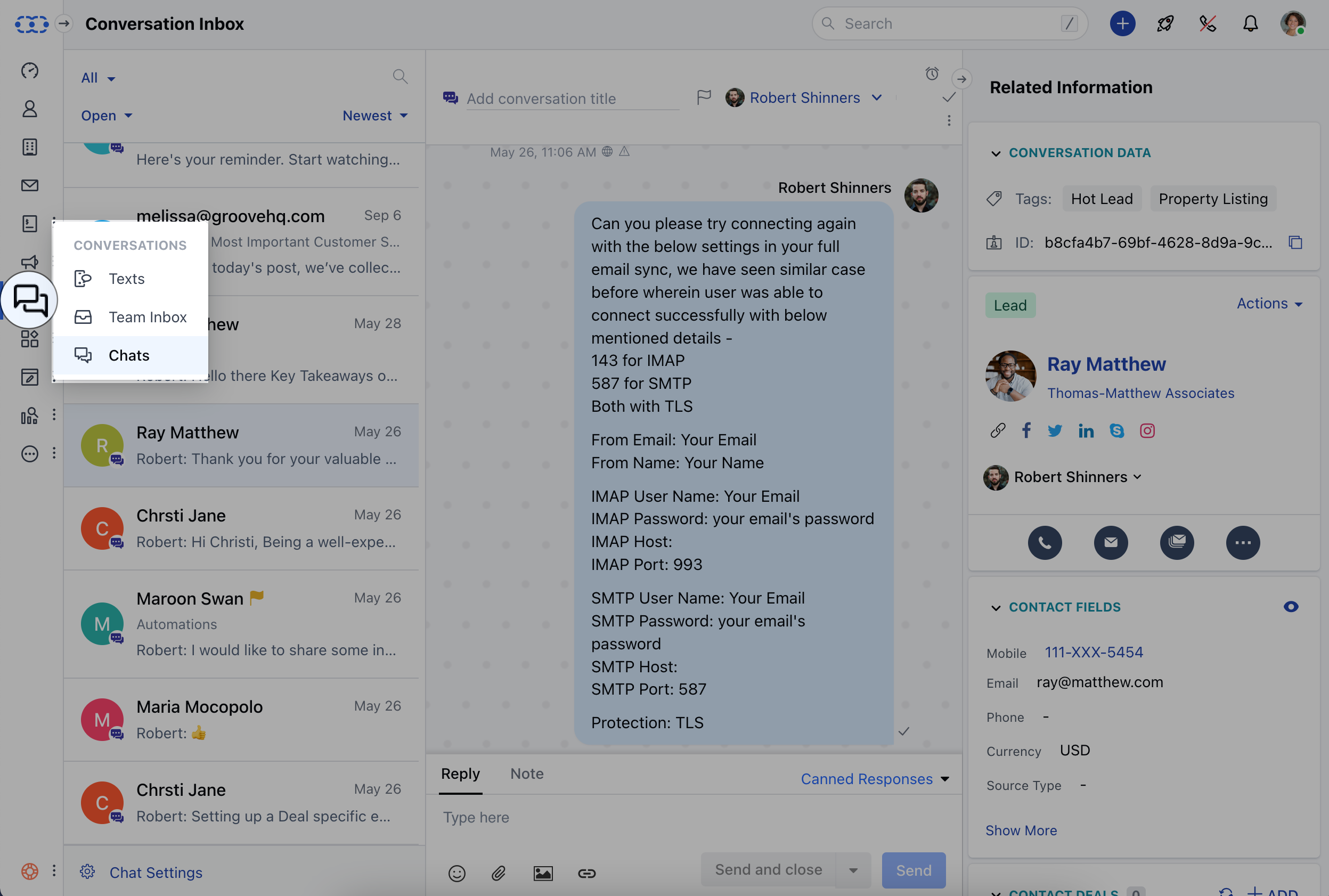
* Navigate to **Conversations Icon** on the left menu bar
* Click on **Chats**
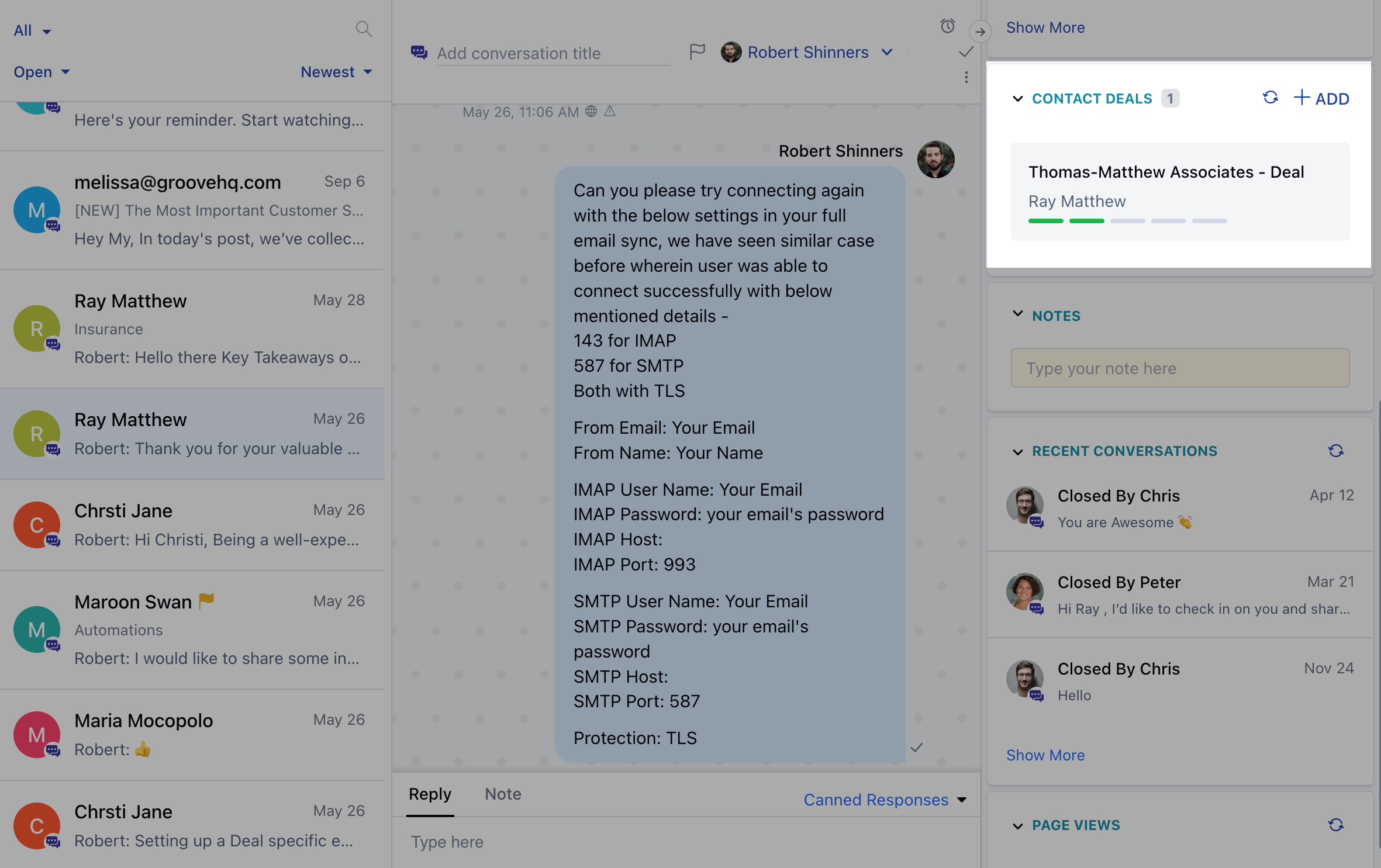
 * Under the Chat Conversation view "Check the Right Block for "**Contact Deal**"
* Users will get an option to create a deal using the "**+**" **Add Deal**
Icon
* On the creation of a deal from the conversation panel, the deal gets
auto-linked with the conversation.
* Multiple Deals can be associated with a
Contact at a time.
* Under the Chat Conversation view "Check the Right Block for "**Contact Deal**"
* Users will get an option to create a deal using the "**+**" **Add Deal**
Icon
* On the creation of a deal from the conversation panel, the deal gets
auto-linked with the conversation.
* Multiple Deals can be associated with a
Contact at a time.