> ## Documentation Index
> Fetch the complete documentation index at: https://support.getskara.ai/llms.txt
> Use this file to discover all available pages before exploring further.
# Send Outbound Chat to the Contact
You can start a chat conversation with the contact using the outbound chat message feature. This feature enables you to initiate and engage in real-time conversations directly with your contacts.
**Note:**
* Please note that this feature is a part of Unified Conversation Inbox.
* A User with appropriate rights can perform this action
Skara allows to initiate the Outbound Chats via,
* [Skara Chat](#salesmate-chat)
* [WhatsApp Chat](#whatsapp-chat)
### Skara Chat
To initiate the Skara Chat,
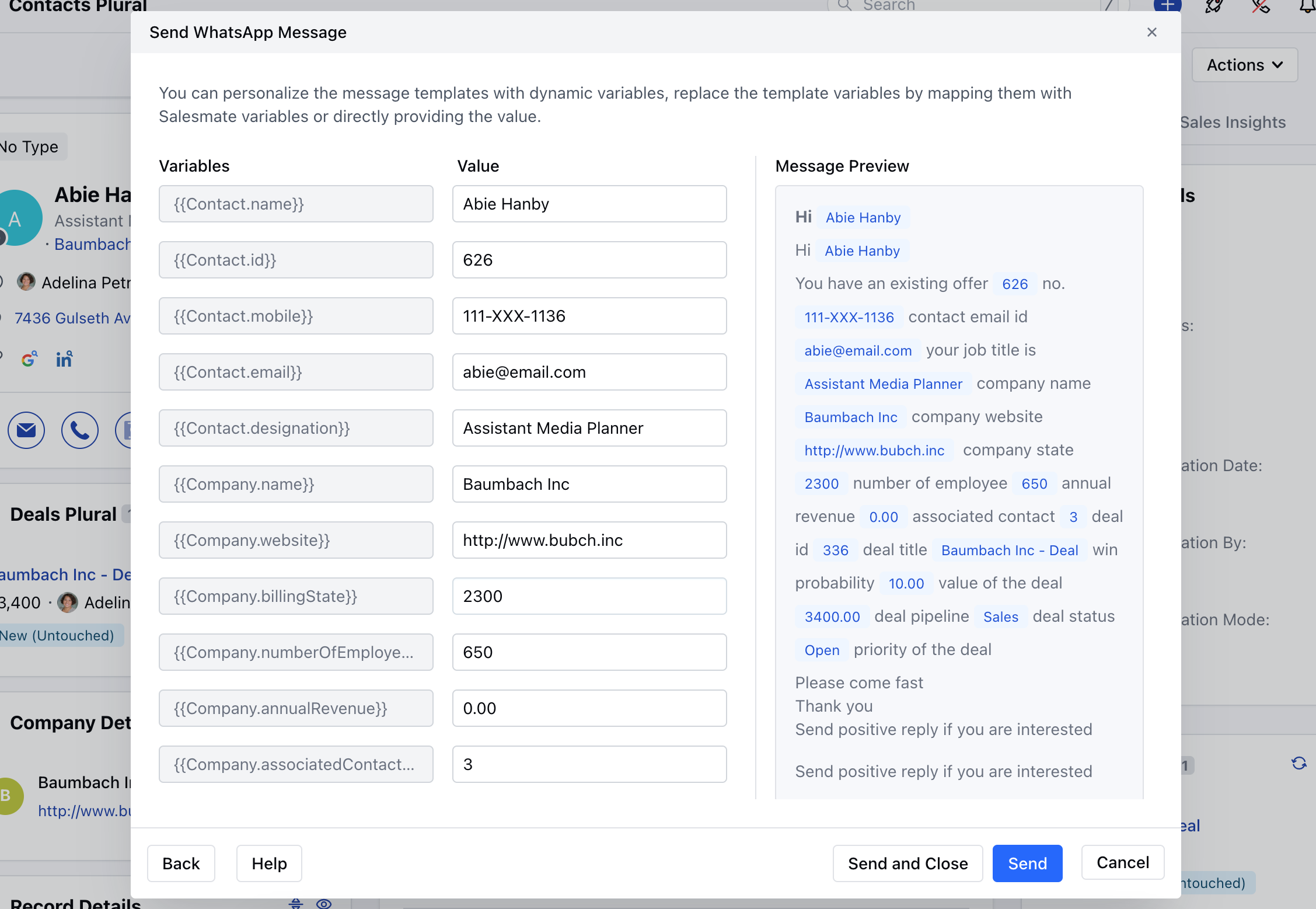
* Navigate to the **Contacts Module** from the left bar accessing to the **Listing View**
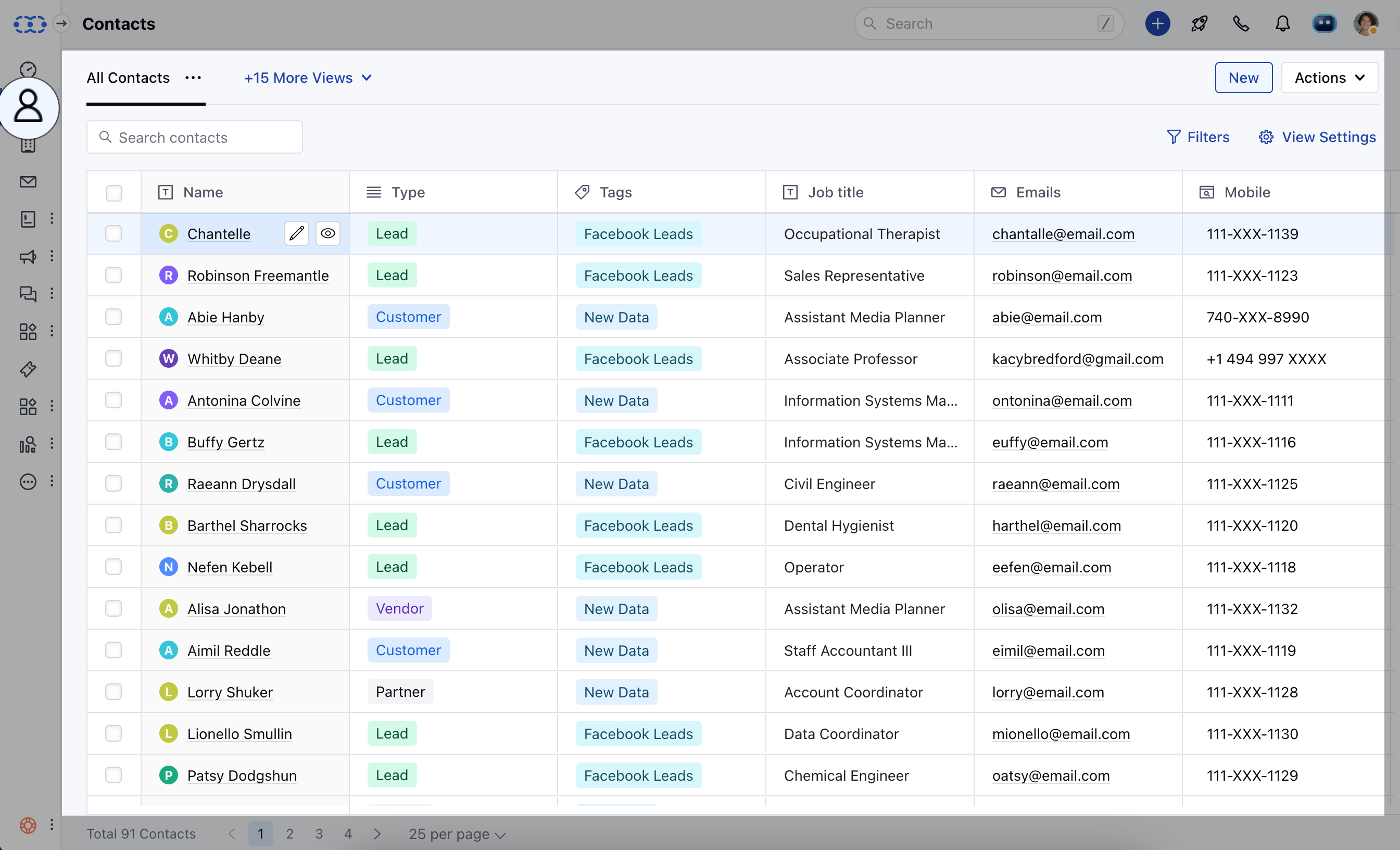 * Select the Contact that you wish to send a chat and open the Contact in the Detail View. \* Click on the **Start Chat** Icon and select **Skara Chat.**
 **Or**
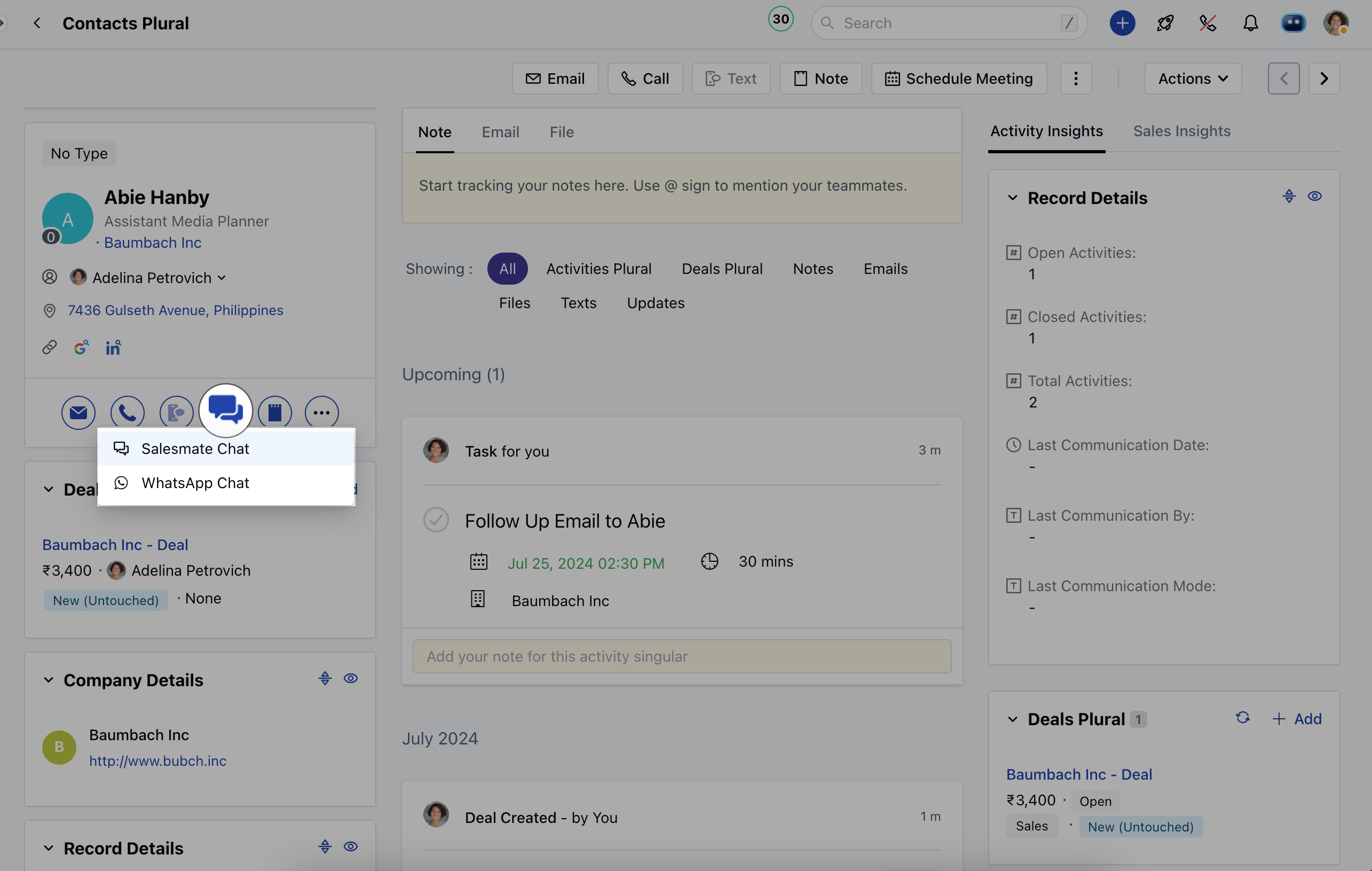
* Head over to the three dots on the top right and click on the Start Chat option
* Select the **Skara Chat**
**Or**
* Head over to the three dots on the top right and click on the Start Chat option
* Select the **Skara Chat**
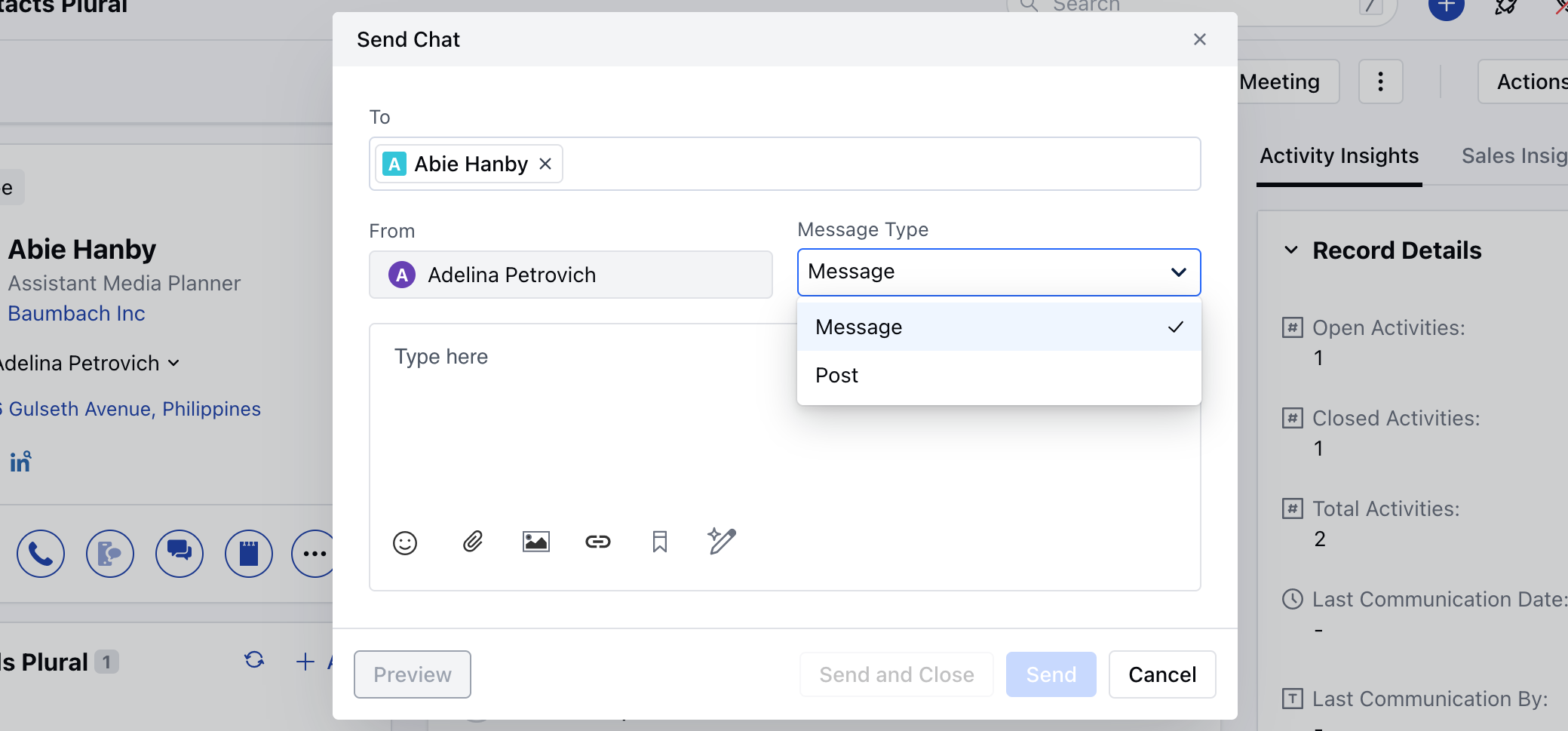
 A pop up will appear to choose the following options,
* **To:** This will display the contact's name that was selected to send the message.
* **From:** This will display the Users name who is initiating the chat.
* **Message Type**,
* **Message:** You can choose this option to send it as a regular small message.
* **Post:** You can choose this option when you want to send a large message that appears in a big post form like chat journeys, for example sending an announcement or product updates.
* **Message:** Enter your desired message to send.
**Note:** The outbound chats can only be sent to the verified customers.
Furthermore you can choose to select the following Actions,
* **Preview:** Select this option to preview the message to see how it will appear.
* **Send and Close:** Select this option to send the message and mark the conversation as closed.
* **Send:** Select this option to send the message to the contact immediately.
* **Cancel:** Select this option to discard the message and close the popup window.
A pop up will appear to choose the following options,
* **To:** This will display the contact's name that was selected to send the message.
* **From:** This will display the Users name who is initiating the chat.
* **Message Type**,
* **Message:** You can choose this option to send it as a regular small message.
* **Post:** You can choose this option when you want to send a large message that appears in a big post form like chat journeys, for example sending an announcement or product updates.
* **Message:** Enter your desired message to send.
**Note:** The outbound chats can only be sent to the verified customers.
Furthermore you can choose to select the following Actions,
* **Preview:** Select this option to preview the message to see how it will appear.
* **Send and Close:** Select this option to send the message and mark the conversation as closed.
* **Send:** Select this option to send the message to the contact immediately.
* **Cancel:** Select this option to discard the message and close the popup window.
 ### WhatsApp Chat
To initiate the WhatsApp Chat,
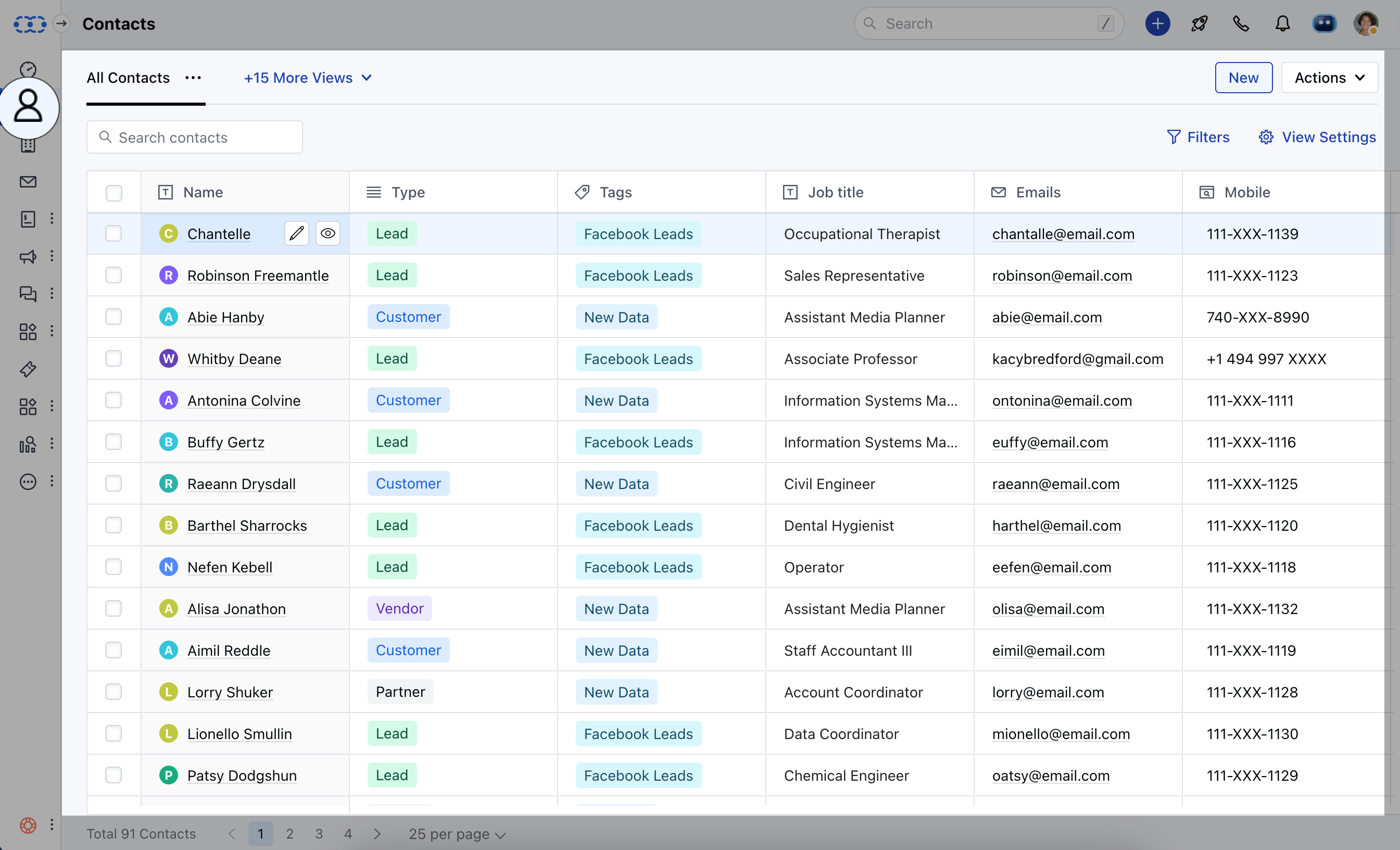
* Navigate to the **Contacts Module** from the left bar accessing to the **Listing View**
### WhatsApp Chat
To initiate the WhatsApp Chat,
* Navigate to the **Contacts Module** from the left bar accessing to the **Listing View**
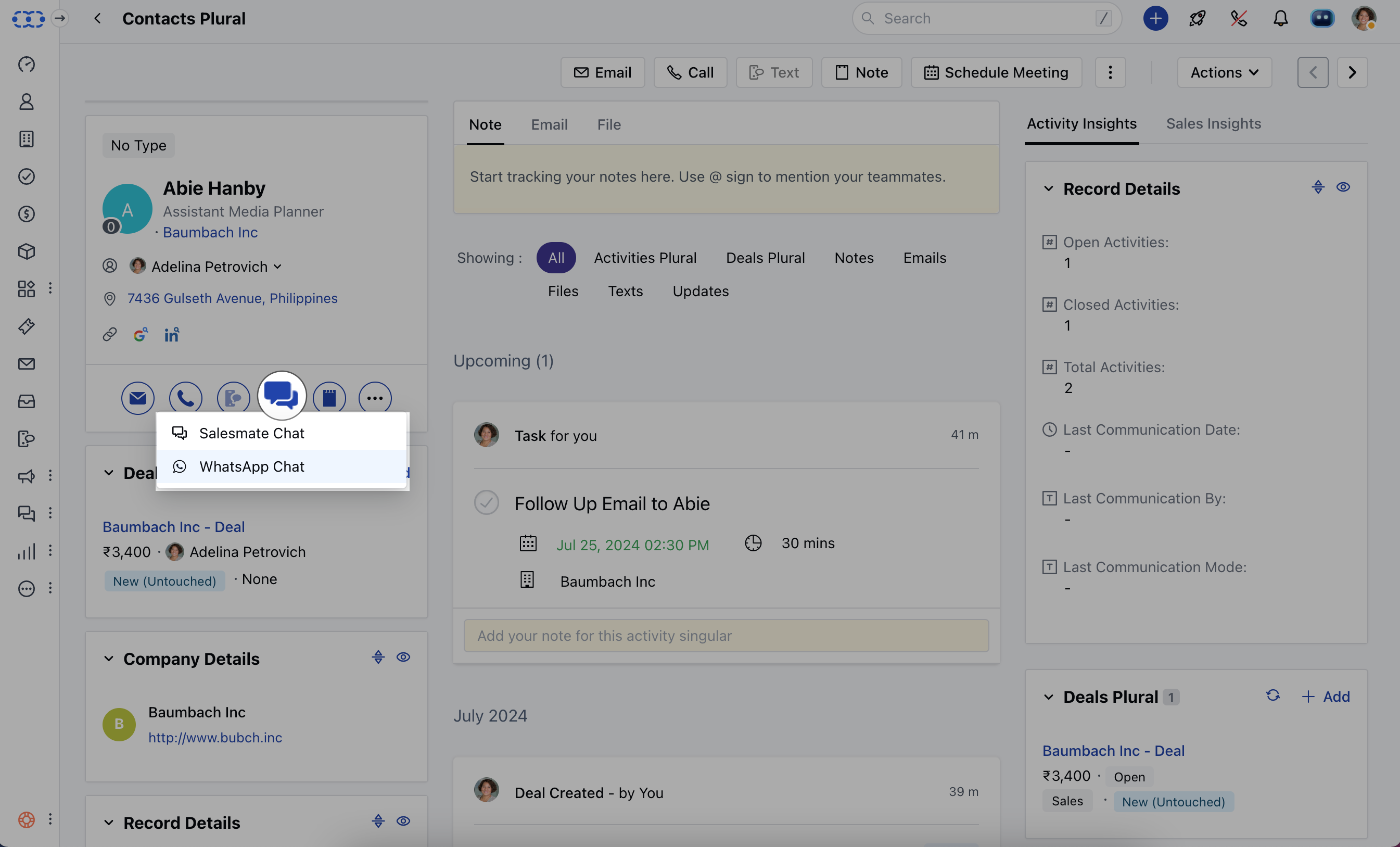
 * Select the Contact that you wish to send a chat and open the Contact in the Detail View
* Click on the **Start Chat** Icon and select **WhatsApp Chat**
* Select the Contact that you wish to send a chat and open the Contact in the Detail View
* Click on the **Start Chat** Icon and select **WhatsApp Chat**
 **Or**
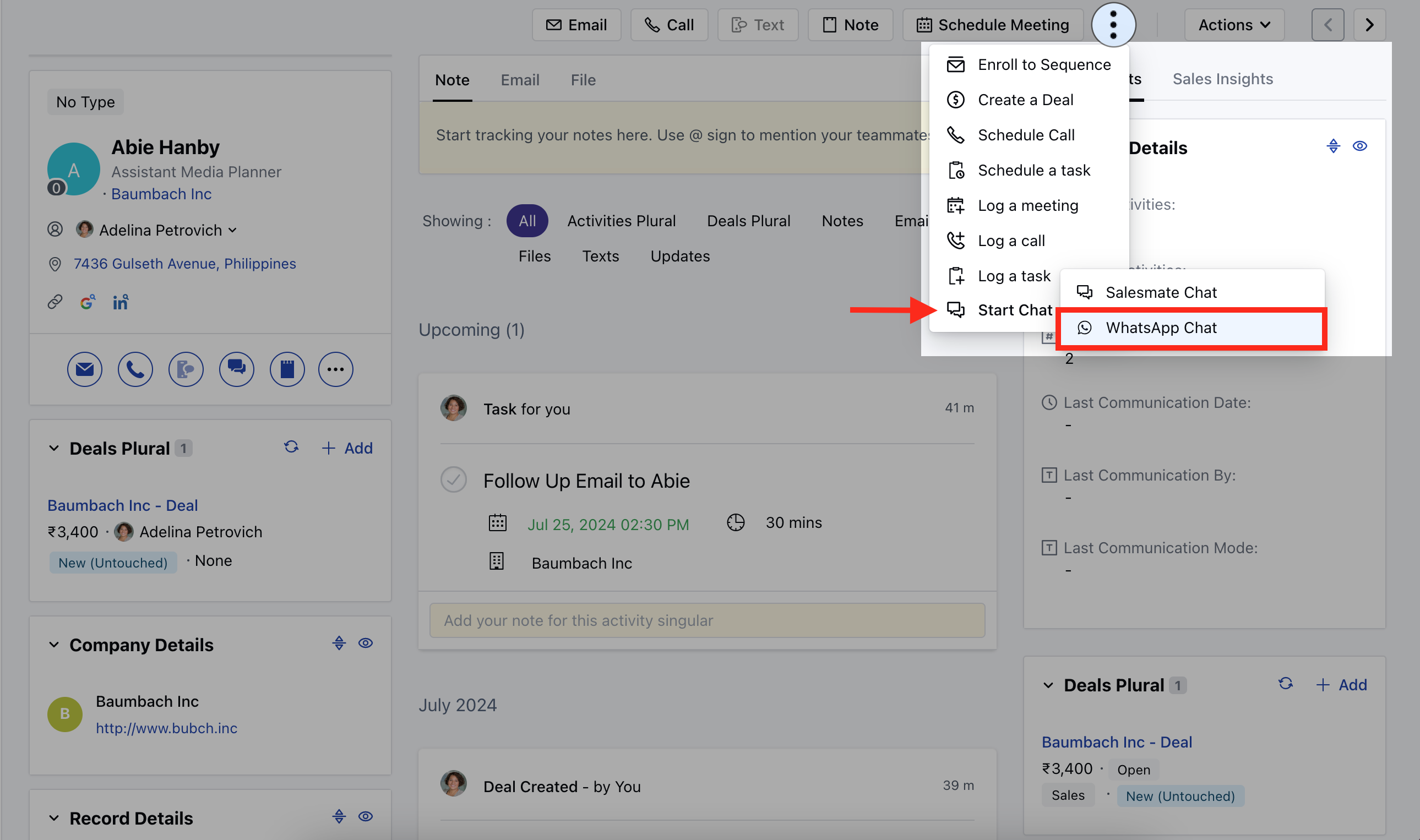
* Head over to the three dots on the top right and click on the Start Chat option
* Select the **WhatsApp Chat**
**Or**
* Head over to the three dots on the top right and click on the Start Chat option
* Select the **WhatsApp Chat**
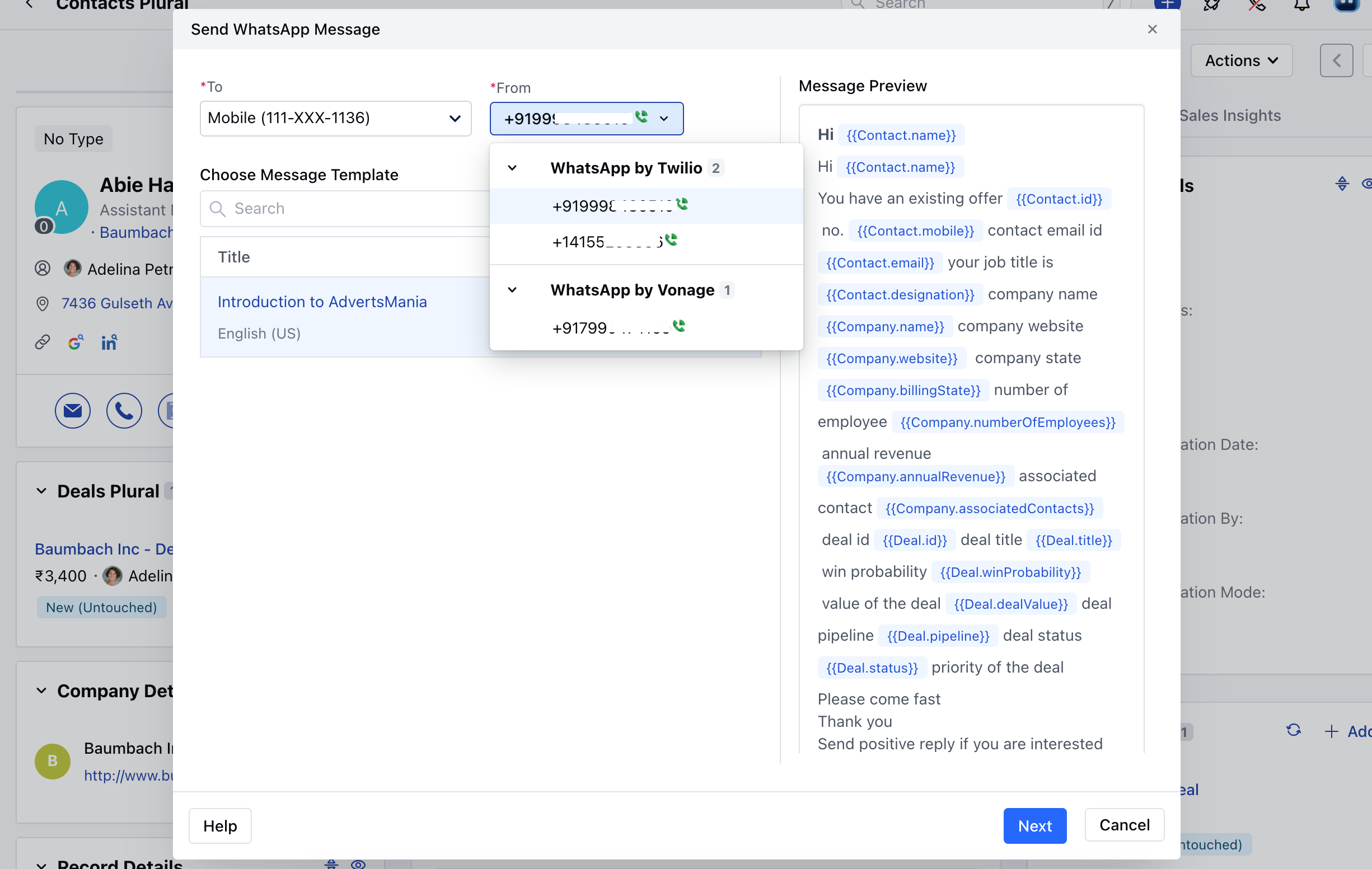
 A pop up will appear to choose the following options,
* **To:** This will display the Phone Number of the Contact you are sending text to.
* **From:** Select the WhatsApp number of the provider (Twilio or Vonage ) from which you want to send the text.
* **WhatsApp Template:** Select a template that you want to send.
* [Learn More about Sending WhatsApp Template.](https://support.salesmate.io/hc/en-us/articles/29644774950937-Sending-WhatsApp-Message-Template)
* **Message Preview:** This will display he preview of your selected template.
* You will get a Next button if the template contains variables.
* [Learn More about variables](https://support.salesmate.io/hc/en-us/articles/You%20will%20get%20a%20Next%20button%20if%20the%20template%20contains%20variables)
A pop up will appear to choose the following options,
* **To:** This will display the Phone Number of the Contact you are sending text to.
* **From:** Select the WhatsApp number of the provider (Twilio or Vonage ) from which you want to send the text.
* **WhatsApp Template:** Select a template that you want to send.
* [Learn More about Sending WhatsApp Template.](https://support.salesmate.io/hc/en-us/articles/29644774950937-Sending-WhatsApp-Message-Template)
* **Message Preview:** This will display he preview of your selected template.
* You will get a Next button if the template contains variables.
* [Learn More about variables](https://support.salesmate.io/hc/en-us/articles/You%20will%20get%20a%20Next%20button%20if%20the%20template%20contains%20variables)
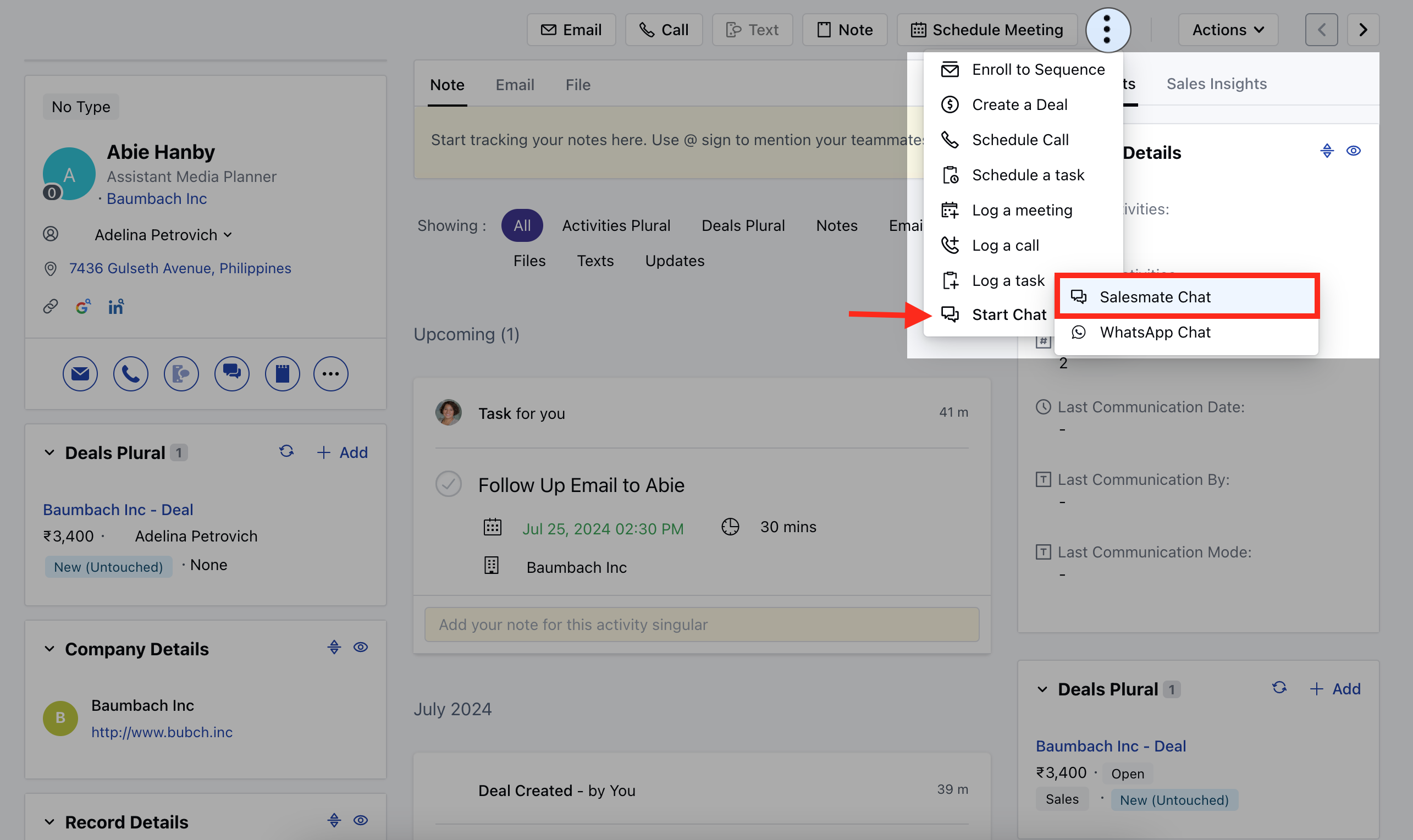
 * Select the appropriate variables.
Furthermore you can choose to select the following Actions,
* **Send and Close:** Select this option to send the message and mark the conversation as closed.
* **Send:** Select this option to send the message to the contact immediately.
* **Cancel:** Select this option to discard the message and close the popup window.
* Select the appropriate variables.
Furthermore you can choose to select the following Actions,
* **Send and Close:** Select this option to send the message and mark the conversation as closed.
* **Send:** Select this option to send the message to the contact immediately.
* **Cancel:** Select this option to discard the message and close the popup window.