> ## Documentation Index
> Fetch the complete documentation index at: https://support.getskara.ai/llms.txt
> Use this file to discover all available pages before exploring further.
# Share Unified Inbox Transcript with your customers
The conversation we do on chats usually tends to miss when you need it the most, but with the feature to download /email transcript you can easily download the important conversation and have it stored with you for future reference.
### How Skara users can download or Email transcripts?
* Send chat transcripts to your customers as a text file or directly via email.
* Skara messenger allows you to download or email a copy of the conversation history - chat transcript, and share it with your customers.
* Customers and Visitors can also download the transcript via Unified inbox or request it at any time during a chat session.
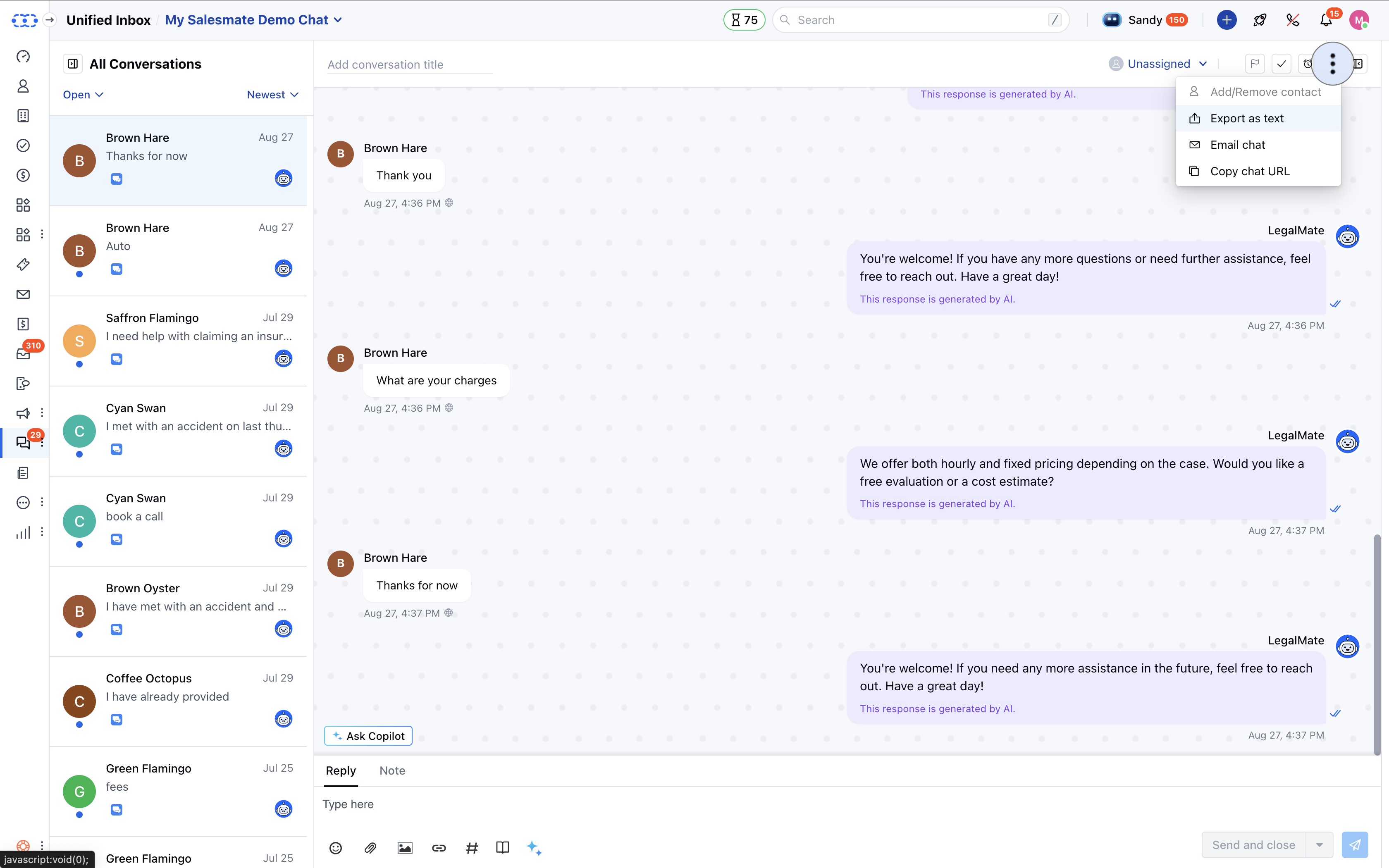
* **To download the transcript, please follow the below steps:**
* Go to Unified inbox and open the required conversation
* Click on the **More Icon** shown as three dots at the top of the conversation panel
* Click on the **Download Chat** option
* Choose **Export as text** option
* Chat transcript will download in the form of a **text** file
* User's can further share the text file as an **attachment** to an email.
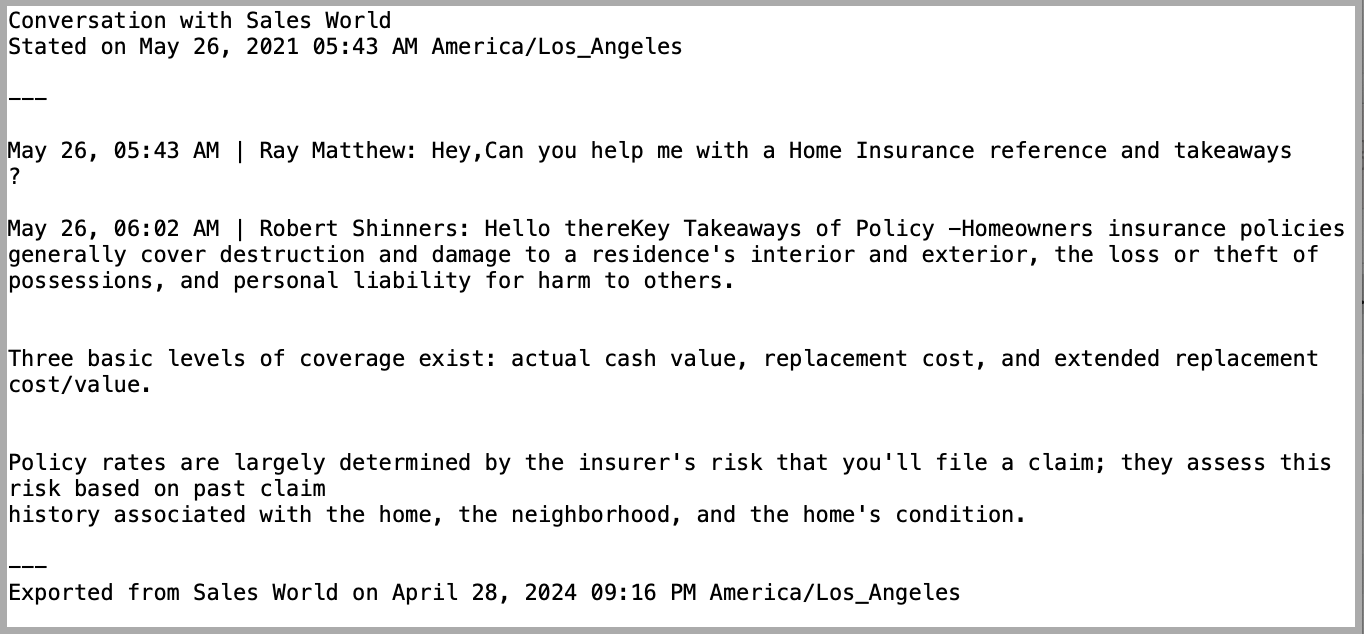
 * **Sample Format of Text Transcript:**
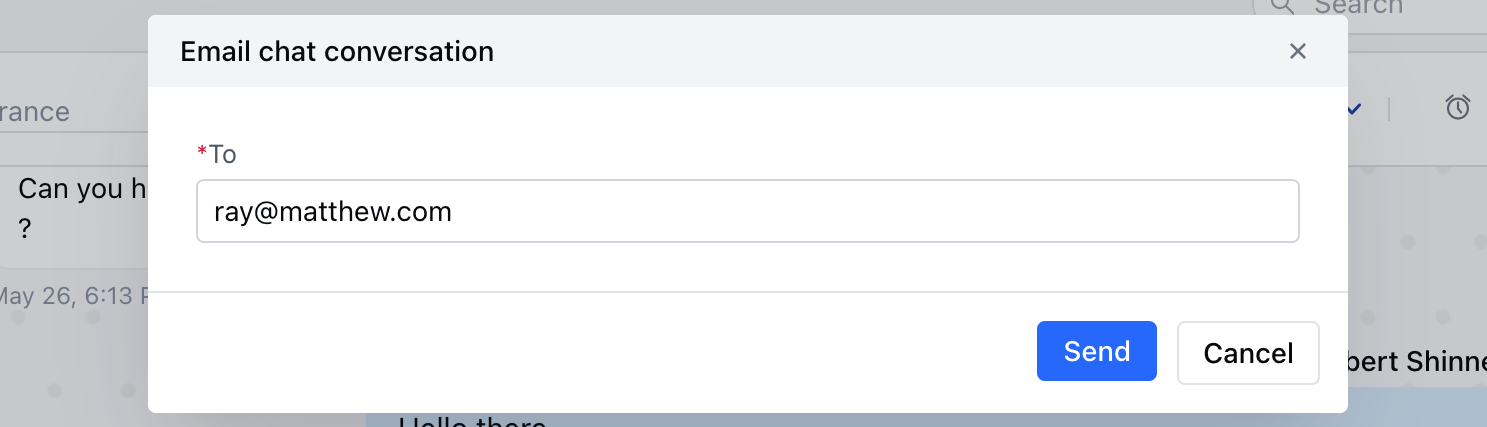
 * *To email the transcript, please follow these steps:*\*
* Go to **Unified inbox** and open the required conversation
* Click on the "**Action**" button shown as three dots at the top of the conversation panel
* Click on the **Email Chat** option
* A popup will appear
* Filled with the primary contact's email address, but you can change it
* Review the email provided in the **To** field, change if required
* Hit **Send**
* The chat transcript will be sent to the email address as mentioned below
* *To email the transcript, please follow these steps:*\*
* Go to **Unified inbox** and open the required conversation
* Click on the "**Action**" button shown as three dots at the top of the conversation panel
* Click on the **Email Chat** option
* A popup will appear
* Filled with the primary contact's email address, but you can change it
* Review the email provided in the **To** field, change if required
* Hit **Send**
* The chat transcript will be sent to the email address as mentioned below
 ### **Chat transcript contains the following information:**
* Date and time with timezone
* Conversation start date and time
* All replies in the conversation with respective timestamps
* Name of participants that is customer and agents involved in the conversation
* Name of files, attachments shared in the conversation
* Date and time of transcript export
**Note:** By default, the email transcript is sent from [noreply@salesmatemail.com,](#how-salesmate-users-can-download-or-email-transcripts) but If the user wants to send the email from his domain, then [Salesmate also allows
that by enabling
DKIM](https://support.salesmate.io/hc/en-us/articles/360006983771), and then the transcript will be sent from the user's email address instead of [noreply@salesmatemail.com.](#how-salesmate-users-can-download-or-email-transcripts)
### **Chat transcript contains the following information:**
* Date and time with timezone
* Conversation start date and time
* All replies in the conversation with respective timestamps
* Name of participants that is customer and agents involved in the conversation
* Name of files, attachments shared in the conversation
* Date and time of transcript export
**Note:** By default, the email transcript is sent from [noreply@salesmatemail.com,](#how-salesmate-users-can-download-or-email-transcripts) but If the user wants to send the email from his domain, then [Salesmate also allows
that by enabling
DKIM](https://support.salesmate.io/hc/en-us/articles/360006983771), and then the transcript will be sent from the user's email address instead of [noreply@salesmatemail.com.](#how-salesmate-users-can-download-or-email-transcripts)