> ## Documentation Index
> Fetch the complete documentation index at: https://support.getskara.ai/llms.txt
> Use this file to discover all available pages before exploring further.
# How to Edit or Delete Contact Type inside Salesmate?
**Note:** You will require to manage field rights to perform this action.
### **Topics covered:**
* [How to Edit Contact Type](#how-to-edit-contact-type)
* [How to Delete Contact Type](#how-to-delete-contact-type)
### How to Edit Contact Type
To Edit Contact Type,
* **Navigate to the** Profile Icon on the top right corner
* **Click on the** Set Up
* Head Over to the **Modules** Category
* **Select the** Module (Contact, Company)
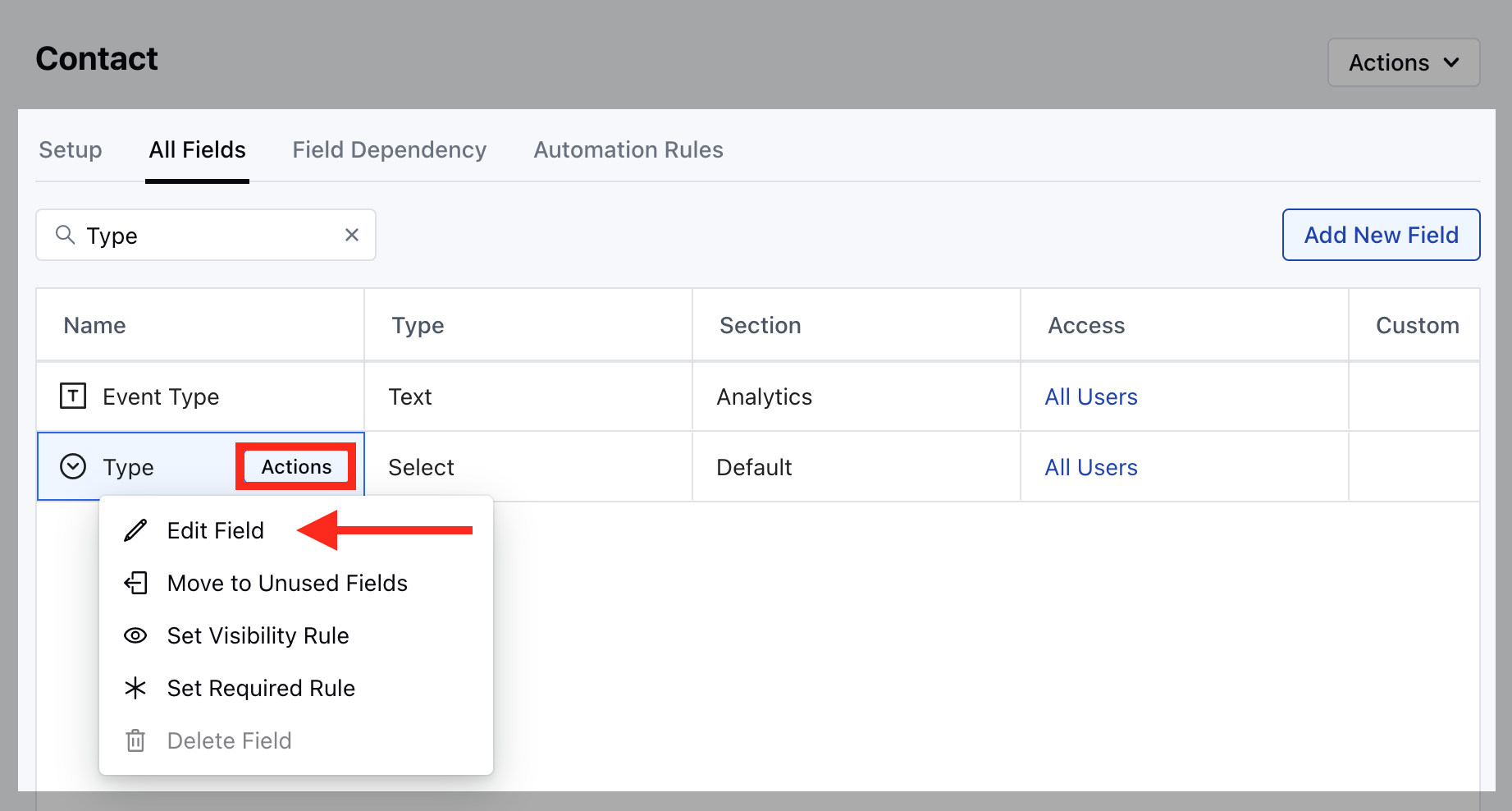
 * **Go to the** All Detail Form Fields section
* **Search for** Type field and hover over it, Action button will appear
* **Click on the** Edit Field option
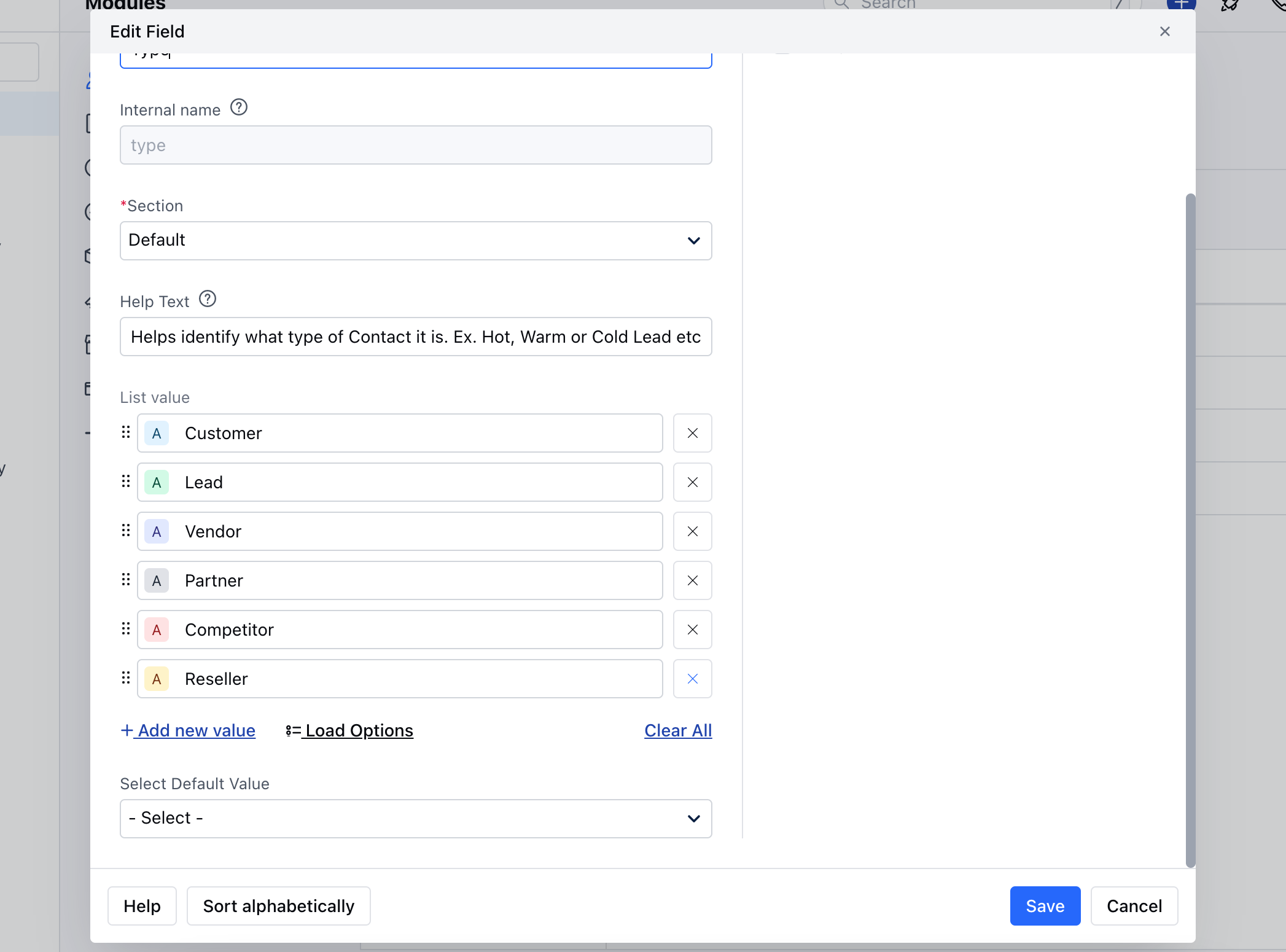
* **Here you can** Rename the Field or add new field.
* **Once done, hit on** Save .
### How to Delete Contact Type
To delete the Contact Type,
* **Navigate to the** Profile Icon on the top right corner
* **Click on the** Set Up
* Head Over to the **Modules** Category
* **Select the** Module (Contact, Company)\*\*
* \*\* Go to the \*\* All Detail Form Fields\*\* section.
* **Search for** Type field and hover over it,
* **Action** button will appear.
* **Click on the** Remove button to
* **Delete** the **Type**.
* **Go to the** All Detail Form Fields section
* **Search for** Type field and hover over it, Action button will appear
* **Click on the** Edit Field option
* **Here you can** Rename the Field or add new field.
* **Once done, hit on** Save .
### How to Delete Contact Type
To delete the Contact Type,
* **Navigate to the** Profile Icon on the top right corner
* **Click on the** Set Up
* Head Over to the **Modules** Category
* **Select the** Module (Contact, Company)\*\*
* \*\* Go to the \*\* All Detail Form Fields\*\* section.
* **Search for** Type field and hover over it,
* **Action** button will appear.
* **Click on the** Remove button to
* **Delete** the **Type**.