> ## Documentation Index
> Fetch the complete documentation index at: https://support.getskara.ai/llms.txt
> Use this file to discover all available pages before exploring further.
# Email Campaign Subscription Types
As an organization, you send different types of emails to your customers, e.g., newsletters, Promotional emails, Product Updates, or urgent updates. With subscription types, a customer can opt out of irrelevant messages without losing updates for important ones.Topics Covered:
\[\*\*How do the Subscription Types work?
* \*\*]\(#how-do-the-subscription-types-work)\[\*\*How to Set Up a New Subscription Type?
* \*\*]\(#how-to-set-up-a-new-subscription-type)\[\*\*How to Edit Subscription Type?
* \*\*]\(#how-to-set-up-a-new-subscription-type)\[\*\*How to Archive Subscription Type?
* \*\*]\(#how-to-set-up-a-new-subscription-type)\[\*\*How to Unarchive Subscription Type?
* \*\*]\(#how-to-set-up-a-new-subscription-type)
### How do the Subscription Types work?
By default, Salesmate provides different subscription types that can be used to send marketing emails. When a customer clicks on the Unsubscribe link from the email, they can either choose to unsubscribe from all the emails or only the nonrelevant types.
* **Announcements:** Offers, features, or product announcements
* **Newsletter:** Get the latest news and updates regularly.
* **Non-marketing emails:** Get emails with a transactional nature.
* **Best Practices:** Tips, tricks, and recommendations.
* **Promotional:** Get marketing and promotional offers for you.
### How to Set Up a New Subscription Type?
To Set up a New Subscription Type,
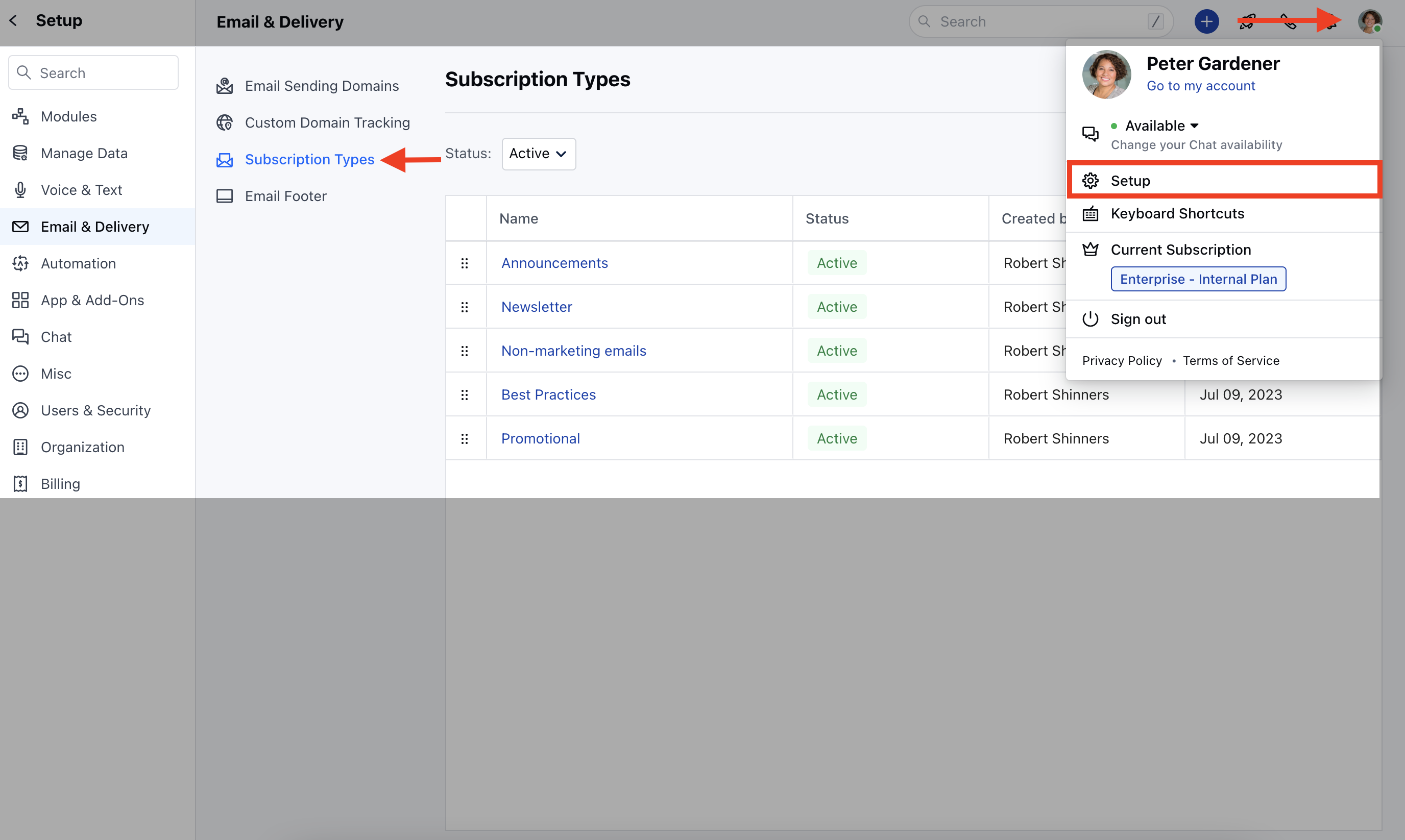
Navigate to your **Profile Icon** on the top right cornerClick on **Setup** Head over to **Email & Delivery** Click on **Subscription Types**
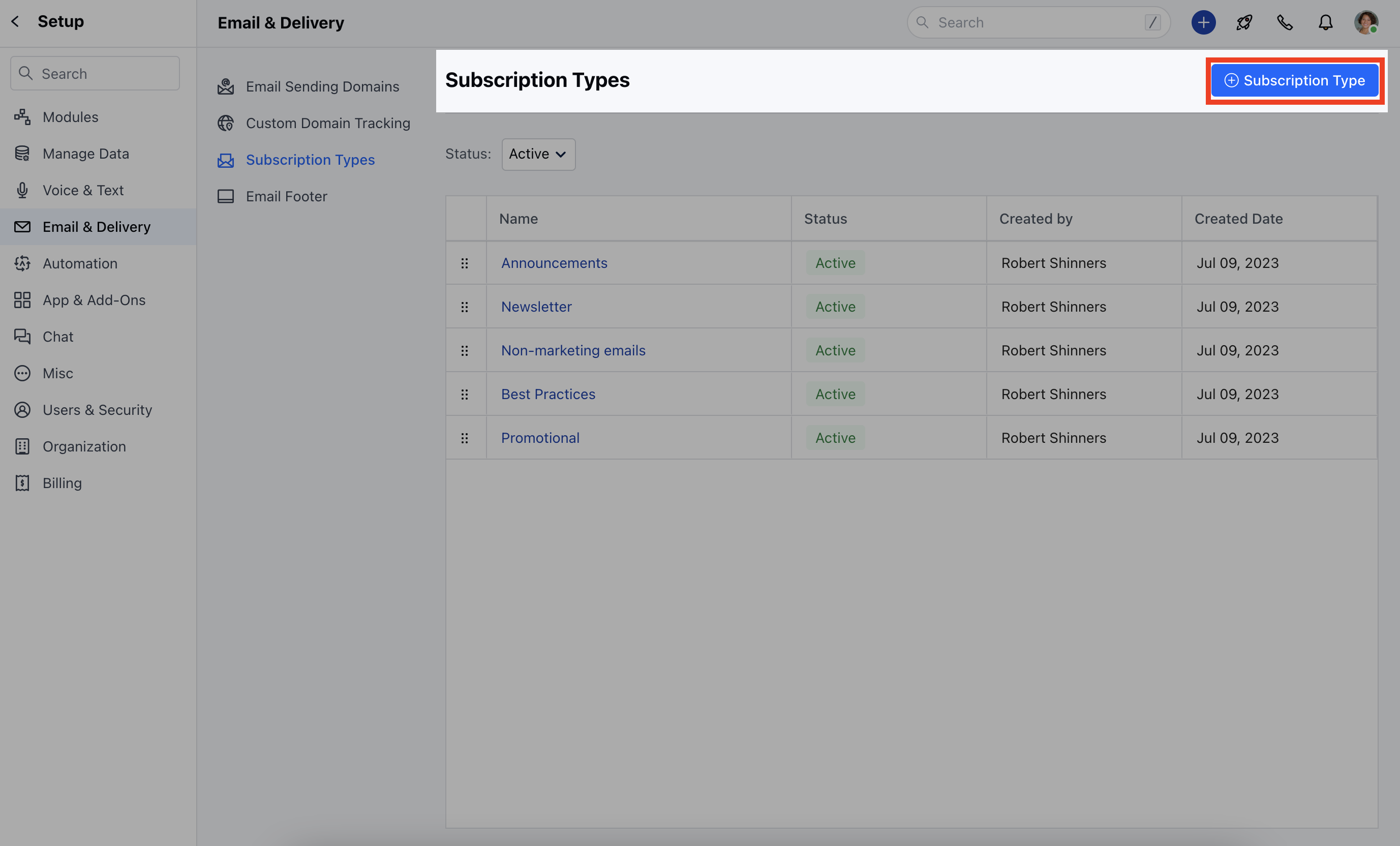
 Click on **+ Subscription Type**
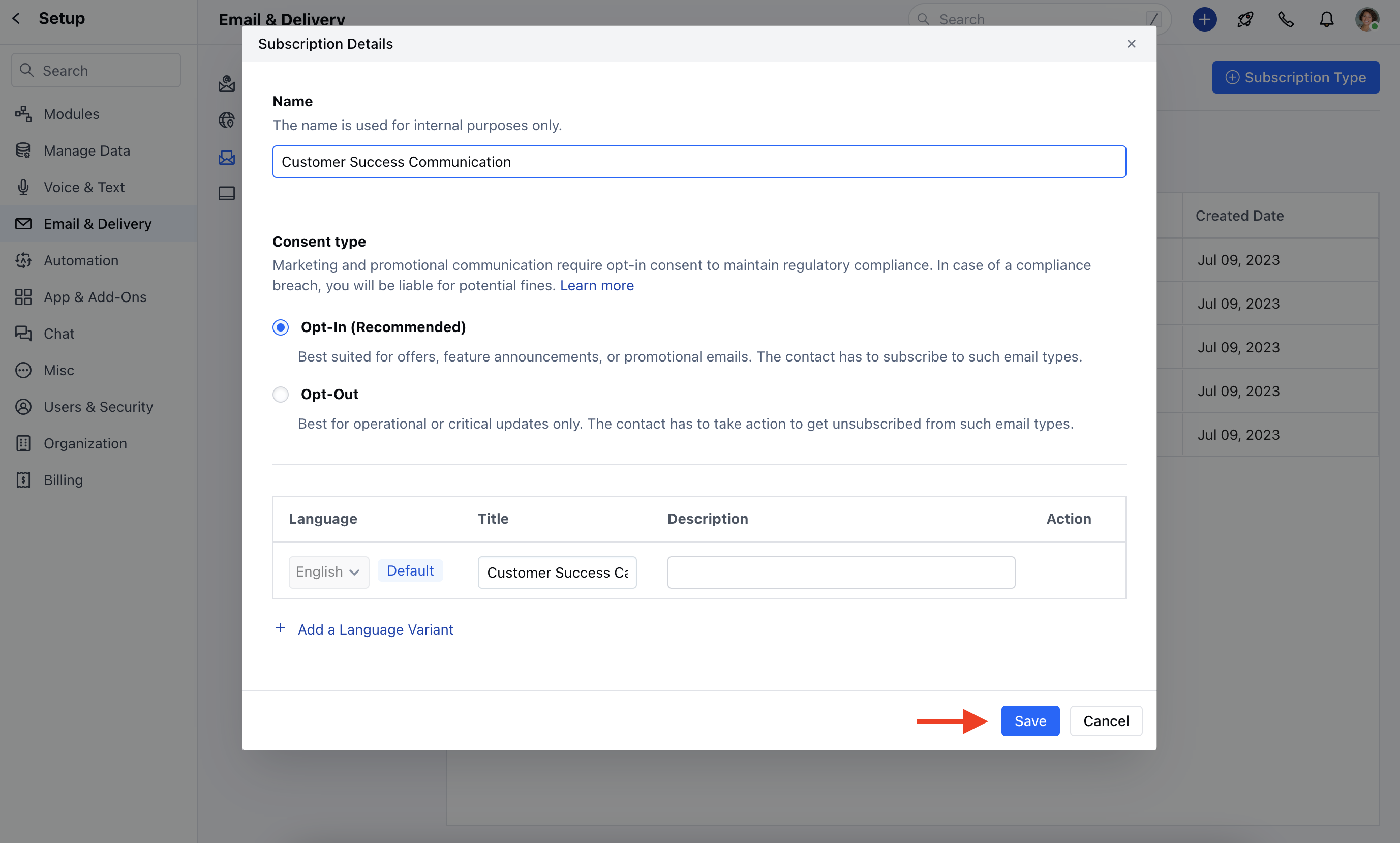
 Here, you need to add,- **Name:** Enter the name for the Subscription Type
* **Consent Type:** Select Opt-In or Opt-Out
* [Click here to learn more about the Consent type](https://support.salesmate.io/hc/en-us/articles/19613366377241)
* **Language:** The default language would be \*\*English,**If you wish to select a different language you can do it by \*\* Add a Language Variant **Description:** Add the relevant information about the subscription typeClick on** Save \*\*.
Here, you need to add,- **Name:** Enter the name for the Subscription Type
* **Consent Type:** Select Opt-In or Opt-Out
* [Click here to learn more about the Consent type](https://support.salesmate.io/hc/en-us/articles/19613366377241)
* **Language:** The default language would be \*\*English,**If you wish to select a different language you can do it by \*\* Add a Language Variant **Description:** Add the relevant information about the subscription typeClick on** Save \*\*.
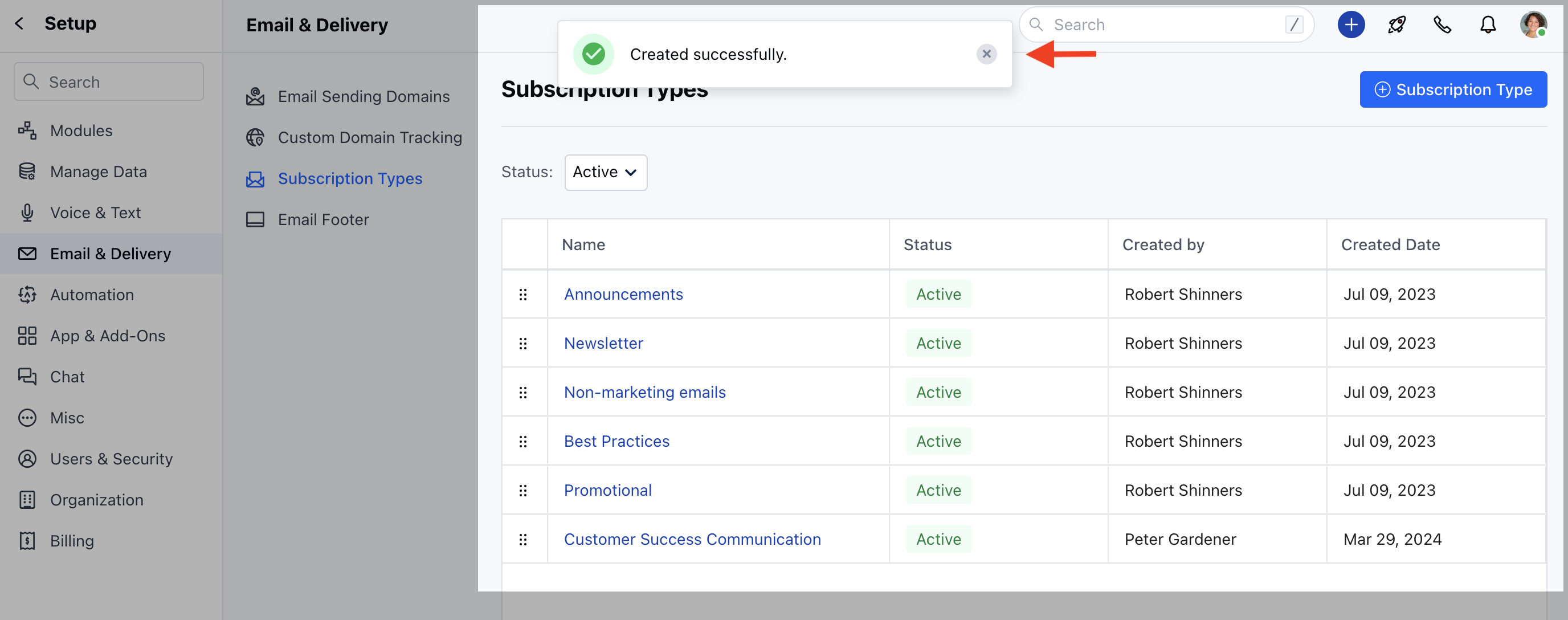
 A notification pop-up will appear once the subscription is successfully added.
 ### How to Edit Subscription Type?
To Edit the Subscription Type,
Navigate to your **Profile Icon** on the top right cornerClick on **Setup** Head over to **Email & Delivery** Click on **Subscription Types**
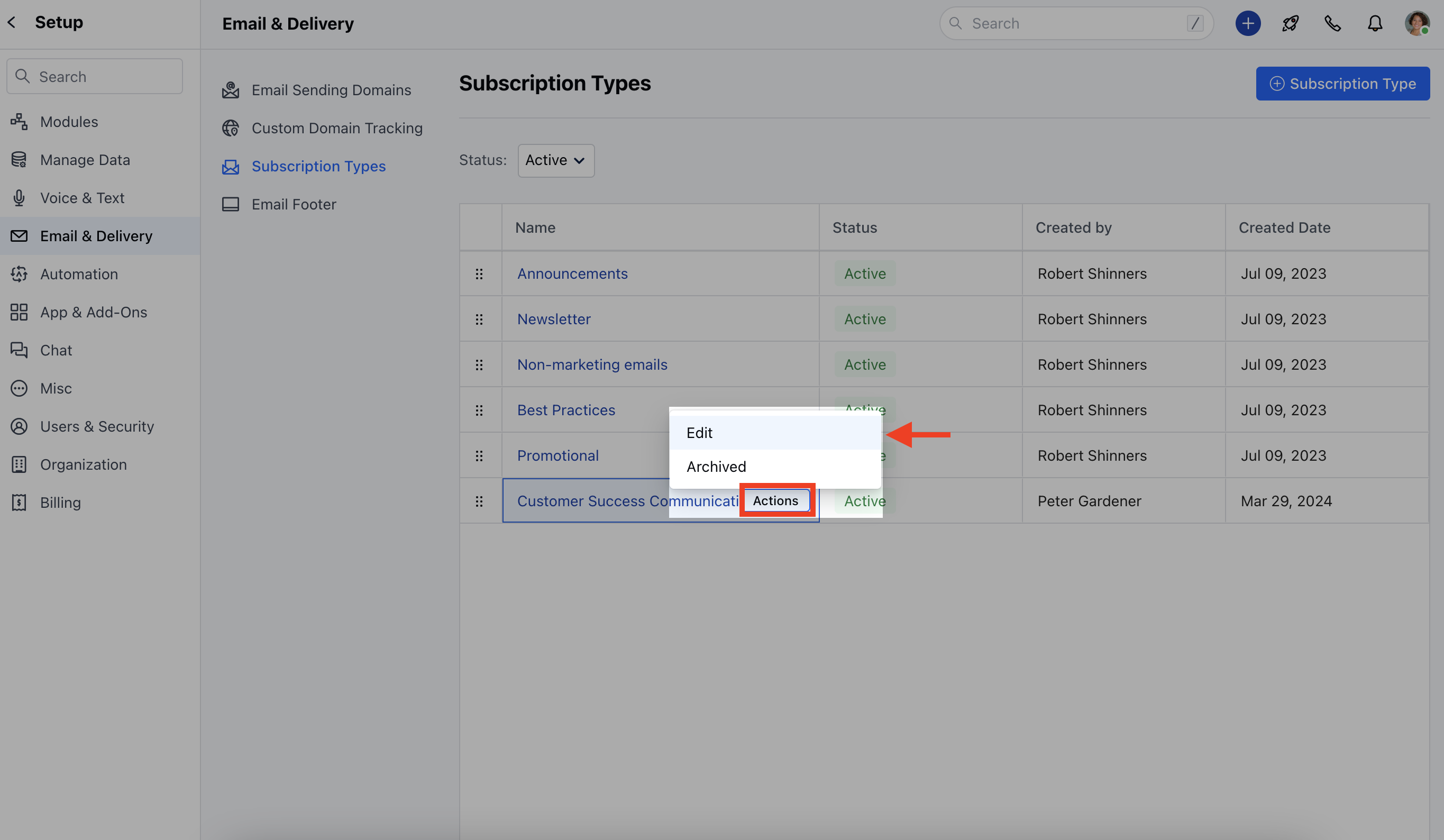
Click on the Subscription Type that you would like to \*\*Edit.
* \*\*Once you click on it, the **Actions** button will appear next to it.Click on **Actions** Select **Edit**
### How to Edit Subscription Type?
To Edit the Subscription Type,
Navigate to your **Profile Icon** on the top right cornerClick on **Setup** Head over to **Email & Delivery** Click on **Subscription Types**
Click on the Subscription Type that you would like to \*\*Edit.
* \*\*Once you click on it, the **Actions** button will appear next to it.Click on **Actions** Select **Edit**
 ### How to Archive Subscription Type?
To Archive the Subscription Type,
Navigate to your **Profile Icon** on the top right cornerClick on **Setup** Head over to **Email & Delivery** Click on **Subscription Types**
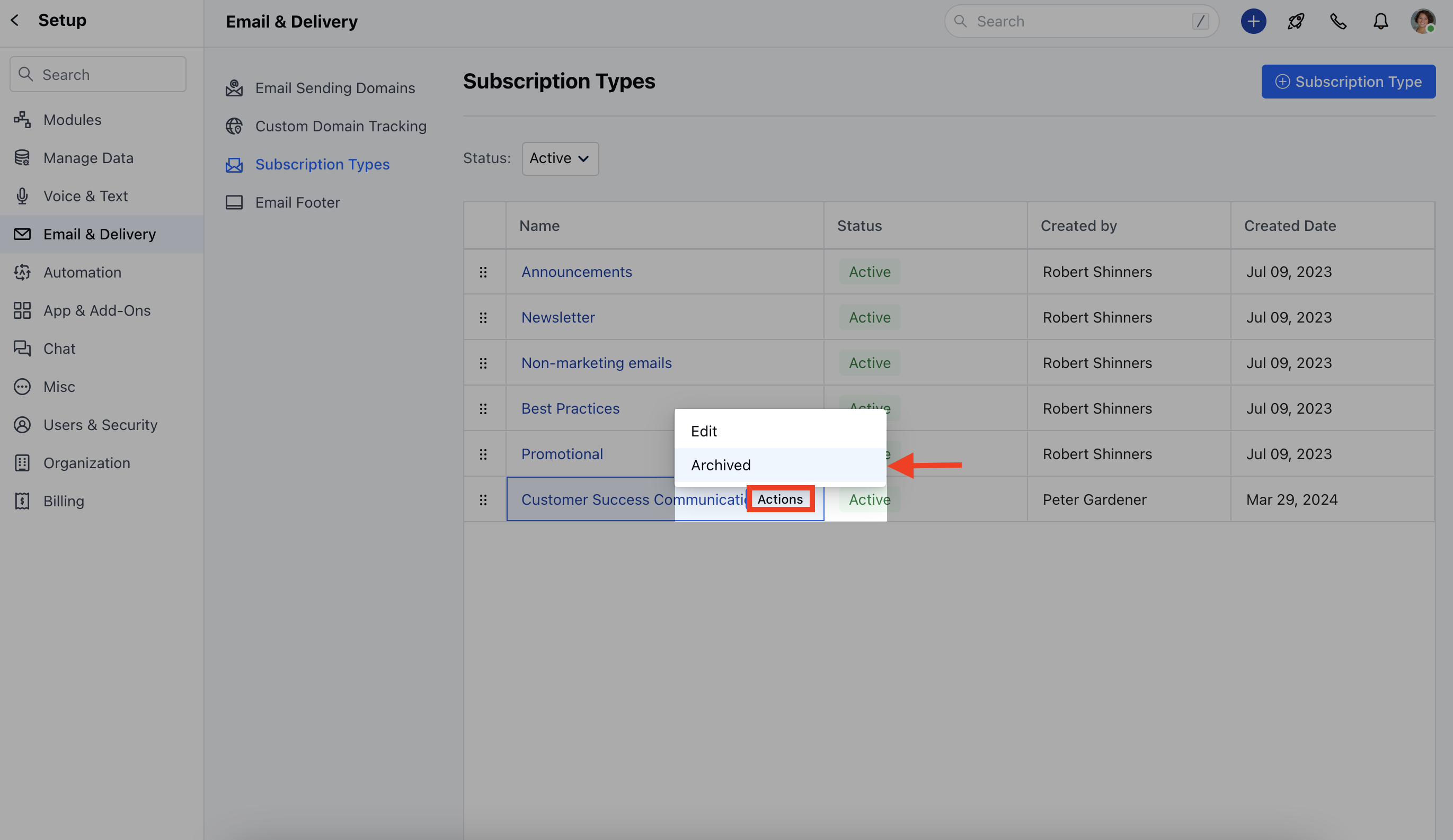
Click on the Subscription Type Name, the **Actions** button will appear next to it.Click on **Actions** Select **Archive**
### How to Archive Subscription Type?
To Archive the Subscription Type,
Navigate to your **Profile Icon** on the top right cornerClick on **Setup** Head over to **Email & Delivery** Click on **Subscription Types**
Click on the Subscription Type Name, the **Actions** button will appear next to it.Click on **Actions** Select **Archive**
 ### How to Unarchive Subscription Type?
To Unarchive the Subscription Type,
Navigate to your **Profile Icon** on the top right cornerClick on **Setup** Head over to **Email & Delivery** Click on **Subscription Types**
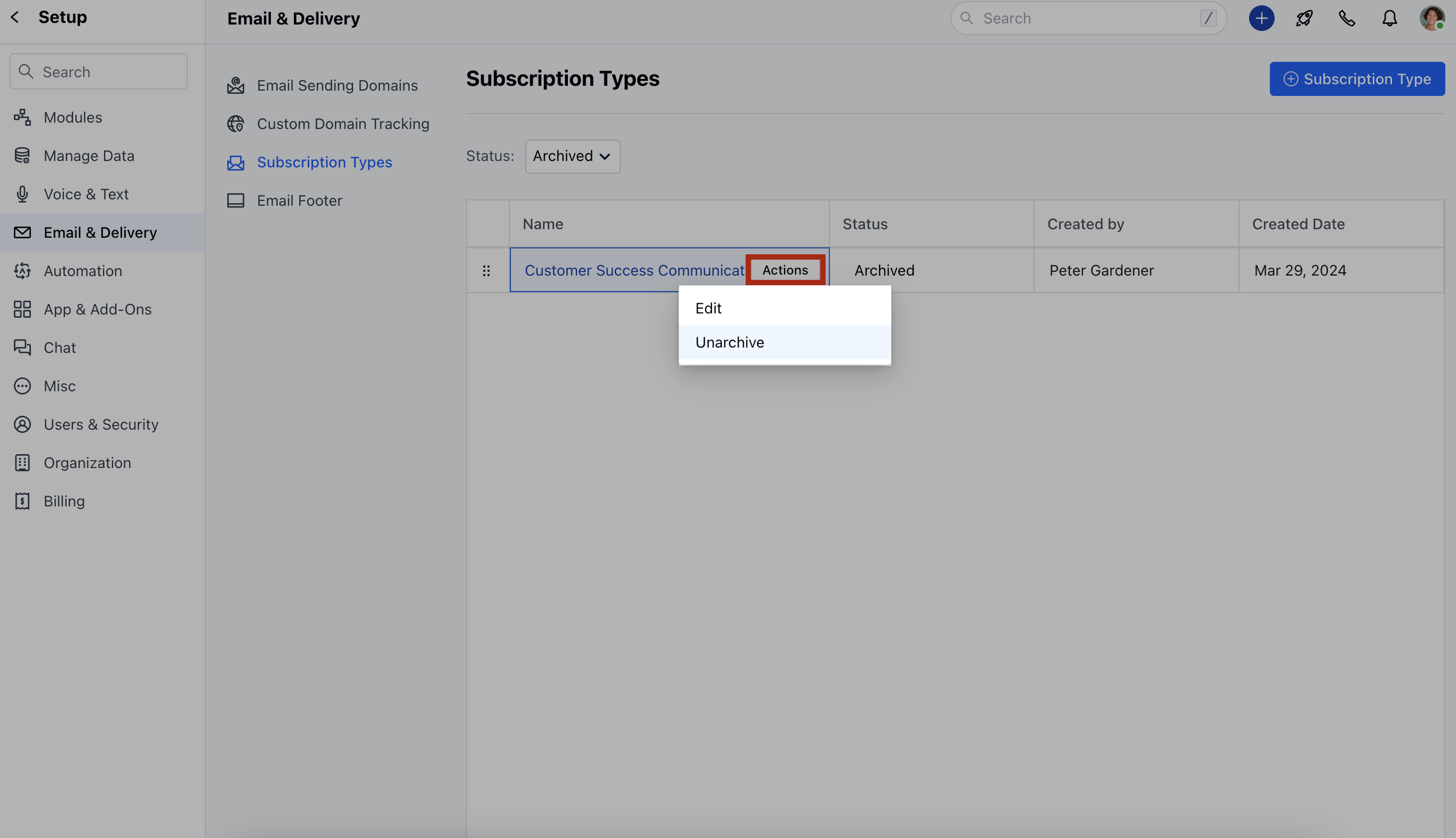
Head over to StatusSelect Archive from dropdownClick on the Subscription Type Name, the **Actions** button will appear next to itClick on **Actions** Select **Unarchive**
### How to Unarchive Subscription Type?
To Unarchive the Subscription Type,
Navigate to your **Profile Icon** on the top right cornerClick on **Setup** Head over to **Email & Delivery** Click on **Subscription Types**
Head over to StatusSelect Archive from dropdownClick on the Subscription Type Name, the **Actions** button will appear next to itClick on **Actions** Select **Unarchive**