> ## Documentation Index
> Fetch the complete documentation index at: https://support.getskara.ai/llms.txt
> Use this file to discover all available pages before exploring further.
# Full Email Sync
Salesmate offers **full (two-way) email sync**, which allows you to **send emails** from Salesmate and **automatically log replies**.
If Salesmate system folders already exist in your email folders list as custom folders, duplicate folders (with the same name) may be created in Salesmate.
***
### **Topics covered**
* [Configure the Google Account](#configure-the-google-account)
* [Configure the Microsoft Account](#configure-the-microsoft-account)
* [Sync Folders](#sync-folders)
* [Delete and Archive Options](#delete-and-archive-options)
* [Disable Sync](#disable-sync)
* [Stop Sync](#stop-sync)
### **To Set Up Your Full Email Sync or Change Your Email Settings**
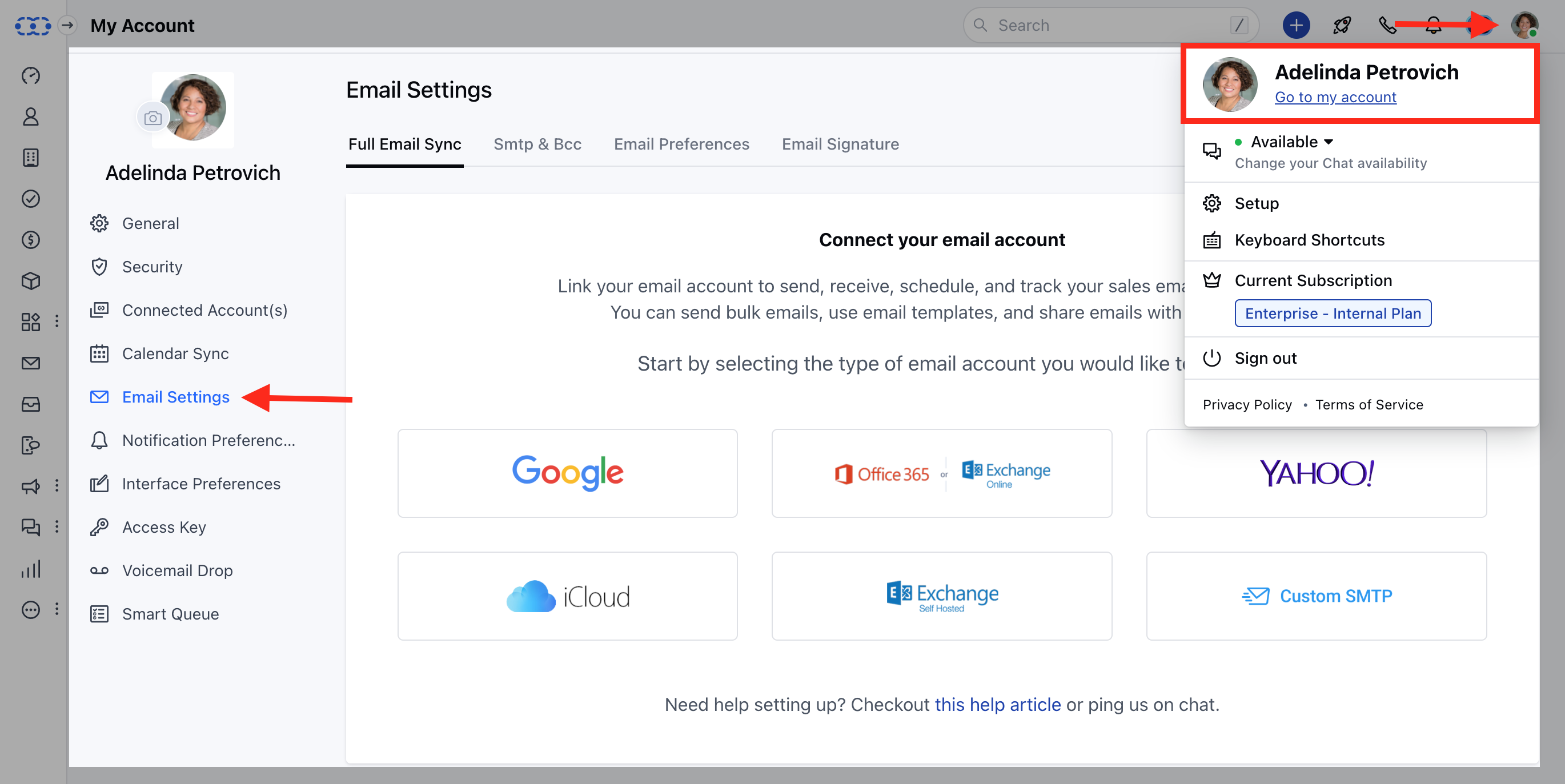
1. Navigate to the **Profile icon** on the top-right corner.
2. Click on **Go to My Account**.
3. Head to **Email Settings** → **Full Email Sync**.
 **OR**
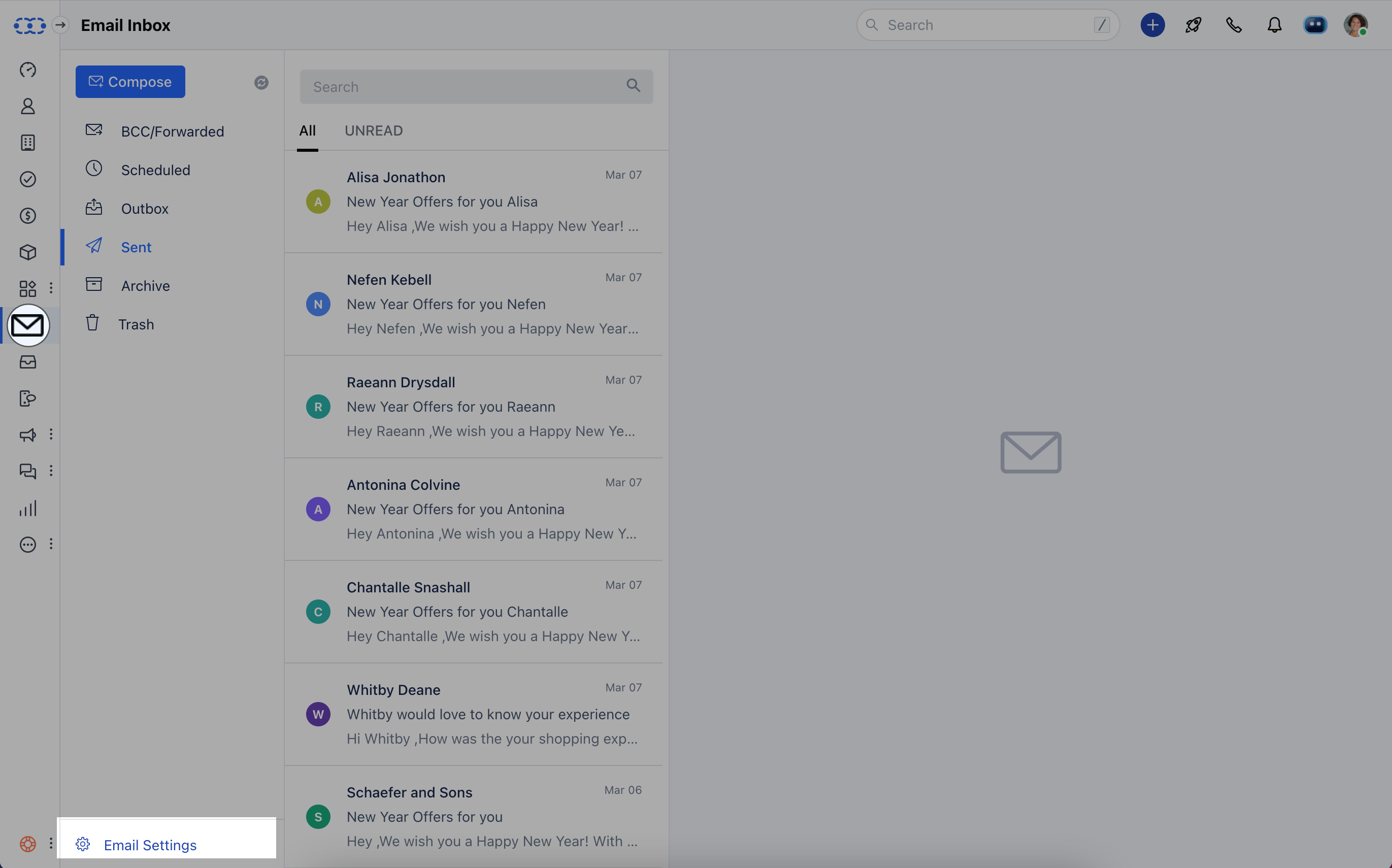
* Navigate to your **Email icon** on the left menu bar.
* Click on **Email Settings** at the bottom left.
**OR**
* Navigate to your **Email icon** on the left menu bar.
* Click on **Email Settings** at the bottom left.
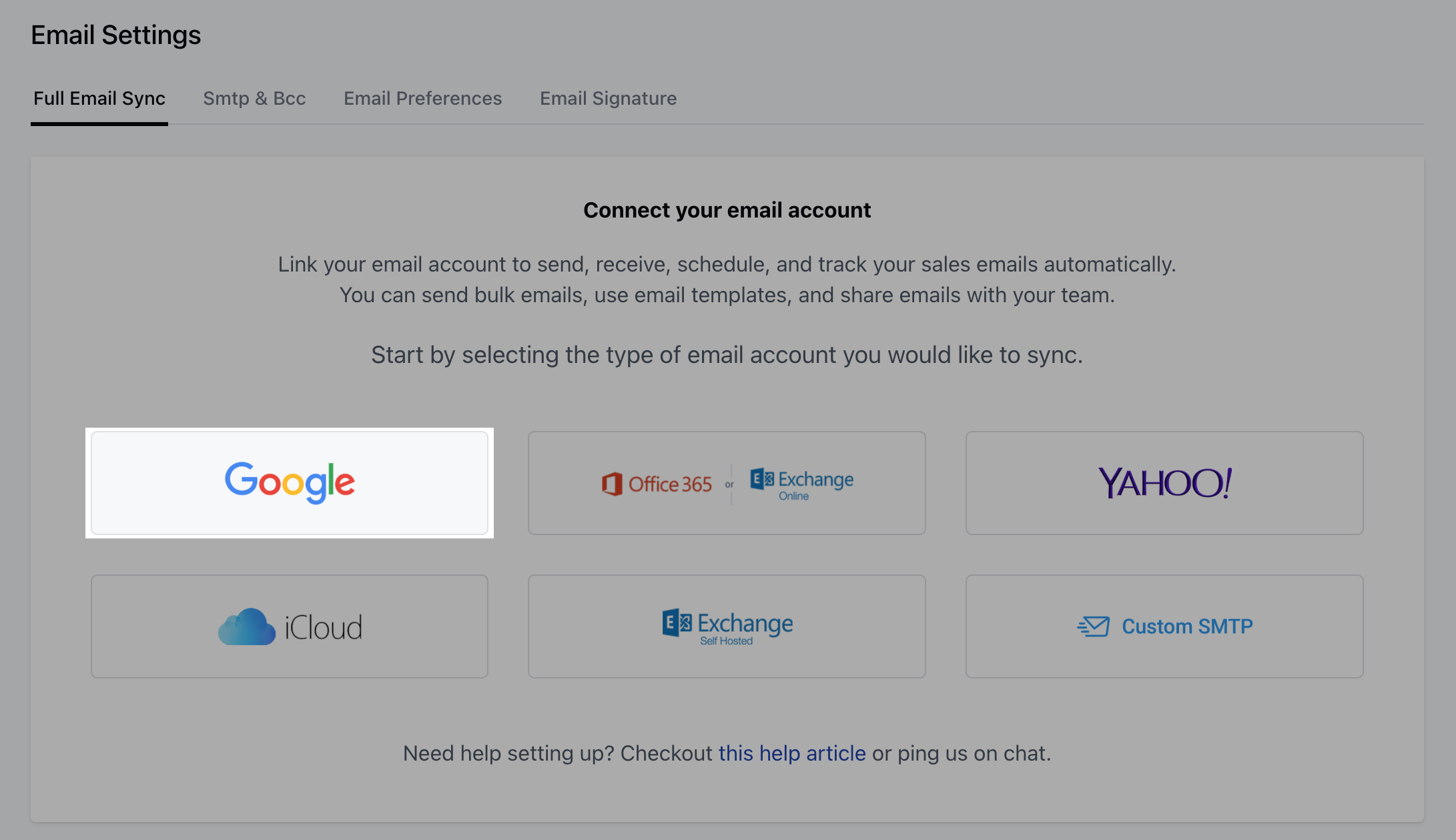
 From here, select the type of email account you’d like to sync.\
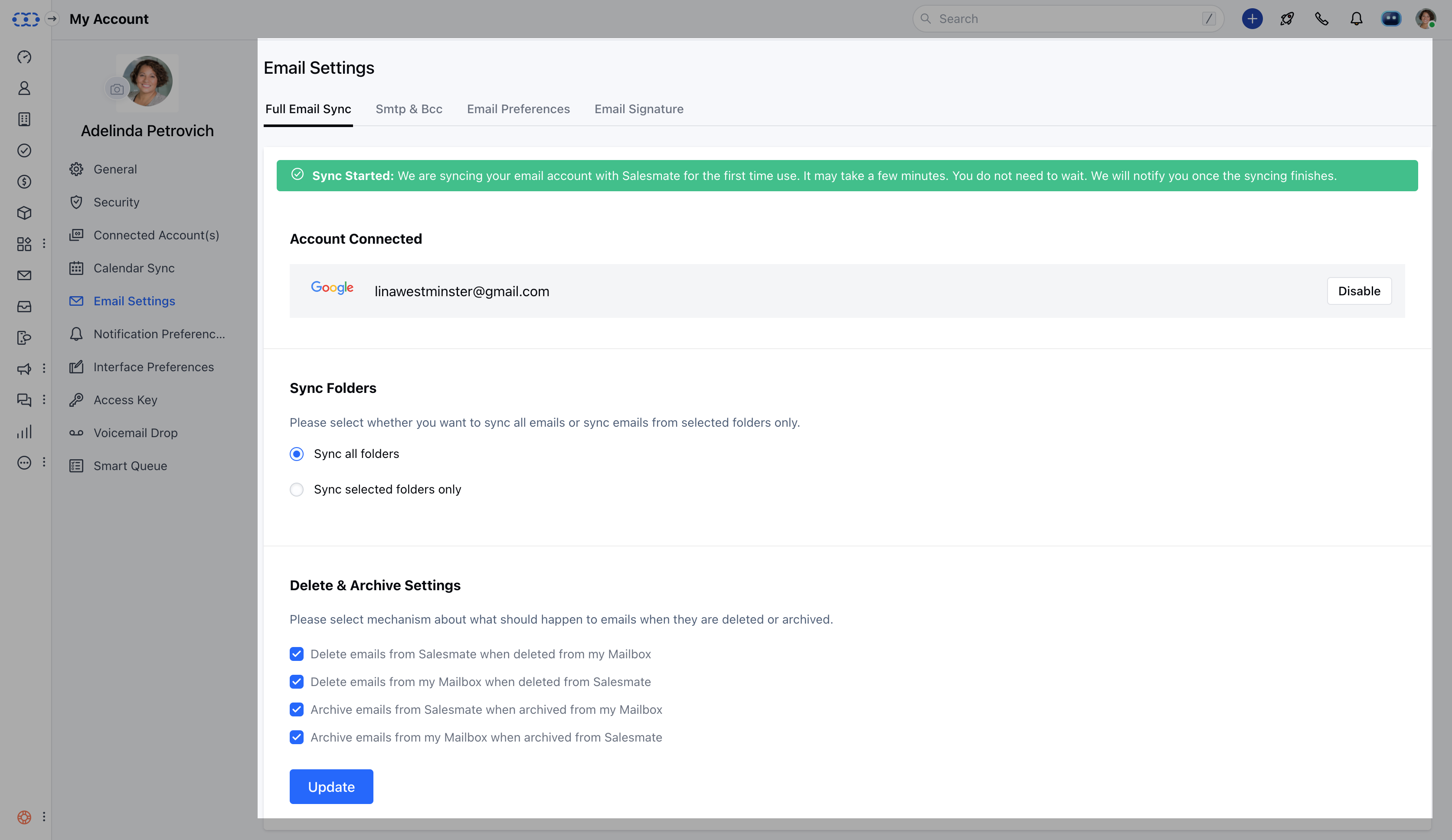
The folder listing will initiate, and syncing will start automatically.
***
### **Configure the Google Account**
To configure a **Google Email account** for full email sync:
1. Select **Google** as your email provider.
From here, select the type of email account you’d like to sync.\
The folder listing will initiate, and syncing will start automatically.
***
### **Configure the Google Account**
To configure a **Google Email account** for full email sync:
1. Select **Google** as your email provider.
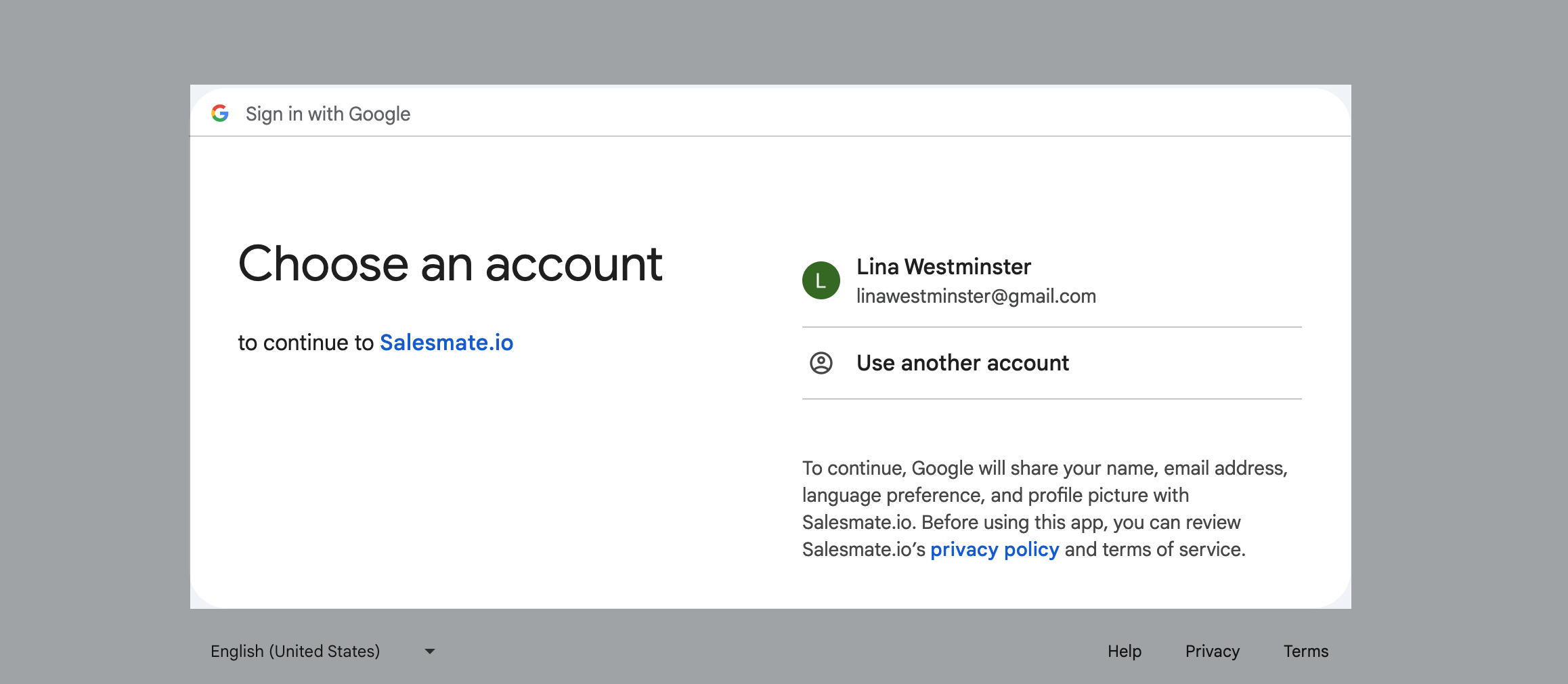
 2. **Choose** an account to continue to **Salesmate.io**.
 3. Provide necessary **permissions** for access.
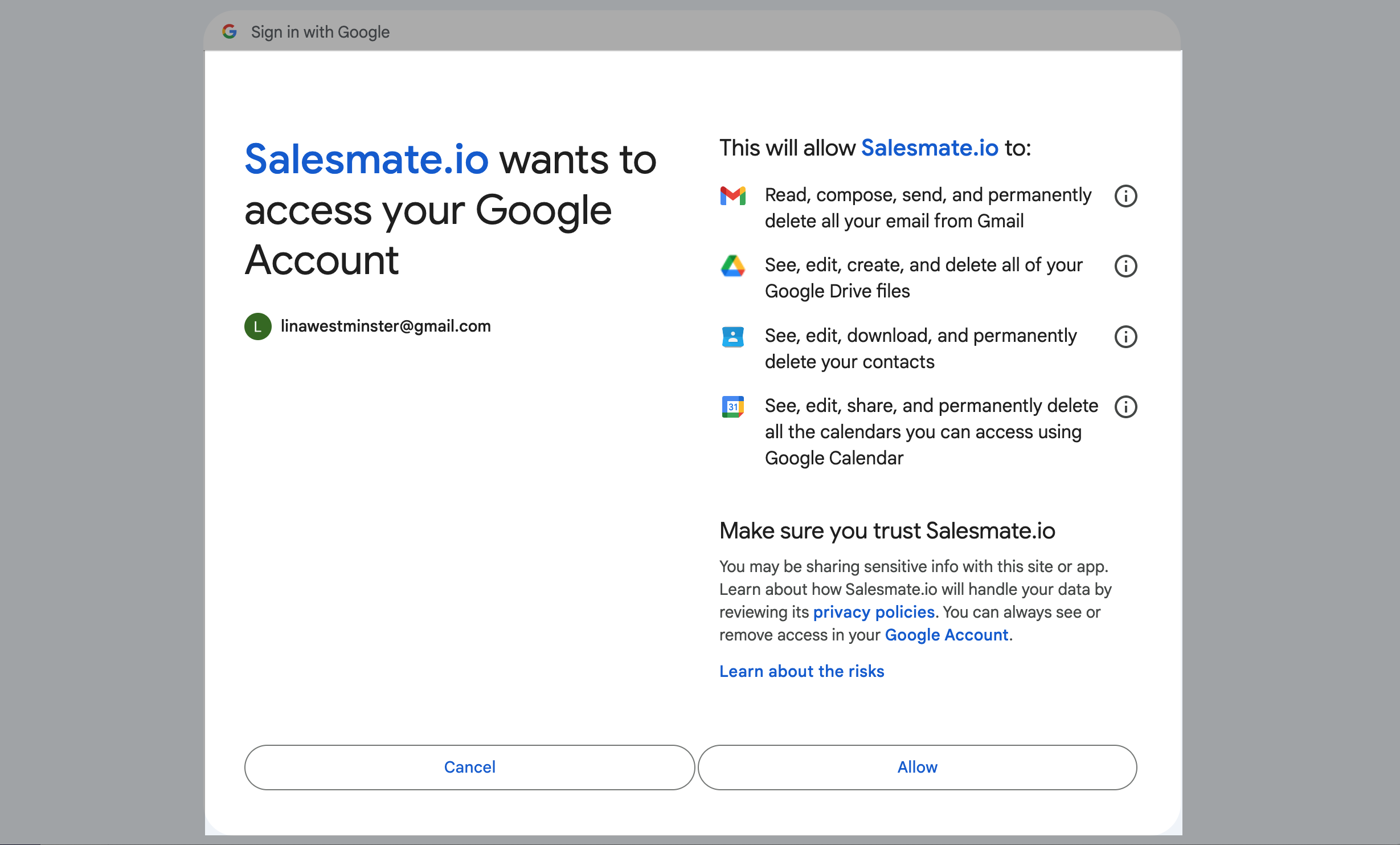 After selecting your Google account, choose the one you wish to configure for full email sync.
 ***
### **Configure the Microsoft Account**
To configure a **Microsoft/Office 365** account for full email sync:
1. Select **Office 365** or **Exchange Office** as your email provider.
2. You can configure both **Online Microsoft Email** and **Online Business** accounts for synchronization.
***
### **Configure the Microsoft Account**
To configure a **Microsoft/Office 365** account for full email sync:
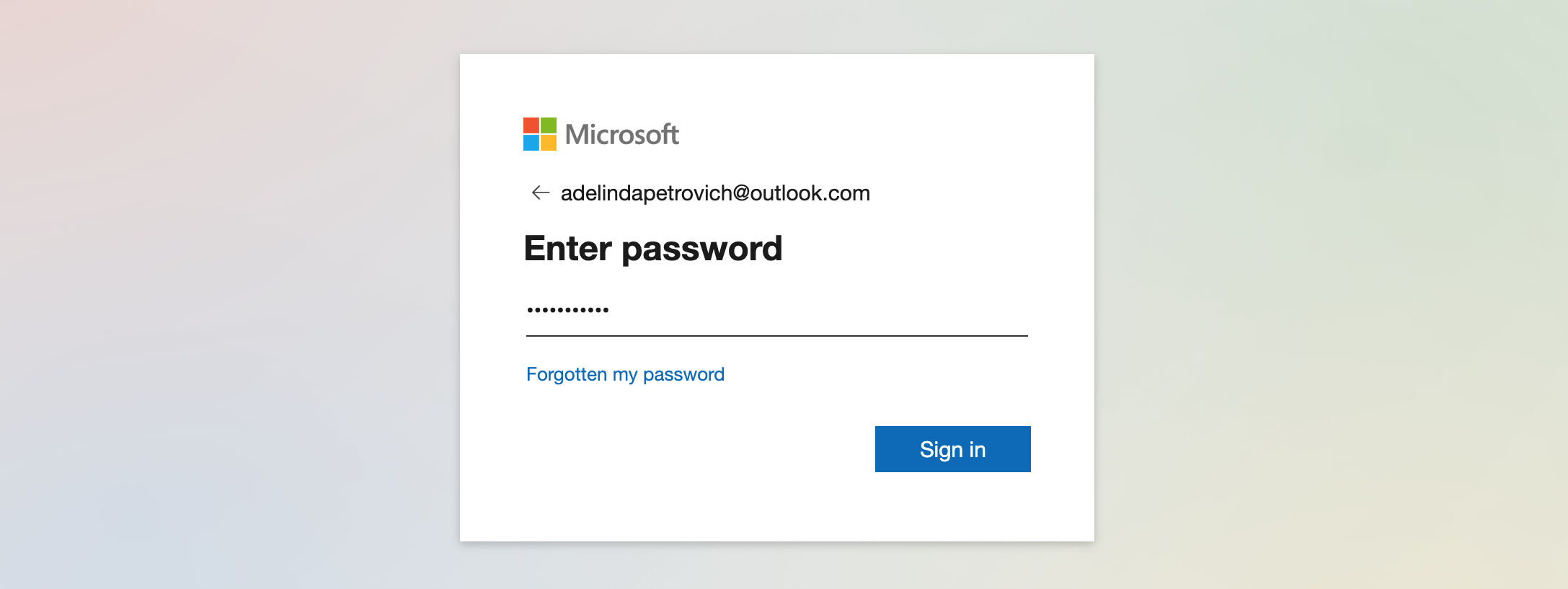
1. Select **Office 365** or **Exchange Office** as your email provider.
2. You can configure both **Online Microsoft Email** and **Online Business** accounts for synchronization.
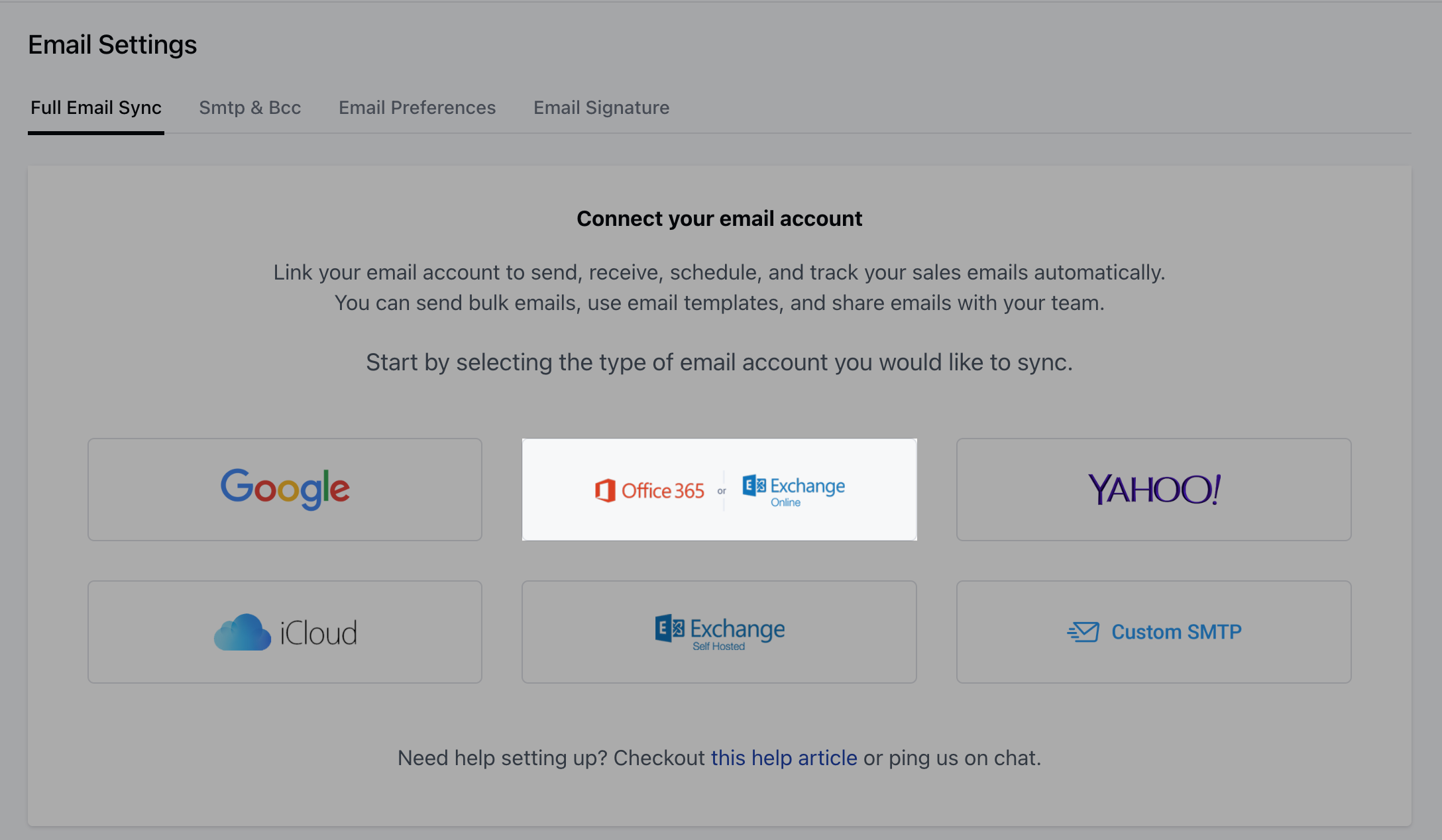 3. After selecting the provider, choose your account for sync.
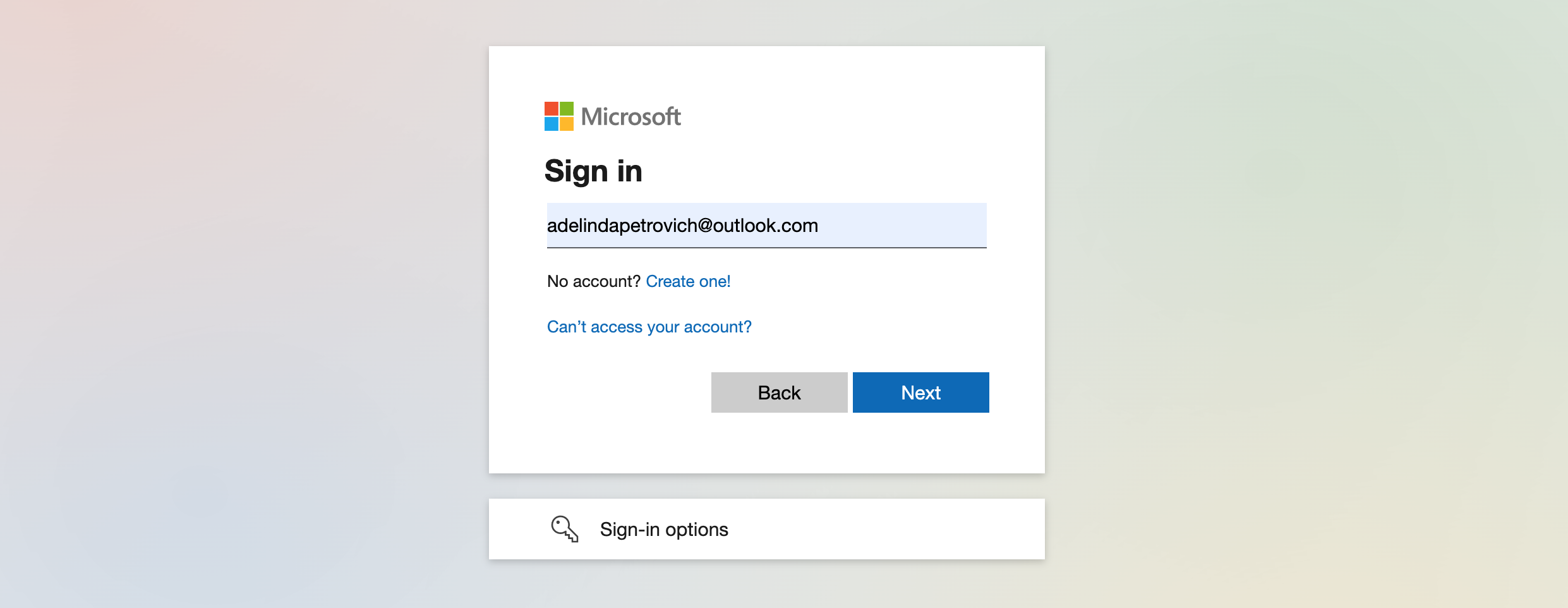 4. Enter your password.
 You can also configure **self-hosted Microsoft Email** accounts for full email synchronization.
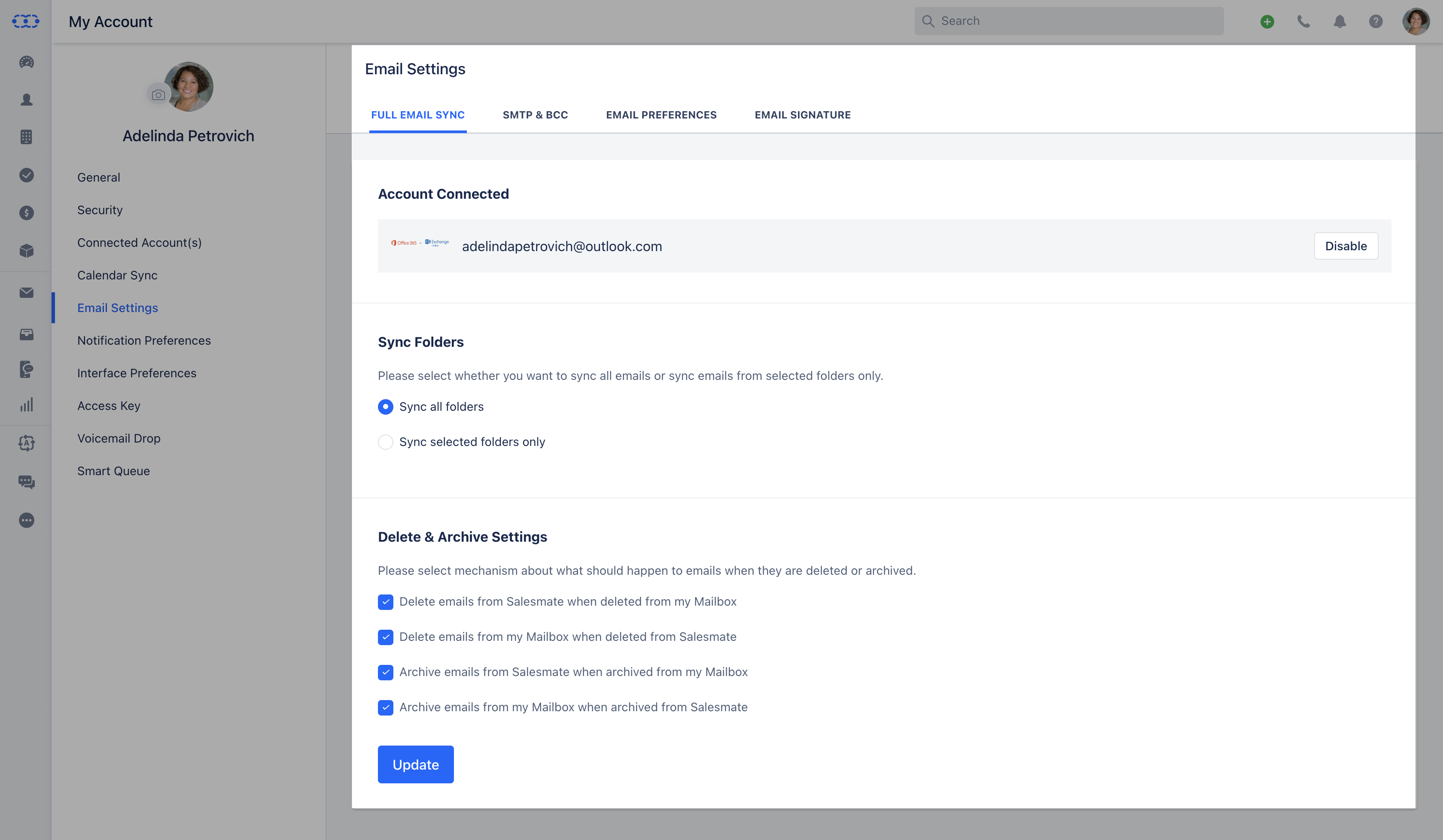 If you select **Exchange self-hosted**, Salesmate will auto-log any email that appears in your **Sent Items**, even if it was sent from Gmail or your phone.\
Emails sent from Salesmate will automatically appear in your Sent folder.
By connecting your account:
* You can send and receive emails within Salesmate or your preferred email client.
* Salesmate automatically tracks conversations with contacts, activities, and deals.
* You can choose to sync **all folders** or **specific folders** during setup.
* There’s no need to BCC Salesmate — syncing handles it automatically.
* Salesmate initially fetches the last **60 days of emails**; older emails won’t be fetched, but new ones will sync automatically going forward.
***
### **Sync Folders**
Once sync begins, folder listing will start automatically. You can choose:
* **Sync All Folders:** Syncs all folders in your connected account.\\
If you select **Exchange self-hosted**, Salesmate will auto-log any email that appears in your **Sent Items**, even if it was sent from Gmail or your phone.\
Emails sent from Salesmate will automatically appear in your Sent folder.
By connecting your account:
* You can send and receive emails within Salesmate or your preferred email client.
* Salesmate automatically tracks conversations with contacts, activities, and deals.
* You can choose to sync **all folders** or **specific folders** during setup.
* There’s no need to BCC Salesmate — syncing handles it automatically.
* Salesmate initially fetches the last **60 days of emails**; older emails won’t be fetched, but new ones will sync automatically going forward.
***
### **Sync Folders**
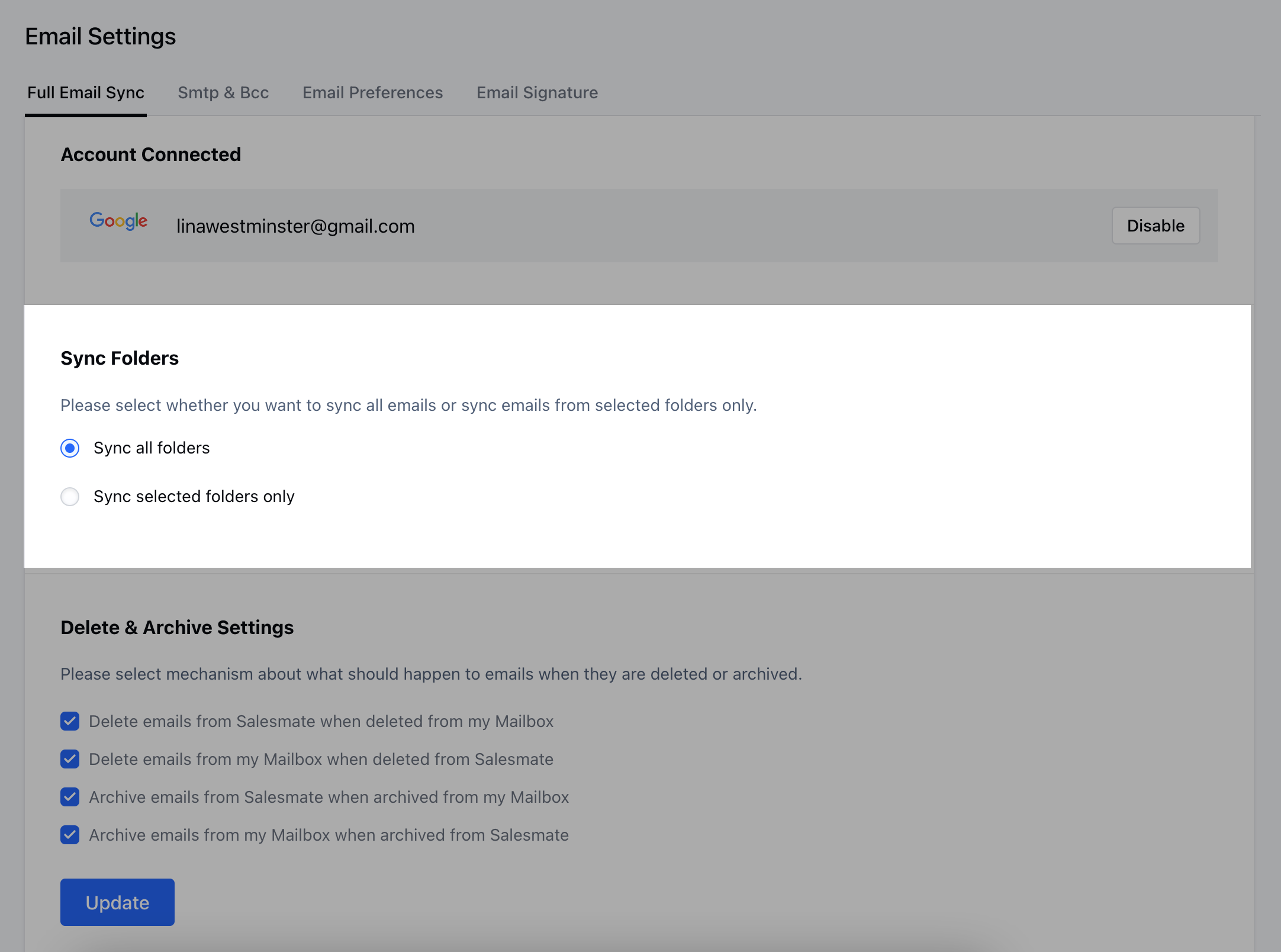
Once sync begins, folder listing will start automatically. You can choose:
* **Sync All Folders:** Syncs all folders in your connected account.\\
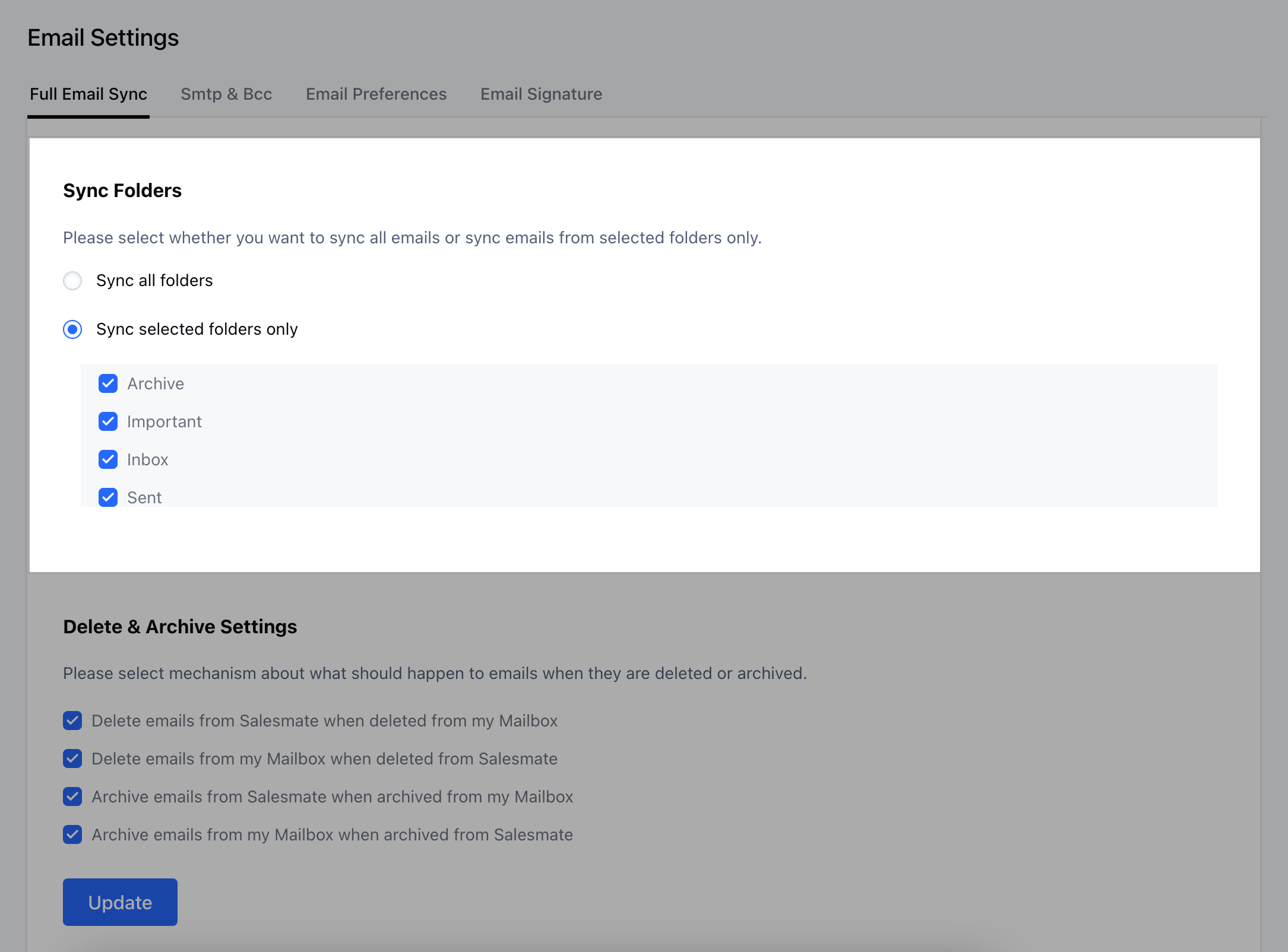
 * **Sync Selected Folders Only:** Choose specific folders to sync.\\
 ***
### **Delete and Archive Options**
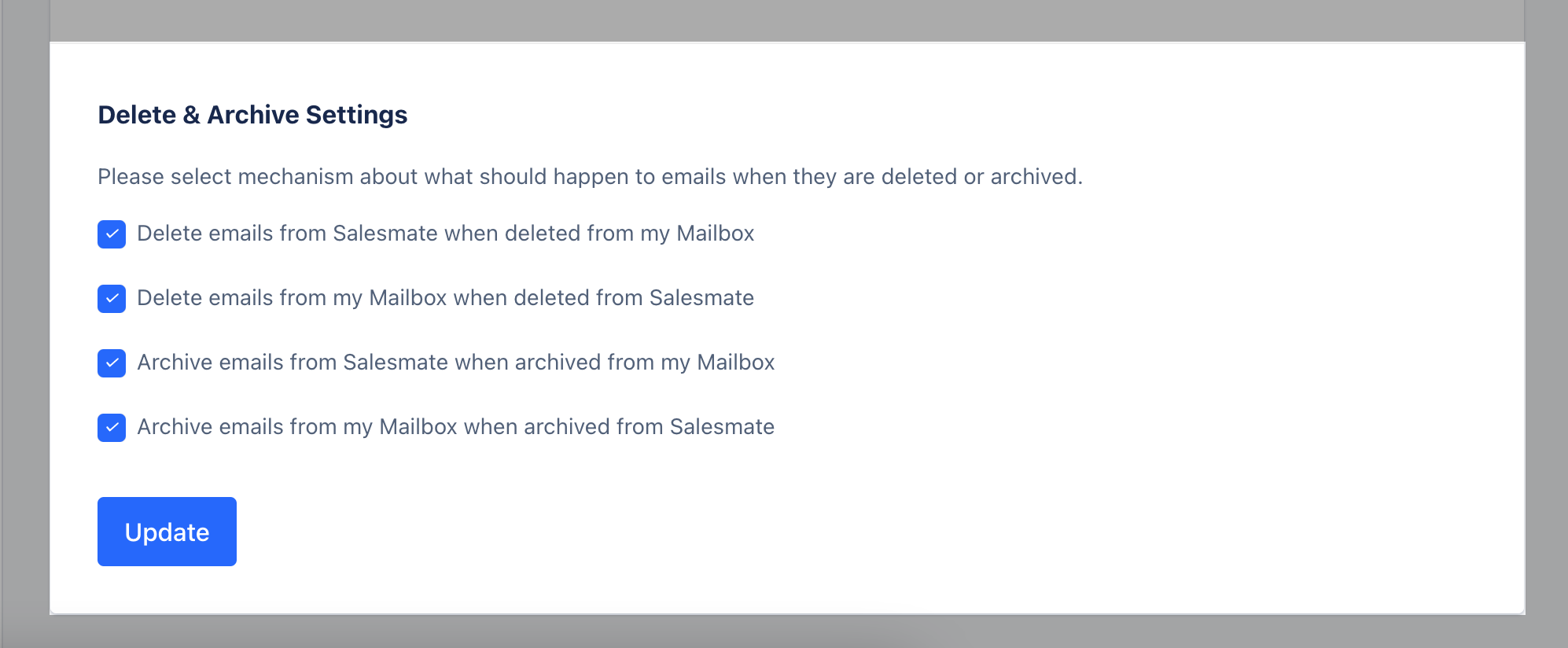
You can configure how deletes and archives are handled:
* Delete emails from Salesmate when deleted from your mailbox.
* Delete emails from your mailbox when deleted from Salesmate.
* Archive emails from Salesmate when archived from your mailbox.
* Archive emails from your mailbox when archived from Salesmate.
***
### **Delete and Archive Options**
You can configure how deletes and archives are handled:
* Delete emails from Salesmate when deleted from your mailbox.
* Delete emails from your mailbox when deleted from Salesmate.
* Archive emails from Salesmate when archived from your mailbox.
* Archive emails from your mailbox when archived from Salesmate.
 ***
### **Disable Sync**
You can temporarily stop syncing your full email account by clicking **Disable**.
***
### **Disable Sync**
You can temporarily stop syncing your full email account by clicking **Disable**.
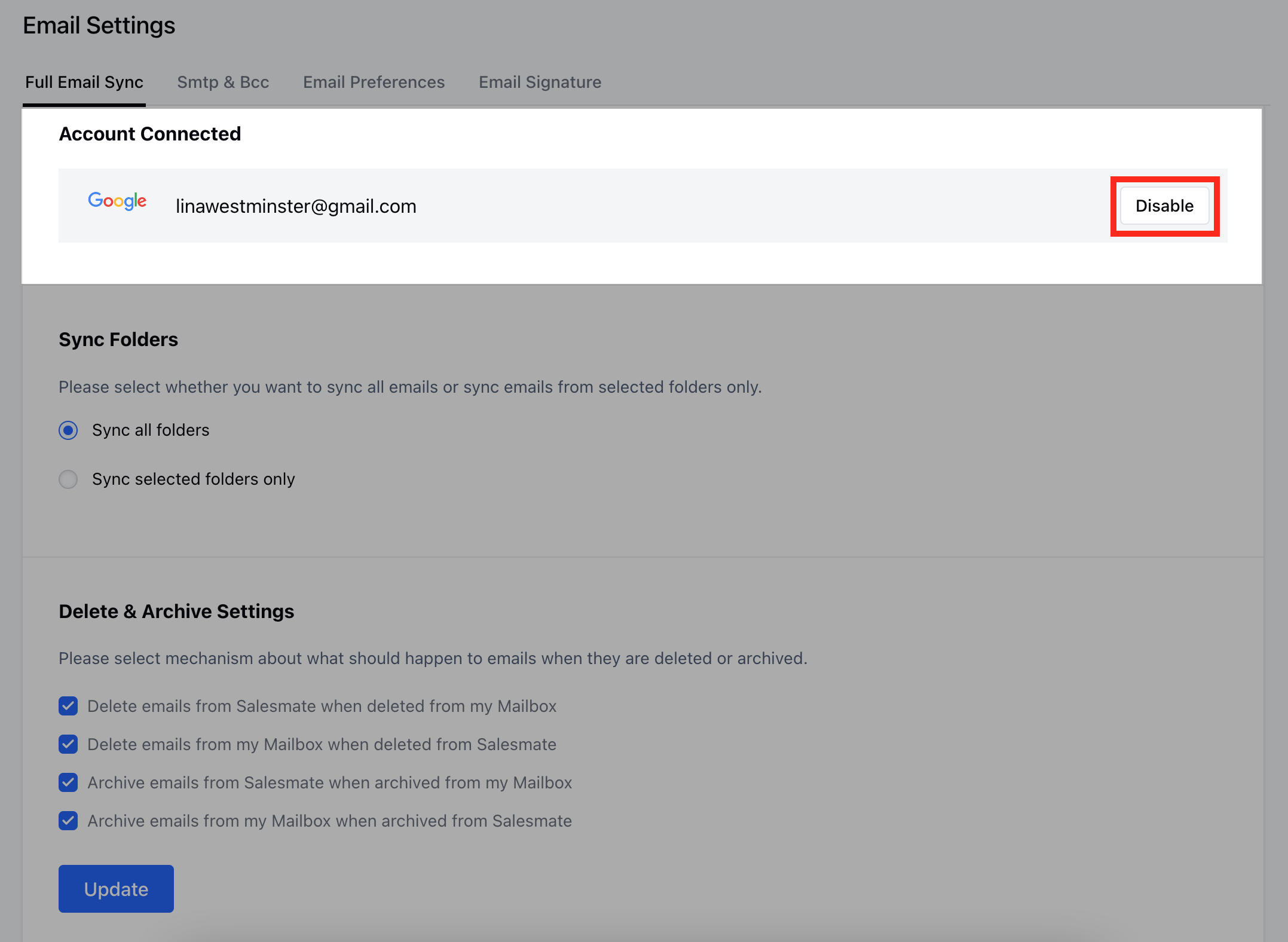 Your emails will remain as they are until you reconnect your account.\
When reconnected, synchronization resumes, fetching the last 60 days of emails from before reconnection.
***
### **Stop Sync**
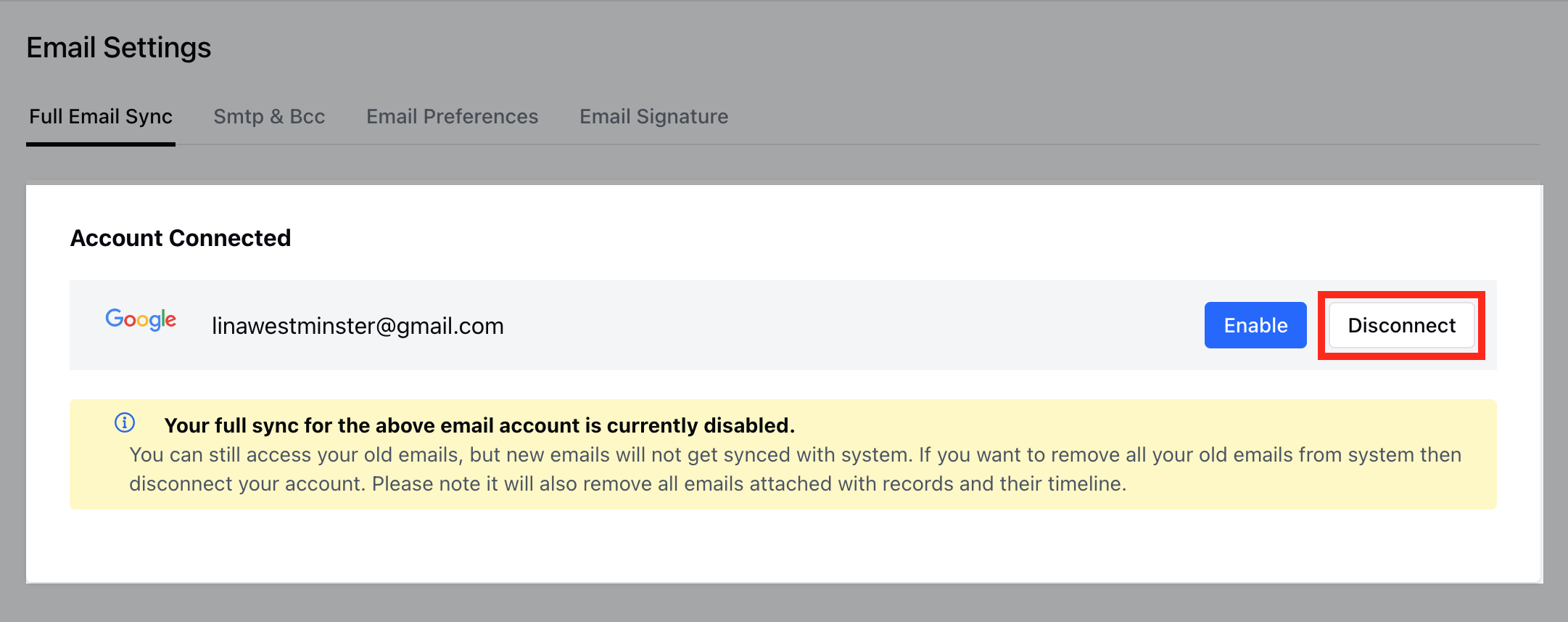
To permanently remove your account and stop synchronization, click **Disconnect**.
Your emails will remain as they are until you reconnect your account.\
When reconnected, synchronization resumes, fetching the last 60 days of emails from before reconnection.
***
### **Stop Sync**
To permanently remove your account and stop synchronization, click **Disconnect**.
 ***
### **Summary of Full Email Sync**
* Real-time sync of your **live inbox**, allowing you to view sent and received emails.
* **Selective sync** — choose only the folders you want.
* Notifications for all received emails.
* Send, reply, forward, CC, and BCC directly from within Salesmate.
* Use **Email Templates** and **Attachments**.
* Works with your preferred **SMTP** settings.
If your SMTP configuration returns an error, you can reconnect using the **Custom SMTP option**.\
Commonly used settings:
* **IMAP:** Port `143`
* **SMTP:** Port `587`
* **TLS:** Enabled
***
### **Summary of Full Email Sync**
* Real-time sync of your **live inbox**, allowing you to view sent and received emails.
* **Selective sync** — choose only the folders you want.
* Notifications for all received emails.
* Send, reply, forward, CC, and BCC directly from within Salesmate.
* Use **Email Templates** and **Attachments**.
* Works with your preferred **SMTP** settings.
If your SMTP configuration returns an error, you can reconnect using the **Custom SMTP option**.\
Commonly used settings:
* **IMAP:** Port `143`
* **SMTP:** Port `587`
* **TLS:** Enabled