> ## Documentation Index
> Fetch the complete documentation index at: https://support.getskara.ai/llms.txt
> Use this file to discover all available pages before exploring further.
# Working with Team Inbox
* *Team Inbox*\* in Salesmate consists of the following folders:
FollowingOutboxSentArchiveTrashSpamScheduled
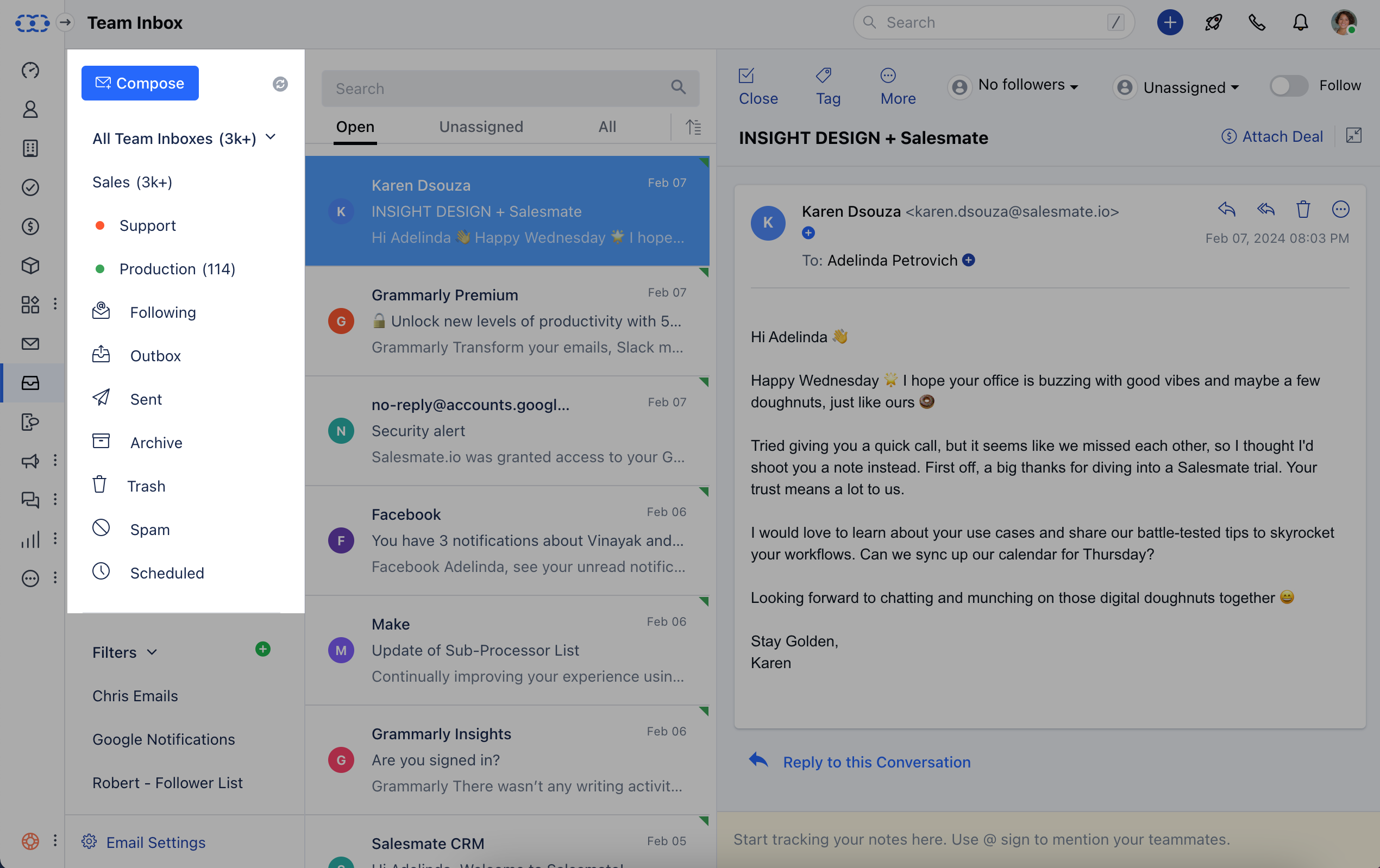 Whenever a team inbox is selected, it will show the emails that can be:-**Open**,\*\*Unassigned,\*\*or \*\*All.
* \*\*- **Open:** This will show all those emails that are open.
* **Unassigned:** Unless and until any users are assigned to an email, they will be featured in Unassigned.
* **All:** This will show all the emails, irrespective of them being opened/closed, assigned/unassigned.
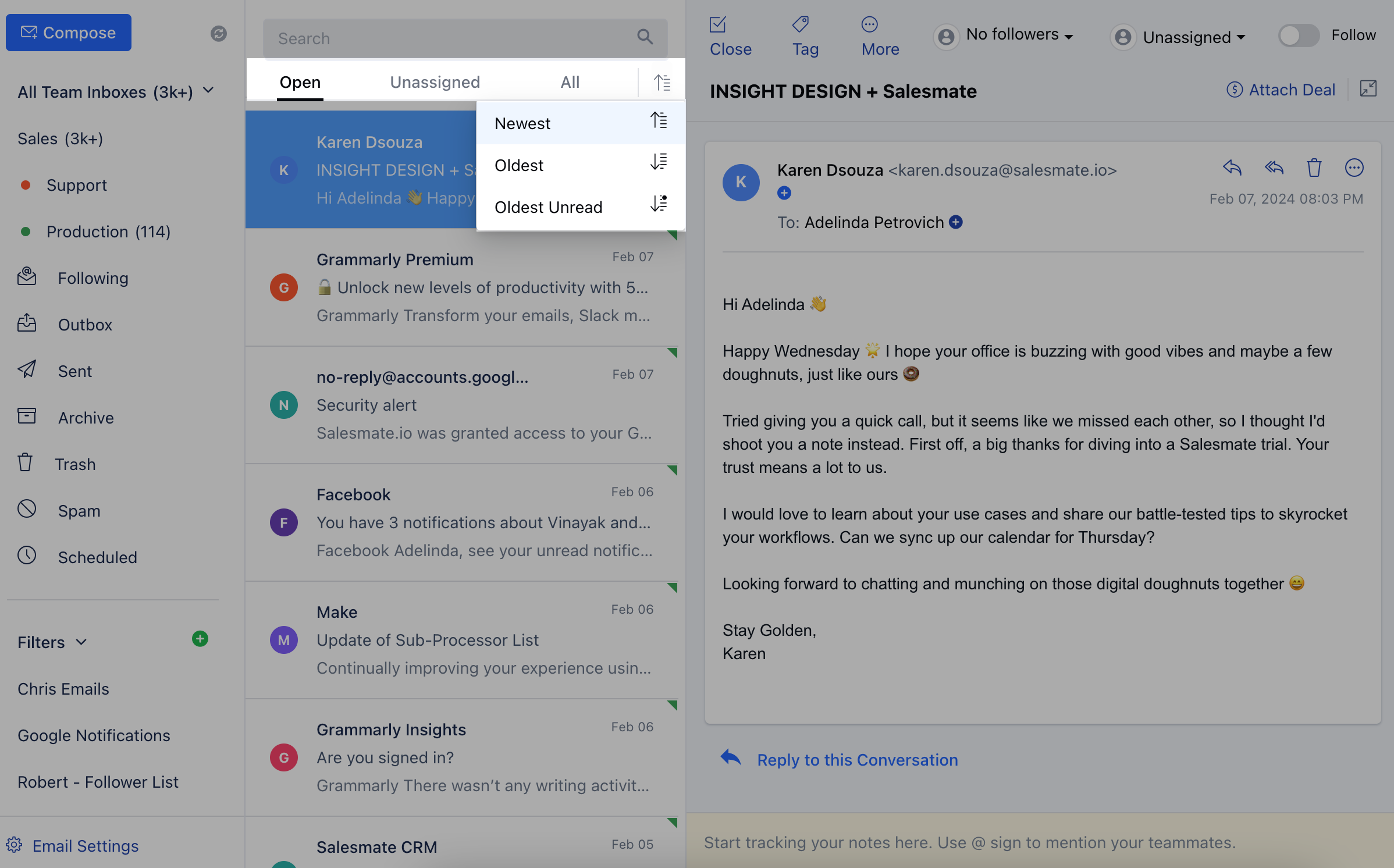
* **Sorting**: The emails can be sorted based on **Newest**,\*\*Oldest,\*\*or **Oldest Unread**.
Whenever a team inbox is selected, it will show the emails that can be:-**Open**,\*\*Unassigned,\*\*or \*\*All.
* \*\*- **Open:** This will show all those emails that are open.
* **Unassigned:** Unless and until any users are assigned to an email, they will be featured in Unassigned.
* **All:** This will show all the emails, irrespective of them being opened/closed, assigned/unassigned.
* **Sorting**: The emails can be sorted based on **Newest**,\*\*Oldest,\*\*or **Oldest Unread**.
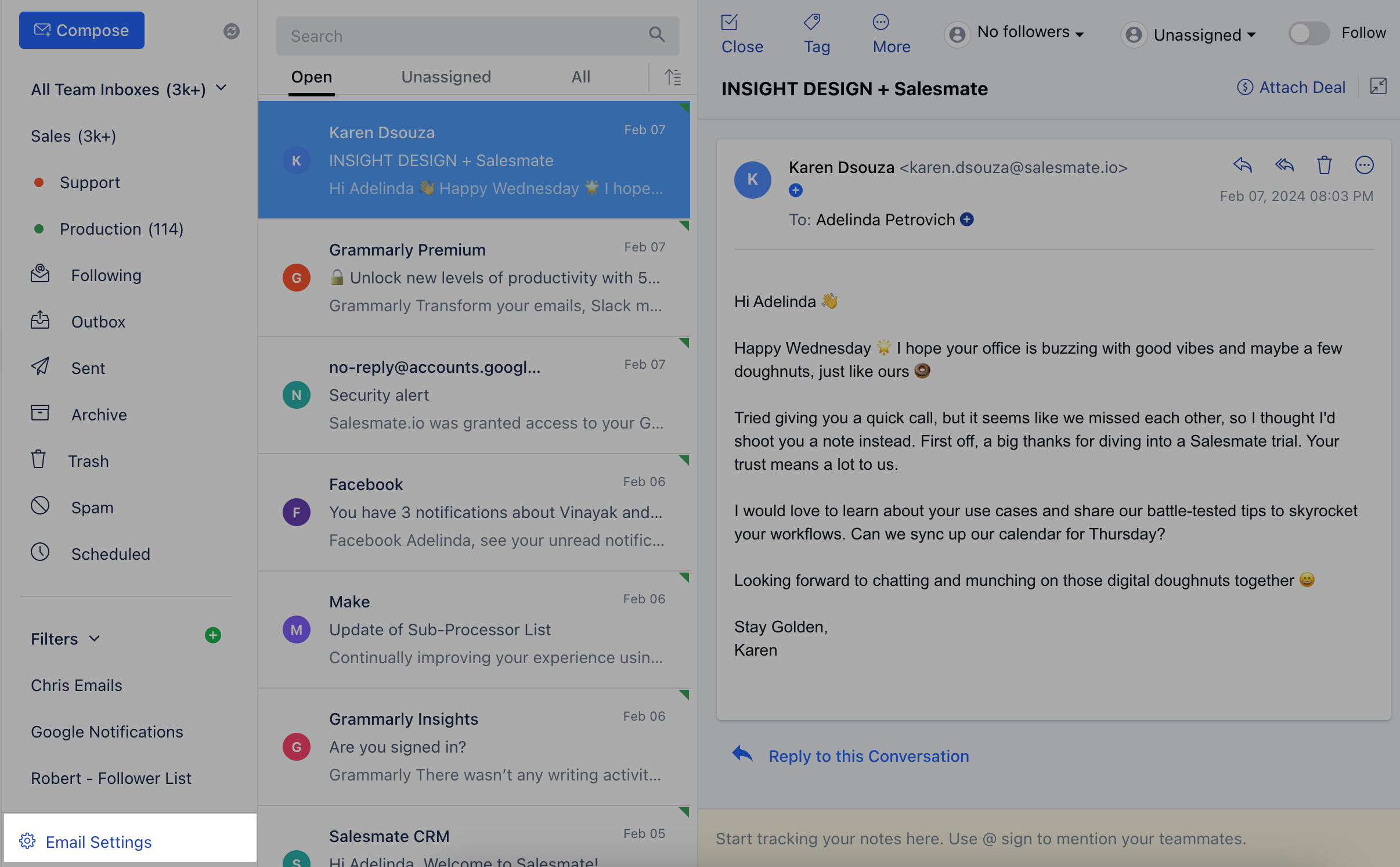
 Click on \*\* E \*\*mail settings \*\* if you wish to configure any changes in your Team Inbox or wish to add a new one.
 On opening any particular email, you will have many options on the top whereby you can:
[Reopen/Close](https://support.salesmate.io/hc/en-us/articles/360023182771-Working-with-Team-Inbox#Open/Close)
[Tag](https://support.salesmate.io/hc/en-us/articles/360023182771-Working-with-Team-Inbox#Tag)
[More](https://support.salesmate.io/hc/en-us/articles/360023182771-Working-with-Team-Inbox#h_01GQF49HWTAS94WKRHM3VKHSVA)
[Followers](https://support.salesmate.io/hc/en-us/articles/360023182771-Working-with-Team-Inbox#h_01GQFZAC11CP9HE7FJPYF4Q0CQ)
[Assign/Unassign Users](https://support.salesmate.io/hc/en-us/articles/360023182771-Working-with-Team-Inbox#Assign/Unassign%20Users)
[Follow/Unfollow](https://support.salesmate.io/hc/en-us/articles/360023182771-Working-with-Team-Inbox#Follow/Unfollow)
[Attach Deal](https://support.salesmate.io/hc/en-us/articles/360023182771-Working-with-Team-Inbox#Attach%20Deal)
[Reply](https://support.salesmate.io/hc/en-us/articles/360023182771-Working-with-Team-Inbox#Reply)
[Note](https://support.salesmate.io/hc/en-us/articles/360023182771-Working-with-Team-Inbox#Note)
[Multiple Selection](https://support.salesmate.io/hc/en-us/articles/360023182771-Working-with-Team-Inbox#Multiple%20Selection)
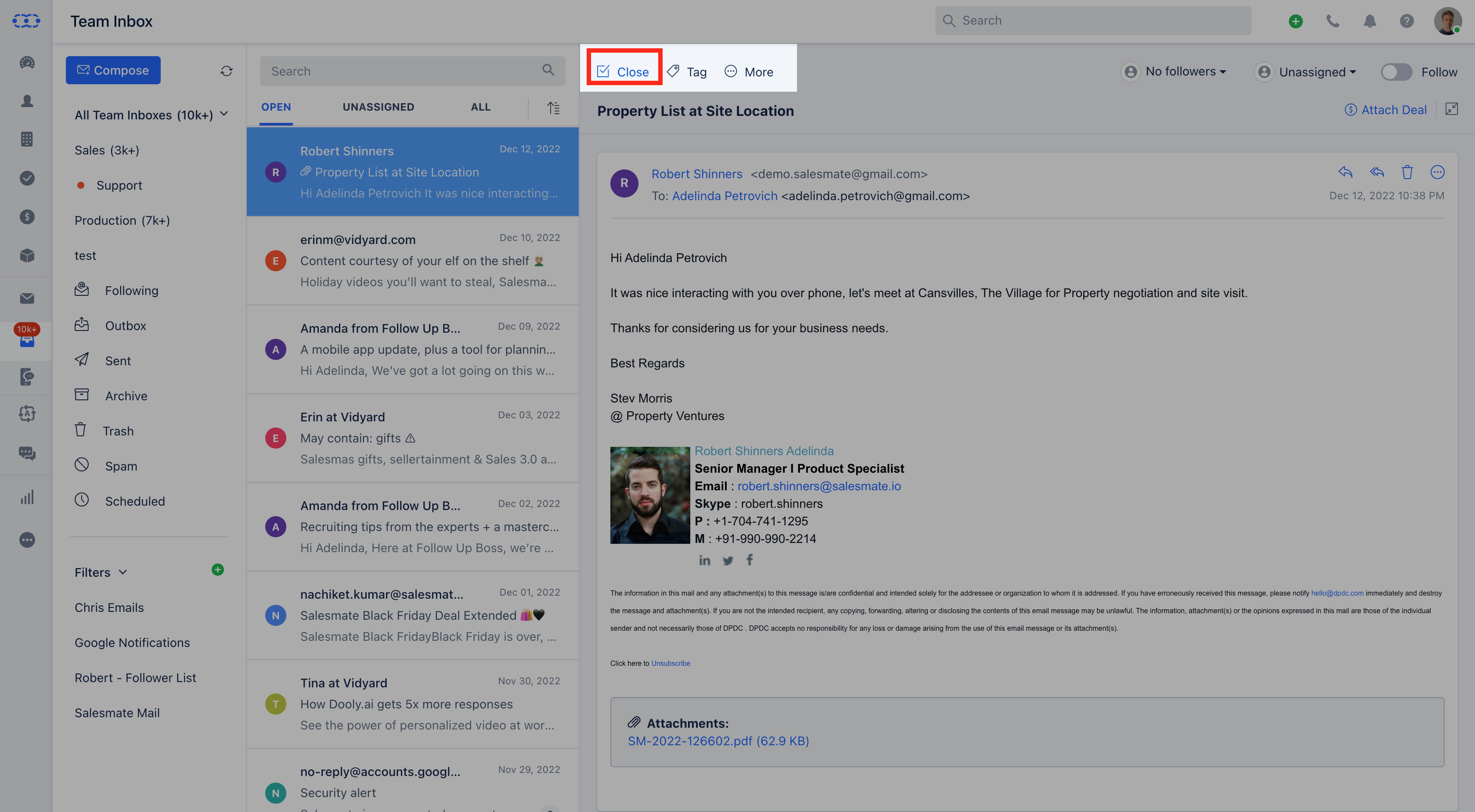
### **Reopen/Close an Email Conversation** To close a particular conversation click on the **☑ Close** icon.
On opening any particular email, you will have many options on the top whereby you can:
[Reopen/Close](https://support.salesmate.io/hc/en-us/articles/360023182771-Working-with-Team-Inbox#Open/Close)
[Tag](https://support.salesmate.io/hc/en-us/articles/360023182771-Working-with-Team-Inbox#Tag)
[More](https://support.salesmate.io/hc/en-us/articles/360023182771-Working-with-Team-Inbox#h_01GQF49HWTAS94WKRHM3VKHSVA)
[Followers](https://support.salesmate.io/hc/en-us/articles/360023182771-Working-with-Team-Inbox#h_01GQFZAC11CP9HE7FJPYF4Q0CQ)
[Assign/Unassign Users](https://support.salesmate.io/hc/en-us/articles/360023182771-Working-with-Team-Inbox#Assign/Unassign%20Users)
[Follow/Unfollow](https://support.salesmate.io/hc/en-us/articles/360023182771-Working-with-Team-Inbox#Follow/Unfollow)
[Attach Deal](https://support.salesmate.io/hc/en-us/articles/360023182771-Working-with-Team-Inbox#Attach%20Deal)
[Reply](https://support.salesmate.io/hc/en-us/articles/360023182771-Working-with-Team-Inbox#Reply)
[Note](https://support.salesmate.io/hc/en-us/articles/360023182771-Working-with-Team-Inbox#Note)
[Multiple Selection](https://support.salesmate.io/hc/en-us/articles/360023182771-Working-with-Team-Inbox#Multiple%20Selection)
### **Reopen/Close an Email Conversation** To close a particular conversation click on the **☑ Close** icon.
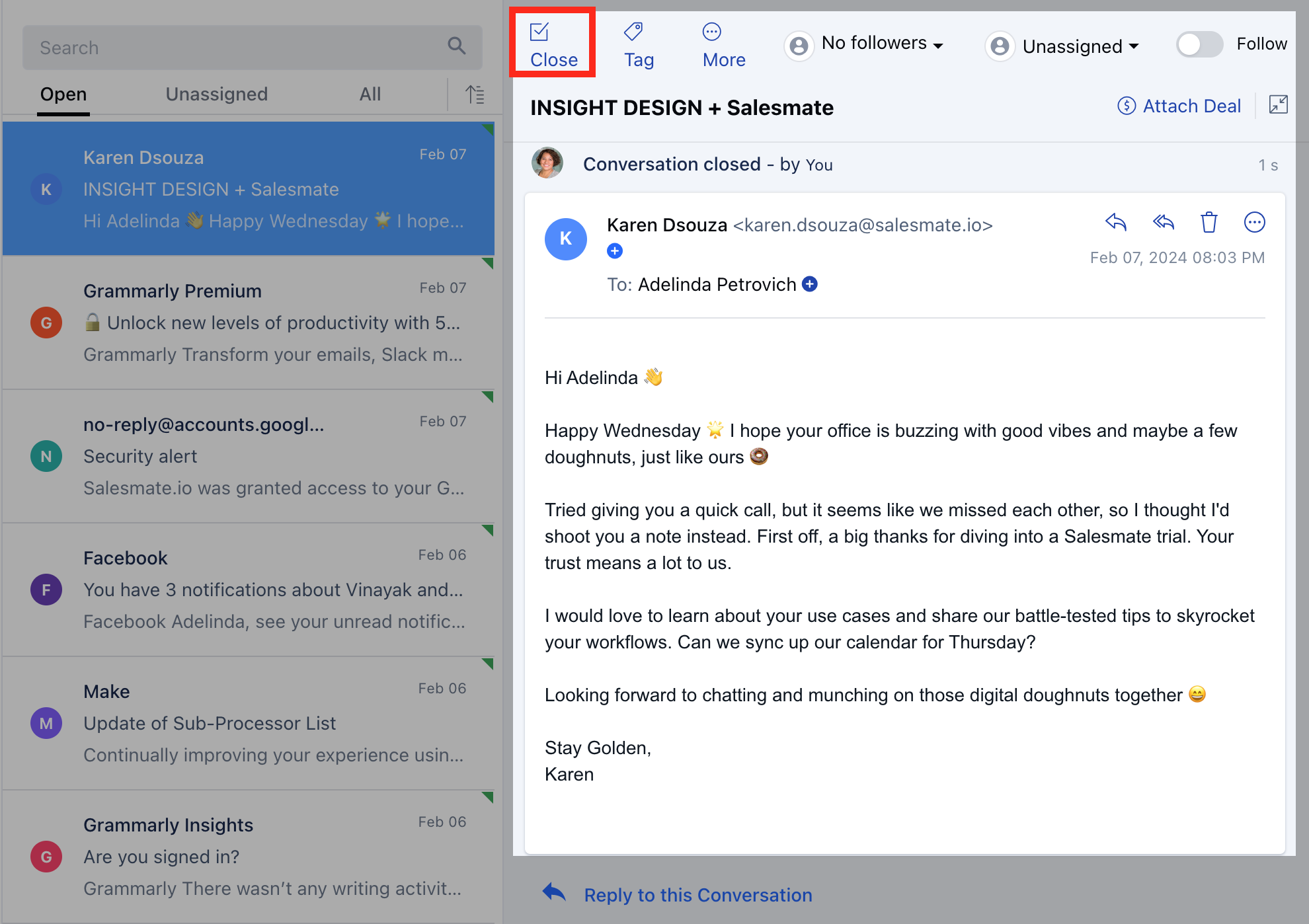
 To view your Closed conversations, you can view them in the **Archive** folder.If you wish to **reopen** the conversation, then click on the **☑ Reopen** icon.
 ### **Assign Tag to Email Conversation** Every conversation in the Salesmate Team Inbox can be tagged.
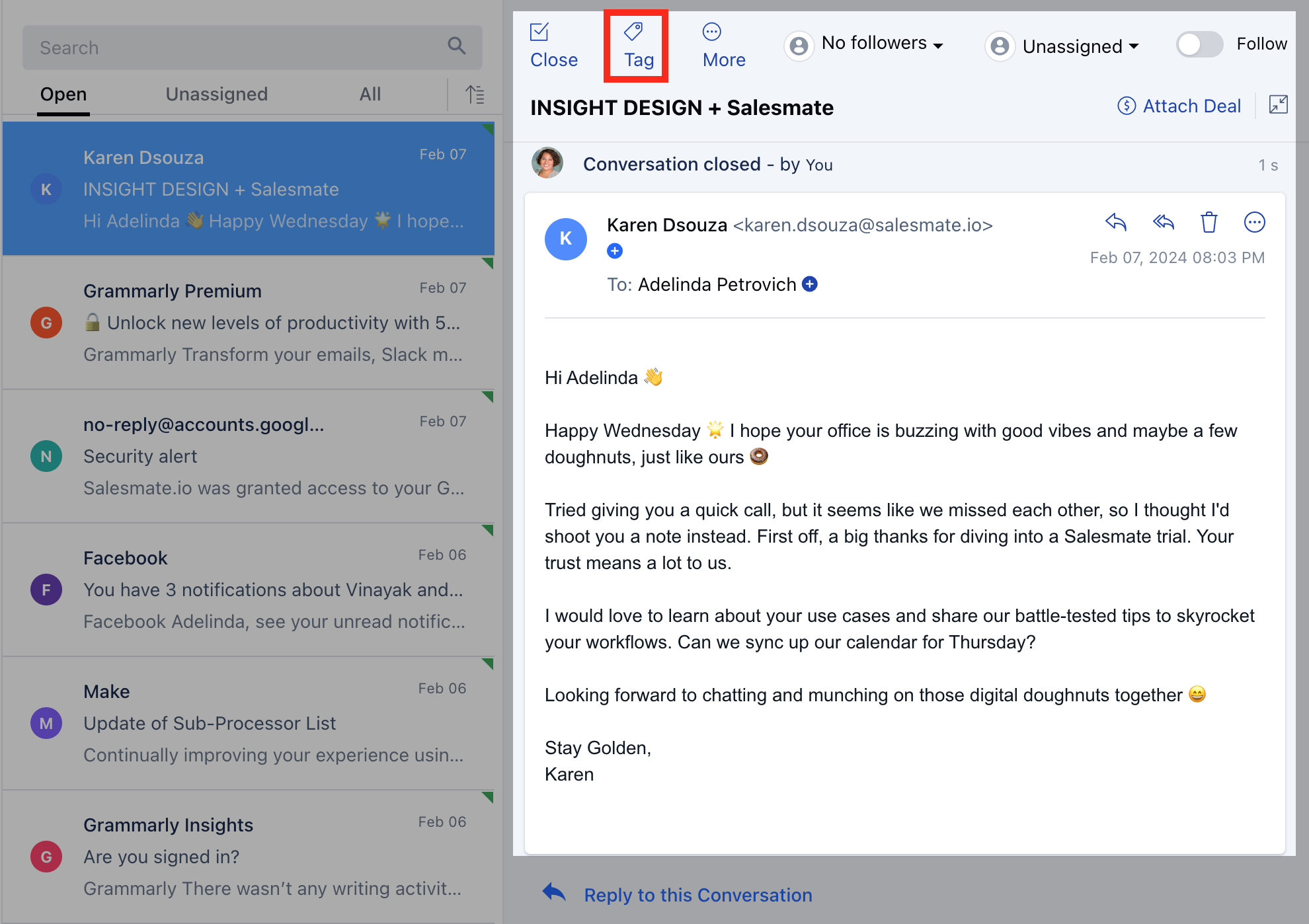 A user can assign multiple tags to an email as well as search emails using those tags.The tags will be auto-assigned based on operations performed in email accounts.You can also create customized tags along with specific colors to quickly identify the emails inside the box.
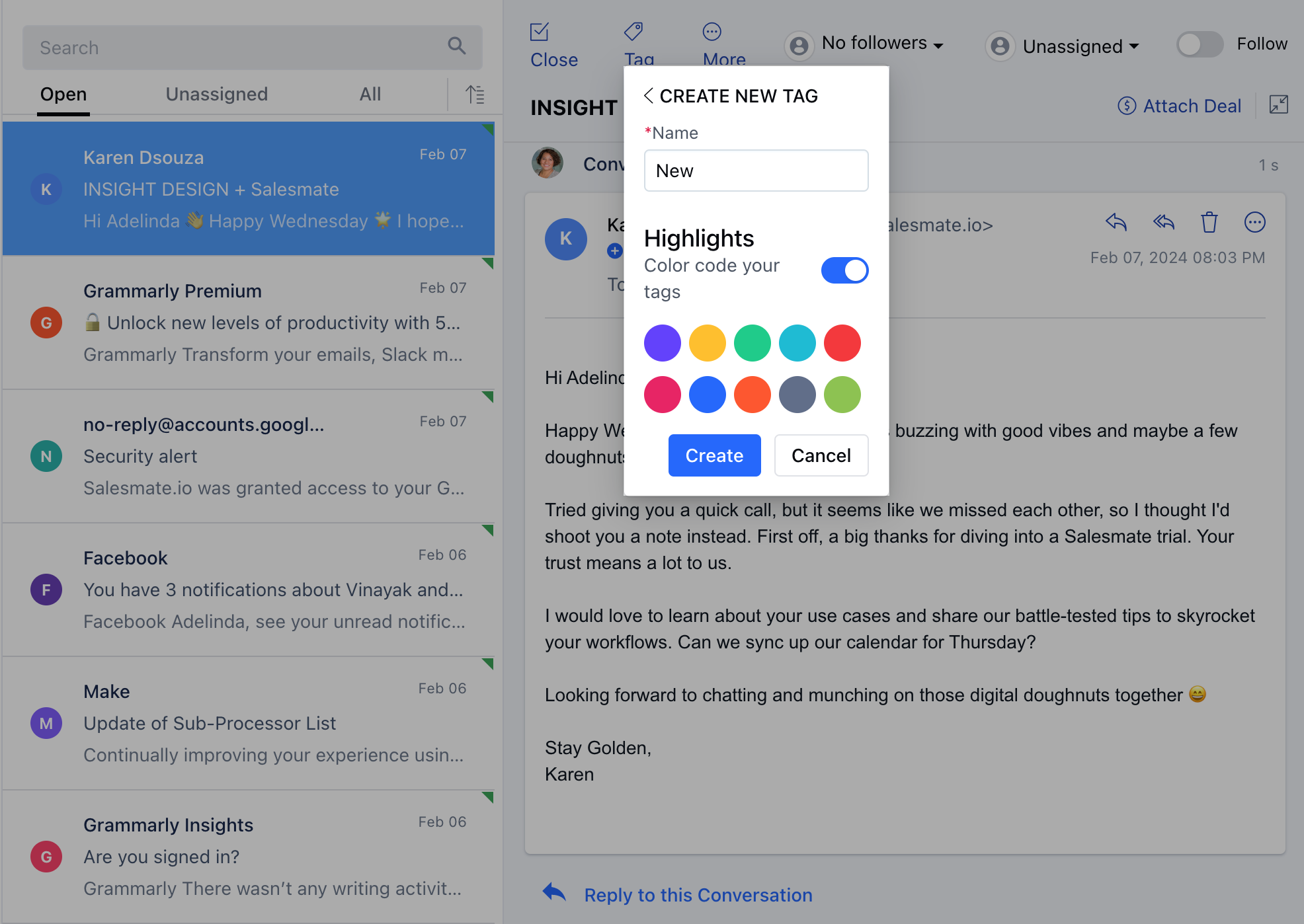 The tags can be edited or deleted by clicking on the particular tag.
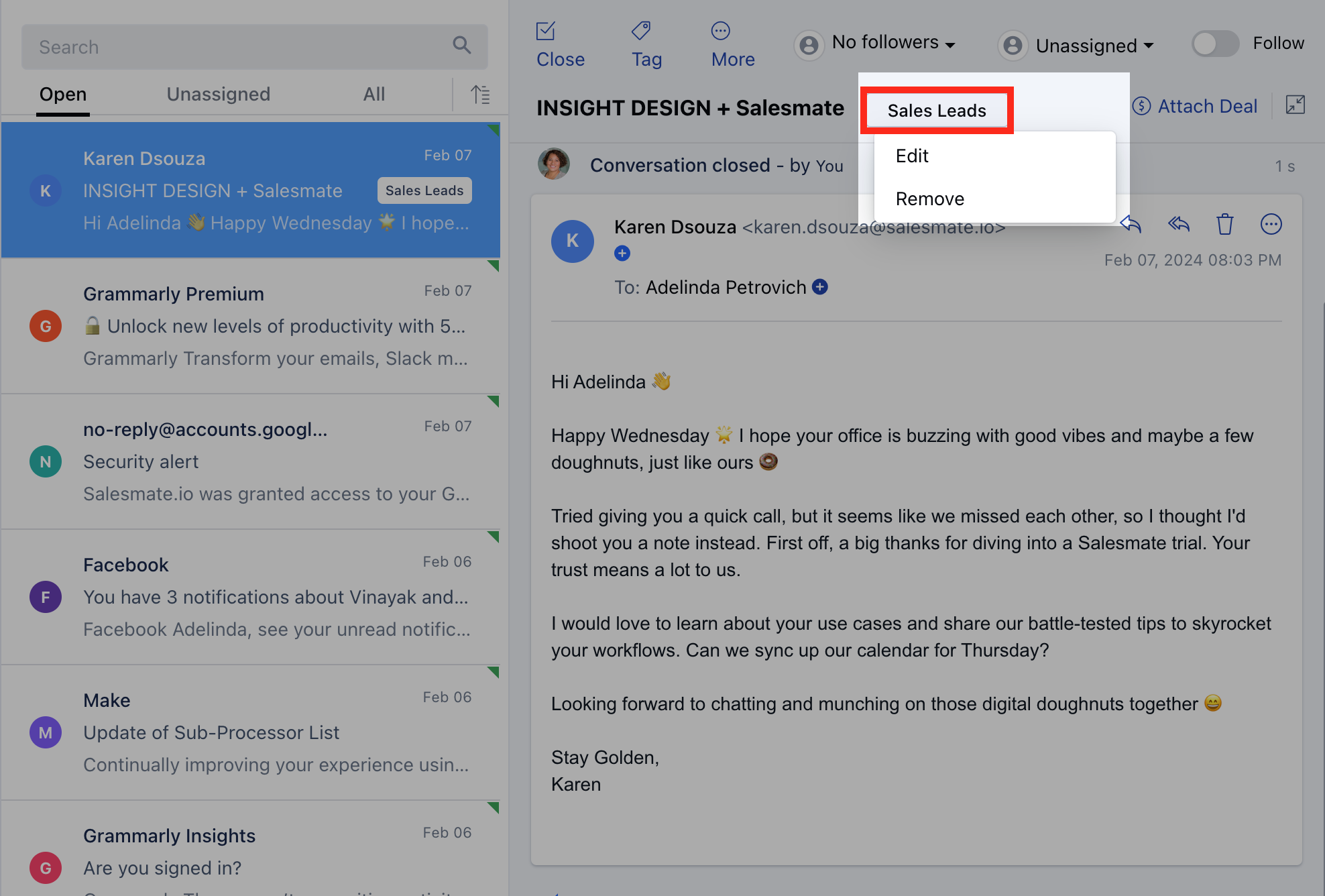 ### **More** You can perform the below-listed operations by clicking on the More option.
* [Trash](https://support.salesmate.io/hc/en-us/articles/360023182771-Working-with-Team-Inbox#Trash)
* [Mark as Spam](https://support.salesmate.io/hc/en-us/articles/360023182771-Working-with-Team-Inbox#Mark%20as%20Spam)
* [Mark as Unread](https://support.salesmate.io/hc/en-us/articles/360023182771-Working-with-Team-Inbox#Mark%20as%20Unread)
* [Block Sender](https://support.salesmate.io/hc/en-us/articles/360023182771-Working-with-Team-Inbox#Block%20Sender)
* [Print](https://support.salesmate.io/hc/en-us/articles/360023182771-Working-with-Team-Inbox#Print%20Conversation)
* [Copy Email Link](https://support.salesmate.io/hc/en-us/articles/360023182771#h_01HAS15DSBBB3844S6WHP46TM7)
### **Delete a Conversation** If you want to delete a conversation, click on **Trash**.
### **More** You can perform the below-listed operations by clicking on the More option.
* [Trash](https://support.salesmate.io/hc/en-us/articles/360023182771-Working-with-Team-Inbox#Trash)
* [Mark as Spam](https://support.salesmate.io/hc/en-us/articles/360023182771-Working-with-Team-Inbox#Mark%20as%20Spam)
* [Mark as Unread](https://support.salesmate.io/hc/en-us/articles/360023182771-Working-with-Team-Inbox#Mark%20as%20Unread)
* [Block Sender](https://support.salesmate.io/hc/en-us/articles/360023182771-Working-with-Team-Inbox#Block%20Sender)
* [Print](https://support.salesmate.io/hc/en-us/articles/360023182771-Working-with-Team-Inbox#Print%20Conversation)
* [Copy Email Link](https://support.salesmate.io/hc/en-us/articles/360023182771#h_01HAS15DSBBB3844S6WHP46TM7)
### **Delete a Conversation** If you want to delete a conversation, click on **Trash**.
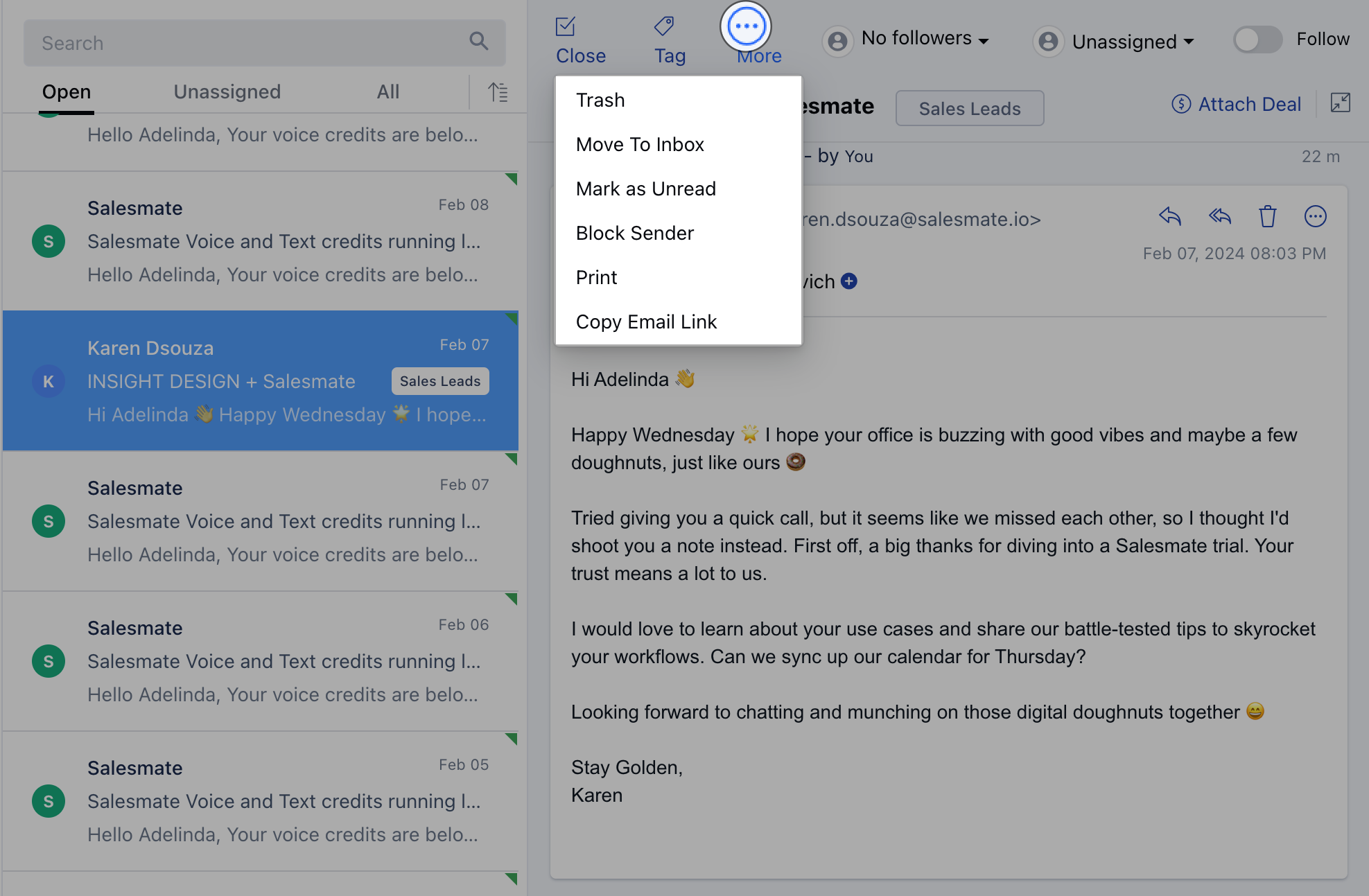
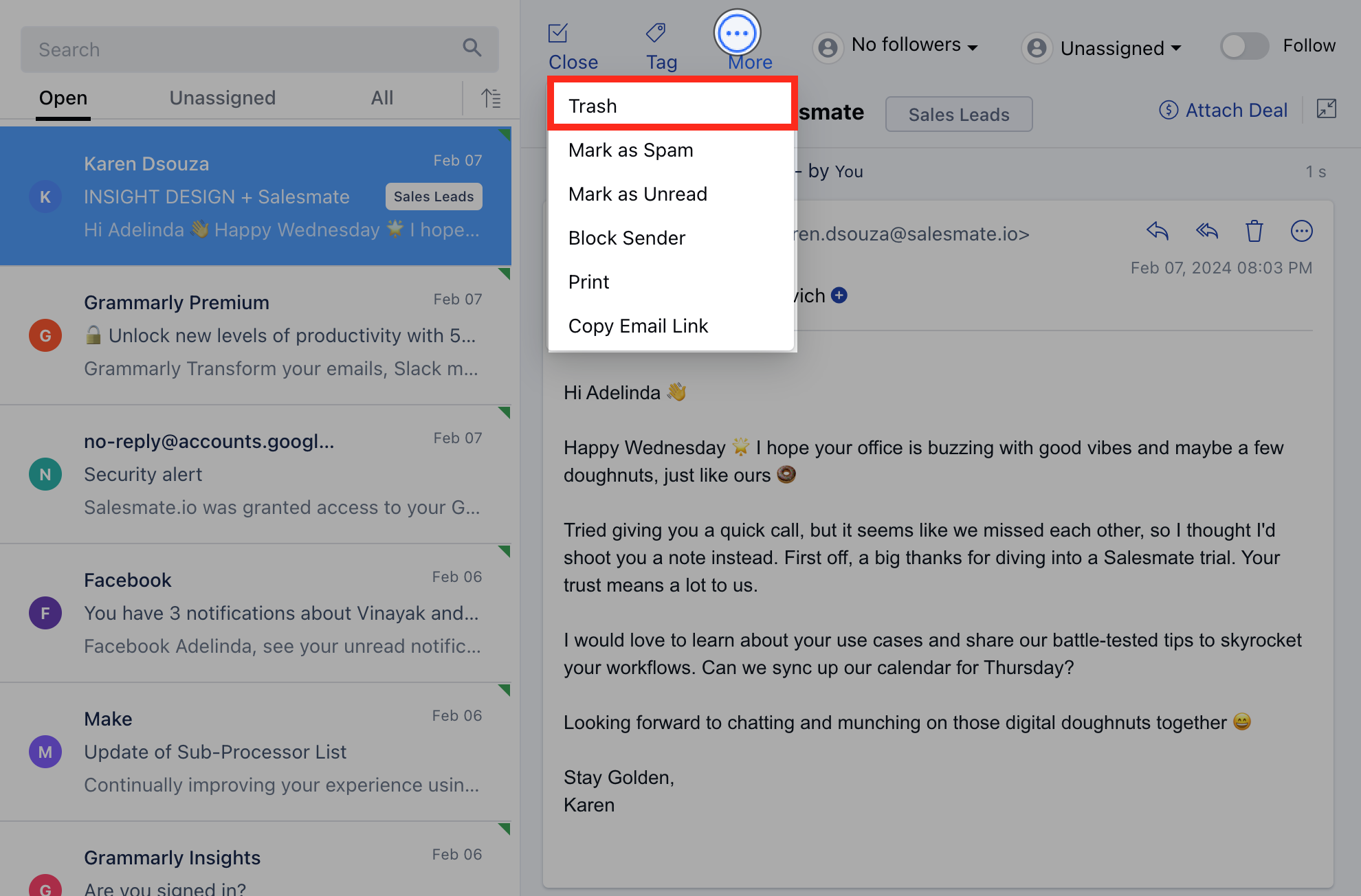 You can view the mail you deleted in the **Trash** folder.If you wish to recover the deleted mail select then
Click on \*\*Trash Folder.
* \*\*Click on the email that you want to recover.Click on **More** Click on the **Move To Inbox** option.The email will move back to the Inbox.
You can view the mail you deleted in the **Trash** folder.If you wish to recover the deleted mail select then
Click on \*\*Trash Folder.
* \*\*Click on the email that you want to recover.Click on **More** Click on the **Move To Inbox** option.The email will move back to the Inbox.
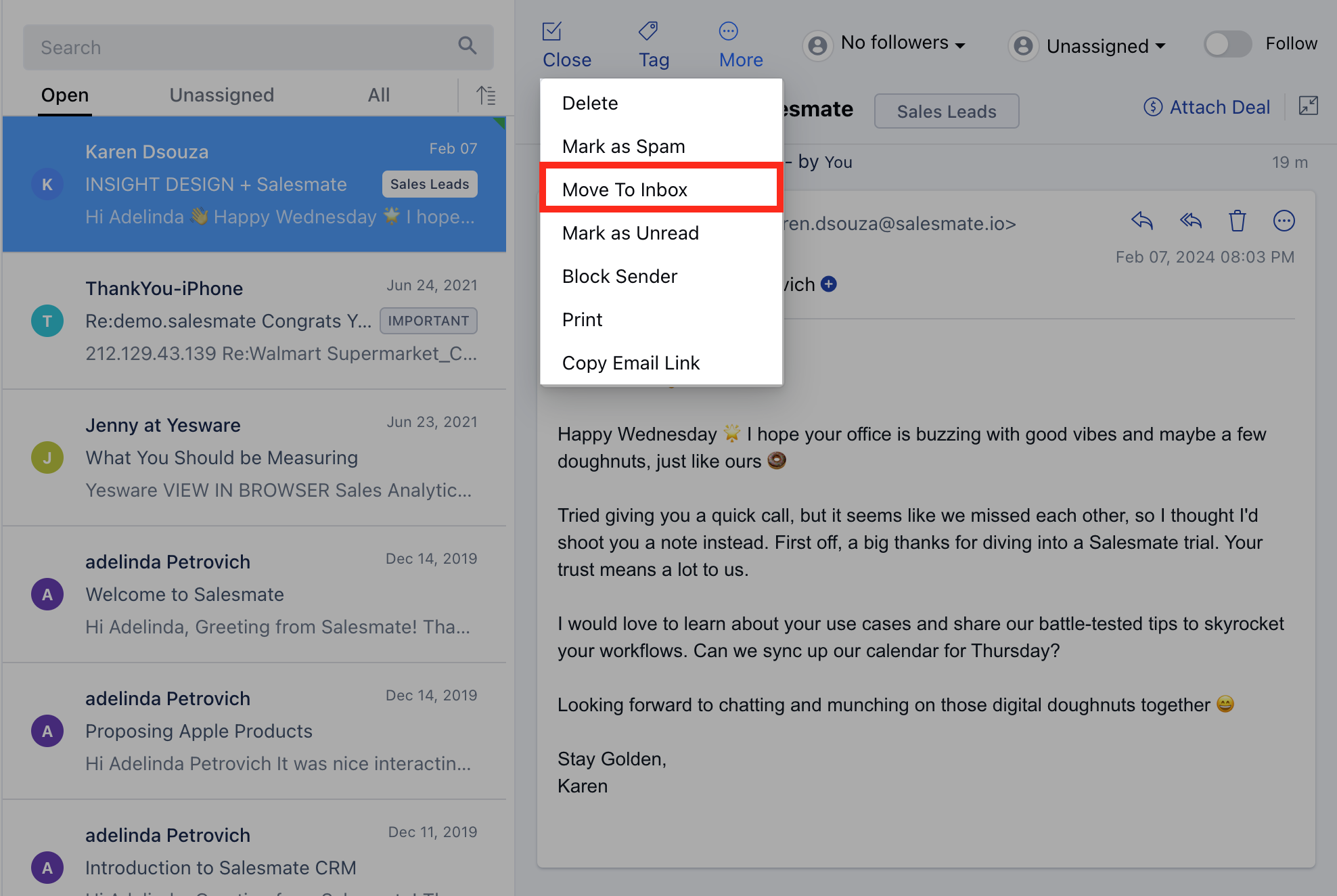 ### **Mark Email Conversations as Spam** Click on **More** Click on \*\*Mark as Spam.
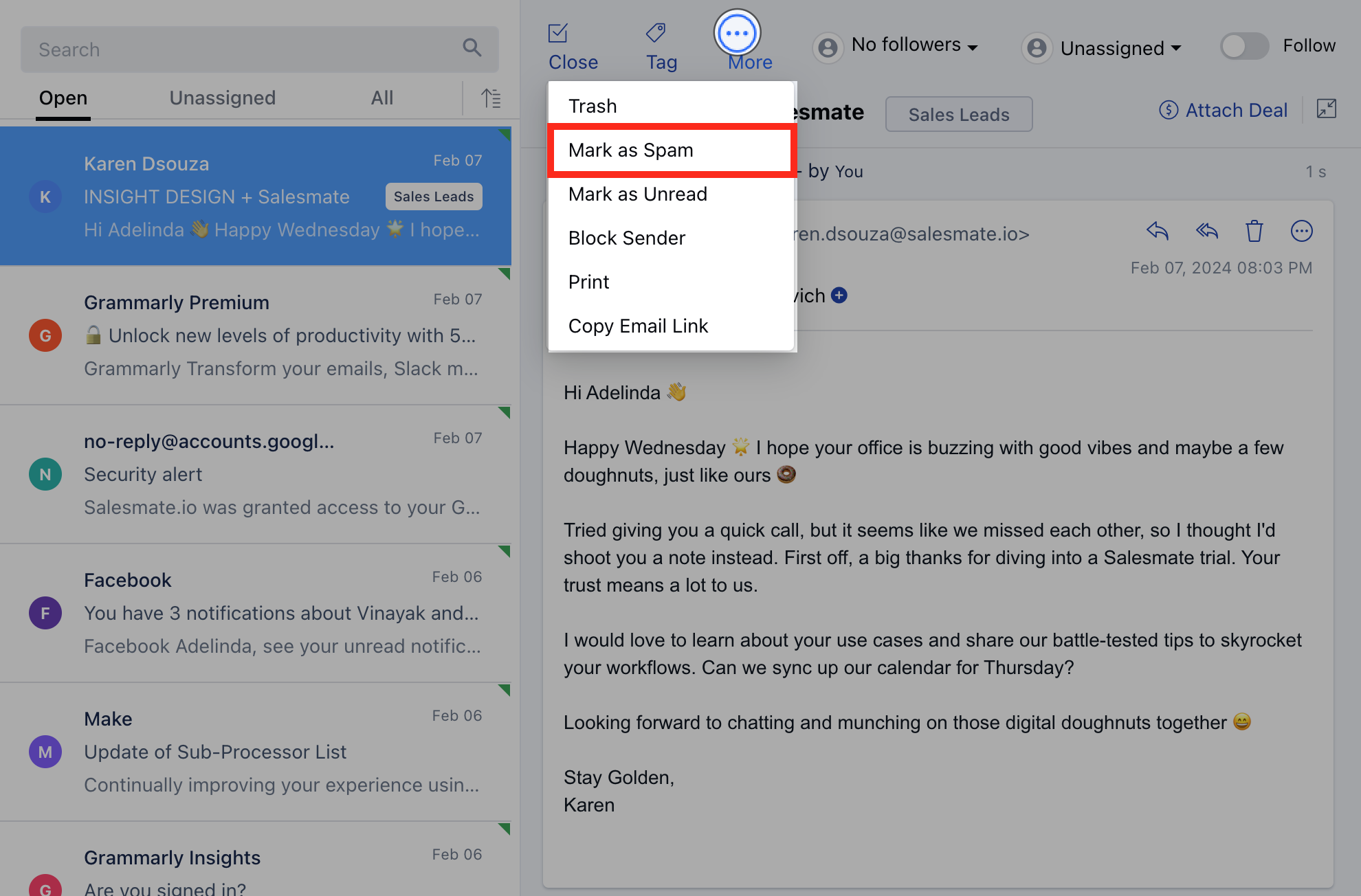 If any email is marked as spam, All emails coming from the same user will be auto-pushed to the **Spam** folder.If you wish to recover the spammed email then follow the below steps:
Click on the email which you want to recover in the \*\*Spam folder.
* \*\*Click on **More** Click on **Move To Inbox**
If any email is marked as spam, All emails coming from the same user will be auto-pushed to the **Spam** folder.If you wish to recover the spammed email then follow the below steps:
Click on the email which you want to recover in the \*\*Spam folder.
* \*\*Click on **More** Click on **Move To Inbox**
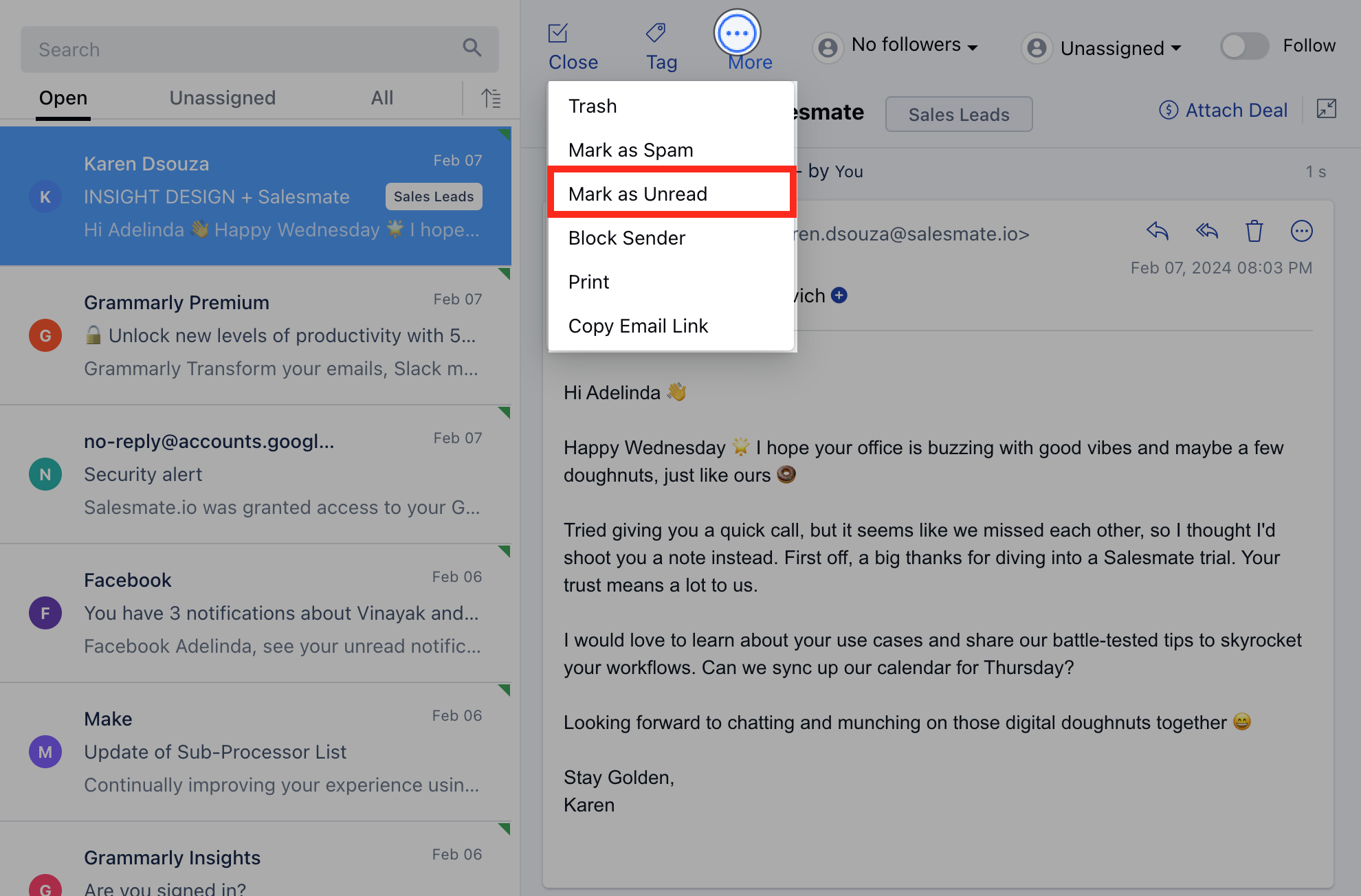
 ### **Mark as Unread** Click on \*\*More.
* \*\*Click on **Mark as Unread** As soon as you mark your conversation as unread, the number of emails unread in the team inbox increases.
### **Mark as Unread** Click on \*\*More.
* \*\*Click on **Mark as Unread** As soon as you mark your conversation as unread, the number of emails unread in the team inbox increases.
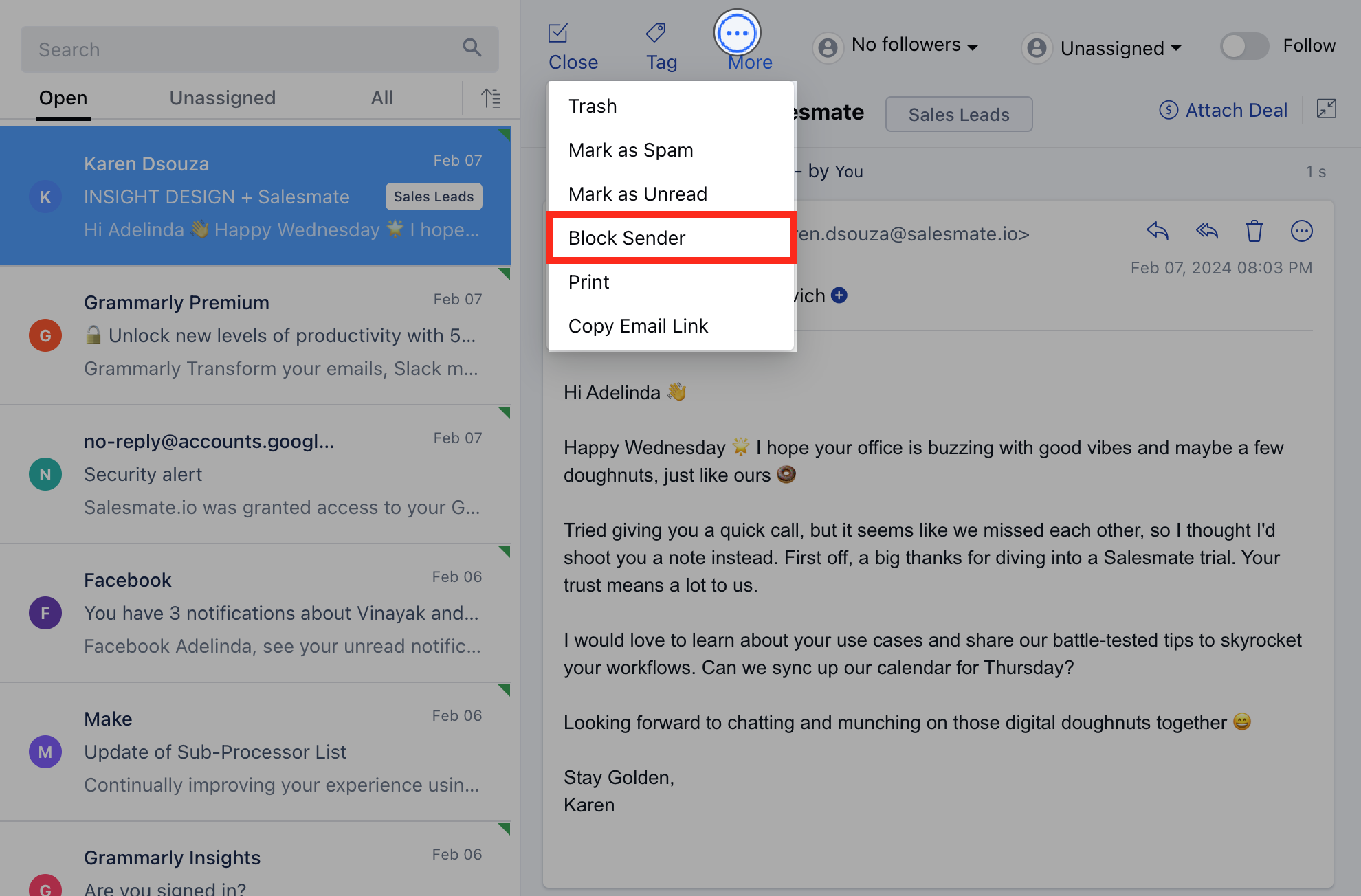
 ### **Block/Unblock Email Sender** Click on \*\*More.
* \*\*Click on **Block Sender** If any email is marked as "**Blocked Sender**" then all the emails coming from that user will not land inside Salesmate.Salesmate will simply reject those emails.
### **Block/Unblock Email Sender** Click on \*\*More.
* \*\*Click on **Block Sender** If any email is marked as "**Blocked Sender**" then all the emails coming from that user will not land inside Salesmate.Salesmate will simply reject those emails.
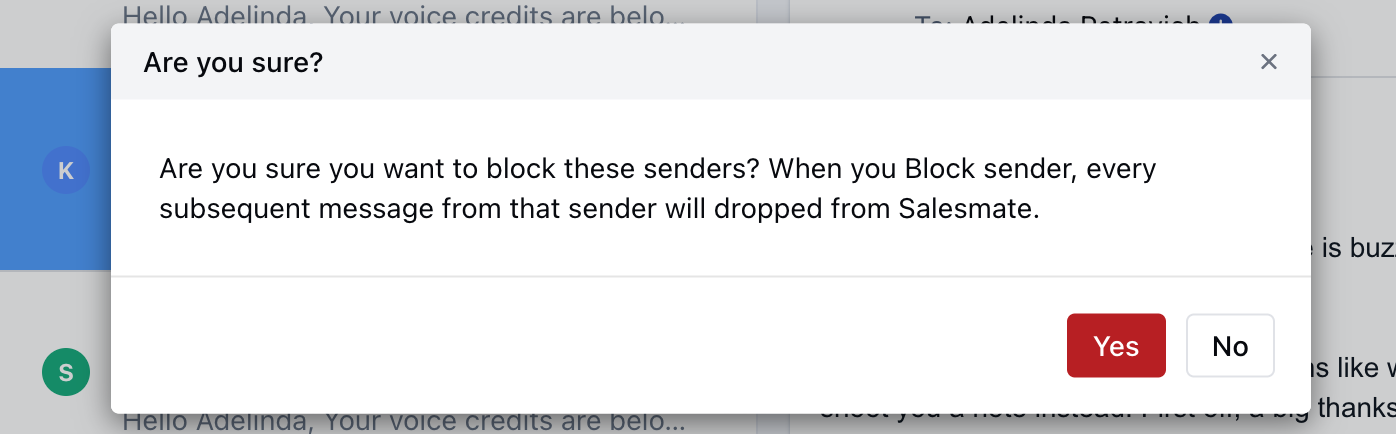
 You will be asked for confirmation before you block the sender.
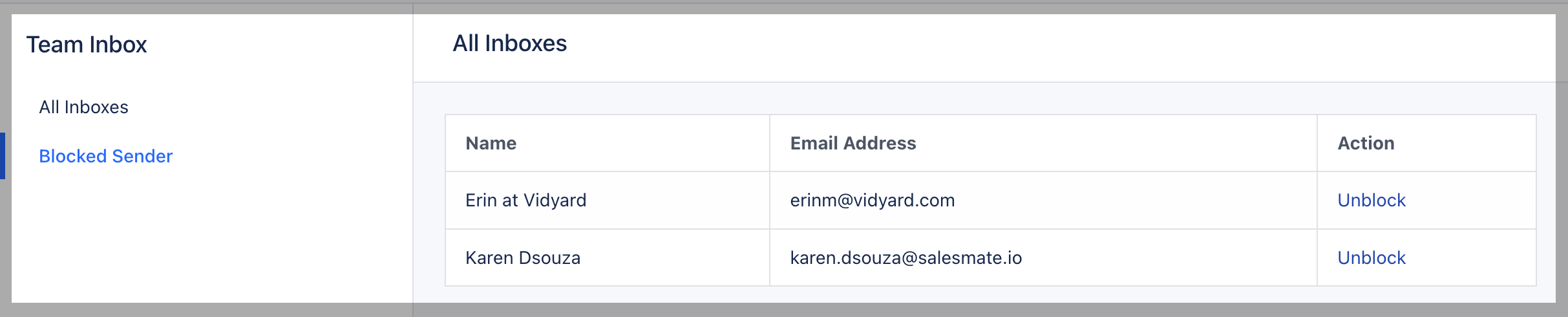
 To view the blocked receivers, follow the below steps:
Click on **Email Settings** Click on \*\*Blocked Receiver.
* \*\*From the list, you can **Unblock** the senders again.On unblocking any sender, the old emails will not be fetched back which have been rejected by Salesmate.It will start fetching the new emails only after the unblocking operation is performed.
To view the blocked receivers, follow the below steps:
Click on **Email Settings** Click on \*\*Blocked Receiver.
* \*\*From the list, you can **Unblock** the senders again.On unblocking any sender, the old emails will not be fetched back which have been rejected by Salesmate.It will start fetching the new emails only after the unblocking operation is performed.
 ### **Print Conversation** Click on \*\*More.
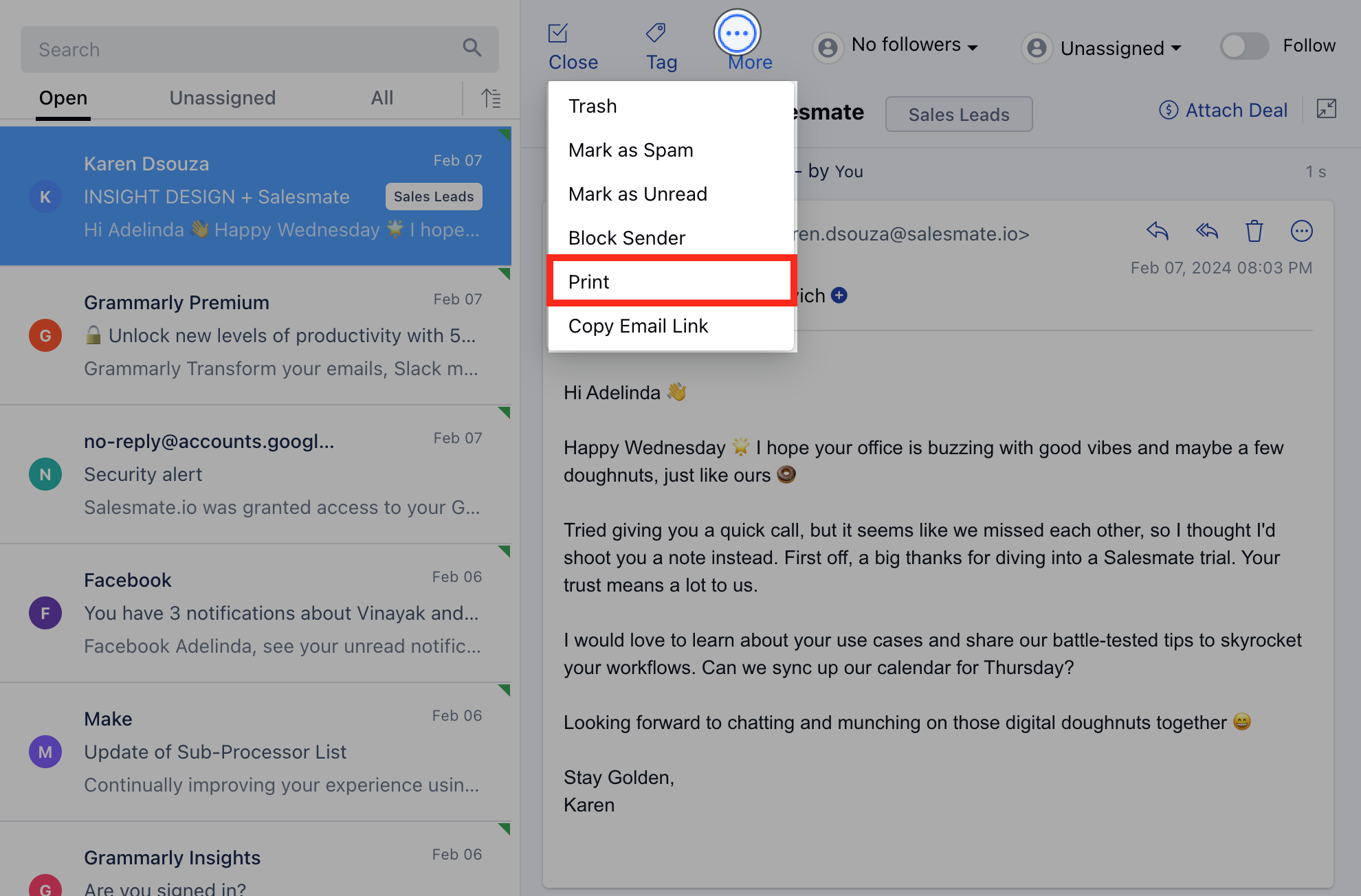
* \*\*Click on **Print** Using this you can print your respective conversation.
### **Print Conversation** Click on \*\*More.
* \*\*Click on **Print** Using this you can print your respective conversation.
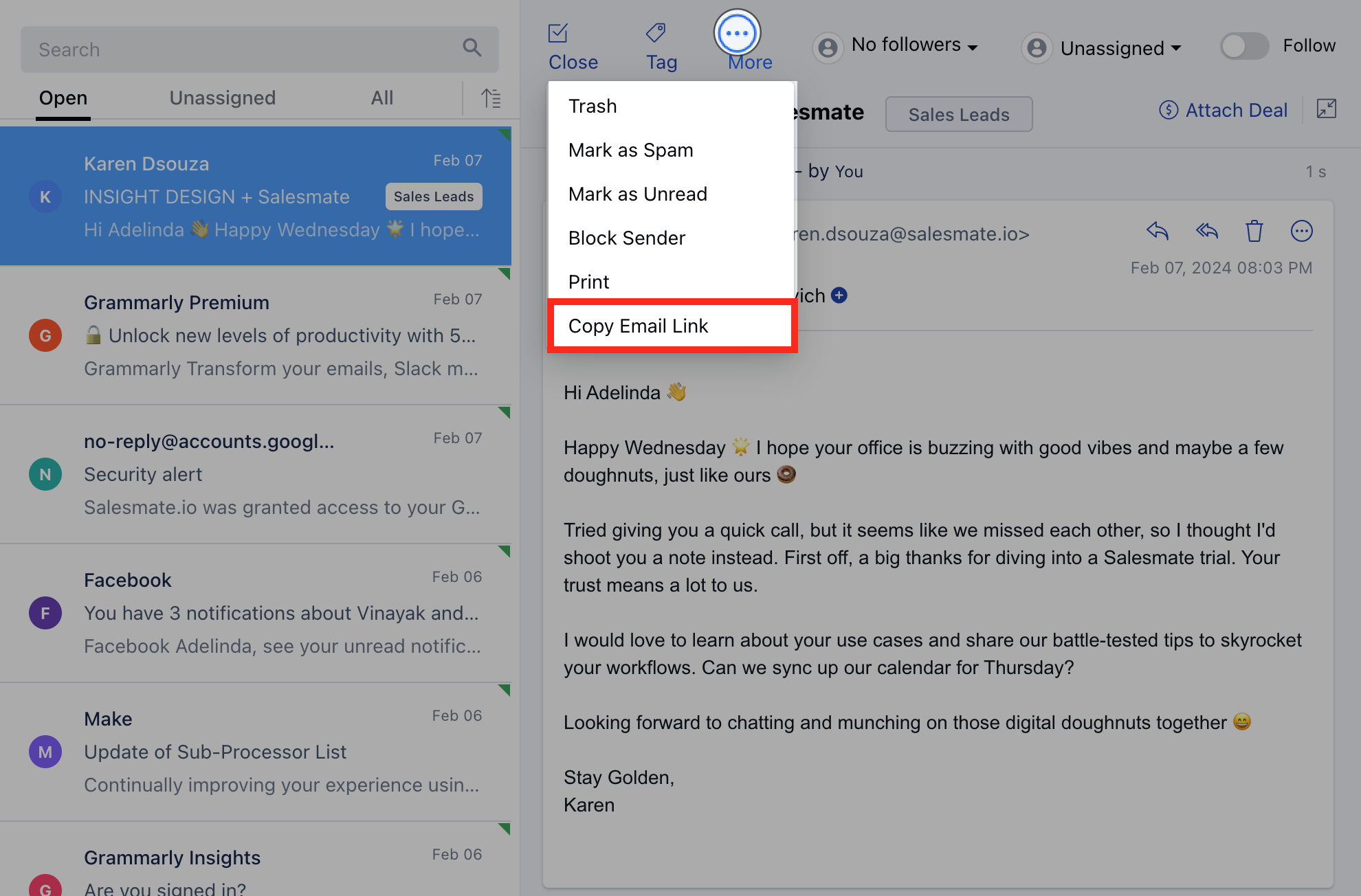
 ### **Copy Email Link** Click on MoreClick on the Copy Email Link.You can copy a direct link to this email by clicking this button, then you can paste the link and share it with your users so that they can access the email directly.
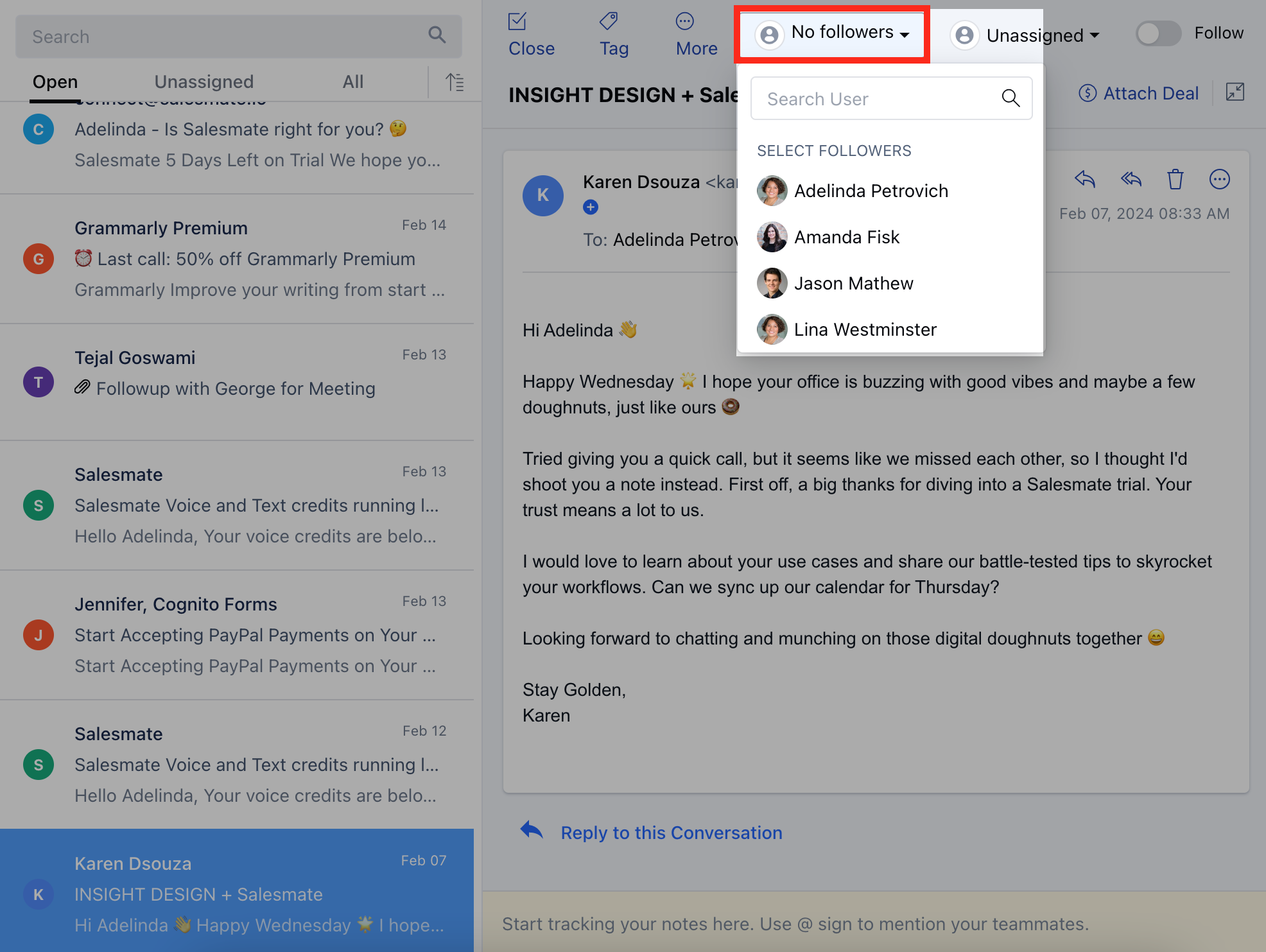
 ### **Followers** You can select the users who should be following a particular email conversation.Click on the **Followers** icon as shown in the screenshot.Select the users who should be following the email conversation.
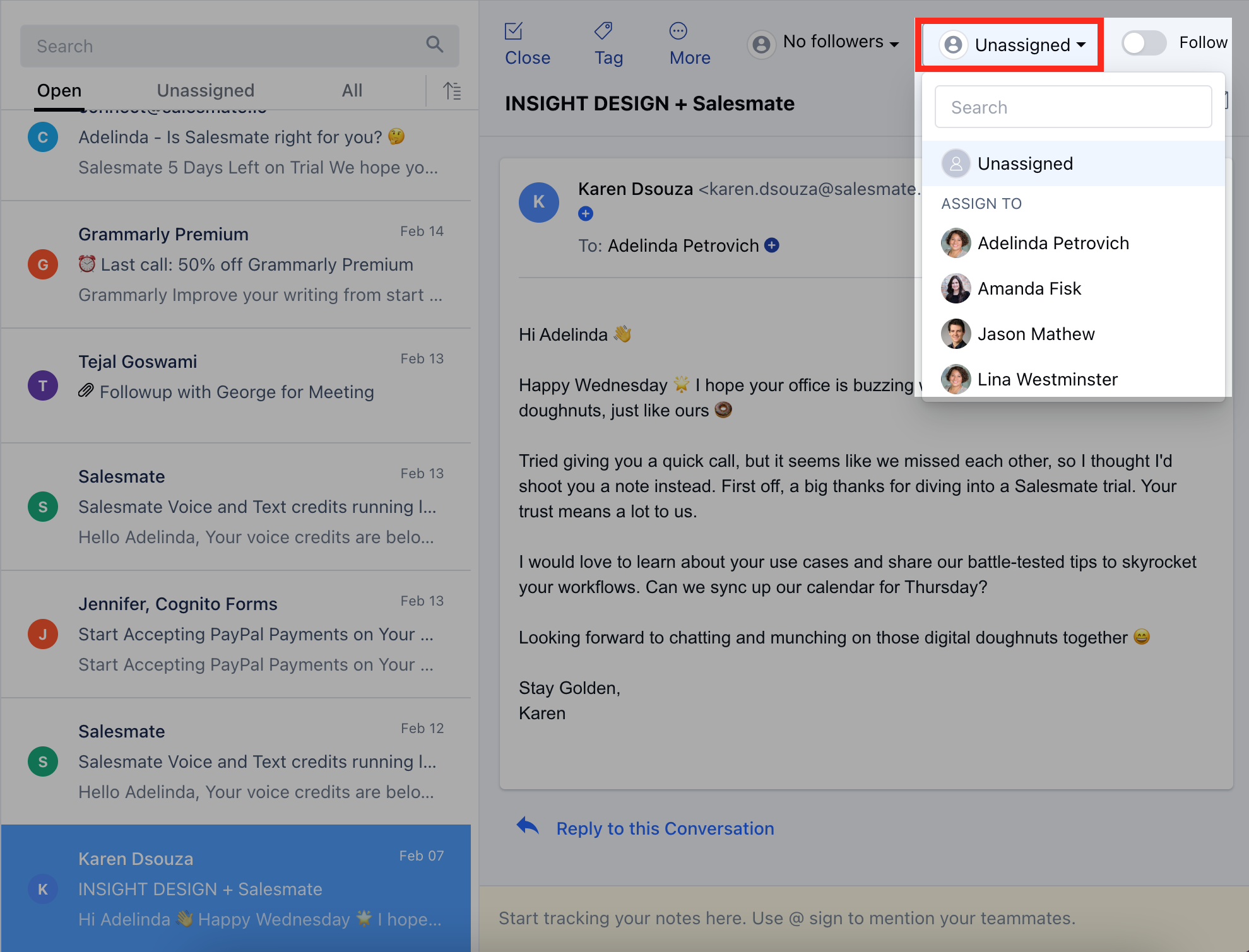
 ### **Assign Email Conversation to the User** Email conversation can be assigned to a user to make sure who is responsible for responding to a particular email.You can assign an email to a user who is a part of the Salesmate workspace.
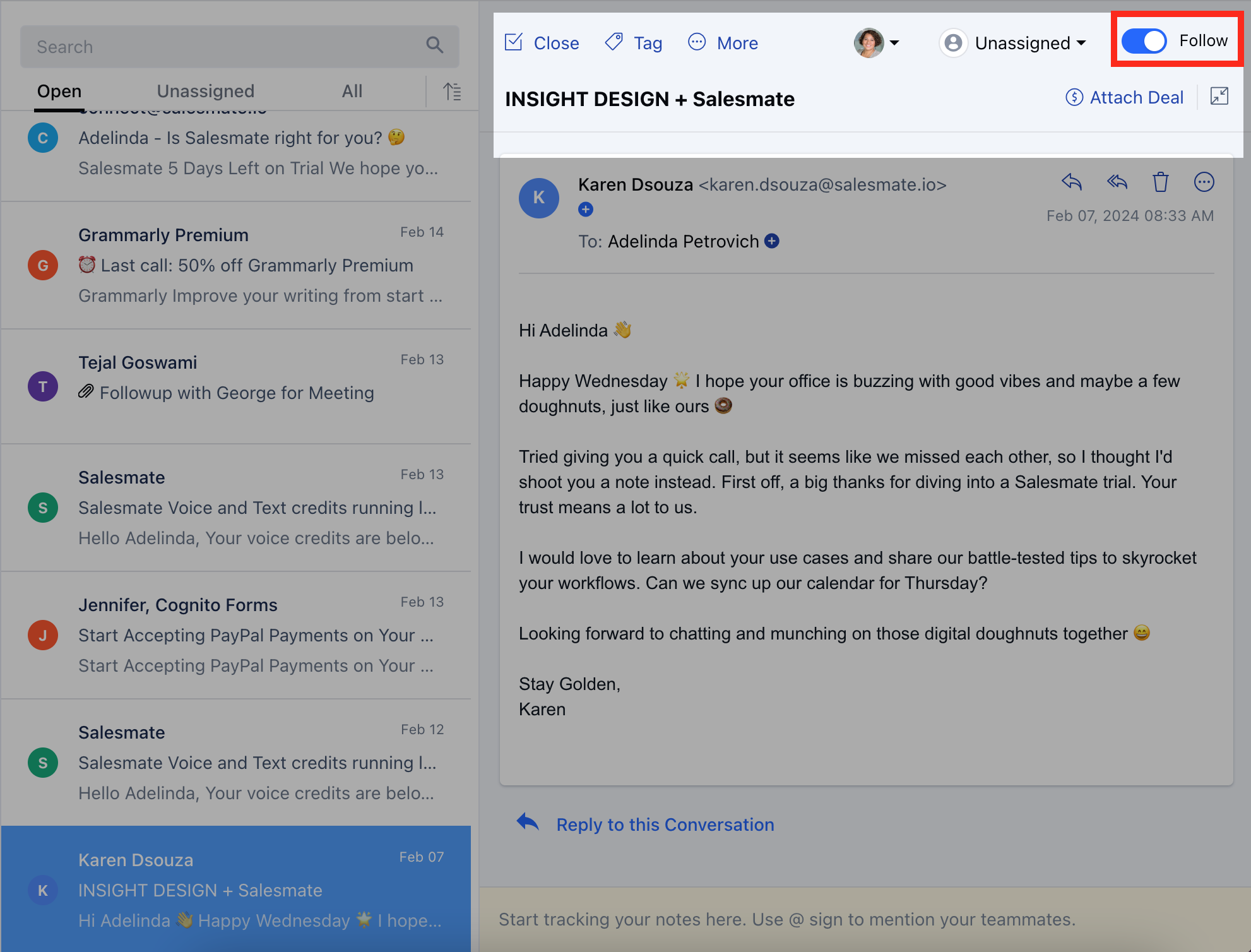
 ### **Follow/Unfollow Email Conversation** A user can **follow or unfollow** the email by toggling the follow button.All the following conversations can be viewed inside the folder named \*\*Following.
 ### **Attach Deal** Click on \*\*Attach Deal.
* \*\*You can attach an already existing deal to an email.If you want to attach a new Deal, Click on \*\*+ Add New Deal.
### **Attach Deal** Click on \*\*Attach Deal.
* \*\*You can attach an already existing deal to an email.If you want to attach a new Deal, Click on \*\*+ Add New Deal.
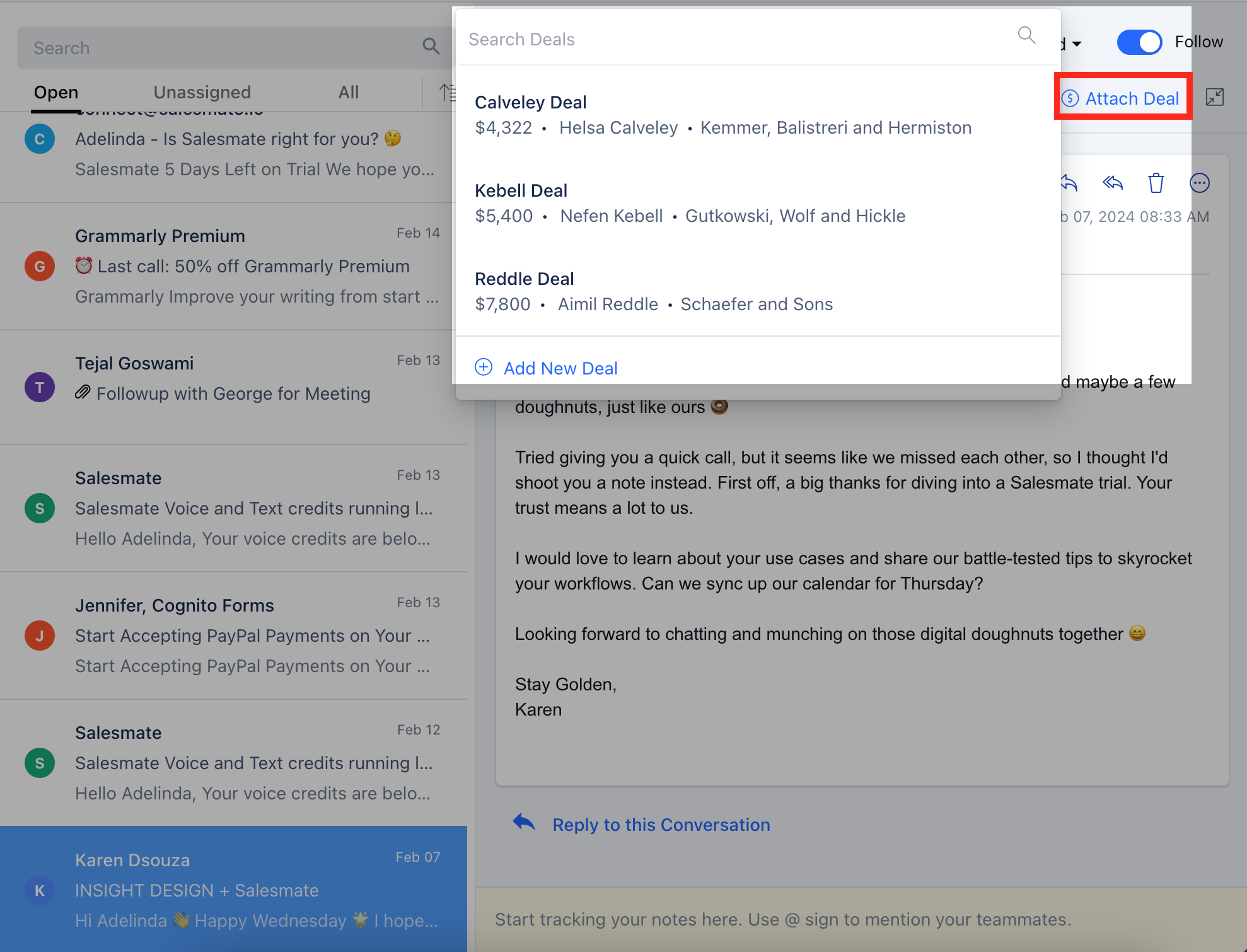 The particular deal will be created and can be viewed on the timeline of the particular email.The deals can also be viewed under the **Deals** module.You can also detach the deal from the particular email.
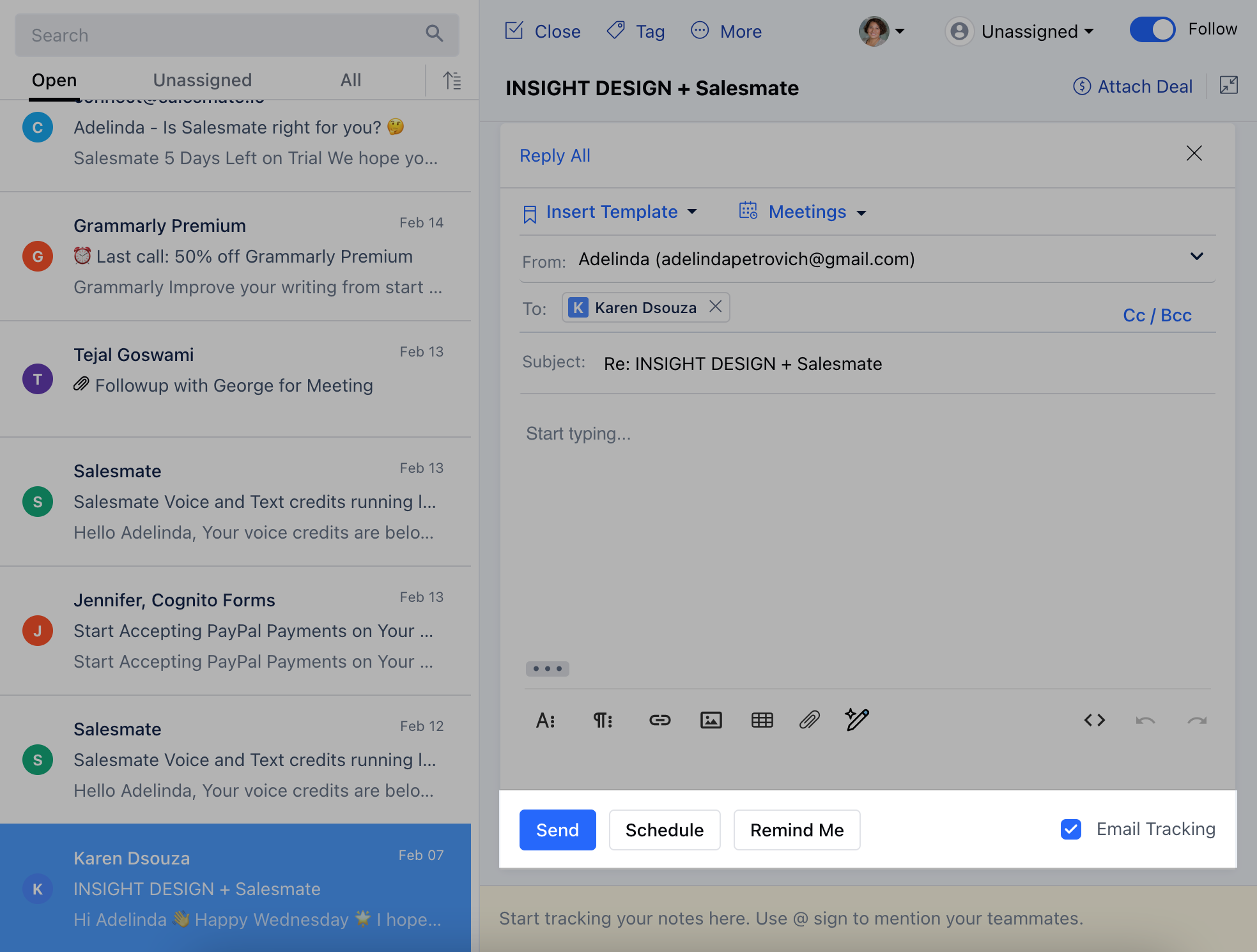
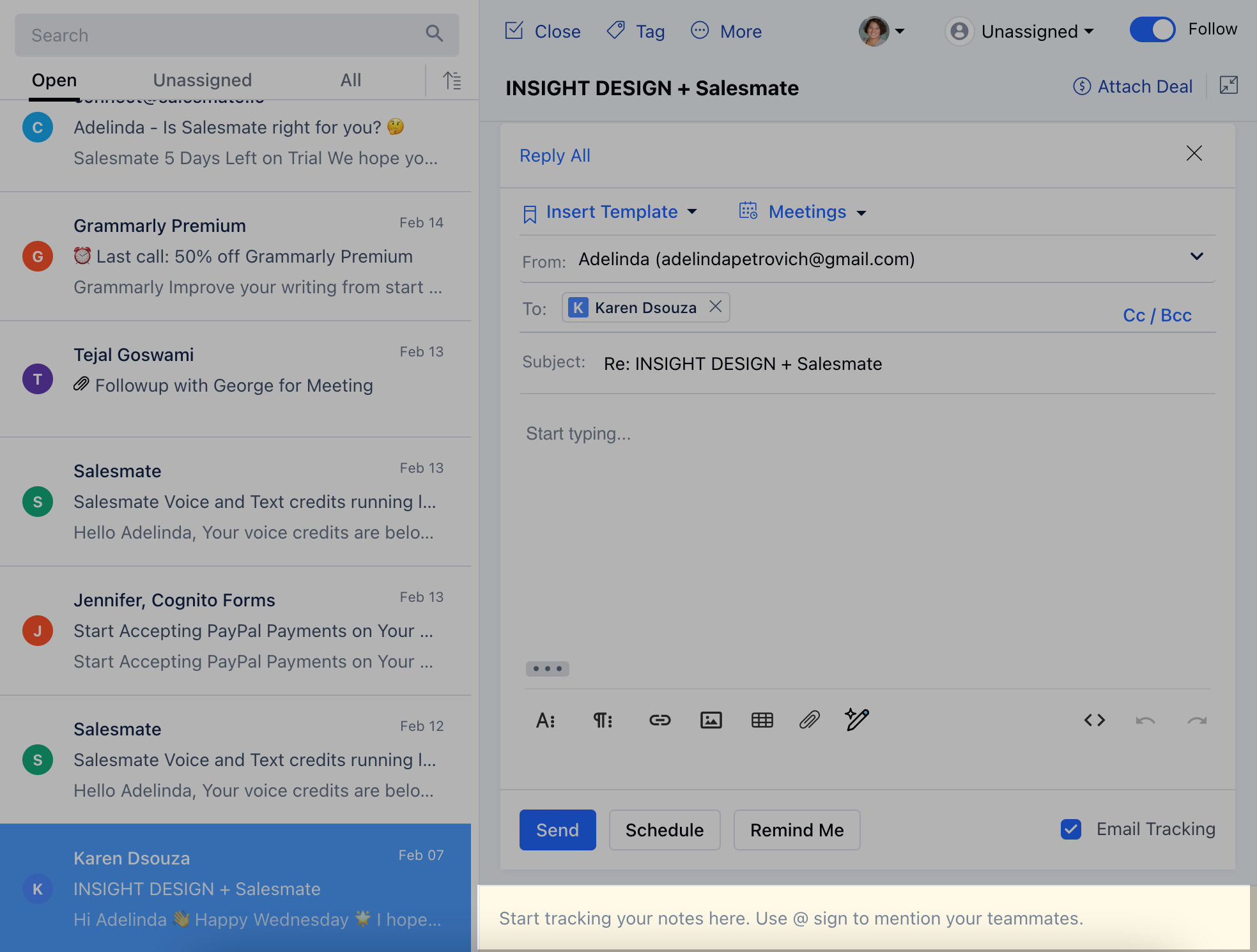
### **Reply to the Conversation** You can reply to a particular conversation by clicking on \*\*Reply to this Conversation.
* **While replying to a particular conversation you also have the following options:** Send \*\*Schedule \*\*Remind Me \*\*
The particular deal will be created and can be viewed on the timeline of the particular email.The deals can also be viewed under the **Deals** module.You can also detach the deal from the particular email.
### **Reply to the Conversation** You can reply to a particular conversation by clicking on \*\*Reply to this Conversation.
* **While replying to a particular conversation you also have the following options:** Send \*\*Schedule \*\*Remind Me \*\*
 ### **Add a note to the Email Conversation** Users can post notes for particular emails/conversations.The users can edit or delete only their notes.In order to mention the Teammates use "**@**" for internal conversation.
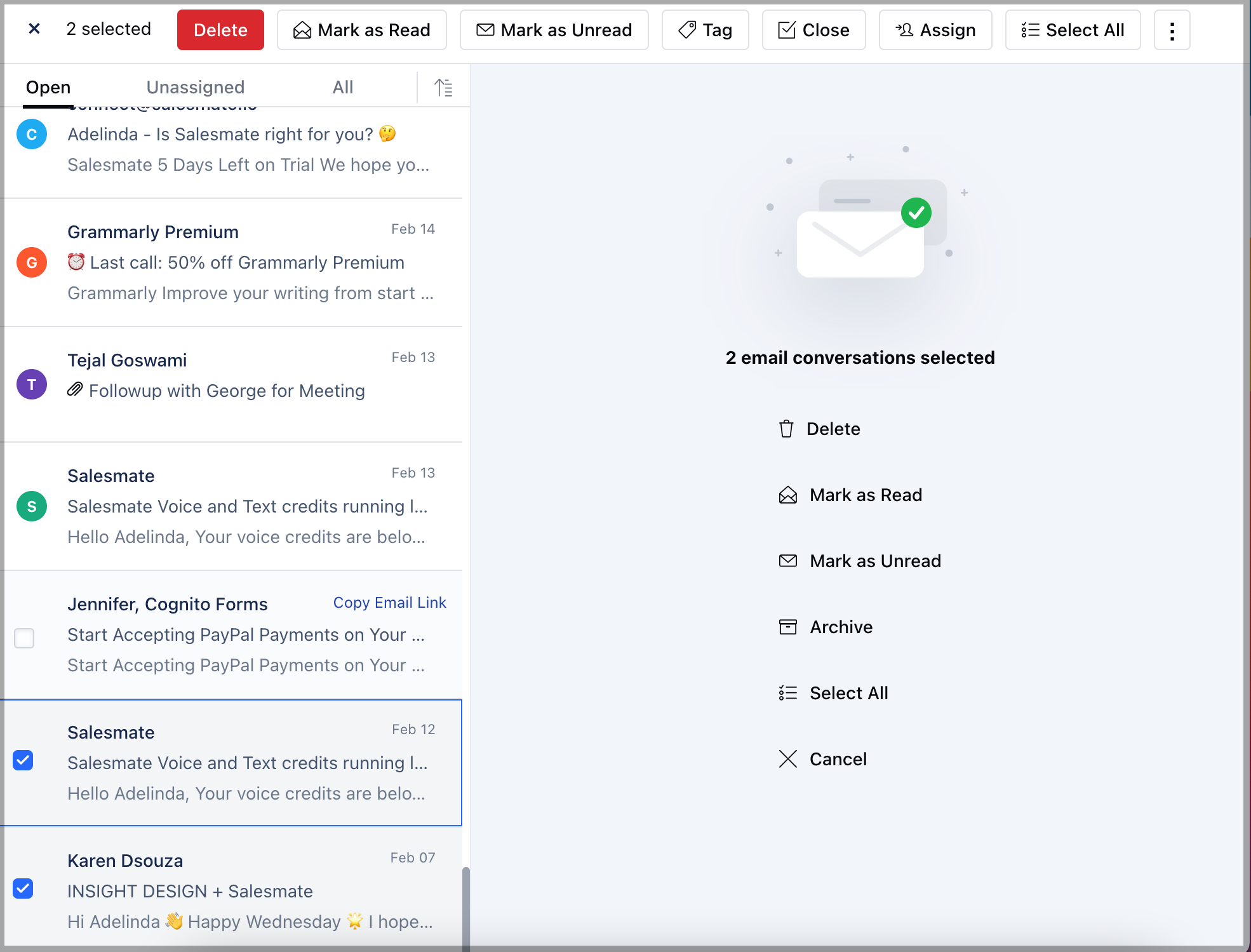
 ### **Multiple Selection** You have an option of selecting multiple emails and performing the following operations:
DeleteMark as ReadMark as UnreadTagCloseAssignSelect AllSpamFollowUnfollowBlock Sender
### **Multiple Selection** You have an option of selecting multiple emails and performing the following operations:
DeleteMark as ReadMark as UnreadTagCloseAssignSelect AllSpamFollowUnfollowBlock Sender