> ## Documentation Index
> Fetch the complete documentation index at: https://support.getskara.ai/llms.txt
> Use this file to discover all available pages before exploring further.
# Import data from HubSpot CRM
It could be a painful task to import/migrate data from CRMs, but **Salesmate** has eased this process by providing you with an easy, click-to-go Import feature.
You can directly import data from CRM with a few clicks.
* **Salesmate** not only allows you to import the **Companies** or **Contacts** but also the **Deals, Activities,** and **Notes** associated with them.
### Salesmate-supported CRMs:
* \*\*[\*\* Pipedrive ](https://support.salesmate.io/hc/en-us/articles/360050914871-Import-data-from-Pipedrive-CRM)\*\*HubSpot \*\*Pre-requisite for HubSpot import \*\*
### Please keep the following pre-requisite list in mind before importing data from HubSpot
* Create all the users that are present in HubSpot (active or inactive) in Salesmate.
* Create all the pipelines & stages present in HubSpot in Salesmate.
# Please follow the below steps to import your data from **HubSpot**:
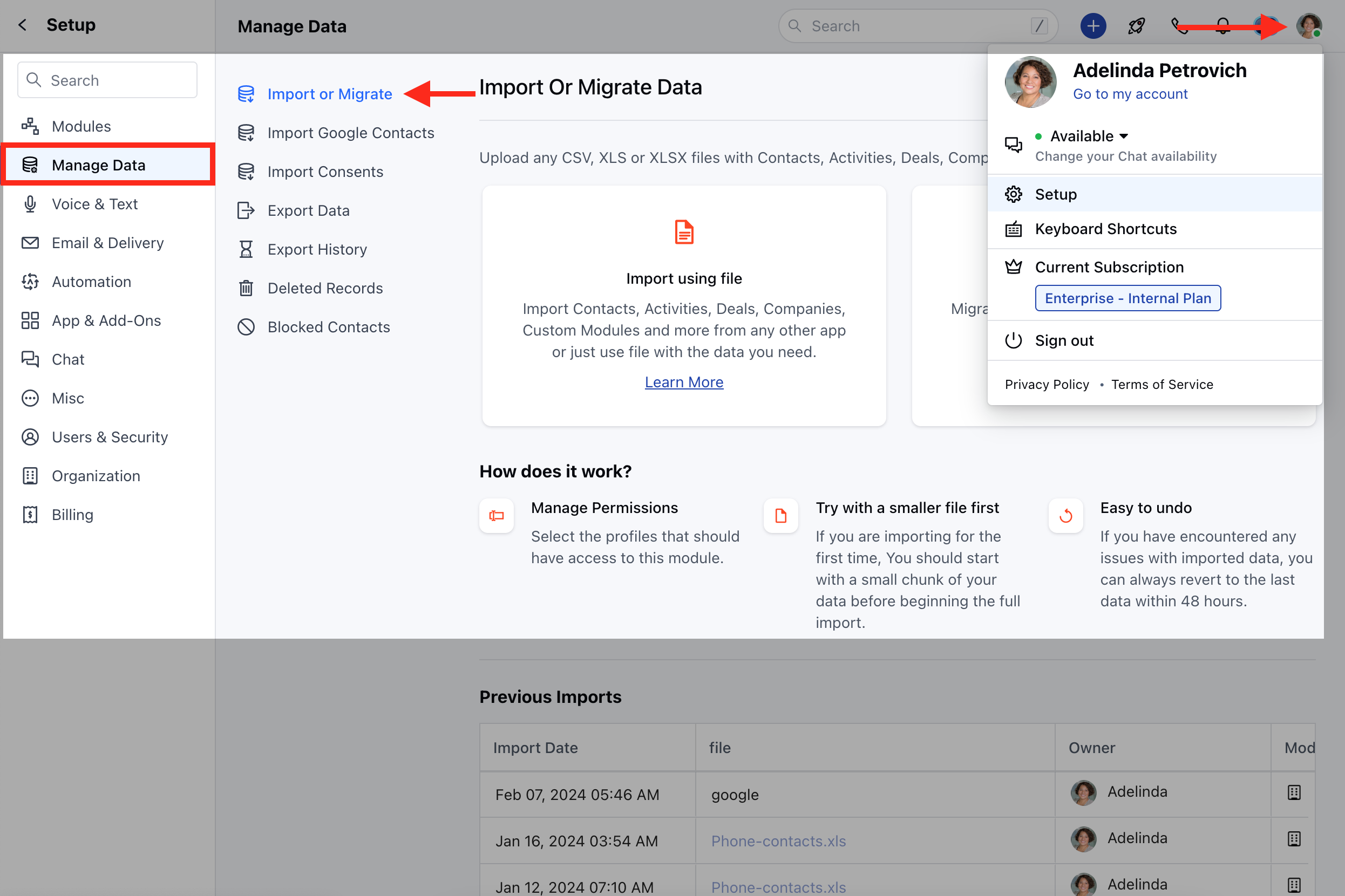
* **Navigate to the** Profile Icon at the top right corner
* **Click on** Setup
* Head over to the \*\*Manage \*\*Data \*\* category
* **Select** Import Or Migrate
 * **Select** Import from other CRM
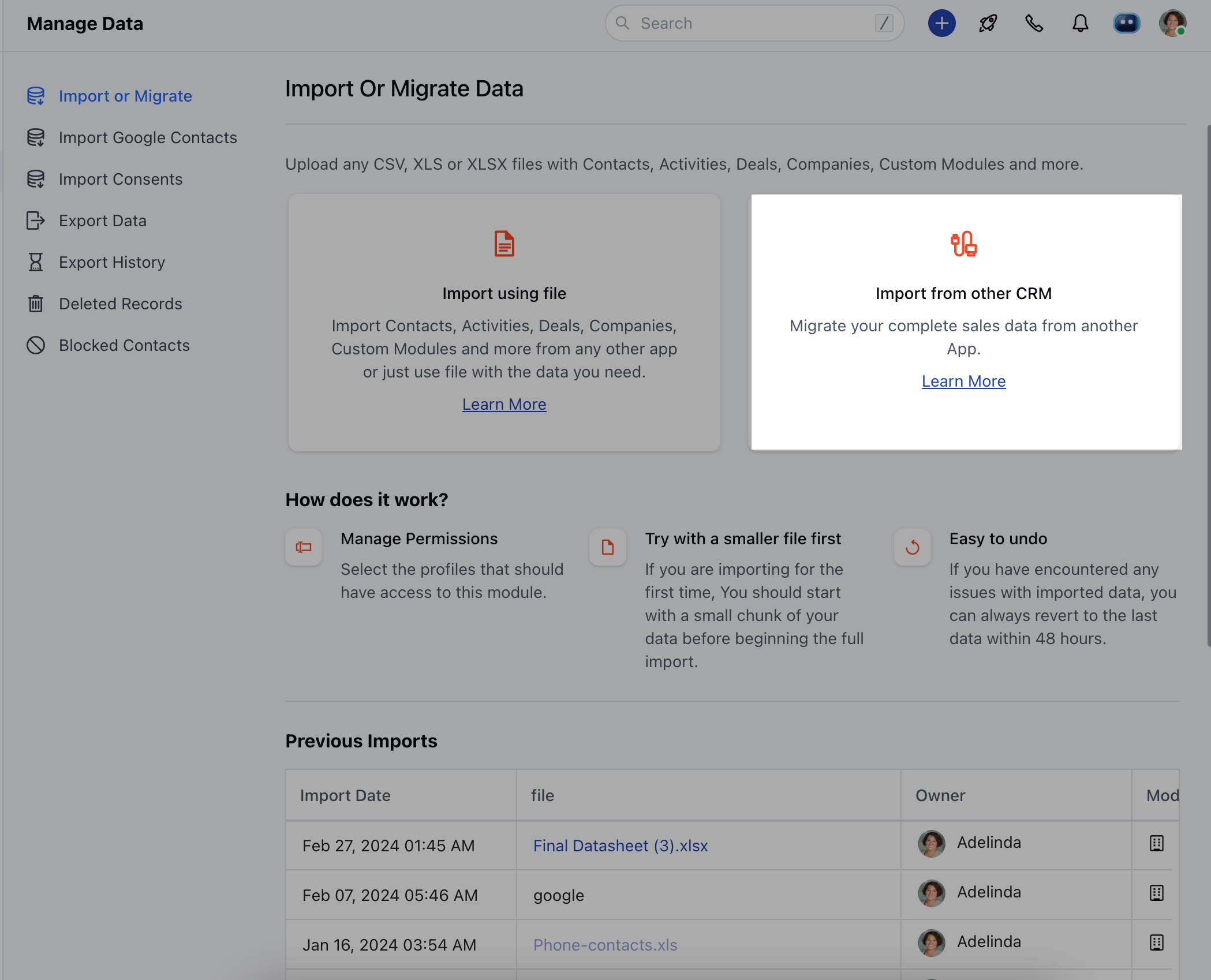 * **Select** HubSpot \*\*
 * \*\* Here, you need to enter your \*\* HubSpot API Key\*\* to connect to HubSpot.
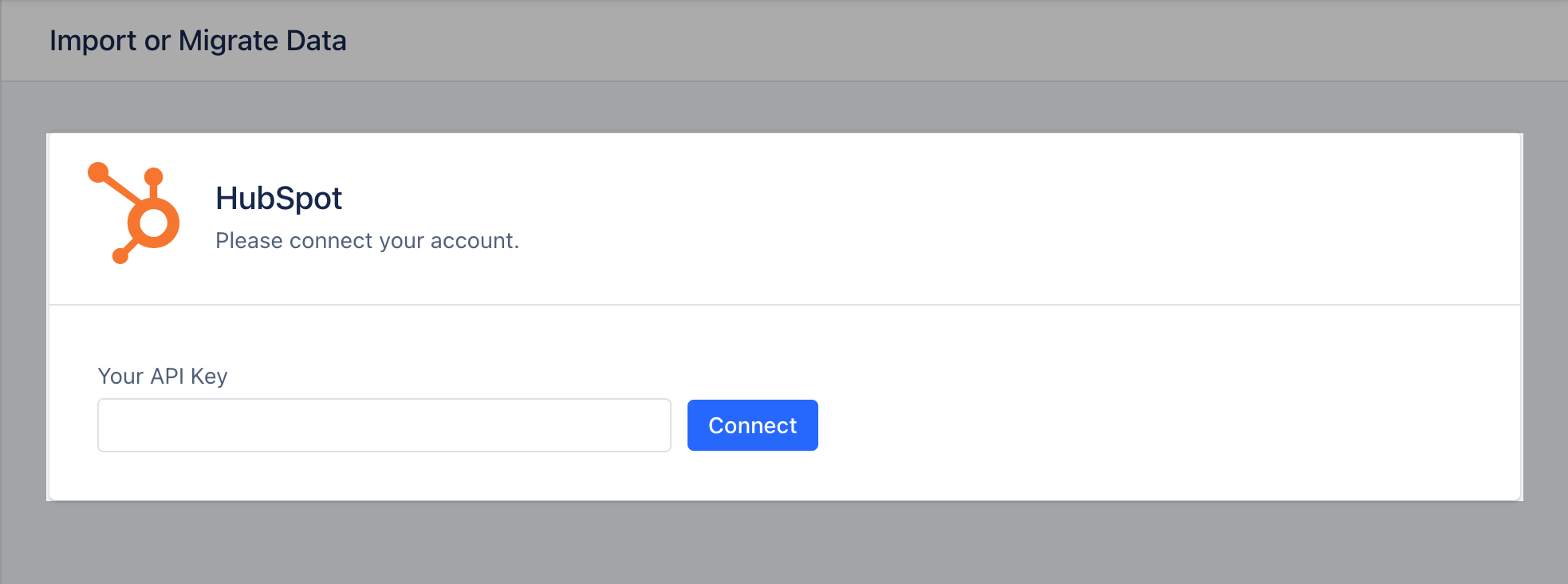 * **To find your HubSpot API key,** Log in to your **HubSpot account**.
- **Go to** Settings on the top left.
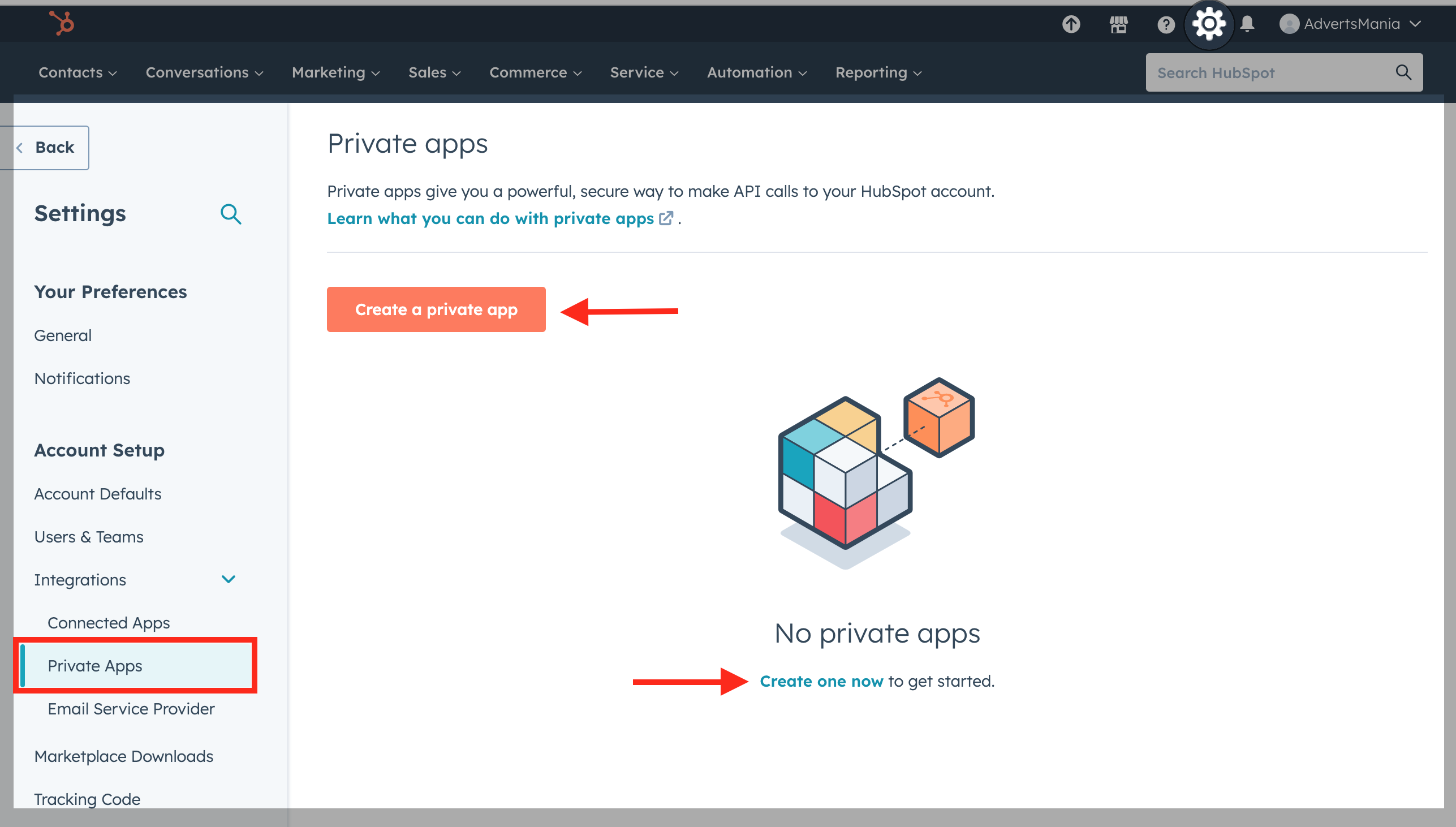
- **Navigate to** Account SetUp >> Integrations >> Private Apps
- Here, you'll be redirected to the page where you'll need to create a **Private app**.
- **Click on** the Create a Private App option or Create One Now
* **To find your HubSpot API key,** Log in to your **HubSpot account**.
- **Go to** Settings on the top left.
- **Navigate to** Account SetUp >> Integrations >> Private Apps
- Here, you'll be redirected to the page where you'll need to create a **Private app**.
- **Click on** the Create a Private App option or Create One Now
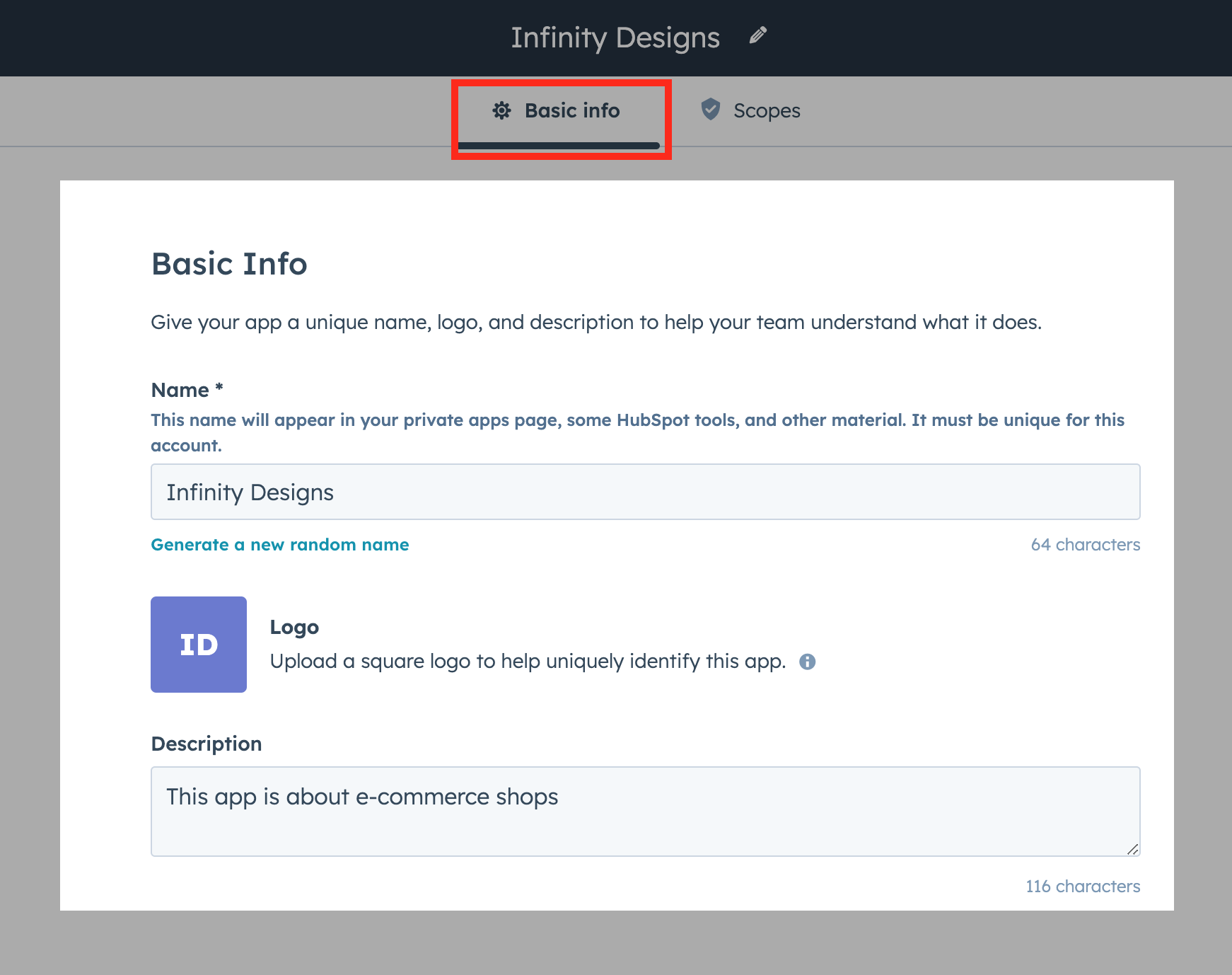
 * **Add In the** Basic Info . Give an appropriate
* **App Name, Add the Logo,** and Mention the **Description** for the app.
* **Add In the** Basic Info . Give an appropriate
* **App Name, Add the Logo,** and Mention the **Description** for the app.
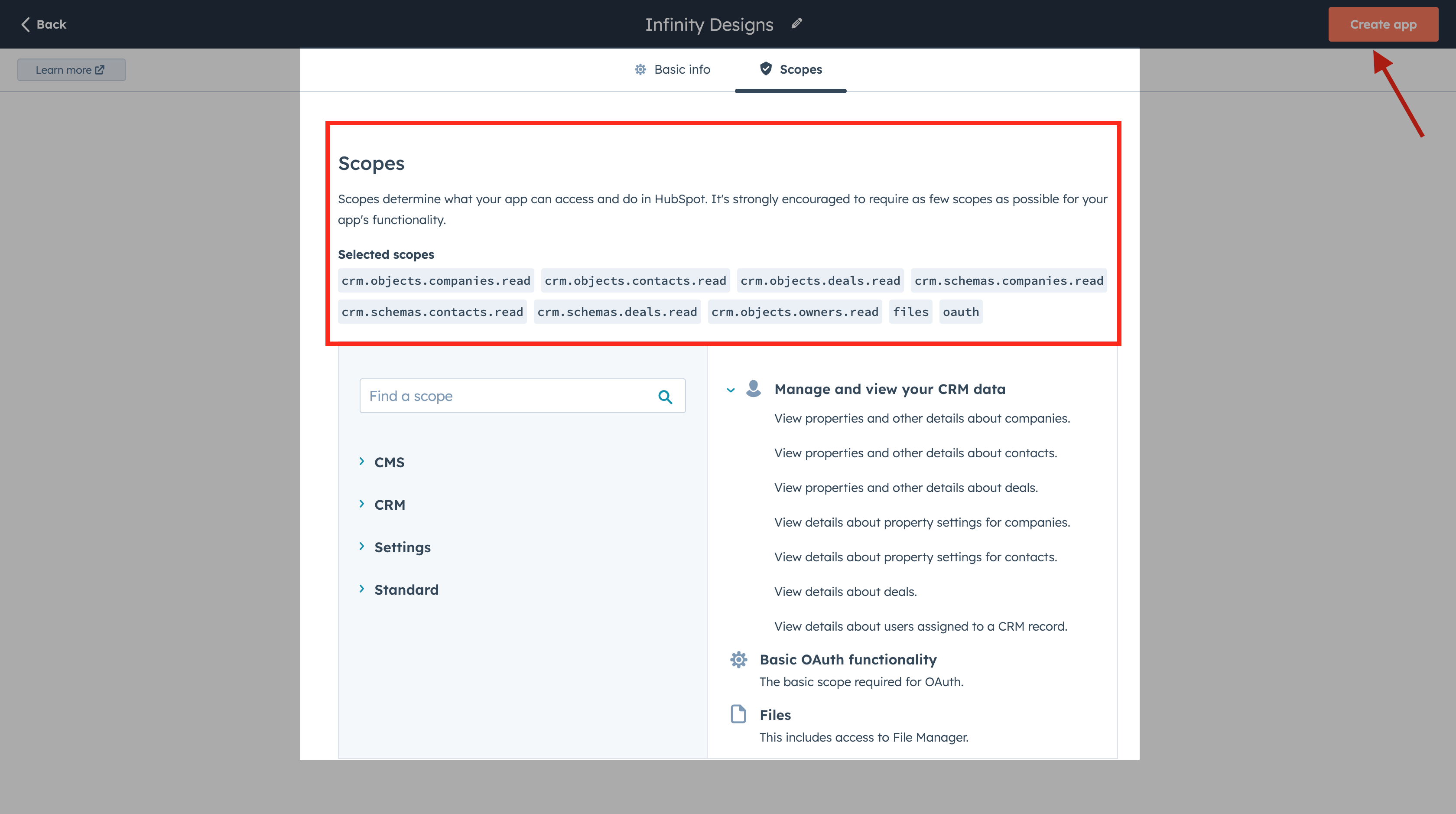
 * **Next go to** Scopes , here you'll be presented with the list of Scopes to select from before you start the Import.
**NOTE:**
Please note that below mentioned Scopes are required to be selected to be able
to successfully authenticate the Apps:
**Under Standard**
"oauth",
"files",
"files.ui\_hidden.read",**Under CRM**"crm.objects.contacts.read",
"crm.objects.companies.read",
"crm.objects.deals.read",
"crm.schemas.contacts.read",
"crm.schemas.companies.read",
"crm.schemas.deals.read",
"crm.objects.owners.read"
* **Click on** Create App
* **Next go to** Scopes , here you'll be presented with the list of Scopes to select from before you start the Import.
**NOTE:**
Please note that below mentioned Scopes are required to be selected to be able
to successfully authenticate the Apps:
**Under Standard**
"oauth",
"files",
"files.ui\_hidden.read",**Under CRM**"crm.objects.contacts.read",
"crm.objects.companies.read",
"crm.objects.deals.read",
"crm.schemas.contacts.read",
"crm.schemas.companies.read",
"crm.schemas.deals.read",
"crm.objects.owners.read"
* **Click on** Create App
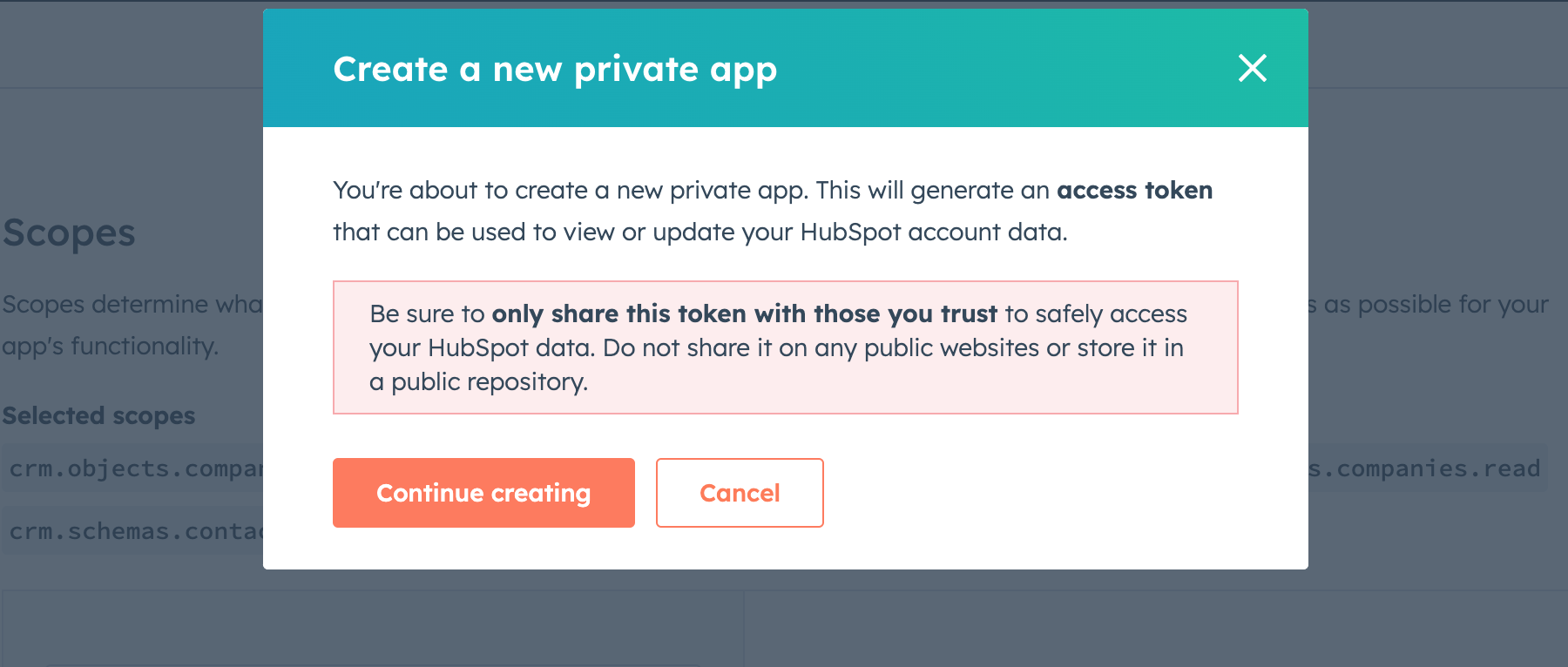
 * \*\*Continue Creating App \*\*.
 * That's it, your API key is now generated
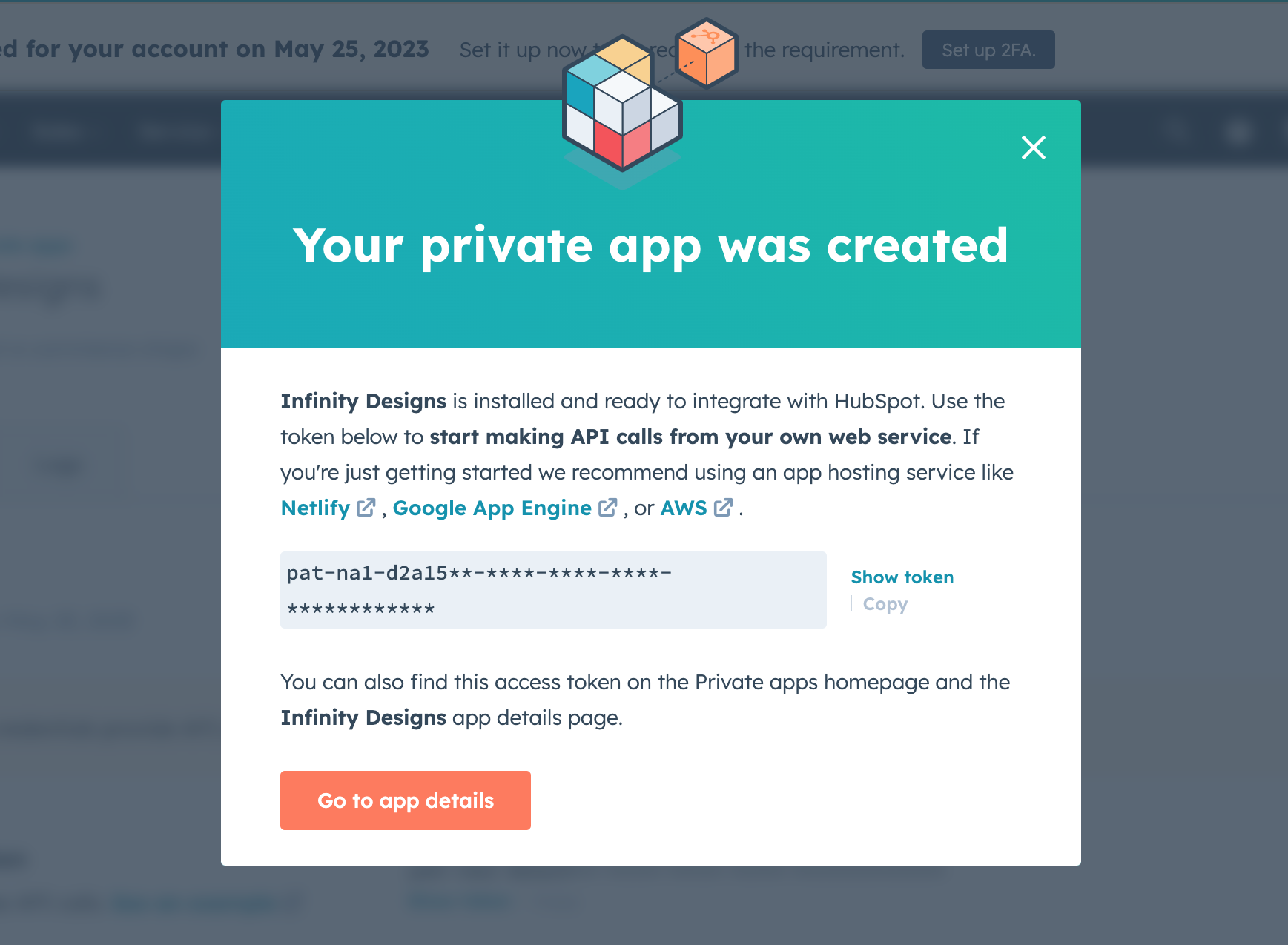 * Copy the key and paste it to Salesmate.
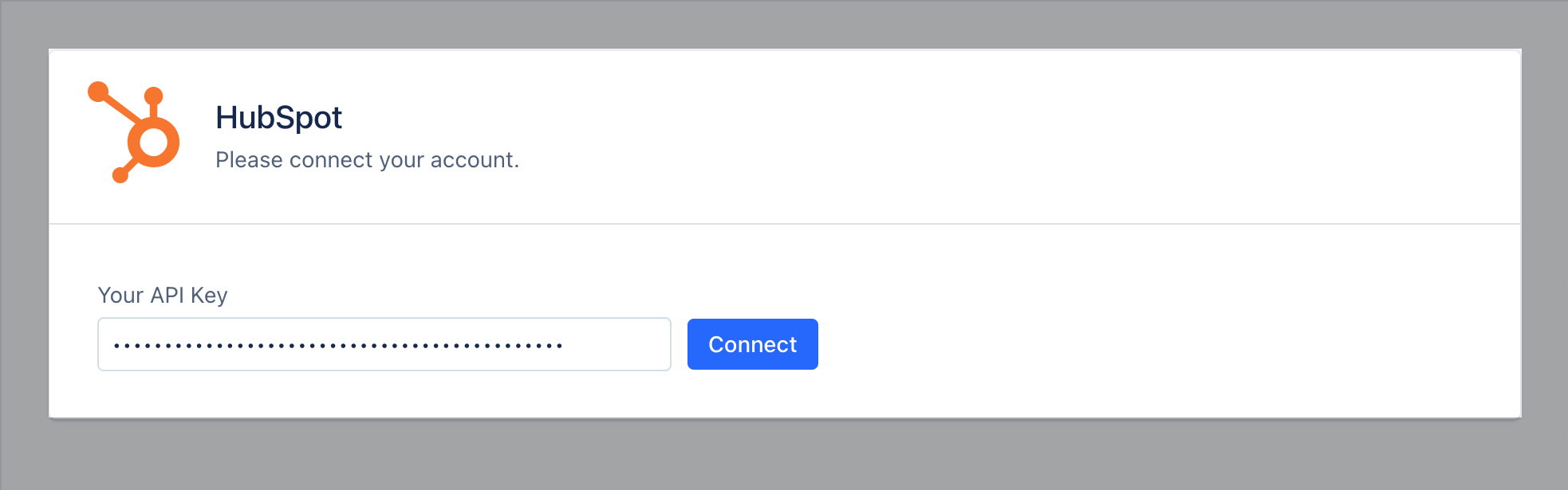 * **Click on** Connect .
* **Once the Account is successfully connected, you can select the** modules from which you would like to migrate the data.
* **Click on** Connect .
* **Once the Account is successfully connected, you can select the** modules from which you would like to migrate the data.
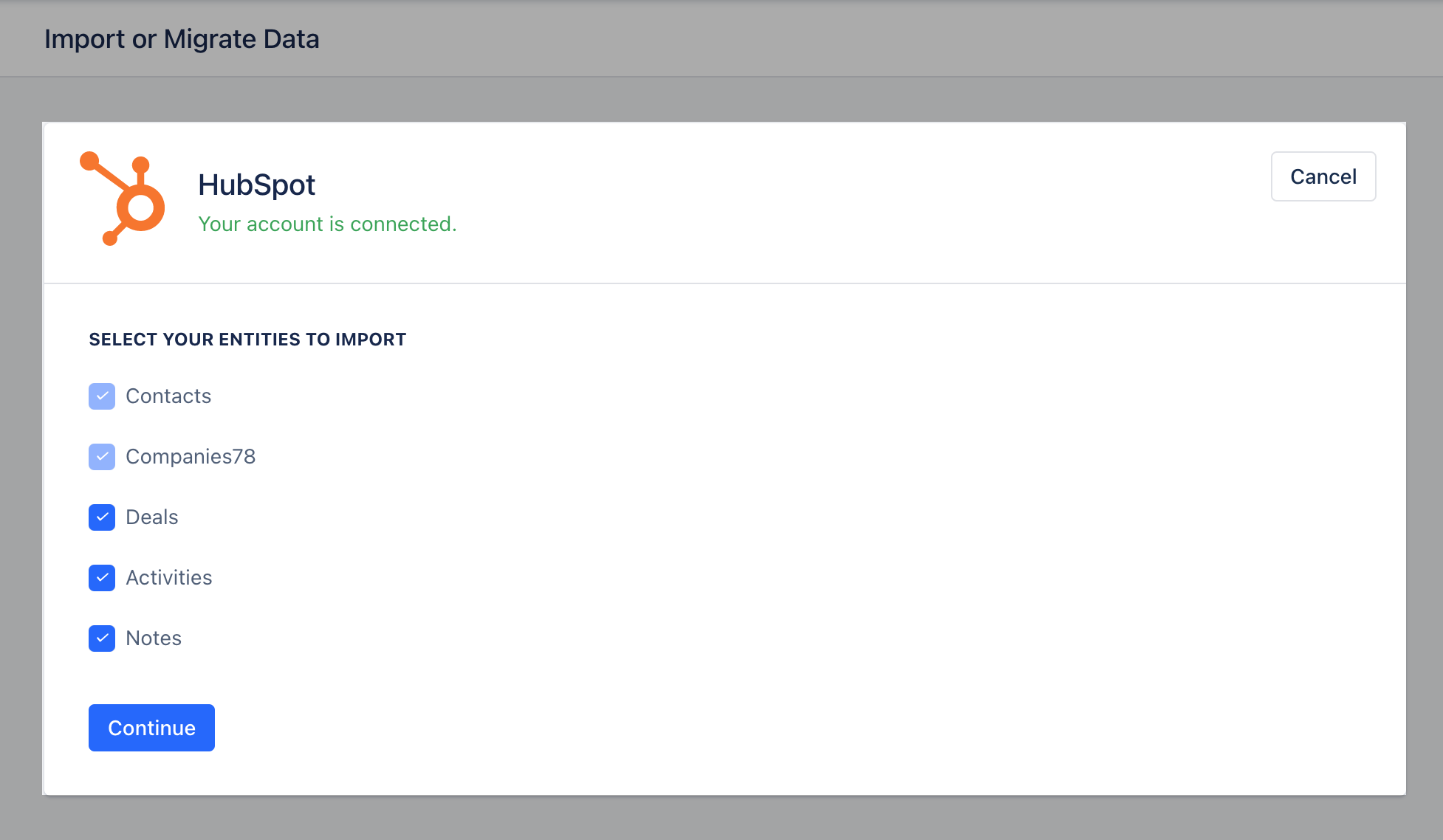 * **Now click on** Continue .
* You will now get an option to Map the HubSpot fields with Salesmate fields.
* Map the HubSpot fields of all the selected modules to Salesmate.
* **Now click on** Continue .
* You will now get an option to Map the HubSpot fields with Salesmate fields.
* Map the HubSpot fields of all the selected modules to Salesmate.
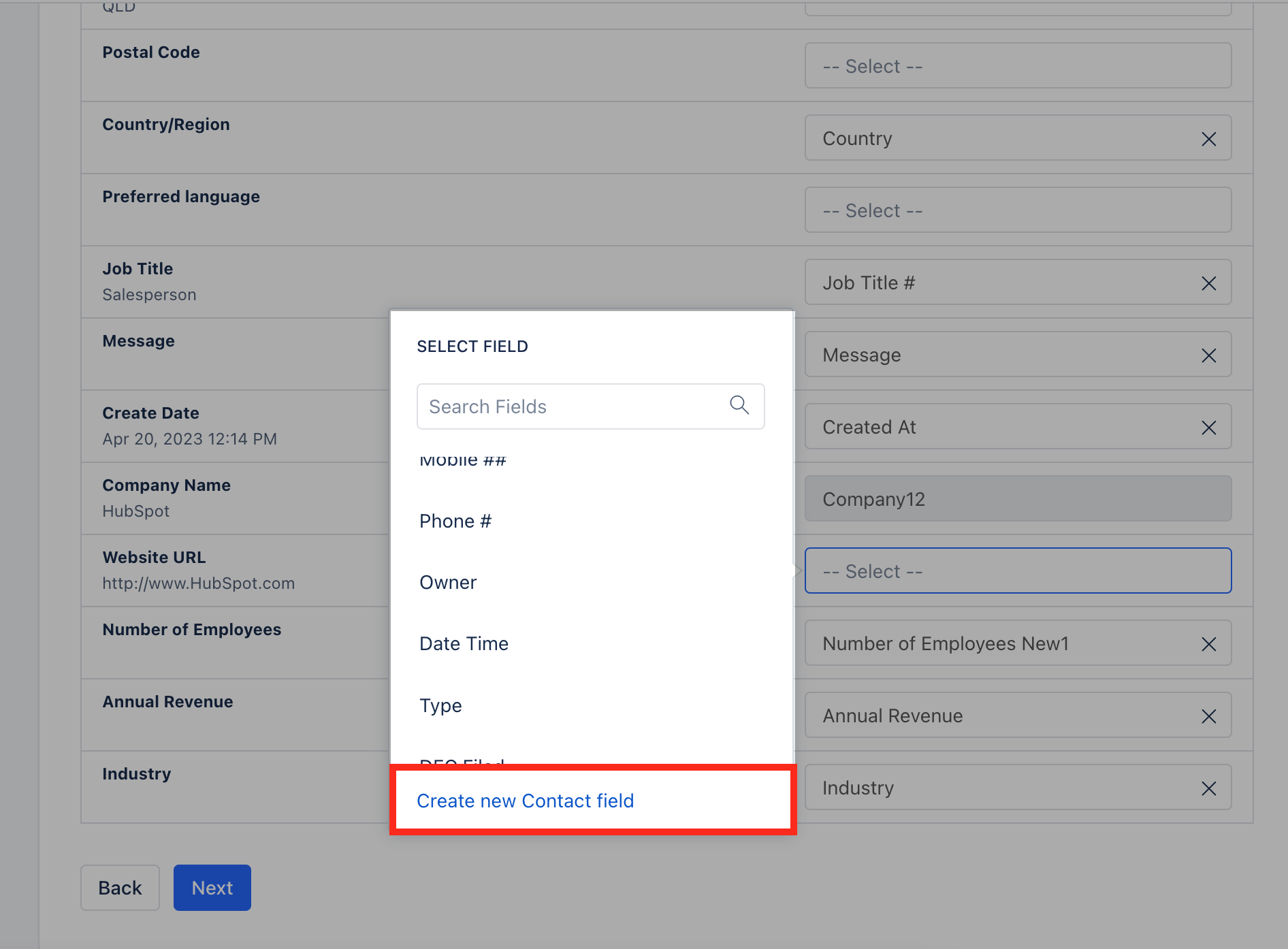
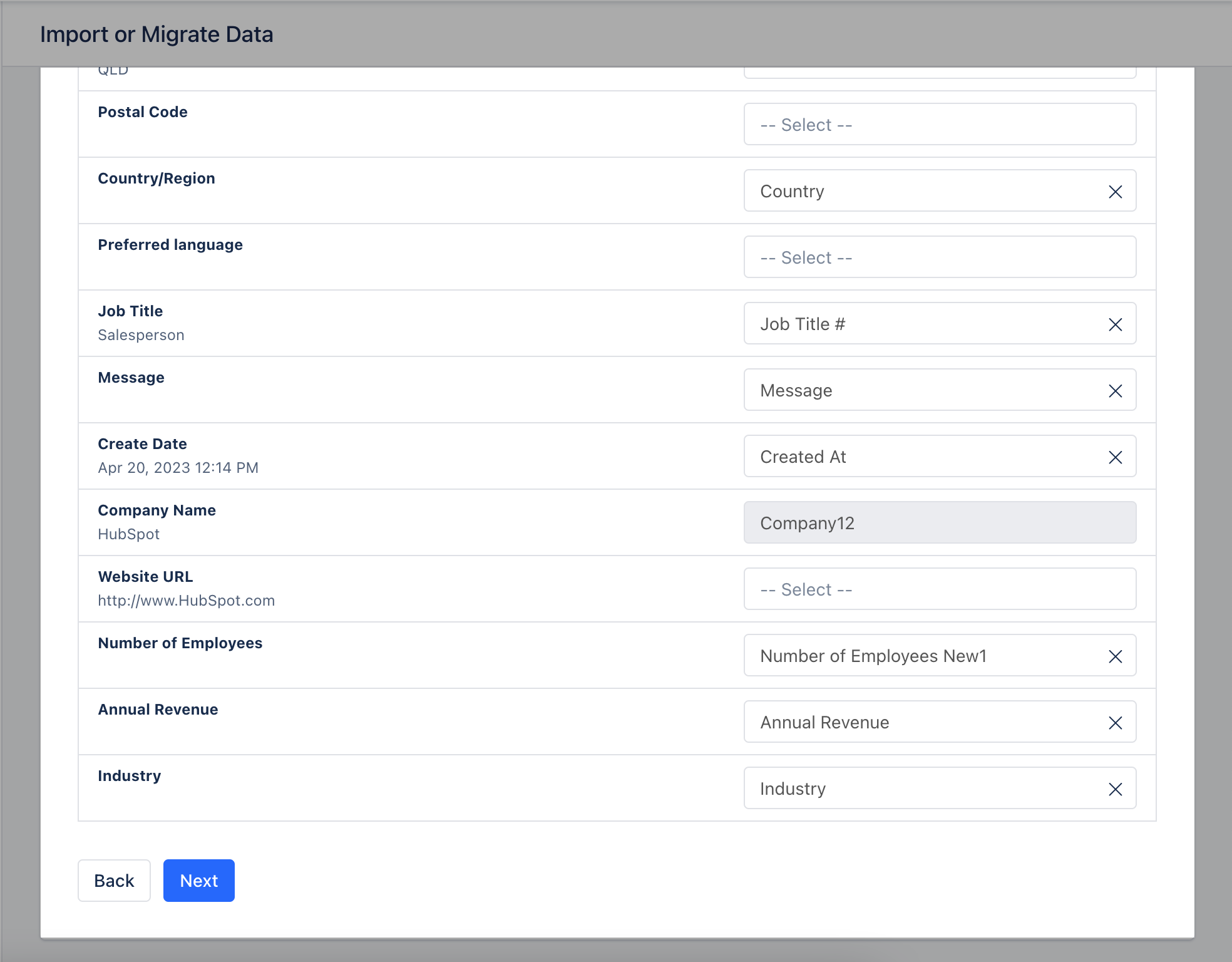 * **If any HubSpot field does not exist in the system, then you can directly create it by clicking “Create New Field” at the bottom of the** Select Field and a popup will open with the field name and data type pre-filled into it.
 * **If fields are mapped with different data types, a** warning icon will be displayed with the message as you hover on it.
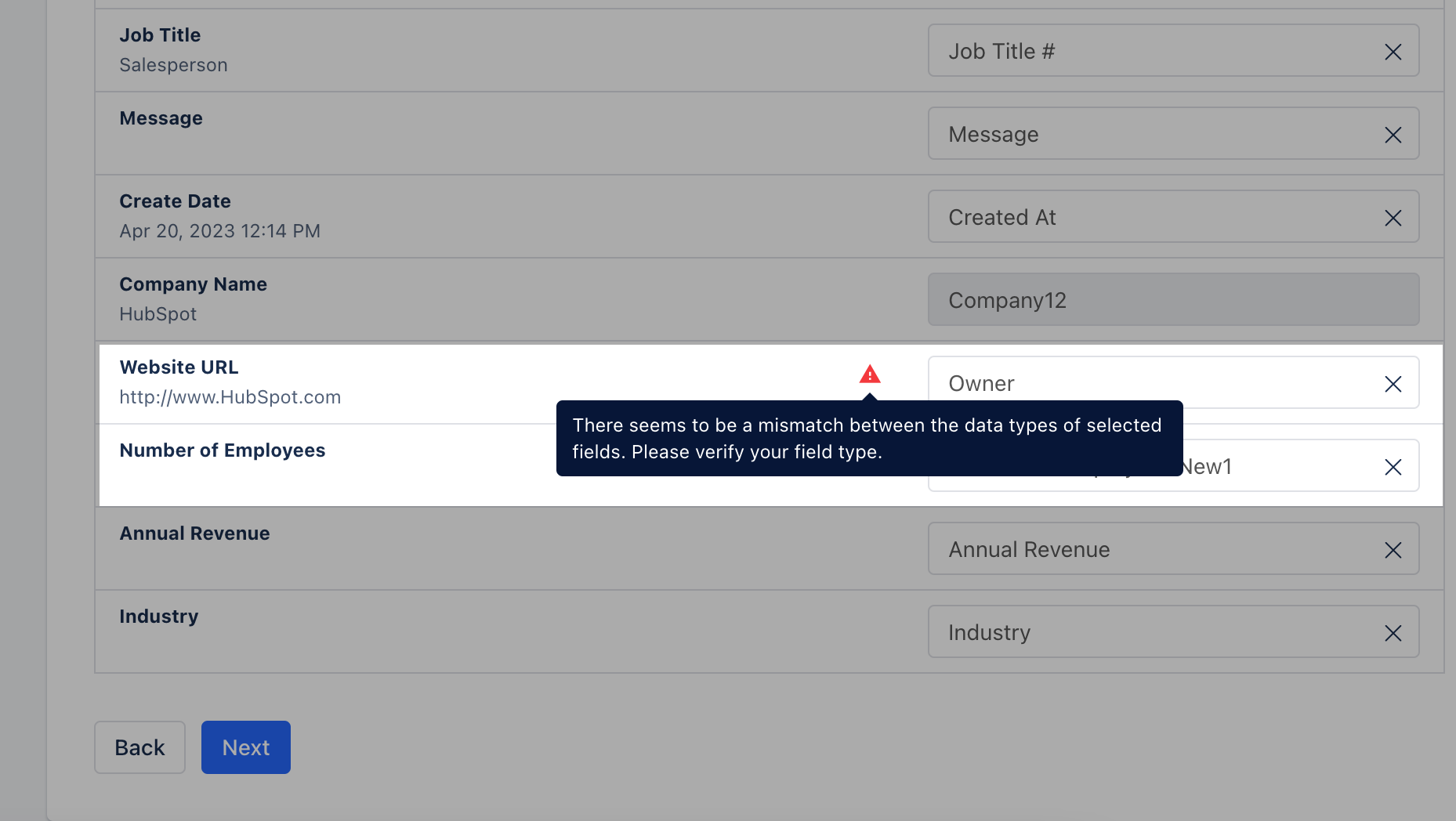 * If the fields are not mapped correctly the below error would pop up on the screen.
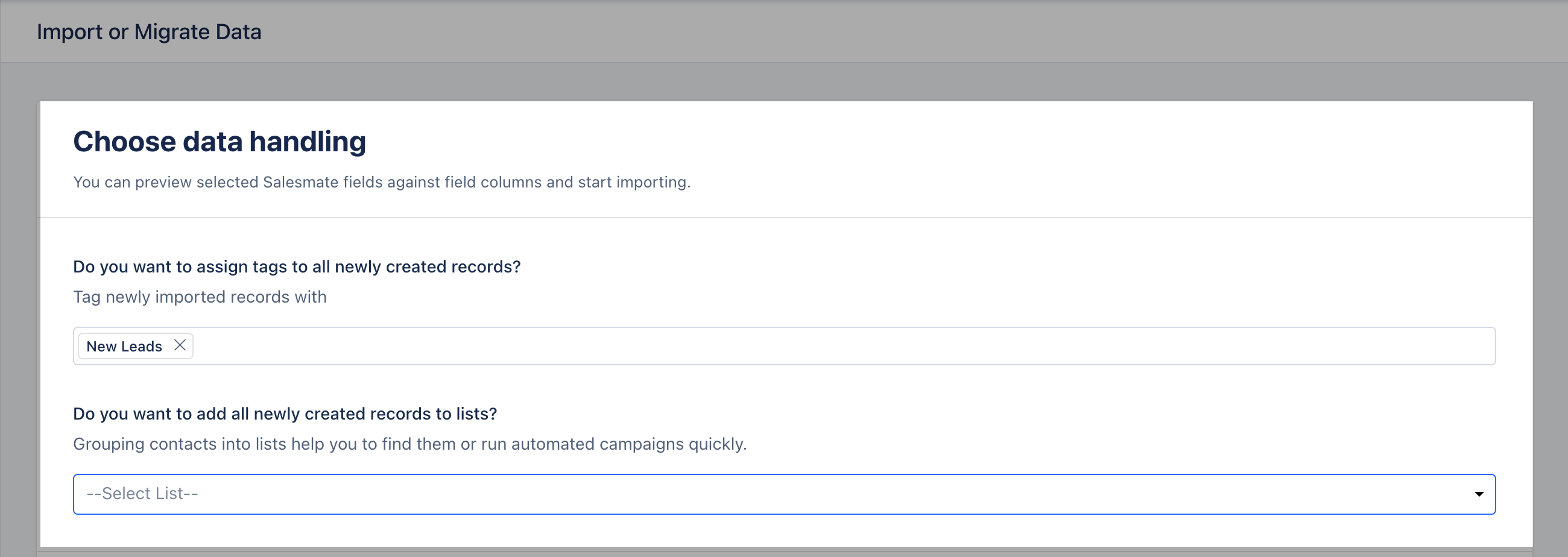
 * On the Next screen, you can assign an Owner
* you could assign a Tag to the newly created records or add them to the list in Salesmate which will help you to track the records.
* On the Next screen, you can assign an Owner
* you could assign a Tag to the newly created records or add them to the list in Salesmate which will help you to track the records.
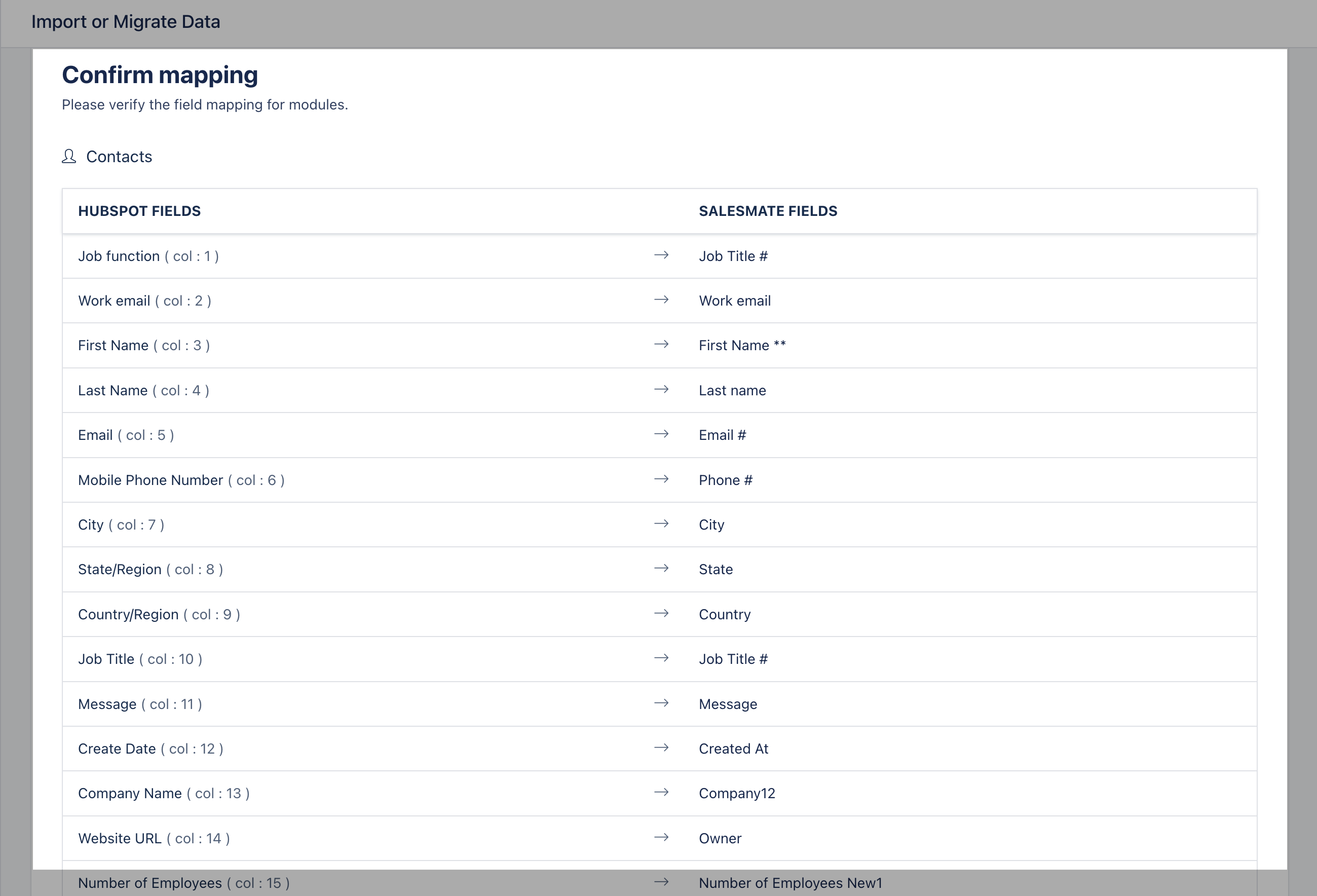
 * **You will be able to** Preview the import and start the import.
* Preview of mapping columns by the module.
* **You will be able to** Preview the import and start the import.
* Preview of mapping columns by the module.
 * You could assign a Tag to the newly created records or add them to the list in Salesmate which will help you to track the records.
* By clicking on the I have verified, start the import will start the import process.
* You could assign a Tag to the newly created records or add them to the list in Salesmate which will help you to track the records.
* By clicking on the I have verified, start the import will start the import process.
 **Note:** Two simultaneous imports are not allowed in a single link to manage data concurrency. So if you have scheduled one import, you or any other user from your link has to wait until the import/revert finishes.
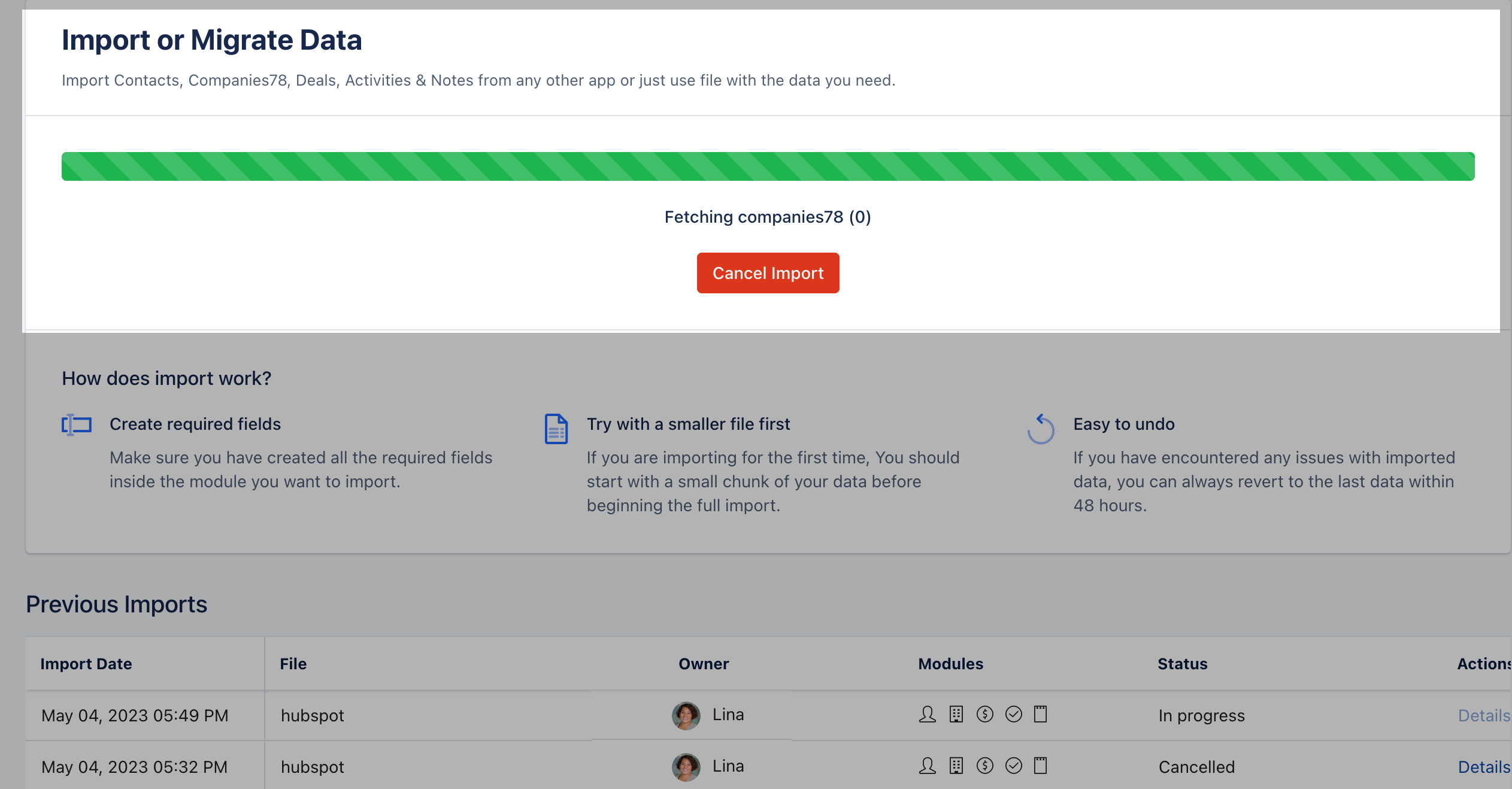
* Now, you can view the import progress on this page.
**Note:** Two simultaneous imports are not allowed in a single link to manage data concurrency. So if you have scheduled one import, you or any other user from your link has to wait until the import/revert finishes.
* Now, you can view the import progress on this page.
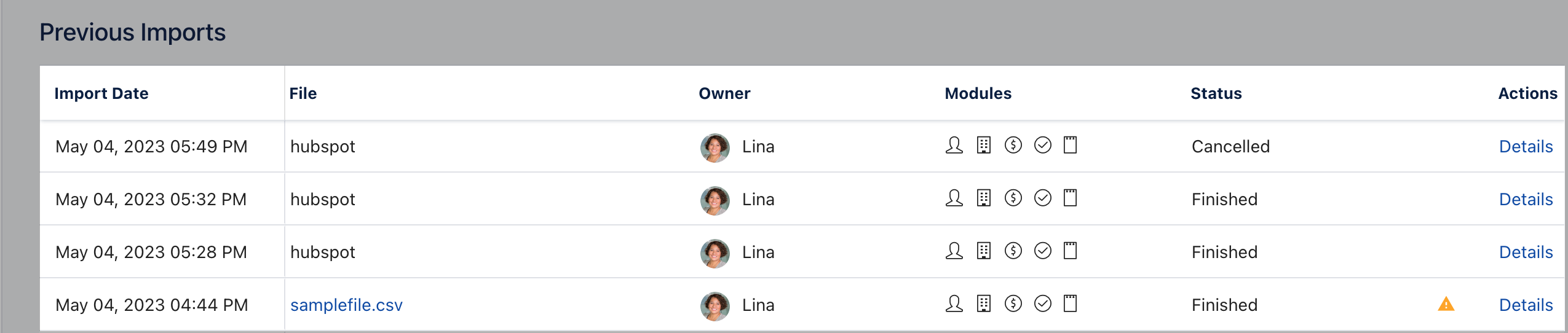
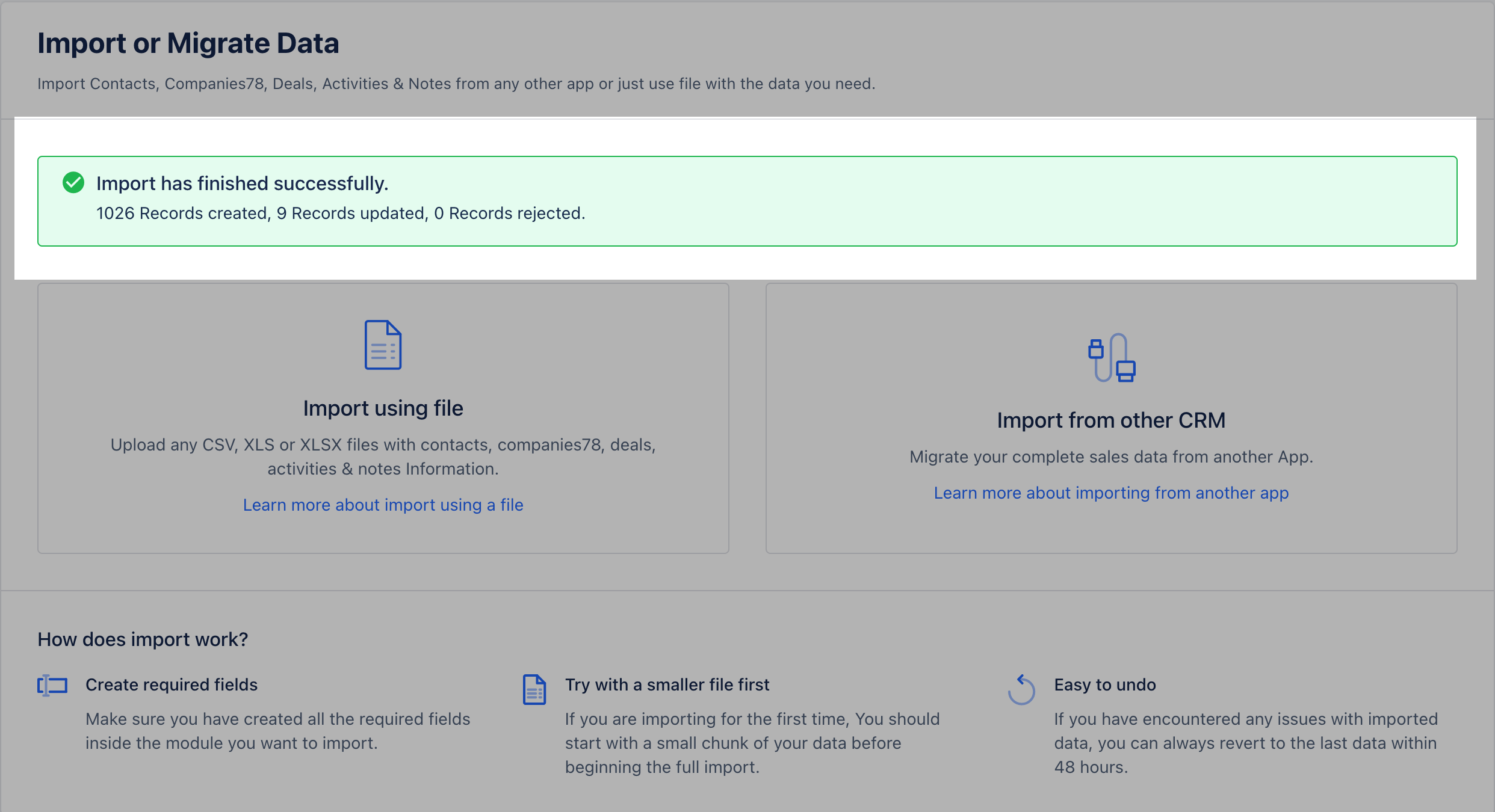
 * **Once Imported, the details of the Import will be visible for your reference under "** Details "
 * \*Previous Import:\*\*\*\*Import Date \*\*- Gives you the status of the day the file was imported
* **File **- It helps you identify if the records were imported through a** CRM **system or** Excel **/** CSV** Files
* **Owner:** This will show the details of the User that imported the records
* **Module **- The icons help you identify the** module** in which the records that were imported
* **Actions **- With Actions, you check the** details **of the import or** Revert** the import which is available up to 48 hours after the import is completed.
* \*Previous Import:\*\*\*\*Import Date \*\*- Gives you the status of the day the file was imported
* **File **- It helps you identify if the records were imported through a** CRM **system or** Excel **/** CSV** Files
* **Owner:** This will show the details of the User that imported the records
* **Module **- The icons help you identify the** module** in which the records that were imported
* **Actions **- With Actions, you check the** details **of the import or** Revert** the import which is available up to 48 hours after the import is completed.