> ## Documentation Index
> Fetch the complete documentation index at: https://support.getskara.ai/llms.txt
> Use this file to discover all available pages before exploring further.
# Import data from Pipedrive CRM
If you are migrating from another CRM to Salesmate. We have eased this transition by providing you with an easy, click-to-go Import feature.
It allows you to import data from another CRM directly.
Not just contacts or companies, we allow you to import your **Deals, Activities, and Notes** too. Making it a quick migration for your Sales teams to get accustomed to a new system.
* **Supported CRMs:** Pipedrive
* [HubSpot](https://support.salesmate.io/hc/en-us/articles/18151400752409)
* \*\*Others will be added soon. Please reach support with your requirement.
* \*\* Pre-requisite for Pipedrive import #
### Please keep below the pre-requisite list in mind before importing data from Pipedrive.
* Create all the users that are present in Pipedrive (active or inactive) in Salesmate.
* Create all the pipelines & stages present in Pipedrive in Salesmate.
# Please follow the below steps to import your data from Pipedrive:
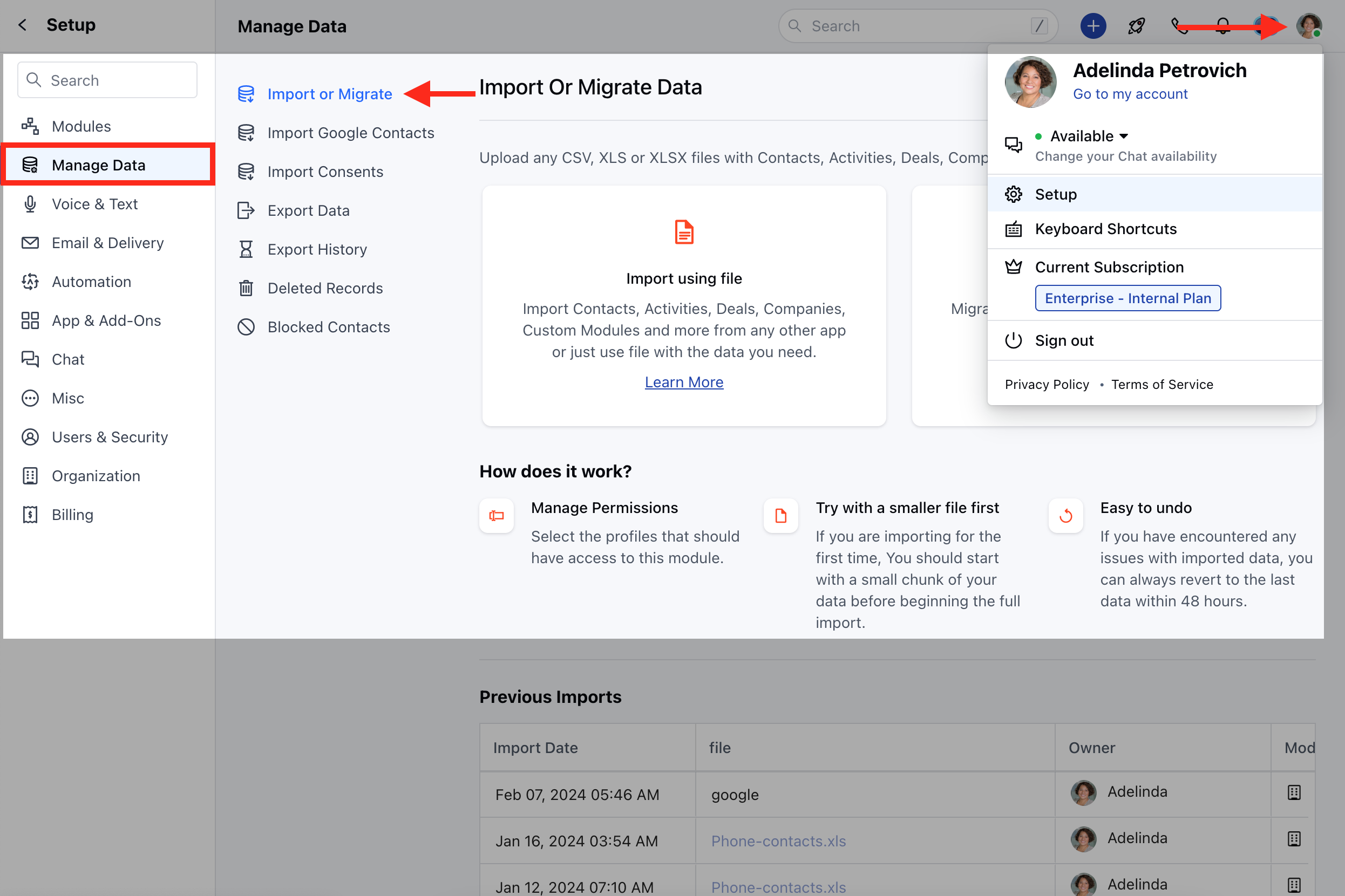
* **Navigate to the** Profile Icon at the top right corner
* **Click on** Setup
* Head over to the \*\*Manage \*\*Data \*\* category
* **Select** Import Or Migrate
 * **Select** Import from other CRM
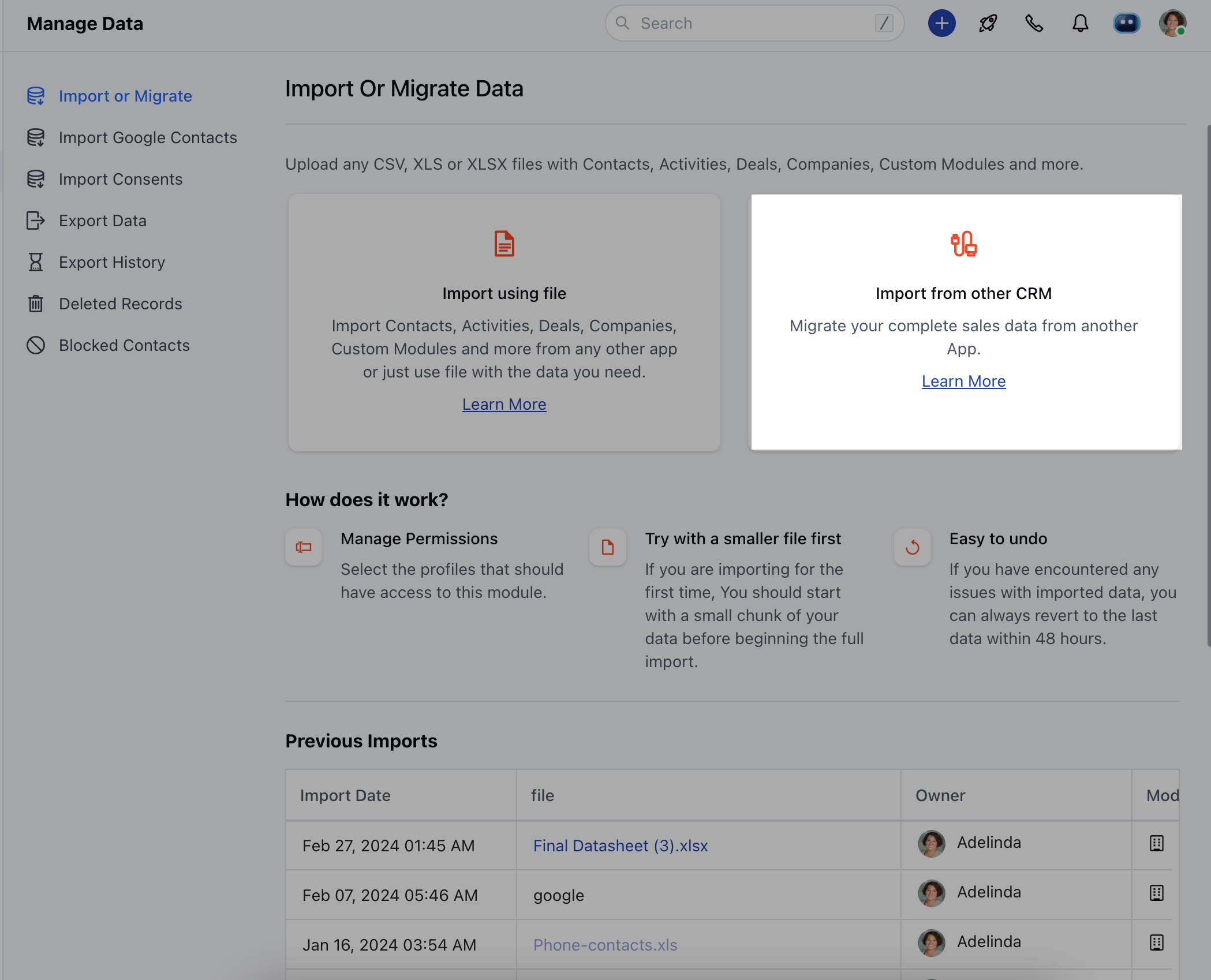 * **Now on the next screen, select** Pipedrive .
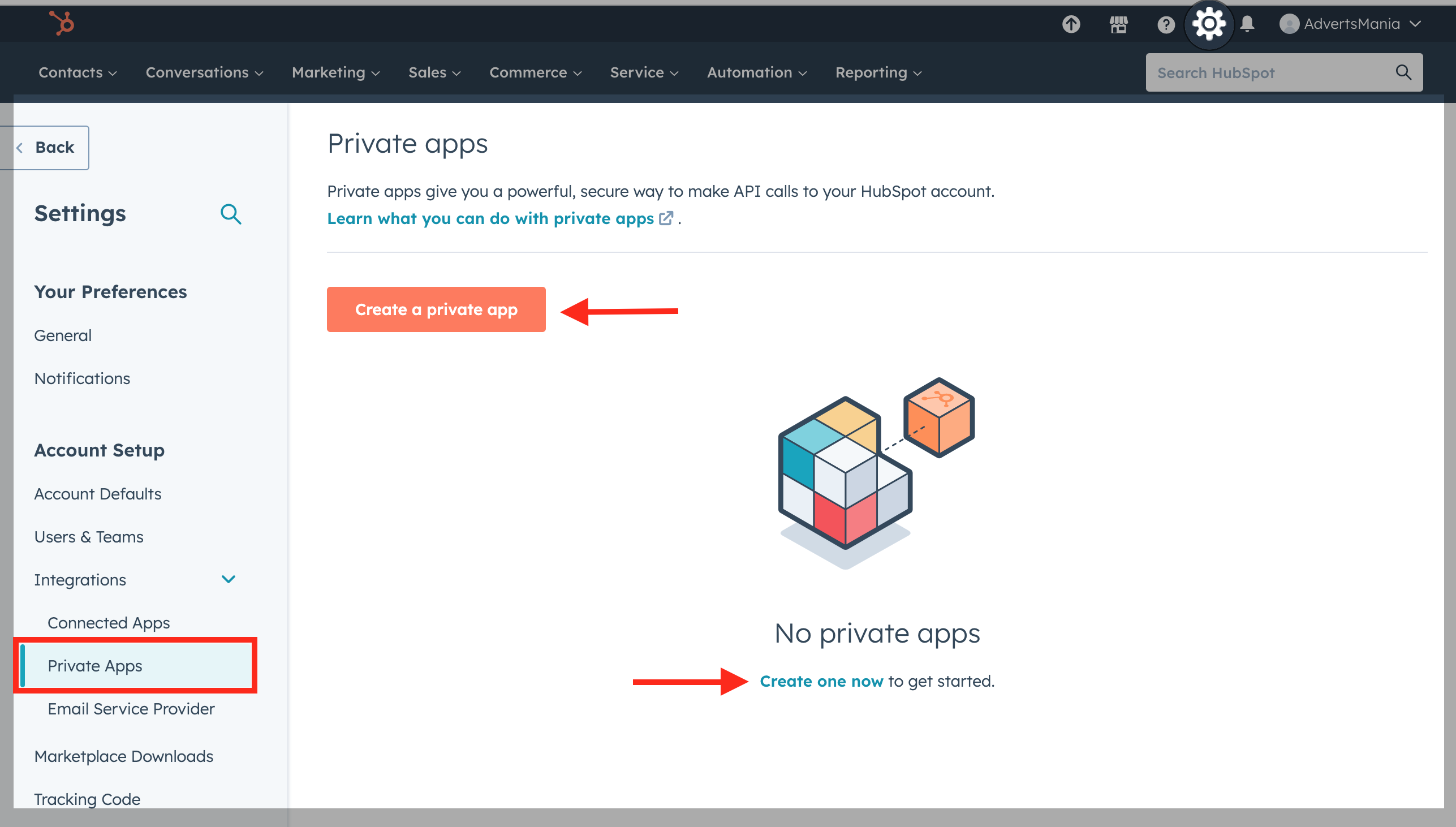 * You will be redirected to the below screen after you select Pipedrive where you need to add the API key of your Pipedrive account into Salesmate.
* **The** API Key should be available under
* Profile icon \* Personal Preferences
* API [(How to find Pipedrive API Keys)](https://support.pipedrive.com/hc/en-us/articles/207344545-How-can-I-find-my-personal-API-key-) \* Your API token - COPY
* You will be redirected to the below screen after you select Pipedrive where you need to add the API key of your Pipedrive account into Salesmate.
* **The** API Key should be available under
* Profile icon \* Personal Preferences
* API [(How to find Pipedrive API Keys)](https://support.pipedrive.com/hc/en-us/articles/207344545-How-can-I-find-my-personal-API-key-) \* Your API token - COPY
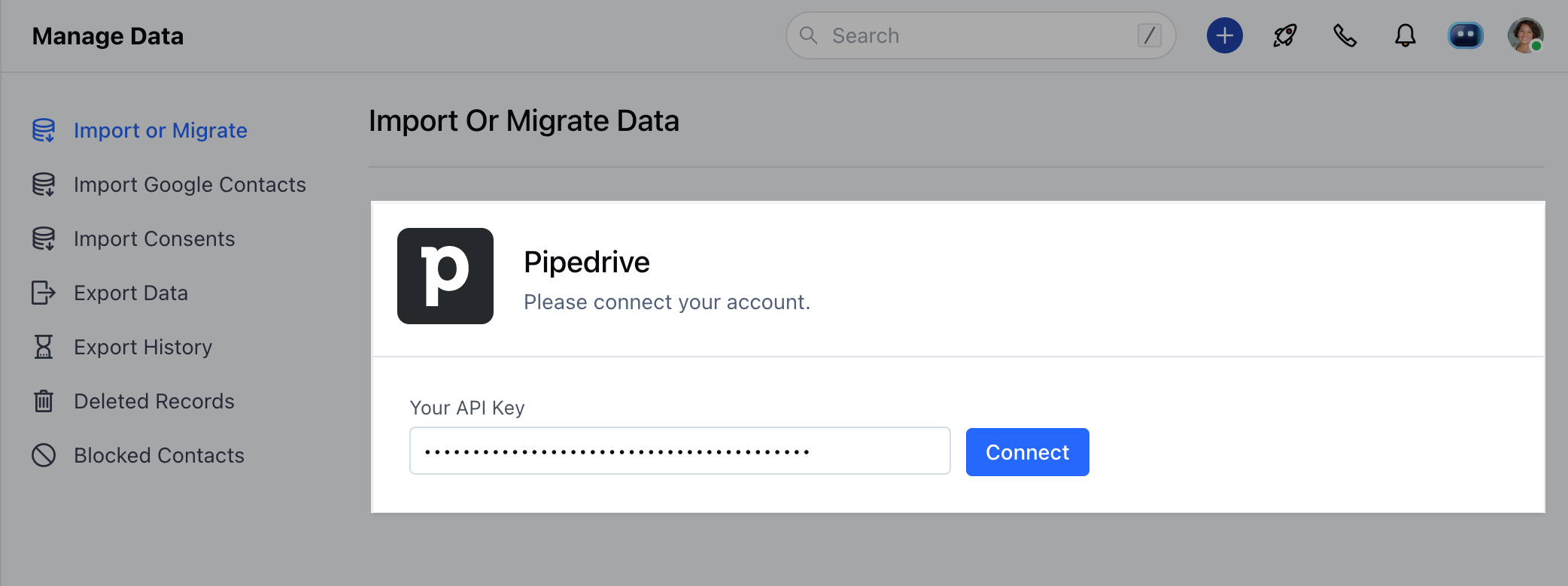 * Once you click on Connect, it will redirect you to the module selection page where you can select the modules you want to import
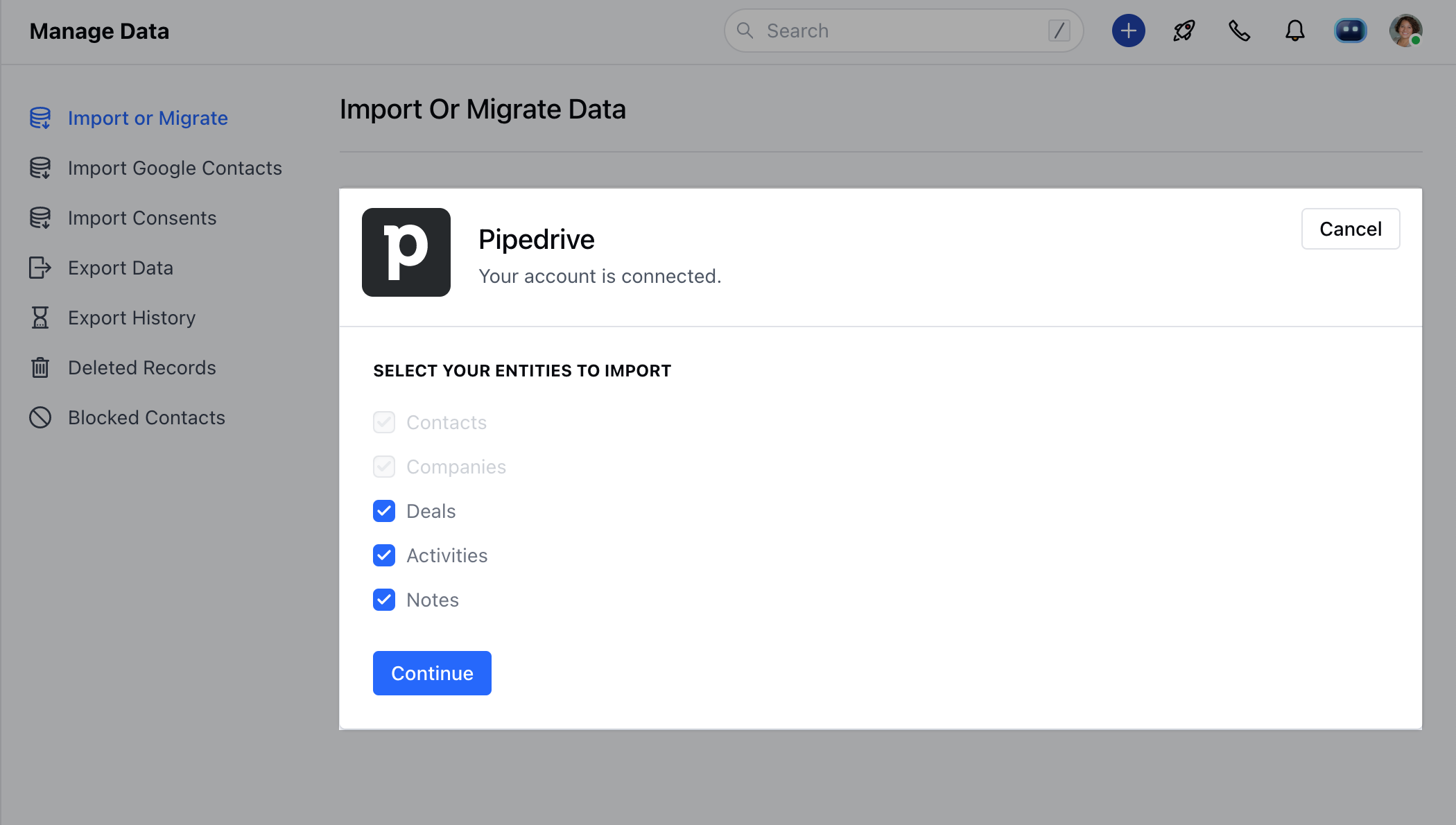 * **Here, you can select the** modules from which you would like to migrate the data
* After selecting modules, you will be redirected to the field mapping screen
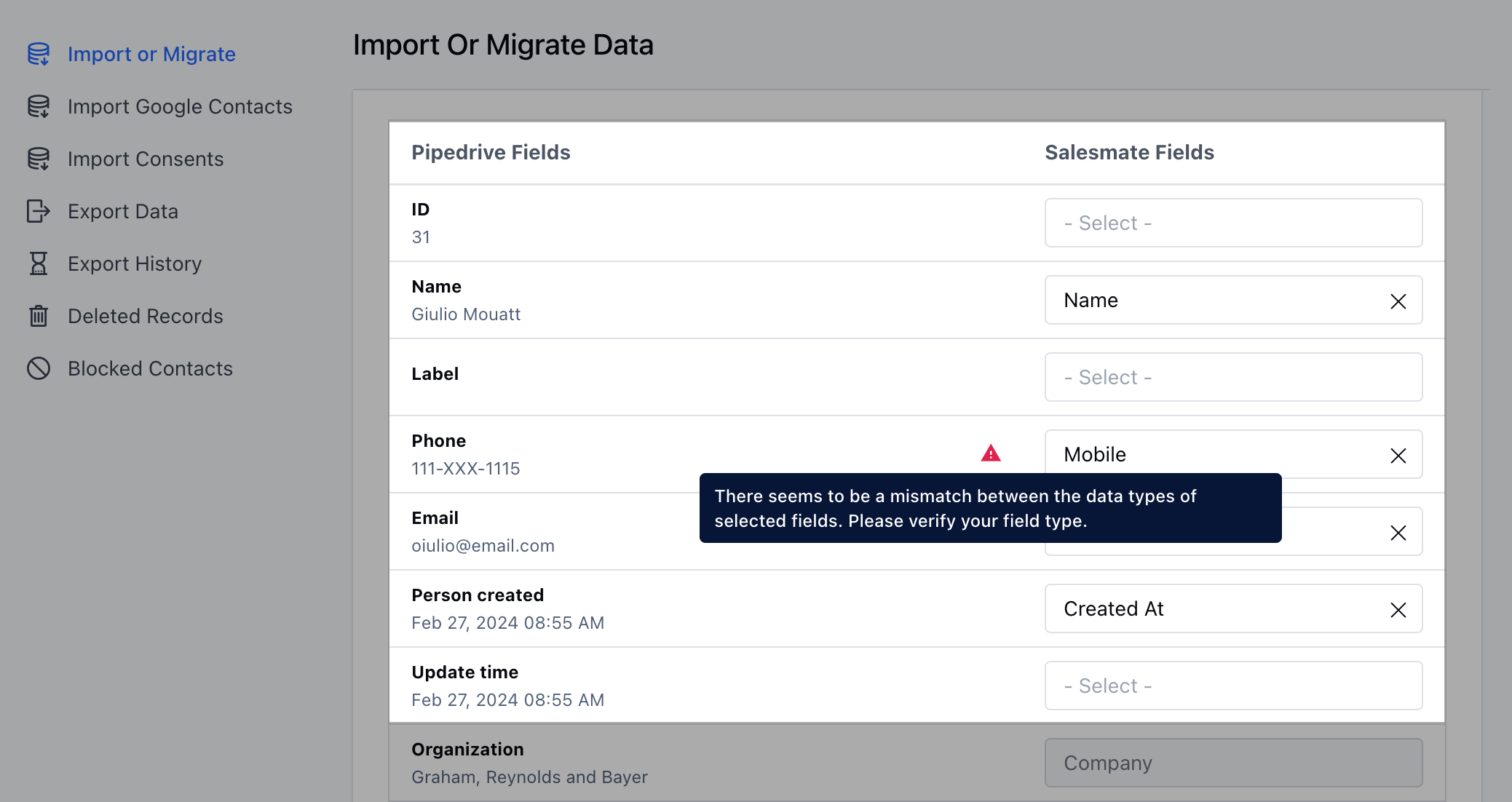
* Now, you can map the Pipedrive fields to the Salesmate fields.
* Map the Pipedrive fields of all the selected modules to Salesmate.
* You can check the First record from the Pipedrive under each field. It can help you to map the correct fields.
* **Here, you can select the** modules from which you would like to migrate the data
* After selecting modules, you will be redirected to the field mapping screen
* Now, you can map the Pipedrive fields to the Salesmate fields.
* Map the Pipedrive fields of all the selected modules to Salesmate.
* You can check the First record from the Pipedrive under each field. It can help you to map the correct fields.
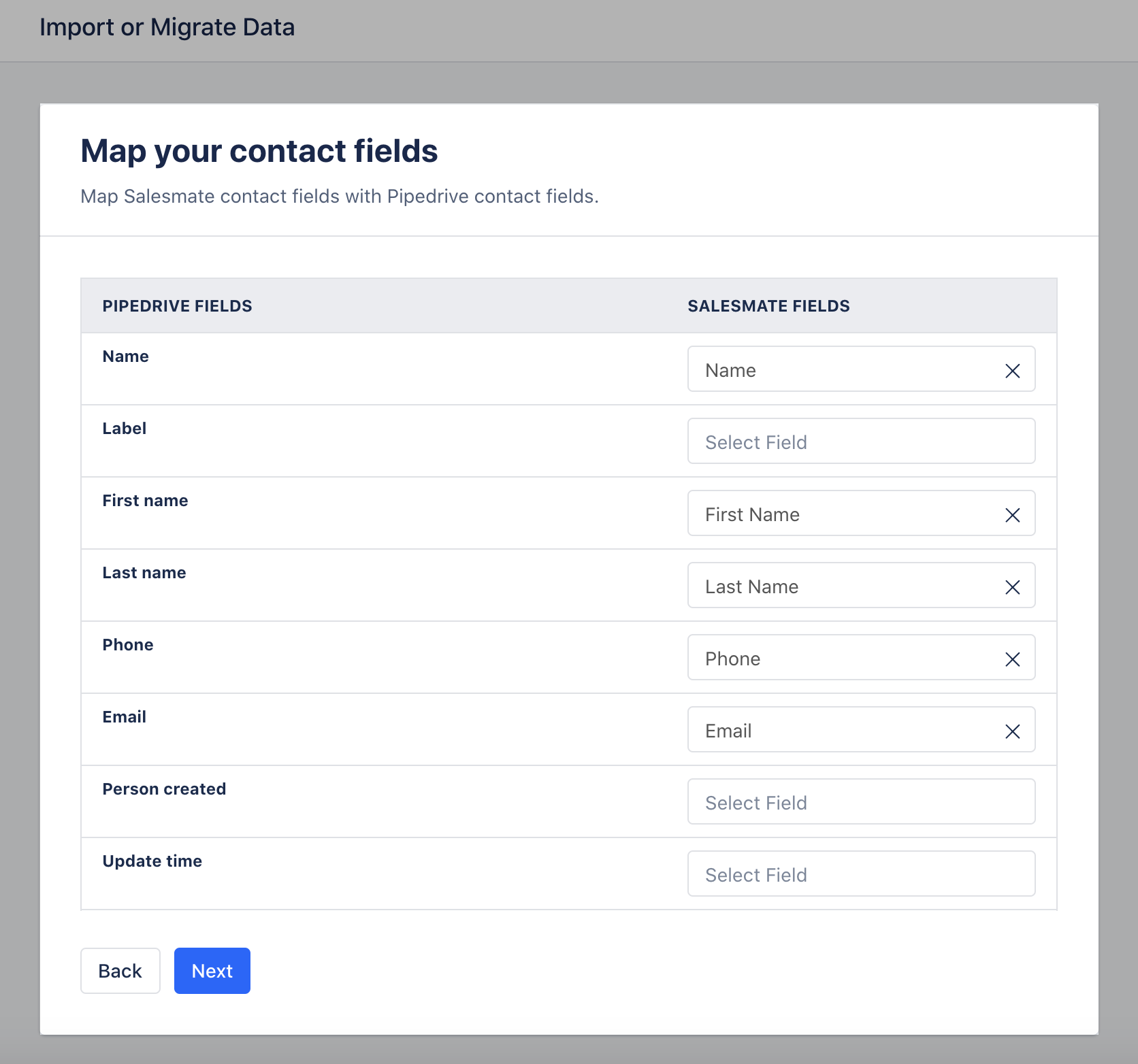 * If any Pipedrive field does not exist in the system, then you can directly create it by clicking “Create New Field” at the bottom of the popper and a popup will open with the field name and data type pre-filled into it.
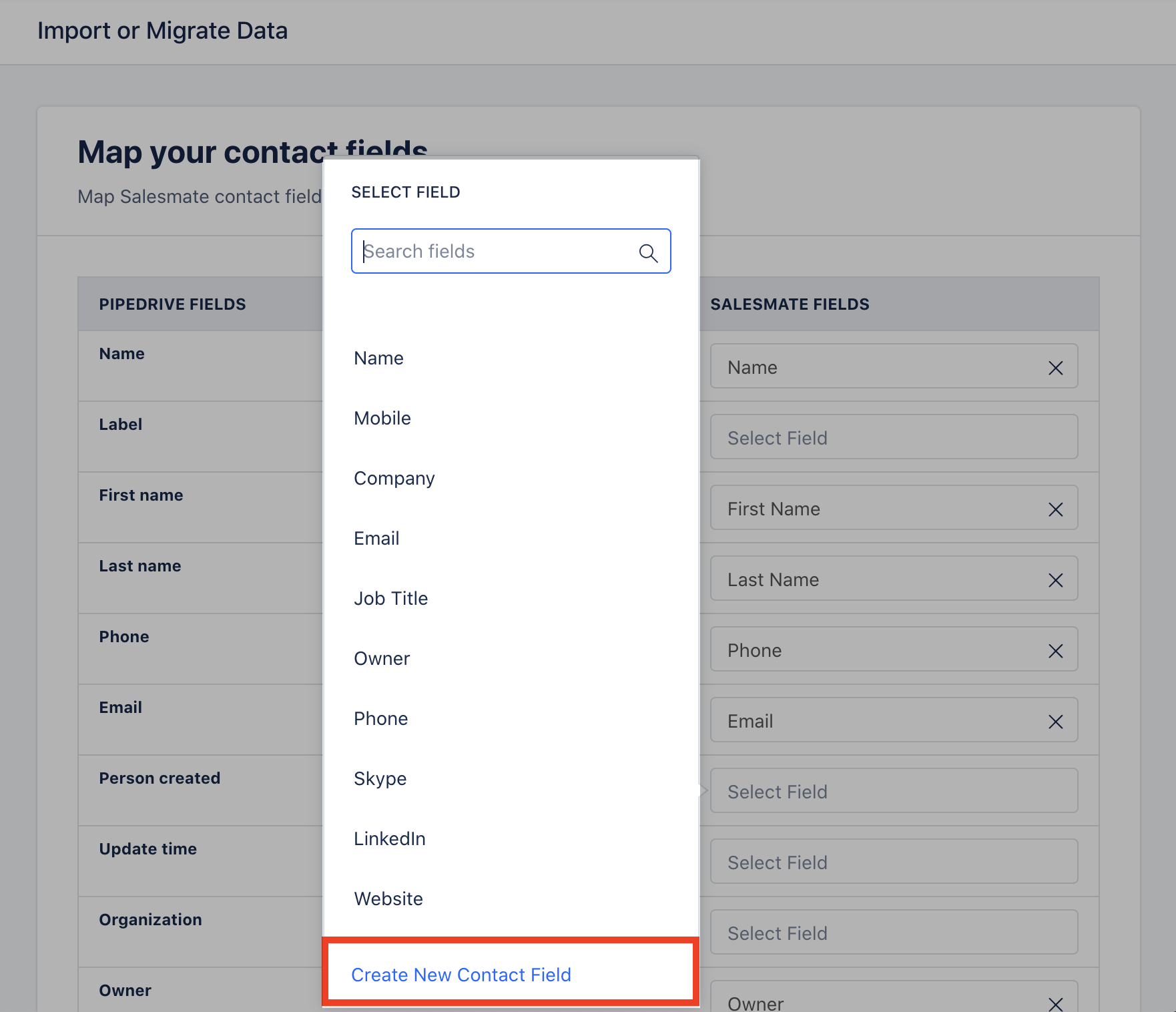 * **Click on "** Create New Contact Field ".
* [Learn More](https://support.salesmate.io/hc/en-us/articles/360041831032-How-to-Create-Custom-fields)
* **If fields are mapped with different data, a** warning icon will be displayed and a tool tip when hovering over it.
* **Click on "** Create New Contact Field ".
* [Learn More](https://support.salesmate.io/hc/en-us/articles/360041831032-How-to-Create-Custom-fields)
* **If fields are mapped with different data, a** warning icon will be displayed and a tool tip when hovering over it.
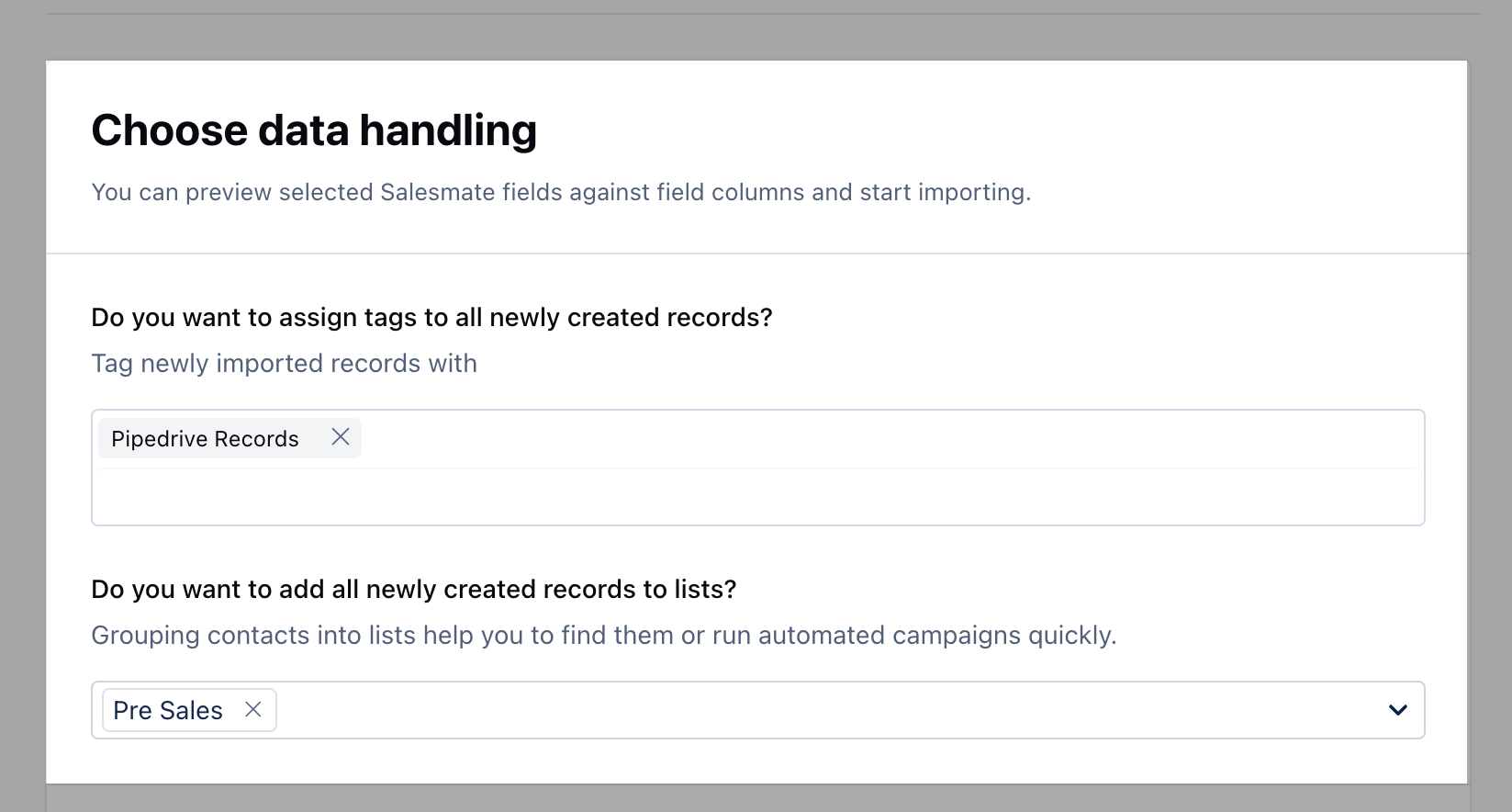
 * On the Next screen, you can assign the Owner.
* Add Tags, and Add the newly created records to the List in Salesmate which will help you to track the records.
* On the Next screen, you can assign the Owner.
* Add Tags, and Add the newly created records to the List in Salesmate which will help you to track the records.
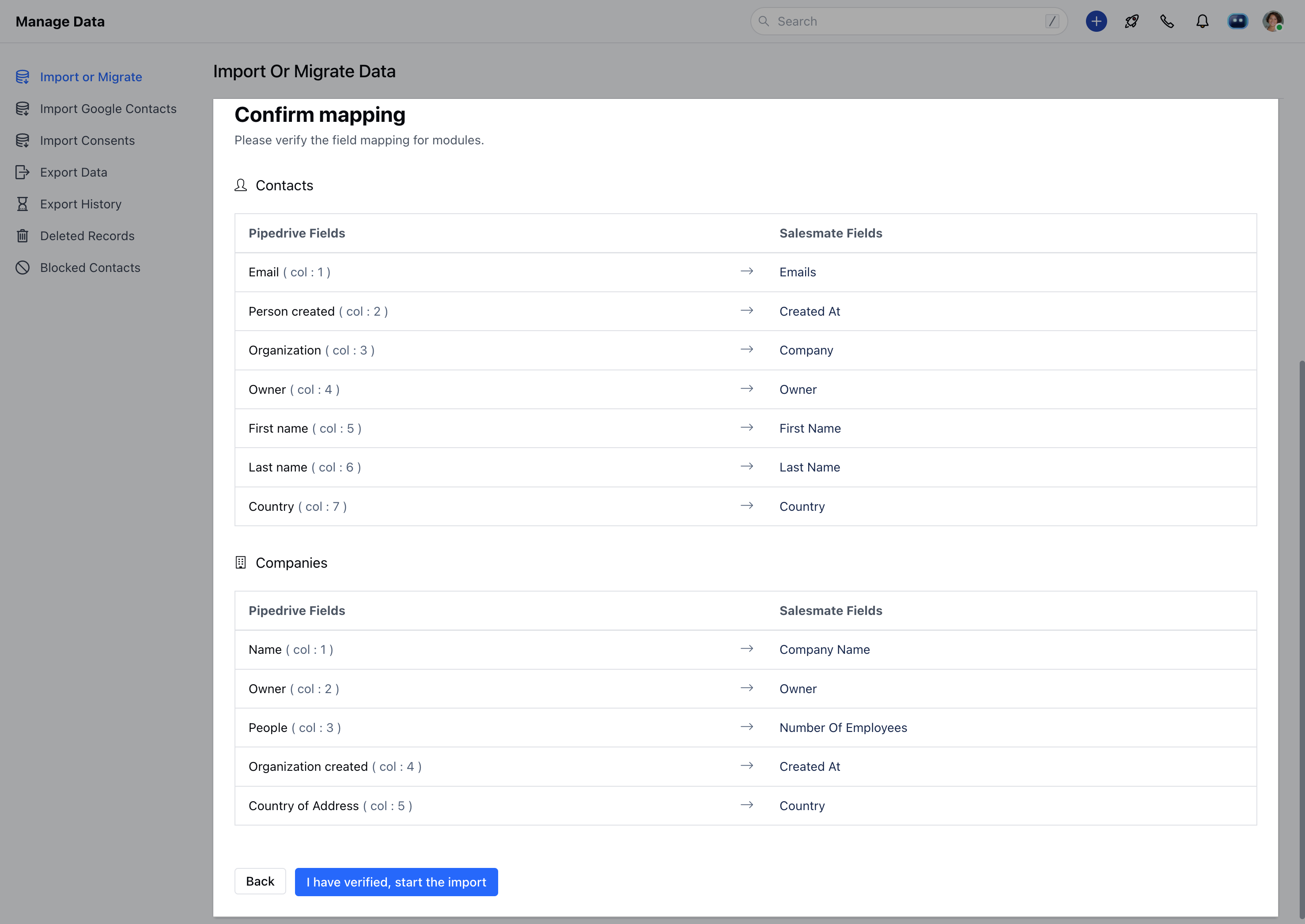
 * **You will be able to** preview the import and start the import
* Preview of mapping columns by the module.
* By clicking on the I have verified, start the import will start the import process.
* **You will be able to** preview the import and start the import
* Preview of mapping columns by the module.
* By clicking on the I have verified, start the import will start the import process.
 **Note:** Two simultaneous imports are not allowed in a single link to manage data concurrency. So if you have scheduled one import, you or any other user from your link has to wait until the import/revert finishes.
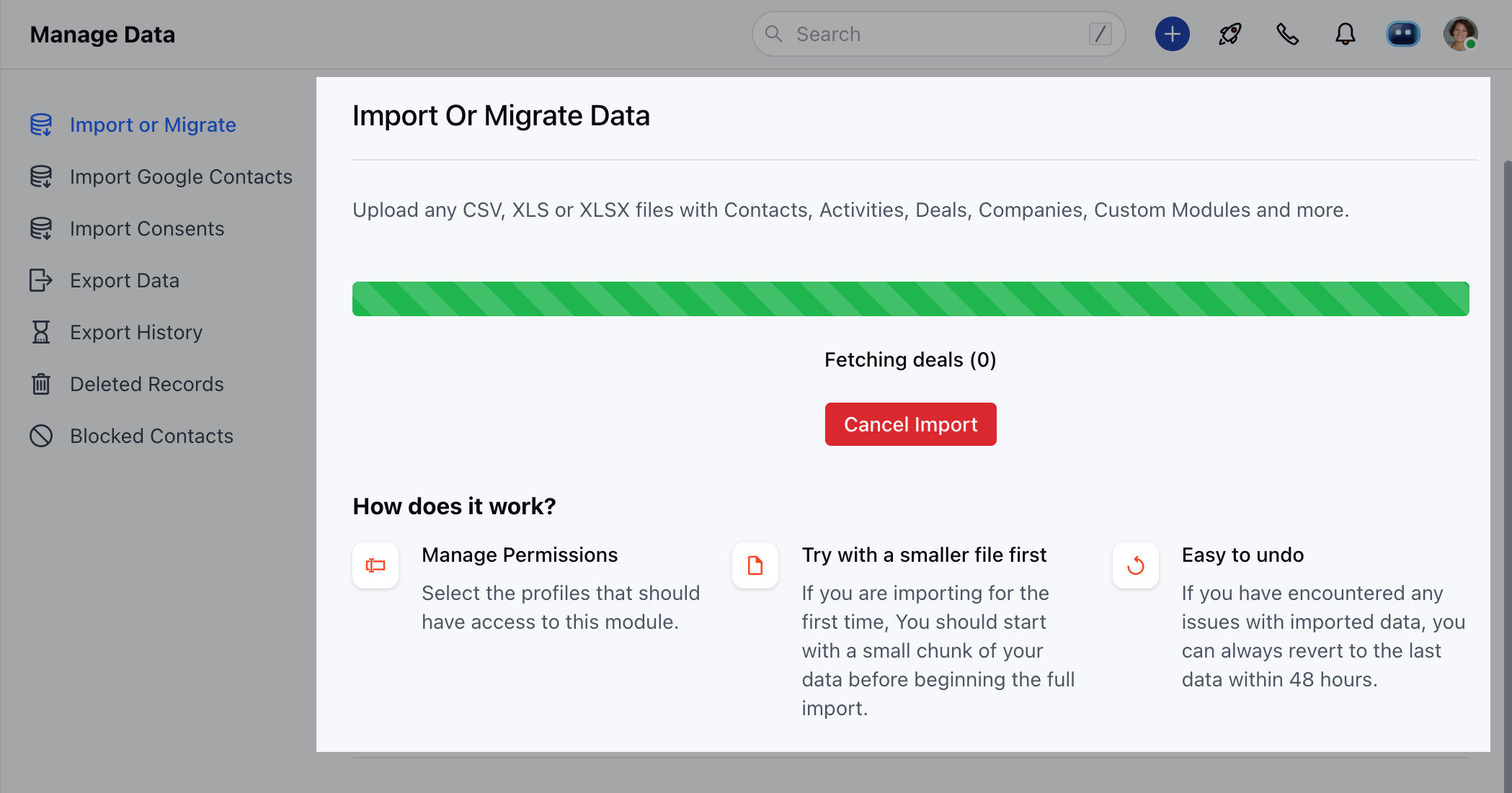
* Now, you can view the import progress on this page.
**Note:** Two simultaneous imports are not allowed in a single link to manage data concurrency. So if you have scheduled one import, you or any other user from your link has to wait until the import/revert finishes.
* Now, you can view the import progress on this page.
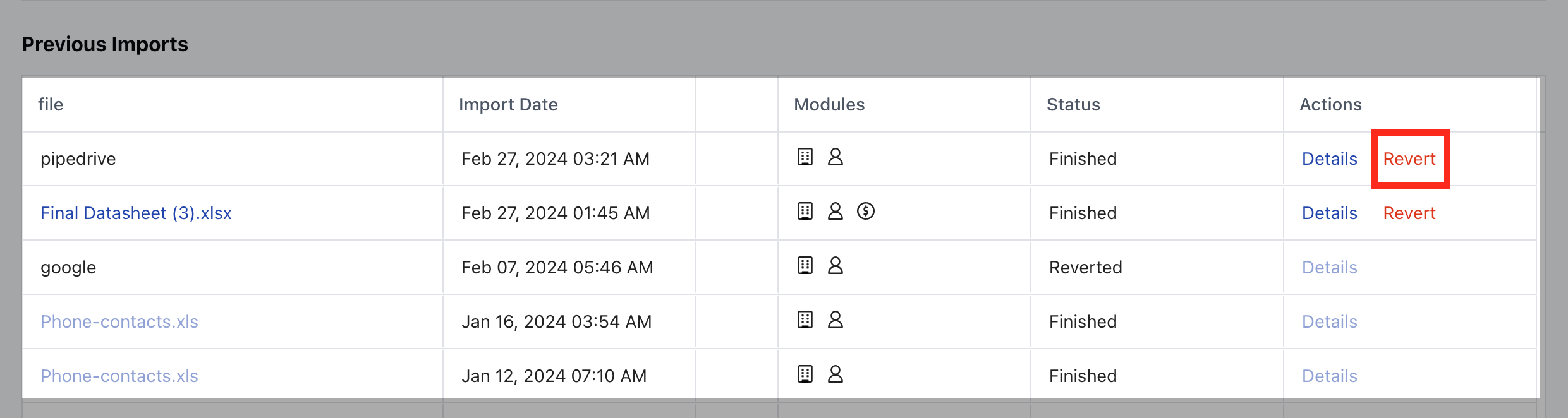
 * **Once Imported, the details of the Import will be visible for your reference under "** Details "
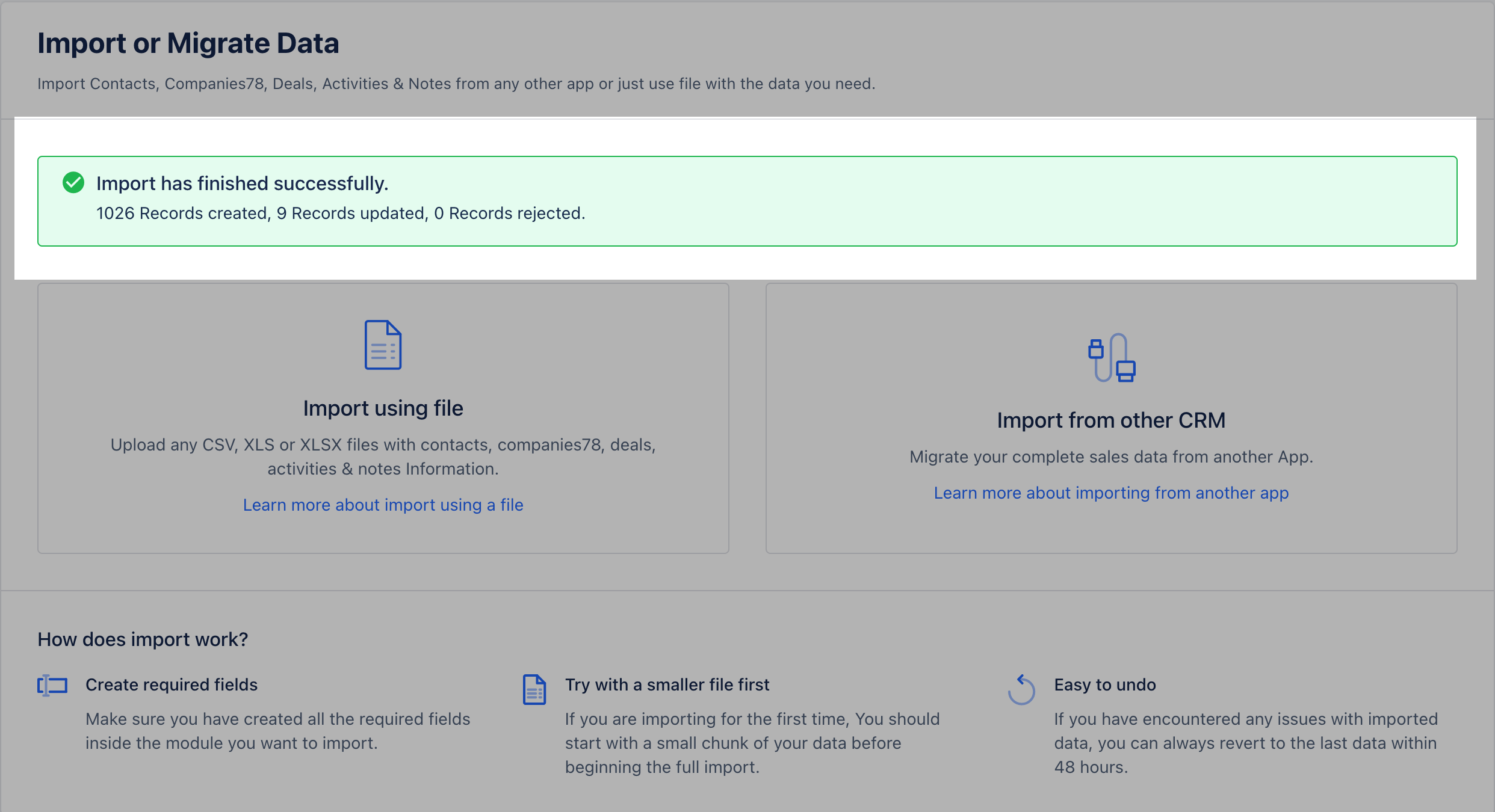 * \*Previous Import:\***Import Date:** Gives you the status of the day the file was imported
* **File:**It helps you identify if the records were imported through a** CRM **system or** Excel **/** CSV** Files
- Owner: The User that imported the Records
* \*\*Module:**The icons help you identify the** module \*\* in which the records that were imported
* ***Actions:*** With Actions, you check the **details** of the import
* \*Previous Import:\***Import Date:** Gives you the status of the day the file was imported
* **File:**It helps you identify if the records were imported through a** CRM **system or** Excel **/** CSV** Files
- Owner: The User that imported the Records
* \*\*Module:**The icons help you identify the** module \*\* in which the records that were imported
* ***Actions:*** With Actions, you check the **details** of the import
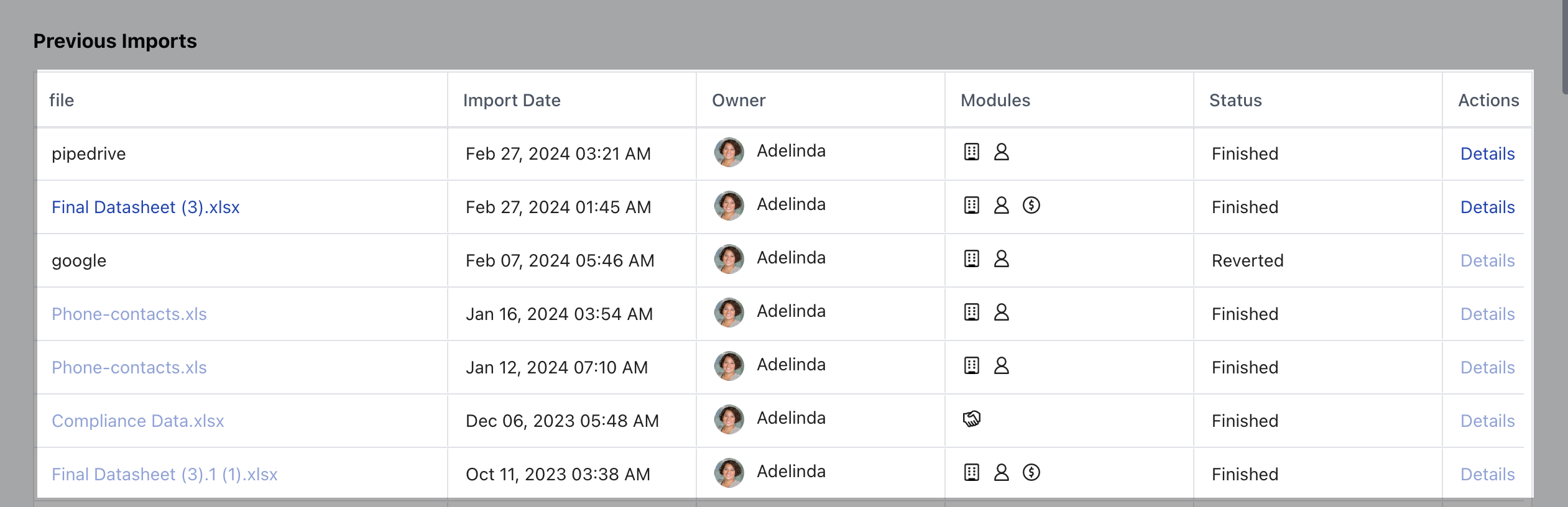 * \*\*Revert \*\* the import which is available up to 48 hours after the import is completed.