> ## Documentation Index
> Fetch the complete documentation index at: https://support.getskara.ai/llms.txt
> Use this file to discover all available pages before exploring further.
# Create and Organize Knowledge Base
Creating a knowledge base is essential to organizing and managing articles efficiently for internal or external users. By setting up a knowledge base, you can customize the appearance, organize articles by categories, and set up multi-lingual support.
### **Topics covered:**
* [Steps to Set Up Knowledge Base](#steps-to-set-up-knowledge-base)
* [Adding a Second Knowledge Base](#adding-a-second-knowledge-base)
### Steps to Set Up Knowledge Base
* Navigate to **Setup** from the profile icon
* Click on **Library** Select **Knowledge Base**
 * If there is no knowledge base created, you will land on the knowledge base’s landing page.
* If there’s an existing knowledge base, [follow the steps](https://support.salesmate.io/hc/en-us/articles/44523545166489-Create-and-Organize-Knowledge-Base#h_01JS2WM3HA96GPCSD27879JF1P) to proceed further.
### Create Knowledge Base
* **Click on the “** Setup Knowledge Base ” button.
* Enter Details in the Knowledge Base Creation Wizard **Knowledge Base Title:** Enter a unique name for the knowledge base visible within the system and to external visitors.
* **Brand:** Select a brand associated with the knowledge base. The style, theme, and colors will be copied from the brand guide.
* **Primary Language:** Select the primary/default language for the knowledge base. Default: English.
* **Favicon:** Upload an optional favicon for the knowledge base. The favicon will be displayed when the knowledge base URL is shared.
* **Internationalization:** If you want to support multiple languages, enable internationalization and add the languages you plan to support. This will allow article translations in the selected languages.
* Once you've entered the details, click the **Next** button to move to the next step.
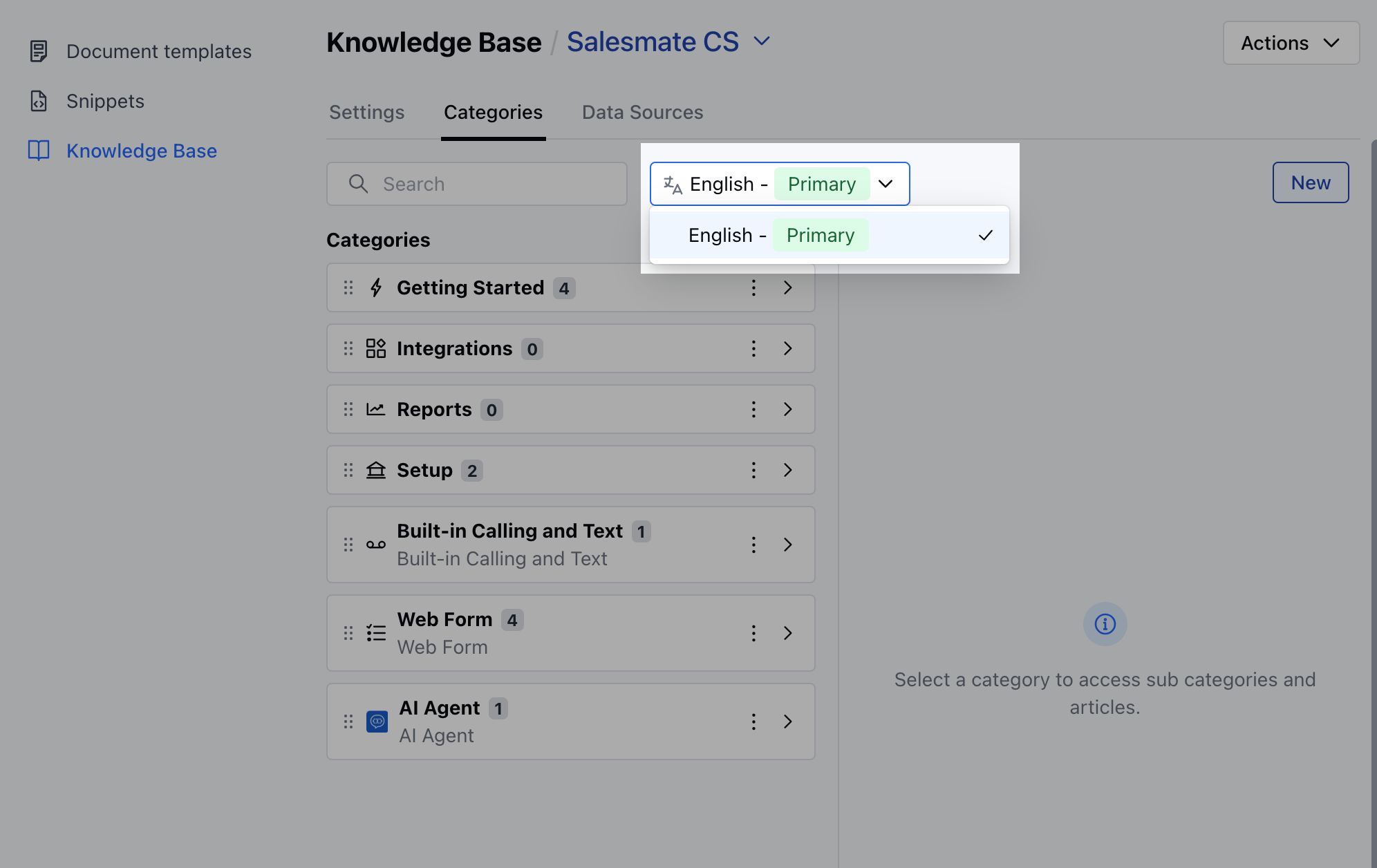
* **Organize Articles with Categories**: You can organize your articles using predefined categories like **Getting Started, FAQs, Troubleshooting, General**, and others. Categories are displayed in the selected primary language, and their translated labels will be automatically created for added languages.
* Click on the **Save** button to create the knowledge base. On success, an alert message will appear: “Your knowledge base is ready. Start adding your articles!
* The knowledge base will be created with a default layout and colors. You can customize it further in the knowledge base settings.
* **After the knowledge base is set up, click the “** Create Your First Article ” button to start adding articles.
* If there is no knowledge base created, you will land on the knowledge base’s landing page.
* If there’s an existing knowledge base, [follow the steps](https://support.salesmate.io/hc/en-us/articles/44523545166489-Create-and-Organize-Knowledge-Base#h_01JS2WM3HA96GPCSD27879JF1P) to proceed further.
### Create Knowledge Base
* **Click on the “** Setup Knowledge Base ” button.
* Enter Details in the Knowledge Base Creation Wizard **Knowledge Base Title:** Enter a unique name for the knowledge base visible within the system and to external visitors.
* **Brand:** Select a brand associated with the knowledge base. The style, theme, and colors will be copied from the brand guide.
* **Primary Language:** Select the primary/default language for the knowledge base. Default: English.
* **Favicon:** Upload an optional favicon for the knowledge base. The favicon will be displayed when the knowledge base URL is shared.
* **Internationalization:** If you want to support multiple languages, enable internationalization and add the languages you plan to support. This will allow article translations in the selected languages.
* Once you've entered the details, click the **Next** button to move to the next step.
* **Organize Articles with Categories**: You can organize your articles using predefined categories like **Getting Started, FAQs, Troubleshooting, General**, and others. Categories are displayed in the selected primary language, and their translated labels will be automatically created for added languages.
* Click on the **Save** button to create the knowledge base. On success, an alert message will appear: “Your knowledge base is ready. Start adding your articles!
* The knowledge base will be created with a default layout and colors. You can customize it further in the knowledge base settings.
* **After the knowledge base is set up, click the “** Create Your First Article ” button to start adding articles.
 **Note:** You need to **manage Knowledge Base** permissions to do this. If you don’t have it, the button will be disabled and show a message: “You don’t have permission to perform this action. Please contact your admin." [Learn more](https://support.salesmate.io/hc/en-us/articles/44391129991449)
### Adding a Second Knowledge Base
* From the Article Listing Screen - Click on the **Knowledge Base Title** at the top and then select **Add New Knowledge Base**.
* From the Setup Screen
* Go to **Setup**
* Click on **Library**
* Select **Knowledge Base**
* Click on the **Knowledge Base Title dropdown** and select **Add New Knowledge Base**.
**Note:** You need to **manage Knowledge Base** permissions to do this. If you don’t have it, the button will be disabled and show a message: “You don’t have permission to perform this action. Please contact your admin." [Learn more](https://support.salesmate.io/hc/en-us/articles/44391129991449)
### Adding a Second Knowledge Base
* From the Article Listing Screen - Click on the **Knowledge Base Title** at the top and then select **Add New Knowledge Base**.
* From the Setup Screen
* Go to **Setup**
* Click on **Library**
* Select **Knowledge Base**
* Click on the **Knowledge Base Title dropdown** and select **Add New Knowledge Base**.