> ## Documentation Index
> Fetch the complete documentation index at: https://support.getskara.ai/llms.txt
> Use this file to discover all available pages before exploring further.
# Articles Space in Chat widget
In this article, we will learn about how to configure the widget layout to display a dedicated space for published articles, making them accessible to visitors or contacts directly from the Messenger widget. This feature enhances the customer experience by providing self-service options and easy access to helpful resources.
### **Topics covered:**
* [How to Access Article Settings](#how-to-access-article-settings)
* [Understanding Visitor and Contact Tabs](/knowledge-base-system/import-and-export/articles-space-in-chat-widget)
* [Enabling the Articles Feature](#enabling-the-articles-feature)
* [Configuring the Knowledge Base](#configuring-the-knowledge-base-_if-no-knowledge-base-exists_click-on-the-dropdown-to-create-one-if-you-dont-the-option-will-be-disabled-automatically)
### How to Access Article Settings
* Navigate to **Chat**
* Click on **Inbox Settings**
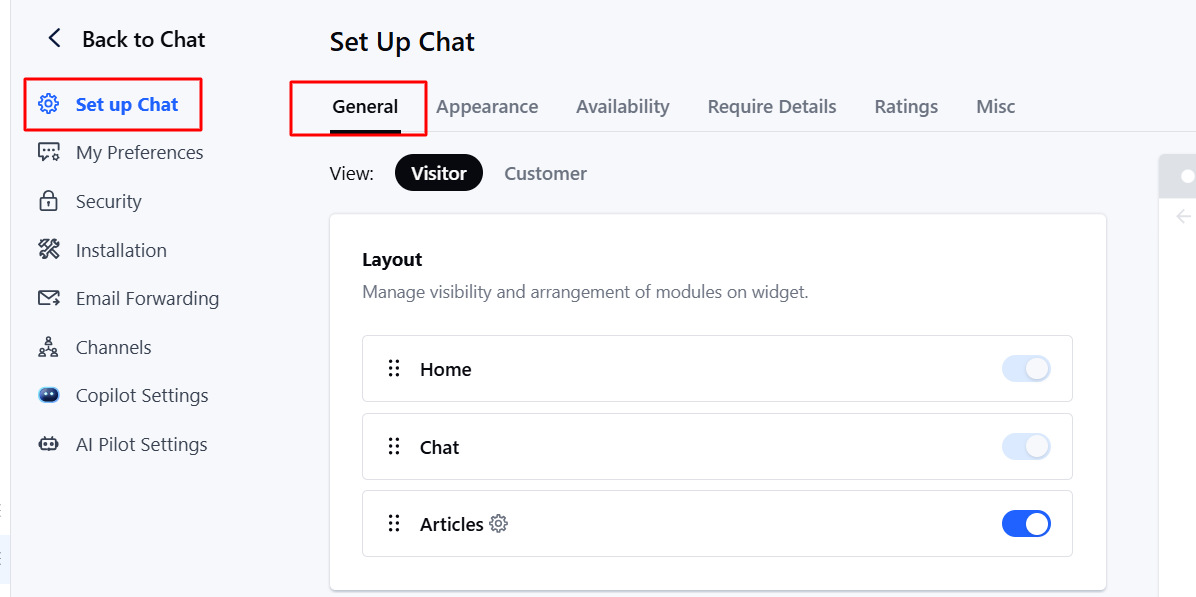
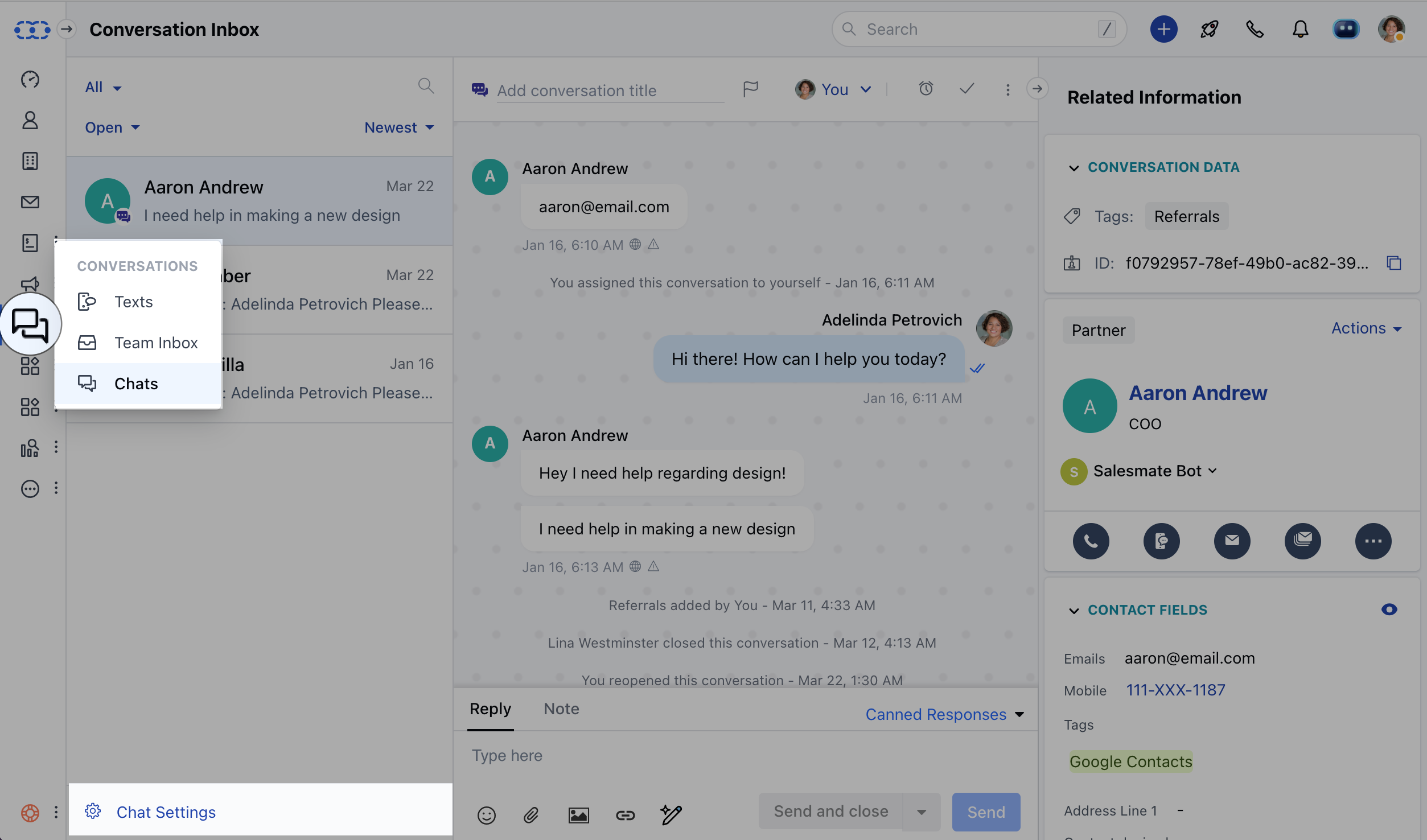 * **Click** Set up Chat
* Click on General Under **Layout**, you can manage the Article settings.
* **Click** Set up Chat
* Click on General Under **Layout**, you can manage the Article settings.
 ### Enabling the Articles Feature
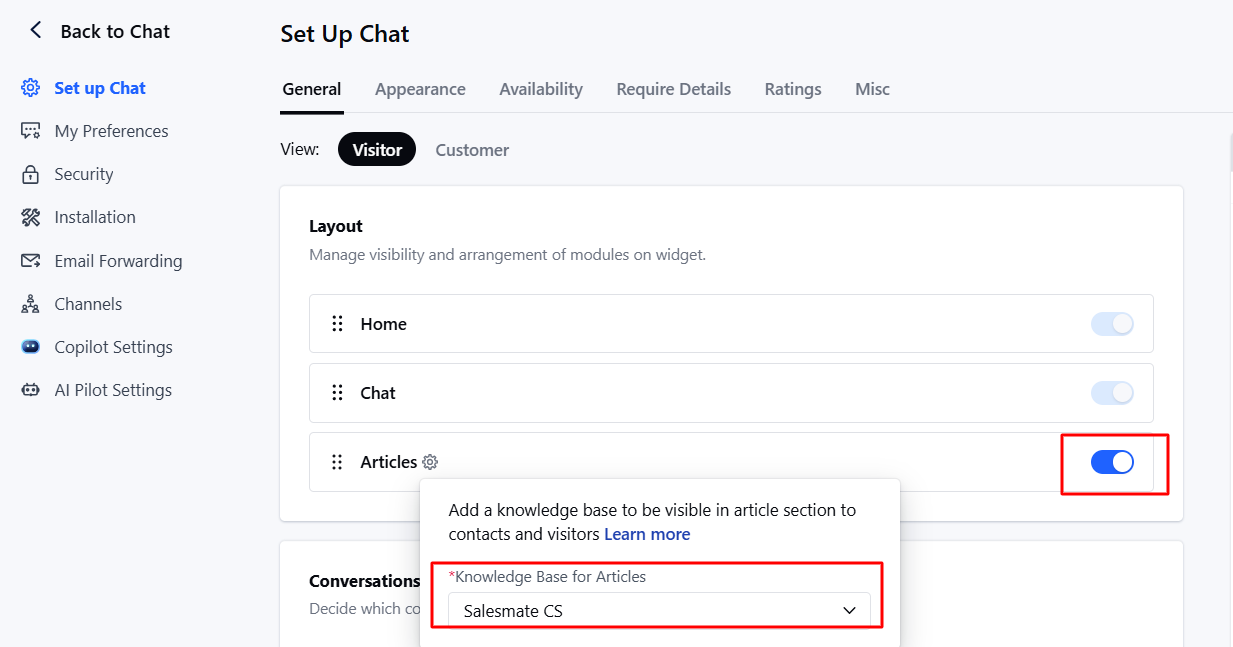
* Enable the toggle switch for "Articles" to make articles accessible in the chat widget.
* Click the gear icon next to Articles to select the appropriate Knowledge Base.
### Enabling the Articles Feature
* Enable the toggle switch for "Articles" to make articles accessible in the chat widget.
* Click the gear icon next to Articles to select the appropriate Knowledge Base.
 ### Configuring the Knowledge Base
* ***If no Knowledge Base exists:*** Click on the dropdown to create one. If you don’t, the option will be disabled automatically.
* ***If a Knowledge Base exists:*** If only one knowledge base is available, it will be selected by default.
* If multiple knowledge bases exist, the first one will be selected. \_ If a knowledge base is already configured in **Copilot settings**, it will appear here by default. \_ If none or multiple exist, the field will appear blank.
* ***Choosing a different Knowledge Base than Copilot’s:*** When you try to choose a different knowledge base than what is chosen under Copilot, you will see this message: "It seems you are using a different knowledge base for Copilot. Are you sure you don’t want to keep it the same"?
* Upon confirmation, the new selection will be saved. Otherwise, it will revert to the Copilot knowledge base.
**Note:** You will need “Manage Chat Settings” or “Manage Unified Inbox” permissions to update these settings.
* The Knowledge Base can be configured without enabling articles for the customer side in Messenger.
* The Home and Chat sections of the chat's layout are always enabled, and they cannot be disabled.
### Configuring the Knowledge Base
* ***If no Knowledge Base exists:*** Click on the dropdown to create one. If you don’t, the option will be disabled automatically.
* ***If a Knowledge Base exists:*** If only one knowledge base is available, it will be selected by default.
* If multiple knowledge bases exist, the first one will be selected. \_ If a knowledge base is already configured in **Copilot settings**, it will appear here by default. \_ If none or multiple exist, the field will appear blank.
* ***Choosing a different Knowledge Base than Copilot’s:*** When you try to choose a different knowledge base than what is chosen under Copilot, you will see this message: "It seems you are using a different knowledge base for Copilot. Are you sure you don’t want to keep it the same"?
* Upon confirmation, the new selection will be saved. Otherwise, it will revert to the Copilot knowledge base.
**Note:** You will need “Manage Chat Settings” or “Manage Unified Inbox” permissions to update these settings.
* The Knowledge Base can be configured without enabling articles for the customer side in Messenger.
* The Home and Chat sections of the chat's layout are always enabled, and they cannot be disabled.