> ## Documentation Index
> Fetch the complete documentation index at: https://support.getskara.ai/llms.txt
> Use this file to discover all available pages before exploring further.
# Copilot Settings
*Copilot* helps your support team deliver faster and more accurate responses by suggesting the best answers pulled from your articles, past conversations, and tickets — all based on the data sources you configure.
### **Topics covered:**
* [How to Set Up Copilot](#how-to-set-up-copilot)
* [Default Availability in Channels](#default-availability-in-channels)
* [Default Answer Tone](#default-answer-tone)
* [Default Answer Length](#default-answer-length)
* [Knowledge Base](#knowledge-base)
* [Use Past Conversations](#use-past-conversations)
* [Use Closed Tickets](#use-closed-tickets)
### How to Set Up Copilot
Follow the steps below to configure Copilot for your chat channels:
1. Access Copilot Settings
* **Go to** Setup
* Click on **Chat Settings > Copilot Settings**
2. Select a Workspace
* Choose the **Workspace** where you want Copilot to be active.
Once you're in the Copilot settings for your chosen workspace, you can customize the following:
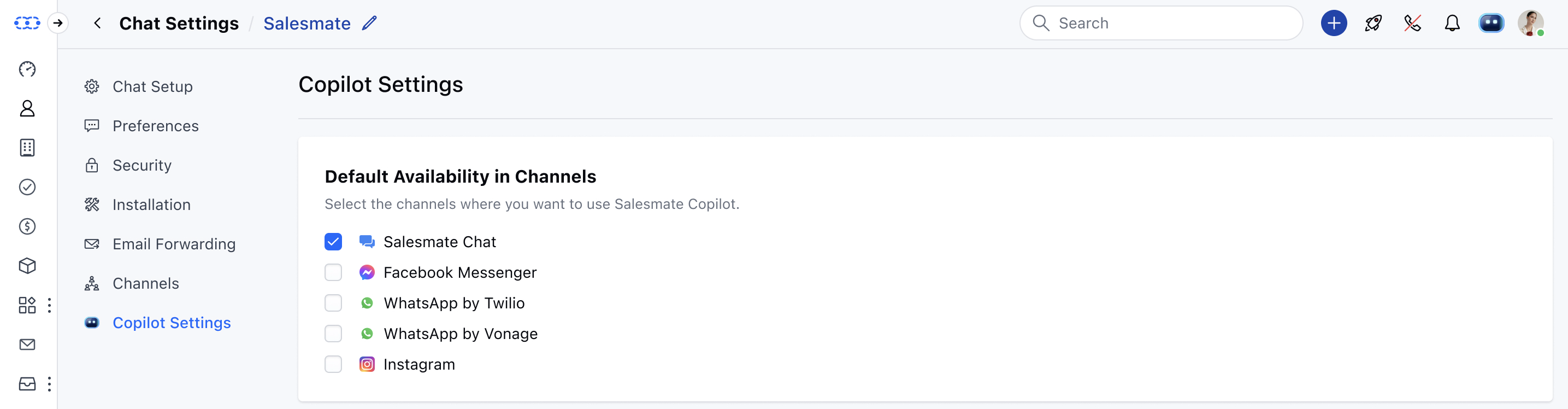
### Default Availability in Channels
Select the channels where you want Copilot to be active:
* Salesmate Chat
* Facebook Messenger
* WhatsApp by Twilio
* WhatsApp by Vonage
* Instagram Note: If only one channel exists in your account, this option won’t be shown. If you don’t select any channels, Copilot will not be active anywhere.
 ### Default Answer Tone
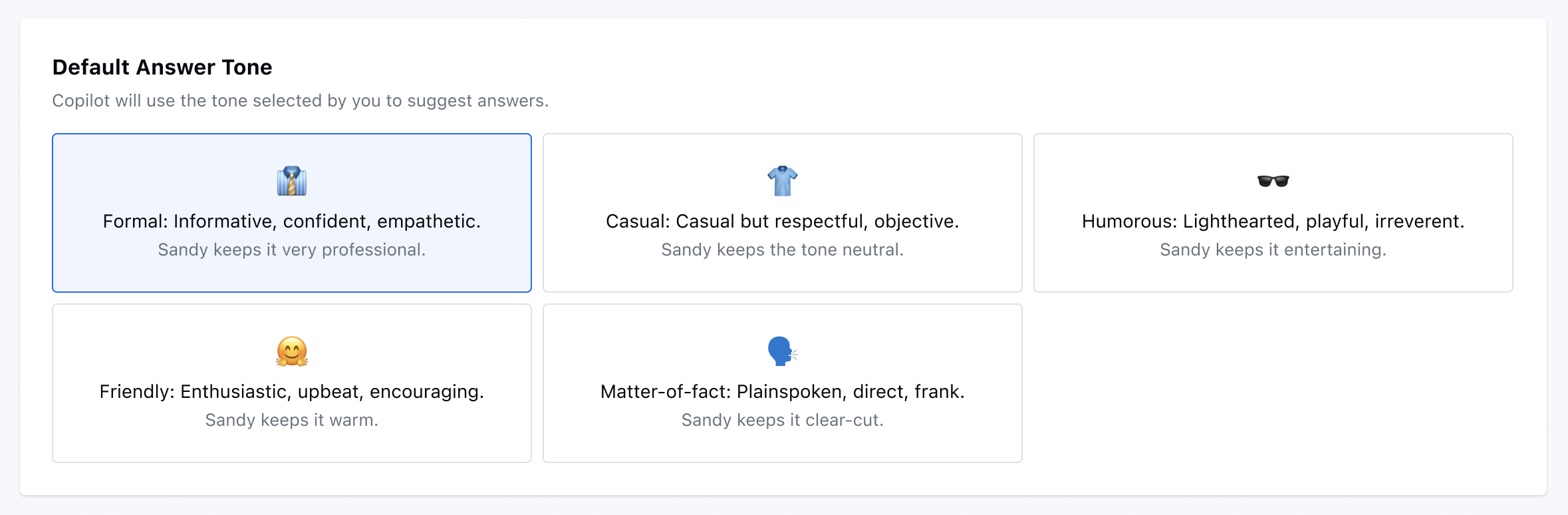
Choose the tone in which Copilot responds to customers:\*\*Formal \*\* *(default)* – Professional tone
* Casual– Relaxed yet respectful
* Humorous– Playful and witty
* Friendly– Warm and enthusiastic
* Direct– Straight to the point
### Default Answer Tone
Choose the tone in which Copilot responds to customers:\*\*Formal \*\* *(default)* – Professional tone
* Casual– Relaxed yet respectful
* Humorous– Playful and witty
* Friendly– Warm and enthusiastic
* Direct– Straight to the point
 ### Default Answer Length
Set how detailed Copilot’s responses should be:
* Concise – Short and to the point
* Standard *(default)* – A balanced response
* Descriptive – Detailed and comprehensive
### Default Answer Length
Set how detailed Copilot’s responses should be:
* Concise – Short and to the point
* Standard *(default)* – A balanced response
* Descriptive – Detailed and comprehensive
 ### Knowledge Base
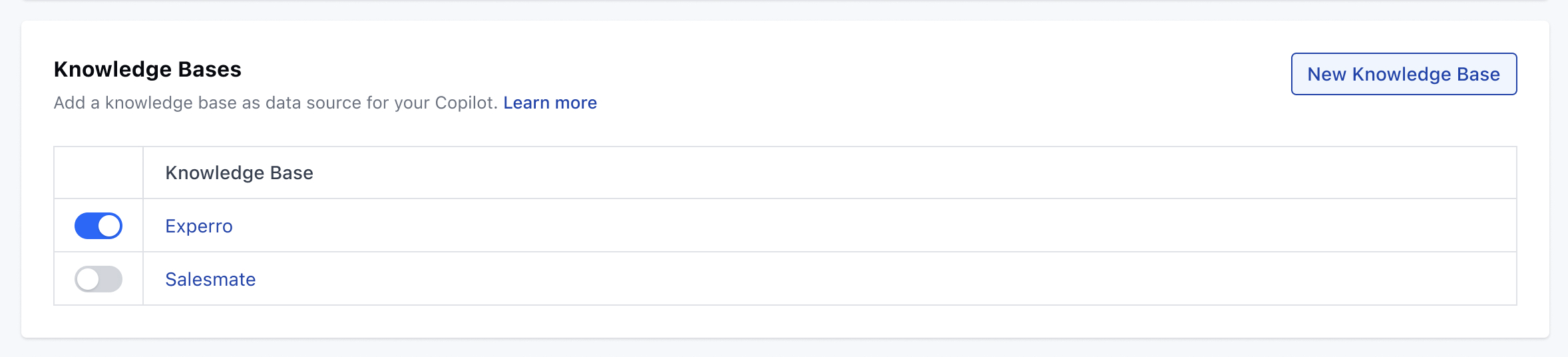
Connect one or more **Knowledge Bases** as data sources:
* Optional, but at least one is required to enable Copilot fully.
* If you’ve already set up a KB for Chat, it will be pre-selected here.
* If you choose a different KB than what’s shown in Chat, a confirmation message will appear: \_"It seems you are displaying a different knowledge base in Chat. Are you sure you don’t want to keep it the same?" \_
* Don’t have a knowledge base yet? Click New Knowledge Base to create one.
### Knowledge Base
Connect one or more **Knowledge Bases** as data sources:
* Optional, but at least one is required to enable Copilot fully.
* If you’ve already set up a KB for Chat, it will be pre-selected here.
* If you choose a different KB than what’s shown in Chat, a confirmation message will appear: \_"It seems you are displaying a different knowledge base in Chat. Are you sure you don’t want to keep it the same?" \_
* Don’t have a knowledge base yet? Click New Knowledge Base to create one.
 ### Use Past Conversations
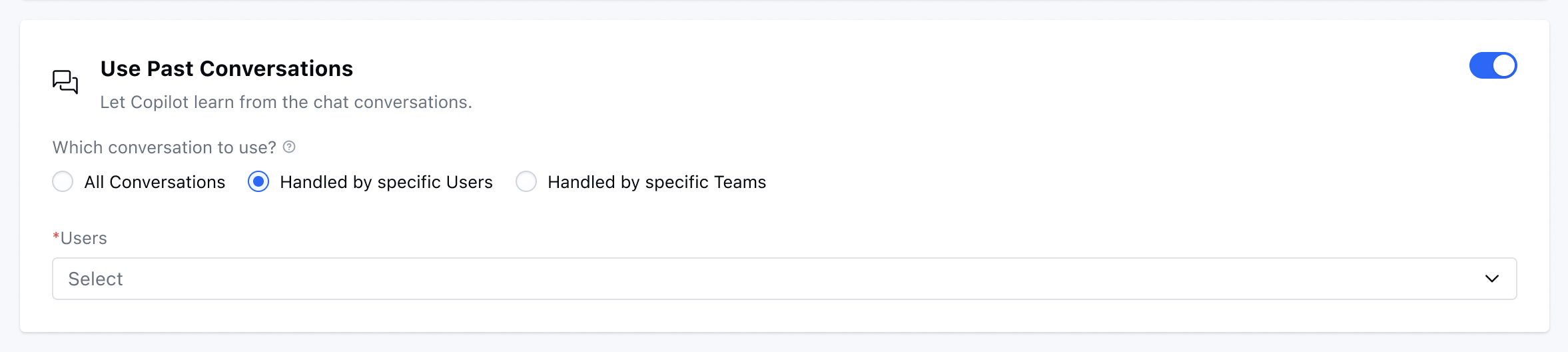
Let Copilot learn from previously closed conversations:
* Requires at least one Knowledge Base to be enabled first.
* You can choose to use: **All past conversations, or Conversations assigned to specific users or teams**
* Only conversations **closed within the past 90 days** are considered.
* New conversations are added daily; older ones are removed automatically.
### Use Past Conversations
Let Copilot learn from previously closed conversations:
* Requires at least one Knowledge Base to be enabled first.
* You can choose to use: **All past conversations, or Conversations assigned to specific users or teams**
* Only conversations **closed within the past 90 days** are considered.
* New conversations are added daily; older ones are removed automatically.
 * ****Note: If no KB is enabled, you’ll see: “Please enable at least one knowledge base to use conversations.”****
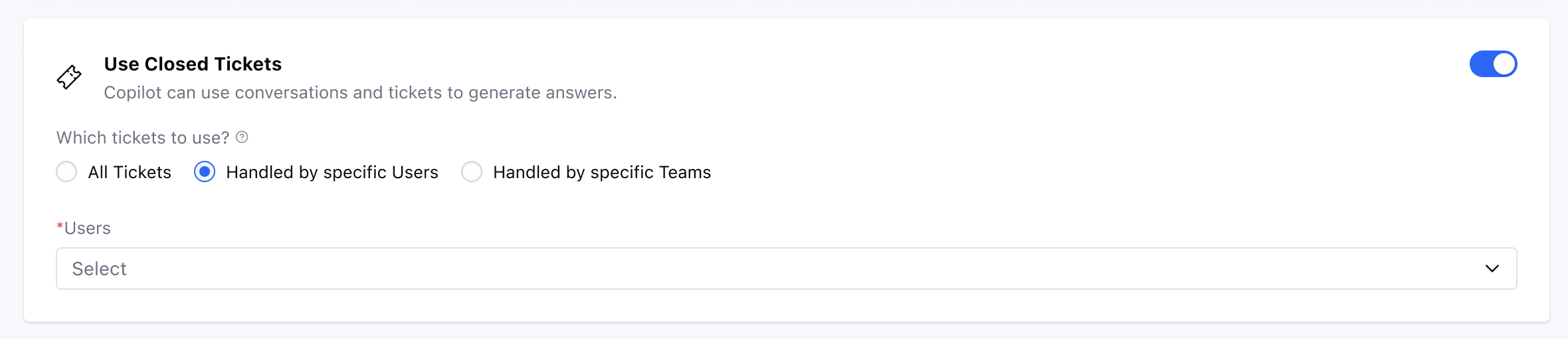
### Use Closed Tickets
Allow Copilot to reference past support tickets:
* Requires a Knowledge Base to be enabled.
* **Choose between: All closed tickets, or Tickets assigned to specific users or teams Only tickets from the last 90 days are included.**
* The system checks and updates this data daily.
* ****Note: If no KB is enabled, you’ll see: “Please enable at least one knowledge base to use conversations.”****
### Use Closed Tickets
Allow Copilot to reference past support tickets:
* Requires a Knowledge Base to be enabled.
* **Choose between: All closed tickets, or Tickets assigned to specific users or teams Only tickets from the last 90 days are included.**
* The system checks and updates this data daily.
 * *Note*: If no KB is enabled, you’ll see: *“Please enable at least one knowledge base to use conversations.”*
**Important Notes:**
* All changes made in Copilot Settings are saved automatically — no need to hit "Save."
* **Copilot** trains itself automatically on all **published articles**.
* If no published content exists, Copilot may not return any suggestions.
* Make sure at least one Knowledge Base is enabled to use full Copilot functionality.
* **Copilot only analyzes** closed conversations and tickets from the past 90 days .
* You can always revisit this setup to tweak tones, channels, or data sources as your needs evolve.
* *Note*: If no KB is enabled, you’ll see: *“Please enable at least one knowledge base to use conversations.”*
**Important Notes:**
* All changes made in Copilot Settings are saved automatically — no need to hit "Save."
* **Copilot** trains itself automatically on all **published articles**.
* If no published content exists, Copilot may not return any suggestions.
* Make sure at least one Knowledge Base is enabled to use full Copilot functionality.
* **Copilot only analyzes** closed conversations and tickets from the past 90 days .
* You can always revisit this setup to tweak tones, channels, or data sources as your needs evolve.