> ## Documentation Index
> Fetch the complete documentation index at: https://support.getskara.ai/llms.txt
> Use this file to discover all available pages before exploring further.
# Manage Global Availability
Every organization has a specific **schedule** or shifts under which they operate and therefore it is imperative that we manage them accordingly.
**Note:** The option to Manage Global Availability can only be done by the users having **Admin** Profile.
* **Topics covered:**
* [How to Manage the Availability](#how-to-manage-the-availability)
* [Creating a New Schedule](#creating-a-new-schedule)
* [Edit Schedule](#edit-schedule)
* [Edit Title](#edit-title)
* [Delete Schedule](#delete-schedule)
* [Clone Schedule](#clone-schedule)
* [Set Schedule as Default](#set-schedule-as-default)
### How to Manage the Availability
To manage Global Availability follow the below mentioned steps:
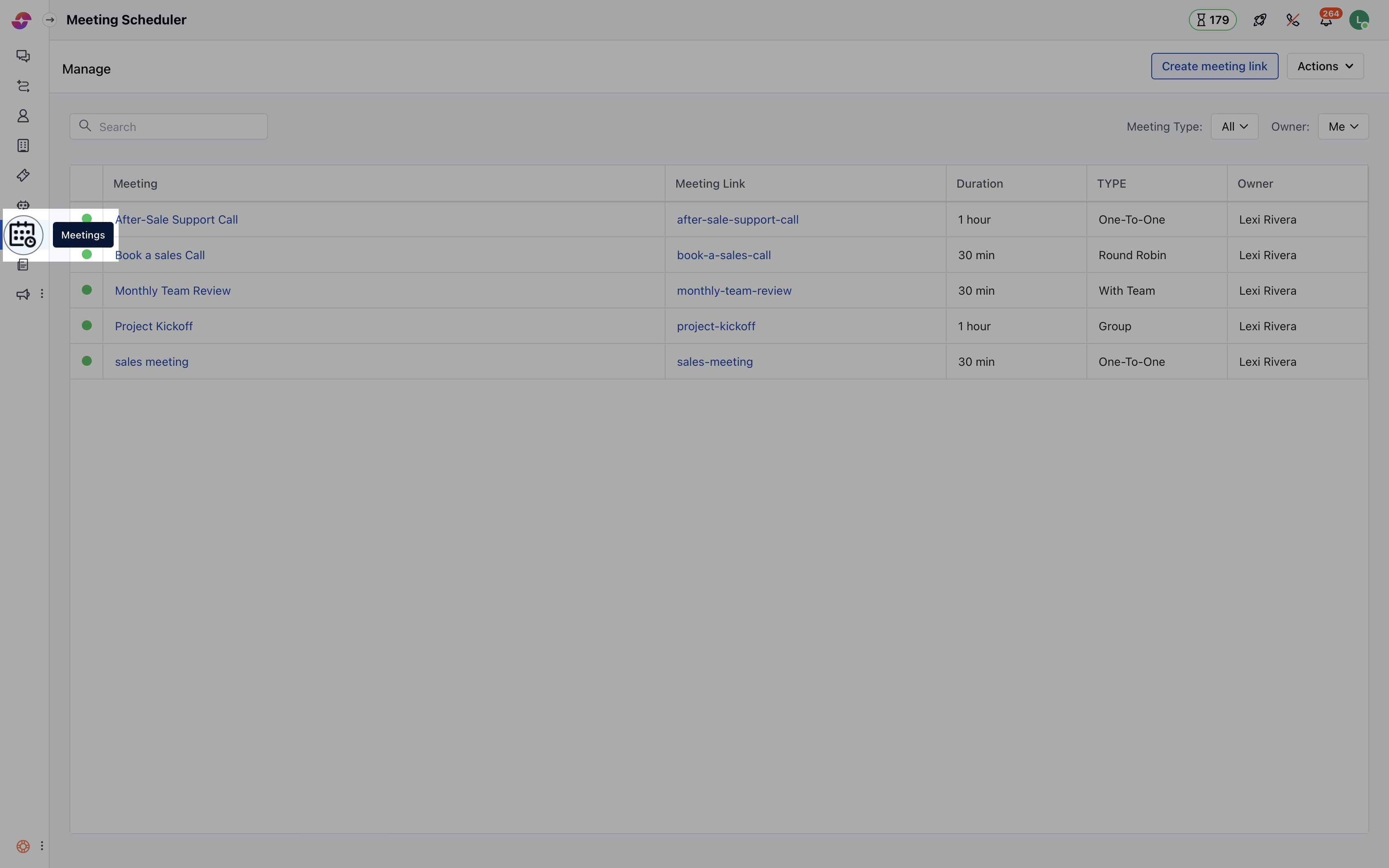
* Navigate to the**More** option from left sidebar menu
* **Click on** Meeting Scheduler
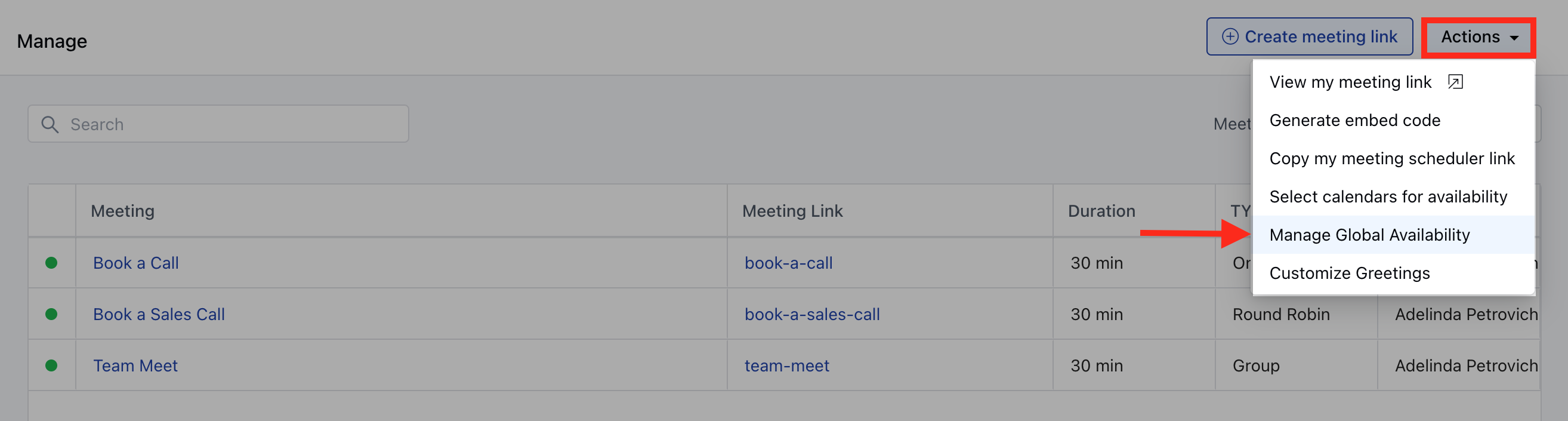
 * Under **Actions** on the top right corner select **Manage Global Availability**.
 Or
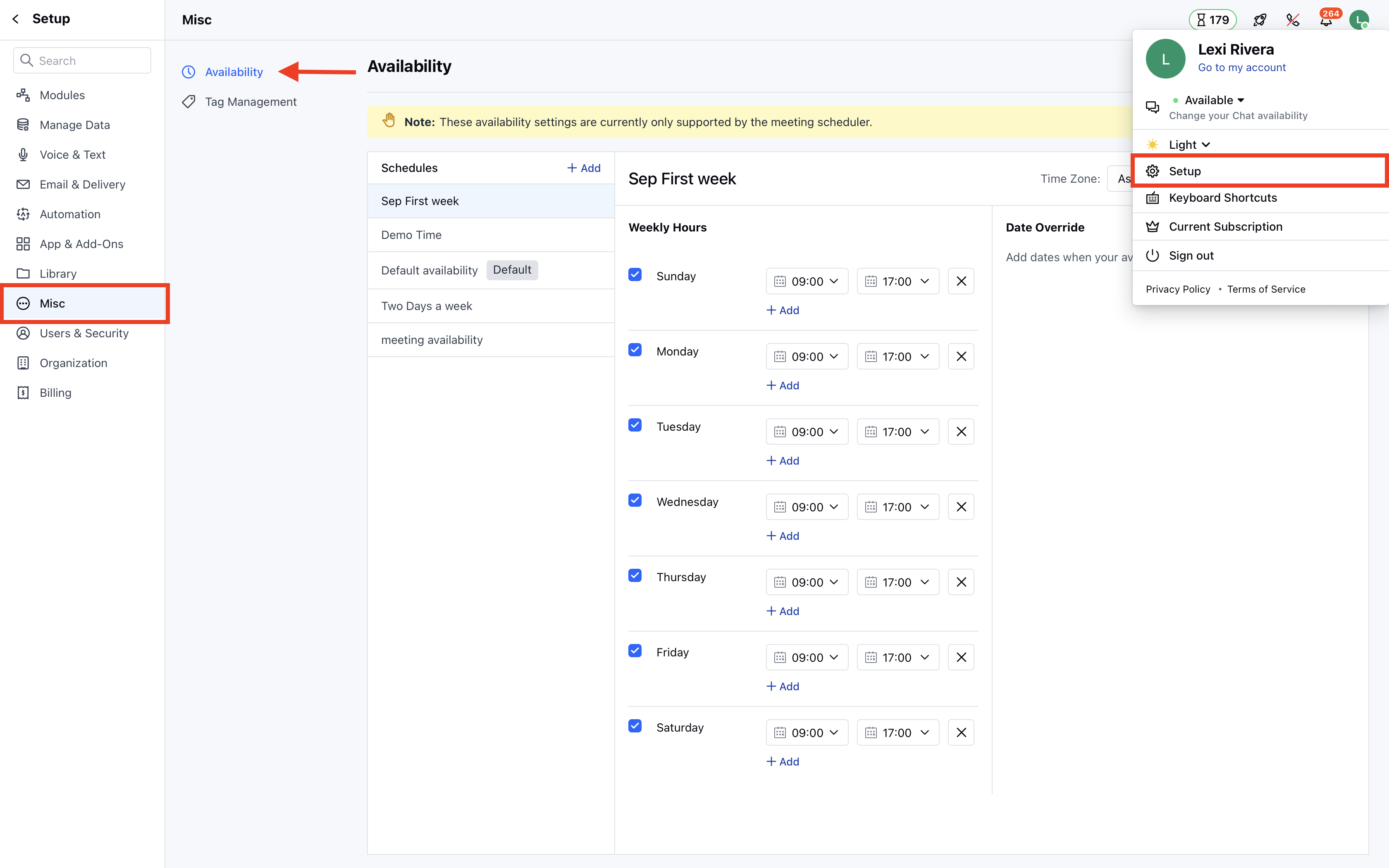
* Navigate to the **Profile** icon on the top right corner.
* **Click on the** Setup .
* Head over to the **Misc** category
* Click on **Availability**
Or
* Navigate to the **Profile** icon on the top right corner.
* **Click on the** Setup .
* Head over to the **Misc** category
* Click on **Availability**
 **Note:** Currently, this setting is only applicable to the "Meeting Scheduler".
### Creating a New Schedule
To create a new schedule, follow below steps:
* Go to the **Manage Global Availability** page.
* Click on the **New Schedule** Button on the top right corner.
**Note:** Currently, this setting is only applicable to the "Meeting Scheduler".
### Creating a New Schedule
To create a new schedule, follow below steps:
* Go to the **Manage Global Availability** page.
* Click on the **New Schedule** Button on the top right corner.
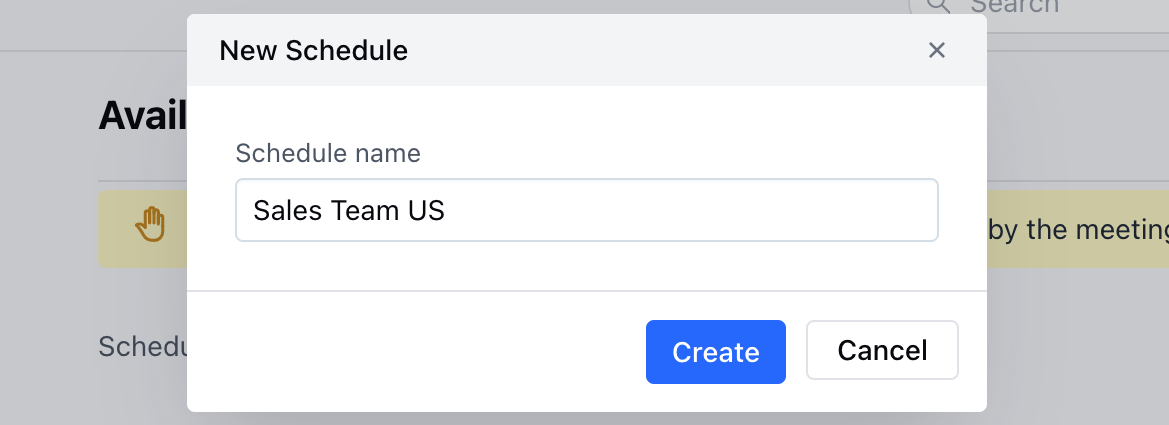
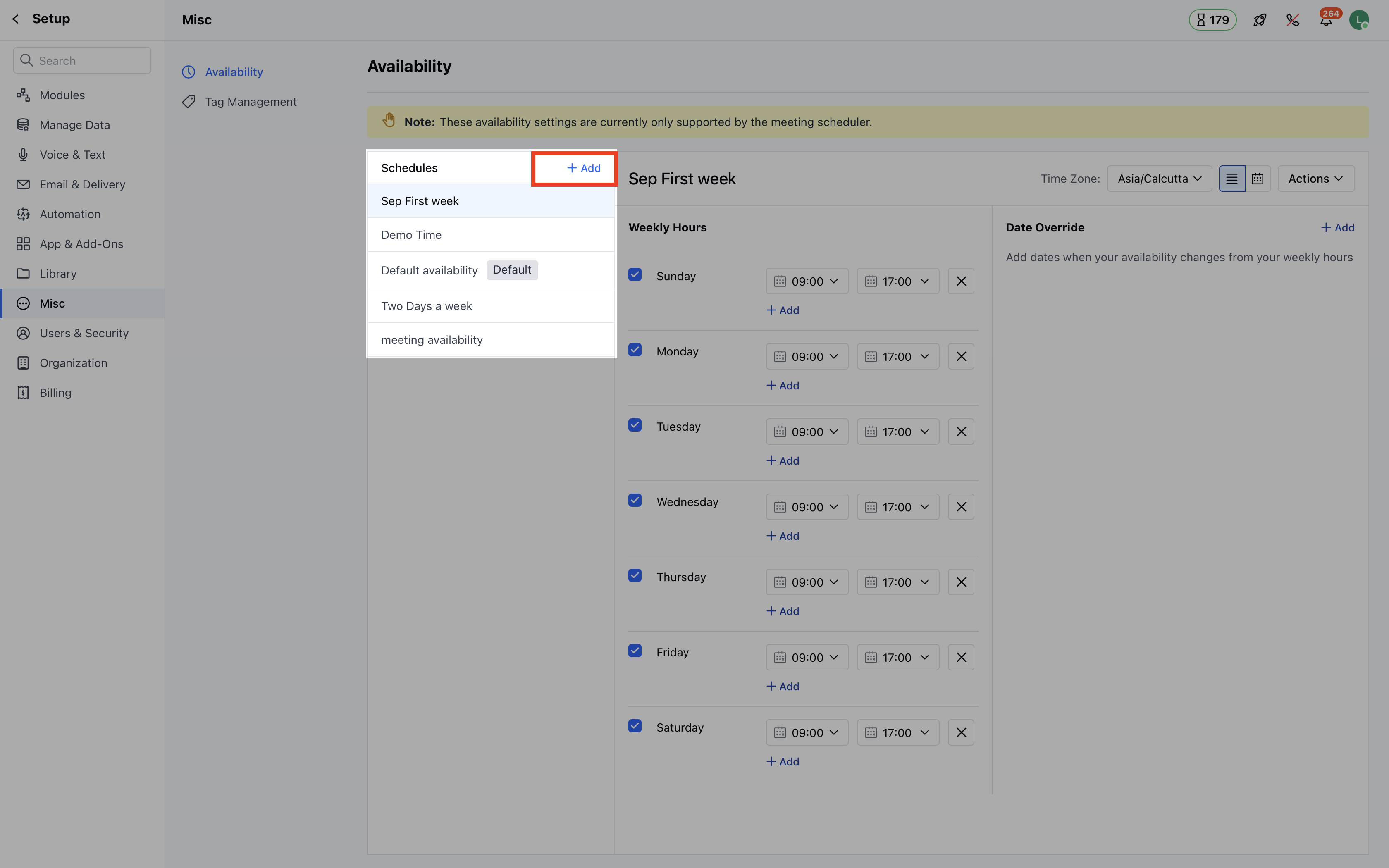 * A pop dialogue box would open up prompting you to provide the **New** \*\*Schedule \*\*Name of the Schedule.
* Hit the **Create** button and your new schedule will be successfully saved.
* A pop dialogue box would open up prompting you to provide the **New** \*\*Schedule \*\*Name of the Schedule.
* Hit the **Create** button and your new schedule will be successfully saved.
 ### Edit Schedule
To edit a specific schedule, follow the below steps:
* Go to the **Manage Availability** Page.
* Select the **schedule** that you wish to edit under the dropdown option.
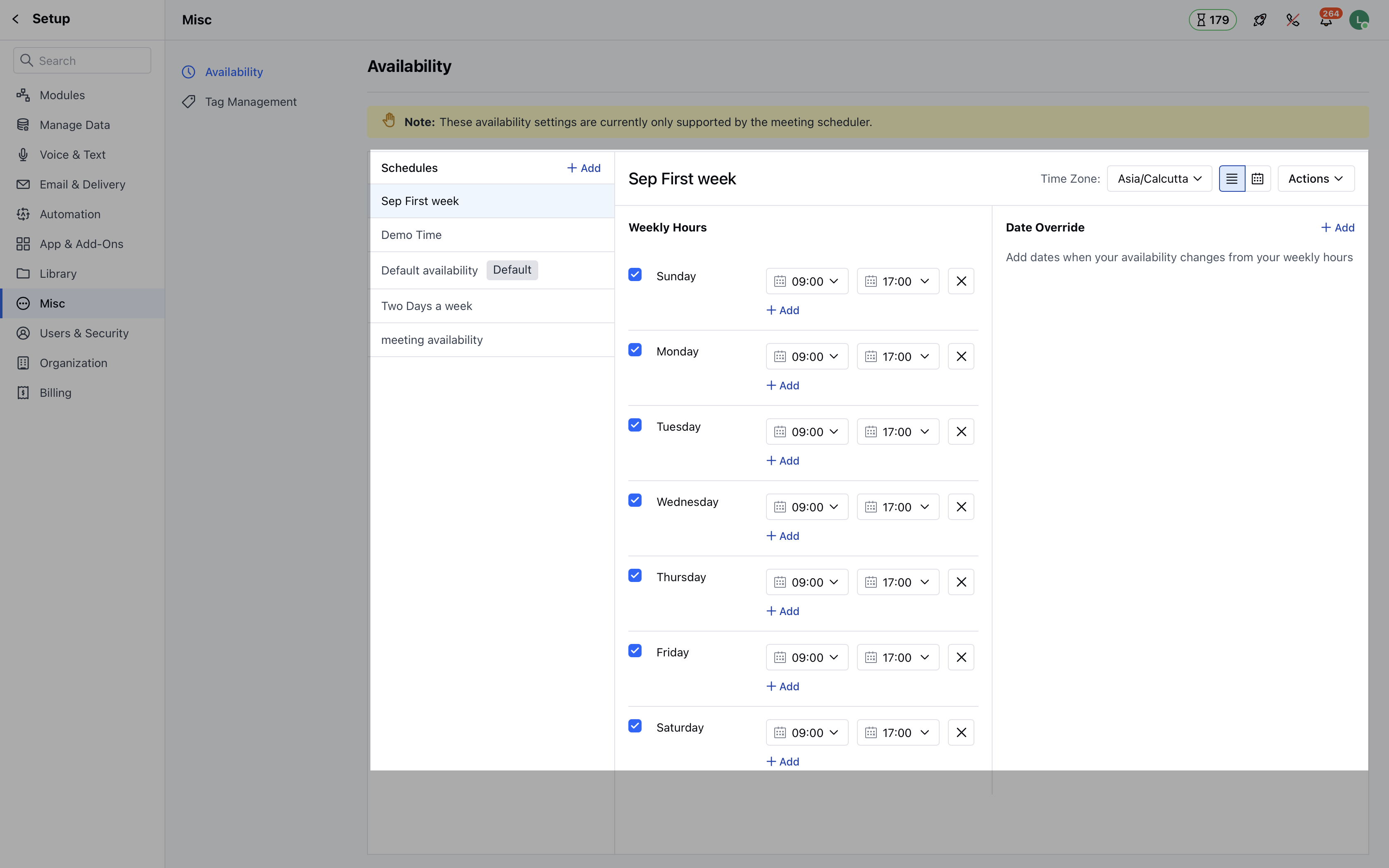
* Once you select the schedule, you will be able to edit the weekly hours and **Date Override** as required.
* Users will get the option to select the **timezone** for the specified weekly hours or the defined time slots.
* There are two views that are visible on the screen:
* [**List View**](#list-view)
* [Calendar View ](#calendar-view)
### List View
* Under the list view, users will be able to define the specified time slots for the weekdays.
* If no timeslot is defined for a particular day, then by default the user will be considered **unavailable** for that day.
* \*\*\*\*Multiple time \*\*\*\*slots can be also be defined for a particular day .
* If there are any overlapping time slots then the availability would be calculated in a continuous manner. For instance, if a user has defined time slots as **9:00 AM to 12:00 PM** and **10:00 AM to 2:00 PM** then the system would consider the availability as **9:00 AM to 2:00 PM**.
* Users can also define the **Date overrides** i.e if they are not available on a particular working day or there are any holidays that need to be defined.
* A pop-up will be shown saying **"** **Changes Saved** " once you update the time slots.
### Edit Schedule
To edit a specific schedule, follow the below steps:
* Go to the **Manage Availability** Page.
* Select the **schedule** that you wish to edit under the dropdown option.
* Once you select the schedule, you will be able to edit the weekly hours and **Date Override** as required.
* Users will get the option to select the **timezone** for the specified weekly hours or the defined time slots.
* There are two views that are visible on the screen:
* [**List View**](#list-view)
* [Calendar View ](#calendar-view)
### List View
* Under the list view, users will be able to define the specified time slots for the weekdays.
* If no timeslot is defined for a particular day, then by default the user will be considered **unavailable** for that day.
* \*\*\*\*Multiple time \*\*\*\*slots can be also be defined for a particular day .
* If there are any overlapping time slots then the availability would be calculated in a continuous manner. For instance, if a user has defined time slots as **9:00 AM to 12:00 PM** and **10:00 AM to 2:00 PM** then the system would consider the availability as **9:00 AM to 2:00 PM**.
* Users can also define the **Date overrides** i.e if they are not available on a particular working day or there are any holidays that need to be defined.
* A pop-up will be shown saying **"** **Changes Saved** " once you update the time slots.
 ### Date Override
* To override the date, you can simply click on Add **date override** .
### Date Override
* To override the date, you can simply click on Add **date override** .
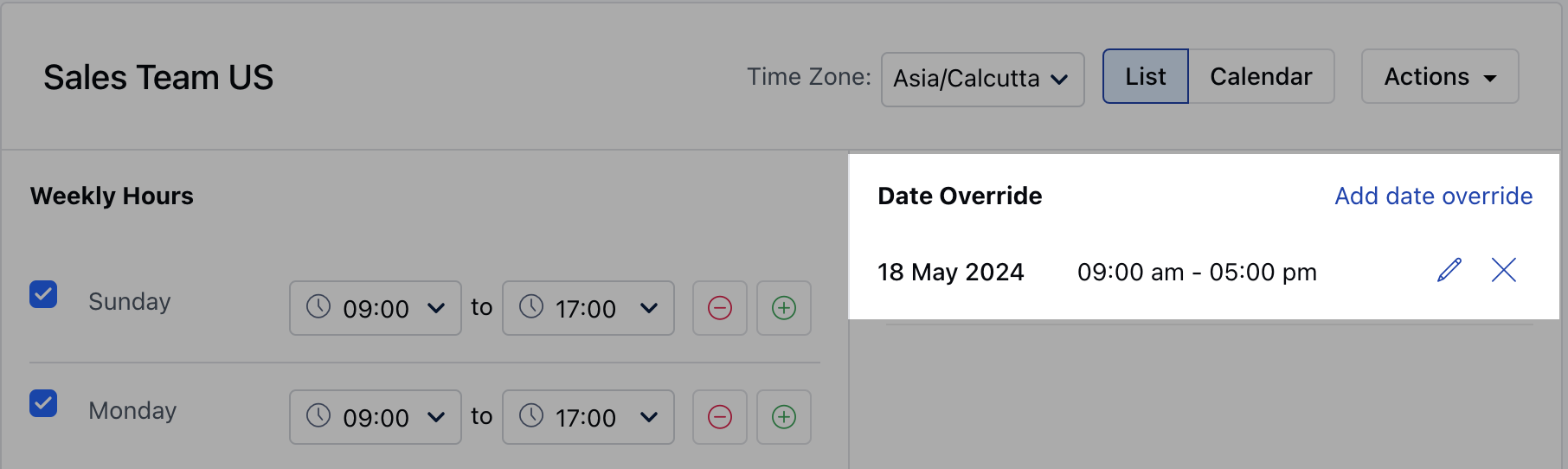 * On clicking, you will be asked to choose the dates for which you would like to override.
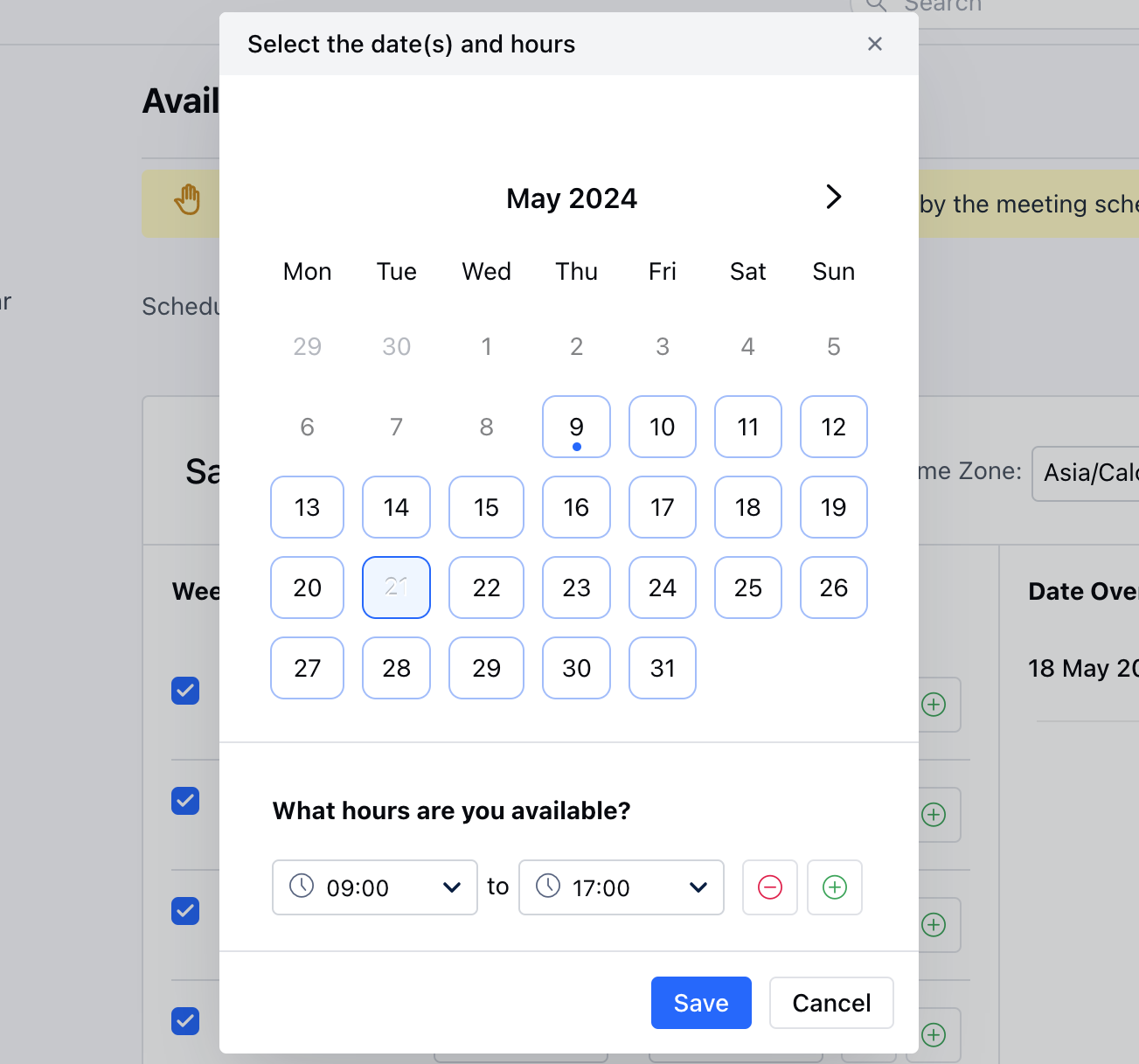 * While selecting the dates, the system would show you the availability that you have defined for those days.
* The user can:
* **Add** new time slots
* **Remove** time slots
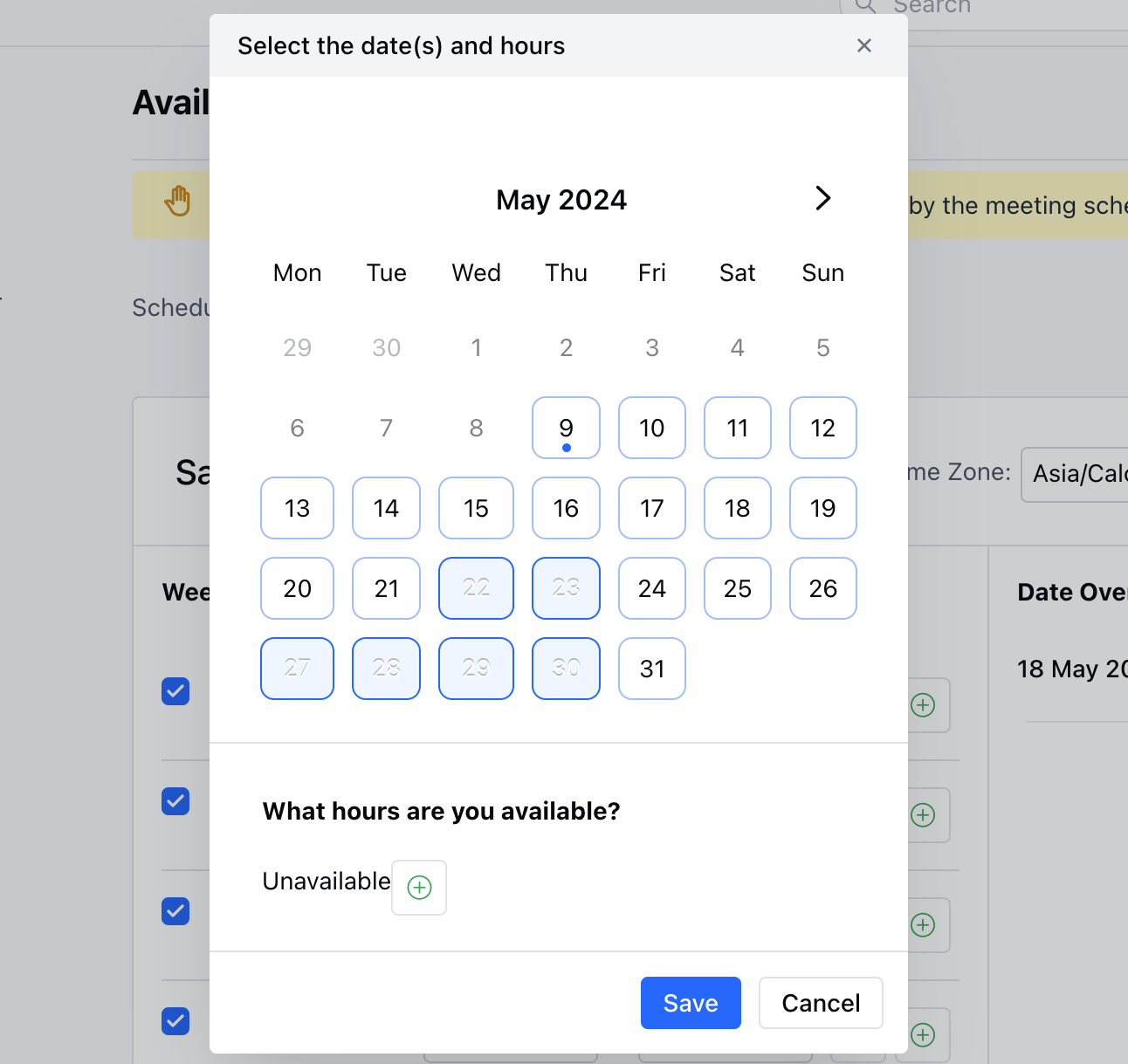
* In order to make yourself **unavailable** , you can simply remove all the slots.
* While selecting the dates, the system would show you the availability that you have defined for those days.
* The user can:
* **Add** new time slots
* **Remove** time slots
* In order to make yourself **unavailable** , you can simply remove all the slots.
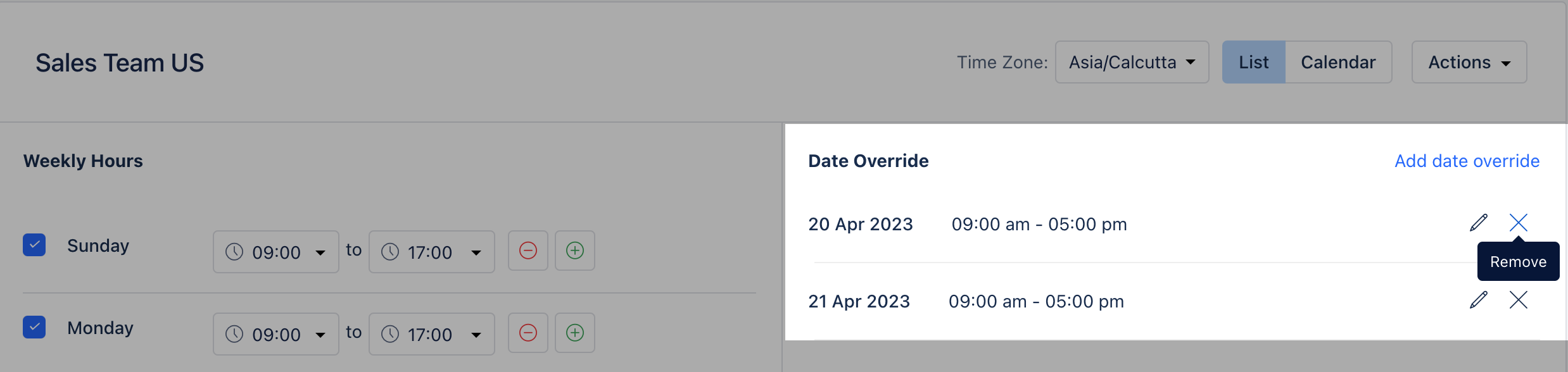
 * In order to remove the**Date Override** you can simply click on the **X** icon.
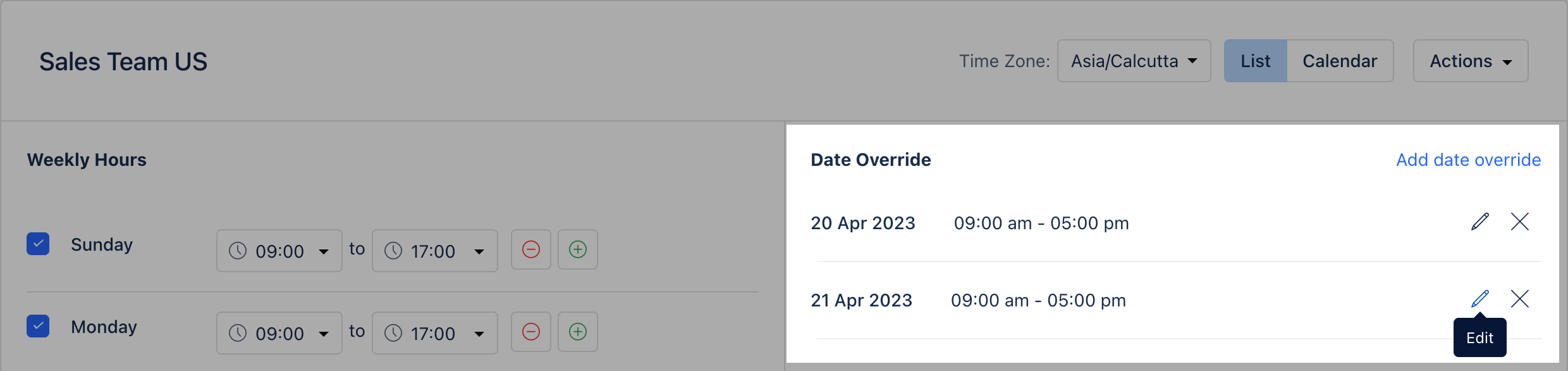
 * To**edit** the date override, the user can simply click on the pencil icon and make the necessary updates.
 * Select the relevant date and time slots and hit **update** .
* In case the user does not select any time slots, the system will consider them as **unavailable** for those dates.
* All the dates would be shown individually under the date override section even if the user has selected multiple dates.
### Calendar View
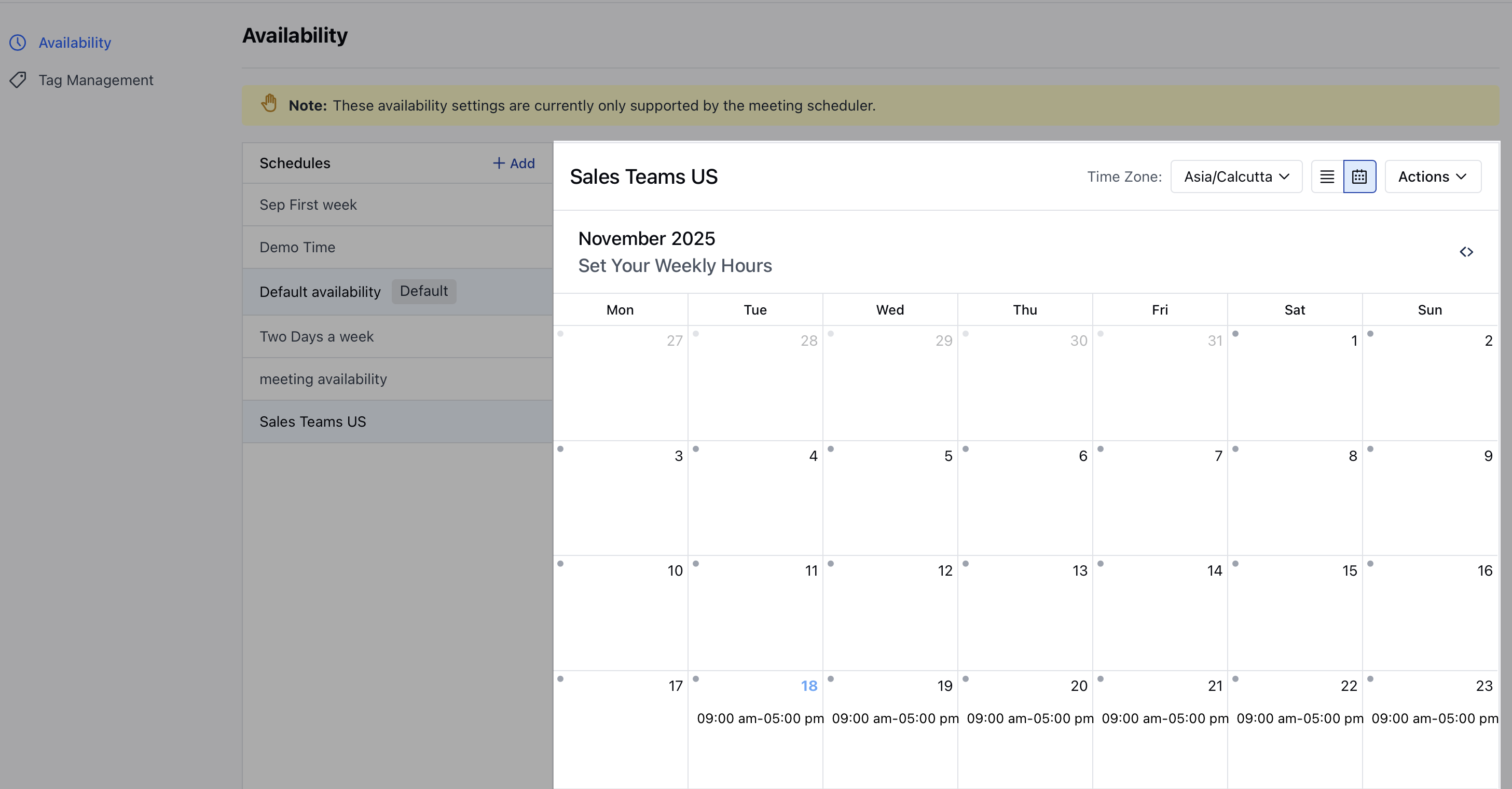
* The calendar would be shown in a **monthly** fashion by which the user would be able to see the **availability** on specific days .
* If the user is **not available** then **no slots** would be shown on that **specific date**.
* If the slots on a specific day do not contain any date override, then they will be denoted by a **grey** **dot** on the calendar
* If the slots on a specific day do contain date override, then they will be denoted by an **orange dot**.
* Users can also **edit** the time slots under the calendar view by simply **clicking** on any block/day, similar to the list view.
* Any changes made are **saved** in real-time.
* Select the relevant date and time slots and hit **update** .
* In case the user does not select any time slots, the system will consider them as **unavailable** for those dates.
* All the dates would be shown individually under the date override section even if the user has selected multiple dates.
### Calendar View
* The calendar would be shown in a **monthly** fashion by which the user would be able to see the **availability** on specific days .
* If the user is **not available** then **no slots** would be shown on that **specific date**.
* If the slots on a specific day do not contain any date override, then they will be denoted by a **grey** **dot** on the calendar
* If the slots on a specific day do contain date override, then they will be denoted by an **orange dot**.
* Users can also **edit** the time slots under the calendar view by simply **clicking** on any block/day, similar to the list view.
* Any changes made are **saved** in real-time.
 ### Edit Title
To edit the title of the schedule, follow the below steps:
* **Navigate to the** Profile icon on the top right corner.
* **Click on the** Setup .
* **Head over to the** Misc category
* **Click on** Availability
* Select the required schedule for which you wish to **Edit the Title** from the dropdown.
### Edit Title
To edit the title of the schedule, follow the below steps:
* **Navigate to the** Profile icon on the top right corner.
* **Click on the** Setup .
* **Head over to the** Misc category
* **Click on** Availability
* Select the required schedule for which you wish to **Edit the Title** from the dropdown.
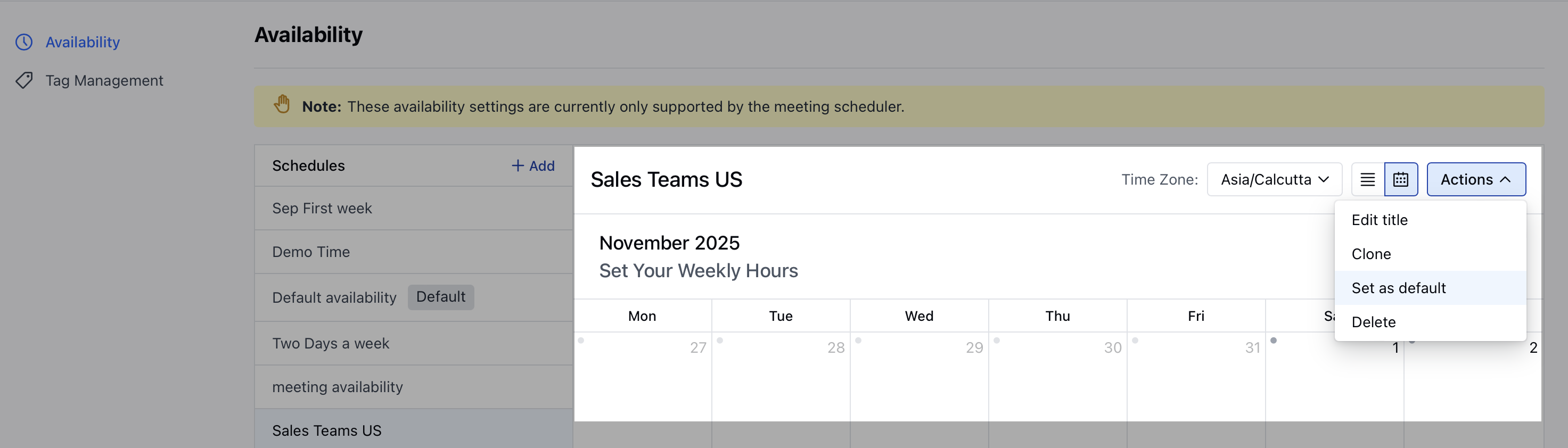
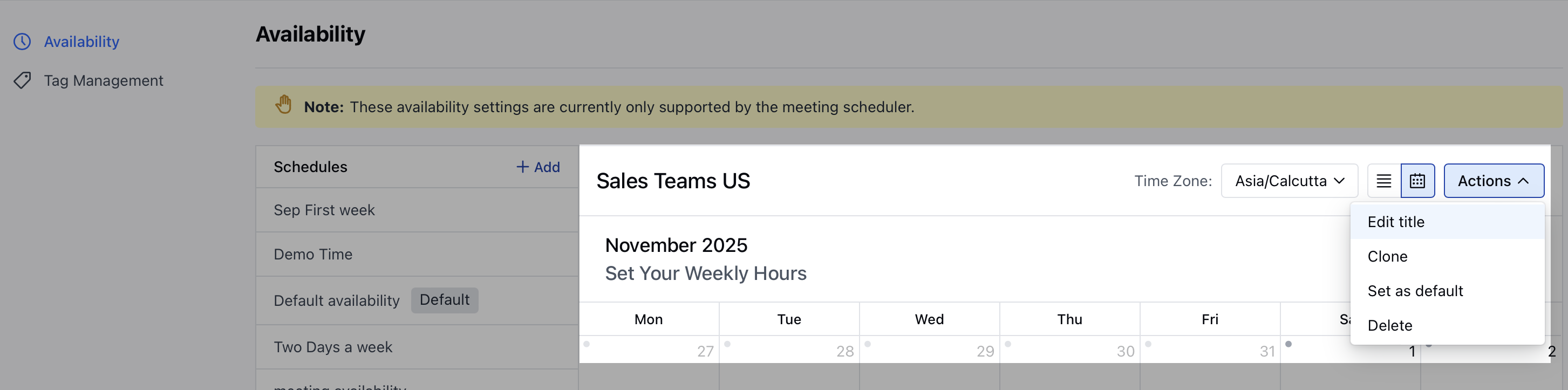 * **Click on** Actions and select
* **Edit title**.
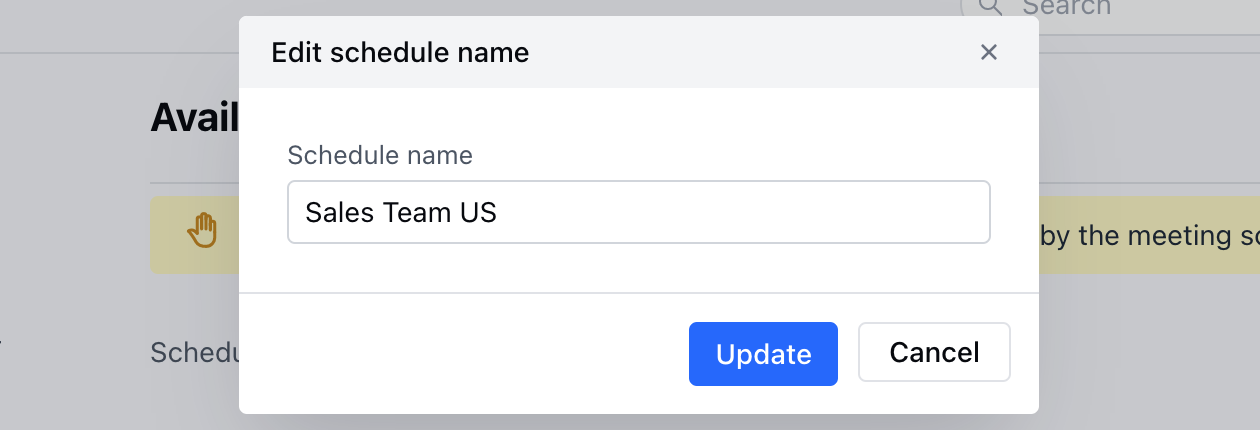
* Once you click on Edit title, a pop-up dialogue box would open up prompting you to edit the title.
* **Hit** Update to save the changes.
* **Click on** Actions and select
* **Edit title**.
* Once you click on Edit title, a pop-up dialogue box would open up prompting you to edit the title.
* **Hit** Update to save the changes.
 ### Delete Schedule
In order to delete a schedule, follow the below steps:
* **Navigate to the** Profile icon on the top right corner.
* **Click on the** Setup .
* **Head over to the** Misc category
* **Click on** Availability
* Select the **schedule** from the list under the dropdown.
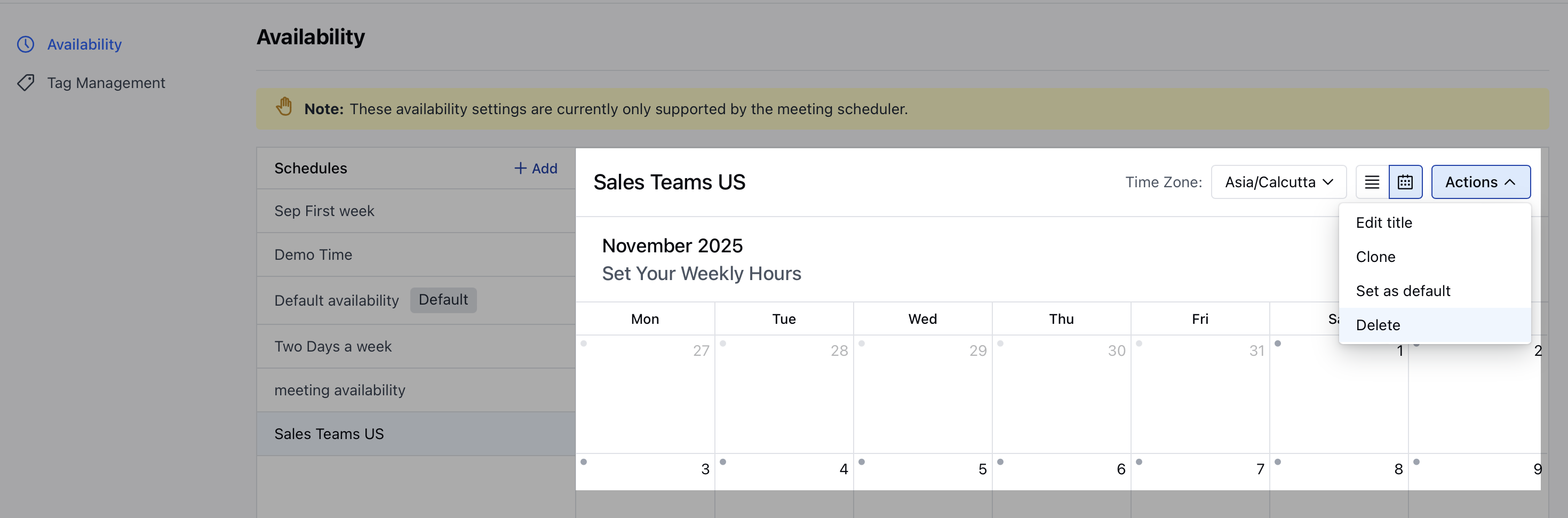
* **Once you select a schedule, click on** Actions and choose the option to **Delete**.
* Confirm the pop-up message to delete.
### Delete Schedule
In order to delete a schedule, follow the below steps:
* **Navigate to the** Profile icon on the top right corner.
* **Click on the** Setup .
* **Head over to the** Misc category
* **Click on** Availability
* Select the **schedule** from the list under the dropdown.
* **Once you select a schedule, click on** Actions and choose the option to **Delete**.
* Confirm the pop-up message to delete.
 * Please note, any records associated with this schedule will be set to custom availability with these hours.
### Clone Schedule
To Clone the schedule, follow the below steps:
* **Navigate to the** Profile icon on the top right corner.
* **Click on the** Setup .
* Head over to the **Misc** category
* **Click on** Availability
* Select the **schedule** from the list which you wish to clone under the dropdown
* Please note, any records associated with this schedule will be set to custom availability with these hours.
### Clone Schedule
To Clone the schedule, follow the below steps:
* **Navigate to the** Profile icon on the top right corner.
* **Click on the** Setup .
* Head over to the **Misc** category
* **Click on** Availability
* Select the **schedule** from the list which you wish to clone under the dropdown
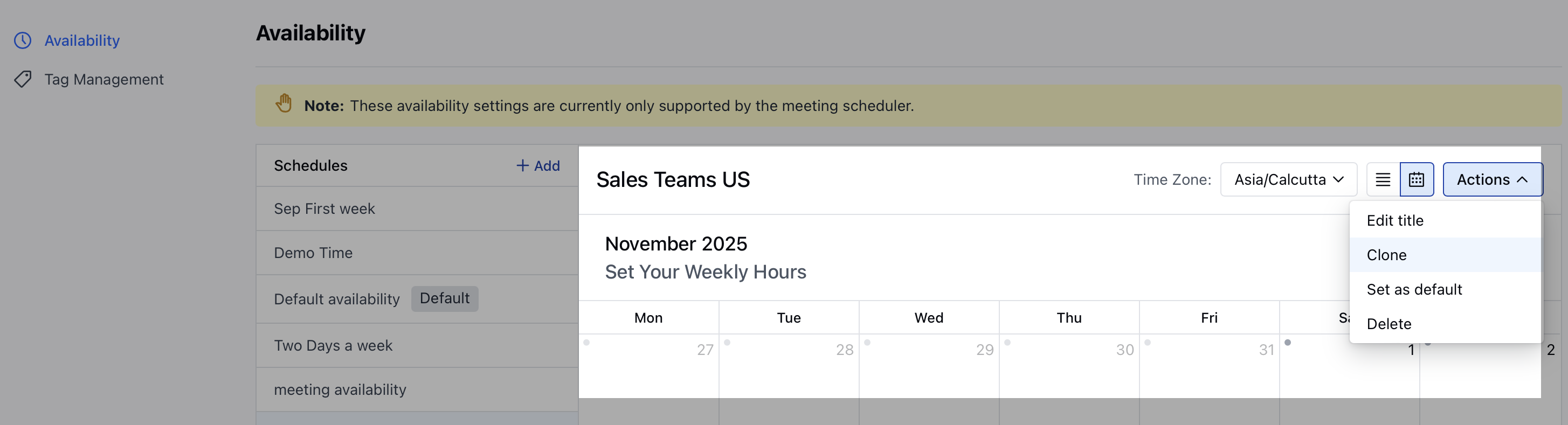 * Click on **Actions** and select **Clone**
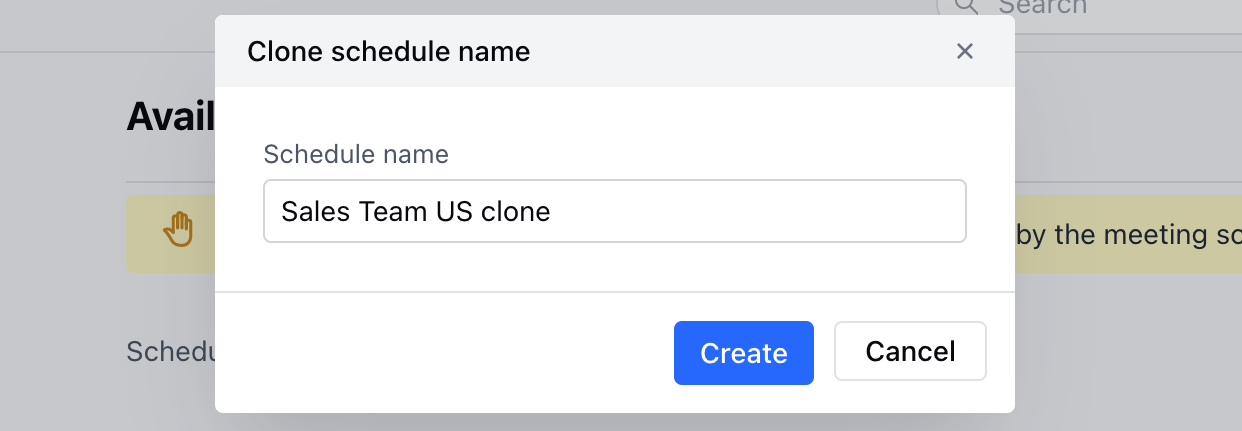
* A pop-up box would open up prompting you to write the name of the new schedule
* **Click on** Create to save the new Schedule.
* Click on **Actions** and select **Clone**
* A pop-up box would open up prompting you to write the name of the new schedule
* **Click on** Create to save the new Schedule.
 ### Set Schedule as Default
To set the schedule as **Default**, follow the below steps:
* **Navigate to the** Profile icon on the top right corner.
* **Click on the** Setup .
* **Head over to the** Misc category
* **Click on** Availability
* Select the **schedule** for which you wish to set it as **Default** from the dropdown.
* **Click on** Actions and select
* **Set as default**.
### Set Schedule as Default
To set the schedule as **Default**, follow the below steps:
* **Navigate to the** Profile icon on the top right corner.
* **Click on the** Setup .
* **Head over to the** Misc category
* **Click on** Availability
* Select the **schedule** for which you wish to set it as **Default** from the dropdown.
* **Click on** Actions and select
* **Set as default**.