> ## Documentation Index
> Fetch the complete documentation index at: https://support.getskara.ai/llms.txt
> Use this file to discover all available pages before exploring further.
# Change Ownership of Meeting
You can create multiple Meeting and assign them to your teammates or update exiting meeting to new owners, this can be useful if you have new members in your team.
To **Change Owner** of a Meeting , follow the below-mentioned steps:
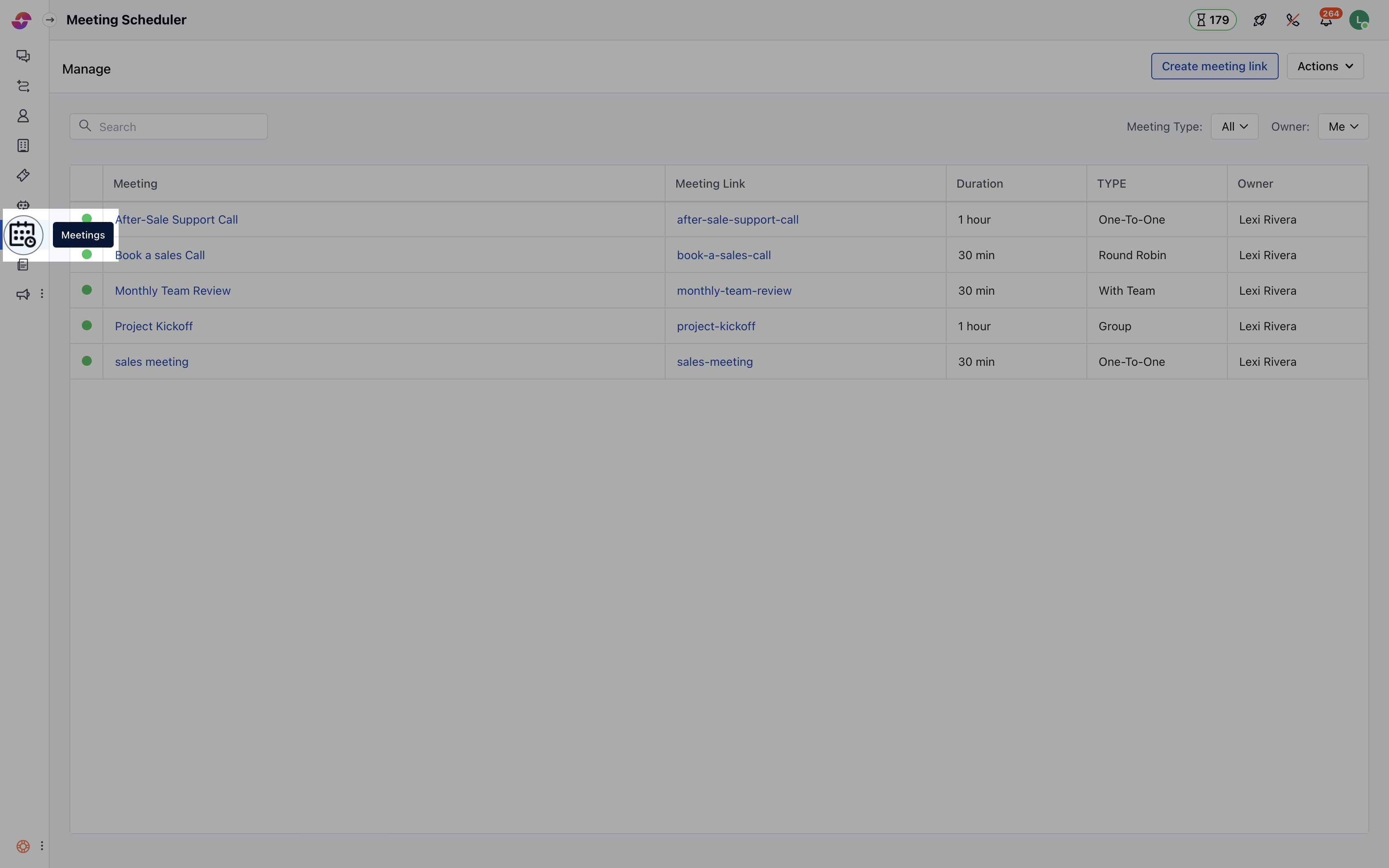
* Navigate to the **More** option from left sidebar menu
* Click on \*\*Meeting \*\*
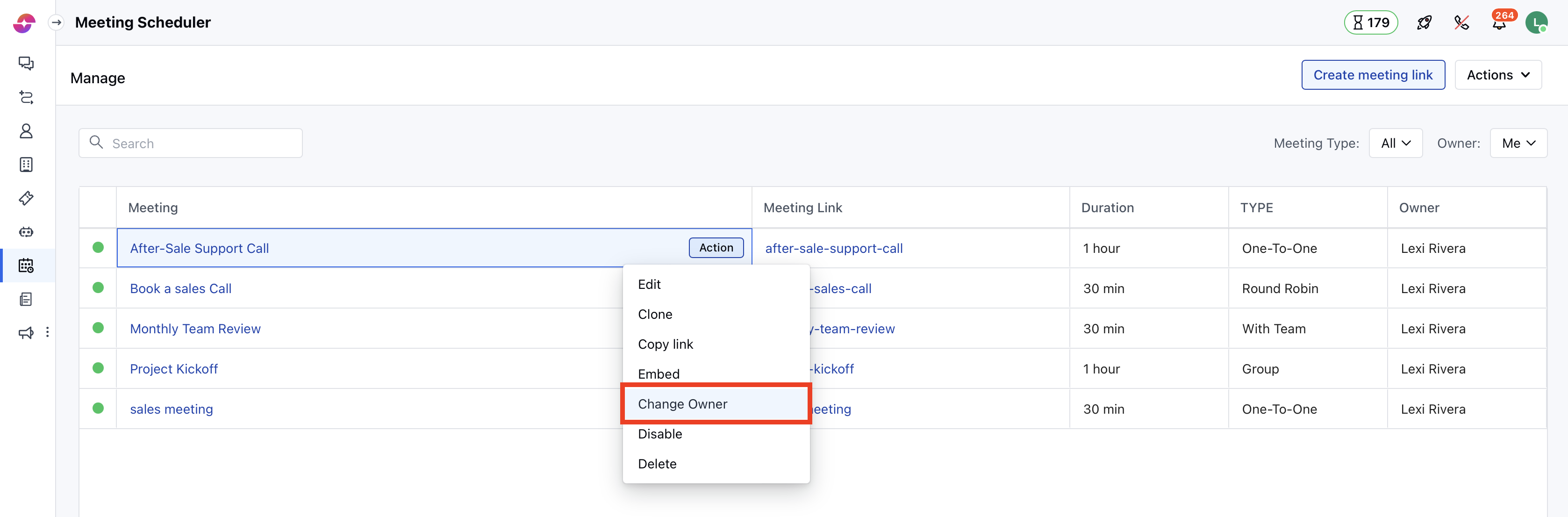
 * Hover over the **Meeting** **name** of which you wish to change the ownership
* Click on the **Action** button
* Hit the**Change Owner** option
* Hover over the **Meeting** **name** of which you wish to change the ownership
* Click on the **Action** button
* Hit the**Change Owner** option
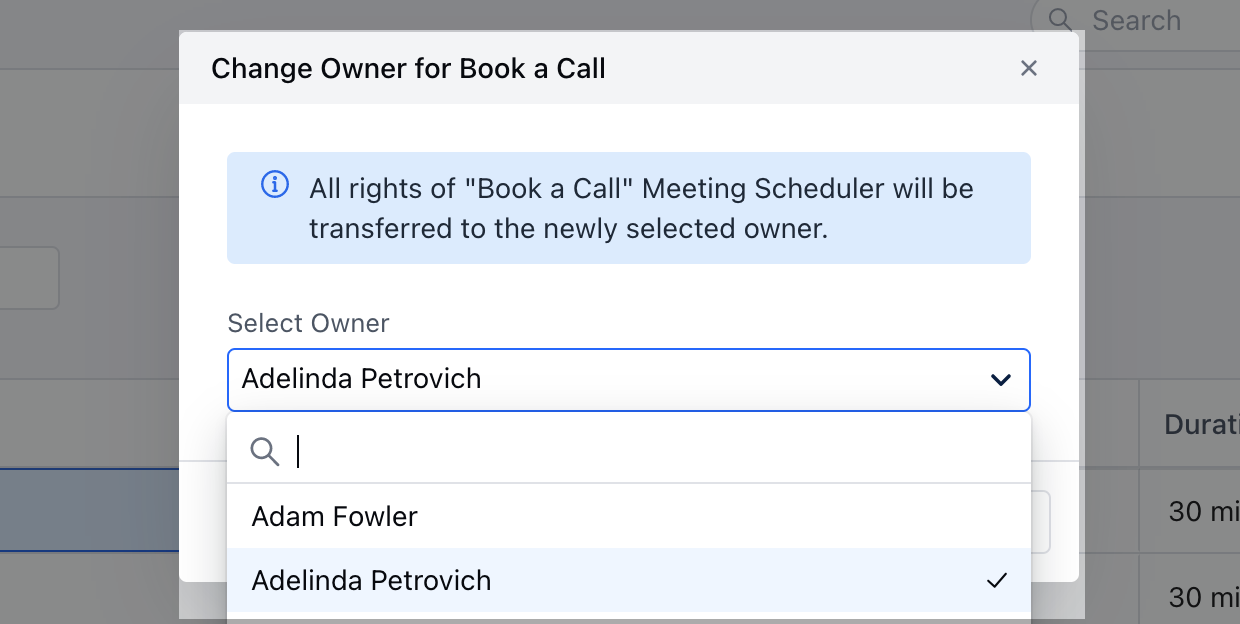
 * Select the **Owner** (User) to whom you want to transfer the **ownership** of the particular Meeting.
* All rights of the relevant Meeting will be transferred to the newly selected owner.
* Click on **Save** to return back to the Meeting menu List.
* Select the **Owner** (User) to whom you want to transfer the **ownership** of the particular Meeting.
* All rights of the relevant Meeting will be transferred to the newly selected owner.
* Click on **Save** to return back to the Meeting menu List.