> ## Documentation Index
> Fetch the complete documentation index at: https://support.getskara.ai/llms.txt
> Use this file to discover all available pages before exploring further.
# Customize Meeting Greetings
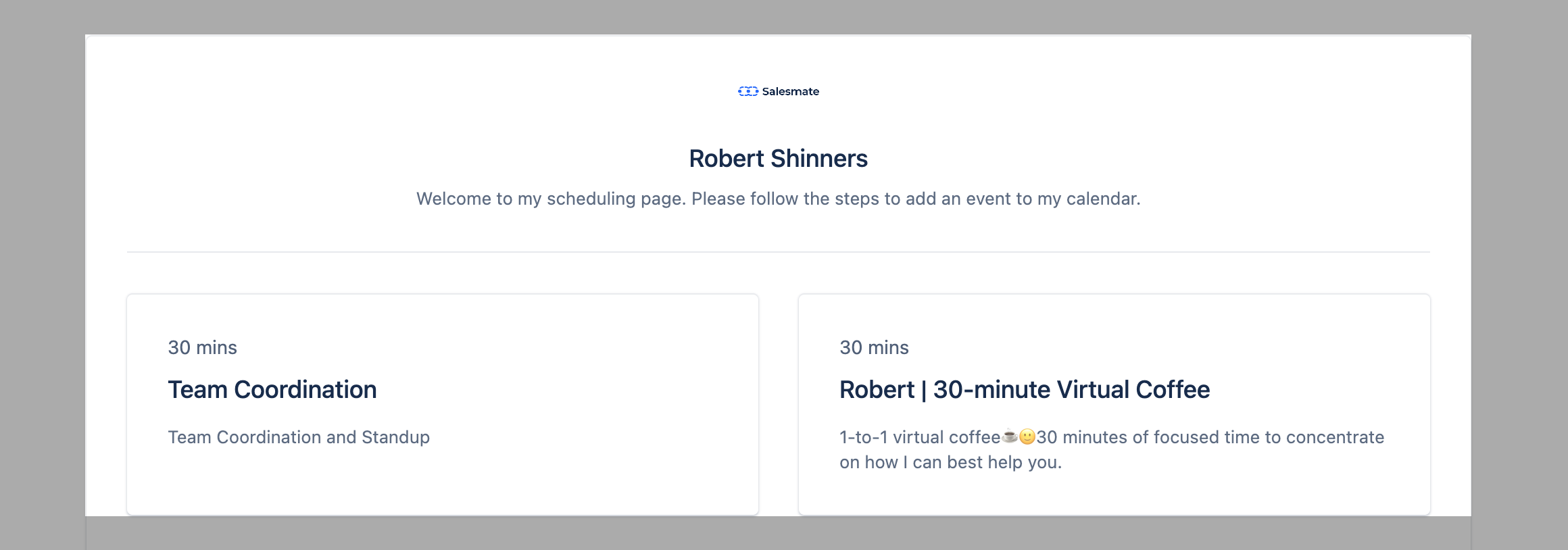
### **Customize the landing page of the meeting scheduler** to express yourself/your business better to visitors/customers.
Here's how you can do it
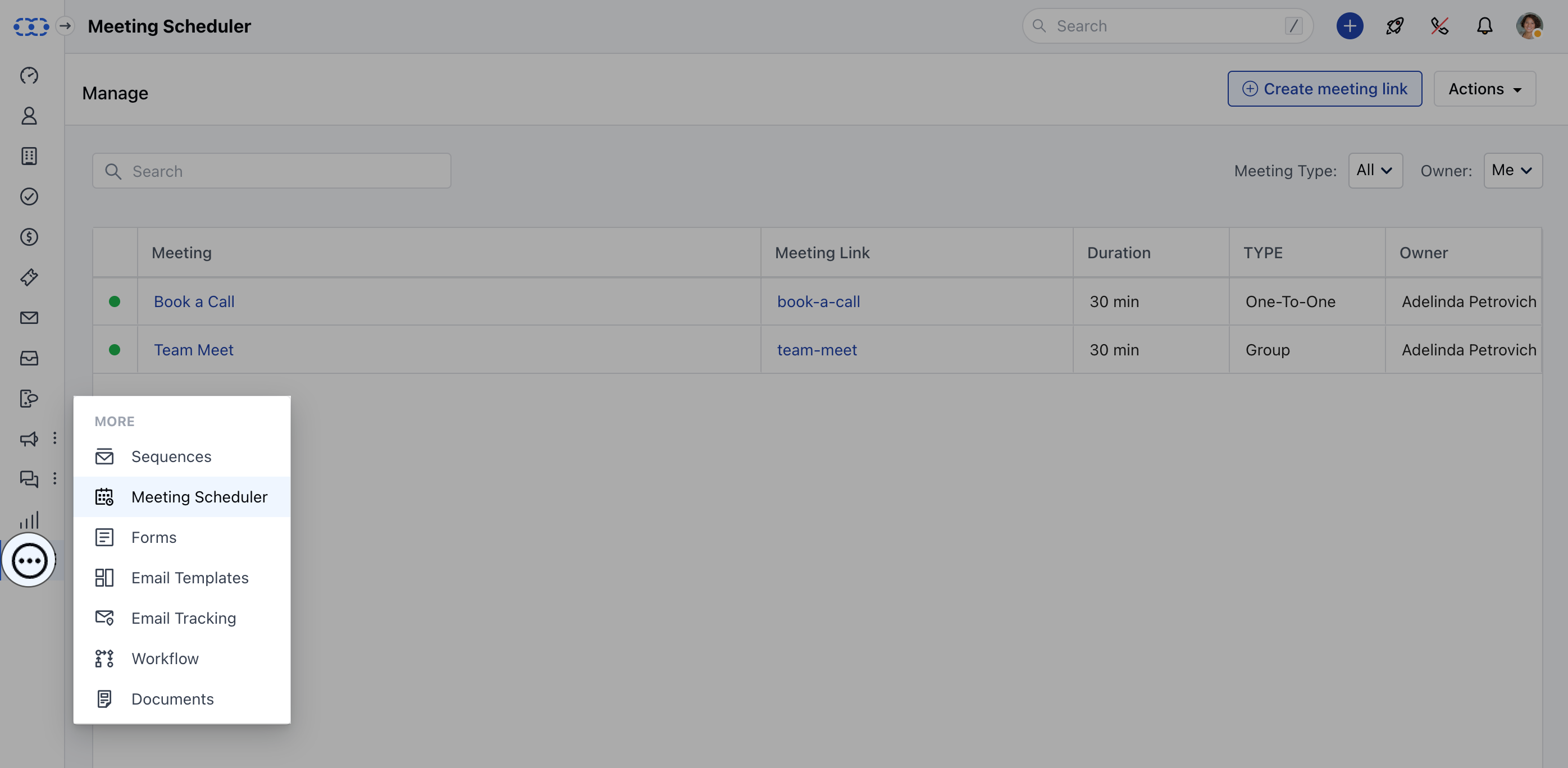
* **Navigate to the** More option from left sidebar menu
* **Click on** Meeting Scheduler
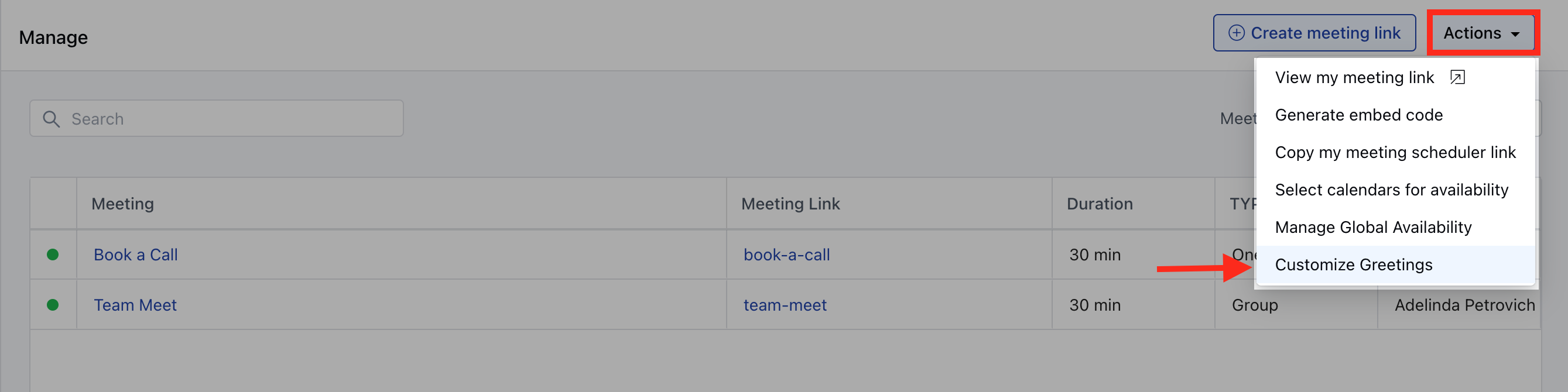
 * **Further, click on** Actions on the page and select
* **Customize Greetings**.
* **Further, click on** Actions on the page and select
* **Customize Greetings**.
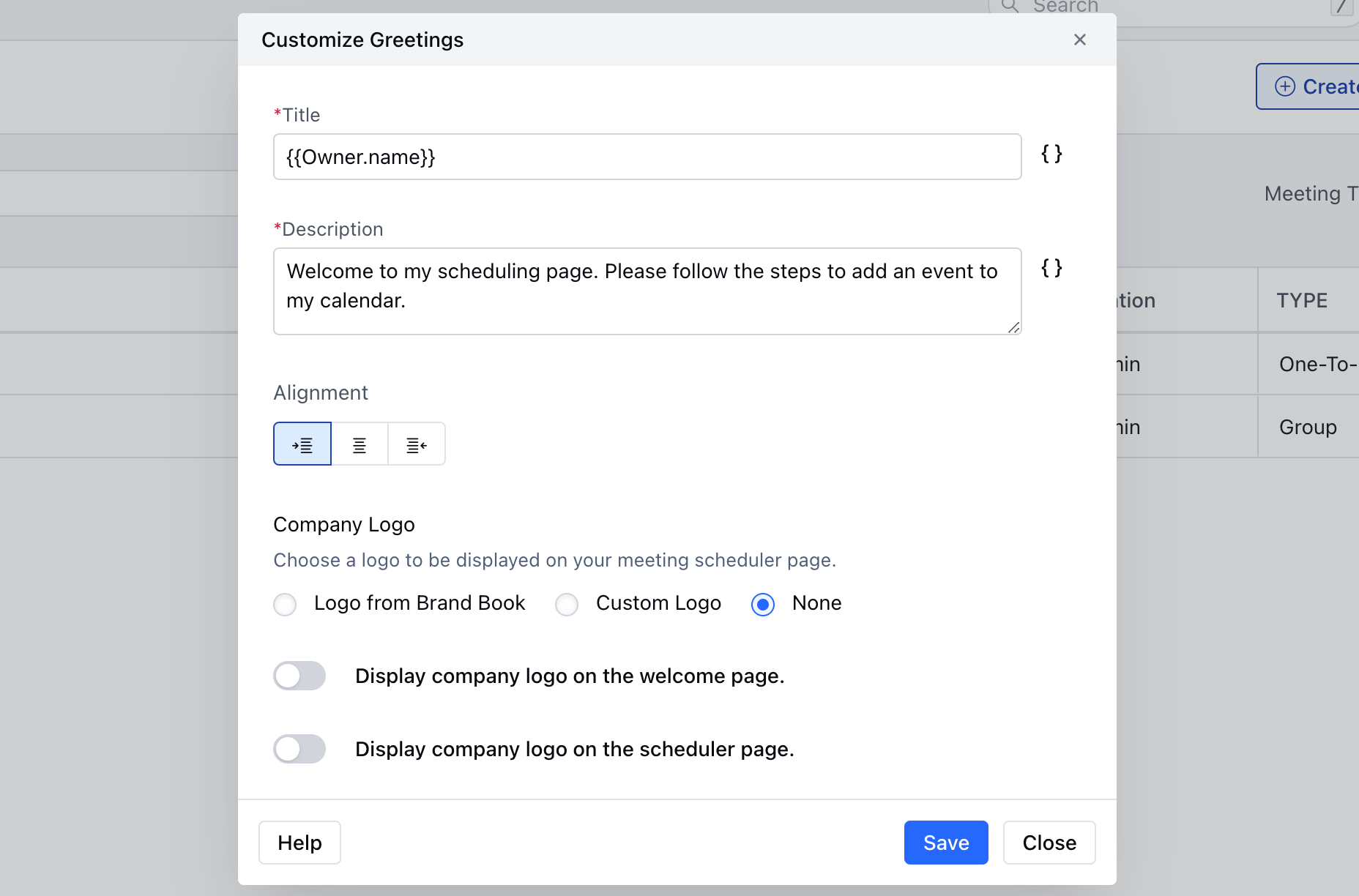
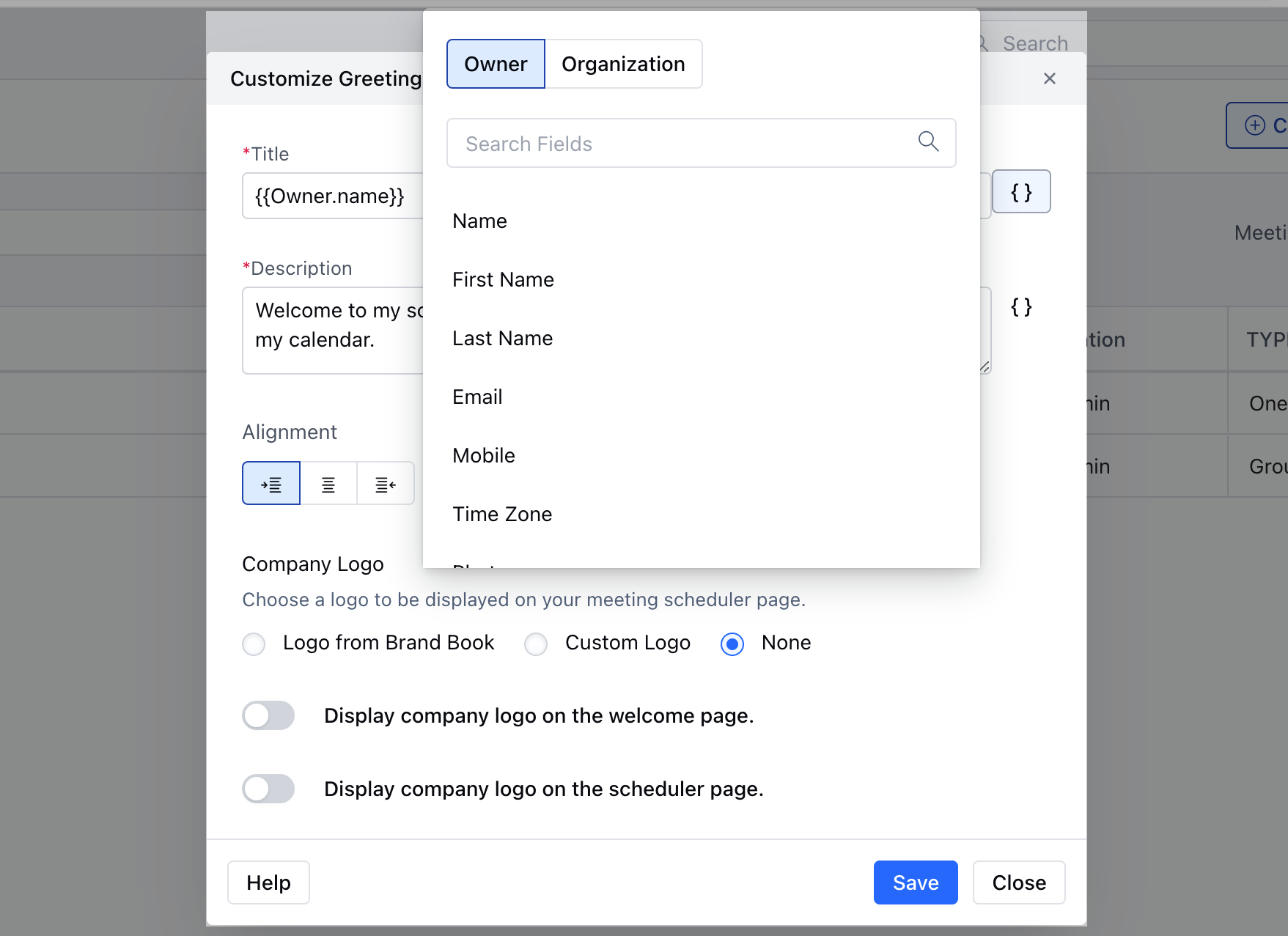
 * A pop-up box would open up allowing the user to customize the below options to customize greetings: \*\*Title:**A title would be displayed on the scheduler page**Description:\*\*A brief description would be displayed below the title on the scheduler page.
* \*\*Alignment:**Set the alignment of the content to be displayed on the page**Company Logo:**This will show your company logo on the scheduler page**Logo From Brand Book:\*\*You can choose one from the list of logos you have added to the [Brand Book](https://support.salesmate.io/hc/en-us/articles/14873359995929) and its small preview will be displayed below.
* \*\*Custom Logo:**Upload a custom logo and then a small preview of the uploaded logo wi**None:**This option will not provide the option to upload a logo**Display company logo on the welcome page:\*\*When you enable this option, the logo will be displayed on the welcome page of the meeting scheduler where all meetings of the users are displayed.
* **Display company logo on the scheduler page:** When you enable this option, the logo will be displayed on the page where the customer picks the date and time for the meeting with the user.
* A pop-up box would open up allowing the user to customize the below options to customize greetings: \*\*Title:**A title would be displayed on the scheduler page**Description:\*\*A brief description would be displayed below the title on the scheduler page.
* \*\*Alignment:**Set the alignment of the content to be displayed on the page**Company Logo:**This will show your company logo on the scheduler page**Logo From Brand Book:\*\*You can choose one from the list of logos you have added to the [Brand Book](https://support.salesmate.io/hc/en-us/articles/14873359995929) and its small preview will be displayed below.
* \*\*Custom Logo:**Upload a custom logo and then a small preview of the uploaded logo wi**None:**This option will not provide the option to upload a logo**Display company logo on the welcome page:\*\*When you enable this option, the logo will be displayed on the welcome page of the meeting scheduler where all meetings of the users are displayed.
* **Display company logo on the scheduler page:** When you enable this option, the logo will be displayed on the page where the customer picks the date and time for the meeting with the user.
 * **The users would also be able to insert the** attributes related to the
* **owner** and **organization** fields in order to dynamically populate the values on your landing page.
* **The users would also be able to insert the** attributes related to the
* **owner** and **organization** fields in order to dynamically populate the values on your landing page.
 * **Hit on the** Save button to display the changes on the
* **Welcome page** and **Scheduler page**.
* **Hit on the** Save button to display the changes on the
* **Welcome page** and **Scheduler page**.