> ## Documentation Index
> Fetch the complete documentation index at: https://support.getskara.ai/llms.txt
> Use this file to discover all available pages before exploring further.
# Delete Meeting Scheduler
You can **Delete** the schedulers if you wish to discontinue with them at any time which furthermore will not let customers schedule any meetings/ calls.
* Once Deleted, contacts will be unable to schedule further meetings with deleted meeting scheduler.
* Meetings previously scheduled will not be affected after this action has been performed.
To **Delete** a Meeting Scheduler, follow the below-mentioned steps:
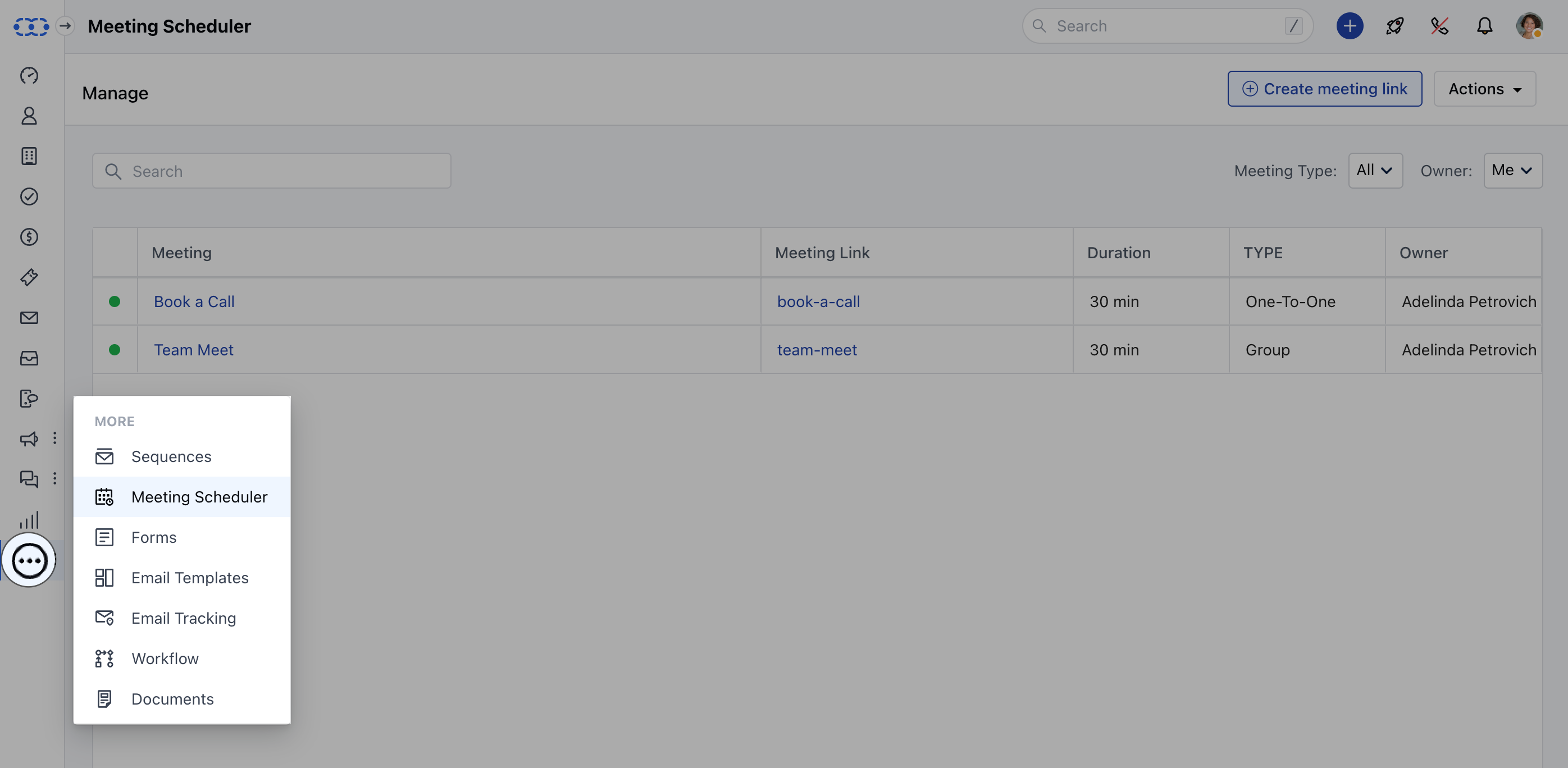
* **Navigate to the** More option from left sidebar menu
* **Click on** Meeting Scheduler
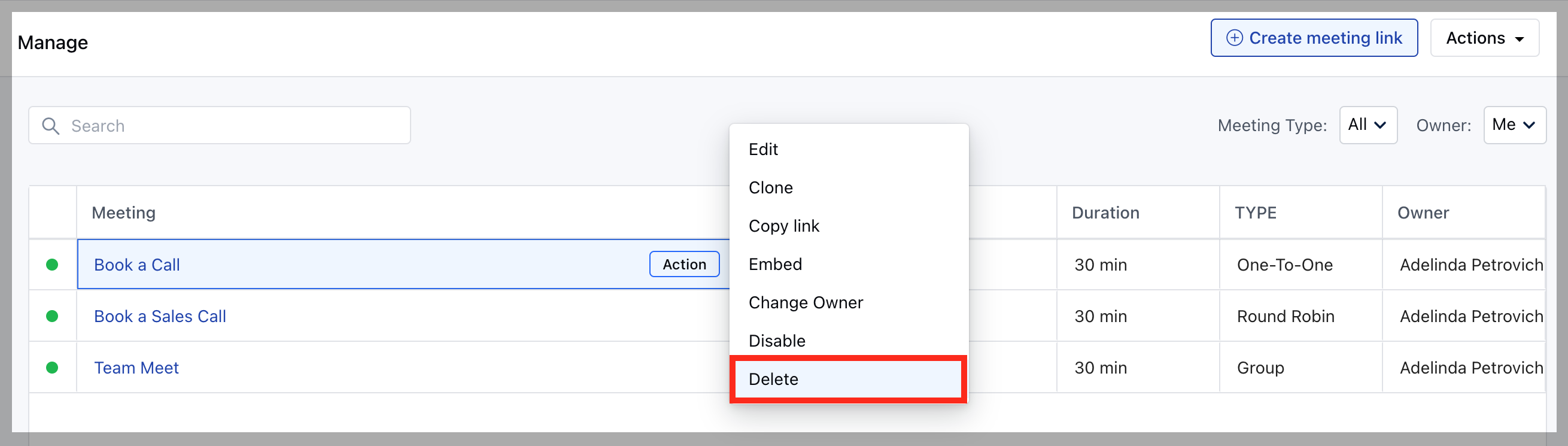
 * **Hover over the** Meeting Name which you wish to Delete
* **Click on the** Action button
* **Hit the** Delete option
* **Hover over the** Meeting Name which you wish to Delete
* **Click on the** Action button
* **Hit the** Delete option
 * **Confirm the** Delete Pop up message
**Note**: This Action is irreversible and the Meeting Scheduler cannot be restored once deleted.
* **Confirm the** Delete Pop up message
**Note**: This Action is irreversible and the Meeting Scheduler cannot be restored once deleted.