> ## Documentation Index
> Fetch the complete documentation index at: https://support.getskara.ai/llms.txt
> Use this file to discover all available pages before exploring further.
# Enable or Disable Meeting Scheduler
Salesmate Meeting Scheduler gives you the flexibility to enable or disable a meeting in case it has to be stopped for future booking or reinstated from a brief halt.
Meeting Scheduler can be marked as Active or Inactive whenever required as per your availability.
To **Disable**/**Enable** a Meeting Scheduler, follow the below-mentioned steps:
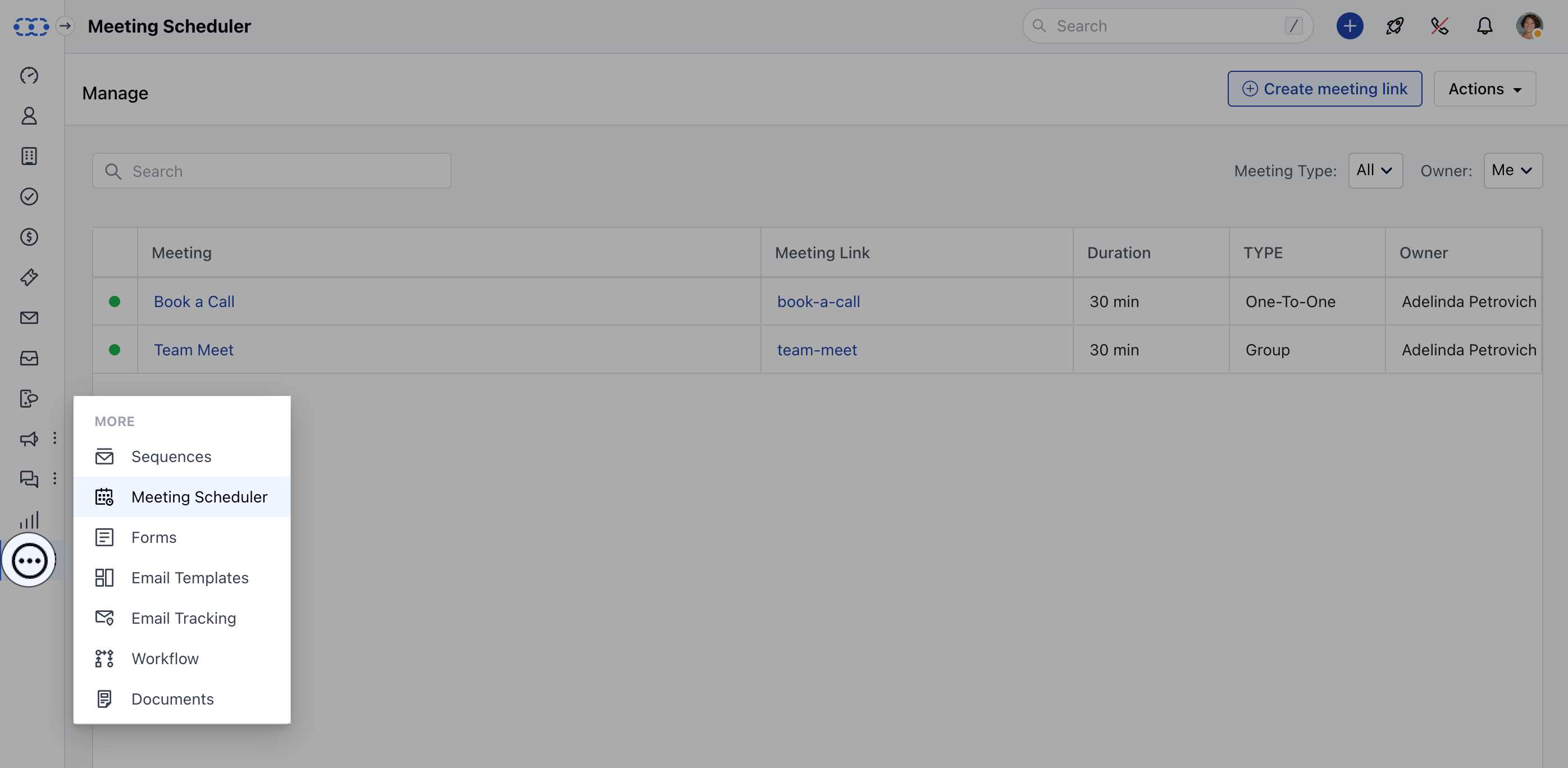
* **Navigate to the** More option from left sidebar menu
* **Click on** Meeting Scheduler
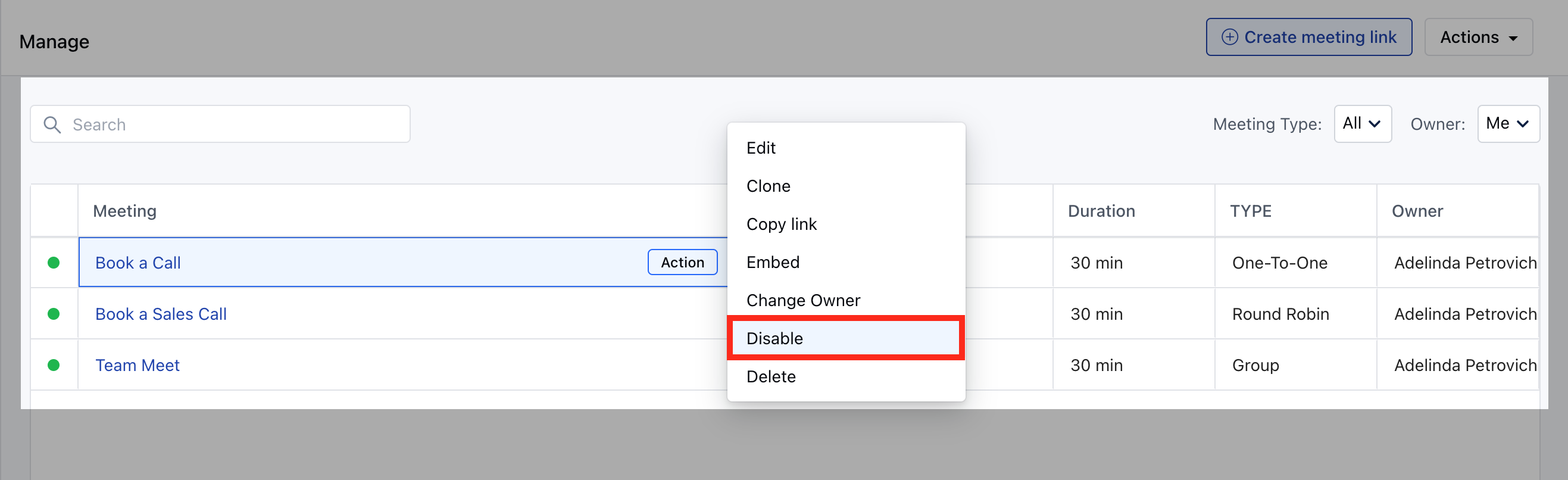
 * **Hover over the** Meeting Name which you wish to Enable/ Diable
* **Click on the** Action button.
* **Hit** Disable , to mark the meeting inactive for future bookings OR hit
* **Enable**, to activate back the Meeting Scheduler for upcoming bookings.
* **Hover over the** Meeting Name which you wish to Enable/ Diable
* **Click on the** Action button.
* **Hit** Disable , to mark the meeting inactive for future bookings OR hit
* **Enable**, to activate back the Meeting Scheduler for upcoming bookings.
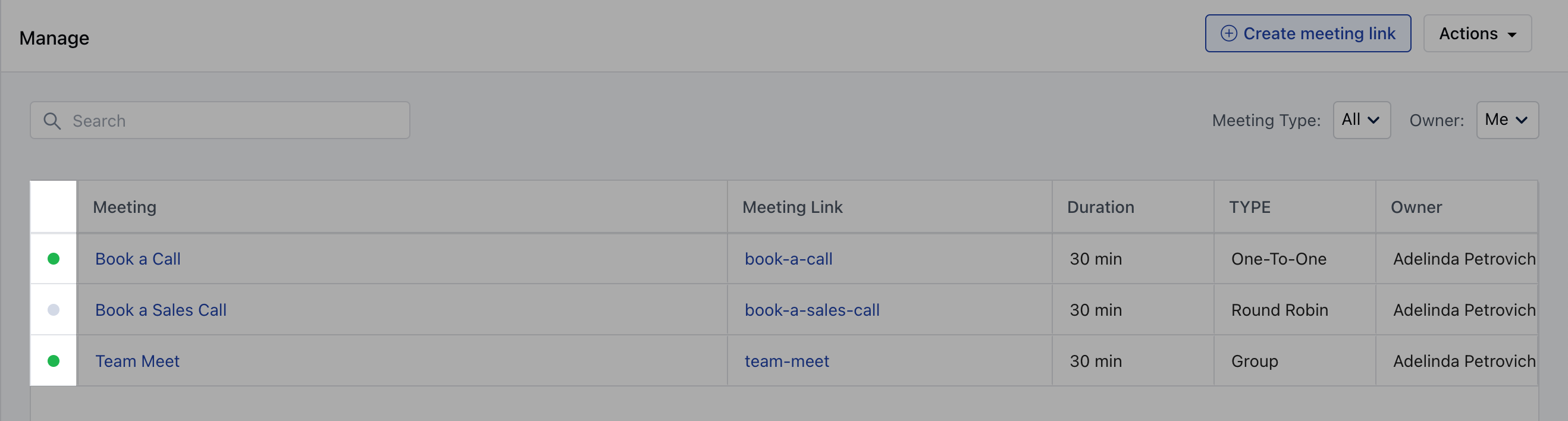
 * \*\*Color **identifications to identify Meeting Scheduler** Status \***Disabled**: Grey \*\*Enabled \*\*: Green