> ## Documentation Index
> Fetch the complete documentation index at: https://support.getskara.ai/llms.txt
> Use this file to discover all available pages before exploring further.
# Share meeting scheduler link
Share your Meeting Scheduler link so invitees can quickly go to your scheduling page and book with you.Topics Covered:
* [Locate your meeting scheduler links](#locate-your-meeting-scheduler-links)
* [When you share your Meeting Scheduler link](#when-you-share-your-meeting-scheduler-link)
* [Multiple ways to share your link](#multiple-ways-to-share-your-link)
* [Want to make yourself available to anyone in your network](#want-to-make-yourself-available-to-anyone-in-your-network)
* [Control who schedules with you](#control-who-schedules-with-you)
### Locate your meeting scheduler links
There are 2 types of scheduling links:
* [**Landing page**](https://support.salesmate.io/hc/en-us/articles/4405397621389#h_01HXE54DF229MQSKQP702EM3WQ) link (the page with all of your active event types)
* [**Meeting specific page**](https://support.salesmate.io/hc/en-us/articles/4405397621389#h_01HXE54JM2VQ1AYN1GBD232NZJ) (the scheduling page for a specific event type)
Once you locate your landing page link and your meeting scheduler page links, you can copy and share them to your invitees.
### **To share your meeting scheduler links**
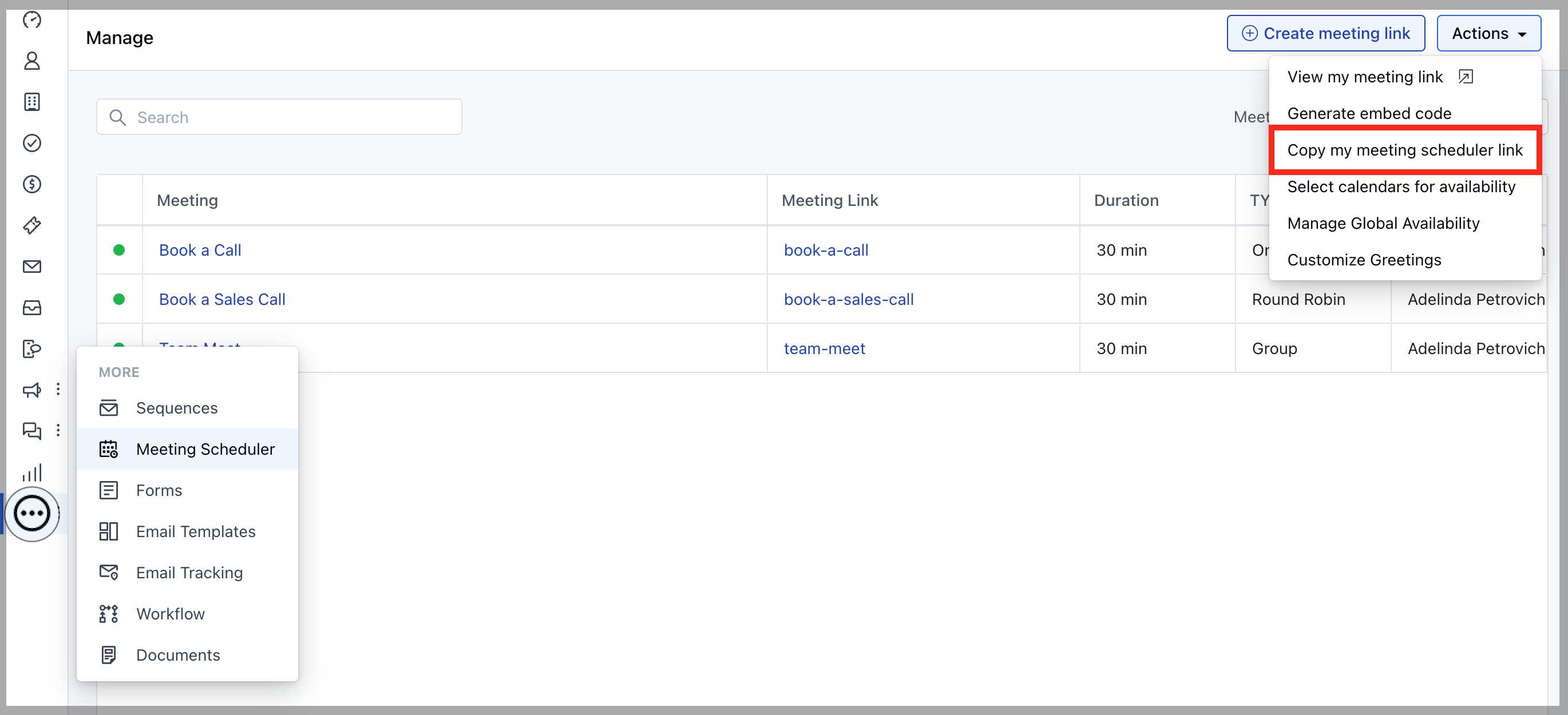
### Landing page,
* Navigate to the **Profile Icon** from the left menu bar
* Click on the **Meeting Schedular**
* Head over to the **Actions** option
* Click on the **Copy My Meeting Schedular Link**
 ### Meeting Specific Page,
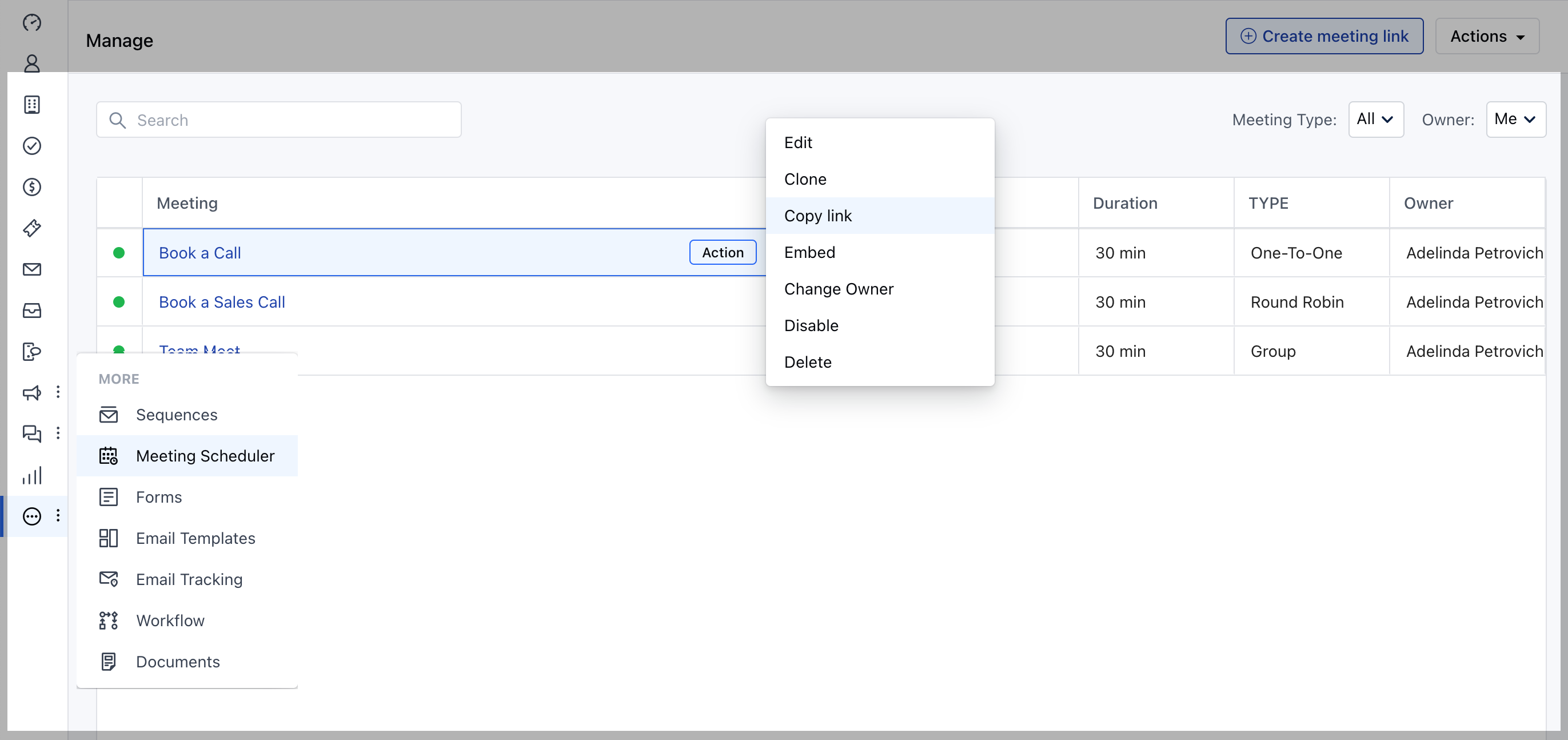
* Navigate to the **Profile Icon** from the left menu bar
* Click on the **Meeting Schedular**
* Click on the **Meeting Link**
* Select **Copy Link** under **Actions** dropdown
### Meeting Specific Page,
* Navigate to the **Profile Icon** from the left menu bar
* Click on the **Meeting Schedular**
* Click on the **Meeting Link**
* Select **Copy Link** under **Actions** dropdown
 ### When you share your Meeting Scheduler link
Your invitees can click it and:
* Visit your **landing page** lists all the types of event you offer
* Choose a meeting schedule you offer
* Then select a date and time to book with you
**Tip**: to control the type of event they can book, instead of sending them to your landing page, send them a link to a **meeting specific page** that shows available times for just that type of meeting.
### Multiple ways to share your link
Share your link from:
* Your email signature
* The body of an email
* A text message
* A link on your website
* Your social media
* Any other way you communicate with invitees
### Want to make yourself available to anyone in your network
* Add your Meeting Scheduler link to your email signature. You can even add the link to your online profile or website to make yourself always available to the public.
### Control who schedules with you
* If you prefer to be more exclusive, share your links only with people you want to meet with. You can also create **private event types** that hide the event from your Landing Page.
### When you share your Meeting Scheduler link
Your invitees can click it and:
* Visit your **landing page** lists all the types of event you offer
* Choose a meeting schedule you offer
* Then select a date and time to book with you
**Tip**: to control the type of event they can book, instead of sending them to your landing page, send them a link to a **meeting specific page** that shows available times for just that type of meeting.
### Multiple ways to share your link
Share your link from:
* Your email signature
* The body of an email
* A text message
* A link on your website
* Your social media
* Any other way you communicate with invitees
### Want to make yourself available to anyone in your network
* Add your Meeting Scheduler link to your email signature. You can even add the link to your online profile or website to make yourself always available to the public.
### Control who schedules with you
* If you prefer to be more exclusive, share your links only with people you want to meet with. You can also create **private event types** that hide the event from your Landing Page.