> ## Documentation Index
> Fetch the complete documentation index at: https://support.getskara.ai/llms.txt
> Use this file to discover all available pages before exploring further.

# Share your availability over email for Meeting Scheduler

You can share your Calendar availability over an email. 

To share your availability over an email,

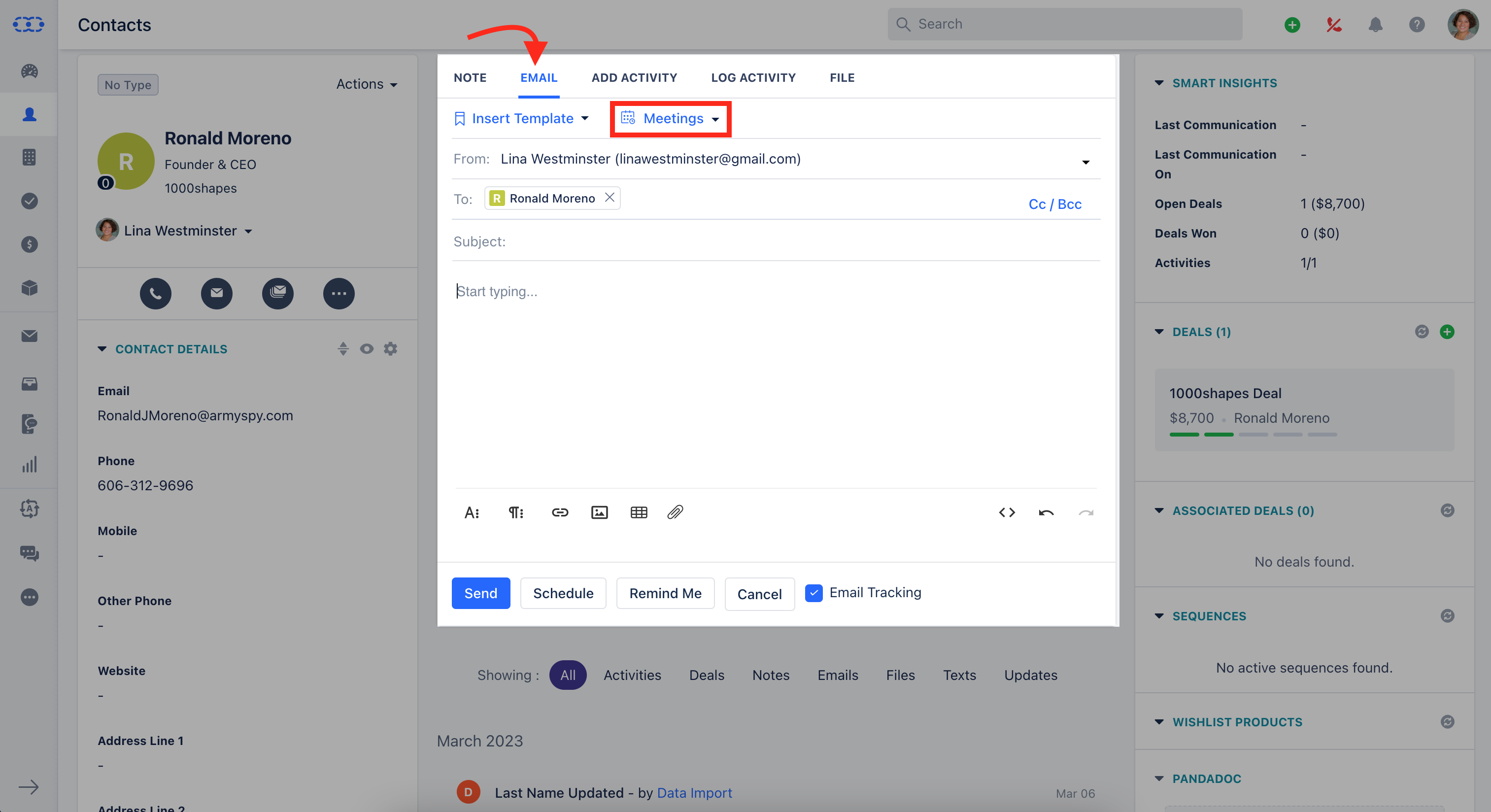
* Click on any contact >>**Email**.
* Click on **Meeting**.
<img src="https://mintcdn.com/salesmate/UpDIs9NYacnxKxxO/meeting-scheduler/embed-and-sharing/images/Screenshot-2023-04-18-at-6.10.44-PM.png?fit=max&auto=format&n=UpDIs9NYacnxKxxO&q=85&s=b060e30ba42e9d9ef1f0f47c1ffa4b16" alt="Screenshot_2023-04-18_at_6.10.44_PM.png" width="3026" height="1648" data-path="meeting-scheduler/embed-and-sharing/images/Screenshot-2023-04-18-at-6.10.44-PM.png" />

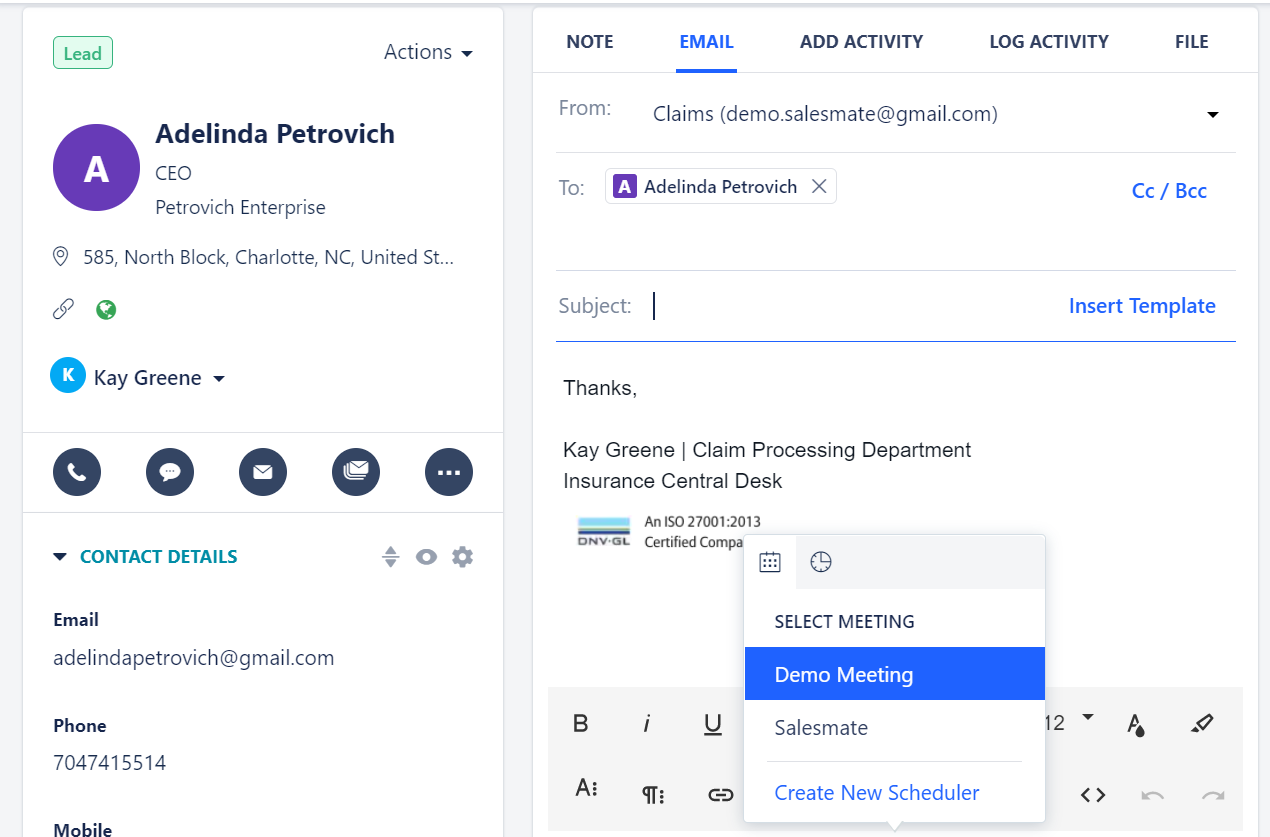
* When you click on the **Meeting** button you will get the popup where you can view the active meeting Links and the Timeslots.
<img src="https://mintcdn.com/salesmate/UpDIs9NYacnxKxxO/meeting-scheduler/embed-and-sharing/images/Screenshot-2021-08-10-192426.png?fit=max&auto=format&n=UpDIs9NYacnxKxxO&q=85&s=629e9803c6f69d504d12941ce6274206" alt="Screenshot_2021-08-10_192426.png" width="1270" height="837" data-path="meeting-scheduler/embed-and-sharing/images/Screenshot-2021-08-10-192426.png" />

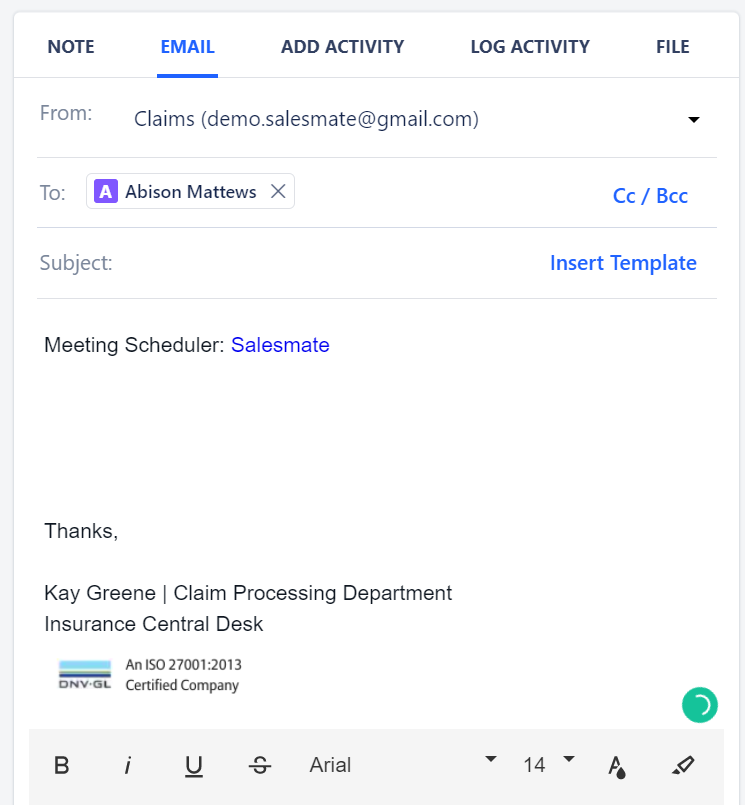
* Click on the scheduler that you want to insert in the email.
<img src="https://mintcdn.com/salesmate/UpDIs9NYacnxKxxO/meeting-scheduler/embed-and-sharing/images/Screenshot-2021-08-10-192517.png?fit=max&auto=format&n=UpDIs9NYacnxKxxO&q=85&s=5cfb57c2aa9c82949cf7c39115951bfa" alt="Screenshot_2021-08-10_192758.png" width="1372" height="829" data-path="meeting-scheduler/embed-and-sharing/images/Screenshot-2021-08-10-192517.png" />

### Picking Time on Email Scheduler

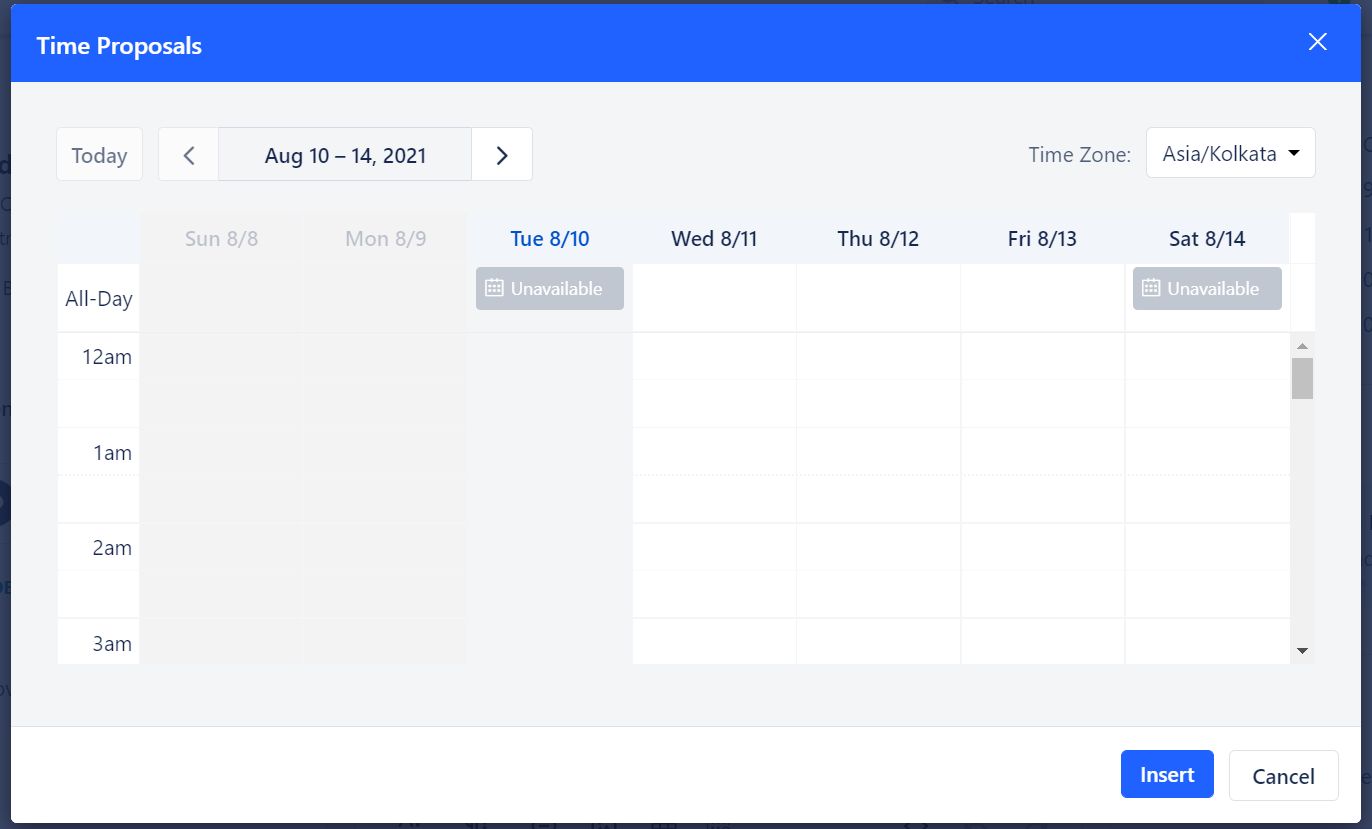
You can pick the time which you want to your customer and add it in the email. To pick the time:

* Go to **Email Compose** Screen >> Click on **Scheduler**
* Click on the **Pick Time(Clock)** button.
<img src="https://mintcdn.com/salesmate/UpDIs9NYacnxKxxO/meeting-scheduler/embed-and-sharing/images/Screenshot-2021-08-10-192543.png?fit=max&auto=format&n=UpDIs9NYacnxKxxO&q=85&s=719990b6826d5b0846808b90194ee6ce" alt="Screenshot_2021-08-10_192517.png" width="1360" height="820" data-path="meeting-scheduler/embed-and-sharing/images/Screenshot-2021-08-10-192543.png" />

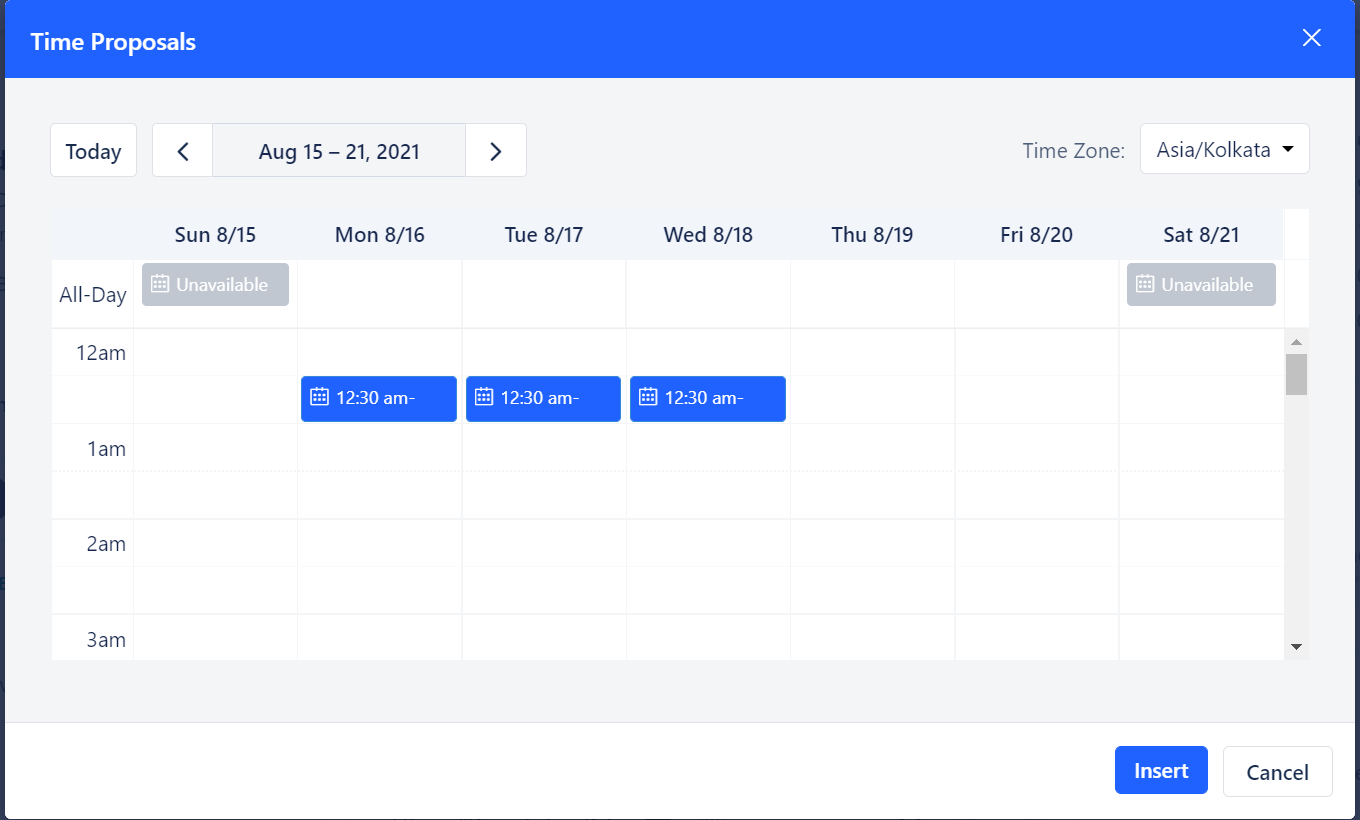
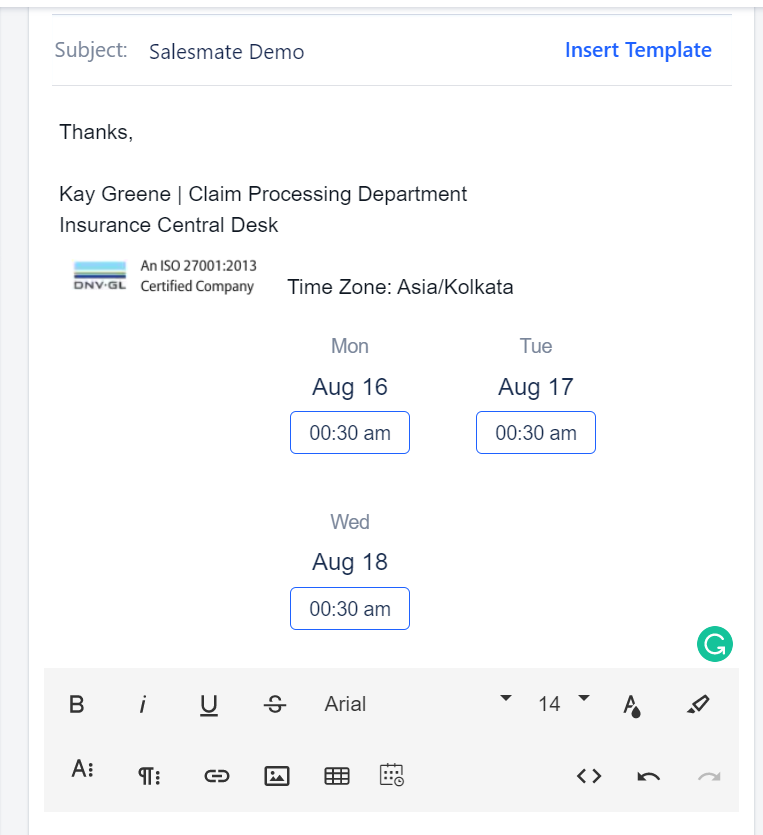
* Here, Grey indicates the slots that are already booked. You can select up to 3 slots to add to the email.
<img src="https://mintcdn.com/salesmate/UpDIs9NYacnxKxxO/meeting-scheduler/embed-and-sharing/images/Screenshot-2021-08-10-192621.png?fit=max&auto=format&n=UpDIs9NYacnxKxxO&q=85&s=5410ccee5bfae355ed7e8280a76fc221" alt="Screenshot_2021-08-10_192543.png" width="763" height="835" data-path="meeting-scheduler/embed-and-sharing/images/Screenshot-2021-08-10-192621.png" />

* Select the slots and hit on the **Insert** button.
<img src="https://mintcdn.com/salesmate/UpDIs9NYacnxKxxO/meeting-scheduler/embed-and-sharing/images/Screenshot-2021-08-10-192758.png?fit=max&auto=format&n=UpDIs9NYacnxKxxO&q=85&s=41a03e3f05f6aa9a89557e382e0a809e" alt="Screenshot_2021-08-10_192621.png" width="745" height="805" data-path="meeting-scheduler/embed-and-sharing/images/Screenshot-2021-08-10-192758.png" />
