> ## Documentation Index
> Fetch the complete documentation index at: https://support.getskara.ai/llms.txt
> Use this file to discover all available pages before exploring further.
# Brand Book
The **Brand Book** feature will allow you to configure your organization's **colors, logos, and** **template styles.** With the existing option, we allow adding **Logos** to the brand book.\
Upload multiple logos to use across Skara modules, like **Meeting Scheduler and Unified Inbox .**\
Currently, with the Brand Book option you can add the logos to the [Meeting Scheduler Custom Greetings](https://support.salesmate.io/hc/en-us/articles/4674492918297) option.
**Note:** This action can be performed by the user who has admin rights.
Topics Covered in this Article:
* [**Add a Logo**](#add-logo)
* [**Update a Logo**](#update-a-logo)
* [**Delete a Logo**](#delete-a-logo)
### Add Logo
To add a Logo to the Brand Book, please follow the below steps:
* Navigate to the **Profile icon** on the top right corner
* Click on the **Setup**
* Head over to the **Organization**
* Click on the **Brand Book**
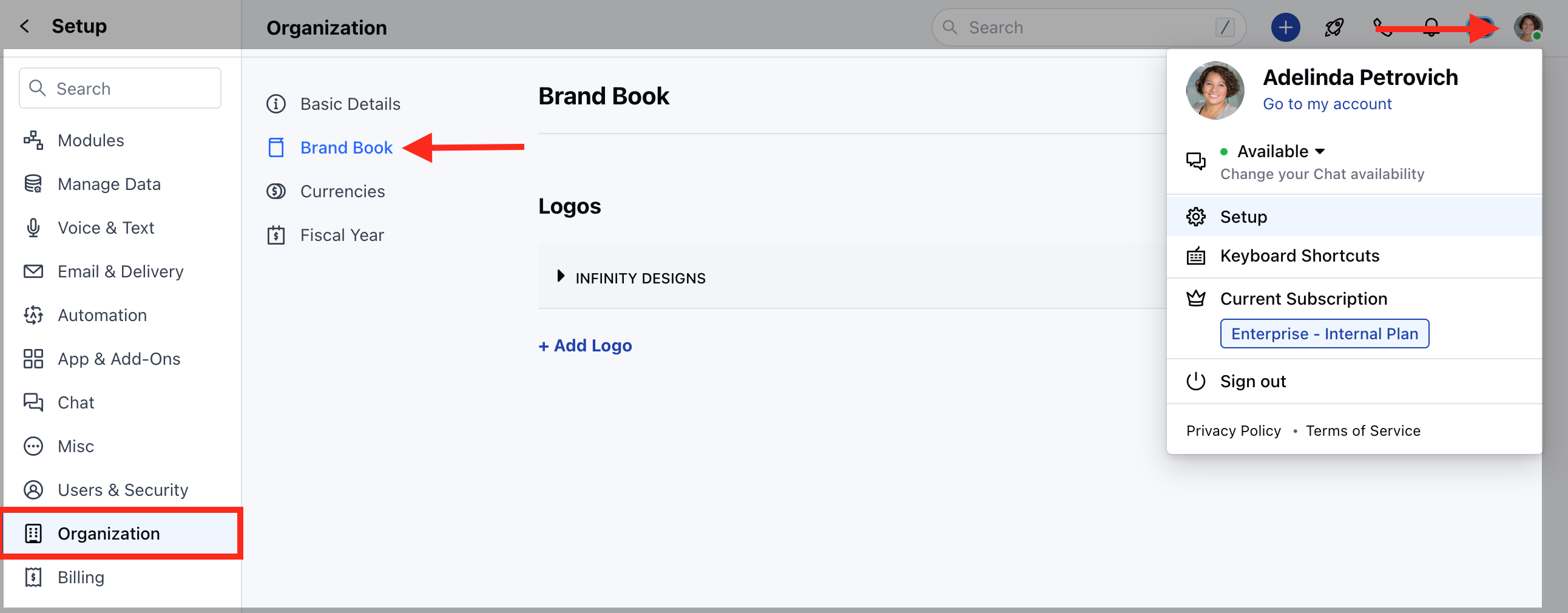 Now, click on the **"+ Add Logo"** button to add the logo.
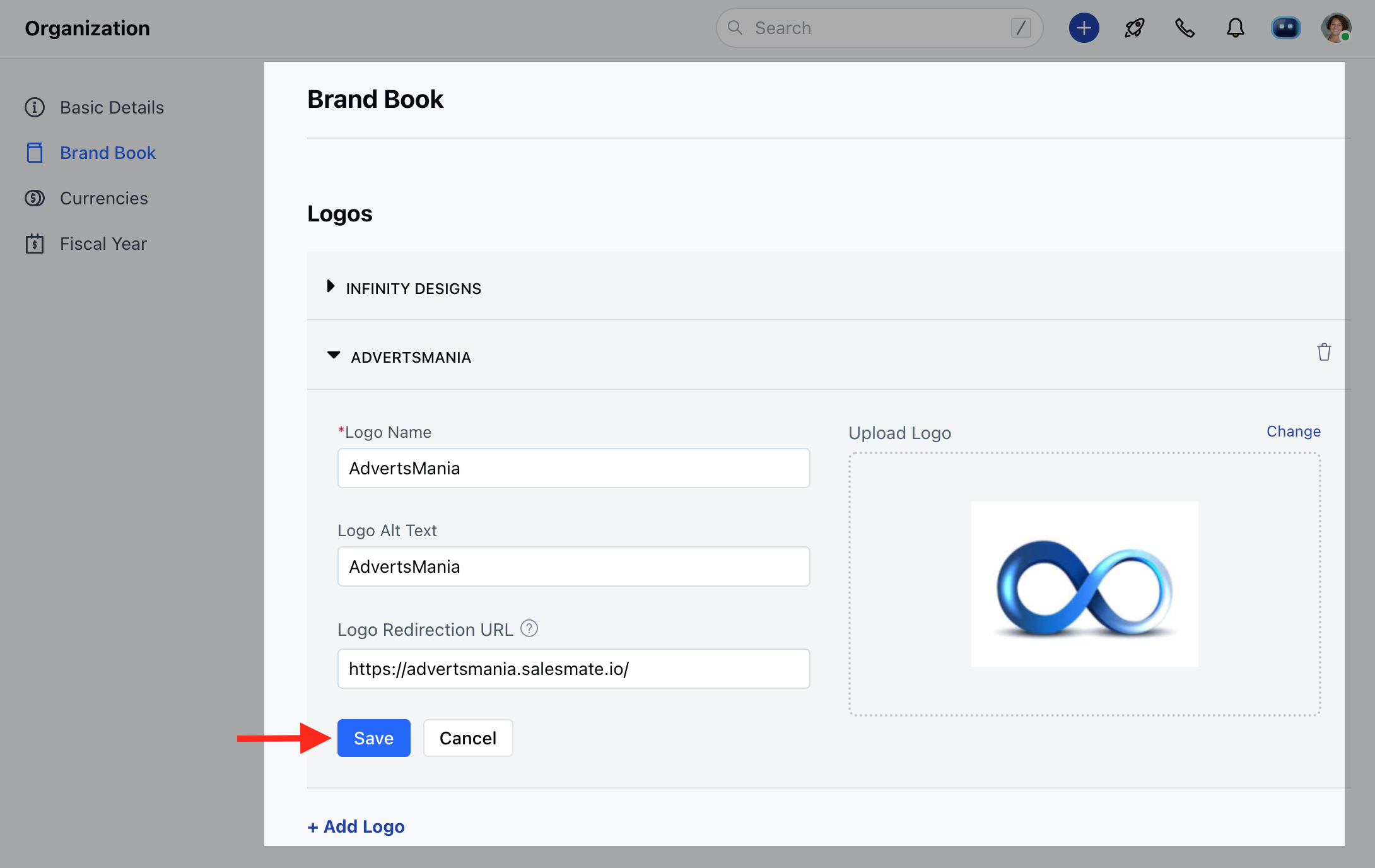
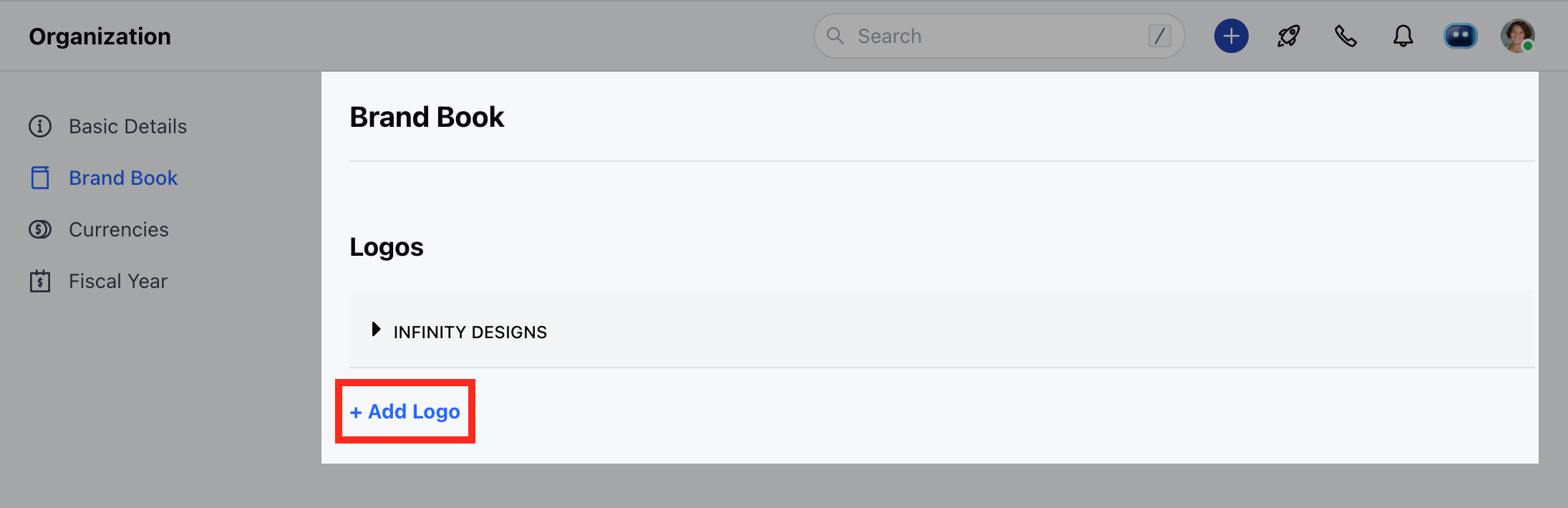 This will open the below screen and will ask for the below information.
* **Logo Name:** Give a name to your logo, this name will be used to select the logo in Skara modules.
* **Logo Alt Text:** Give alternative text which should be displayed, in case the image doesn’t appear.
* **Logo Redirection URL:** Embed URL to your logo that redirects the users to a particular webpage.
* **Upload Logo:** Here upload the image from your system.
This will open the below screen and will ask for the below information.
* **Logo Name:** Give a name to your logo, this name will be used to select the logo in Skara modules.
* **Logo Alt Text:** Give alternative text which should be displayed, in case the image doesn’t appear.
* **Logo Redirection URL:** Embed URL to your logo that redirects the users to a particular webpage.
* **Upload Logo:** Here upload the image from your system.
 **Note:**
* Maximum size allowed 5MB
* Supported Image formats: .JPG, .JPEG & .PNG
### **Update a Logo**
To update a Logo to the Brand Book, please follow the below steps:
* Navigate to the **Profile icon** on the top right corner
* Click on the **Setup**
* Head over to the **Organization**
* Click on the **Brand Book**
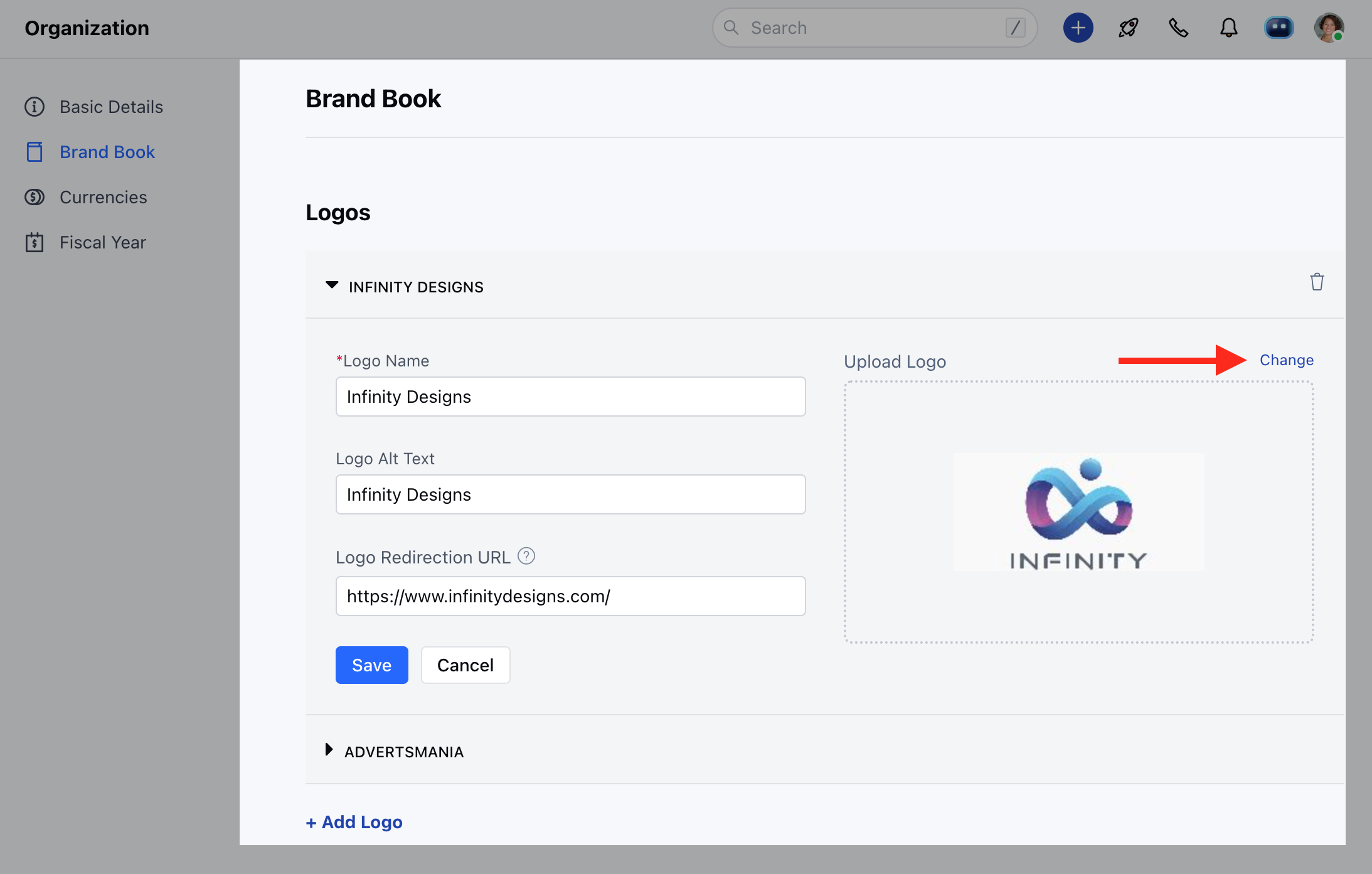
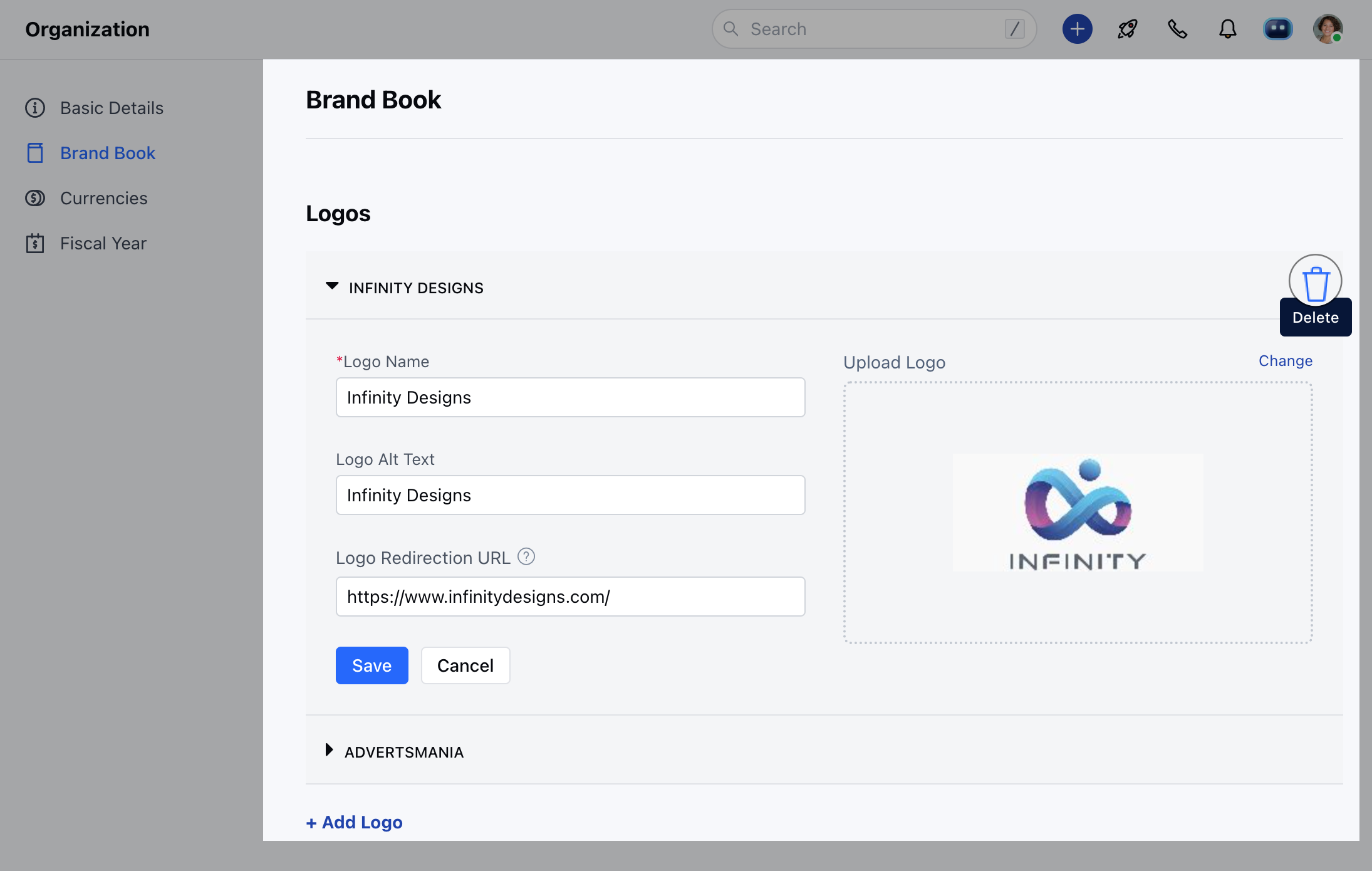
* Now open the Logo from the list that you wish to update.
* Here, you can now update the **Logo name, Logo Alt text, and Redirection URL**. To change the logo image click on the **Change** button and upload the new image.
* Once done, hit on **Save**
**Note:**
* Maximum size allowed 5MB
* Supported Image formats: .JPG, .JPEG & .PNG
### **Update a Logo**
To update a Logo to the Brand Book, please follow the below steps:
* Navigate to the **Profile icon** on the top right corner
* Click on the **Setup**
* Head over to the **Organization**
* Click on the **Brand Book**
* Now open the Logo from the list that you wish to update.
* Here, you can now update the **Logo name, Logo Alt text, and Redirection URL**. To change the logo image click on the **Change** button and upload the new image.
* Once done, hit on **Save**
 ### Delete a Logo
To delete a Logo to the Brand Book, please follow the below steps:
* Navigate to the **Profile icon** on the top right corner
* Click on the **Setup**
* Head over to the **Organization**
* Click on the **Brand Book**
* Open the Logo from the list that you wish to Delete and click on the **Delete icon**
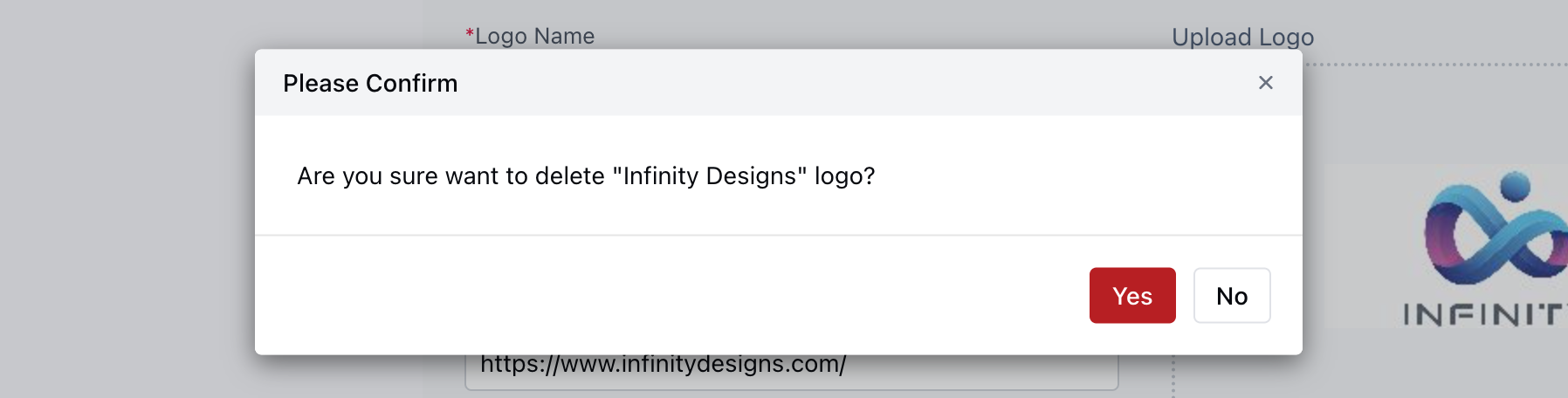
* Upon clicking on the **Delete icon**, it will show a confirmation popup whether you wish to delete the logo or not.
### Delete a Logo
To delete a Logo to the Brand Book, please follow the below steps:
* Navigate to the **Profile icon** on the top right corner
* Click on the **Setup**
* Head over to the **Organization**
* Click on the **Brand Book**
* Open the Logo from the list that you wish to Delete and click on the **Delete icon**
* Upon clicking on the **Delete icon**, it will show a confirmation popup whether you wish to delete the logo or not.
 Confirm the **Delete**
 Note:
Deleting a logo will remove it permanently, and it will be removed from all places where it has been used.
Note:
Deleting a logo will remove it permanently, and it will be removed from all places where it has been used.