> ## Documentation Index
> Fetch the complete documentation index at: https://support.getskara.ai/llms.txt
> Use this file to discover all available pages before exploring further.
# How to create Calculated Fields
Calculated fields allow you to perform automatic calculations based on existing data from other fields or related modules.
To Create Calculated Fields,
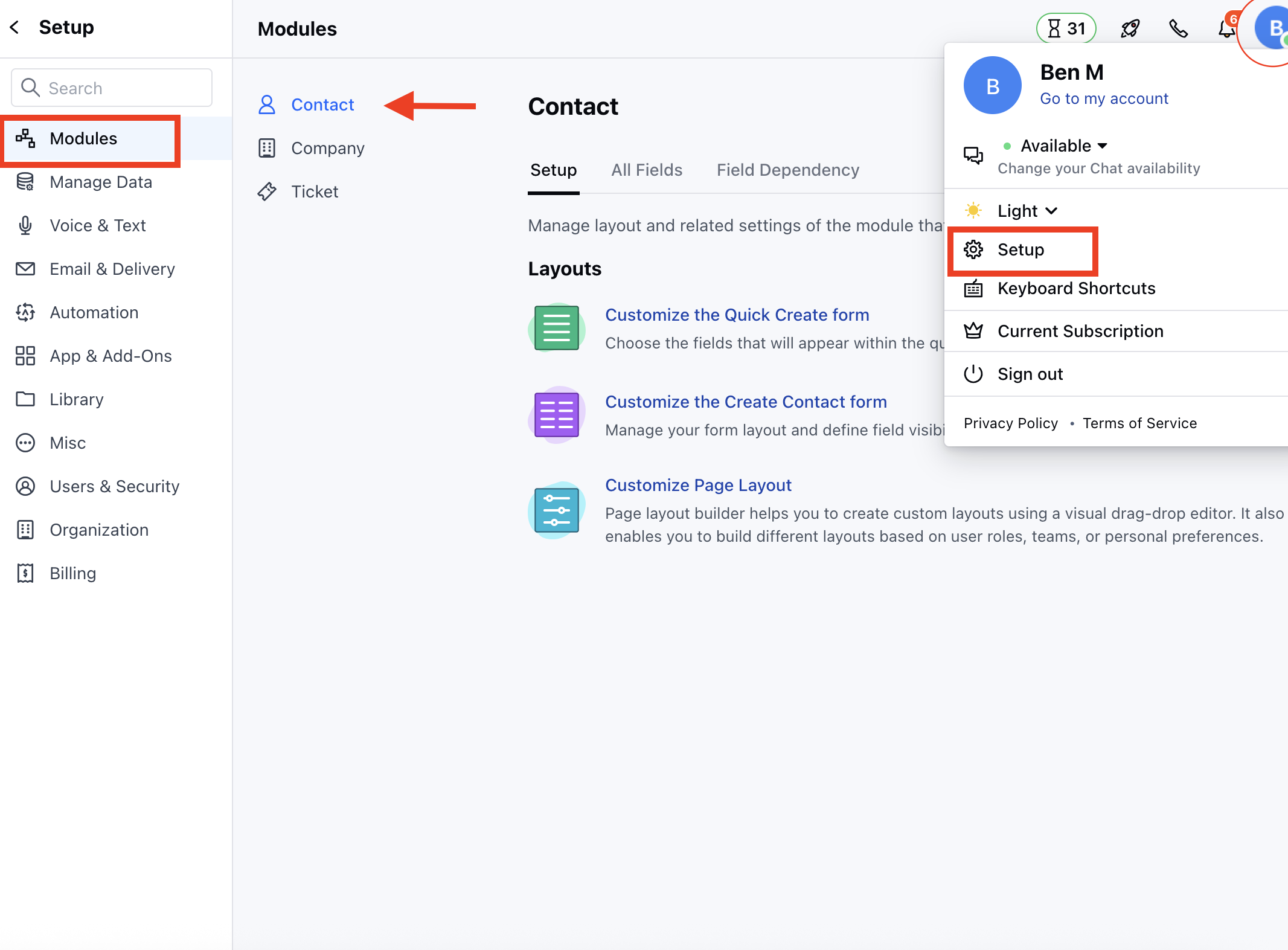
* Navigate to the **Profile Icon** on the top right corner
* Click on the **Setup**
* Head Over to the **Modules** Category
* Select the Module (****Contact or Company**** )
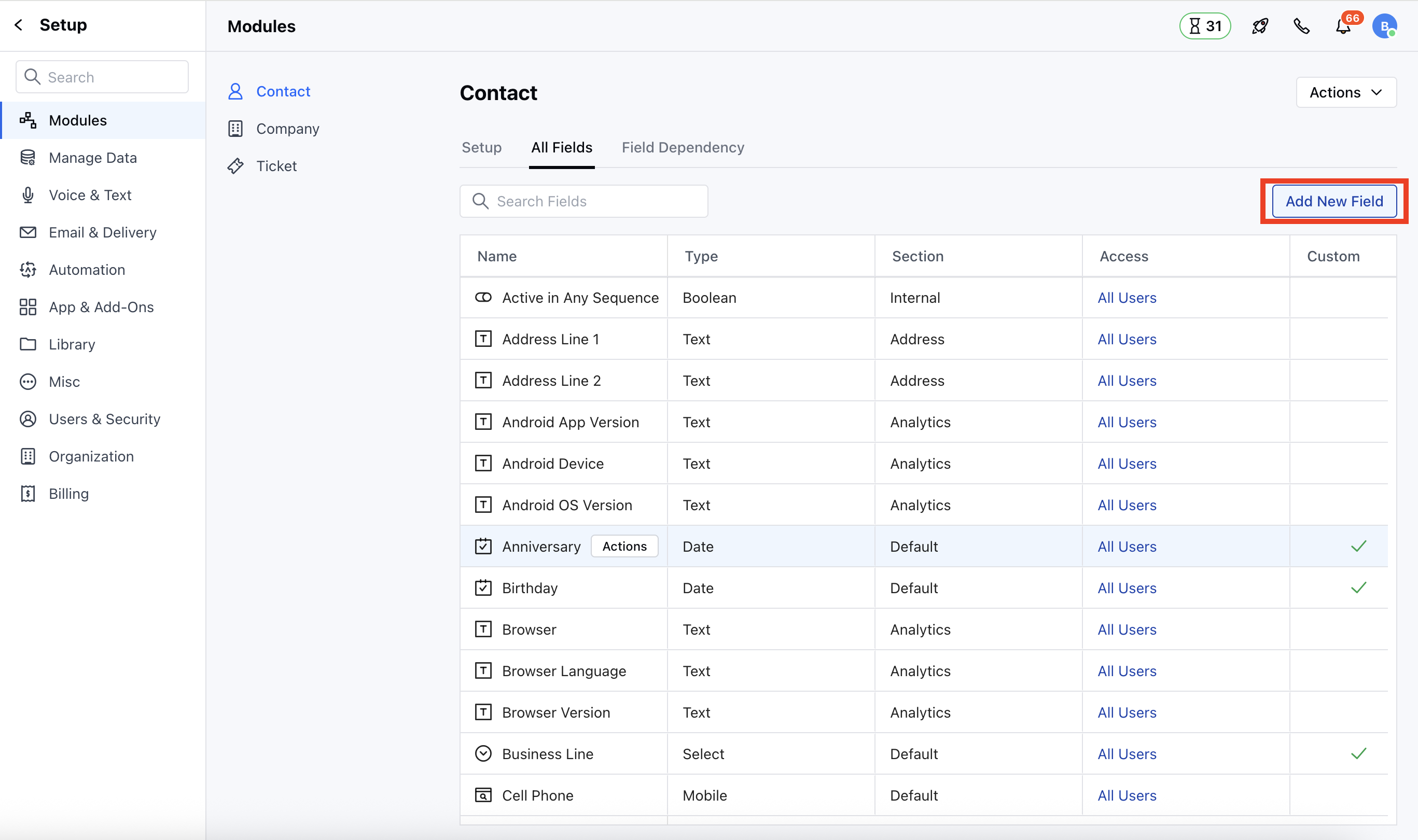
 * Go to the **All Detail Form Fields** section
* Click on **Add New Field** to create a new custom field
* Go to the **All Detail Form Fields** section
* Click on **Add New Field** to create a new custom field
 OR
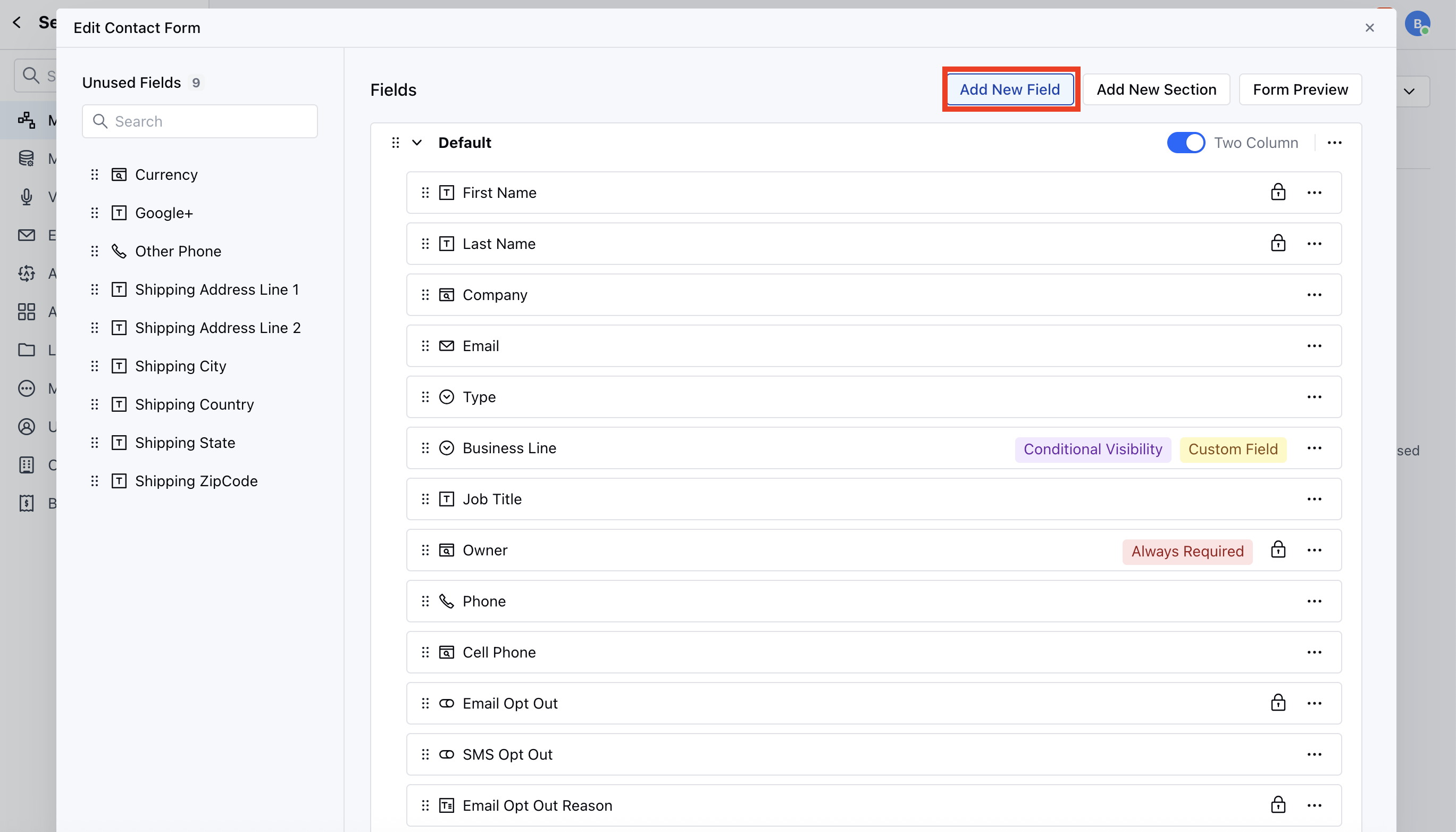
* Go to Customize the Module Create Form
* Click on the **Add New Field**
OR
* Go to Customize the Module Create Form
* Click on the **Add New Field**
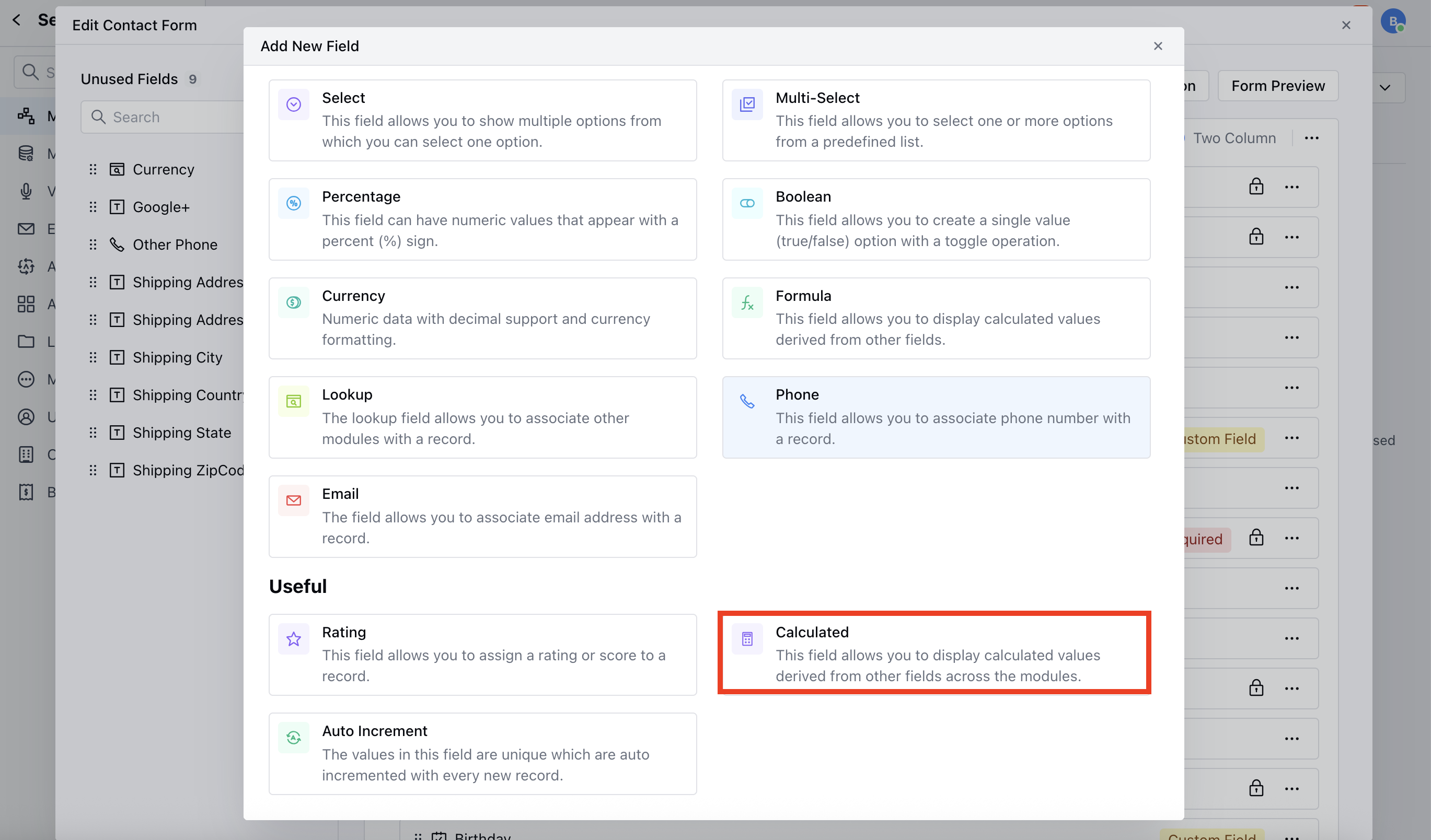
 * Select the Calculated Field or search the Calculated Field with the Quick Search option
 Provide the following details
* **Field Label:** Define the label to identify the field
* **Internal Name:** Define the internal name for API integrations
* **Section:** Select the Section under which you wish the Field to fall.
* **Help Text:** Define Help Text to provide additional information to help your teammates understand the purpose of the field
* **Calculated Field Type:** Select the field type for this field. It supports the following for the first phase:
* Number
* Date
* **Define Relationship:** Define the relationship between the parent and child module for this field
* **Select Child Module:** You can choose the module associated with the module where you create this field. Please note that only the multi-lookup fields can be selected.
* **Configure Aggregation:** Choose a field to run calculations and configure the operation that will be performed.
* **Select Field to Aggregate:** This is the field on which calculations will be based, and you can choose it from the available fields in the child module, filtered by the selected **Calculated Field Type**.
* **Select Operation:** Select the operation to be performed on the values of the chosen field.
* For **Number Type**, the available operations are:
* **COUNT**: Counts all values.
* **SUM:** Sums all values.
* **AVERAGE:** Calculates the average of all values.
* **MIN:** Finds the minimum value.
* **MAX:** Finds the maximum value.
* For **Date Type**,
* **MIN:** Finds the minimum value.
* **MAX:** Finds the maximum value.
* **Calculation Mode:** Choose between real-time or Scheduled calculations.
* **Realtime:** The field will be updated in real-time as the base values change.
* **Scheduled:** Calculations will run at a fixed time, once every 24 hours.
* **Set field as null when no child records are found:** If checked, the calculated field will return null instead of 0 when no matching child records are found.
* **Advanced Options:** This section is optional but allows you to filter records for efficiency.
* **Add Filter on Child Module:** If you apply a filter to the child module, calculations will only apply to records matching the condition.
* **Add Filter on Parent Module**: Similarly, you can filter the parent module, ensuring that only specific parent records are updated.
Provide the following details
* **Field Label:** Define the label to identify the field
* **Internal Name:** Define the internal name for API integrations
* **Section:** Select the Section under which you wish the Field to fall.
* **Help Text:** Define Help Text to provide additional information to help your teammates understand the purpose of the field
* **Calculated Field Type:** Select the field type for this field. It supports the following for the first phase:
* Number
* Date
* **Define Relationship:** Define the relationship between the parent and child module for this field
* **Select Child Module:** You can choose the module associated with the module where you create this field. Please note that only the multi-lookup fields can be selected.
* **Configure Aggregation:** Choose a field to run calculations and configure the operation that will be performed.
* **Select Field to Aggregate:** This is the field on which calculations will be based, and you can choose it from the available fields in the child module, filtered by the selected **Calculated Field Type**.
* **Select Operation:** Select the operation to be performed on the values of the chosen field.
* For **Number Type**, the available operations are:
* **COUNT**: Counts all values.
* **SUM:** Sums all values.
* **AVERAGE:** Calculates the average of all values.
* **MIN:** Finds the minimum value.
* **MAX:** Finds the maximum value.
* For **Date Type**,
* **MIN:** Finds the minimum value.
* **MAX:** Finds the maximum value.
* **Calculation Mode:** Choose between real-time or Scheduled calculations.
* **Realtime:** The field will be updated in real-time as the base values change.
* **Scheduled:** Calculations will run at a fixed time, once every 24 hours.
* **Set field as null when no child records are found:** If checked, the calculated field will return null instead of 0 when no matching child records are found.
* **Advanced Options:** This section is optional but allows you to filter records for efficiency.
* **Add Filter on Child Module:** If you apply a filter to the child module, calculations will only apply to records matching the condition.
* **Add Filter on Parent Module**: Similarly, you can filter the parent module, ensuring that only specific parent records are updated.
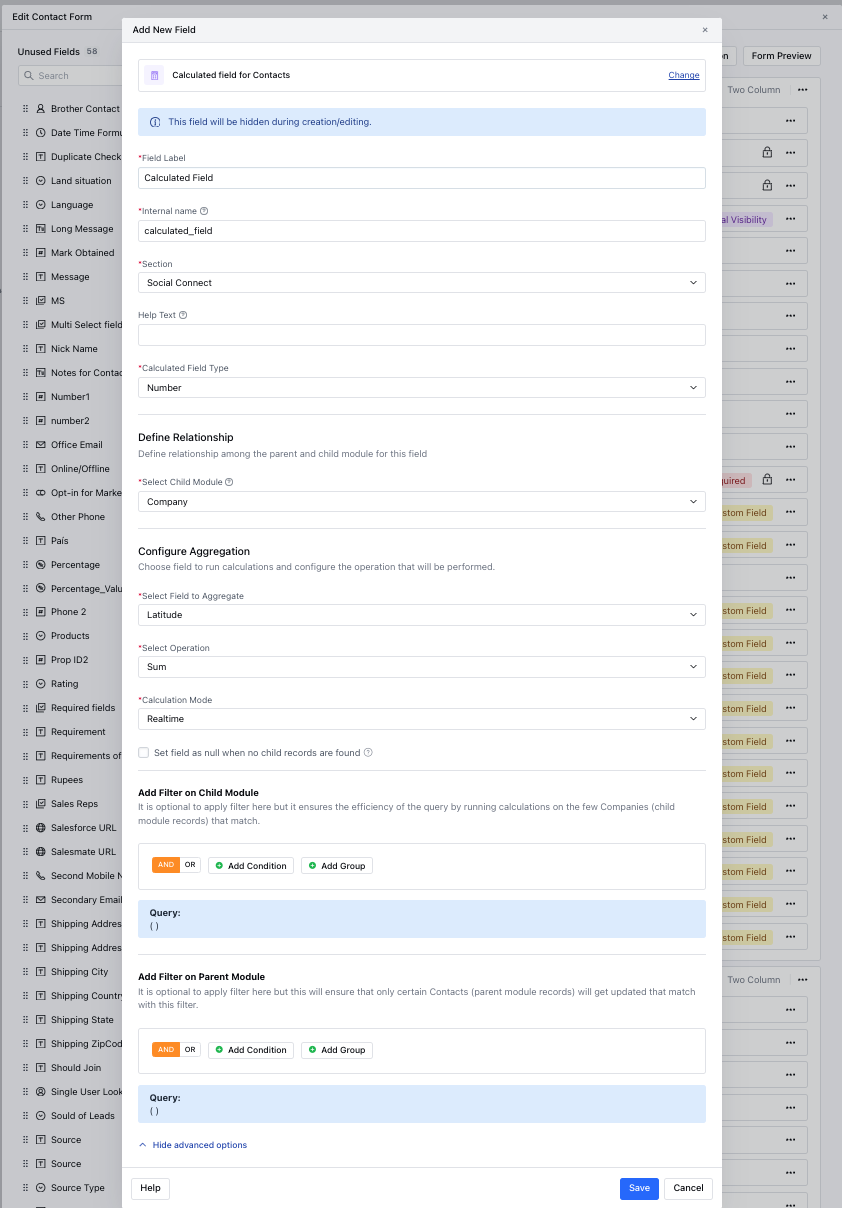 * Once done, click **Save** to add the calculated field.