> ## Documentation Index
> Fetch the complete documentation index at: https://support.getskara.ai/llms.txt
> Use this file to discover all available pages before exploring further.
# Enabling Sorting & Filtering for Widgets in Page Layout
The Modules Page Layout Builder empowers you to personalize your Detail Layout experience by enabling sorting and filtering functionalities for the selected widgets.
**Note:** Enable Sorting & Filtering is available for Associated Modules (Multi Look Up Fields).
To enable Sorting Filtering for Widgets,
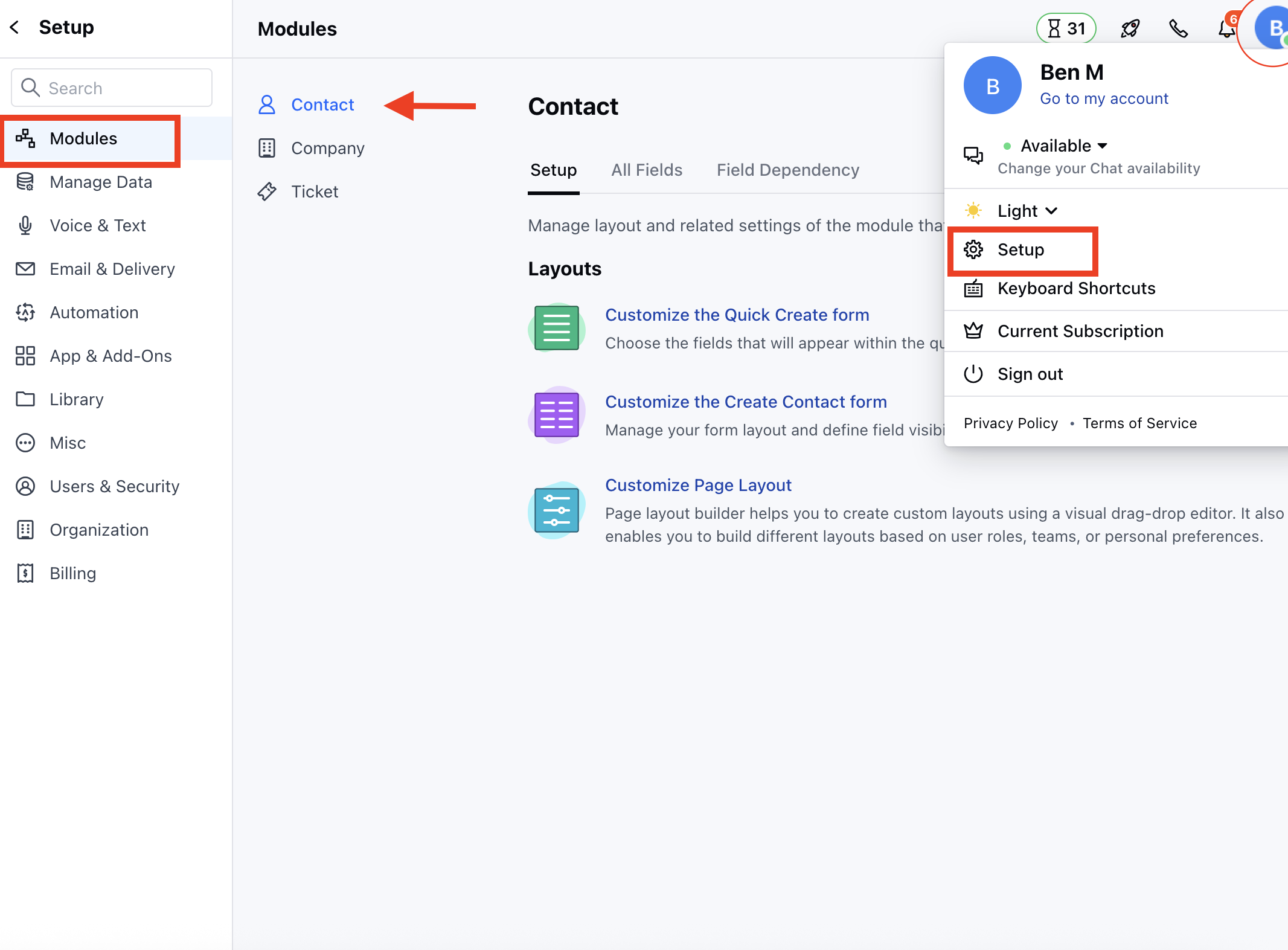
* Navigate to the **Profile Icon** in the top right corner.
* Click on **Set Up**
* Head over to the **Modules** category
* Select the required Module **(Contact, Company or Ticket Module)**
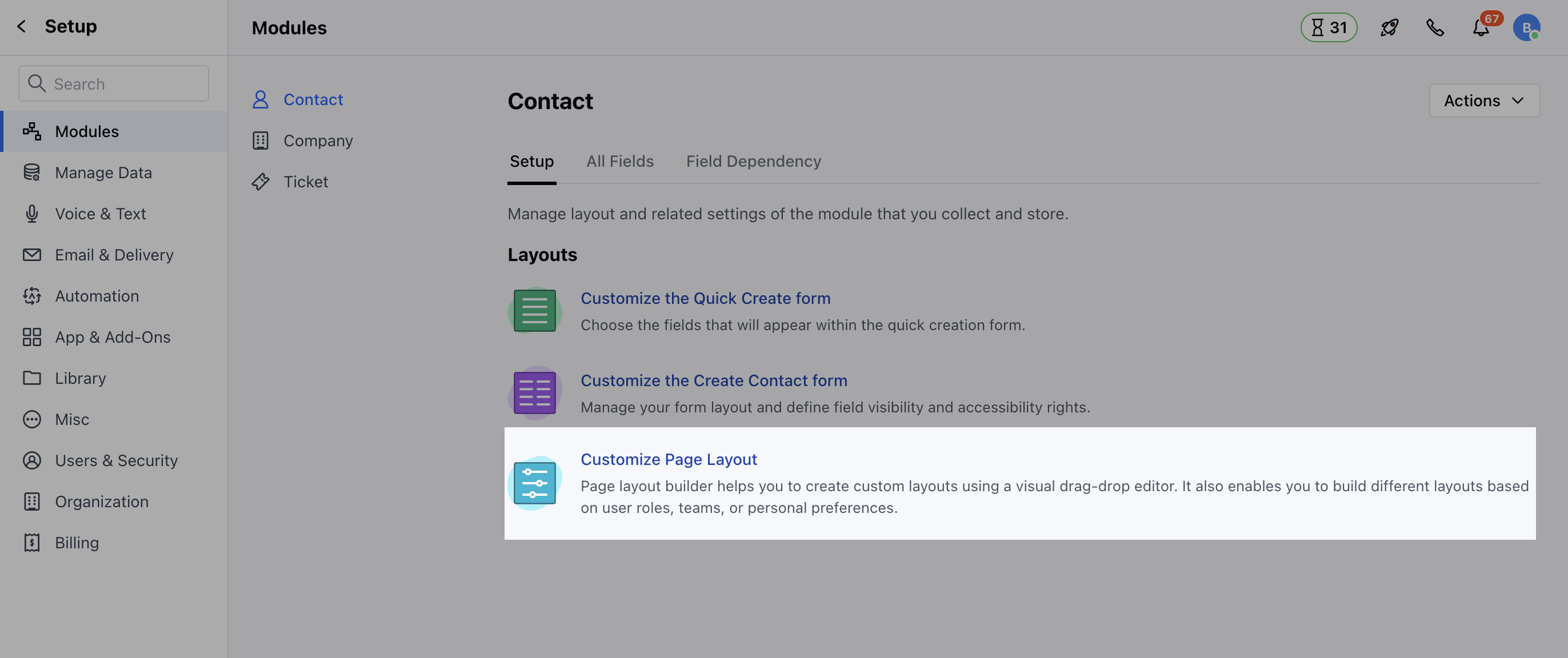
 * Click on the **Customize the Page Layout** option
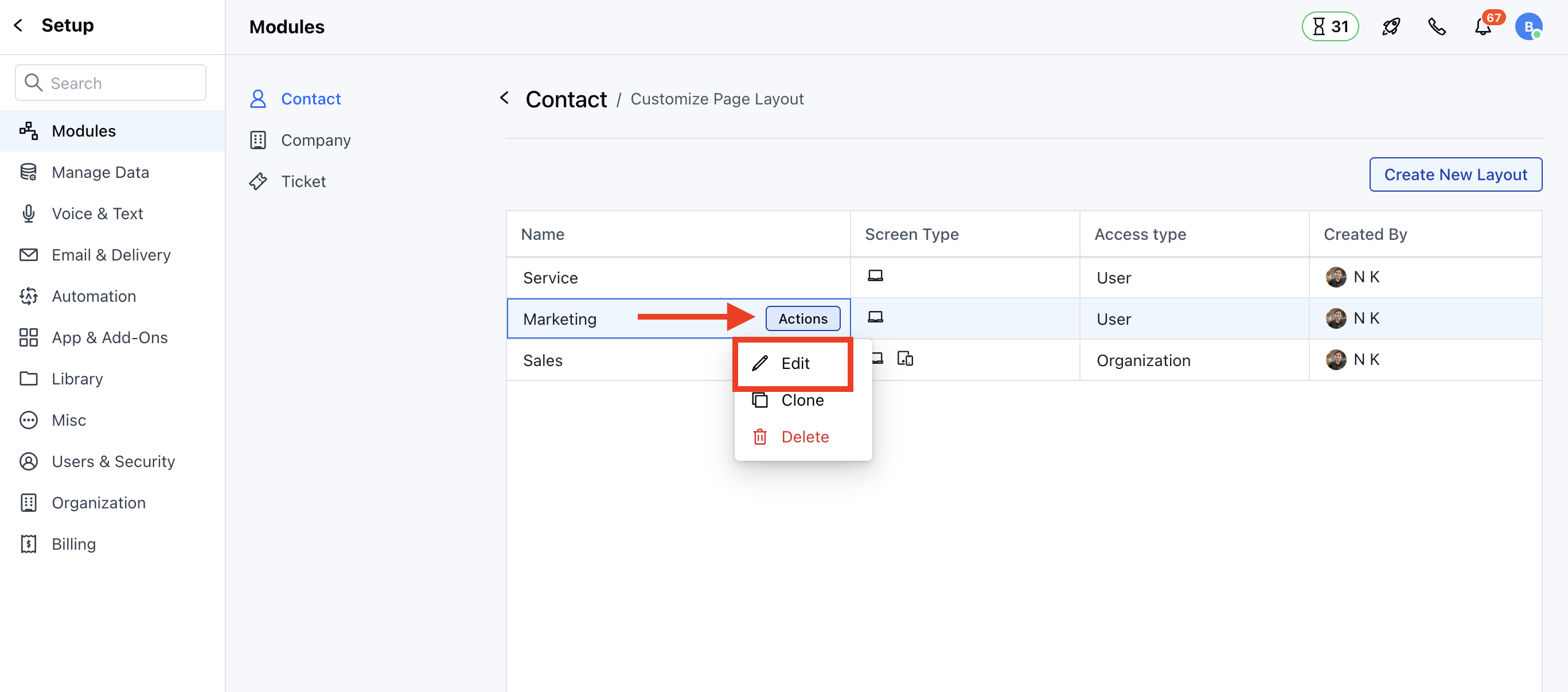
 * Here, you can **Edit** the existing Layout or Create a New Layout
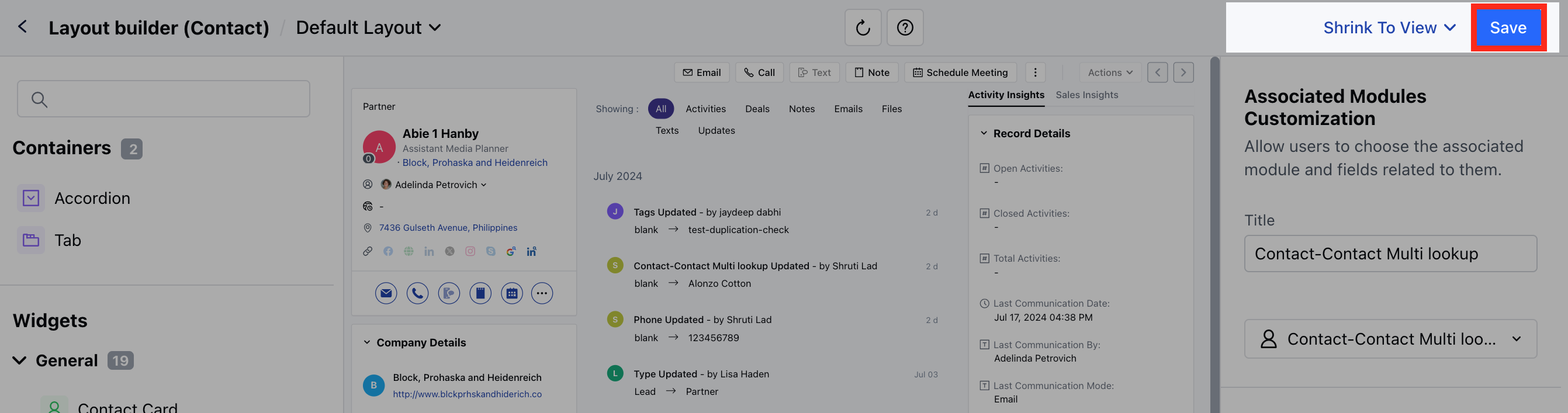
 * When you drag-drop the Associated Module widget on the layout page, a drop-down will ask you to choose the relation.
* Once you have selected the module, an option to add the fields will be enabled.
* When you drag-drop the Associated Module widget on the layout page, a drop-down will ask you to choose the relation.
* Once you have selected the module, an option to add the fields will be enabled.
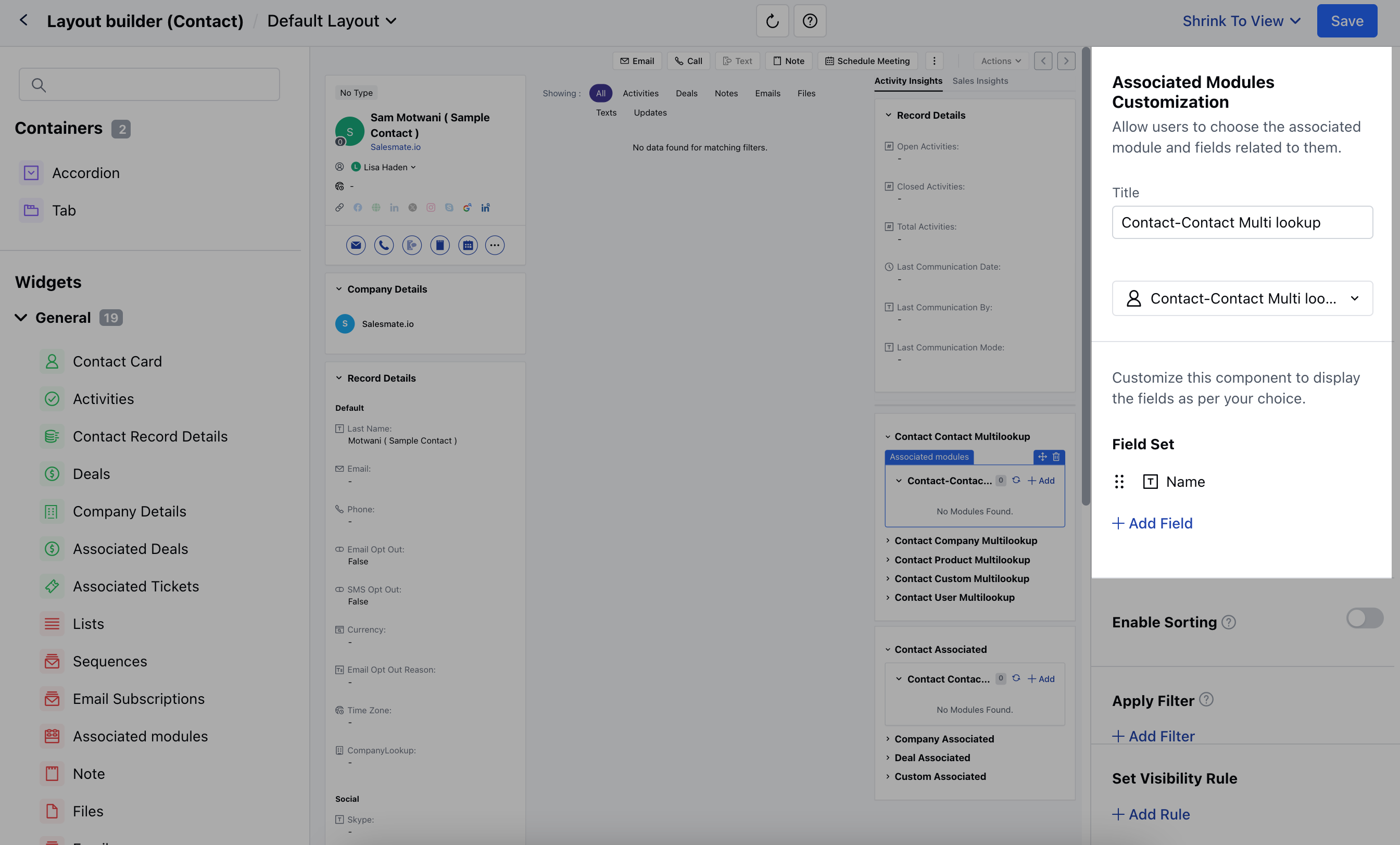 * Now if you add any of the above mentioned Widgets, you would get an option to,
* [Enable Sorting](#enable-sorting)
* [Apply Filters](#apply-filters)
* Now if you add any of the above mentioned Widgets, you would get an option to,
* [Enable Sorting](#enable-sorting)
* [Apply Filters](#apply-filters)
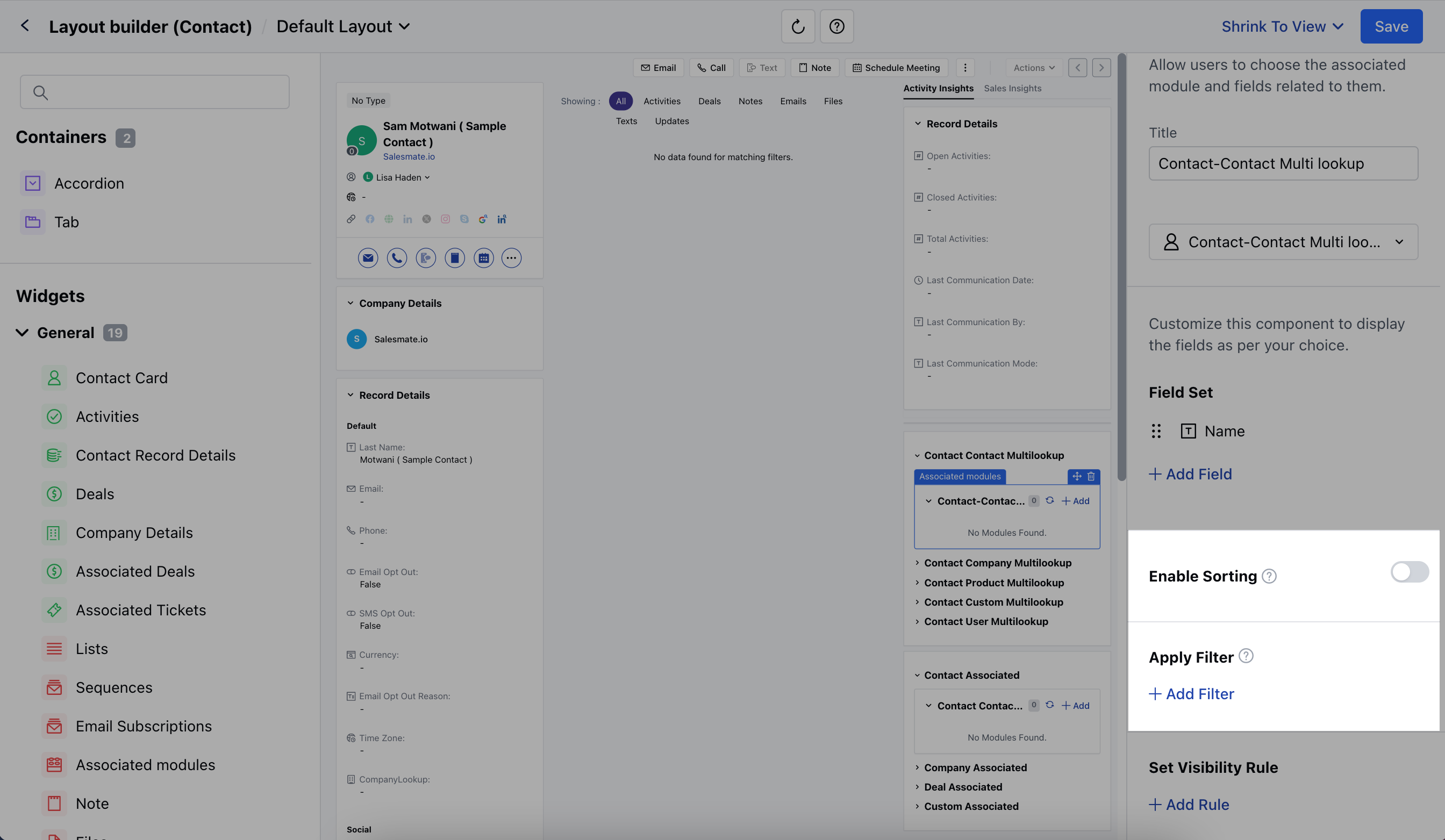 ### Enable Sorting
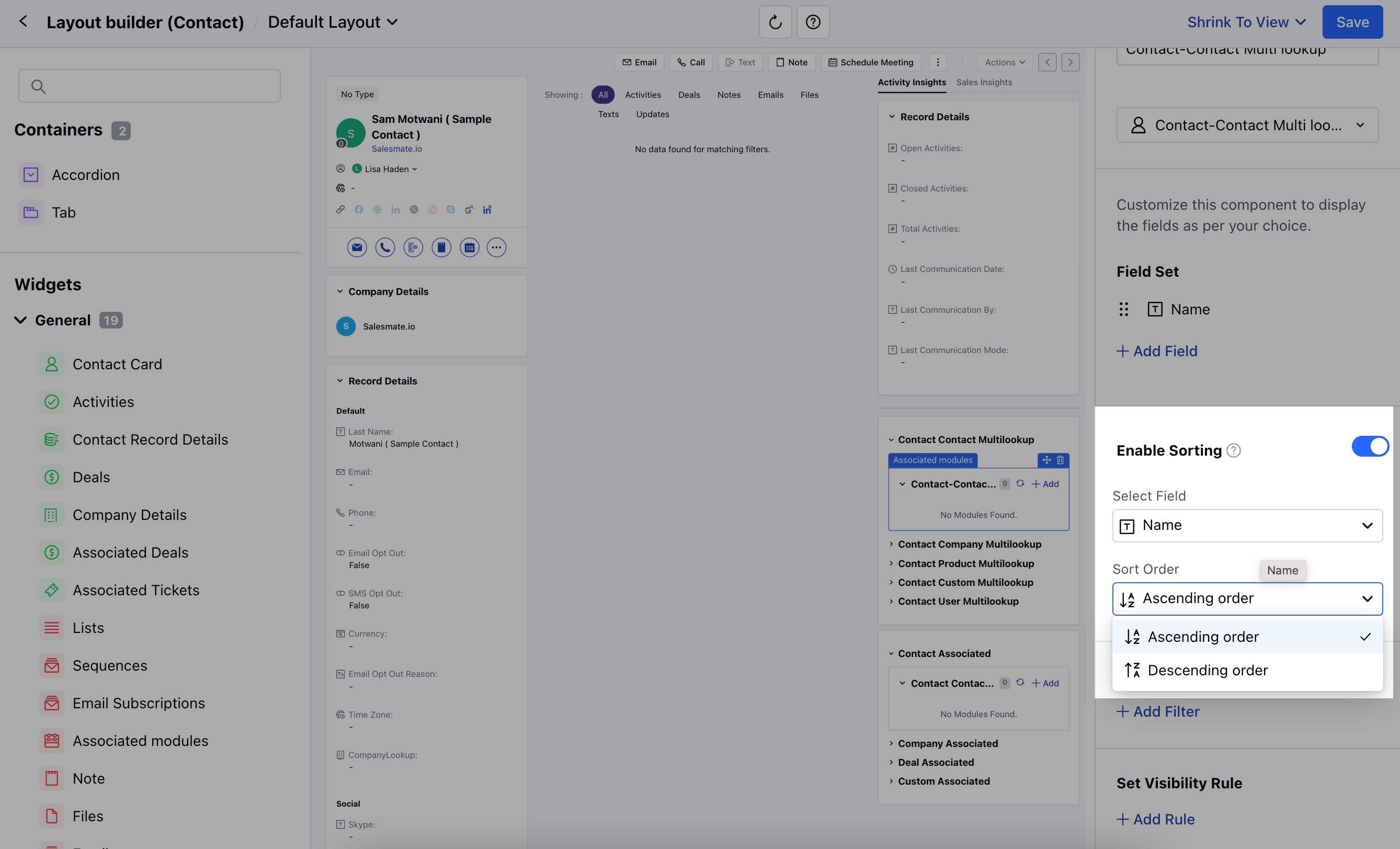
* This option will be disabled by default, click on the Toggle button to enable the option.
* Choose the field on which you want to apply sorting and then select the order of sorting,
* **Select Field:** Select the required field from the available list of fields.
* **Sort Order:** Choose to sort the order in ascending or descending order.
### Enable Sorting
* This option will be disabled by default, click on the Toggle button to enable the option.
* Choose the field on which you want to apply sorting and then select the order of sorting,
* **Select Field:** Select the required field from the available list of fields.
* **Sort Order:** Choose to sort the order in ascending or descending order.
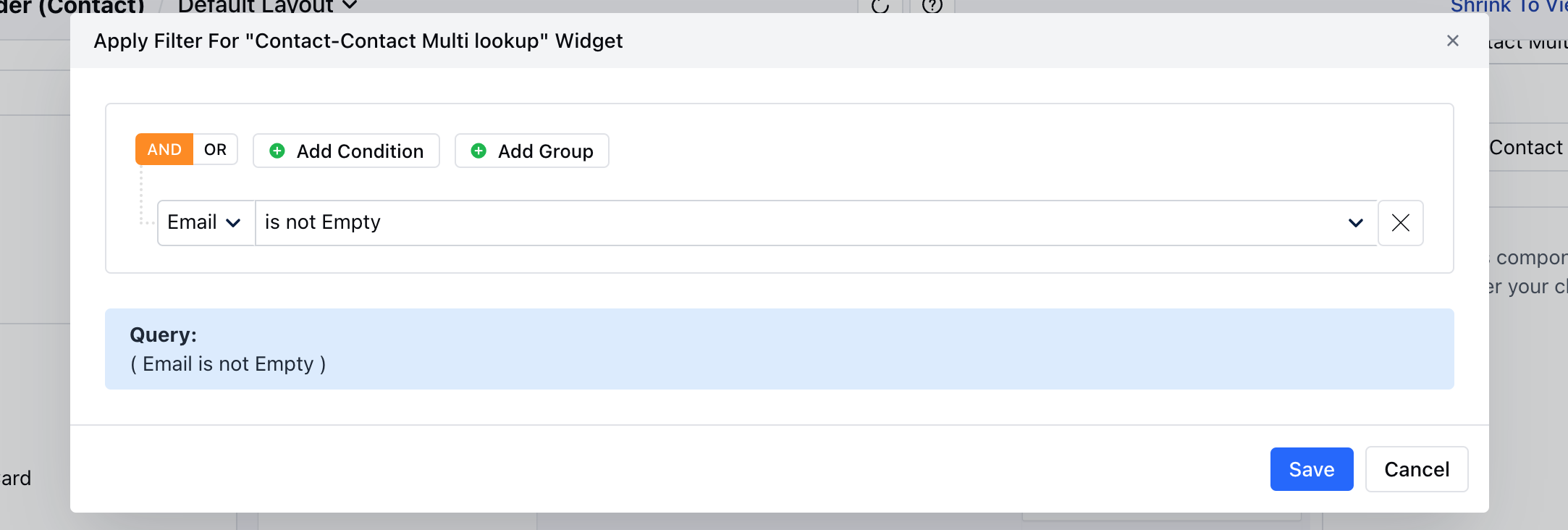
 ### Apply Filters
* Click on **+ Add Filter** to apply Filters
* A pop up will open to add the set of Conditions
* Once done, **Save** the applied criteria.
### Apply Filters
* Click on **+ Add Filter** to apply Filters
* A pop up will open to add the set of Conditions
* Once done, **Save** the applied criteria.
 * Click on **Save** to save the applied changes.