> ## Documentation Index
> Fetch the complete documentation index at: https://support.getskara.ai/llms.txt
> Use this file to discover all available pages before exploring further.
# How to Customize the Sidebar
A **Navigation Sidebar** is a user interface element that provides easy access to various features, modules, and sections of the CRM.
By default, the menu sidebar displays a set of options in a fixed order. However, you can customize the order of these options to better suit your Organization’s needs.
To Customize the Sidebar,
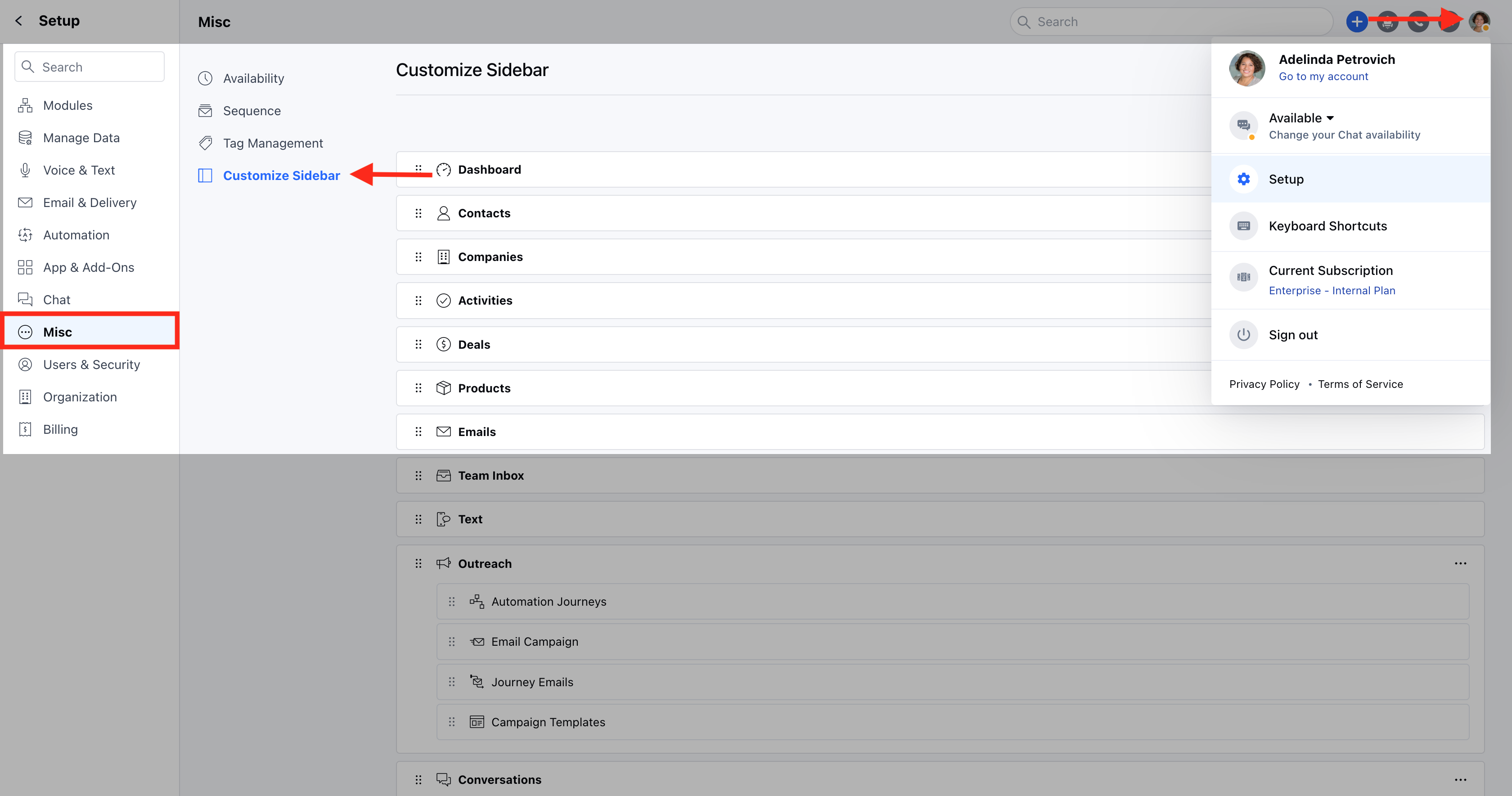
* Navigate to the **Profile Icon** in the top right corner.
* Click on **Set-Up**
* Head over to the **Misc** category
* Select the **Customize Sidebar** option
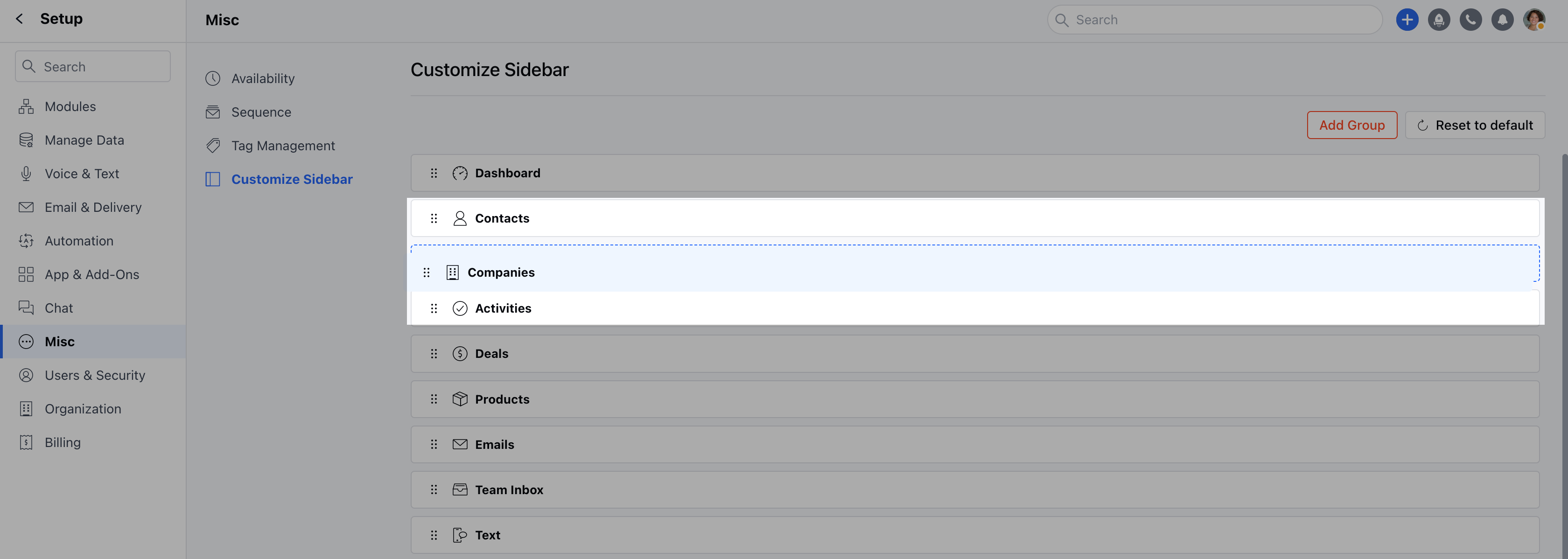
* Here you can change the order of the Module with simple drag and drop.
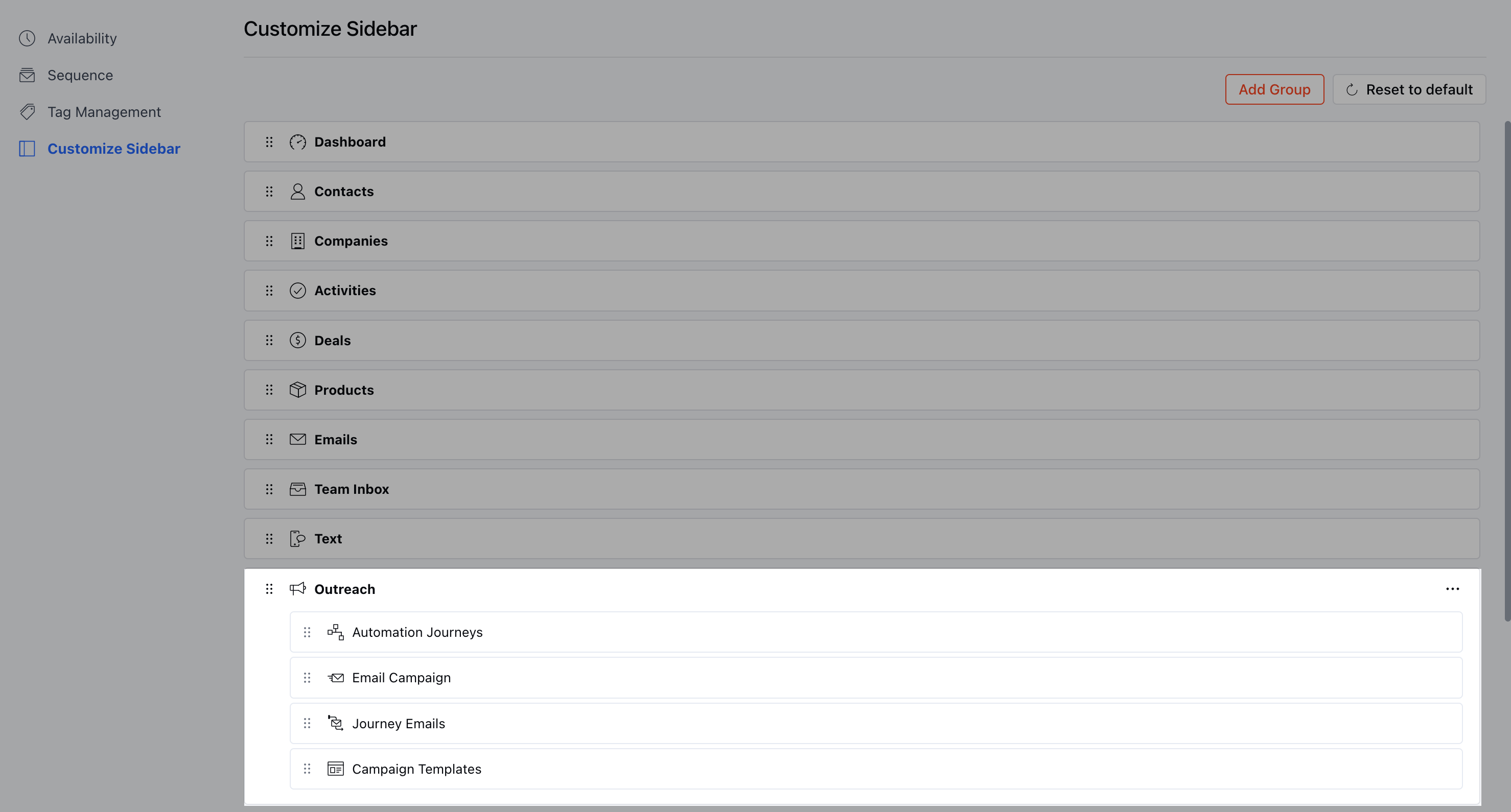
* The Option in a Sidebar with multiple options is called a **Group**.
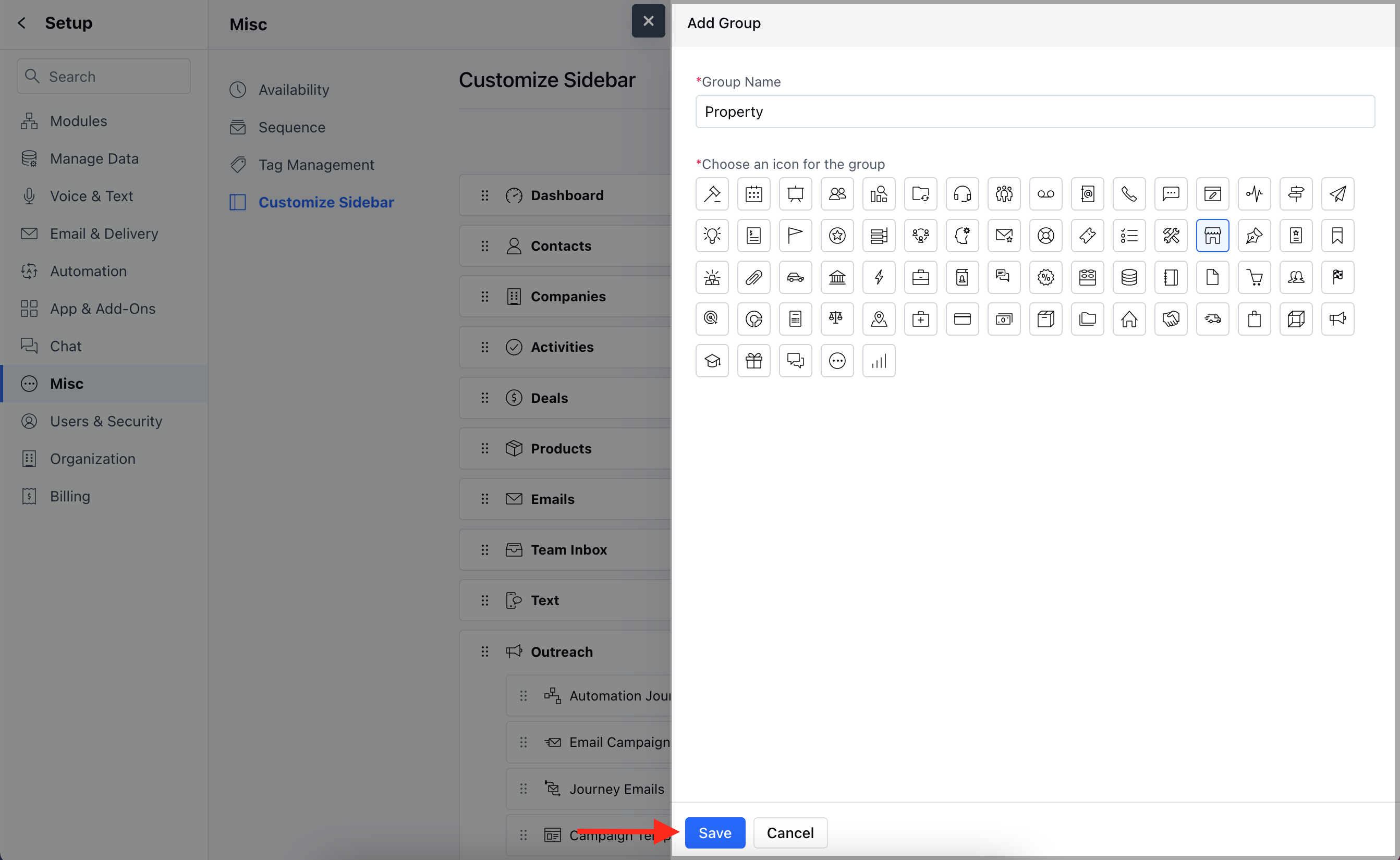
* You can create a new group from the **Add Group** option mentioned in the top right.
* Enter the appropriate **Group Name** and select the **Group Icon**.
* Click on **Save**.
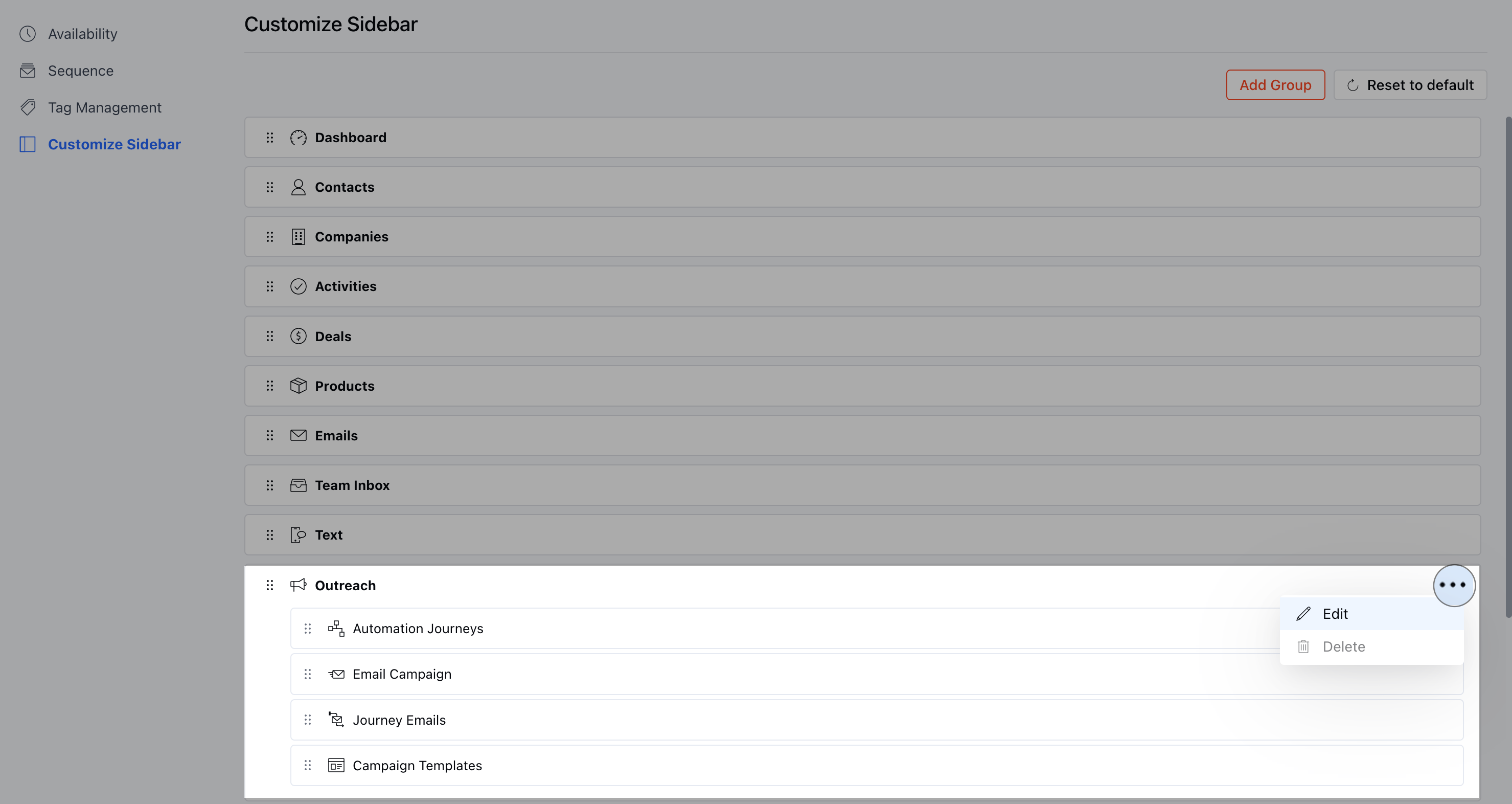
* You can **Edit** the Group by clicking on the three dots given in the top right corner of any Group.
* Select the **Edit** option
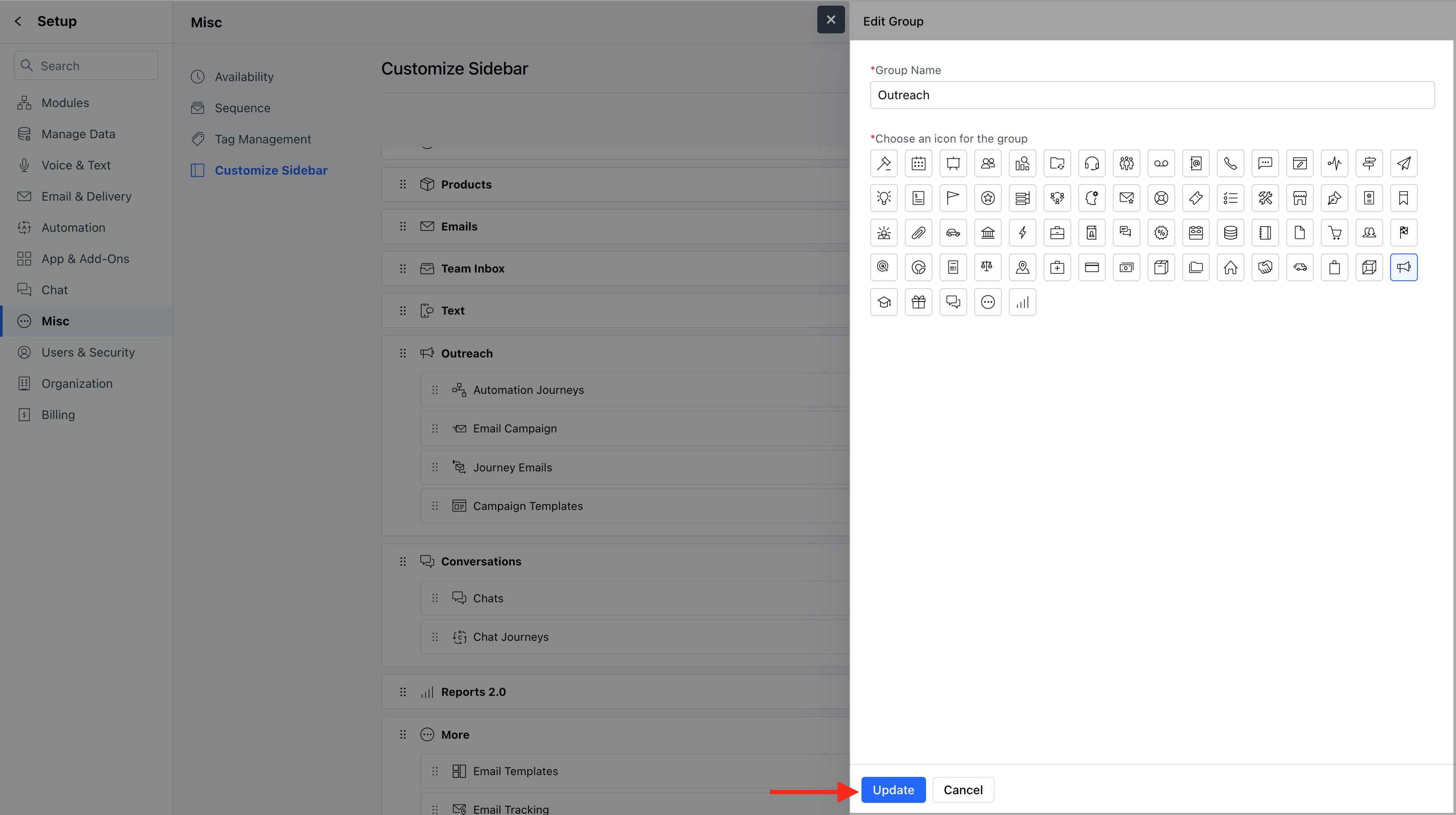
* You can **Edit** the **Group Name** and the **Group Icon**, followed by an **Update**.
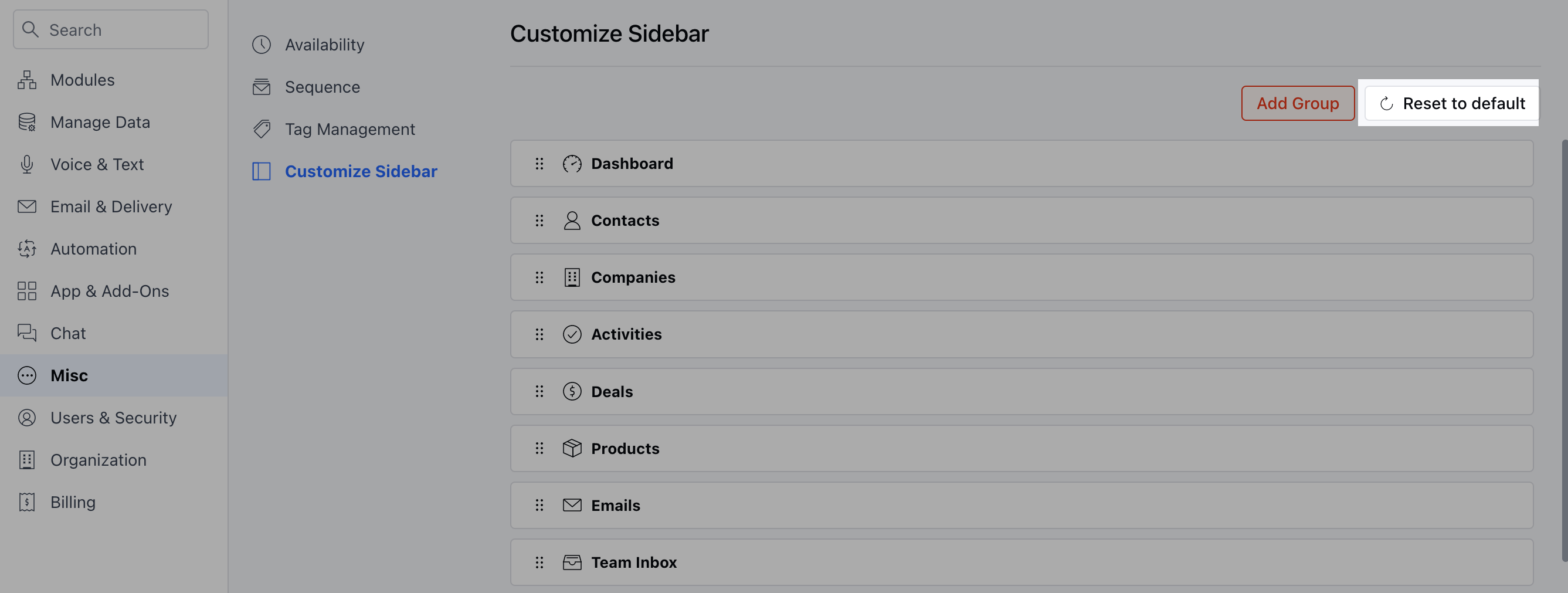
* If you want to reset the order of the menu items to the system default, then click on **“Reset to default”.**
**Note:** You cannot delete a group that contains any menu items inside it, the option to delete will be shown disabled.
 * Here you can change the order of the Module with simple drag and drop.
 * The Option in a Sidebar with multiple options is called a **Group**.
 * You can create a new group from the **Add Group** option mentioned in the top right.
 * Enter the appropriate **Group Name** and select the **Group Icon**.
* Click on **Save**.
* Enter the appropriate **Group Name** and select the **Group Icon**.
* Click on **Save**.
 * You can **Edit** the Group by clicking on the three dots given in the top right corner of any Group.
* Select the **Edit** option
* You can **Edit** the Group by clicking on the three dots given in the top right corner of any Group.
* Select the **Edit** option
 * You can **Edit** the **Group Name** and the **Group Icon**, followed by an **Update**.
 * If you want to reset the order of the menu items to the system default, then click on **“Reset to default”.**