> ## Documentation Index
> Fetch the complete documentation index at: https://support.getskara.ai/llms.txt
> Use this file to discover all available pages before exploring further.
# How to Set Field Required Rule
Setting the "Required" rule to fields in Skara ensures that certain data must be provided before saving or submitting a form, helping maintain data completeness and accuracy.
**Note:** Available for **Pro** and above Plans
### How to Set Field Required Rule
To Set the Field Required Rule,
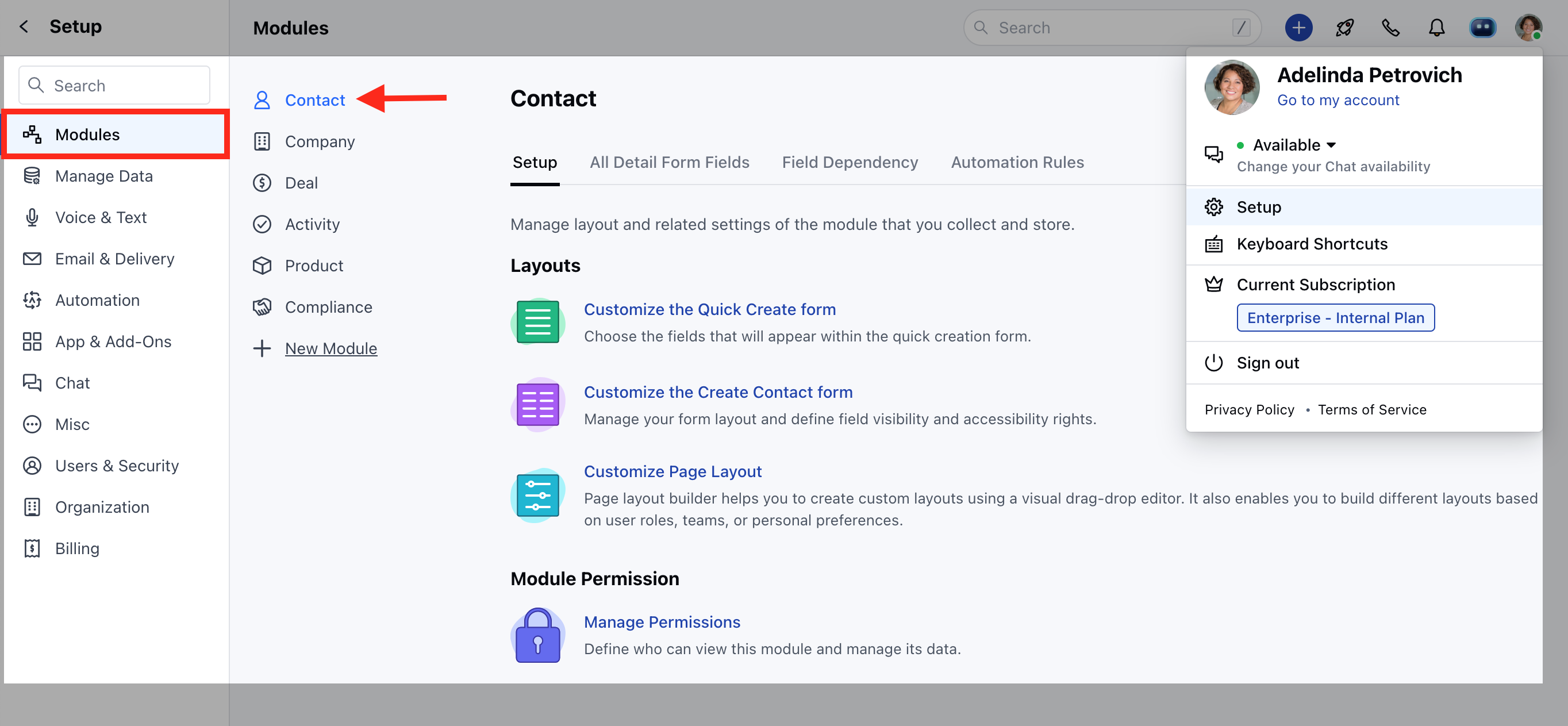
* Navigate to the **Profile Icon** on the top right corner
* Click on **Set Up**
* Head Over to the **Modules Category**
* Select the Module(**Contact, Company and Ticket Modules)**
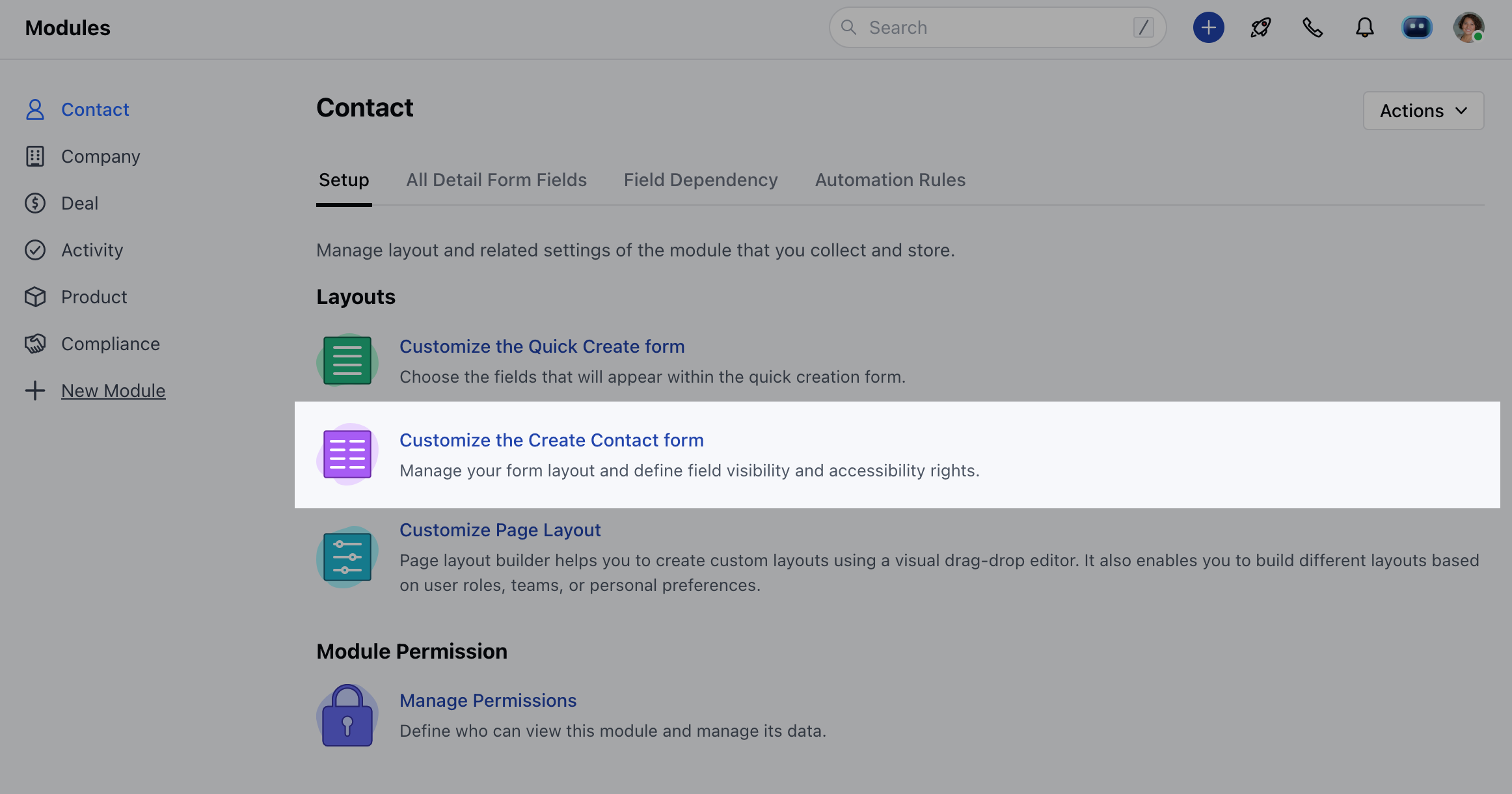
* Click on **Customize the Create Module Form** under Layout
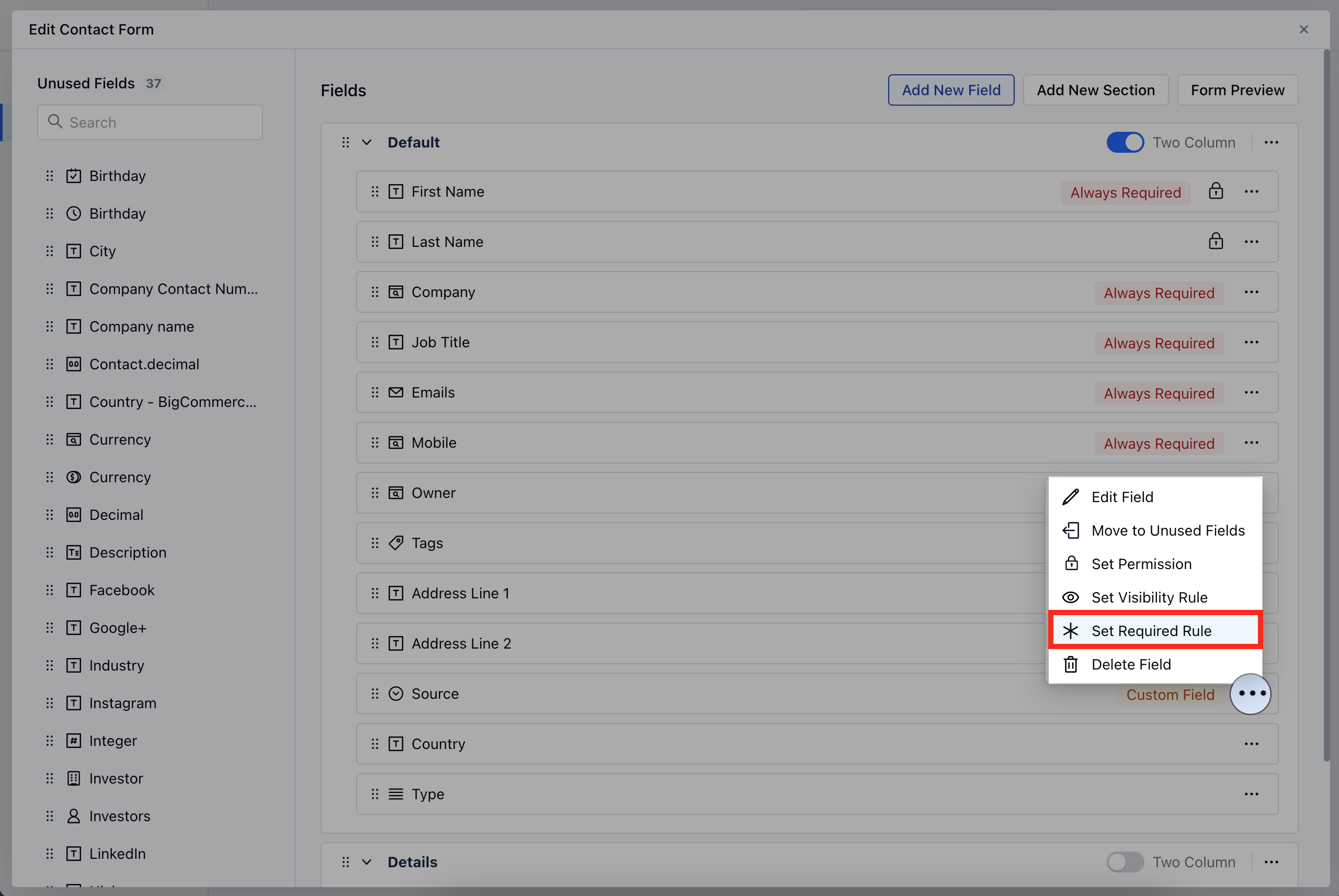
* Choose the field for which you wish to Set the Required Rule, then click on the three dots located at the corner
* Click on the **Set Required Rule** option
OR
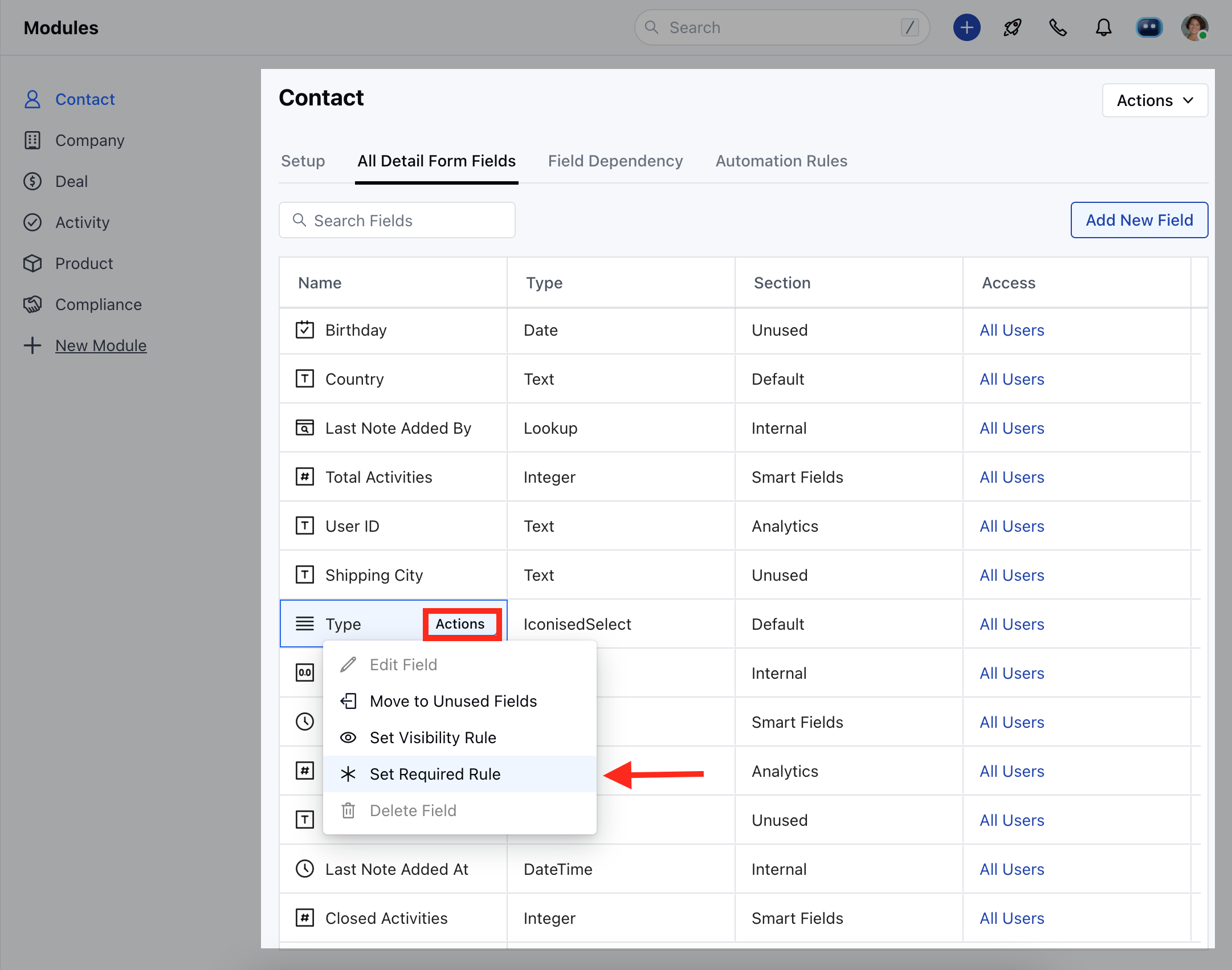
* Go to **All Detail Form Field Section**
* To Set the Required Rule for a field, hover over the field you wish to modify and click on the **Actions** button.
* Click on the **Set Required Rule** option
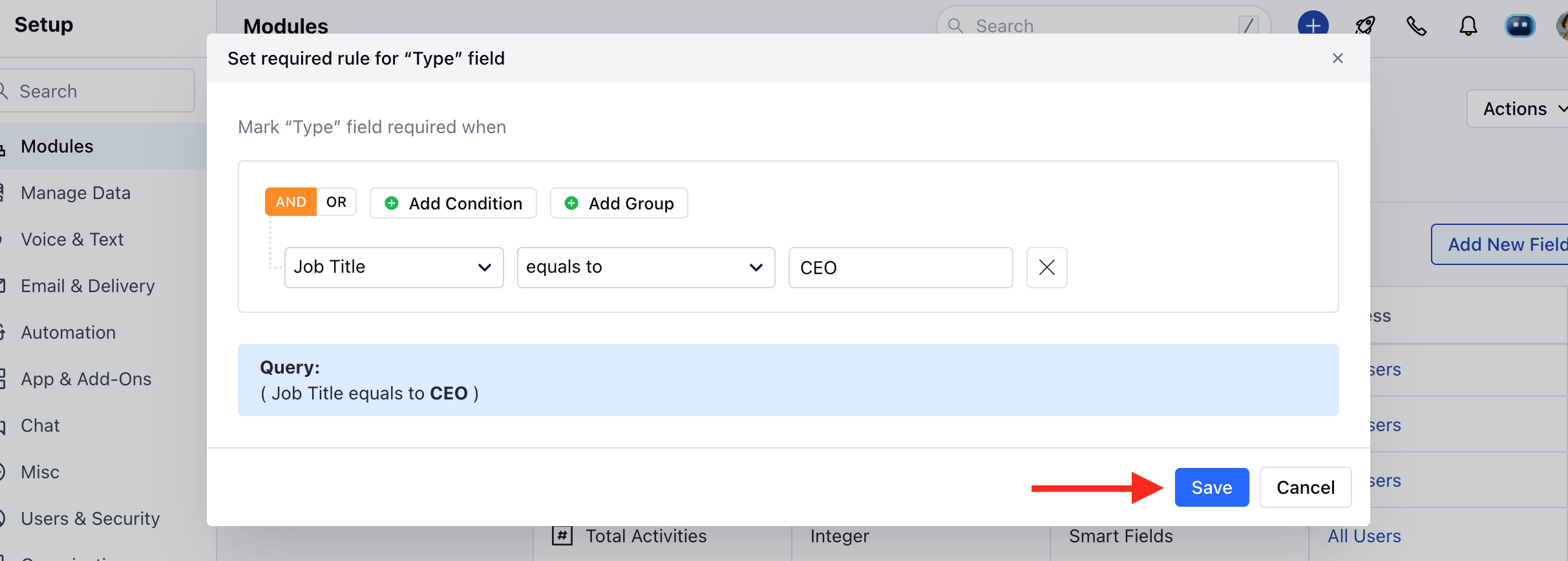
* Set the Required Criteria
* Once the condition is set, hit **Save**.
**Note**: Please Note that a user with **Manage Modules** permission can configure these settings.
 * Click on **Customize the Create Module Form** under Layout
 * Choose the field for which you wish to Set the Required Rule, then click on the three dots located at the corner
* Click on the **Set Required Rule** option
* Choose the field for which you wish to Set the Required Rule, then click on the three dots located at the corner
* Click on the **Set Required Rule** option
 OR
* Go to **All Detail Form Field Section**
* To Set the Required Rule for a field, hover over the field you wish to modify and click on the **Actions** button.
* Click on the **Set Required Rule** option
OR
* Go to **All Detail Form Field Section**
* To Set the Required Rule for a field, hover over the field you wish to modify and click on the **Actions** button.
* Click on the **Set Required Rule** option
 * Set the Required Criteria
* Once the condition is set, hit **Save**.
* Set the Required Criteria
* Once the condition is set, hit **Save**.