> ## Documentation Index
> Fetch the complete documentation index at: https://support.getskara.ai/llms.txt
> Use this file to discover all available pages before exploring further.

# Tag Color Customization

Tags are a versatile tool to keep your Data segregated, they help organize your Records by different segments and enable data-driven decision-making. Salesmate now allows you to customize the Tags with the color of your choice.

<iframe width="560" height="315" src="https://www.youtube.com/embed/7vb1CQ_srKg?list=PLyYol_VsdQ5kq3RxvfA2NaXeI_5bAaF1x" title="YouTube video" frameborder="0" allow="accelerometer; autoplay; clipboard-write; encrypted-media; gyroscope; picture-in-picture; web-share" allowfullscreen />

You can add colors while

* [**Creating a New Tag**](#creating-a-new-tag)
* [**Update the Existing Tags**](#update-the-existing-tags)

To add colors to the Tag,

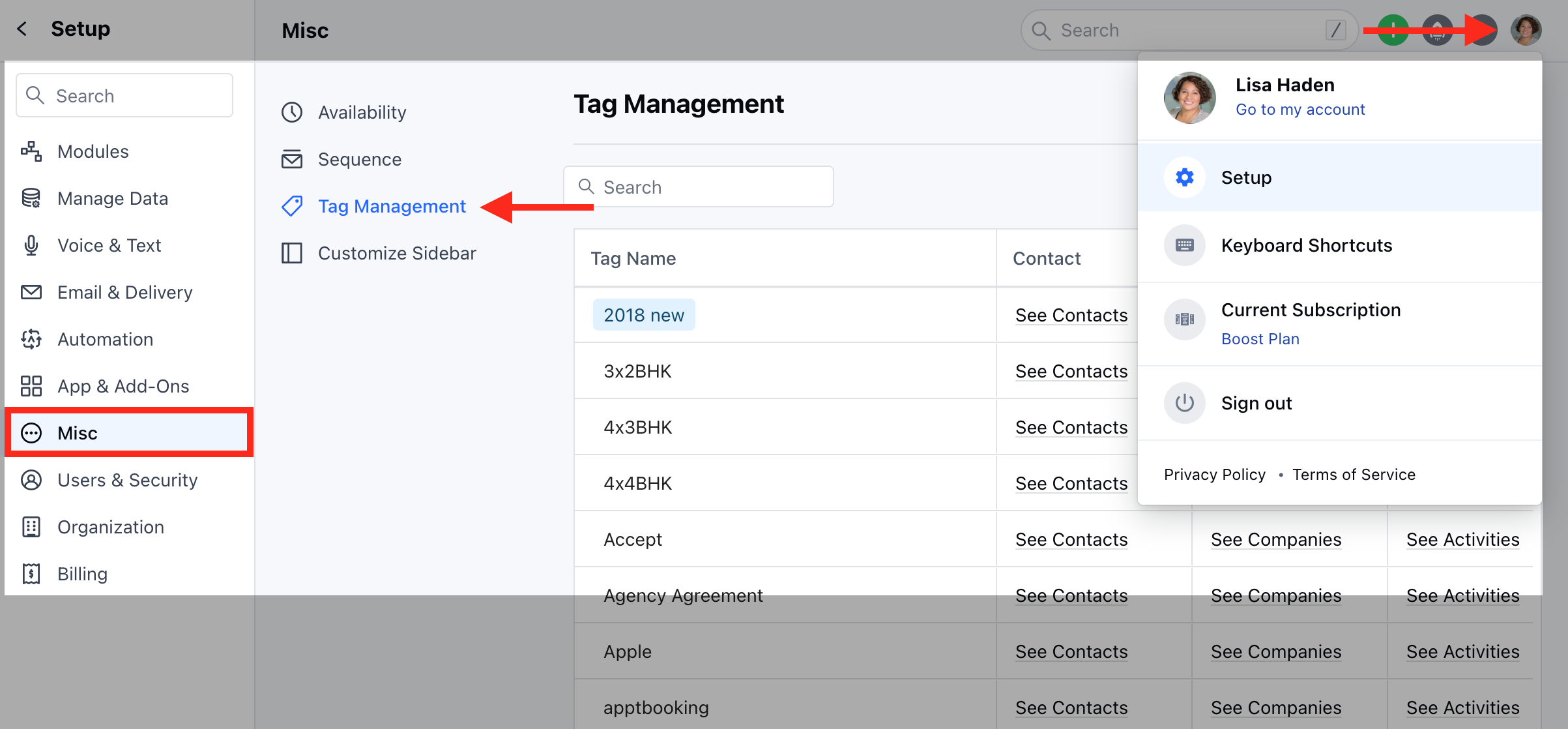
* Navigate to the **Profile Icon** on the top right corner
* Click on **Set Up**
* Head over to the **Misc** category
* Click on Tag Management

<img src="https://mintcdn.com/salesmate/fzAGi9g-1MLF05VN/setup/customizations/images/Screenshot-2023-10-05-at-2.54.21-PM.png?fit=max&auto=format&n=fzAGi9g-1MLF05VN&q=85&s=394b76f408caaab2588bfece4b2497dd" alt="Screenshot 2023-10-05 at 2.54.21 PM.png" width="2406" height="1118" data-path="setup/customizations/images/Screenshot-2023-10-05-at-2.54.21-PM.png" />

### Creating a New Tag

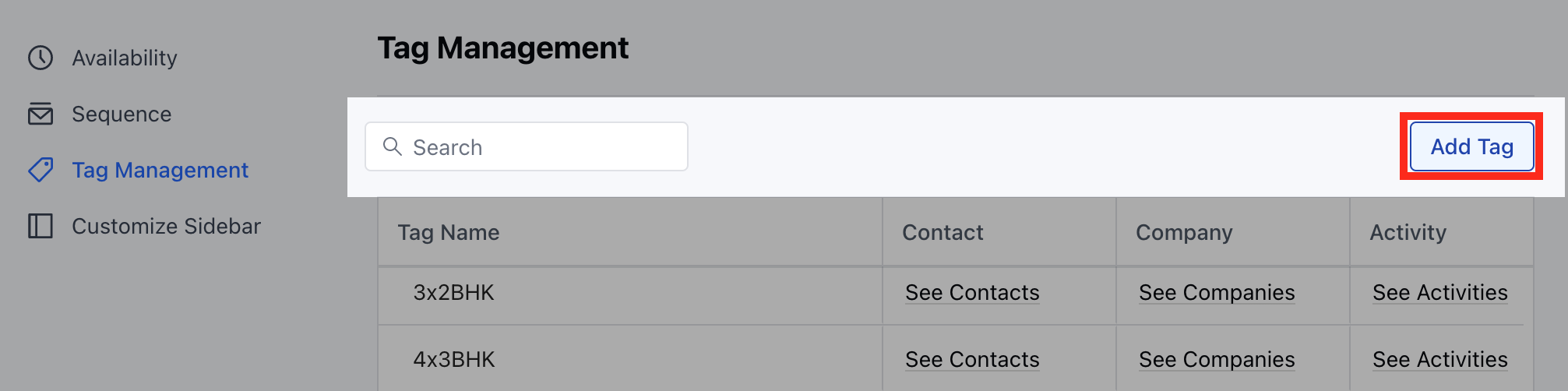
* Click on the Add Tag option

<img src="https://mintcdn.com/salesmate/fzAGi9g-1MLF05VN/setup/customizations/images/Screenshot-2023-10-05-at-3.00.18-PM.png?fit=max&auto=format&n=fzAGi9g-1MLF05VN&q=85&s=f24fe059d10fc6619710c0ec26ff50c0" alt="Screenshot 2023-10-05 at 3.00.18 PM.png" width="2013" height="502" data-path="setup/customizations/images/Screenshot-2023-10-05-at-3.00.18-PM.png" />

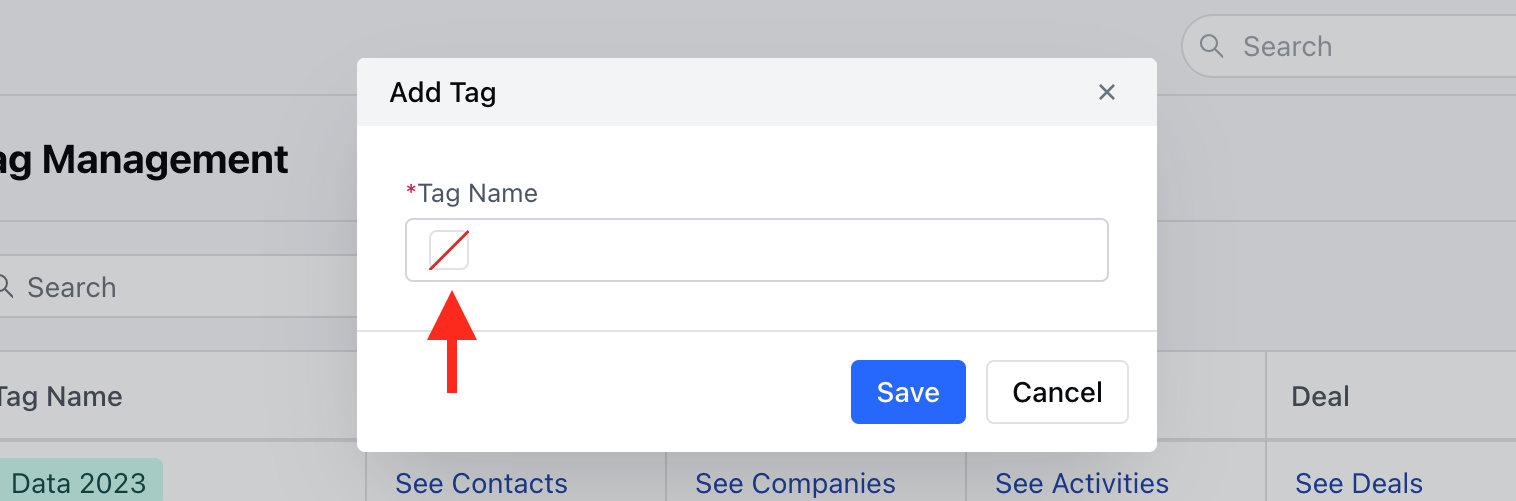
* Click on the **Square icon**

<img src="https://mintcdn.com/salesmate/fzAGi9g-1MLF05VN/setup/customizations/images/mceclip0-17.png?fit=max&auto=format&n=fzAGi9g-1MLF05VN&q=85&s=eb208ca9b9dbee062439516f3ee61901" alt="mceclip0.png" width="1516" height="501" data-path="setup/customizations/images/mceclip0-17.png" />

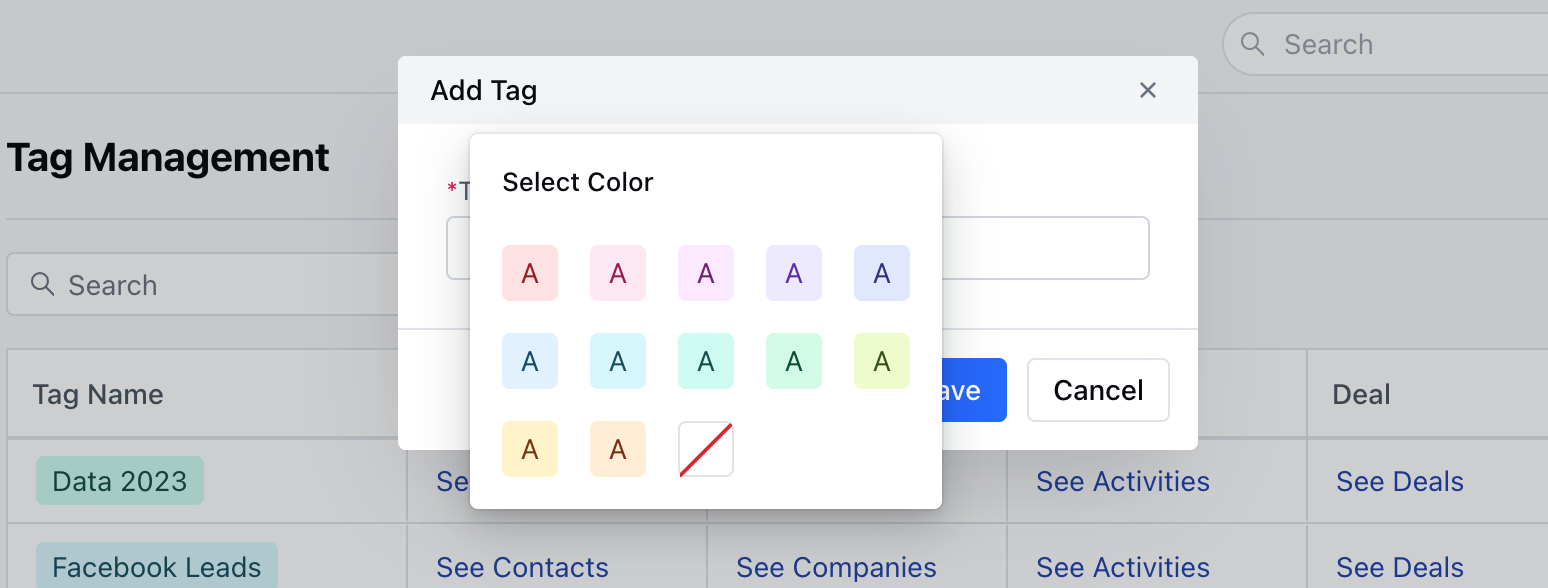
* Select the **Colour**

<img src="https://mintcdn.com/salesmate/yB6W4yDkBbhQMQL3/setup/customizations/images/mceclip1-19.png?fit=max&auto=format&n=yB6W4yDkBbhQMQL3&q=85&s=a9420b582304d2df24c88786cc362ba4" alt="mceclip1.png" width="1548" height="588" data-path="setup/customizations/images/mceclip1-19.png" />

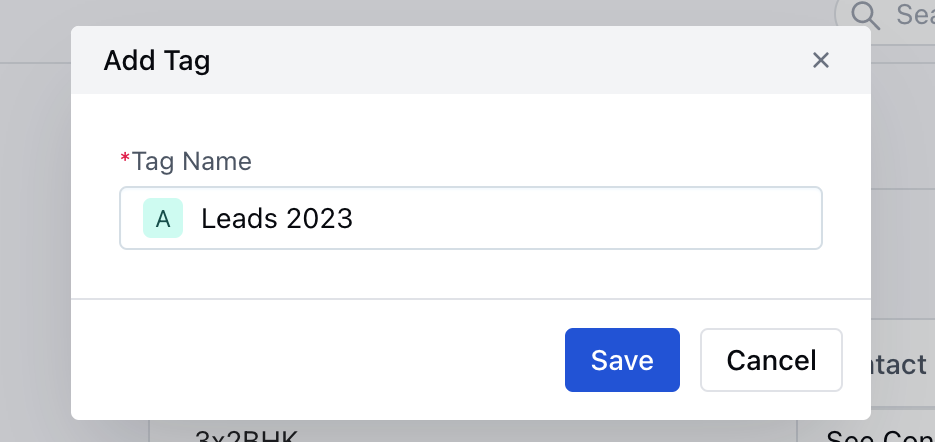
* Enter the **Tag Name**
* Click on **Save**

<img src="https://mintcdn.com/salesmate/fzAGi9g-1MLF05VN/setup/customizations/images/Screenshot-2023-10-05-at-3.08.04-PM.png?fit=max&auto=format&n=fzAGi9g-1MLF05VN&q=85&s=38f6a62b7deafb5c42a24a4b78591622" alt="Screenshot 2023-10-05 at 3.08.04 PM.png" width="935" height="442" data-path="setup/customizations/images/Screenshot-2023-10-05-at-3.08.04-PM.png" />

### Update the Existing Tags

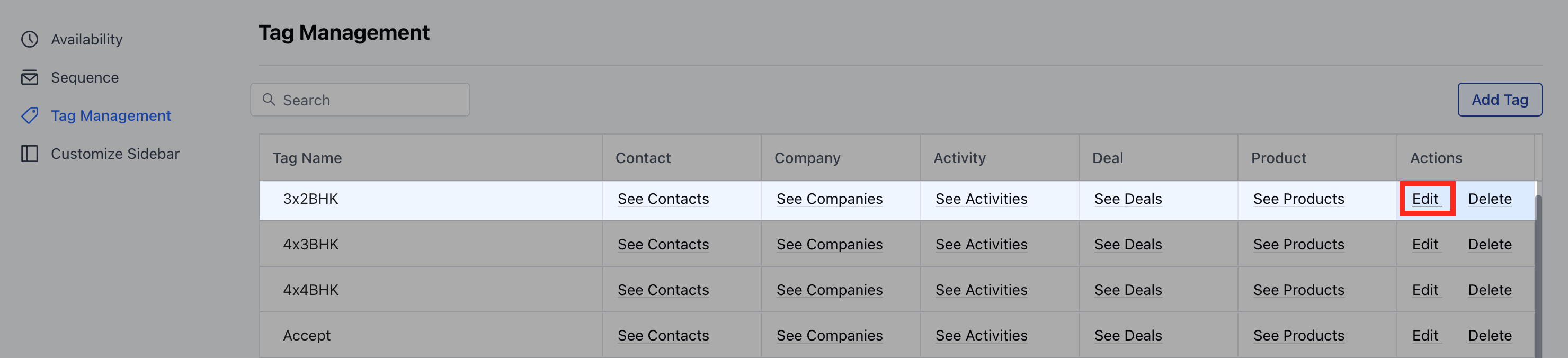
* Select the Tag you wish to **Update**
* Click on the **Edit** option

<img src="https://mintcdn.com/salesmate/fzAGi9g-1MLF05VN/setup/customizations/images/Screenshot-2023-10-05-at-3.10.26-PM.png?fit=max&auto=format&n=fzAGi9g-1MLF05VN&q=85&s=6bbd2030f14b3e2730e25686ec33ea82" alt="Screenshot 2023-10-05 at 3.10.26 PM.png" width="2960" height="676" data-path="setup/customizations/images/Screenshot-2023-10-05-at-3.10.26-PM.png" />

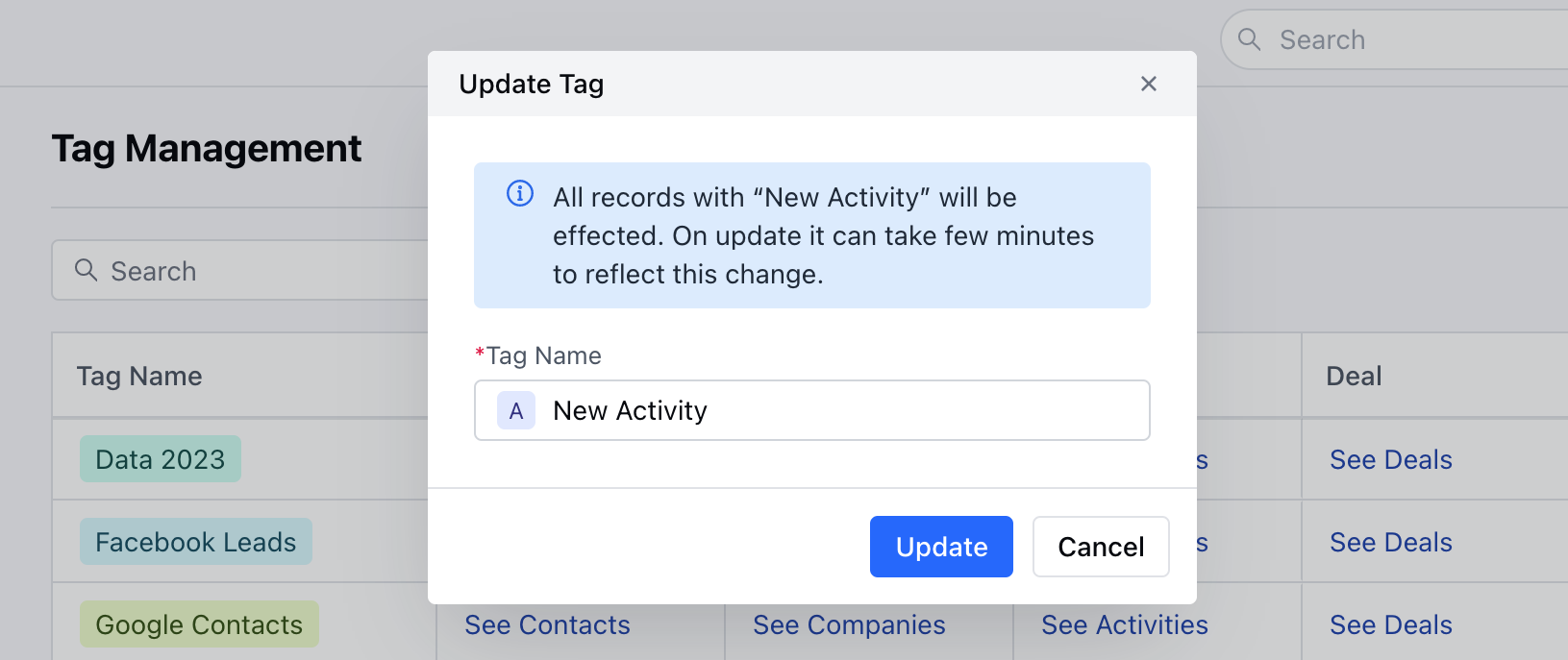
* Click on the Square Icon followed by selecting the Color
* Hit on the **Update** option
<img src="https://mintcdn.com/salesmate/yB6W4yDkBbhQMQL3/setup/customizations/images/mceclip2-14.png?fit=max&auto=format&n=yB6W4yDkBbhQMQL3&q=85&s=d9001e2e6f214c0a90b7a146009ceaba" alt="mceclip2.png" width="1631" height="687" data-path="setup/customizations/images/mceclip2-14.png" />