> ## Documentation Index
> Fetch the complete documentation index at: https://support.getskara.ai/llms.txt
> Use this file to discover all available pages before exploring further.
# What are Formula Fields and Managing them
### What are Formula Fields?
Formula fields are read-only type fields for which the values are calculated automatically based on the formula or the expression that is set up by you. You can create formula fields across all the modules (Contact, Company and Ticket).
[Various use cases to use Formula Fields in Skara.](https://support.salesmate.io/hc/en-us/articles/6306800480281)
* [How to Create Formula Fields?](#how-to-create-formula-fields)
* [How to Delete Formula Fields?](#how-to-create-formula-fields)
**Note:** Formula fields are available from the Pro plan and above.
### How to Create Formula Fields?
To create a formula field, you can follow the steps listed down below
* Navigate to the **Profile icon** in the top right corner.
* Click on the **Setup**.
* Head over to the **Modules** category
* Select the **Module** for which you wish to create the field.
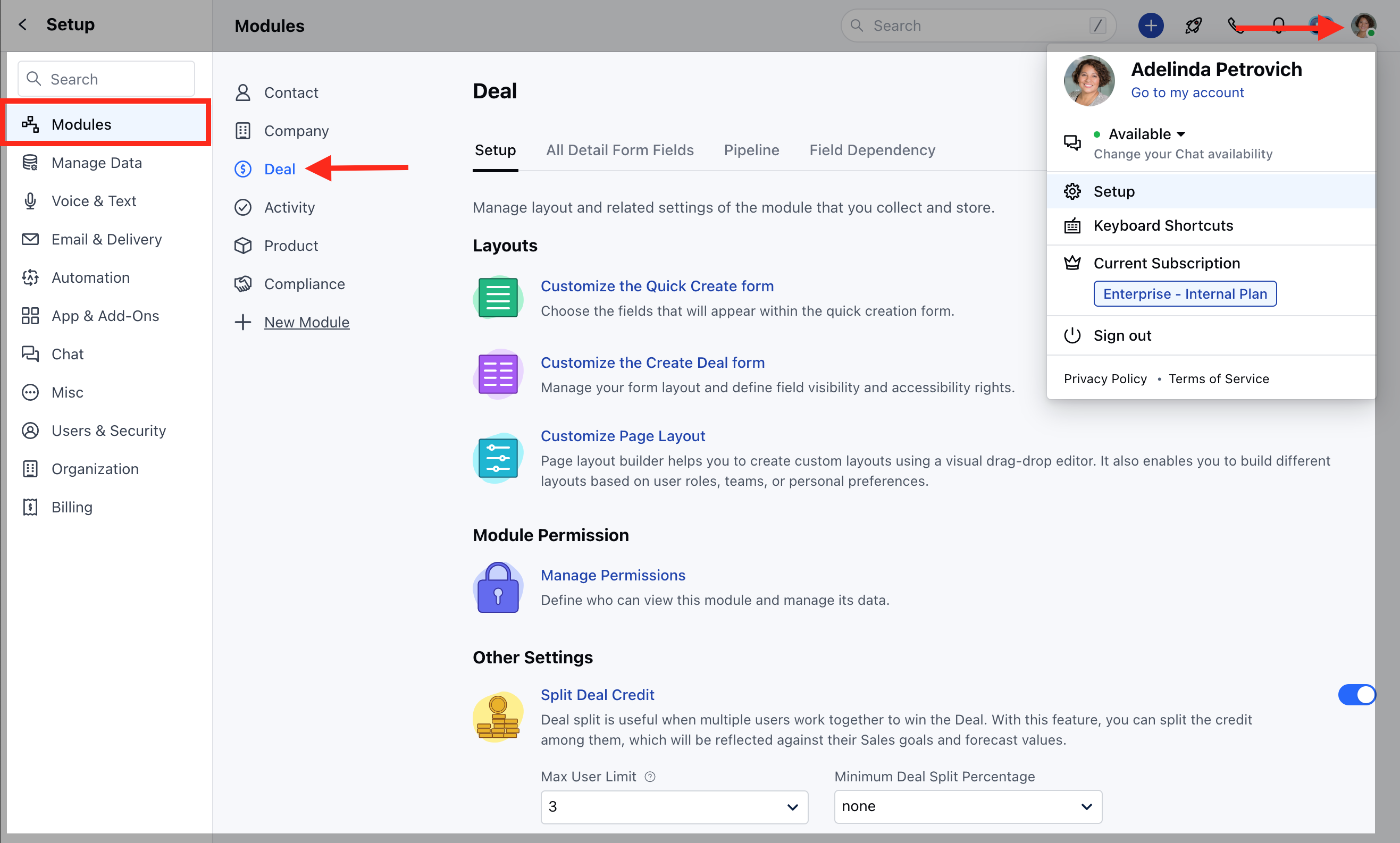 * Head to the **All Detail Form Fields** Section
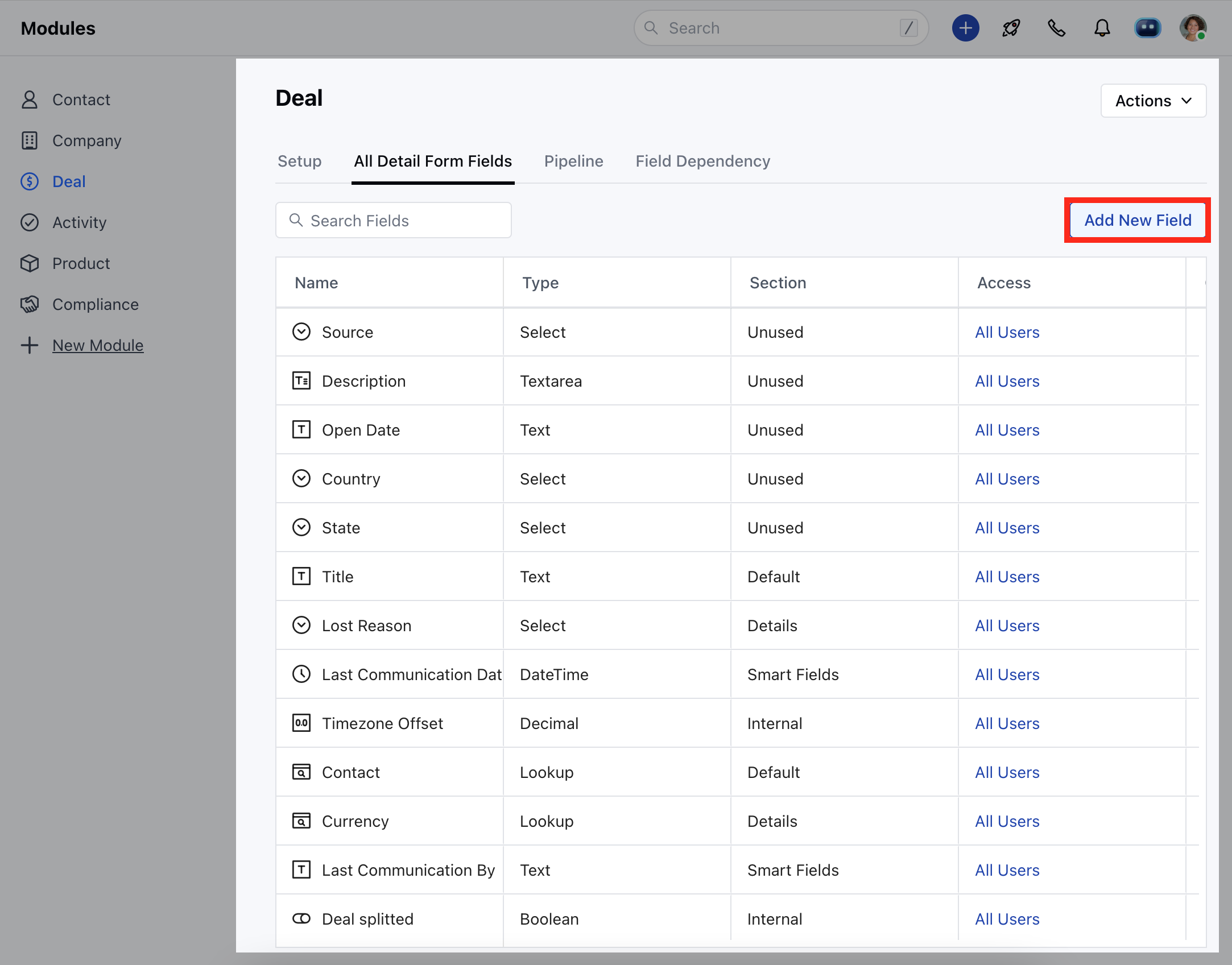
* Click on **Add New Field.**
* Head to the **All Detail Form Fields** Section
* Click on **Add New Field.**
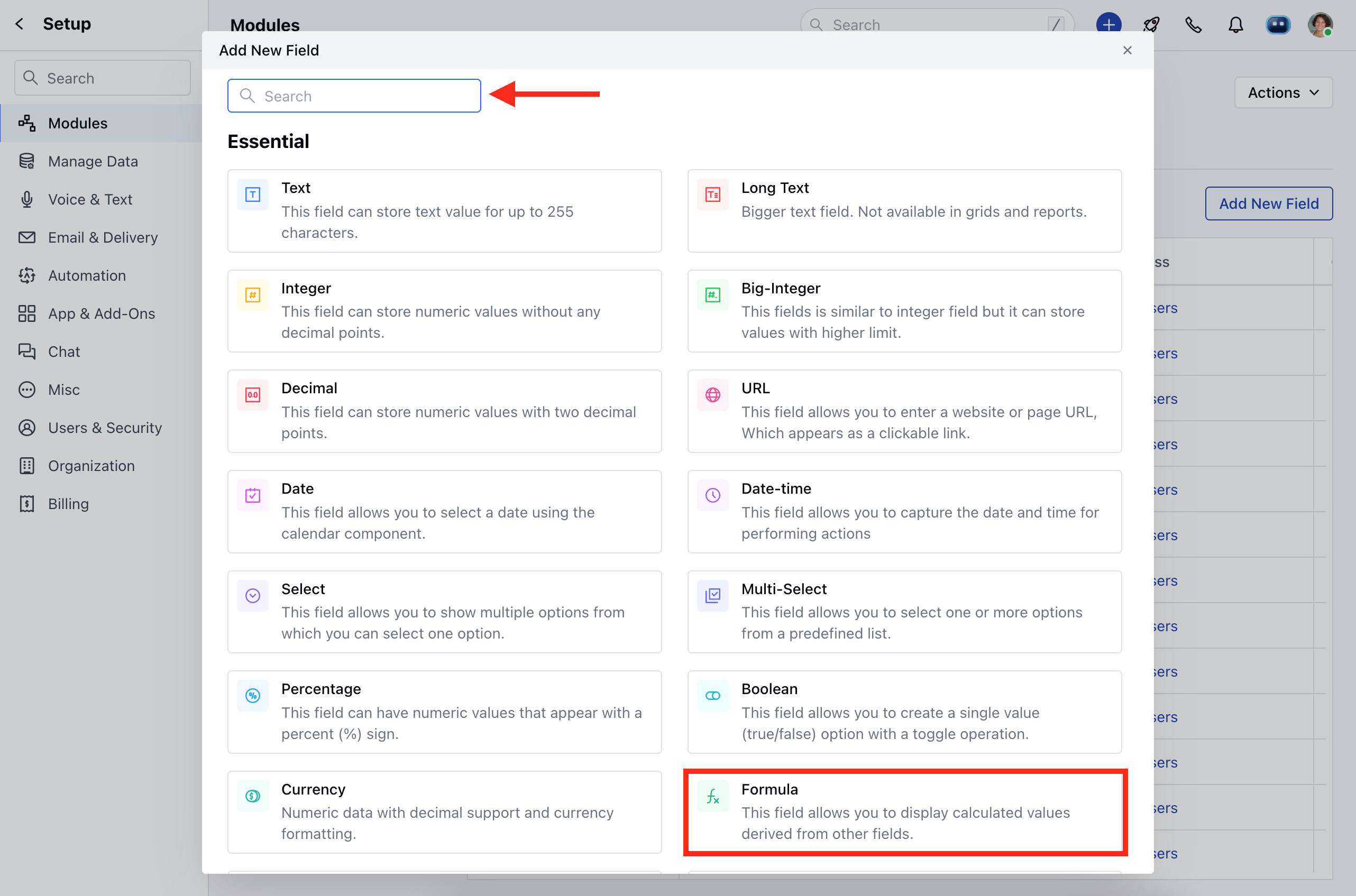
 * Quickly search or Select the **Formula field** under the field type.
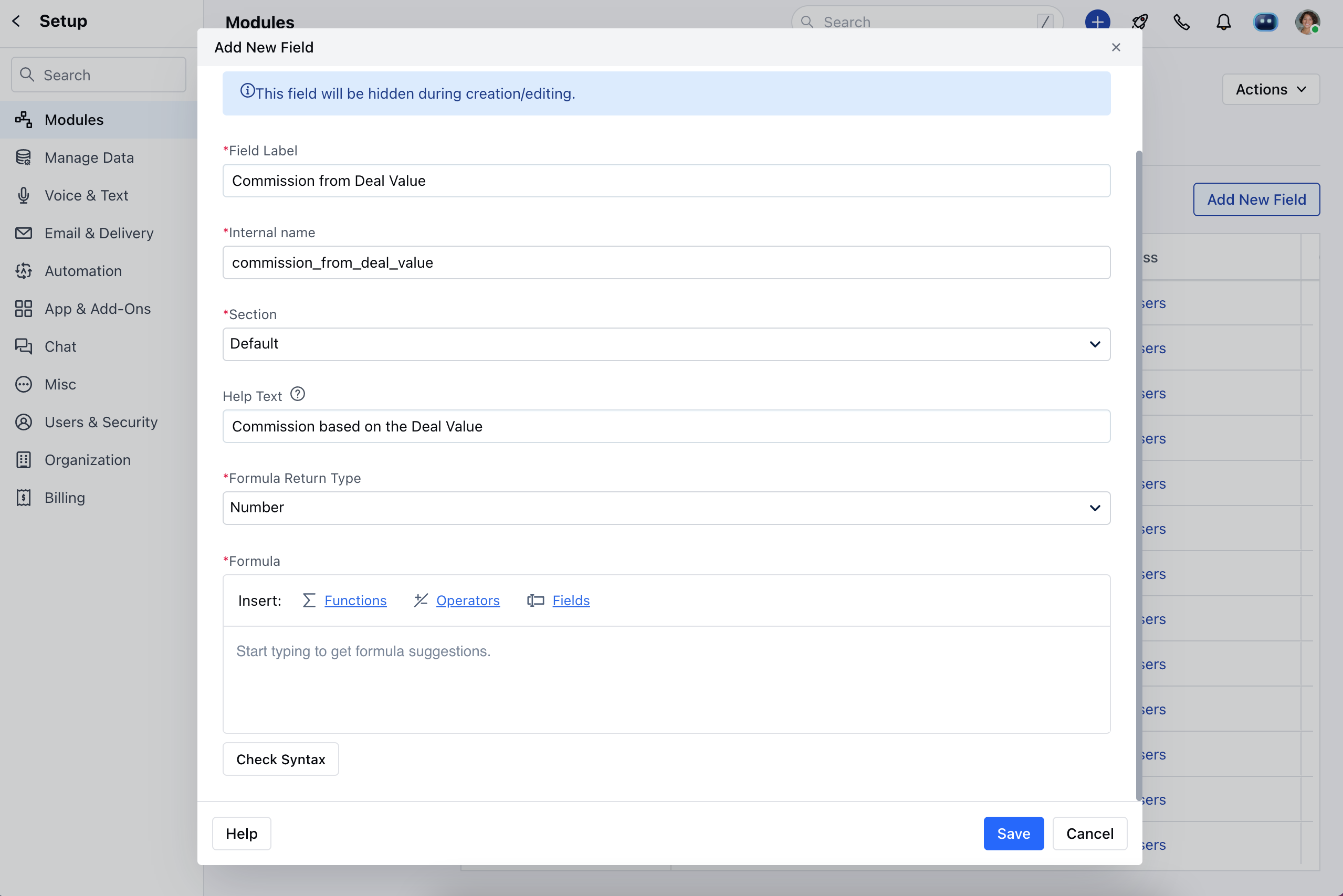
 After clicking on the Formula type field, a pop-up will open where you can set up the following things
* **Label**- Name for your reference.
* **Section Name**- select the layout of the appearance.
* **Formula Return Type**- Return the type of data.
* **Formula** - Define / Insert the required formula.
After clicking on the Formula type field, a pop-up will open where you can set up the following things
* **Label**- Name for your reference.
* **Section Name**- select the layout of the appearance.
* **Formula Return Type**- Return the type of data.
* **Formula** - Define / Insert the required formula.
 * You can return the formula result in 6 ways
* **Number**
* \*\*Currency \*\*
* \*\*String \*\*
* \*\*Date \*\*
* \*\*Date Time \*\*
* \*\*Boolean \*\*
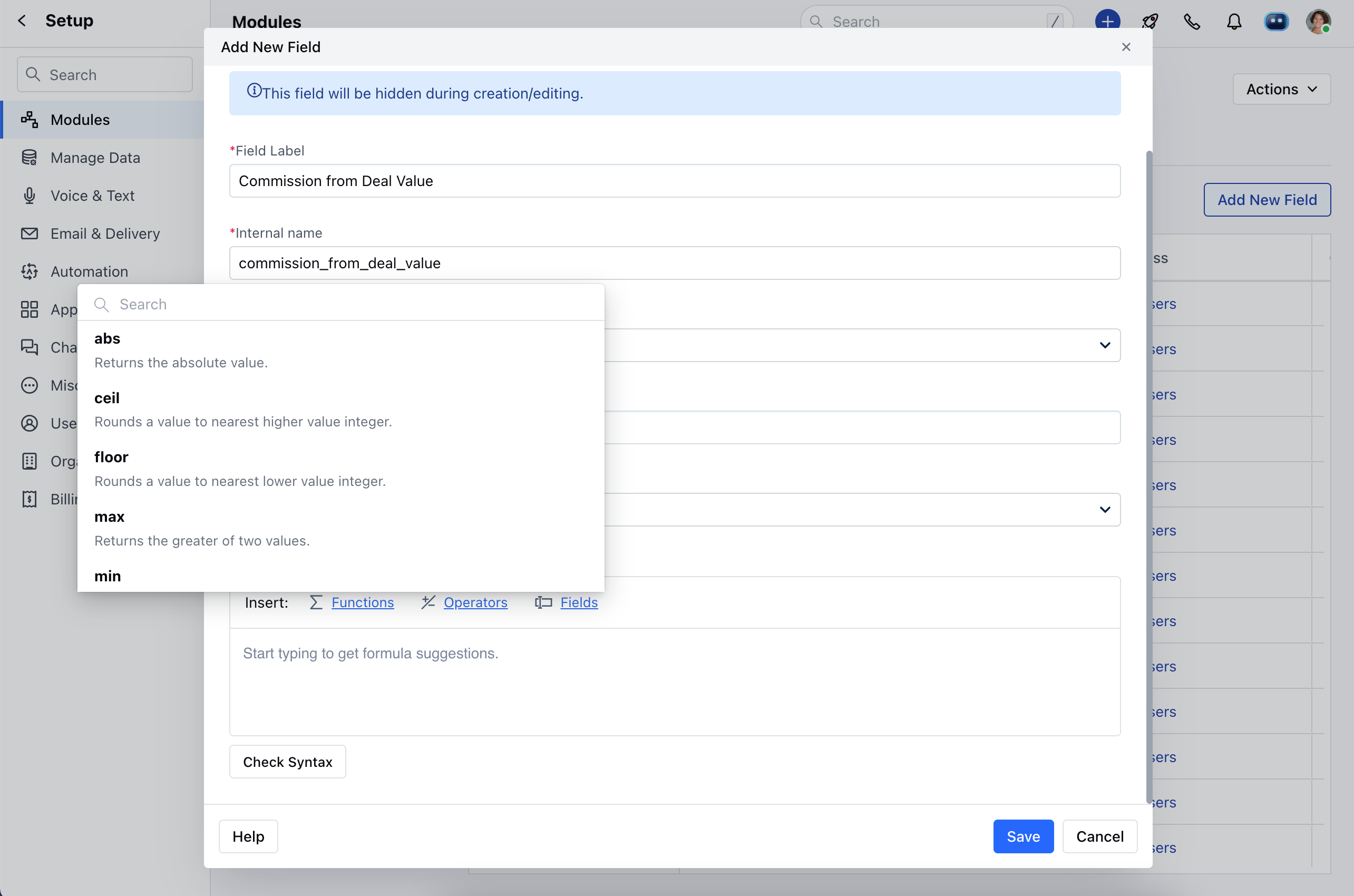
* While inserting the formula, you will be able to choose from the available list of [functions, operators](https://support.salesmate.io/hc/en-us/articles/6295809955737), and the fields using which you wish to calculate the value.
* You can return the formula result in 6 ways
* **Number**
* \*\*Currency \*\*
* \*\*String \*\*
* \*\*Date \*\*
* \*\*Date Time \*\*
* \*\*Boolean \*\*
* While inserting the formula, you will be able to choose from the available list of [functions, operators](https://support.salesmate.io/hc/en-us/articles/6295809955737), and the fields using which you wish to calculate the value.
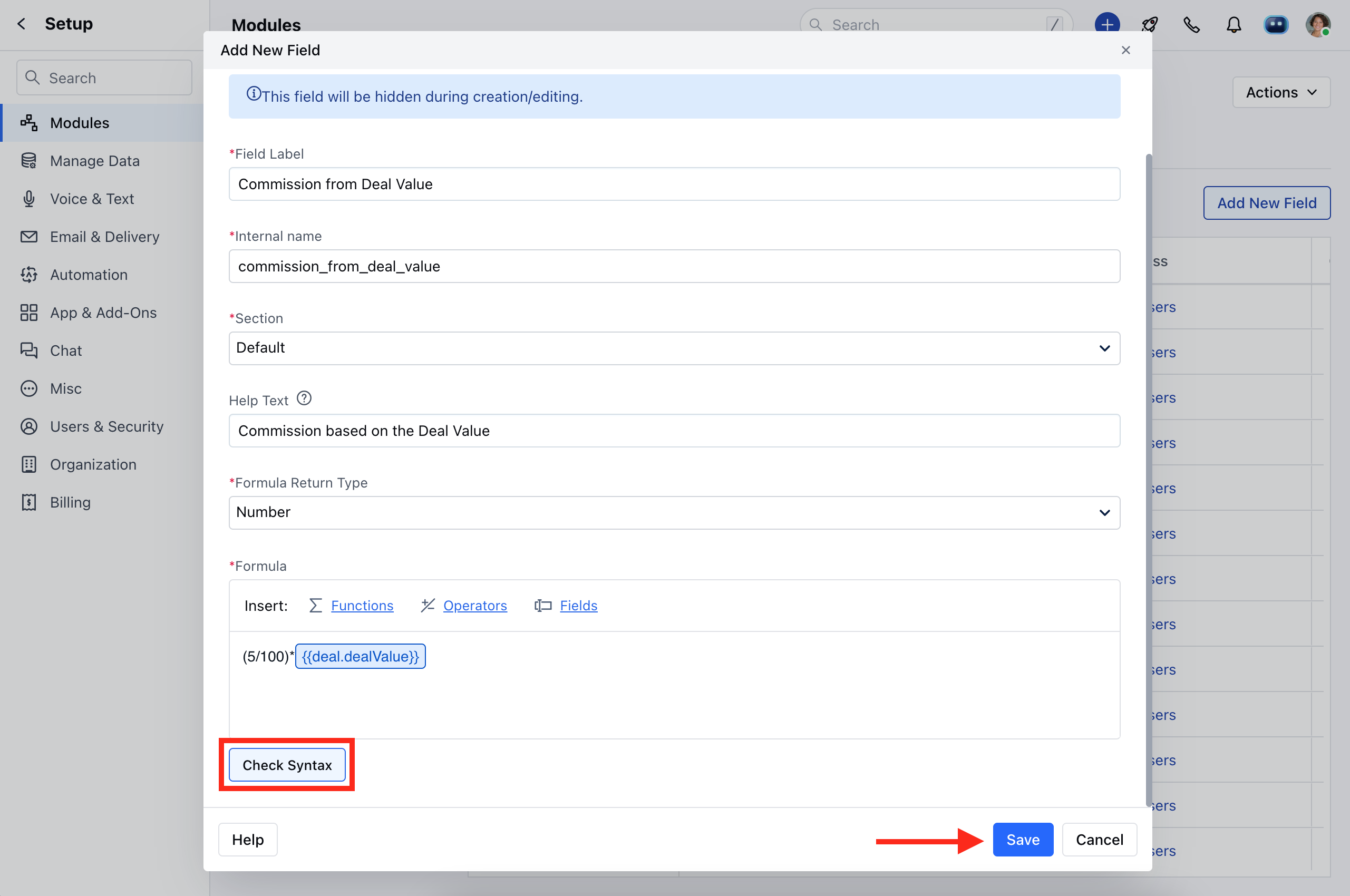
 * Once you have entered your formula, you can check if the Syntax is valid or not by clicking on the **Check Syntax** button.
* Once you have verified the expression, click on **Save.**
* Once you have entered your formula, you can check if the Syntax is valid or not by clicking on the **Check Syntax** button.
* Once you have verified the expression, click on **Save.**
 ### How to Delete a Formula Field?
To Delete a Formula Field,
* Navigate to the **Profile icon** in the top right corner.
* Click on the **Setup**.
* Head over to the **Modules** category
* Select the **Module** for which you wish to create the field.
* Head to the **All Detail Form Fields** Section
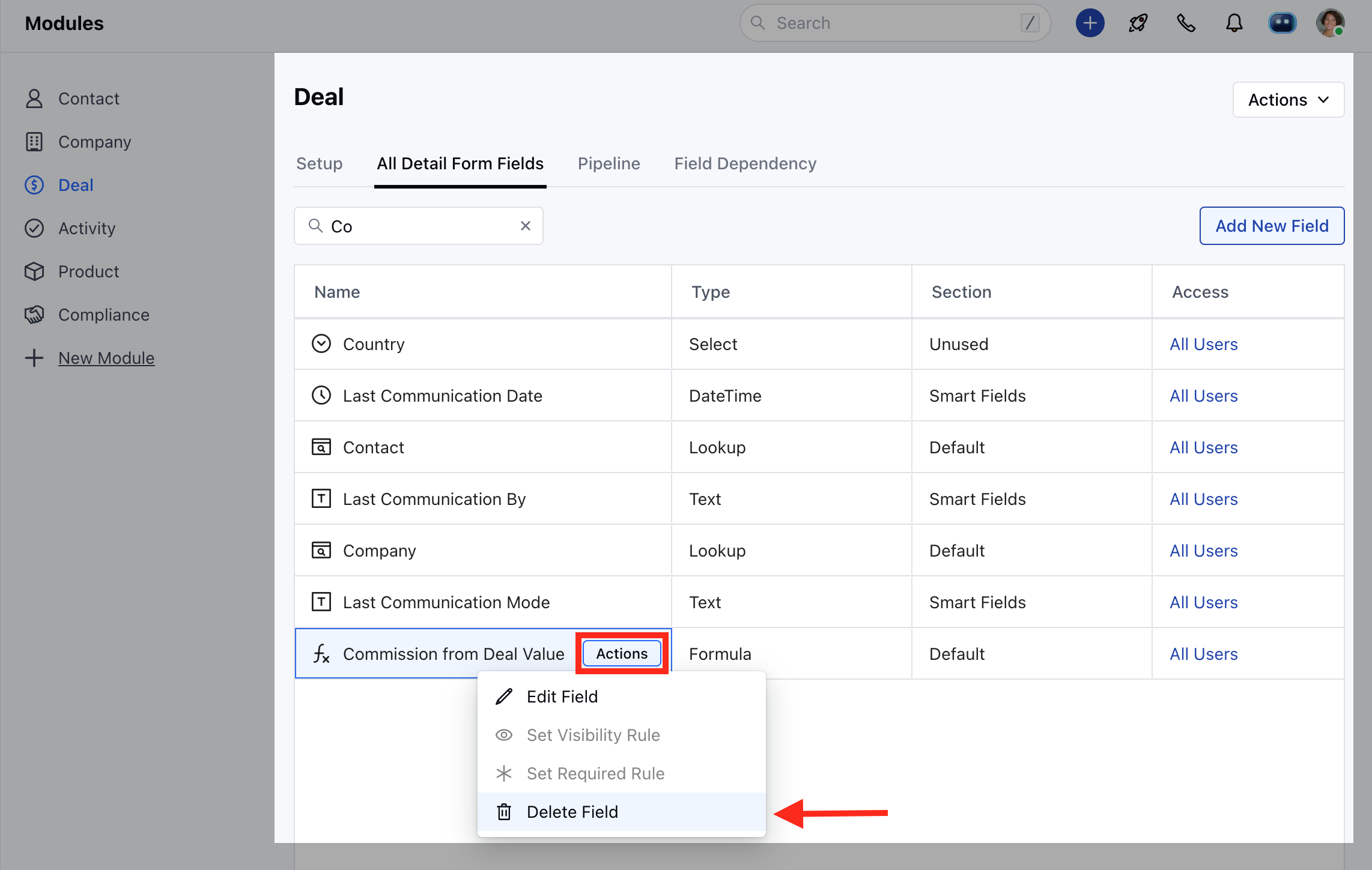
* With the Quick Search option search for the Field you wish to Delete
### How to Delete a Formula Field?
To Delete a Formula Field,
* Navigate to the **Profile icon** in the top right corner.
* Click on the **Setup**.
* Head over to the **Modules** category
* Select the **Module** for which you wish to create the field.
* Head to the **All Detail Form Fields** Section
* With the Quick Search option search for the Field you wish to Delete
 * A pop-up warning block will open confirming if you wish to Delete the field or Move it to the Unused section.
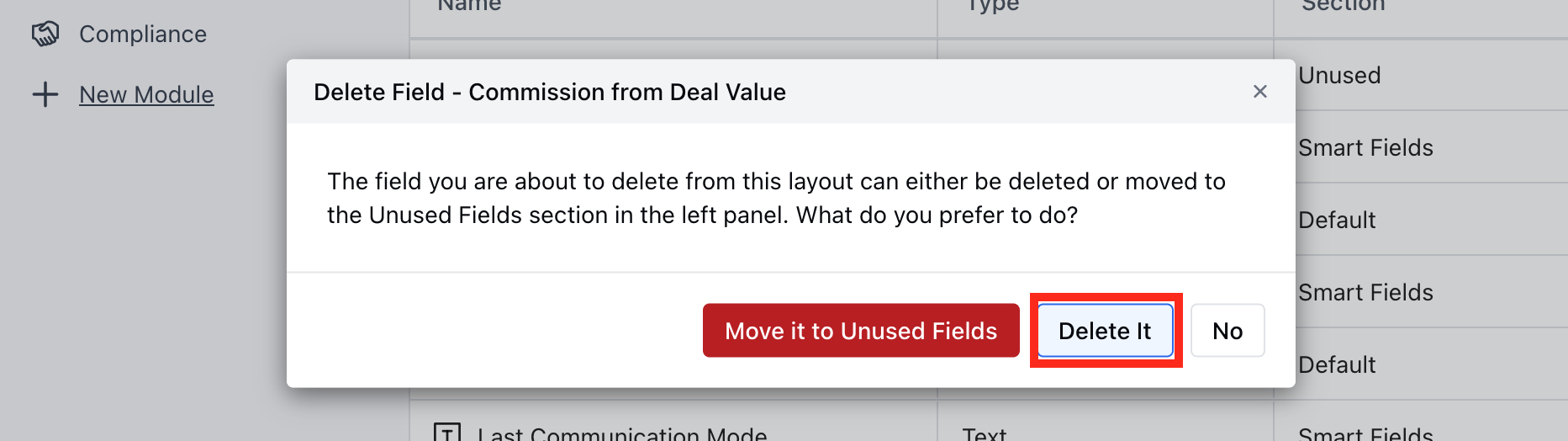 * Click on **Yes** to proceed further or **No** if you don't want to delete the field.
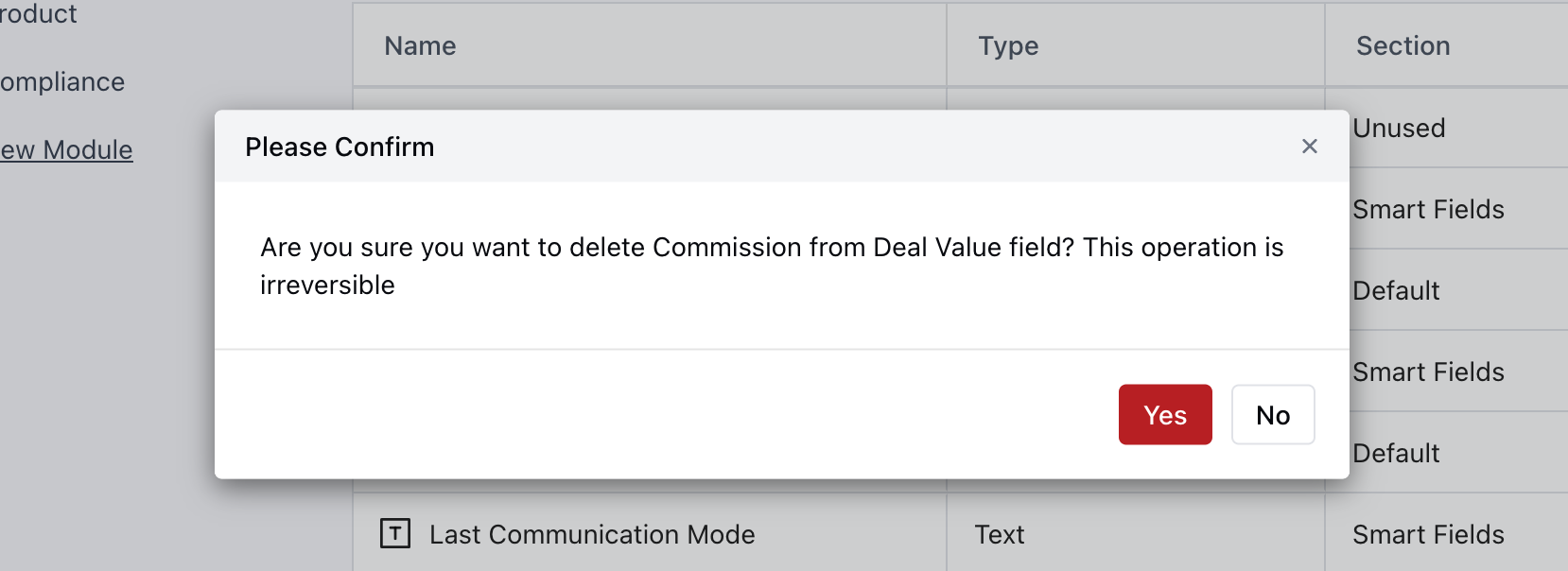 **Note** : Once deleted, the Field and its respective value cannot be retrieved and will be completely lost.