> ## Documentation Index
> Fetch the complete documentation index at: https://support.getskara.ai/llms.txt
> Use this file to discover all available pages before exploring further.
# How to Create a Team?
A team is a group of users that work together to achieve some common goals. Skara allows you to organize your users into teams for reporting and maintaining organization structure for some quick actions
**Note**: Available in Boost and above plans. Only a user with an "Admin" role can perform this action.
### To create a team :
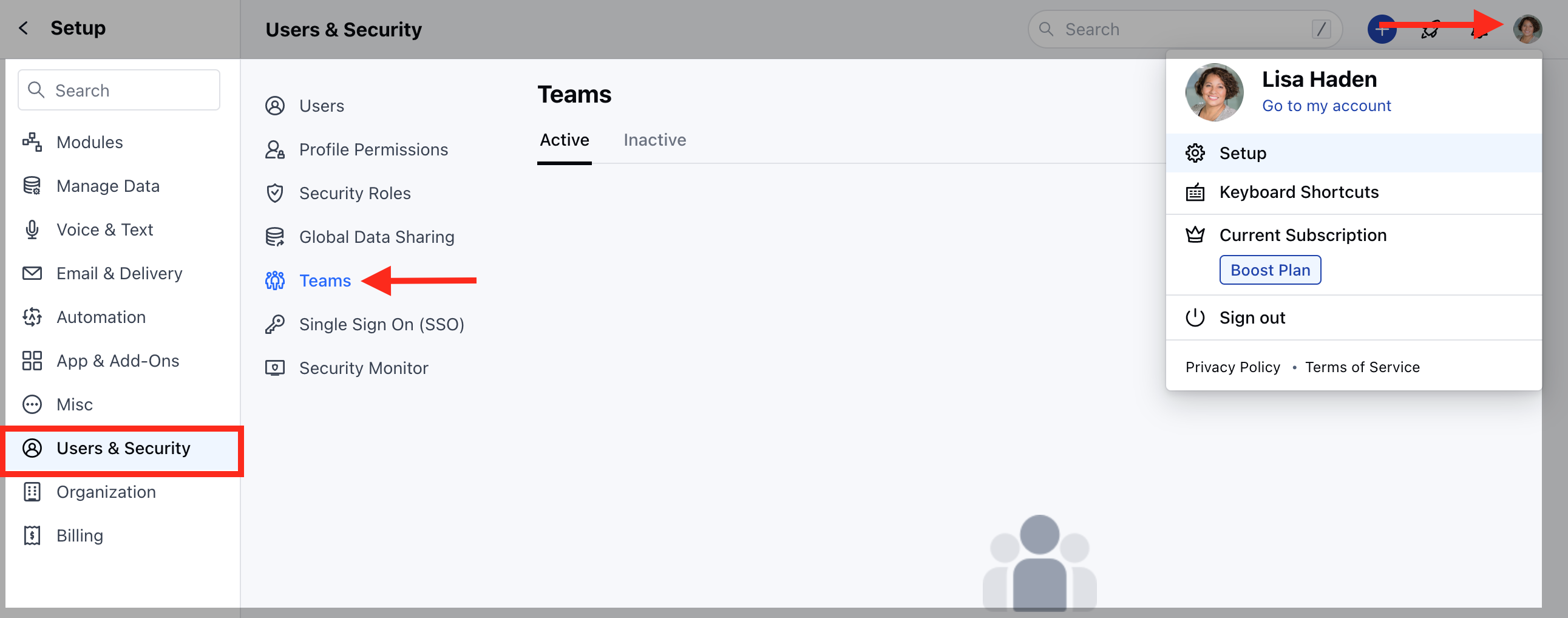
* Navigate to the **Profile icon** on the top right corner
* Click on **Setup**
* Head over to **Users and Security**
* Click on **Teams**
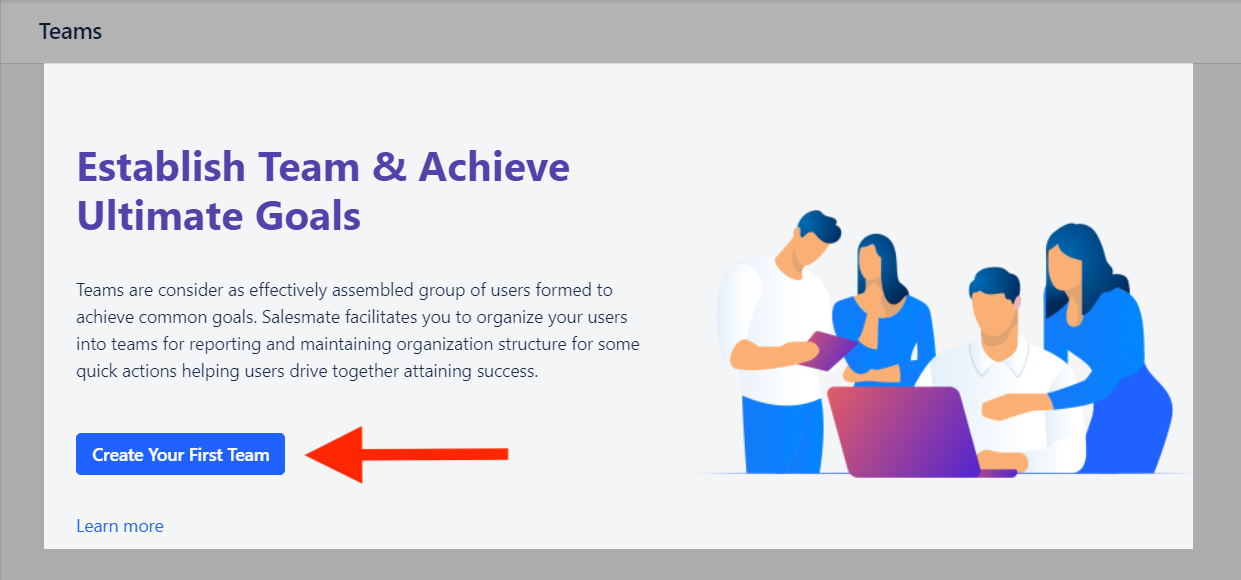
 * Click on the **"Create Your First Team"** button to create your team.
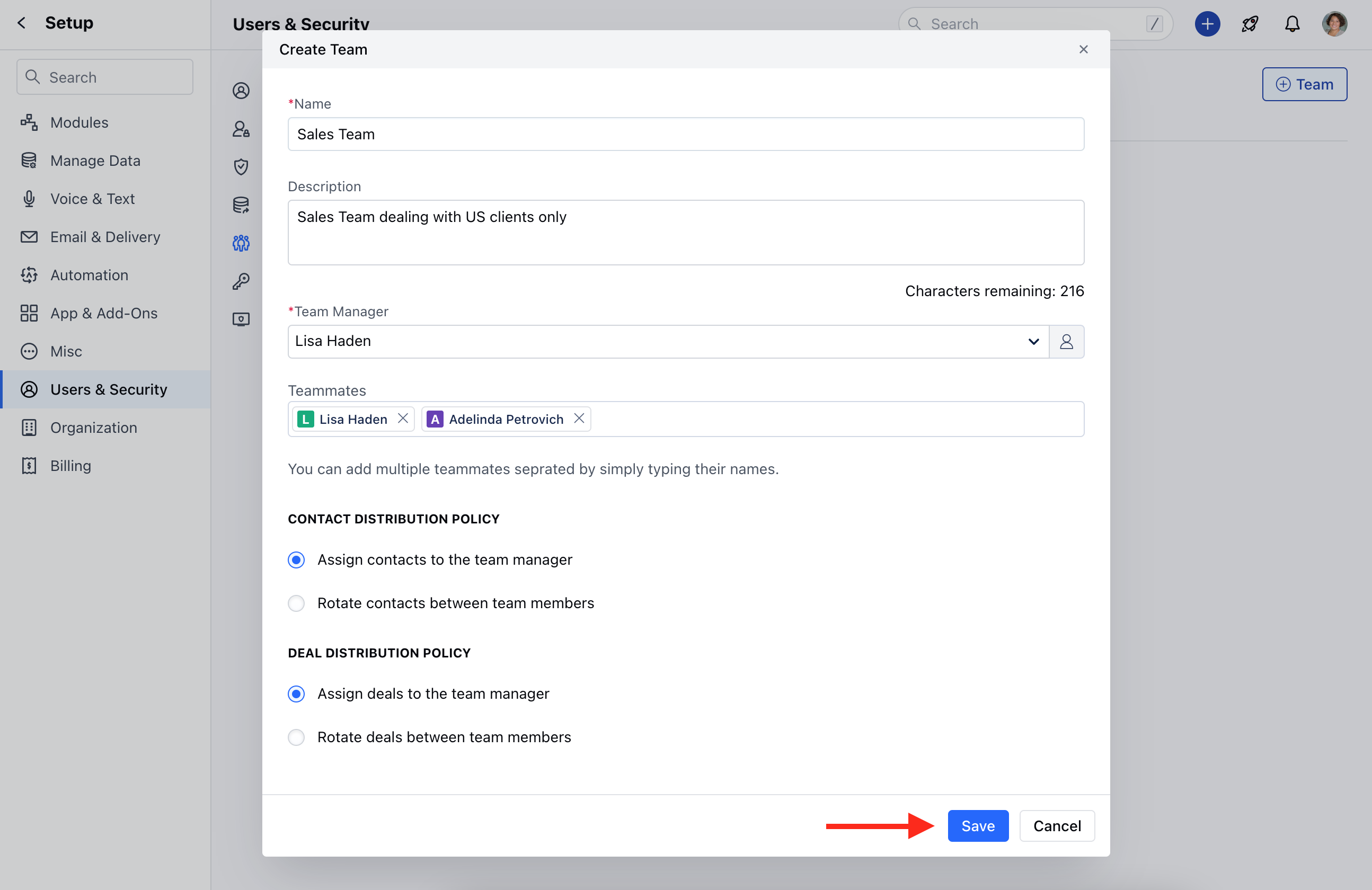
 * Fill in the following details
* **Name of the team**\[ Example: Sales, Customer Success, Projects Management, etc ]
* **Description of the team**\[ Helps you identify what this team is for ]
* Select a **Team Manager**\[ An active Salesmate user of your account who gets the right to add other members to the team ]
* **Add Teammates**\[ Select the list of users or at least one user who will be part of this team. ]
* Select **"Contact Distribution Policy"** and **"Deal Distribution Policy"**.
* Click on **Save**
* Fill in the following details
* **Name of the team**\[ Example: Sales, Customer Success, Projects Management, etc ]
* **Description of the team**\[ Helps you identify what this team is for ]
* Select a **Team Manager**\[ An active Salesmate user of your account who gets the right to add other members to the team ]
* **Add Teammates**\[ Select the list of users or at least one user who will be part of this team. ]
* Select **"Contact Distribution Policy"** and **"Deal Distribution Policy"**.
* Click on **Save**
 * Once the team is created it will be listed in the **Active** tab. Also, in this way, you can create multiple teams.
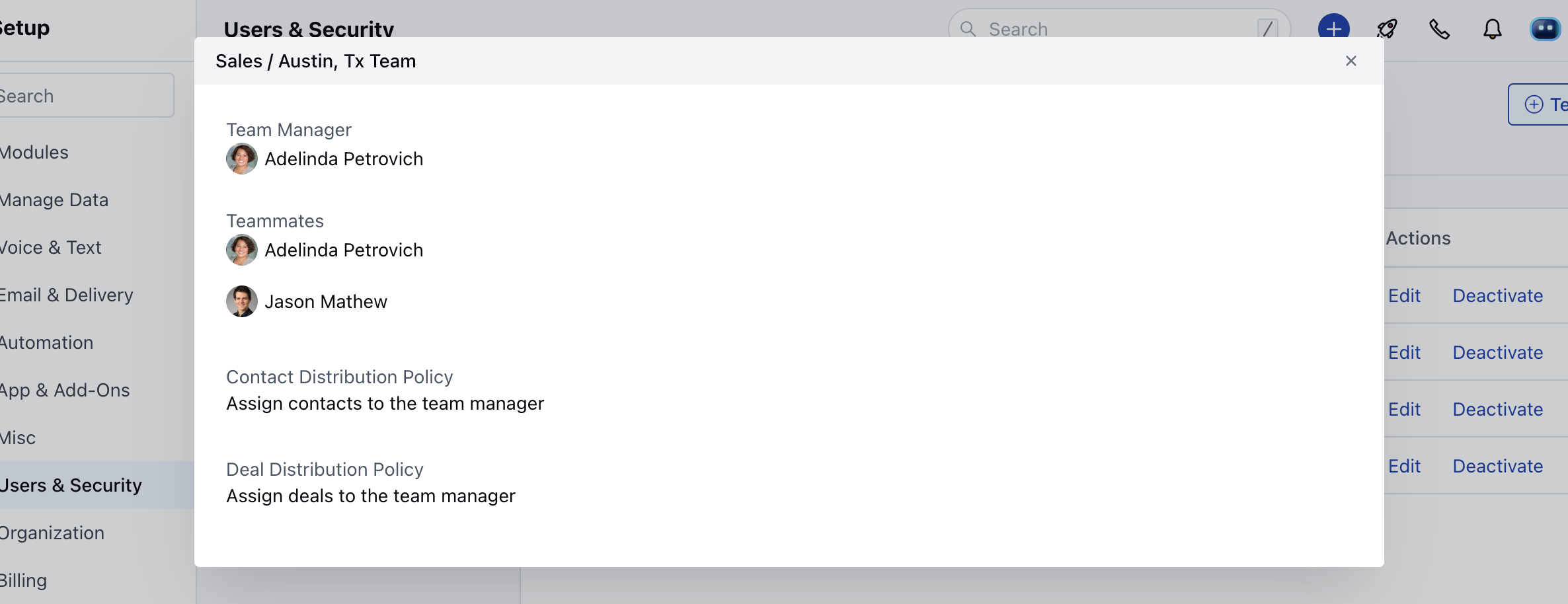
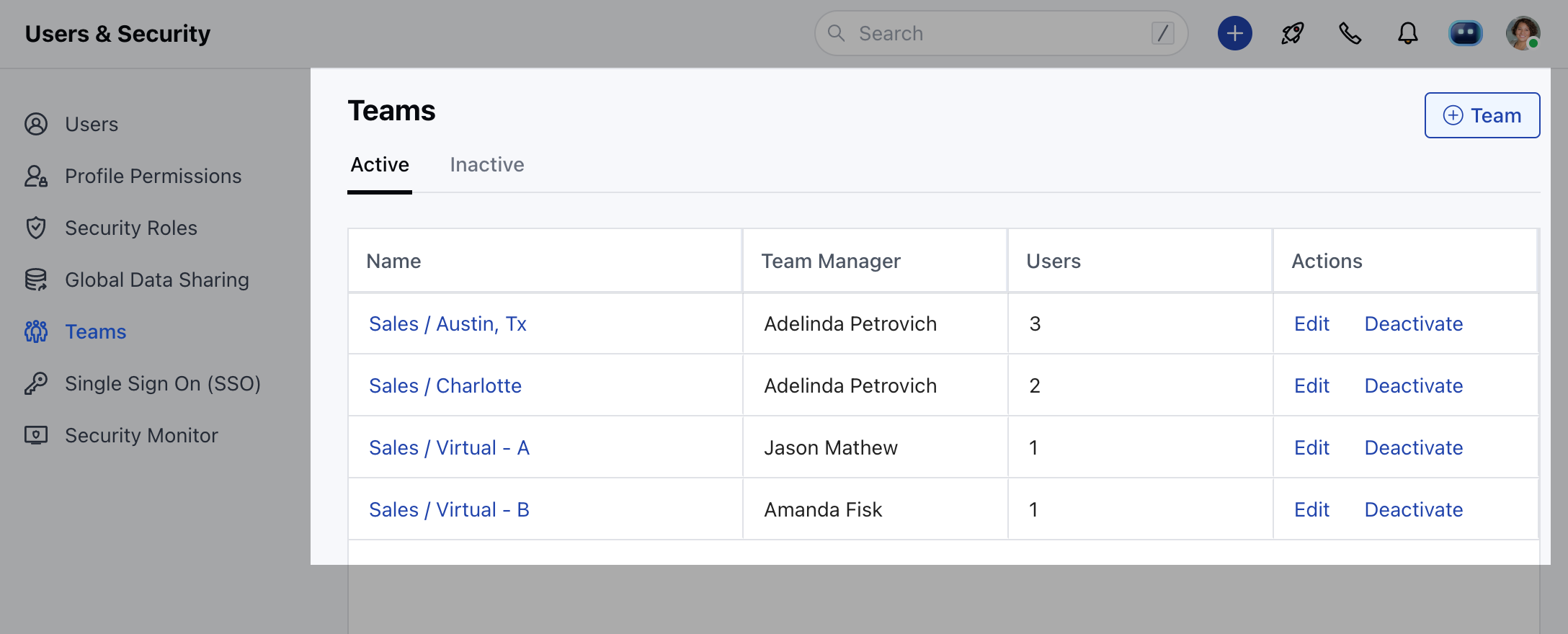 * You can click on the **Team Name** to view its details over a pop-up.