> ## Documentation Index
> Fetch the complete documentation index at: https://support.getskara.ai/llms.txt
> Use this file to discover all available pages before exploring further.
# How to Filter records by Teams?
Records (contacts, companies, activities, and deals) can be filtered by Teams
### **To filter records by Teams :**
* Let's take an example of filtering contacts by Teams
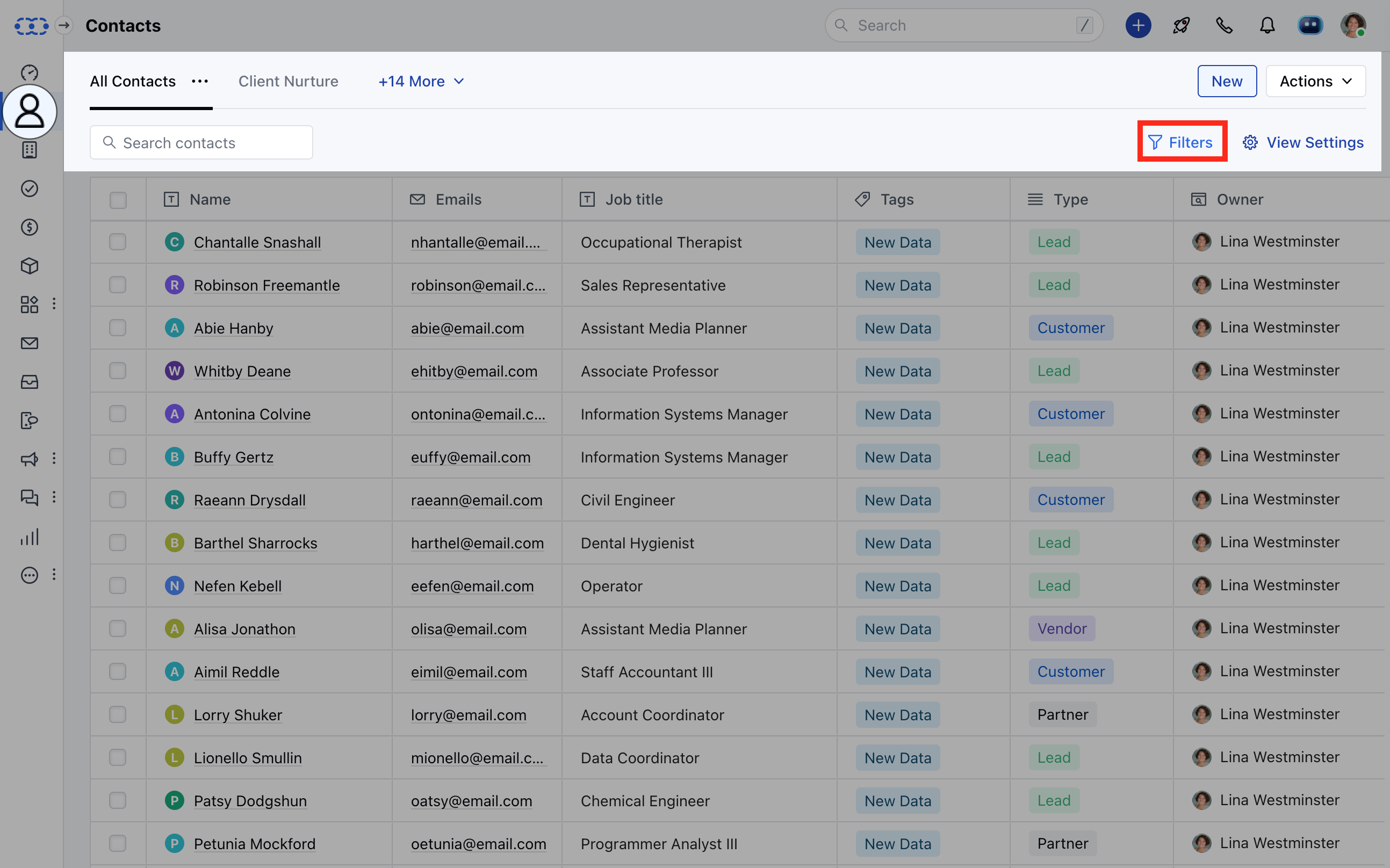
* Navigate to the **Contacts Module**
* Click on the **Filter (funnel) icon** to filter the records
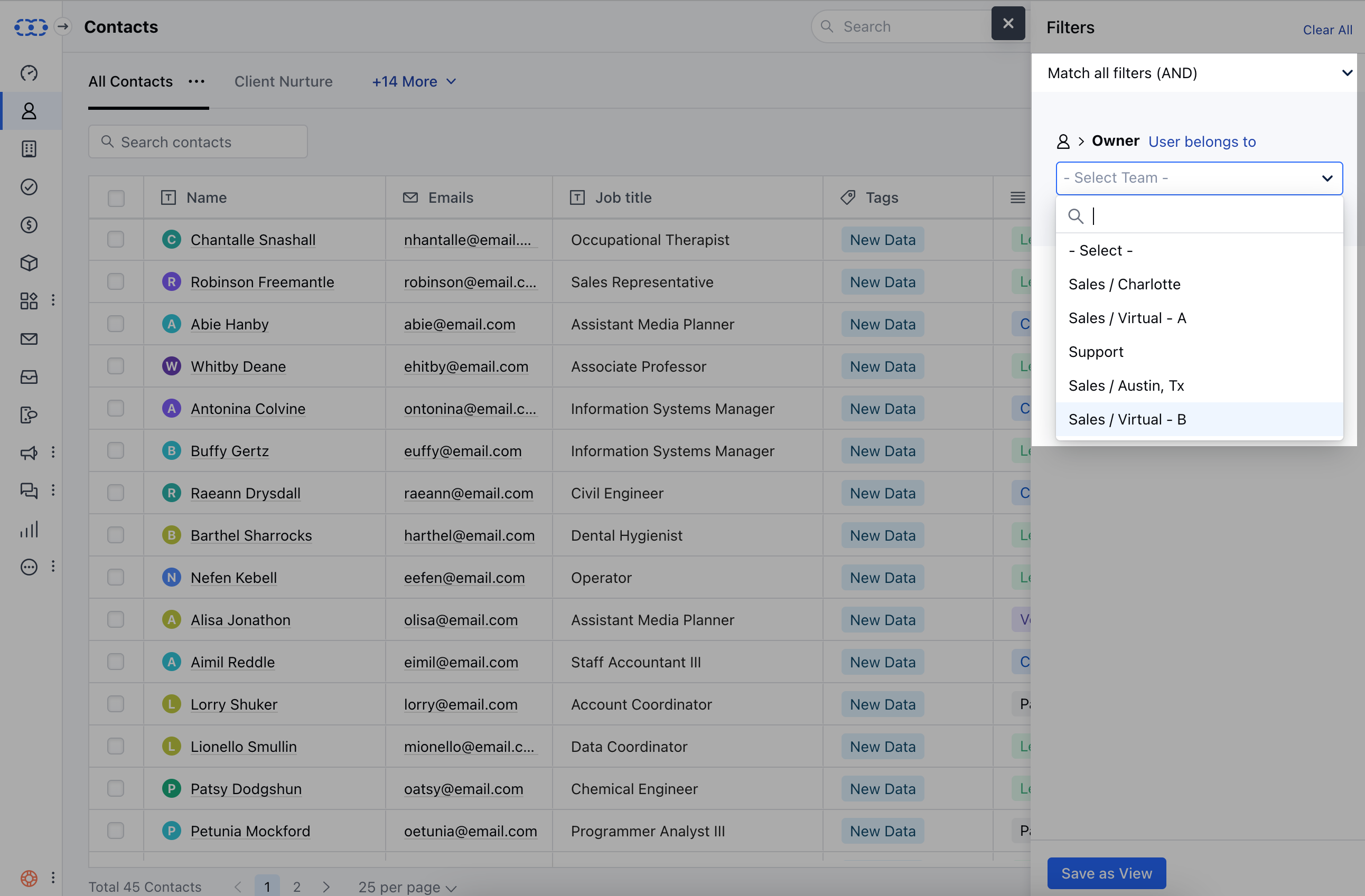
 * Click on **Add filter** and select **"Owner"** and from the drop-down menu choose"**User belongs to**".
* Select any of the pre-created active teams
* You will get a list of all records owned by the user belonging to the selected team.
* Click on **Add filter** and select **"Owner"** and from the drop-down menu choose"**User belongs to**".
* Select any of the pre-created active teams
* You will get a list of all records owned by the user belonging to the selected team.
 Note :
* You can create similar filters for other modules (companies, activities, and deals) as well.
* While creating a new filter only **active** teams will be listed.
* While editing a filter, if the current team has been **deactivated**, then you will be able to see it on the list.
* You can also utilize the team's feature under your automation. [Learn more](https://support.salesmate.io/hc/en-us/articles/4417367279769)
* If the Team has been deleted then opening the filter will show a blank value.
Note :
* You can create similar filters for other modules (companies, activities, and deals) as well.
* While creating a new filter only **active** teams will be listed.
* While editing a filter, if the current team has been **deactivated**, then you will be able to see it on the list.
* You can also utilize the team's feature under your automation. [Learn more](https://support.salesmate.io/hc/en-us/articles/4417367279769)
* If the Team has been deleted then opening the filter will show a blank value.