> ## Documentation Index
> Fetch the complete documentation index at: https://support.getskara.ai/llms.txt
> Use this file to discover all available pages before exploring further.
# How to Reactivate a Team?
**Note**: Only users with an "Admin" role can perform this action.
### To Reactivate a Team :
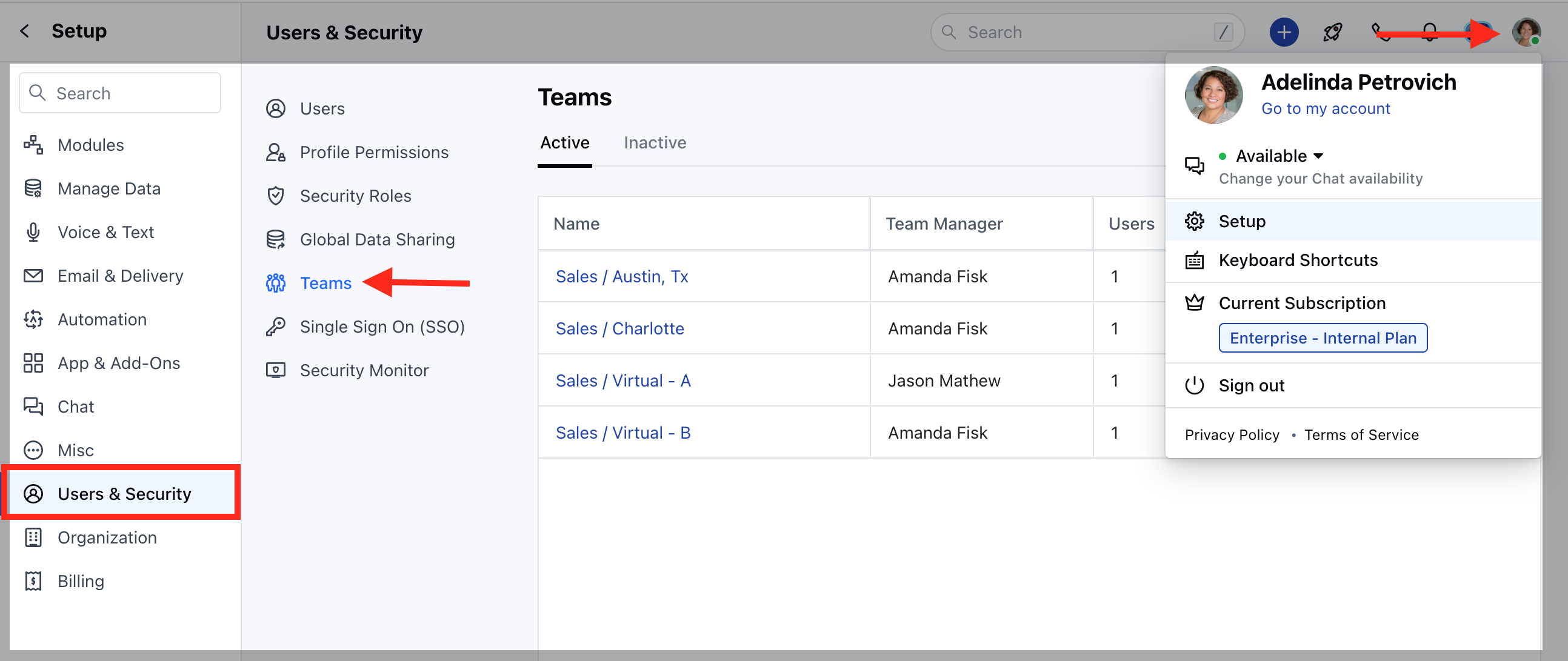
* Navigate to the **Profile icon** on the top right corner
* Click on **Setup**
* Head over to **Users and Security**
* Click on **Teams**
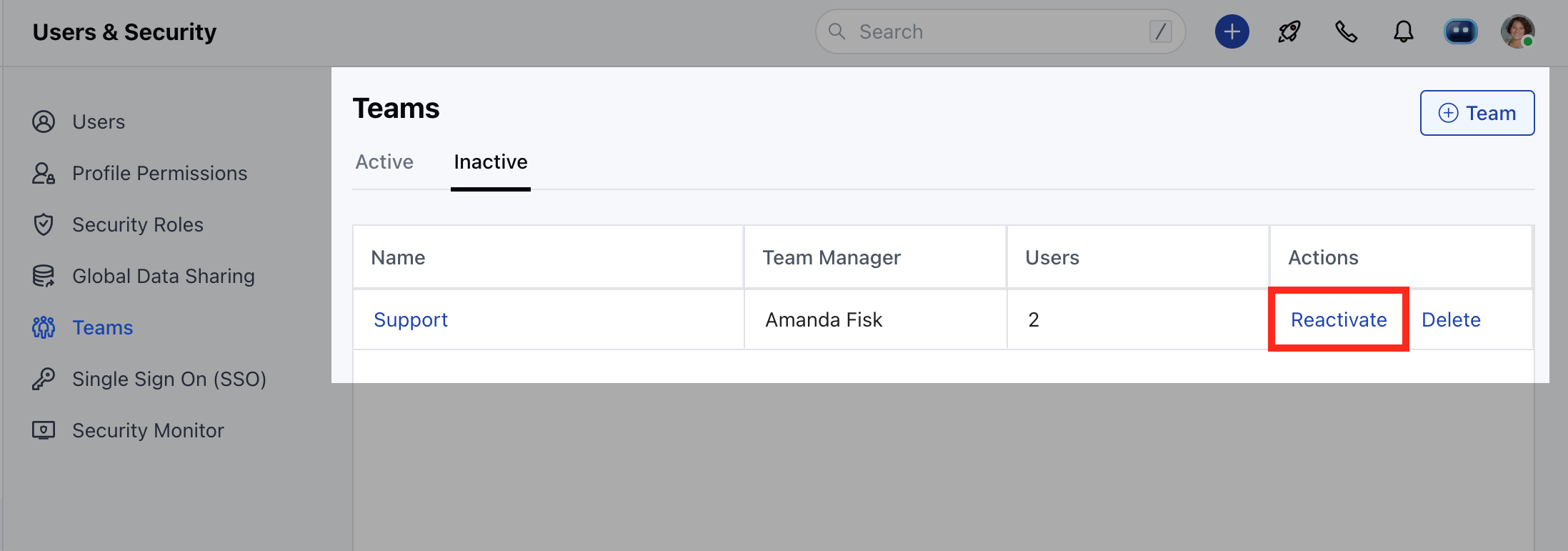
 * You will find a list of already inactive teams under the **"Inactive"** tab
* Click on **"Reactivate"** to activate the team.
* You will find a list of already inactive teams under the **"Inactive"** tab
* Click on **"Reactivate"** to activate the team.
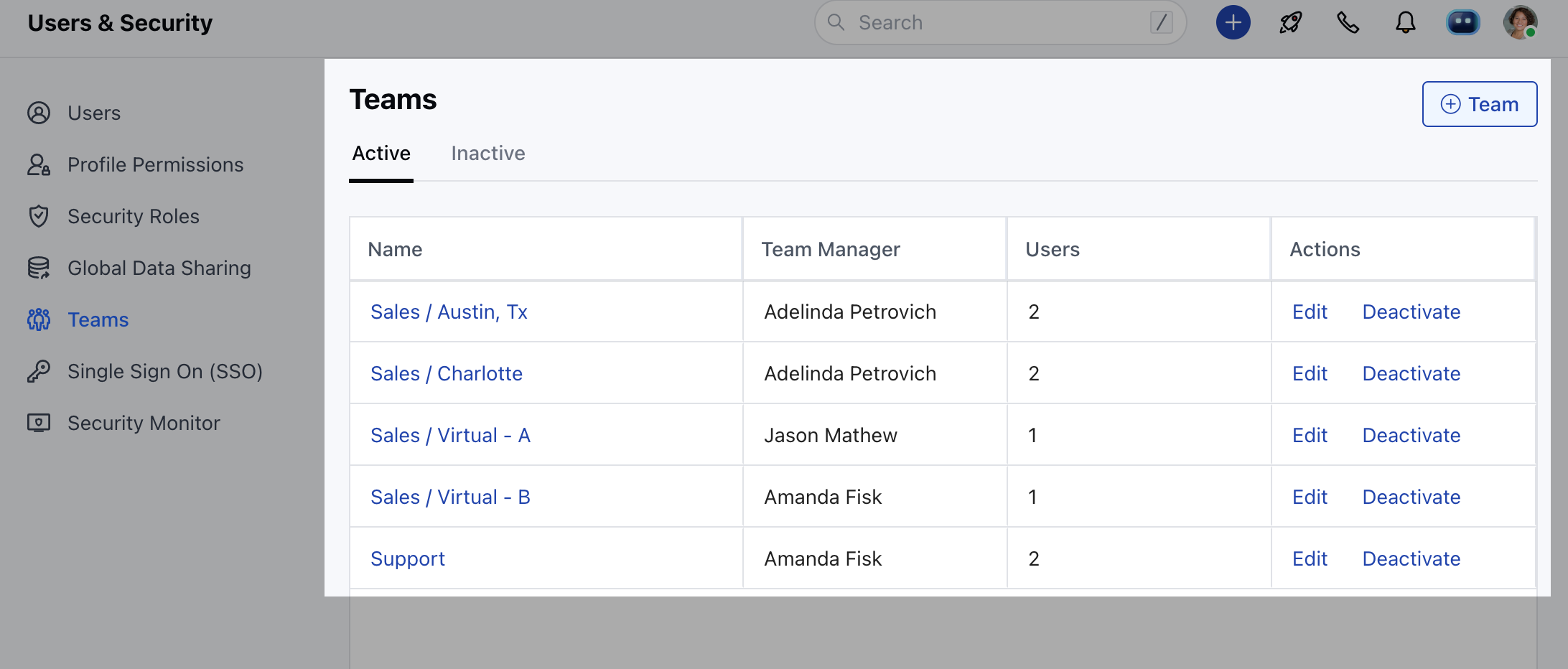
 * Once reactivated the team will appear in the list of **"Active"** tab.