> ## Documentation Index
> Fetch the complete documentation index at: https://support.getskara.ai/llms.txt
> Use this file to discover all available pages before exploring further.
# Managing Seats
A **Seat** refers to the type of user license assigned to a person in your account. Each active user in your account is assigned a seat, and the type of seat determines what access that user has.
You can assign a seat while adding a new user or changing the seat for an existing user.
### **Topics covered:**
* [Add a New User and Assign a Seat](#add-a-new-user-and-assign-a-seat)
* [Change Seat for an Existing User](#change-seat-for-an-existing-user)
### Add a New User and Assign a Seat
* Navigate to your **Profile Icon** on the top right corner.
* Click on **Setup.**
* Head over to the **Users & Security** category.
* Select**Users.** 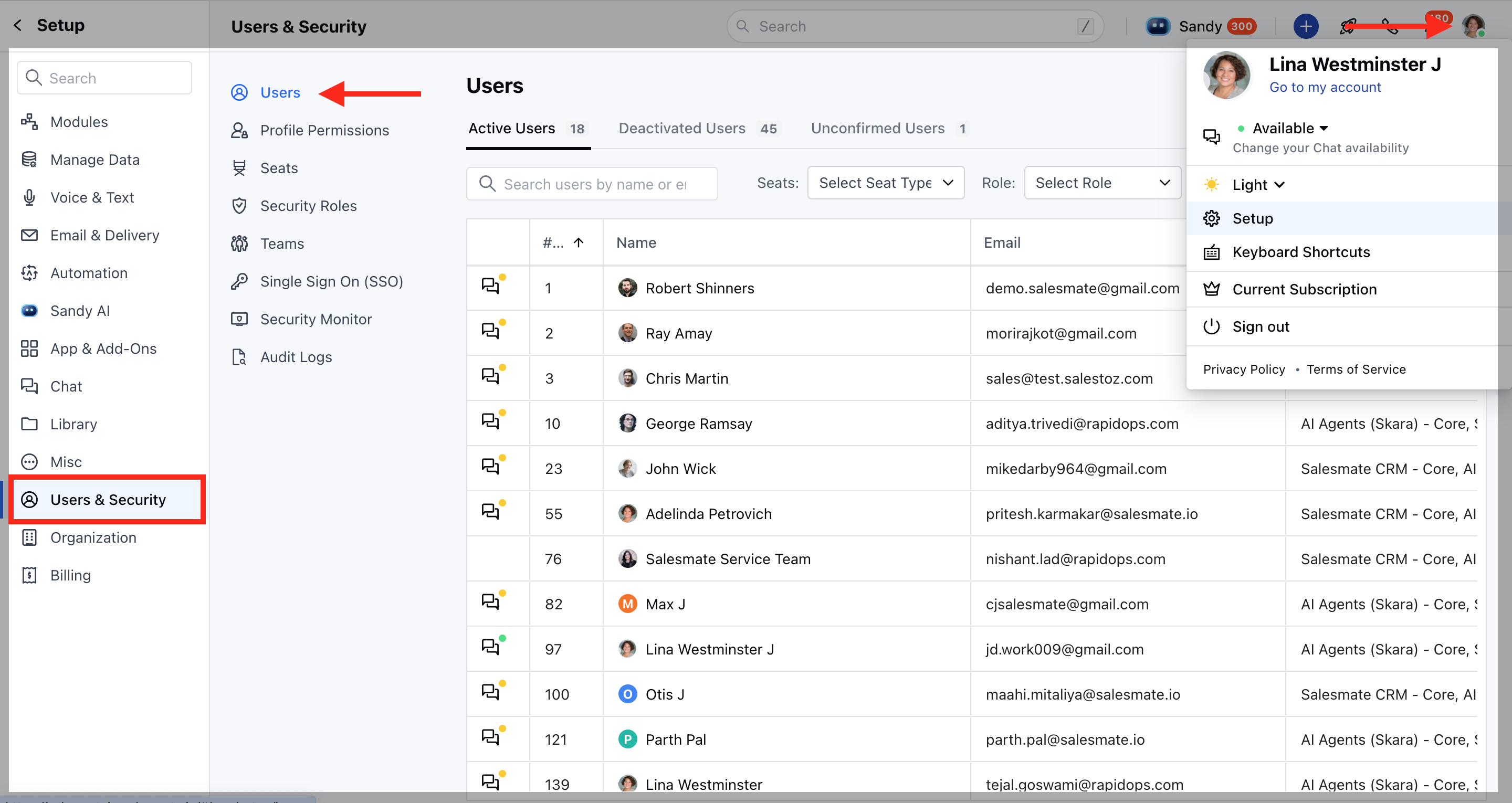 * Click on the **New** button.
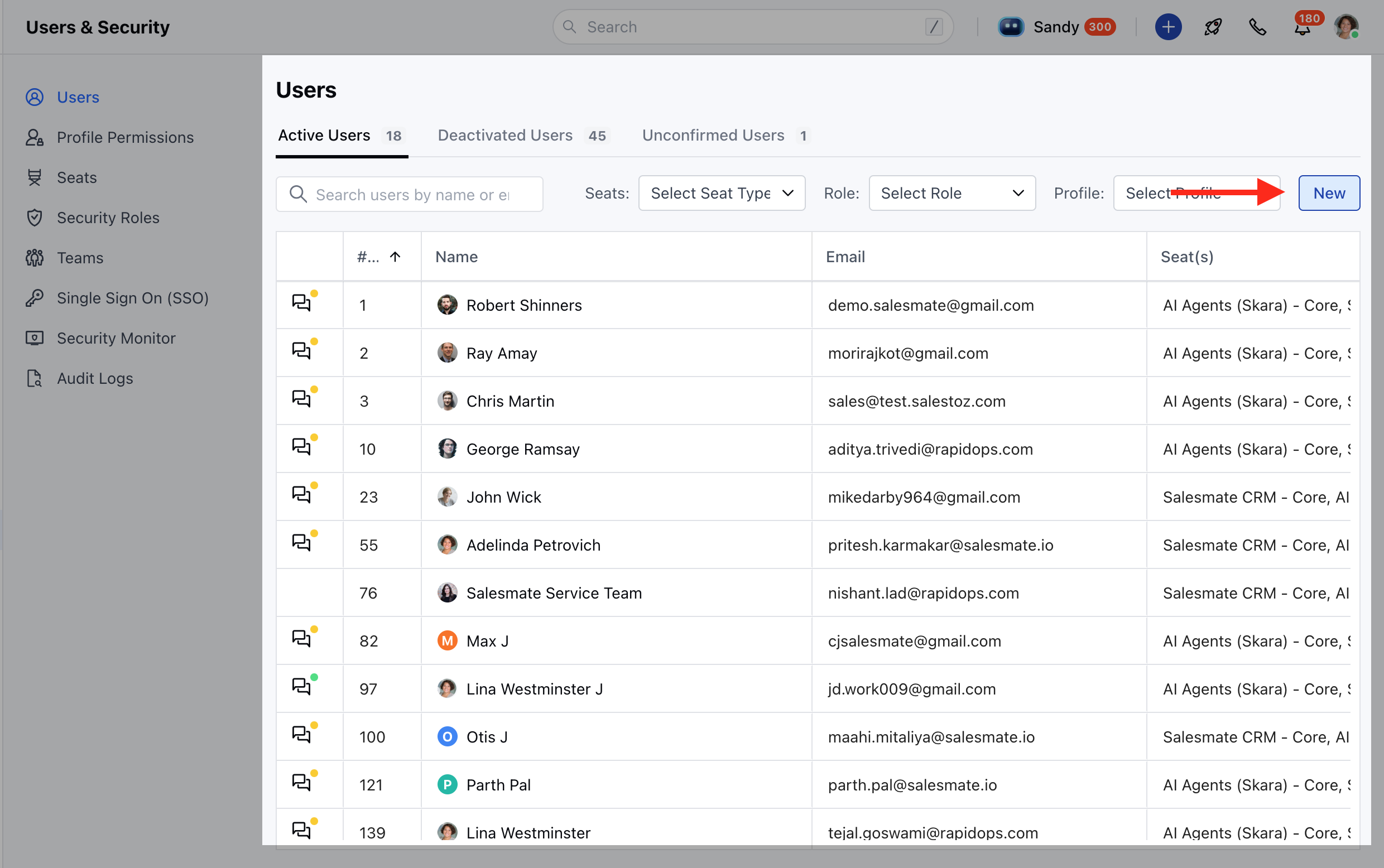 * Enter the required information for the user and click on **Next**.
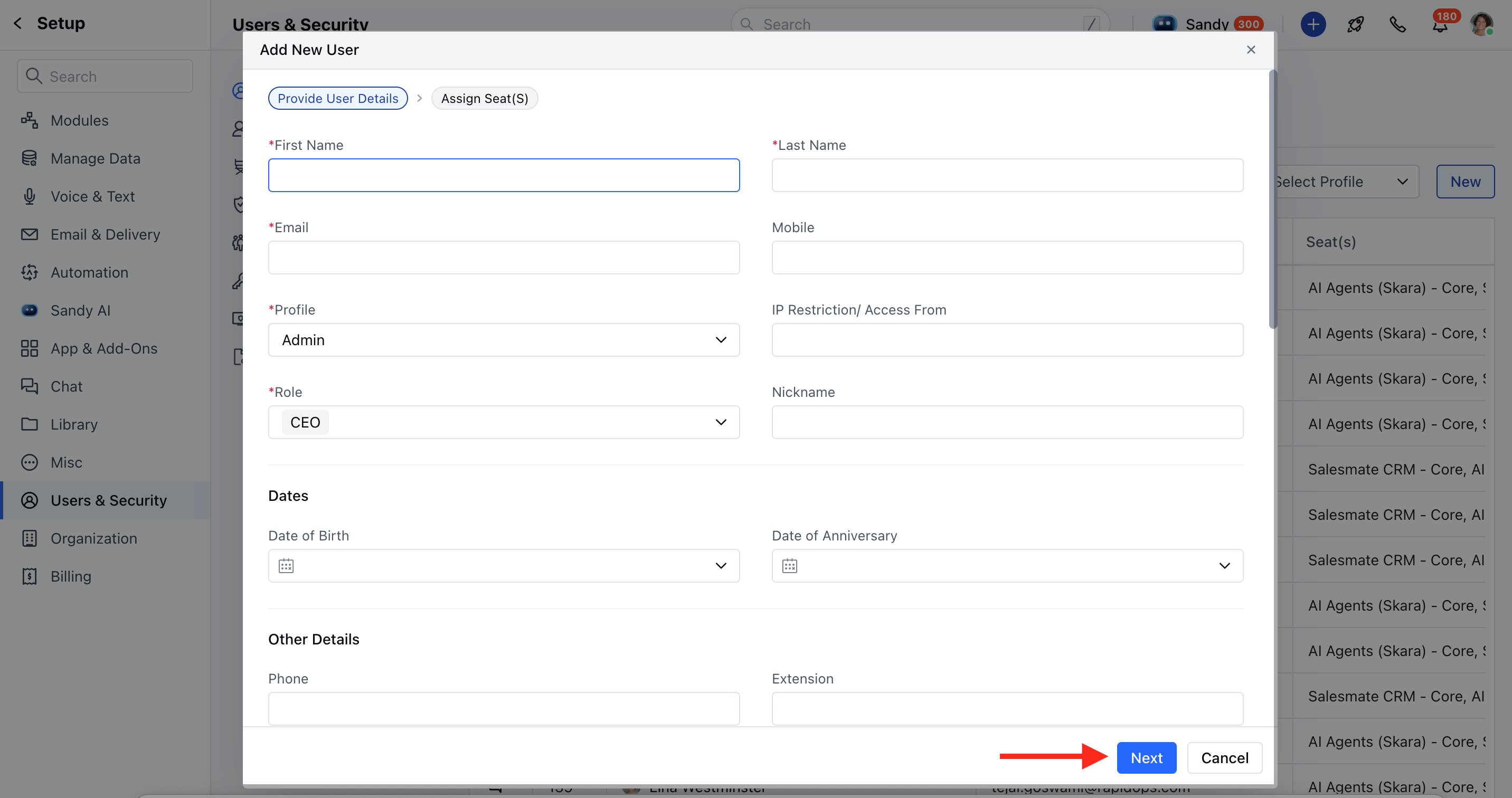 * Choose the type of seat you want to assign:
* **AI Agents (Skara)**: AI solution powered by conversational agents and insights to boost your sales and support teams.
* **Core**: Full access to all AI Agents (Skara) features. This is a paid seat.
* **View Only**: A free seat that provides view-only access to all AI Agents (Skara) features.
* **Skara**: The complete CRM solution for all your business needs.
* **Core**: Full access to all Skara features. This is a paid seat and does not include AI Agents (Skara).
* **View Only**: A free seat that provides view-only access to all CRM features and does not include AI Agents (Skara).
* **None**: Choose this option if you do not want to assign the CRM license.
* Choose the type of seat you want to assign:
* **AI Agents (Skara)**: AI solution powered by conversational agents and insights to boost your sales and support teams.
* **Core**: Full access to all AI Agents (Skara) features. This is a paid seat.
* **View Only**: A free seat that provides view-only access to all AI Agents (Skara) features.
* **Skara**: The complete CRM solution for all your business needs.
* **Core**: Full access to all Skara features. This is a paid seat and does not include AI Agents (Skara).
* **View Only**: A free seat that provides view-only access to all CRM features and does not include AI Agents (Skara).
* **None**: Choose this option if you do not want to assign the CRM license.
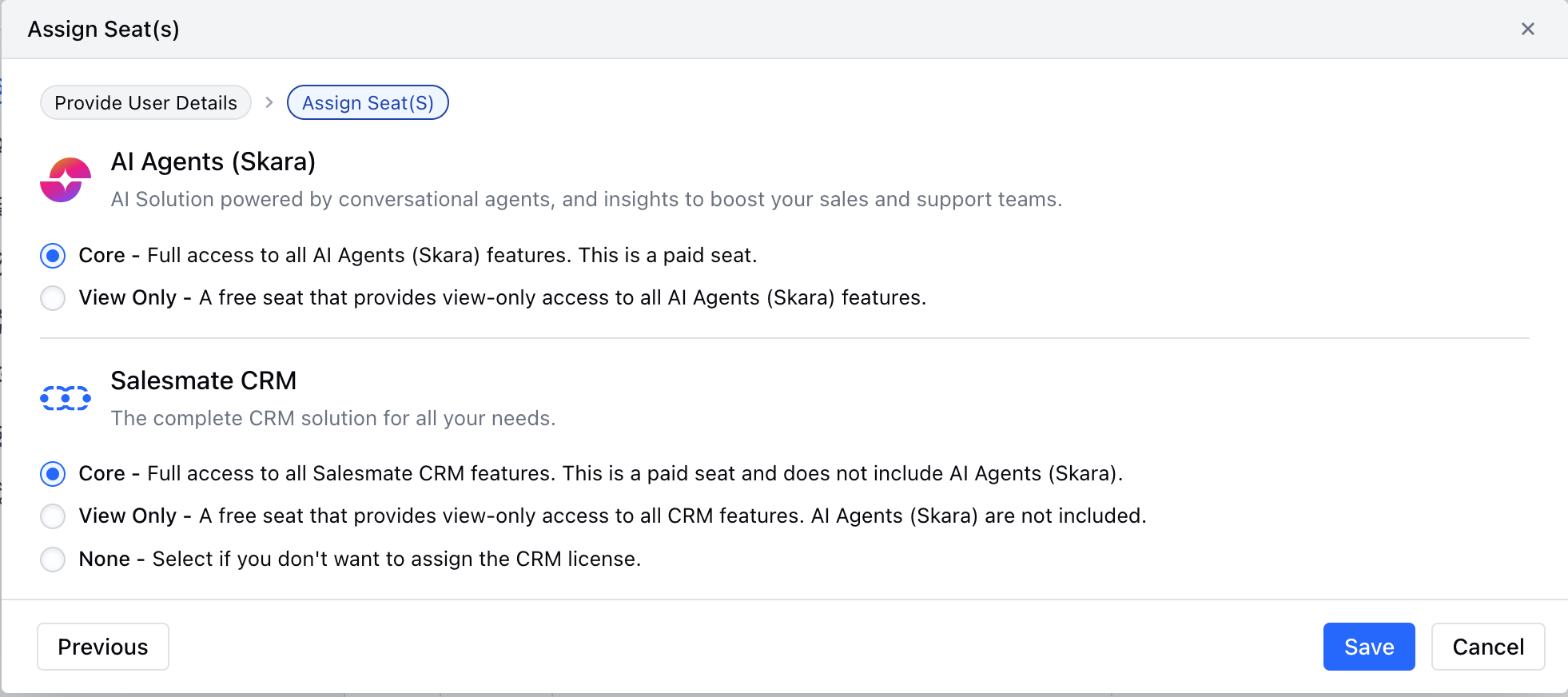 * Click **Save** to create the user.
### **Change Seat for an Existing User**
* Navigate to your **Profile Icon** on the top right corner.
* Click on **Setup.**
* Head over to the **Users & Security** category.
* Select **Users** or **Seats.**
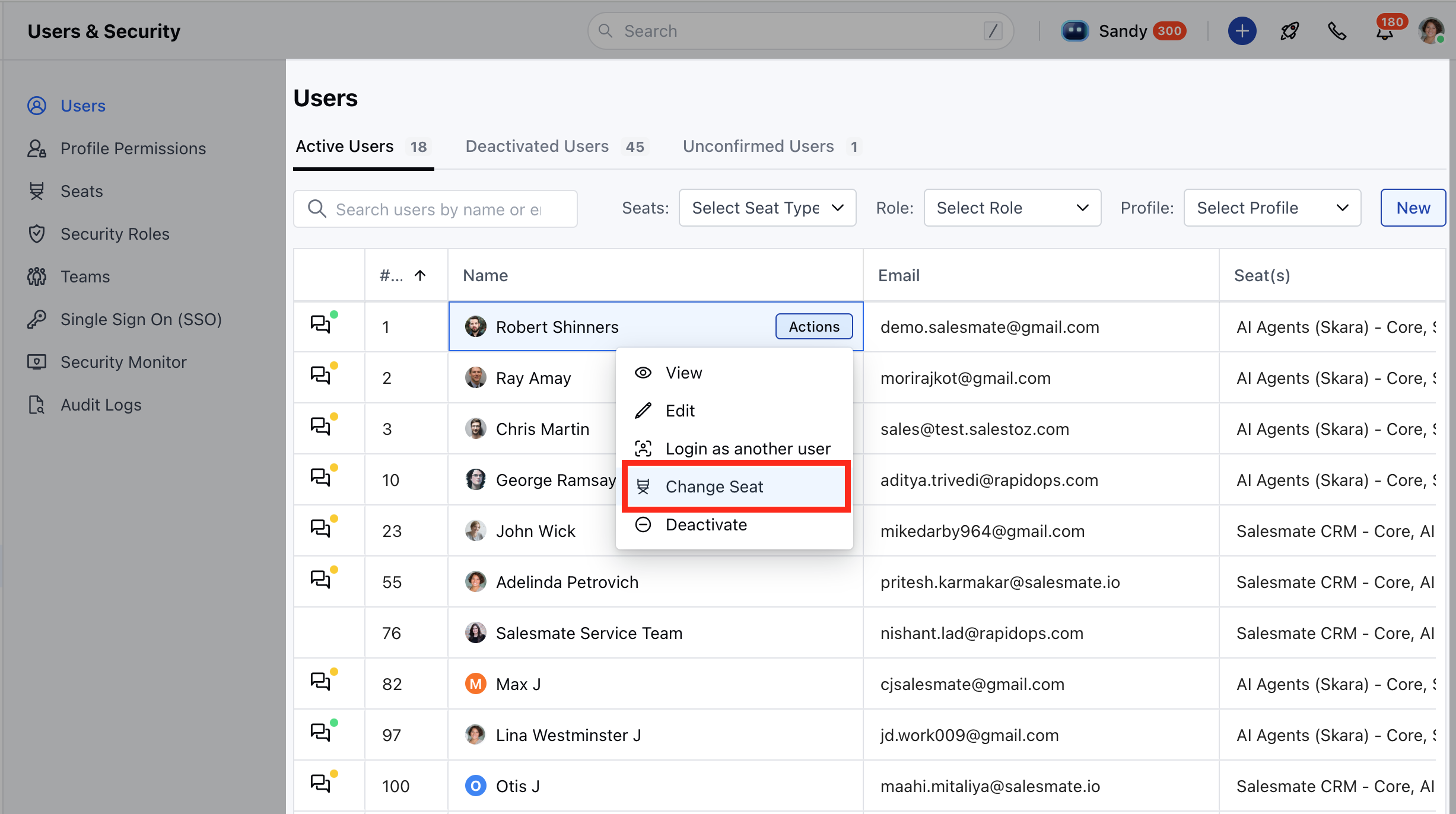
* From the actions menu, click on **Change** **Seat**.
* Click **Save** to create the user.
### **Change Seat for an Existing User**
* Navigate to your **Profile Icon** on the top right corner.
* Click on **Setup.**
* Head over to the **Users & Security** category.
* Select **Users** or **Seats.**
* From the actions menu, click on **Change** **Seat**.
 * Select the seat you want to **assign** or **update**.
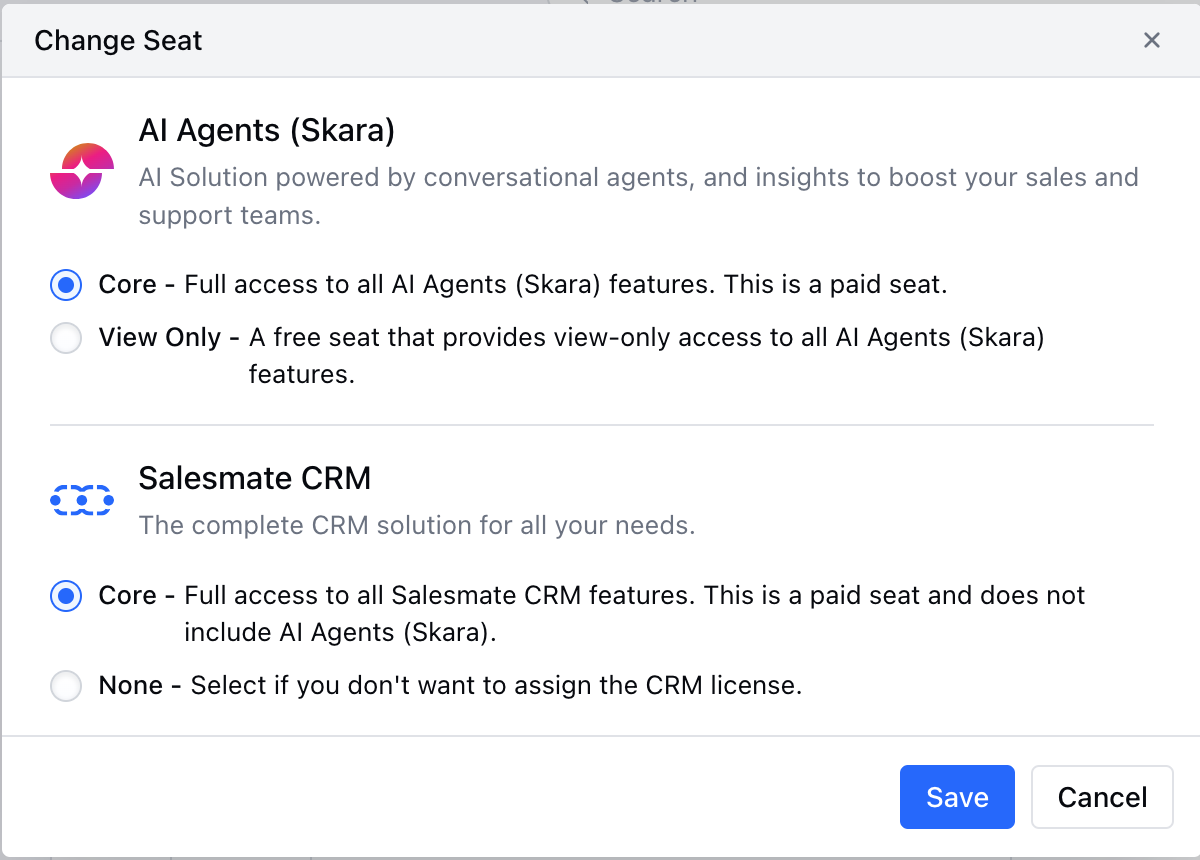 * Click Update to **save** the changes.