> ## Documentation Index
> Fetch the complete documentation index at: https://support.getskara.ai/llms.txt
> Use this file to discover all available pages before exploring further.
# Managing Security Roles in Skara
This helps you to set up an organization-wide role hierarchy and share rules between them. A security role defines how different users, can access different types of records.Topics Covered:
* [**Adding Roles**](#adding-roles)
* [**Assigning Roles**](#assigning-roles)
### Adding Roles
To add a new Role:
* Navigate to your **Profile Icon** on the top right corner.
* Go to **Set Up**.
* Head over to **Users & Security**
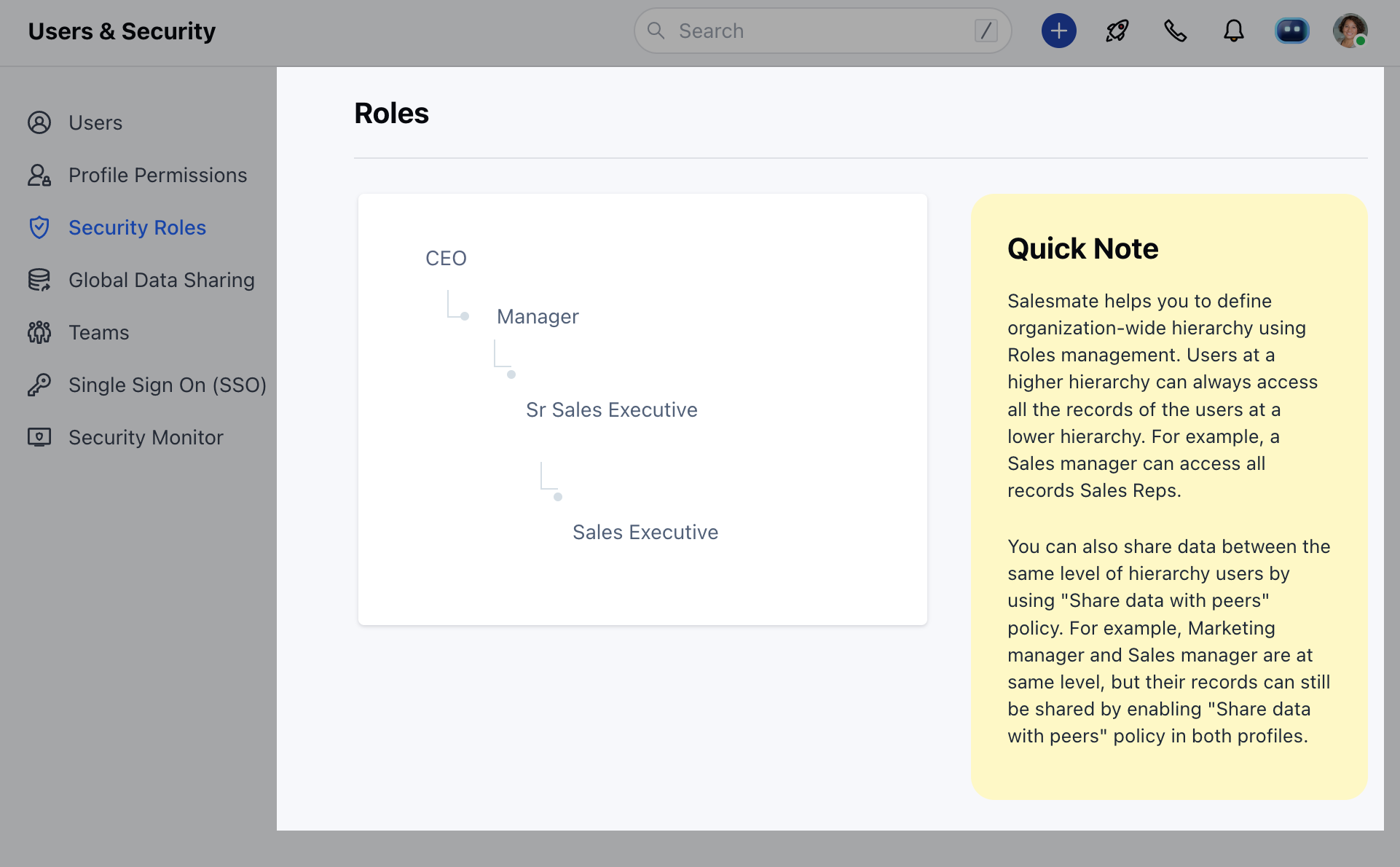
* Click on the **Security Roles**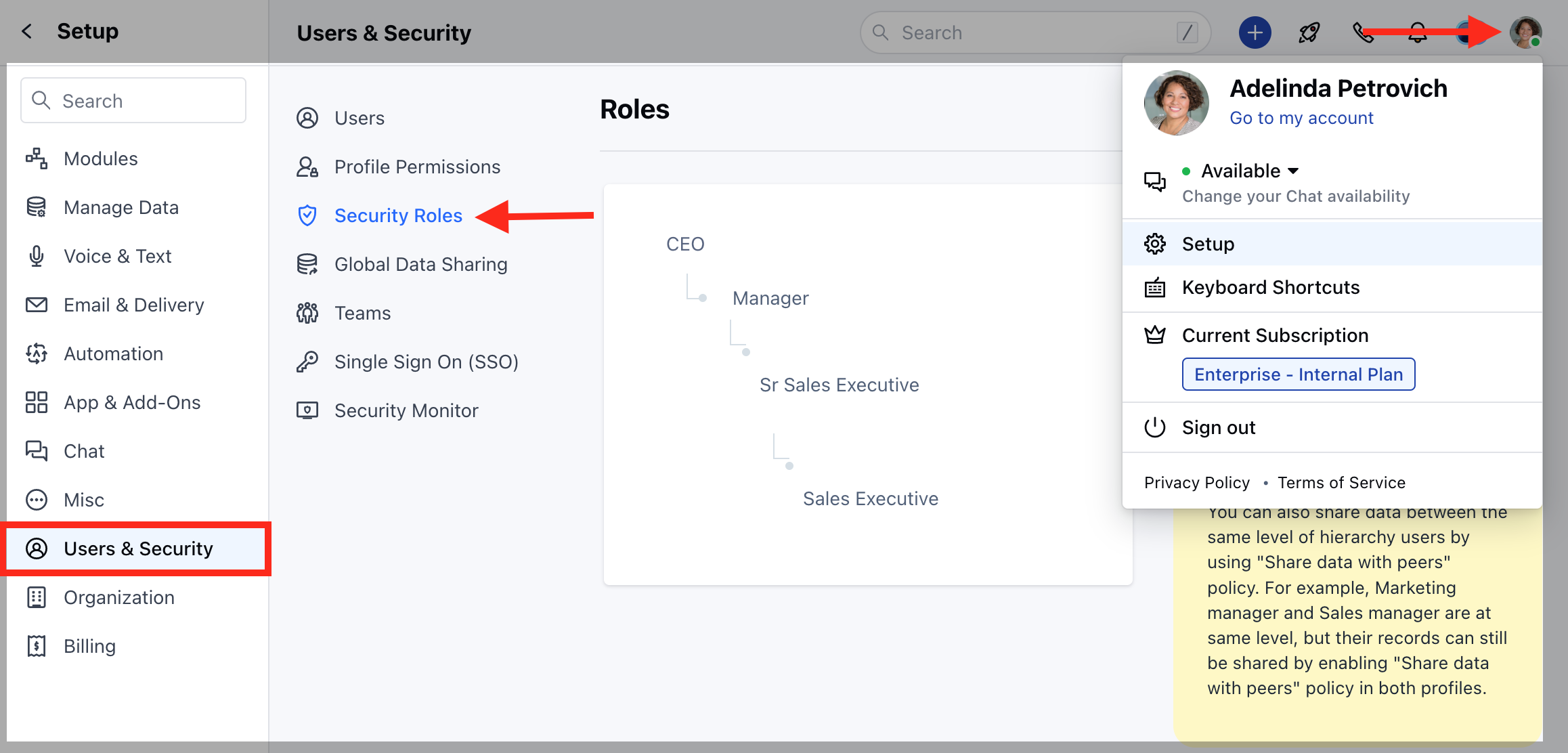 * Here, you will be presented with the List of Roles.
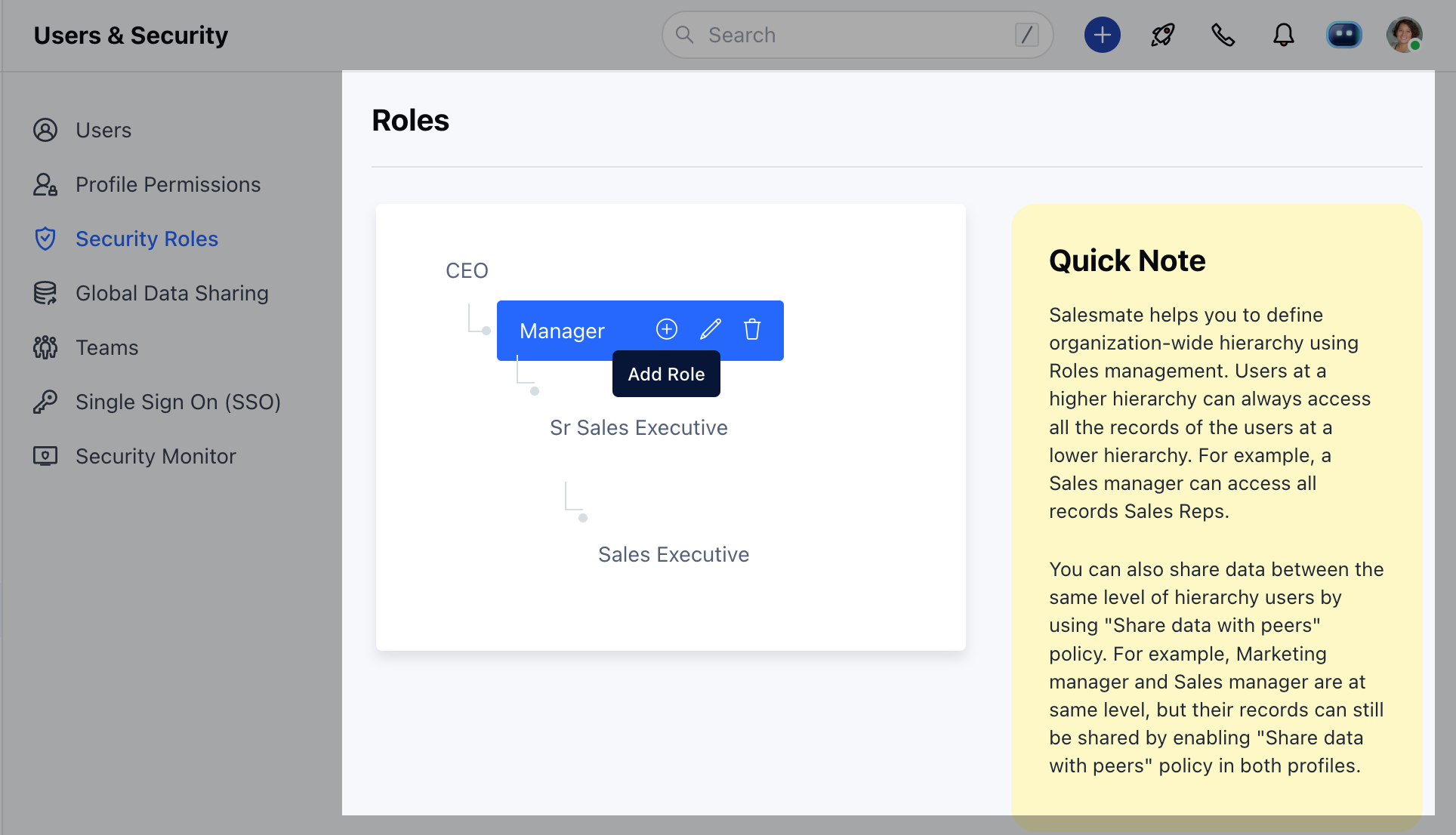
 * **Hover** over a \*\*Role \*\*(under which you want to add a Role)
* Click on (**+**) **Add Role**
* **Hover** over a \*\*Role \*\*(under which you want to add a Role)
* Click on (**+**) **Add Role**
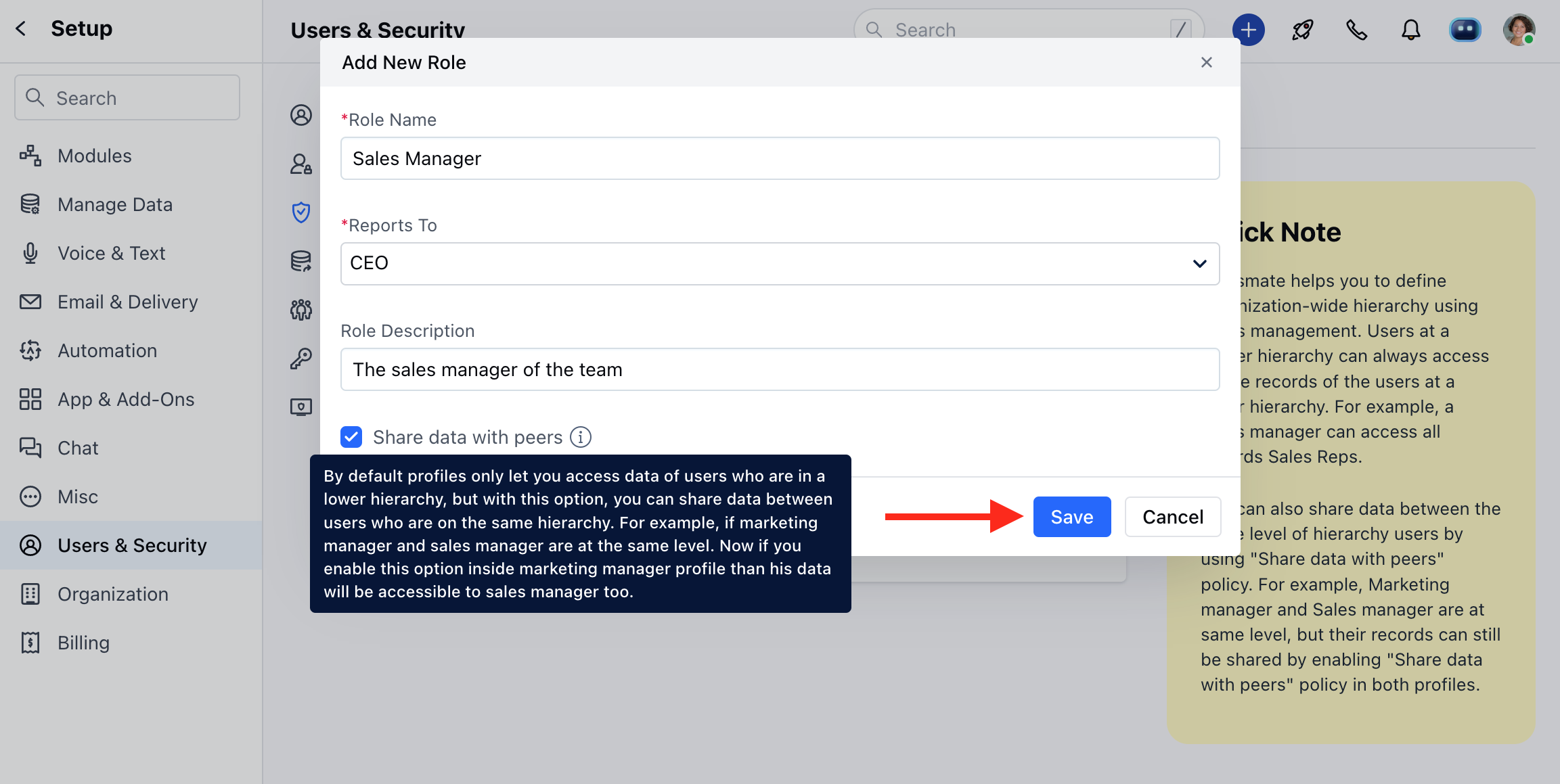
 * Enter the Role **Name**
* Choose the **Reporting** **role**
* Describe the **Role**
* Set the **Data sharing with peers** (Selection of this option allows data to be shared with users on the same Role)
* Enter the Role **Name**
* Choose the **Reporting** **role**
* Describe the **Role**
* Set the **Data sharing with peers** (Selection of this option allows data to be shared with users on the same Role)
 ### Assigning Roles
Since the Roles of users evolve within the organization. It may require that you may need to update the **Roles** and **Profile** **Permissions** of users. Here are steps to update Roles and Profile Permissions :
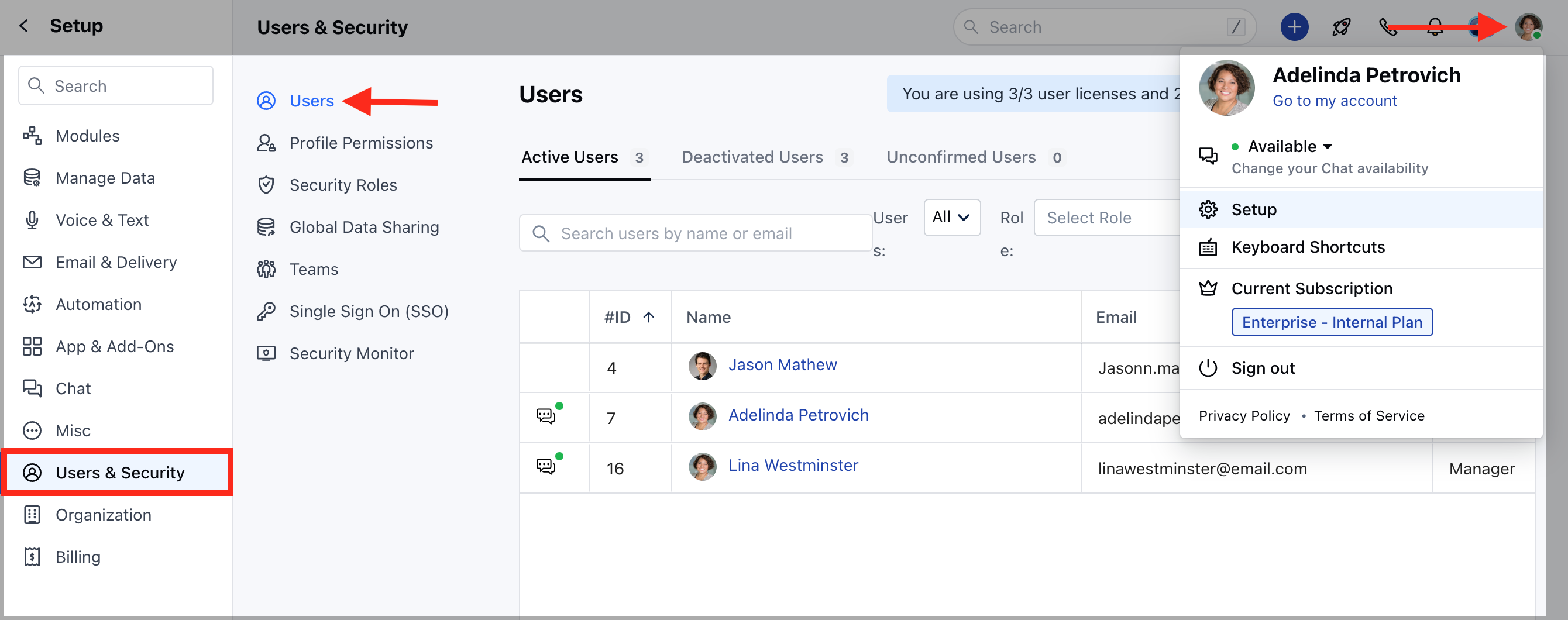
* Navigate to your **Profile Icon** on the top right corner.
* Go to **Set Up**.
* Head over to **Users** **& Security**.
* Click on**Users**
### Assigning Roles
Since the Roles of users evolve within the organization. It may require that you may need to update the **Roles** and **Profile** **Permissions** of users. Here are steps to update Roles and Profile Permissions :
* Navigate to your **Profile Icon** on the top right corner.
* Go to **Set Up**.
* Head over to **Users** **& Security**.
* Click on**Users**
 * Here you get the list of all **Users**.
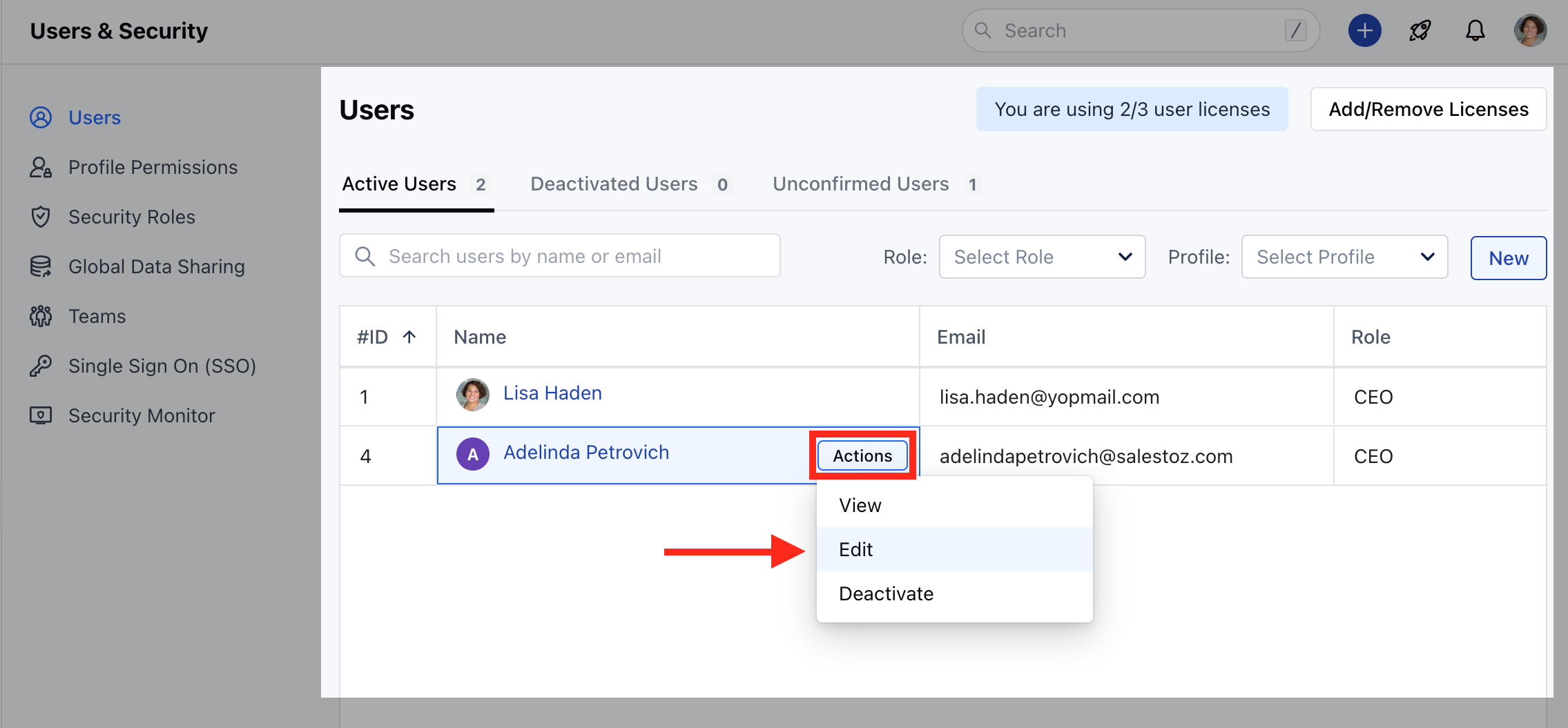
* Hover over to the **User Name,** **Actions** button will appear next to the name.
* Click on the **Actions** Button and select **Edit**
* Here you get the list of all **Users**.
* Hover over to the **User Name,** **Actions** button will appear next to the name.
* Click on the **Actions** Button and select **Edit**
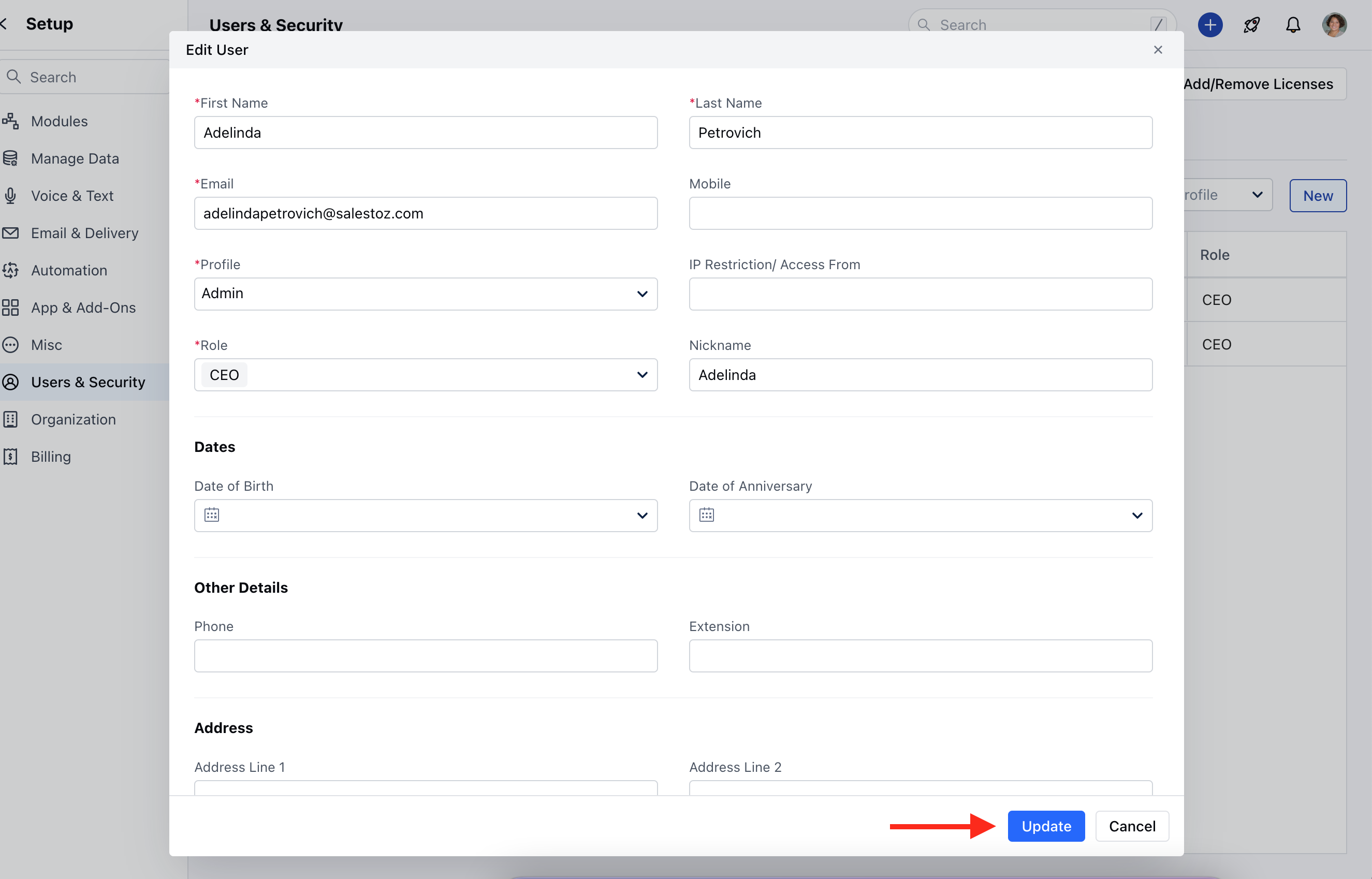
 * Go to **Roles** Field to update the information
* Hit **Update** to save the changes.
* Go to **Roles** Field to update the information
* Hit **Update** to save the changes.